

Data Types - Predefined List
| Field | Description |
|---|---|
| Country |
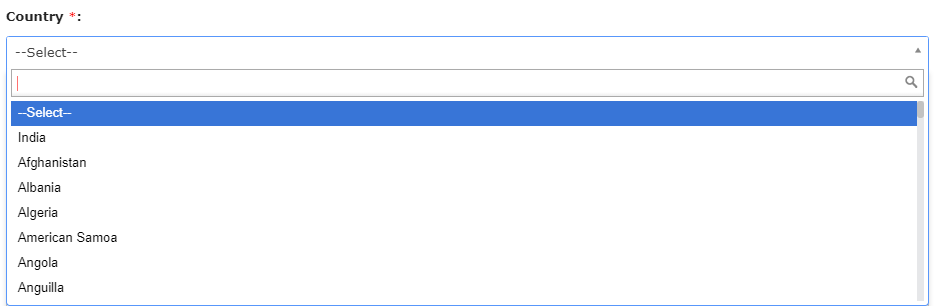
The Country data type allows you to select a country from the predefined
countries list. The below image shows how a Country field appears on the
form when you access it from the Web App:
 The below image shows how a Country field appears on the form when you access
it from the Mobile App:
 |
| Custom Entity |
The Custom Entities are Masters to capture information of
businesses/customers. The Custom Entity data type allows you to select items
from the created entity. (To create a custom entity, go to ). You can also perform check-ins, check-outs at entity
locations, and perform entity specific activities based on configurations.
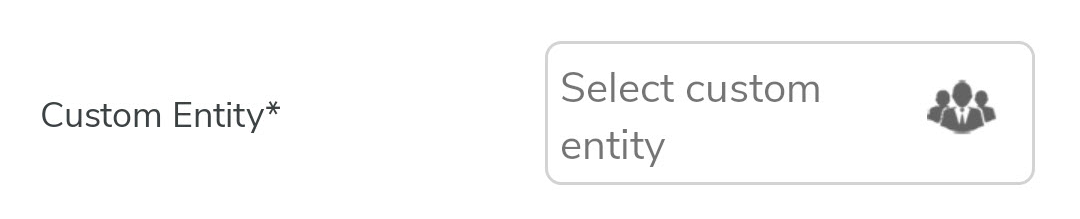
The below image shows how a Custom Entities field appears on the form when
you access it from the Web App:
 The below image shows how a Custom Entities field appears on the form when
you access it from the Mobile App:
 |
| Customer |
The Customers are the people/organizations with whom you do business. The
Customer data type is a Master which allows you to select a customer who are
mapped to them. You can perform check-ins, check-outs at customer locations,
and perform customer activities based on configurations. To Modify Customer
Master and Activities, go to . The below image shows how a Customer field appears on the
form when you access it from the Web App:
 The below image shows how a Customers field appears on the form when you
access it from the Mobile App:
 |
| Customer Type |
The Customer Type data type allows you to select a customer type that is
mapped to them and also allows you to filter the customers based on their
type. To create a customer type, go to . The below image shows how a Customer Type field appears on
the form when you access it from the Web App:
 The below image shows how a Customer Type field appears on the form when you
access it from the Mobile App:
 |
| Employee |
The Employee data type allows you to select an employee. If the user is a
manager, then all the reporting employees will appear in the dropdown. If
the user is not a manager, by default, it shows the employee who is
submitting the form. The below image shows how an Employee field appears on
the form when you access it from the Web App:
 The below image shows how an Employee field appears on the form when you
access it from the Mobile App:
 |
| Form |
The Form data type allows you to select a form submission that is previously
done by them. You must configure a form in the Properties and the users can
select only the submissions of the form that you configured here. Use this
data type if you want the users to attach a previous form submission for
reference. The below image shows how a Form field appears on the form when
you access it from the Web App:
 The below image shows how a Form field appears on the form when you access it
from the Mobile App:
 |
| Multi Pick Customer |
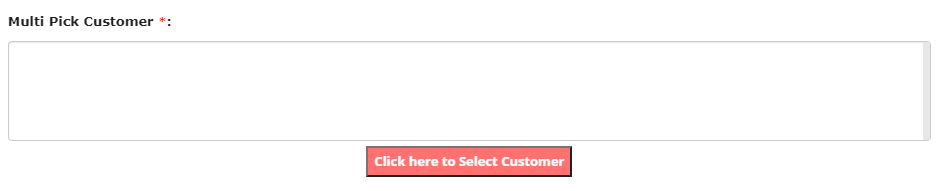
The Multi Pick Customer data type allows you to select one or more customers
who are mapped to them. The below image shows how a Multi Pick Customer
field appears on the form when you access it from the Web App:
 The below image shows how a Multi Pick Customer field appears on the form
when you access it from the Mobile App:
 |
| Territory |
A Territory can have a set of customers in a geographical region and can be
mapped to employees. The Territory data type allows you to select a
territory that is mapped to them. To create a territory, go to . The below image shows how a Territory field appears on the
form when you access it from the Web App:
 The below image shows how a Territory field appears on the form when you
access it from the Mobile App:
 |
| YesOrNo |
The Yes/No data type allows you to select a yes/no response. You can set the
default value and make it read-only. The below image shows how a Yes/No
field appears on the form when you access it from the Web App:
 The below image shows how a Yes/No field appears on the form when you access
it from the Mobile App:
 |