

Status Updates
This Status Updates displays stages. Each stages corresponds to specific stage in the process.
Users can view following stages:
- Contact made
- Demo Scheduled
- Demo Completed
- PO Received
Overall Workflow:
Contact made -> Demo Scheduled -> Demo completed -> PO Received
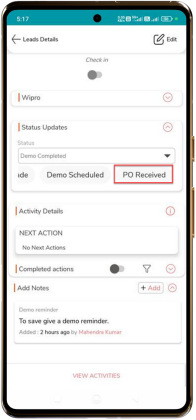
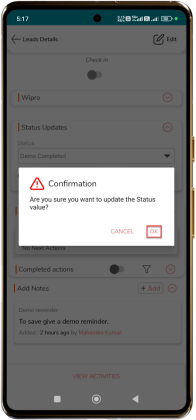
Note: Confirm the change to move next stage, a confirmation popup appears.
Tap “OK” to update the status.
Perform Actions
Follow the steps below to Qualify Leads:
- Tap “Qualify” button.
- Tap “” to view the Assignee Details.
- Enter “No of users”.
- Select “Select Requirements Feasible” and choose appropriate option.
- Select “Select Pricing Acceptable” and choose appropriate option.
- Select “Qualify” and choose appropriate option.
- Enter “Remarks”
- Tap “Save”.
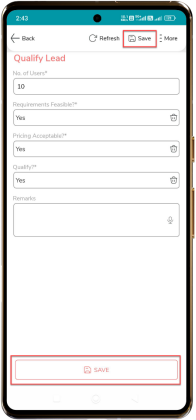
- A popup message appears select SAVE to confirm the activity.
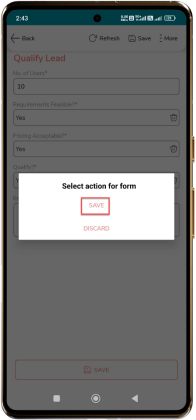
- Tap “DISCARD” to cancel the action.
Follow the steps below to complete the Demo summary:
- Enter “Audience”.
- Enter “Features and capabilities shown”.
- Enter “Feedback received”.
- Tap “Save”.
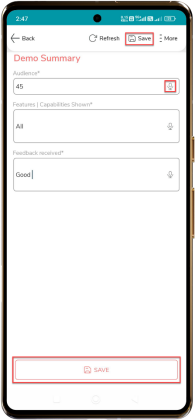
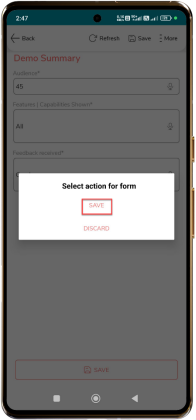
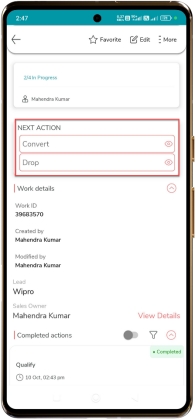
You can then perform either of the steps below to end the process:
- Tap “Convert” to convert the lead.
- Tap “Drop” to drop the lead.
Note: Tap the “ ” icon to use voice-to-text. Speak your summary, and
the system will automatically convert your speech into text. Review the
converted text and make any necessary edits before saving.
” icon to use voice-to-text. Speak your summary, and
the system will automatically convert your speech into text. Review the
converted text and make any necessary edits before saving.
” icon to use voice-to-text. Speak your summary, and
the system will automatically convert your speech into text. Review the
converted text and make any necessary edits before saving.