Step 5: Create Your App or Customize Your Default Mobile App
Till now, you have configured the company’s resources and business activities. Here, you can configure the look and feel of the mobile app, visibility of the modules, dashboards, pop-up notifications, and so on. To configure, navigate to .
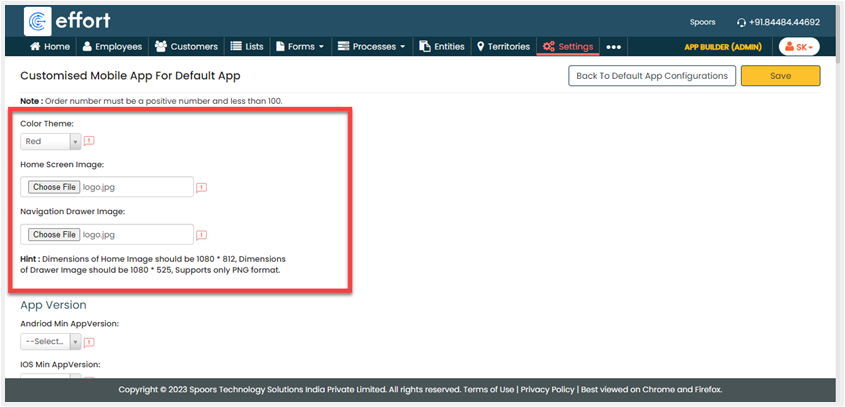
Customize Visibility and Look and Feel
You can customize the look and feel of your mobile app by navigating to the
Customize Mobile App. Choose a color theme, home screen image, and
navigation drawer image for your mobile app.
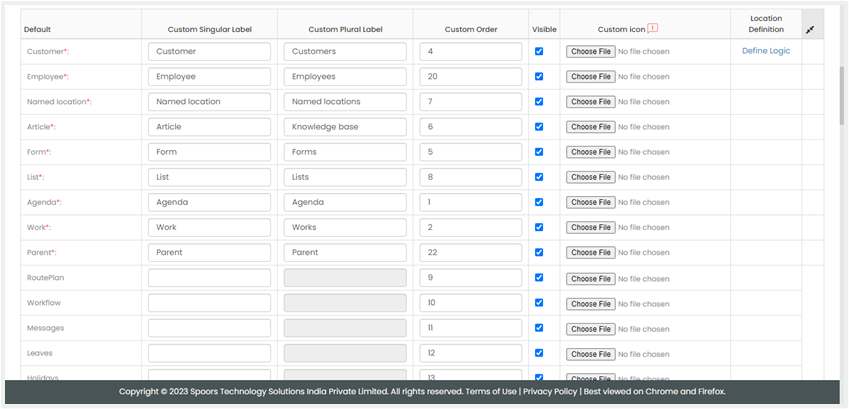
Scroll down a bit and configure the labels and visibility of your modules. Disable
the checkboxes to remove that module from the mobile app. Once you configure the
mobile app, save the configuration.
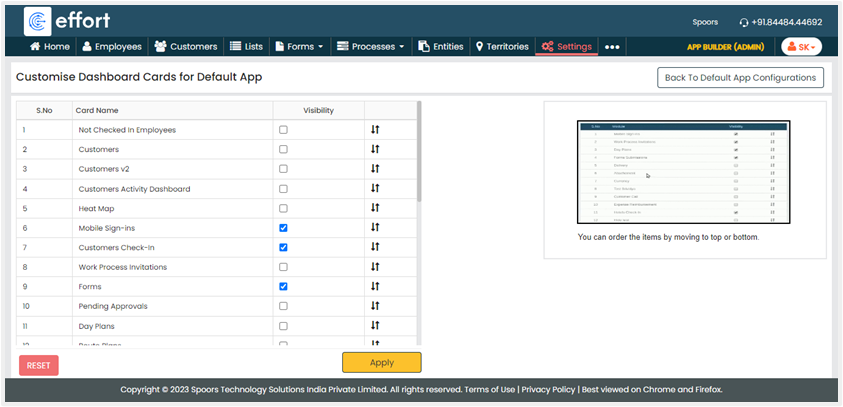
Customize Mobile App Dashboard
You can also customize the mobile app dashboard to gain insights into your
activities. On the Default App screen, click Customize Dashboard Cards
and configure the visibility and sequence of the dashboard cards. Enable or disable
the checkboxes against the predefined dashboard cards to make them visible or
invisible. Use the arrow icons to move the cards up and down. Click Apply to
save the changes.
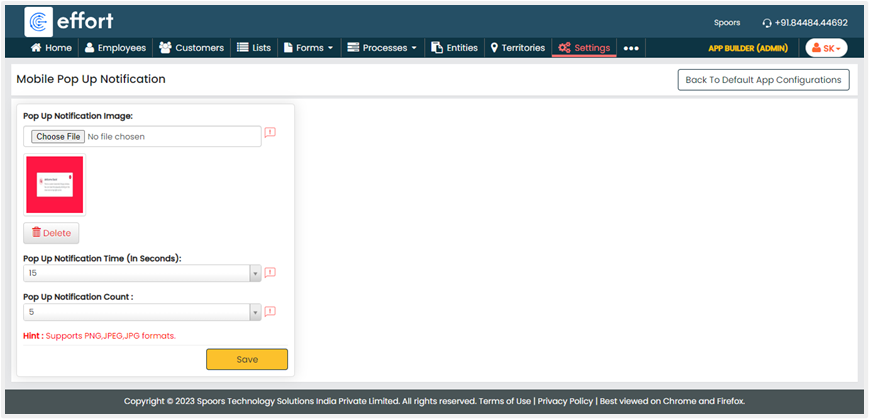
Configure Mobile Pop-Up Notifications
Mobile pop-up notifications are a valuable feature designed to ensure mobile app
users stay informed and updated while using their mobile apps. With this feature,
you can configure customized images containing relevant information to be displayed
as pop-up windows within the employee’s mobile apps. These notifications appear as
small windows that deliver important information to app users. To configure this,
click Customize Mobile Pop Up Notification, upload your notification image,
and configure other fields such as notification time and notification count. Once
your configuration is done, click Save.
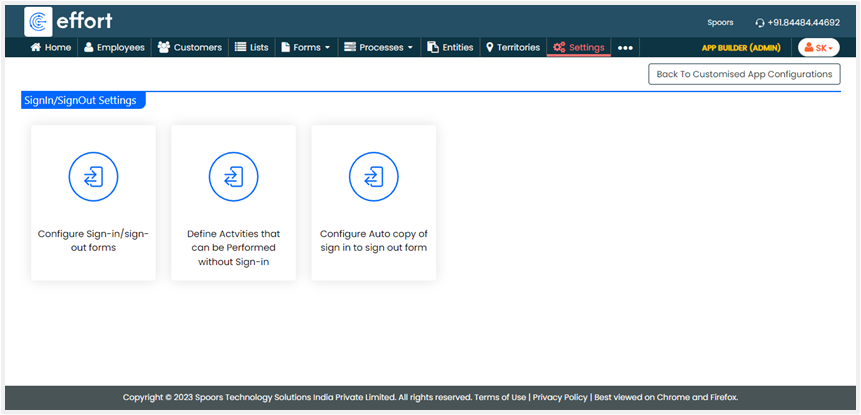
Configure Sign In and Sign Out Settings
This is an additional configuration for your employees to sign in and sign out. Here,
you can configure forms that you want your employees to fill in while doing sign-in
and sign-out. Additionally, you can define activities that your employees can
perform without signing in to the mobile app and configure auto copy from sign-in to
sign-out form. To make use of these features, you need to create separate forms for
sign-in and sign-out and then configure them here.