

View Customers on a Map
Get an overview of visits you need to make by viewing all the customers in the day plan on a map.
-
Tap Day planner on the home screen.

-
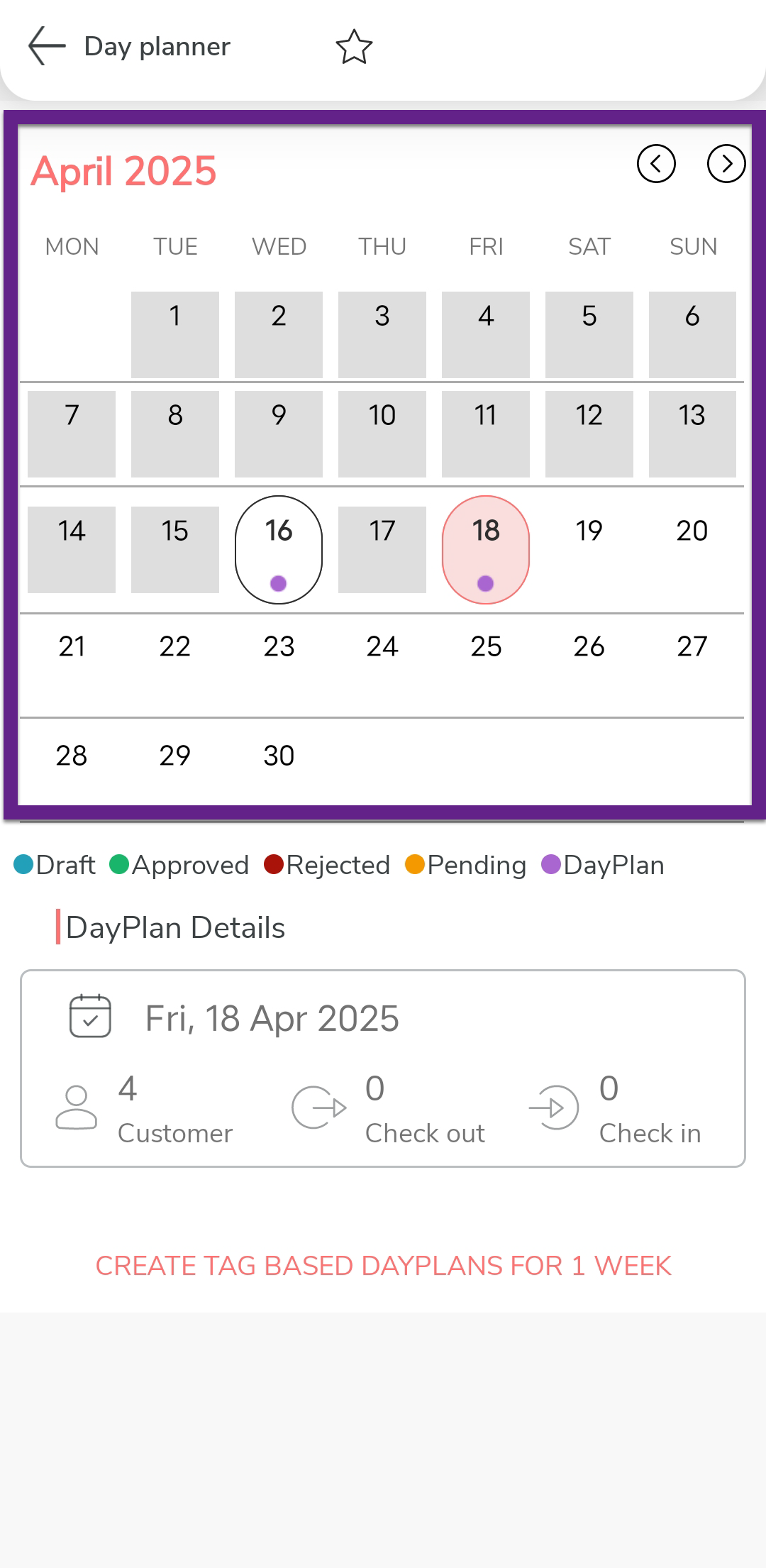
Tap a day with a plan.
-
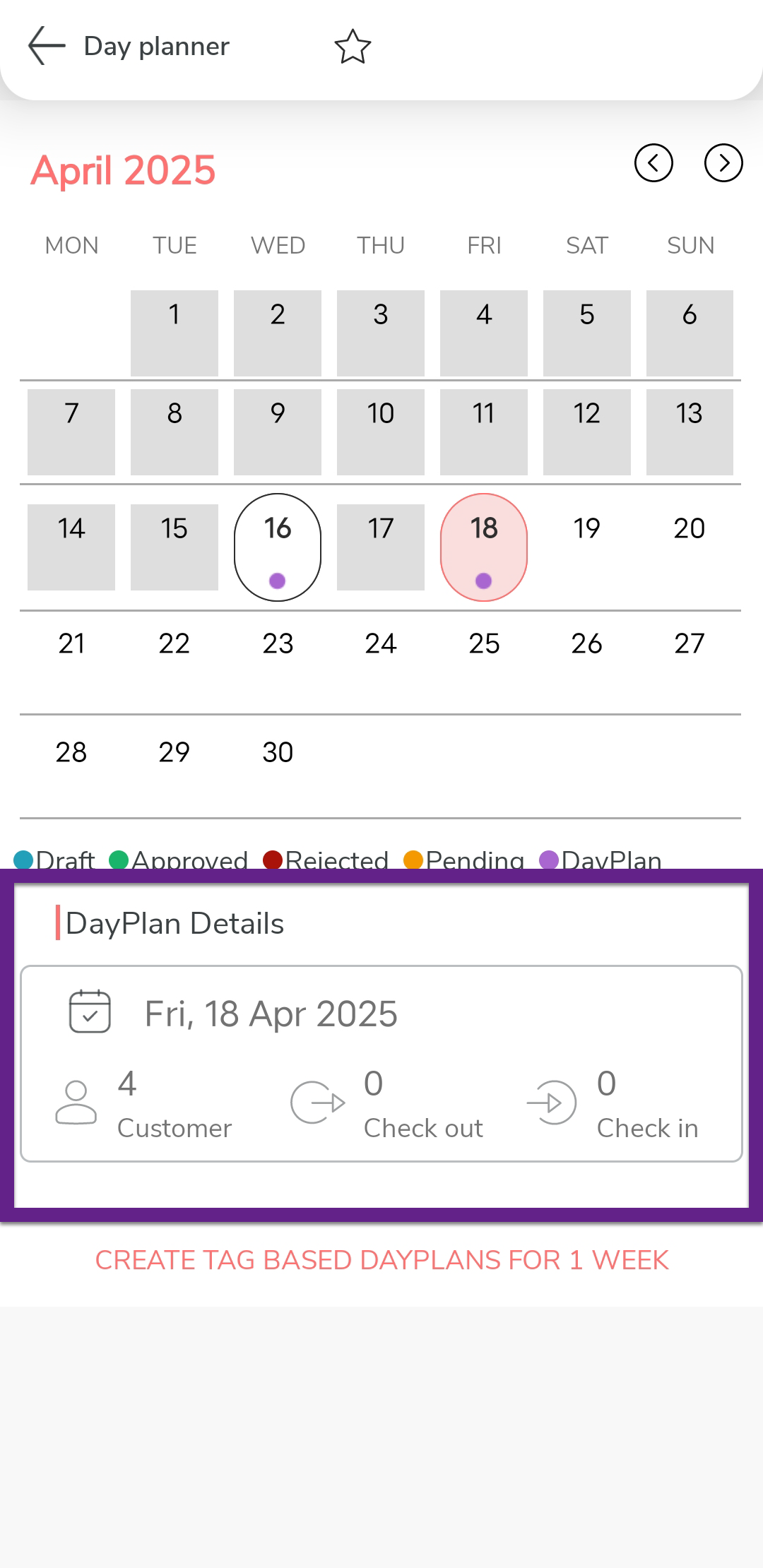
Tap on the day plan in which you want to view customer details under the
Day Plan Details section.
-
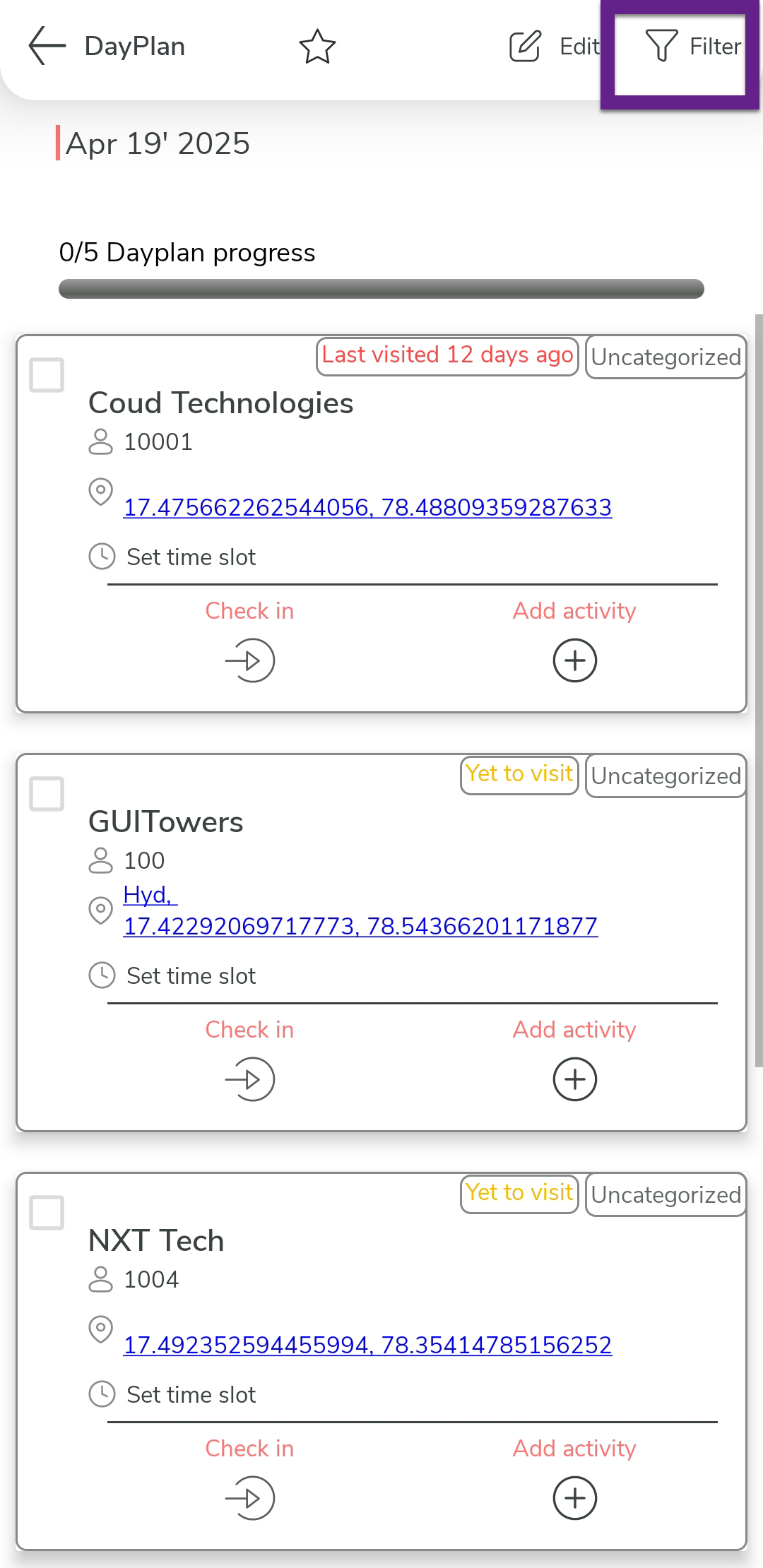
Tap Filter option.
-
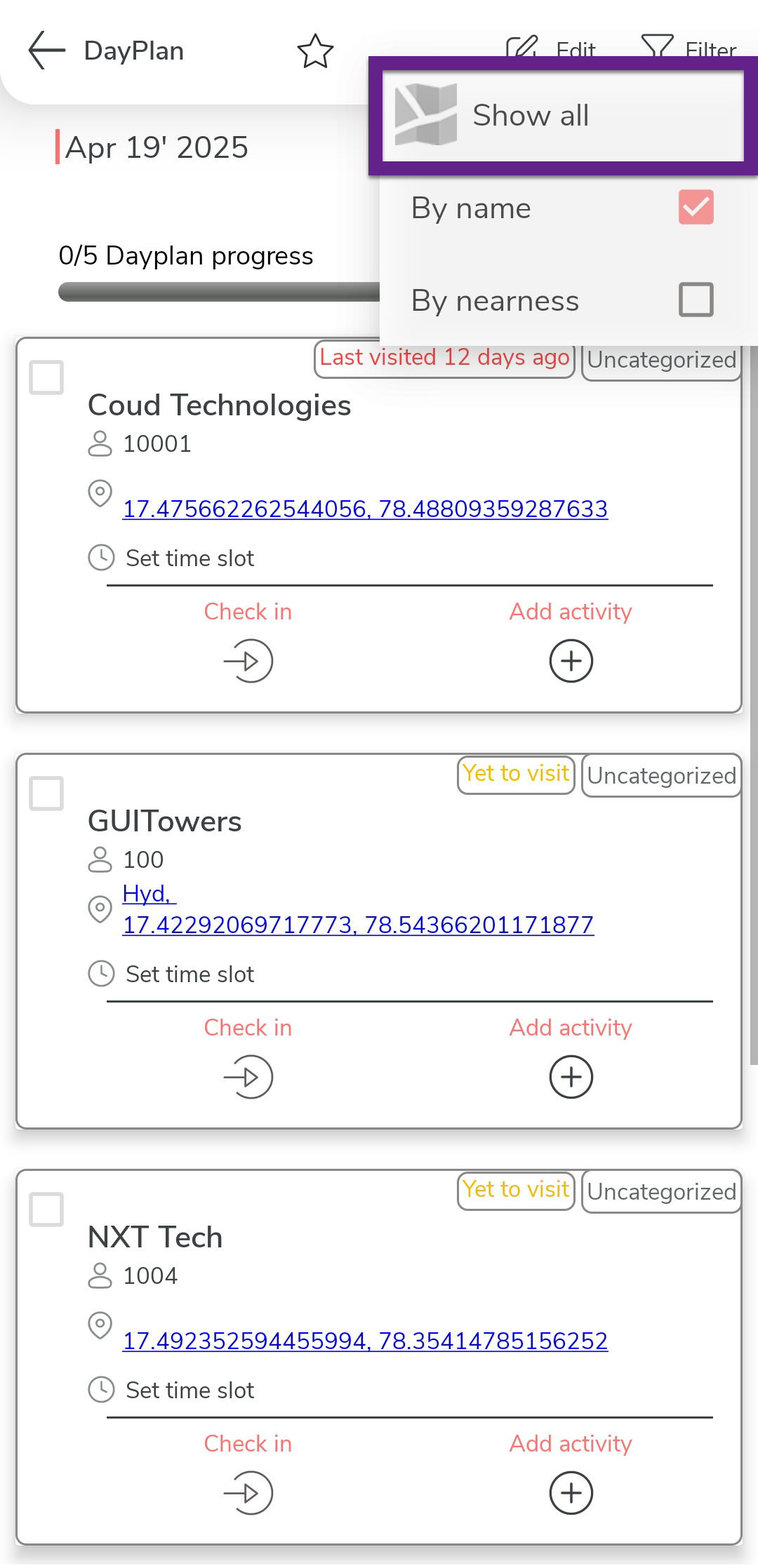
Tap Show all option.
- Optional:
Tap a marker
 to display the customer name as a tooltip above the
marker.
to display the customer name as a tooltip above the
marker.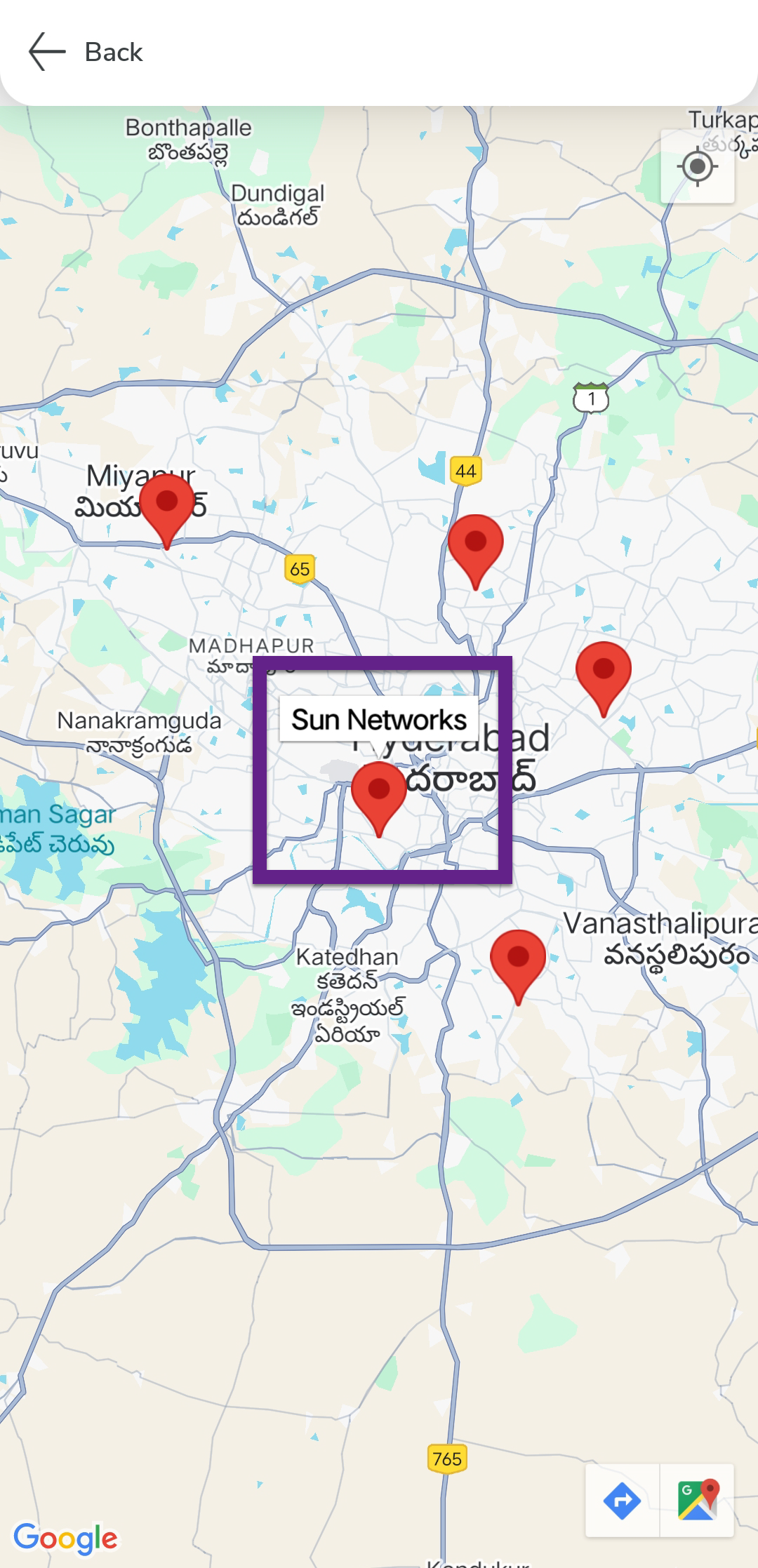
Tapping a marker also shows two additional icons in the bottom right corner, which allow you to get the driving directions to the customer's location and view the customer's location in Google Maps. - Optional:
Tap Driving Directions
 to get the driving directions to the customer last tapped
on.
to get the driving directions to the customer last tapped
on.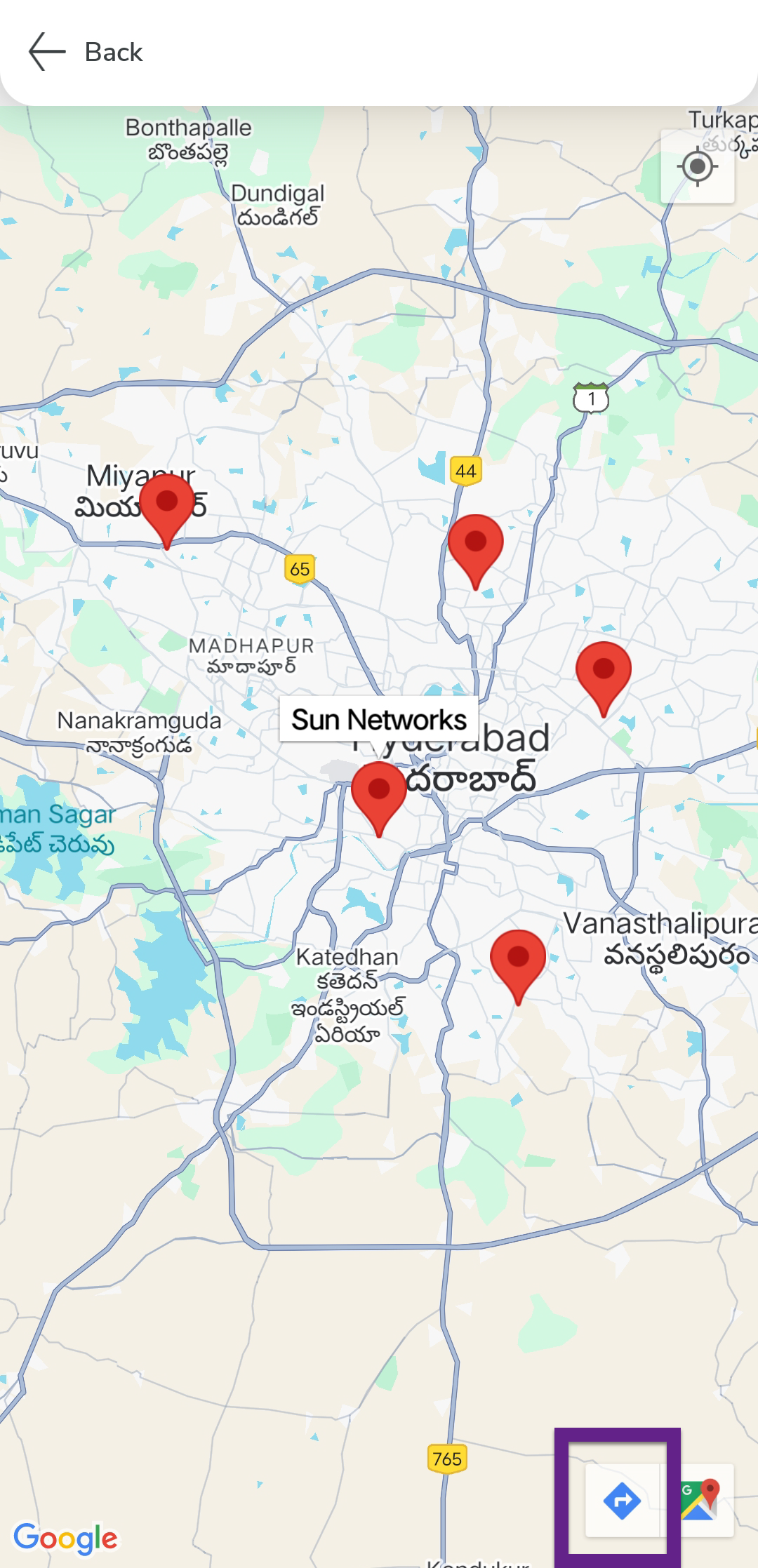
- Optional:
Tap Google Maps icon in the bottom right corner to open customer last tapped on
in Google Maps.
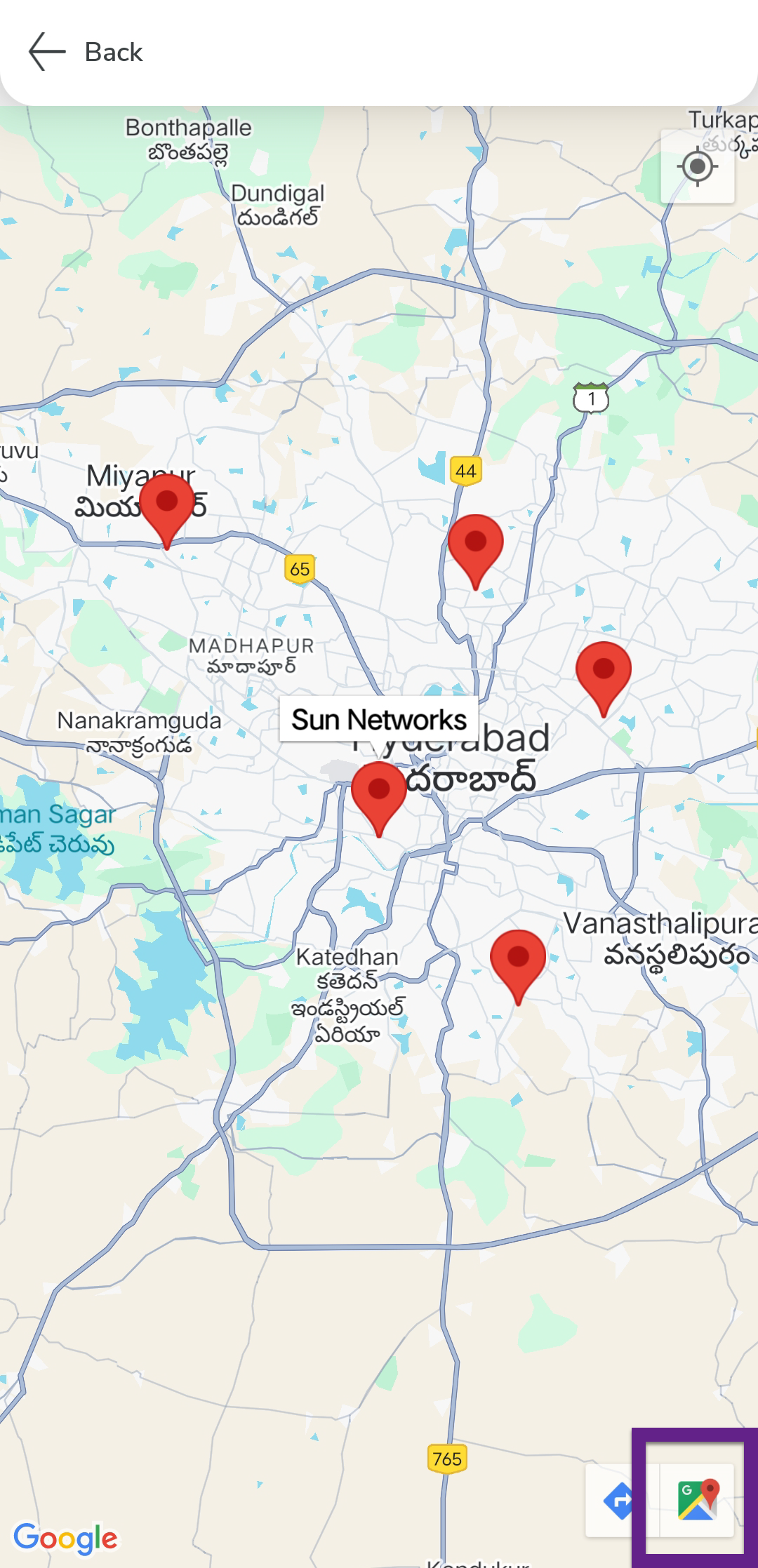
- Optional:
Tap My Location
 to center the map to your location.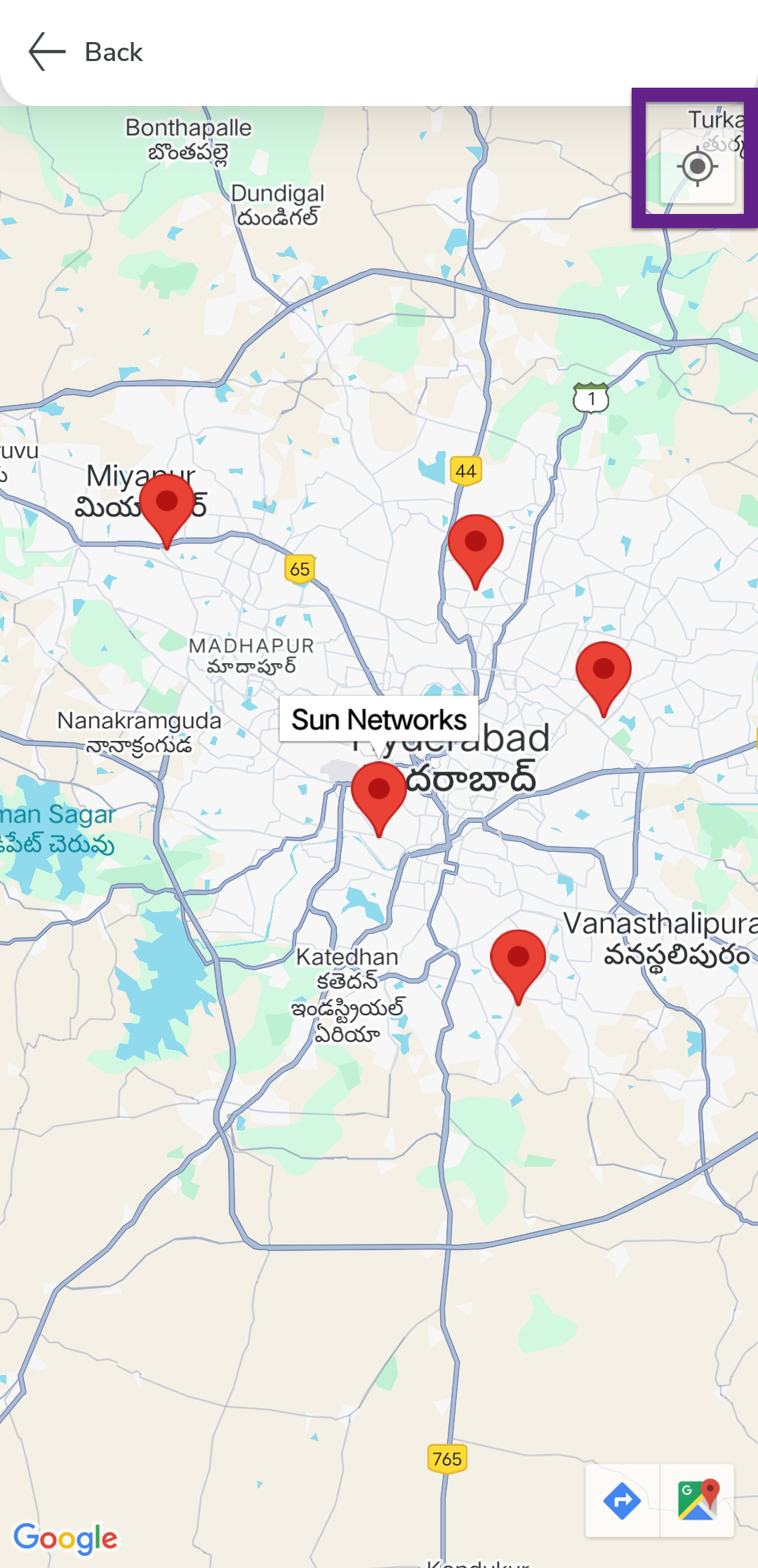
A blue dot shows where you are.