

Add an Activity at Entity
To complete an activity for an entity using the mobile app, follow these steps:
-
On the home screen, tap the Entity card.
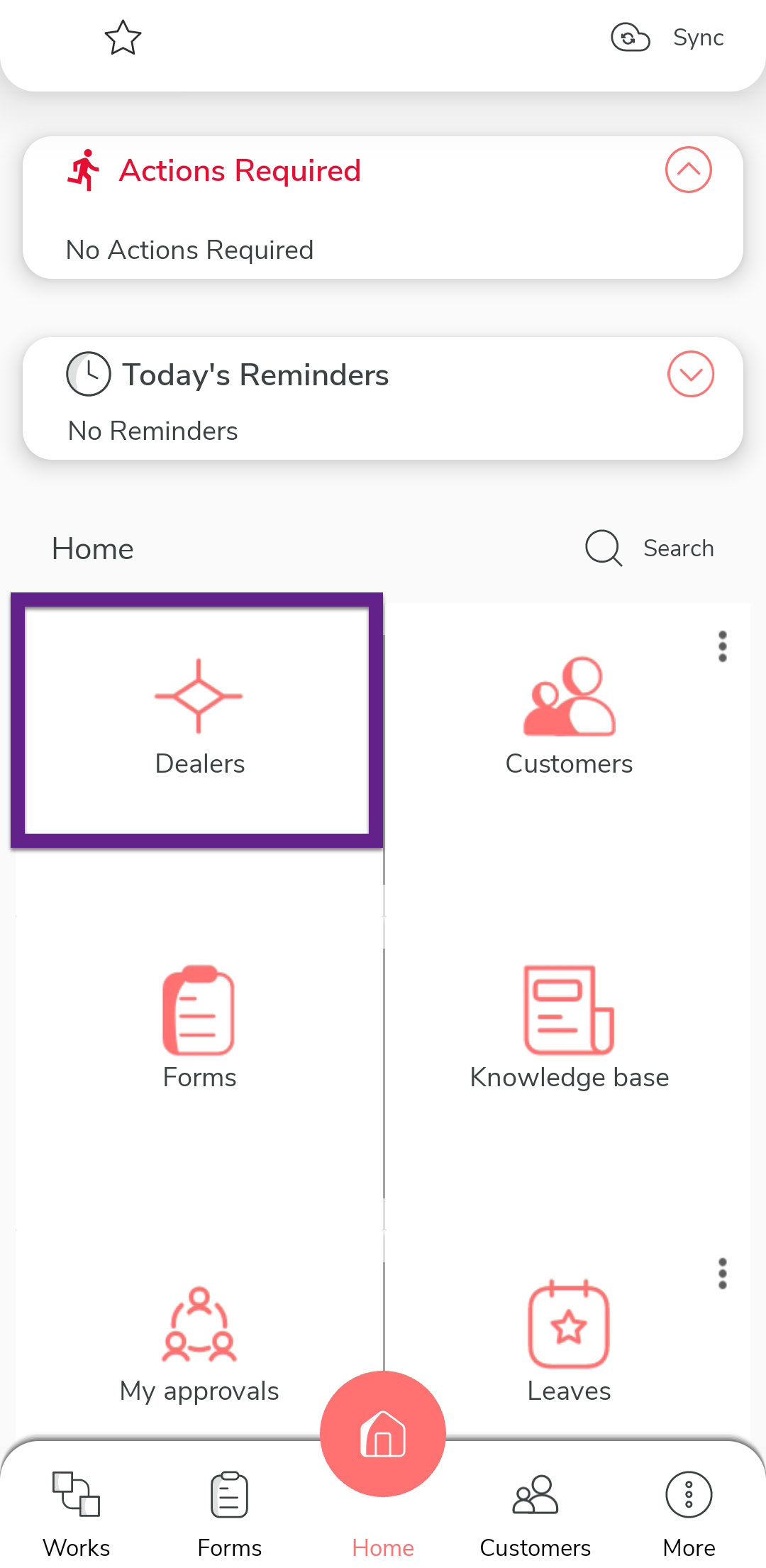
Note: In the provided screenshot, Dealers is an example of an entity. -
Tap Check In to check in to the entity.
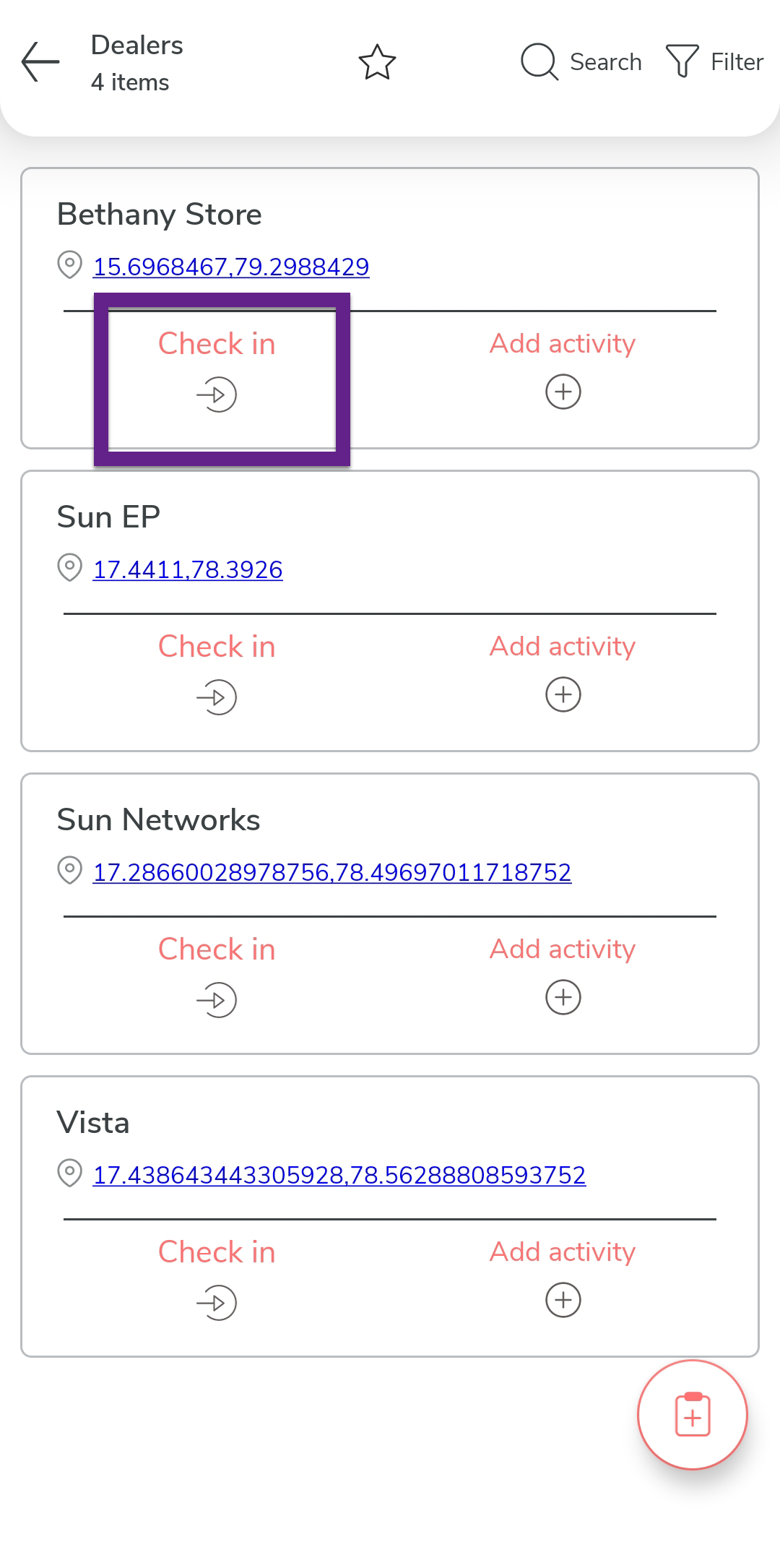
Note: For more details, refer to Check In and Check Out Entity in the Mobile App. -
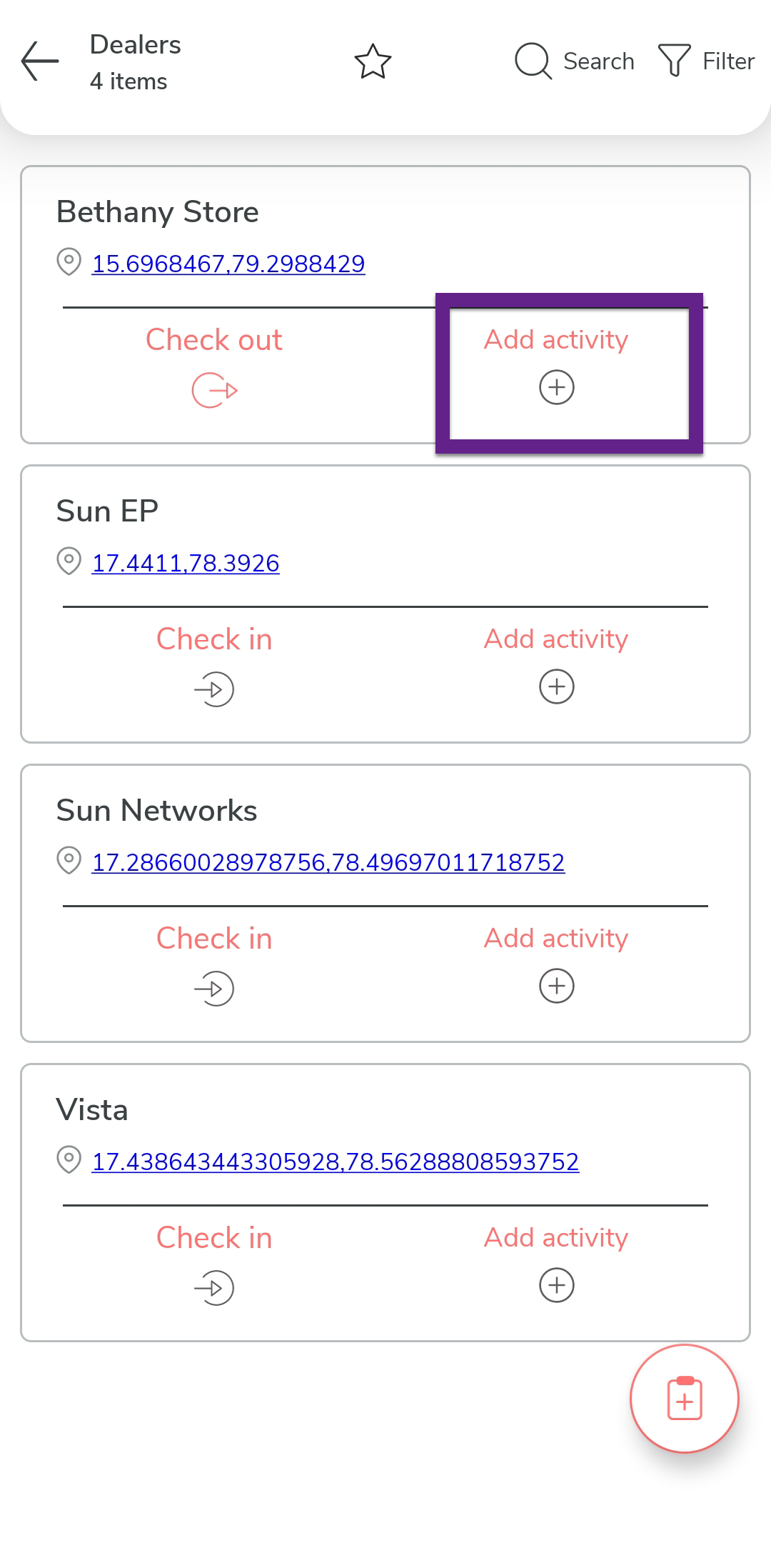
Tap the Add Activity option located on the entity
card.
-
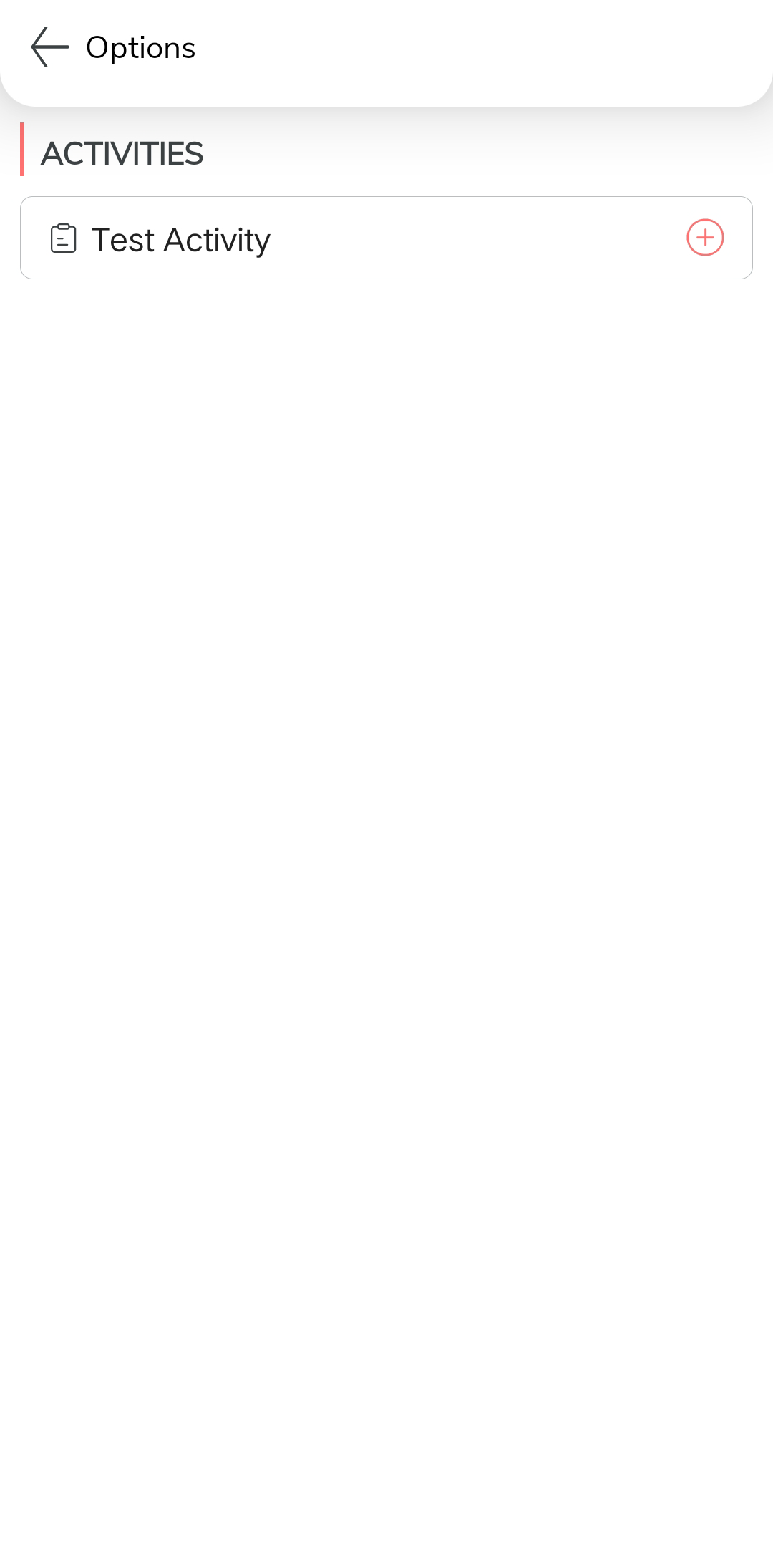
Select the activity you want to perform for the entity.
-
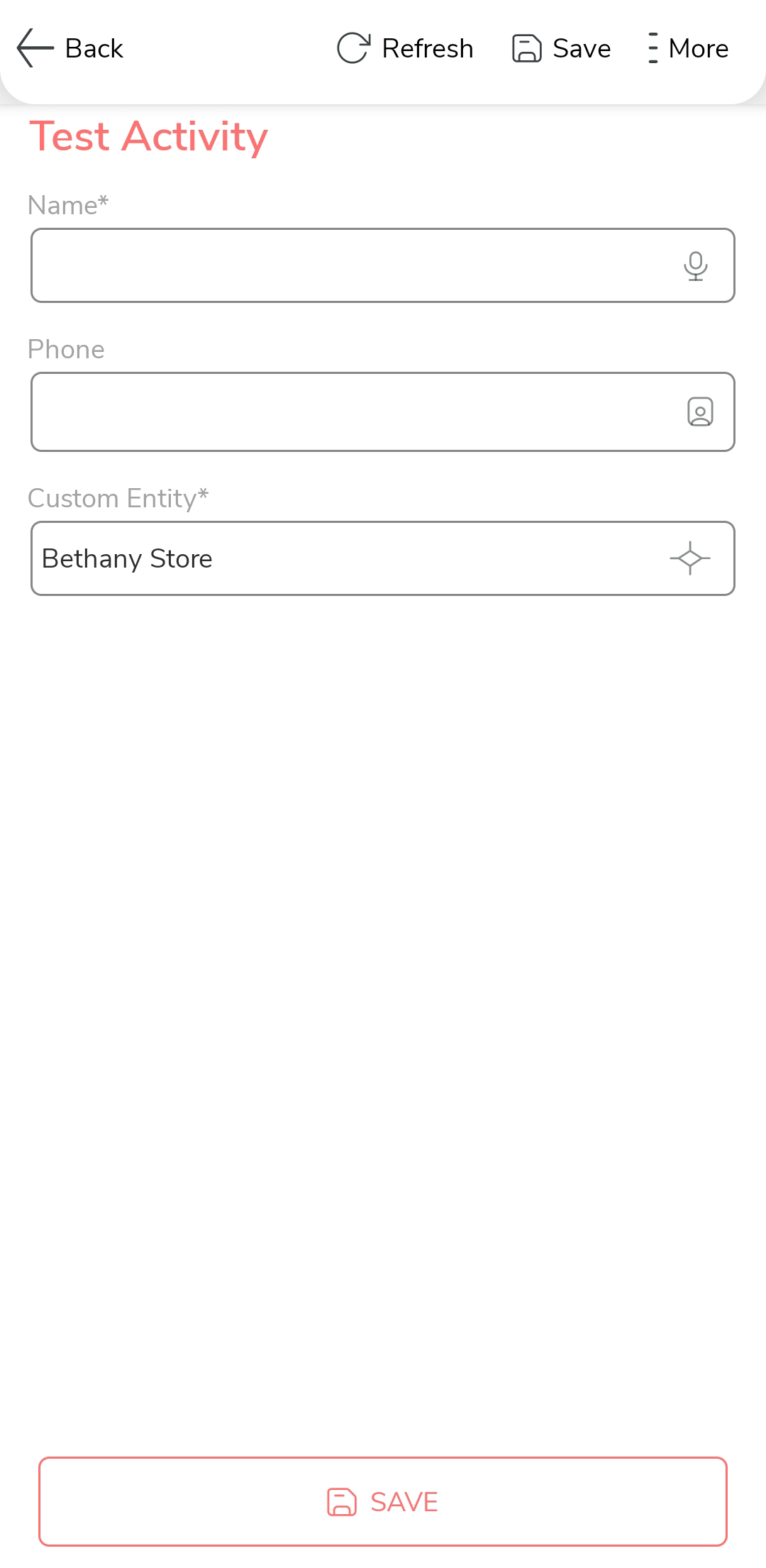
Fill in the required details in the activity form.
-
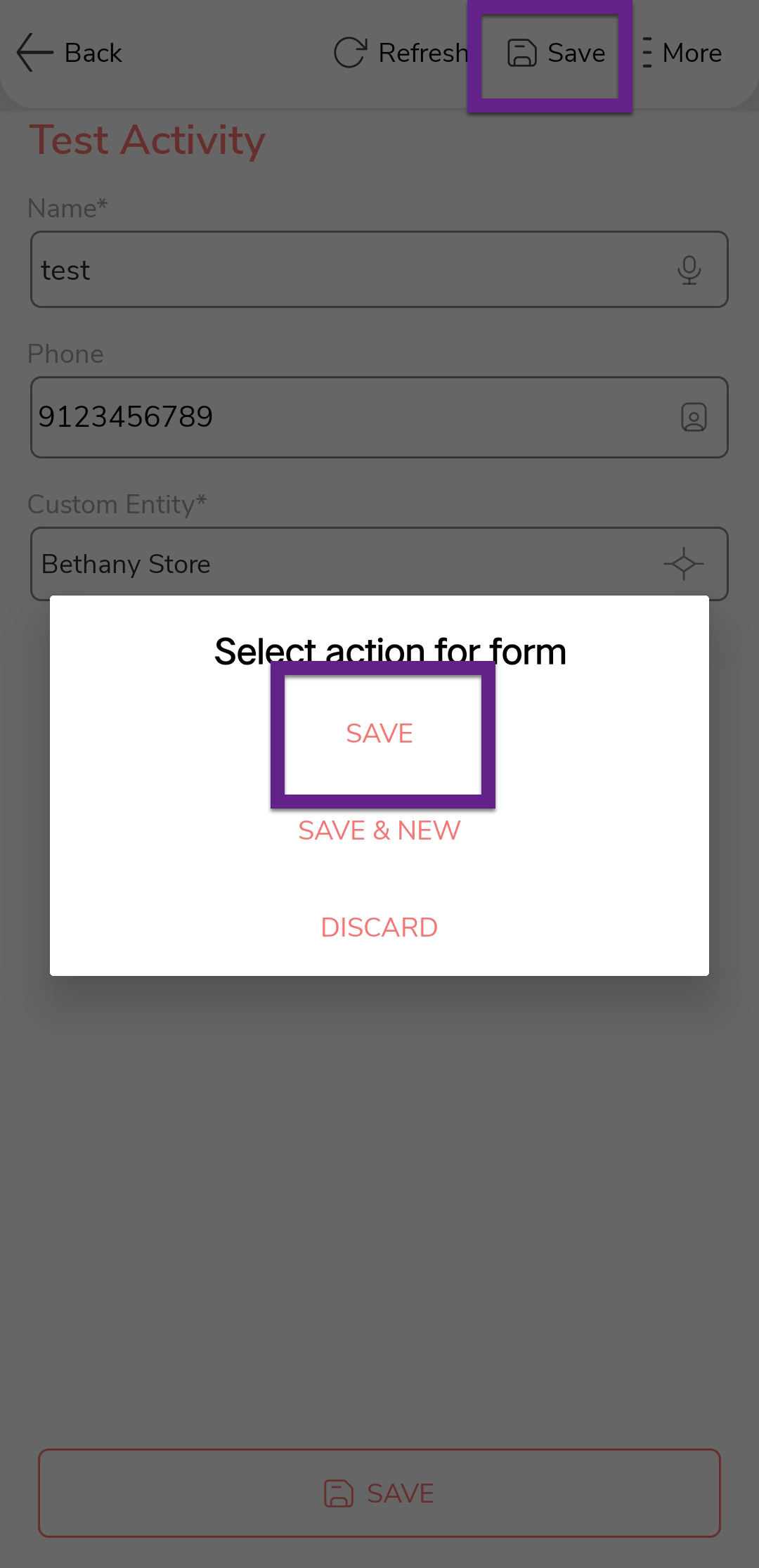
Tap Save and then Save to record
the activity.
-
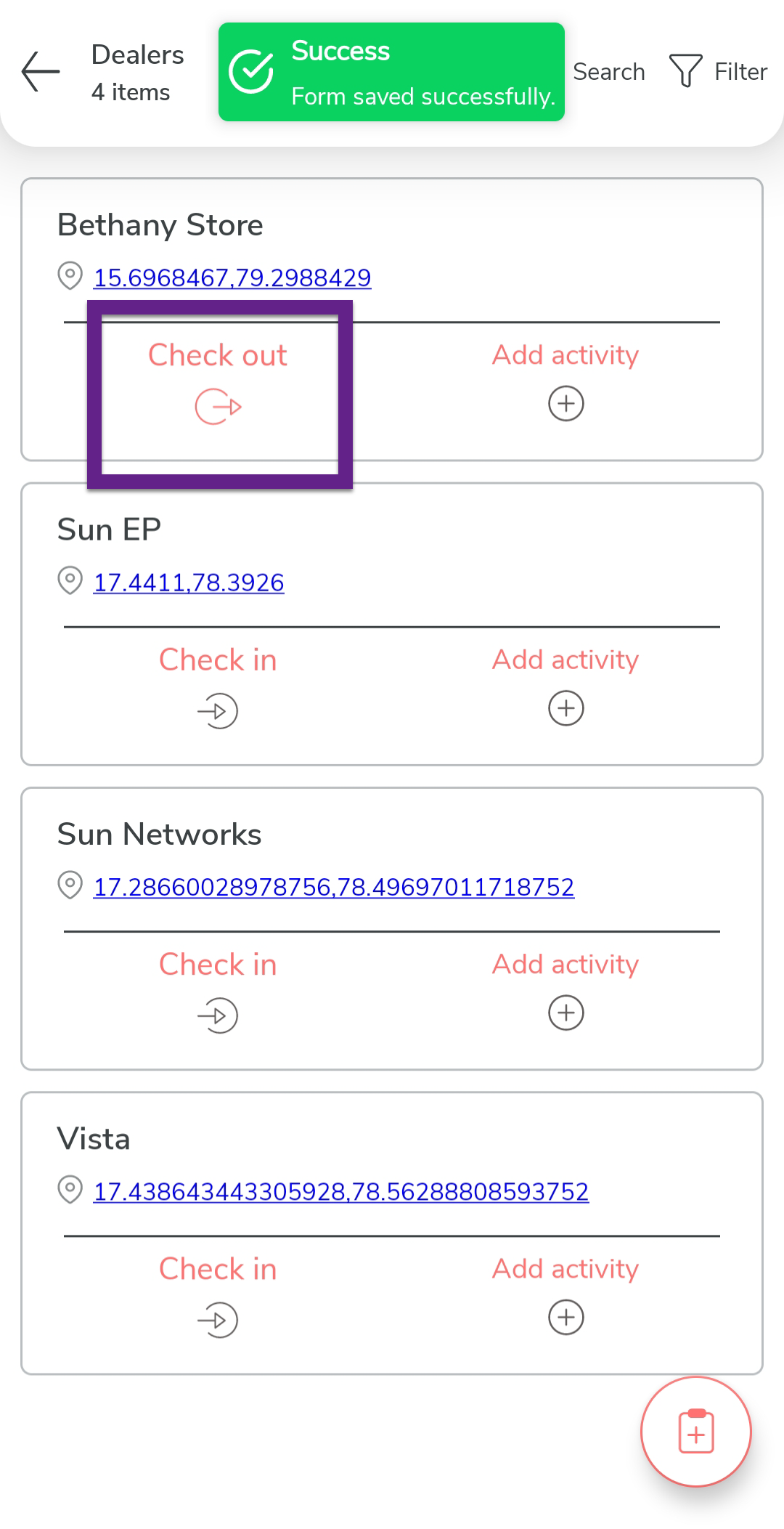
After completing the activity, tap Check Out to finalize
the process.
Note: For more details, refer to Check In and Check Out Entity in the Mobile App.