Check In and Check Out Entity in the Mobile App
To check-in and check-out an entity using the mobile app, follow the steps below:
-
On the home screen, tap the Entity card.
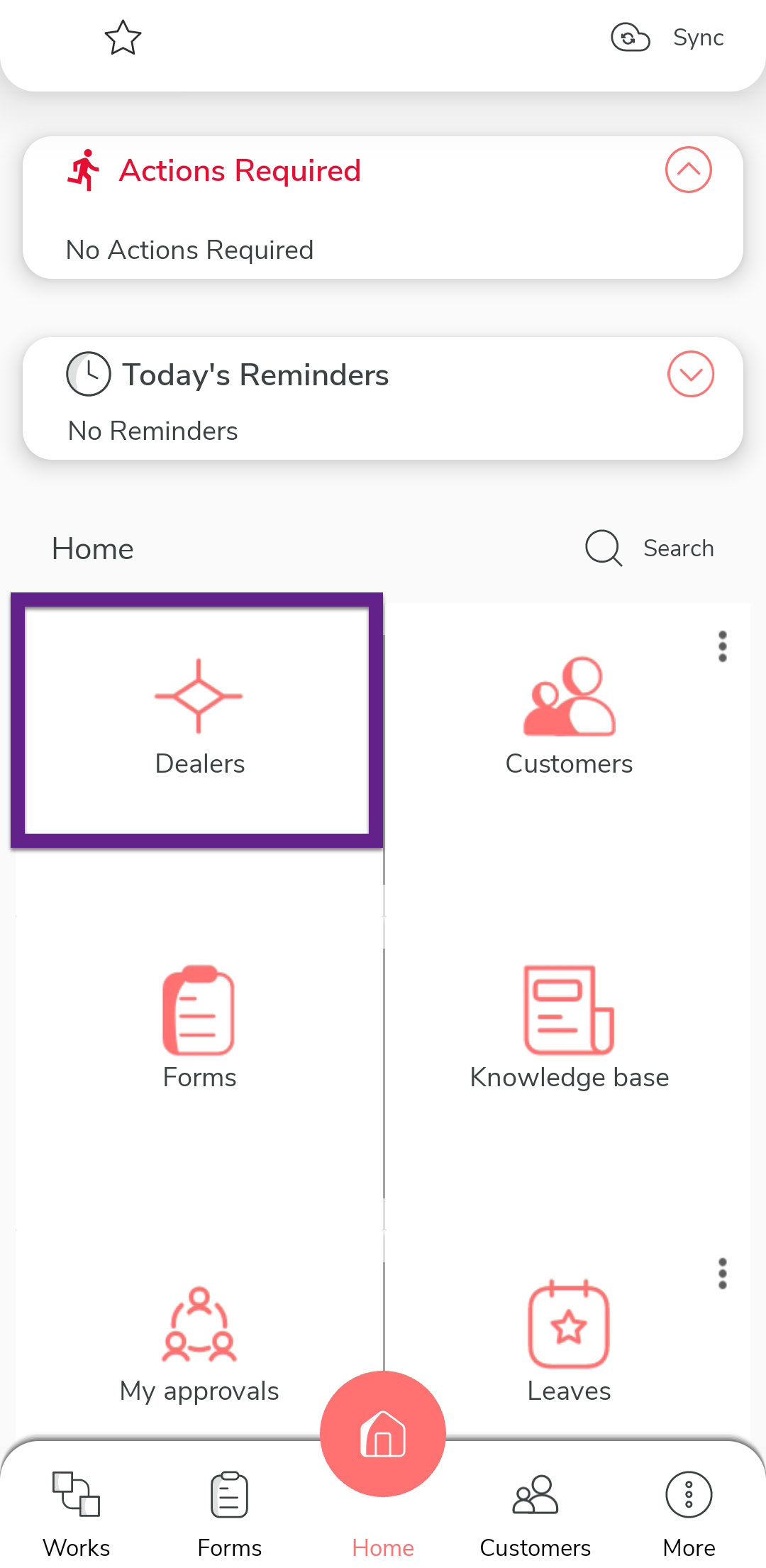
Note: In the provided screenshot, Dealers is an example of an entity. -
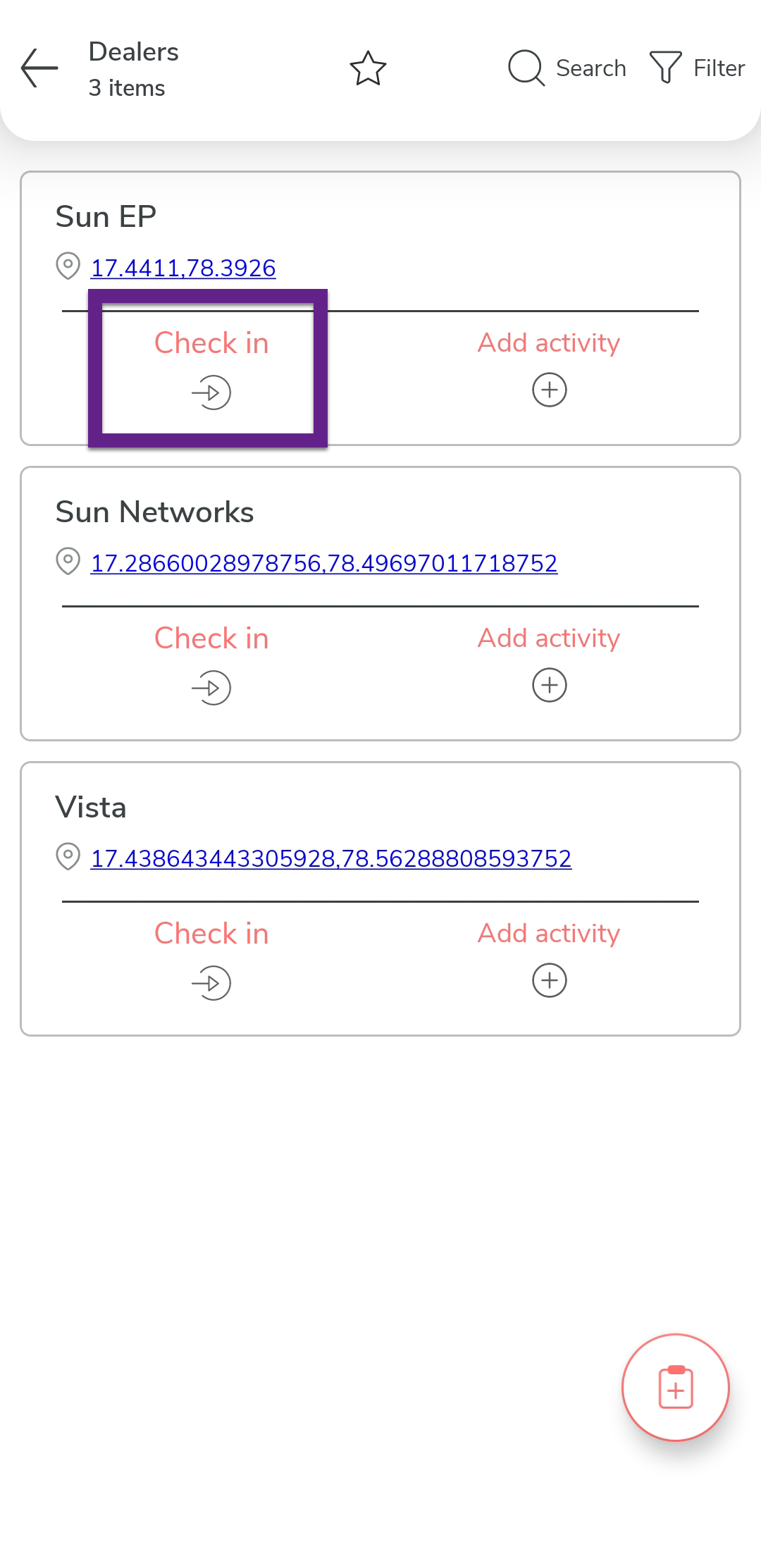
Tap the Check In icon on the desired entity card.
-
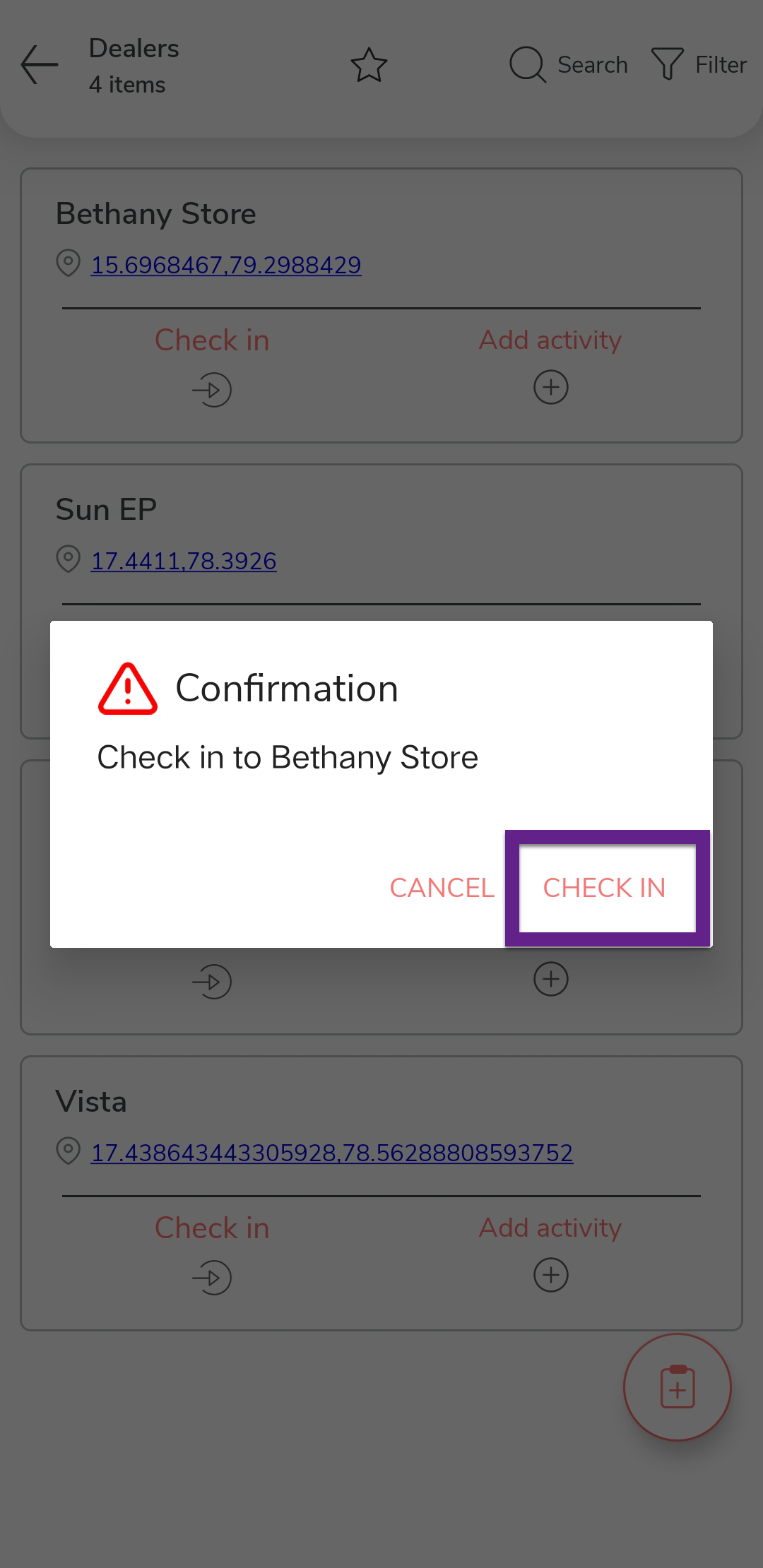
In the confirmation pop-up, tap Check In to confirm the
action.
-
Complete your tasks by tapping the Add Activity icon and
entering the required details.
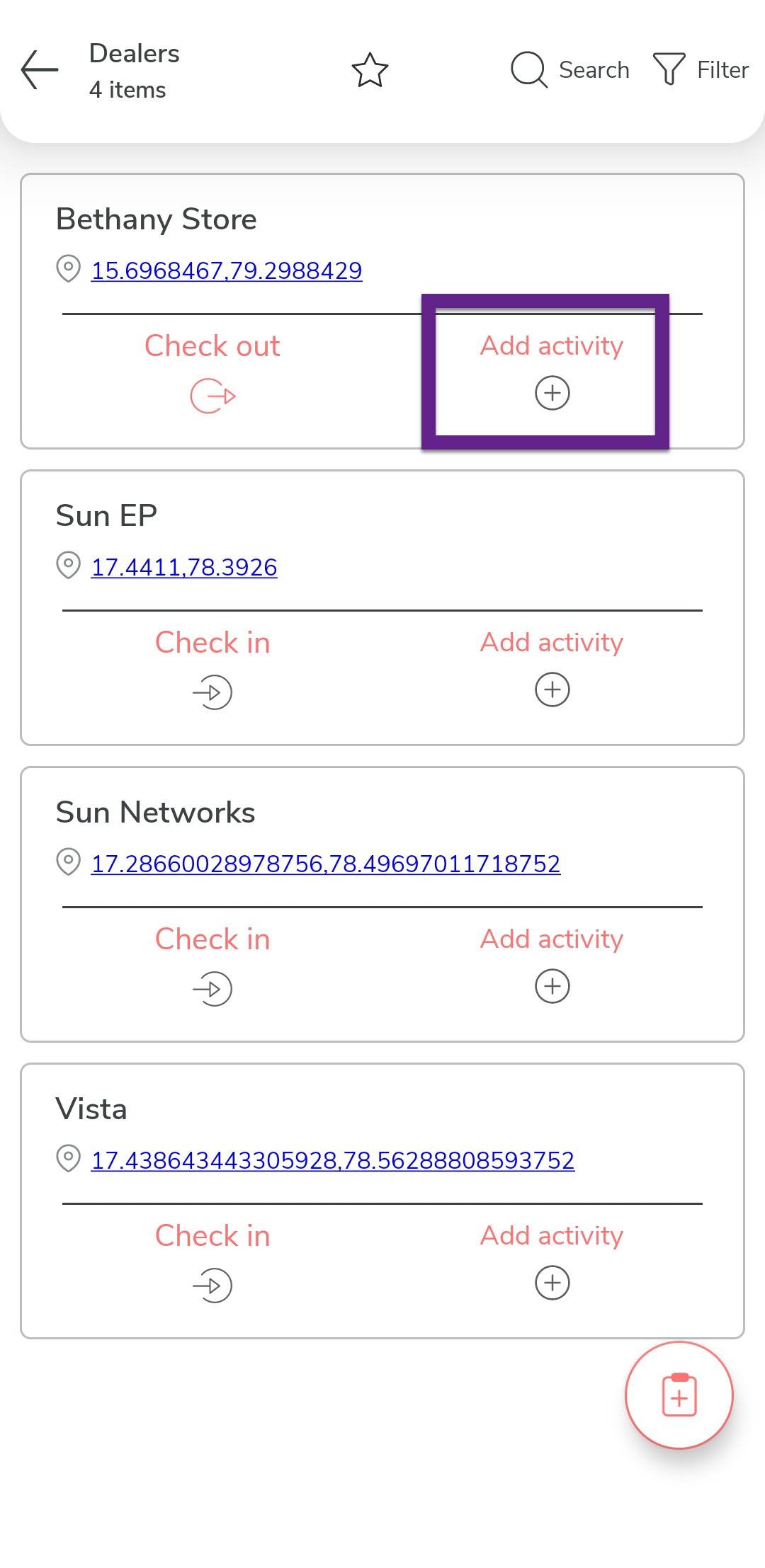
Note: For more details, refer to Add an Activity at Entity. -
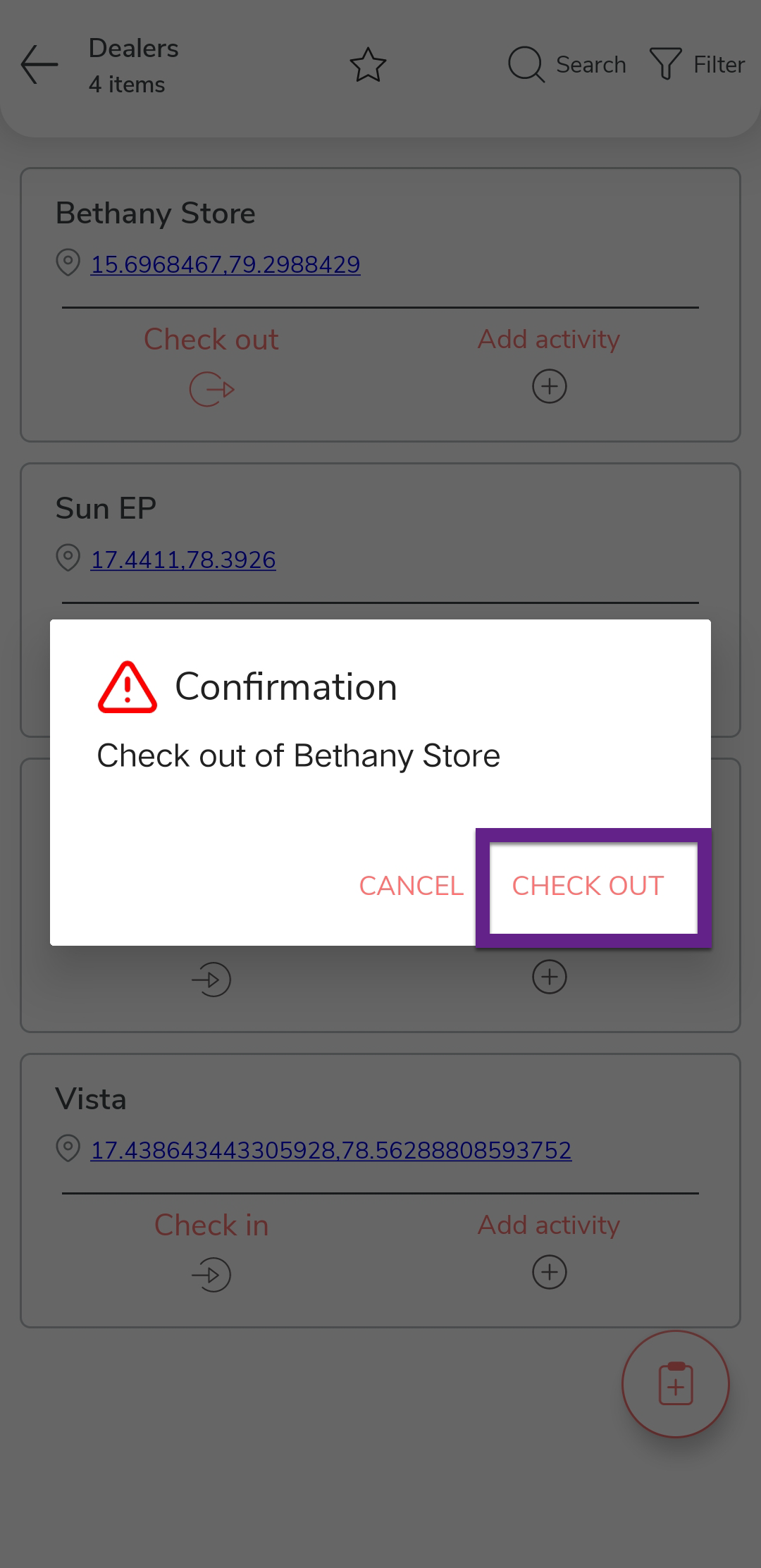
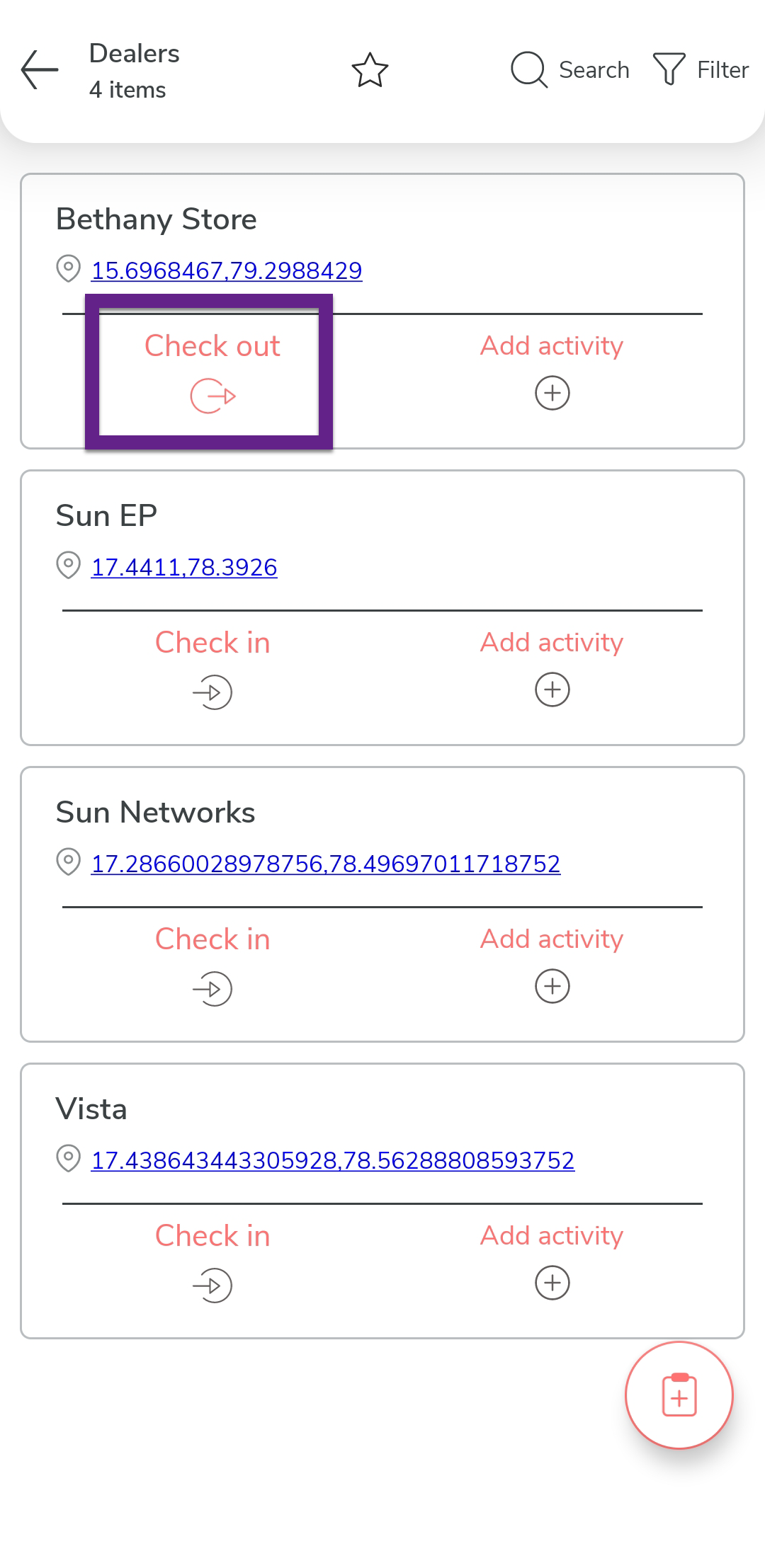
Once your activities are completed, tap the Check Out
icon on the entity card.
-
In the confirmation pop-up, tap Check Out to confirm.