

Create Process Activity
Pre-Requisites
Before you configure a process as an activity, ensure the following:
- The desired entity is already associated with the process.
- The process should include fields that can interact with the selected entity.
- Example: If you have an entity named Dealers, ensure the process includes a custom field configured to interact with the Dealers entity. Only such processes will be available for configuration as activities.
To configure a process as an entity activity, follow the steps below:
-
Go to .
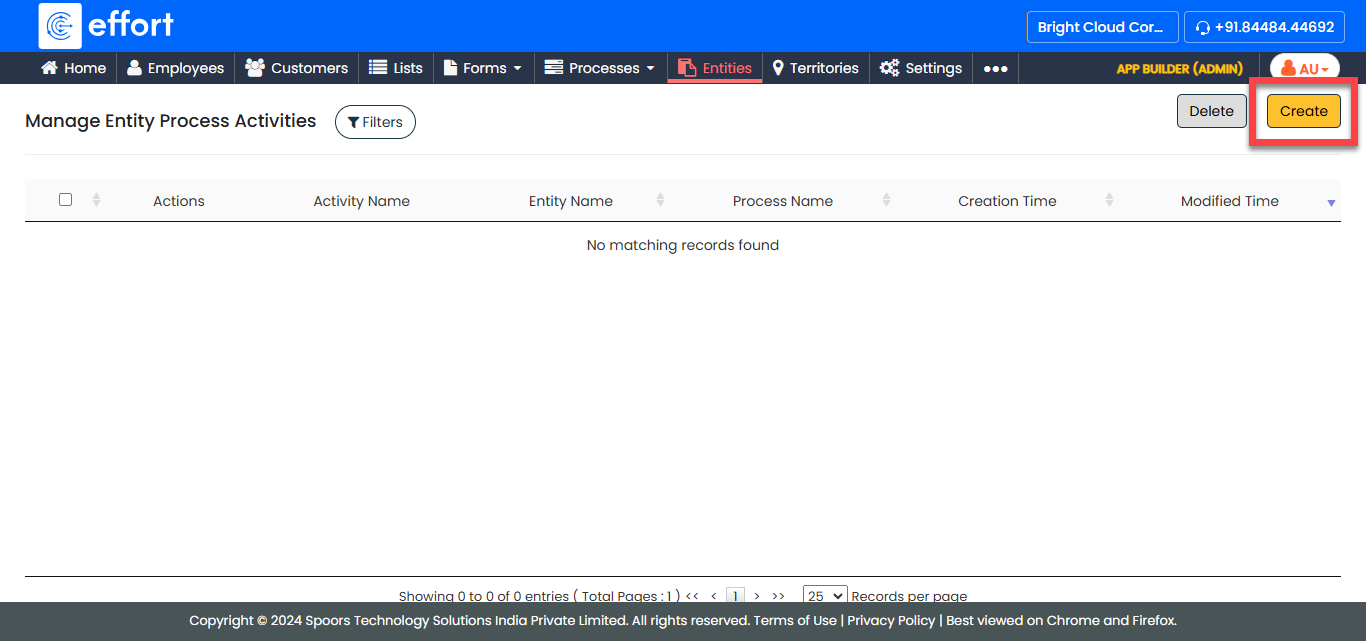
-
In the Create/Edit Entity Activity page, configure the following
fields:
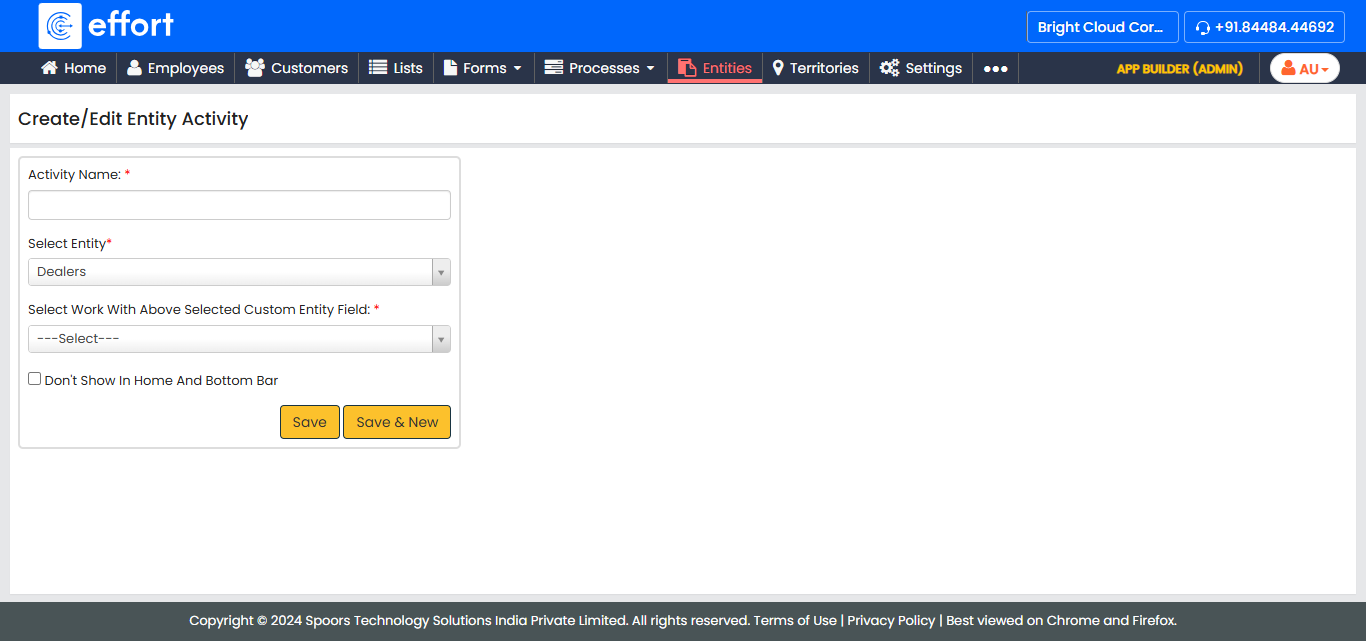
Field Name Description Activity Name
Enter a name for the activity. This name identifies the process associated with the entity.
Select Entity
Select the desired entity from the dropdown.
Select Form With Entity Field
Select a process that contains fields aligned with the selected entity. The process will be linked as an activity for the entity. Display activity in Forms
Select this checkbox if you want to hide the configured process from the Home and Bottom Bar of the mobile app. - After configuring the fields, click Save.