Add Customers to a Route Plan
Add customers to an in-progress or upcoming route plan.
-
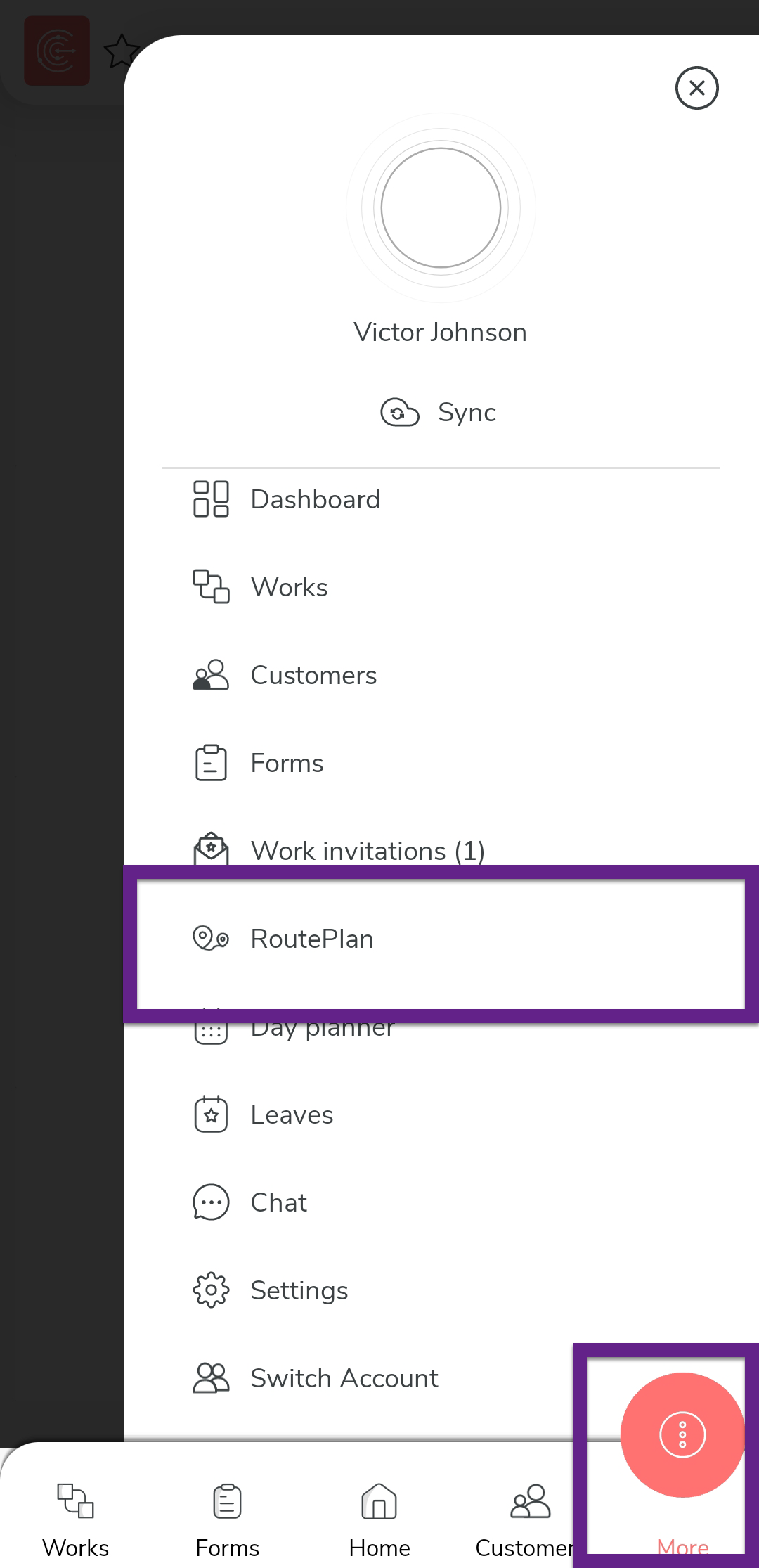
Tap the more icon and select the Route plans option in
the navigation drawer.
-
Tap a route plan.
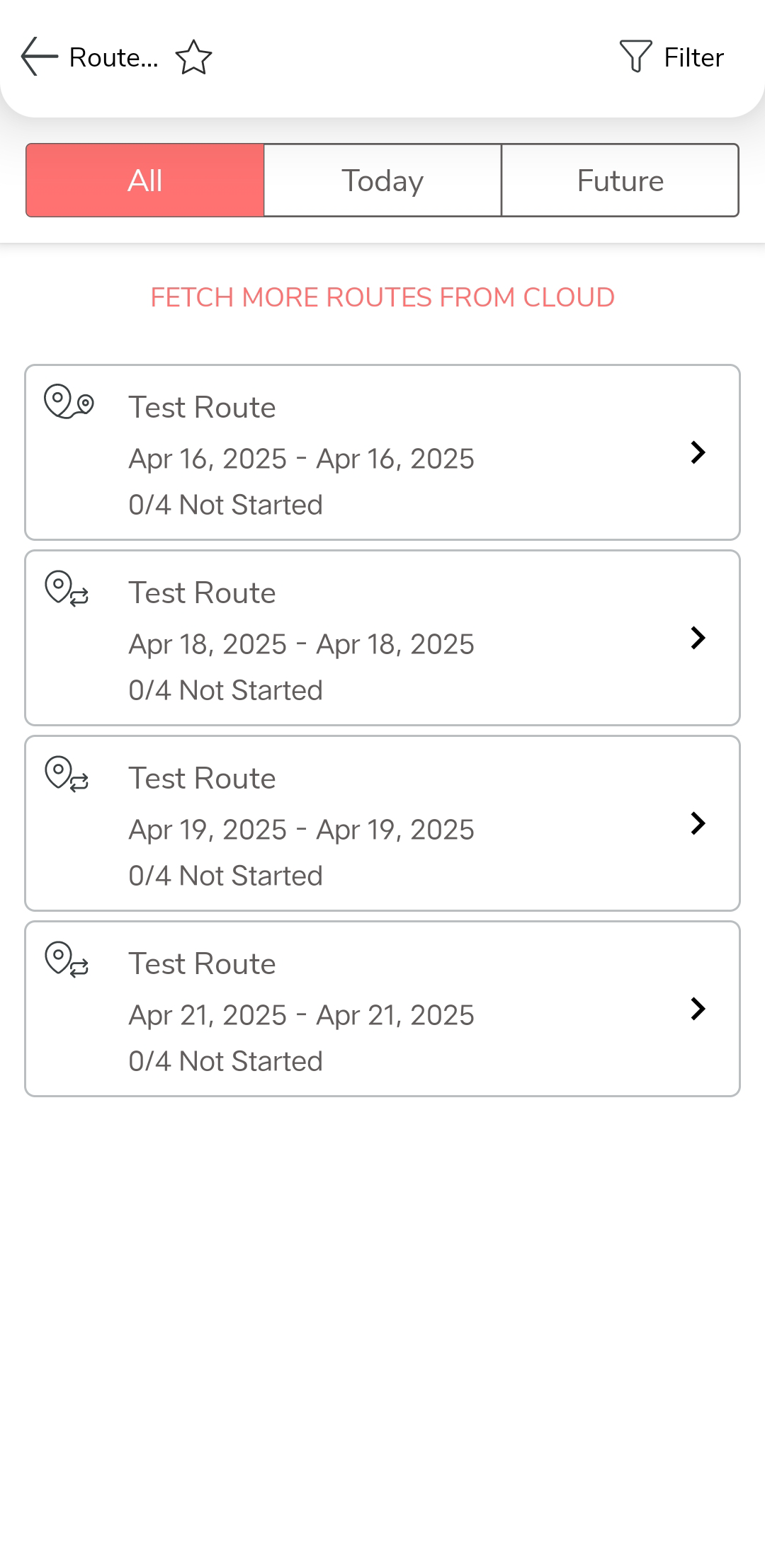
Switch to TODAY'S/FUTURE tab, or change sort order to locate the right route plan. - Optional:
Tap the Add Customers
 icon located at the bottom of the page.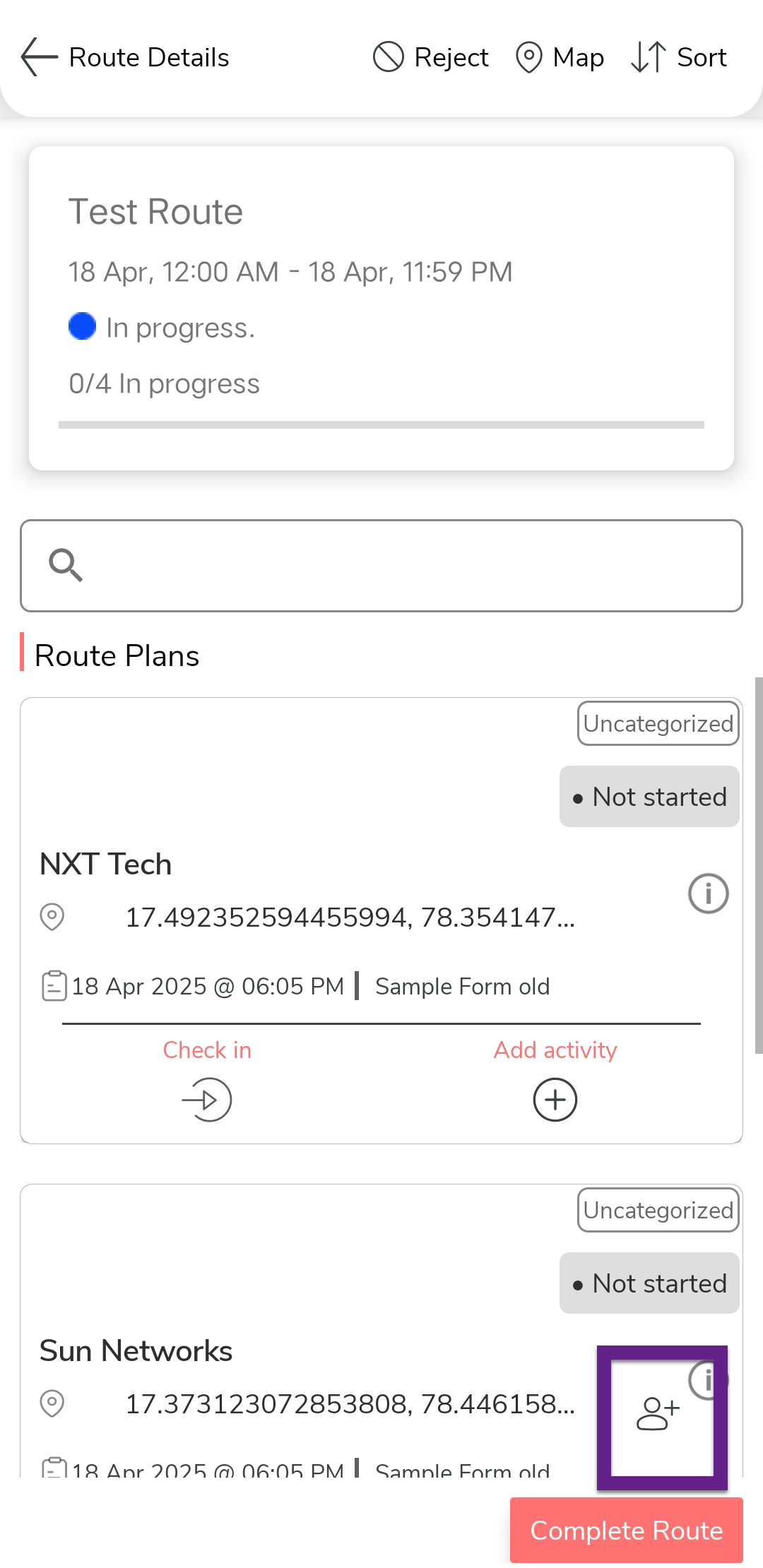
Visibility of this icon depends on how your account has been configured. - Optional:
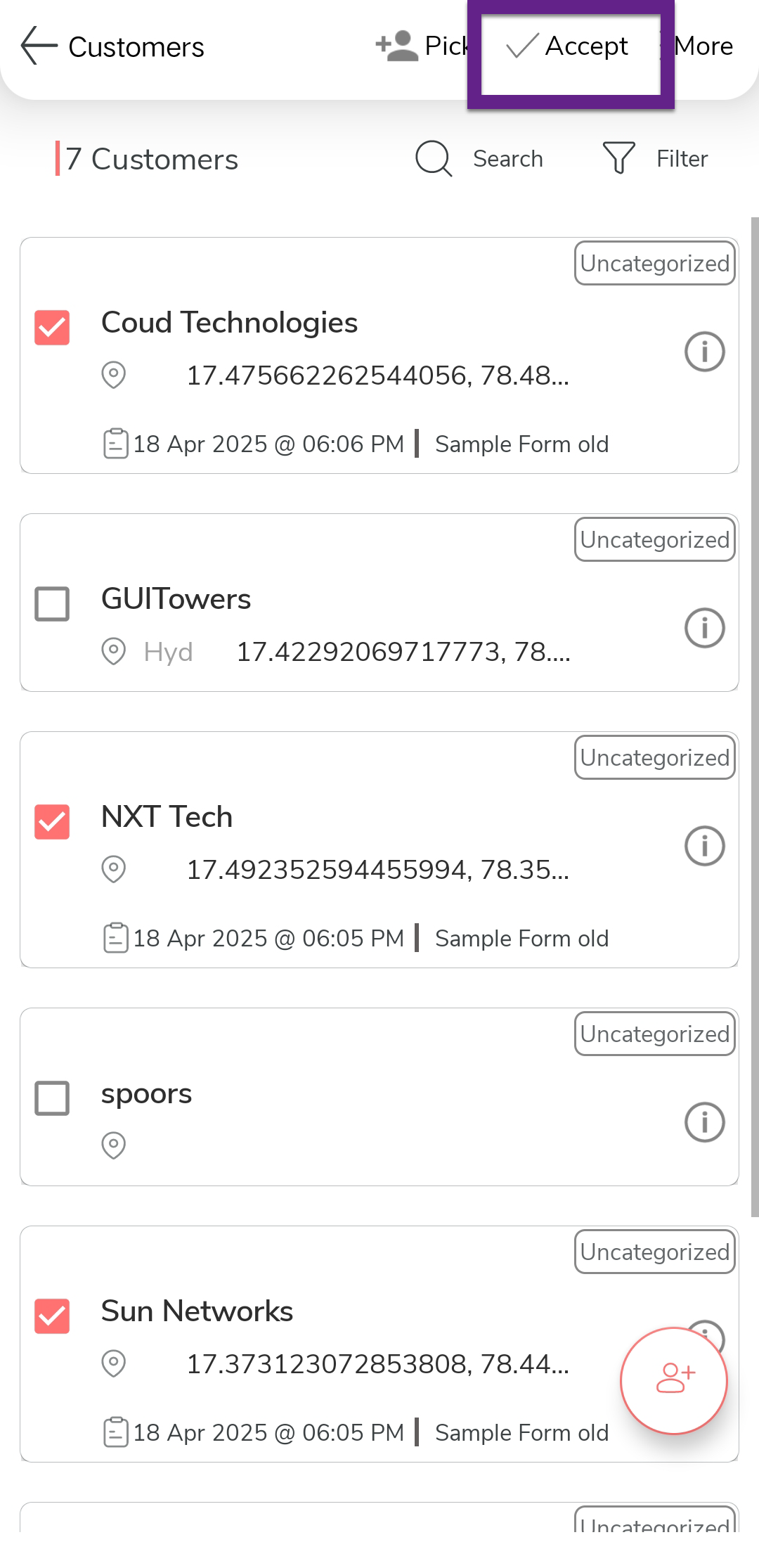
Locate the customers you would like to select using Search
 ,
Filter
,
Filter  , and Sort
  options.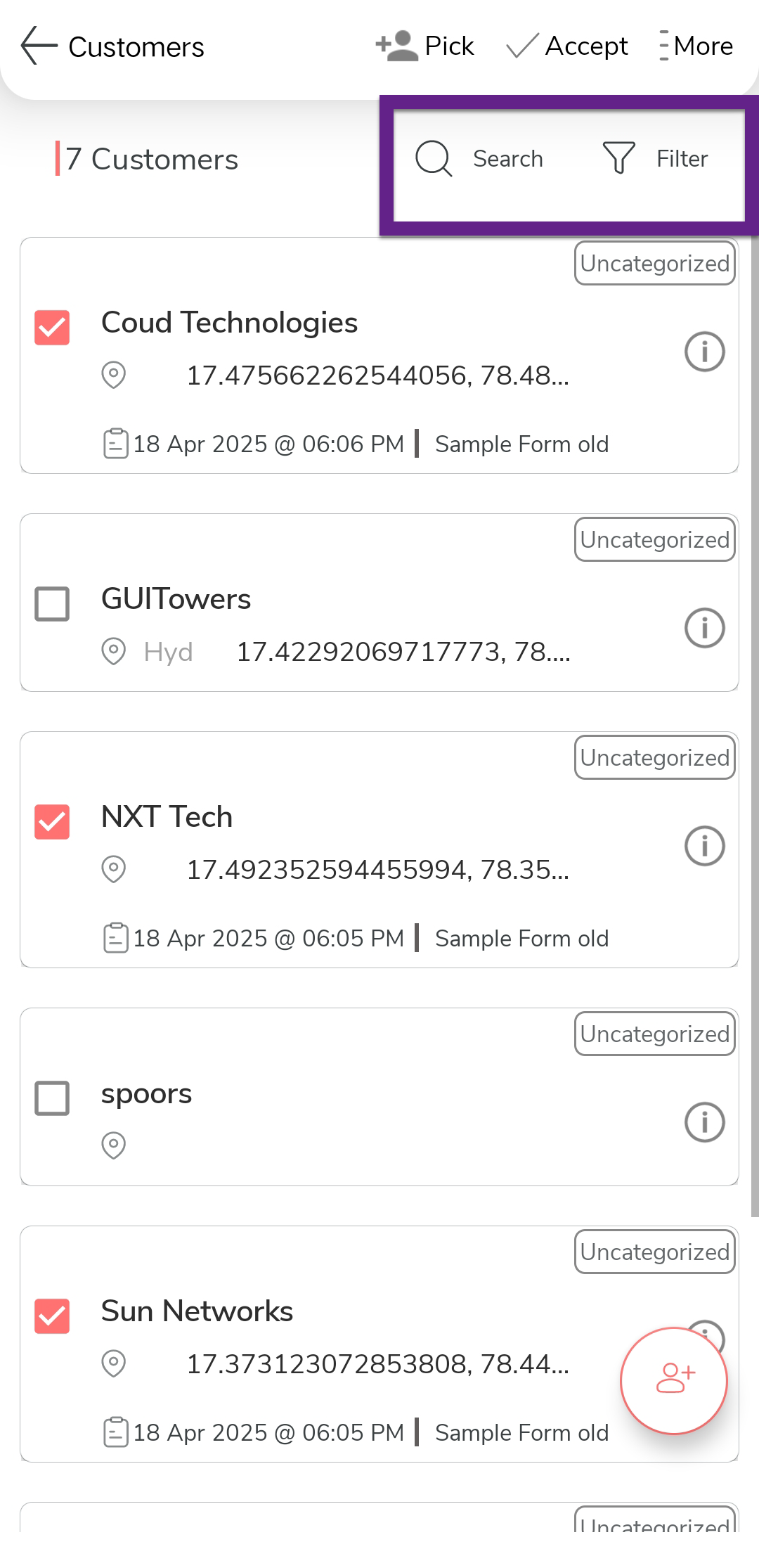
- Optional:
Create one or more customers using add button
 at the bottom right corner.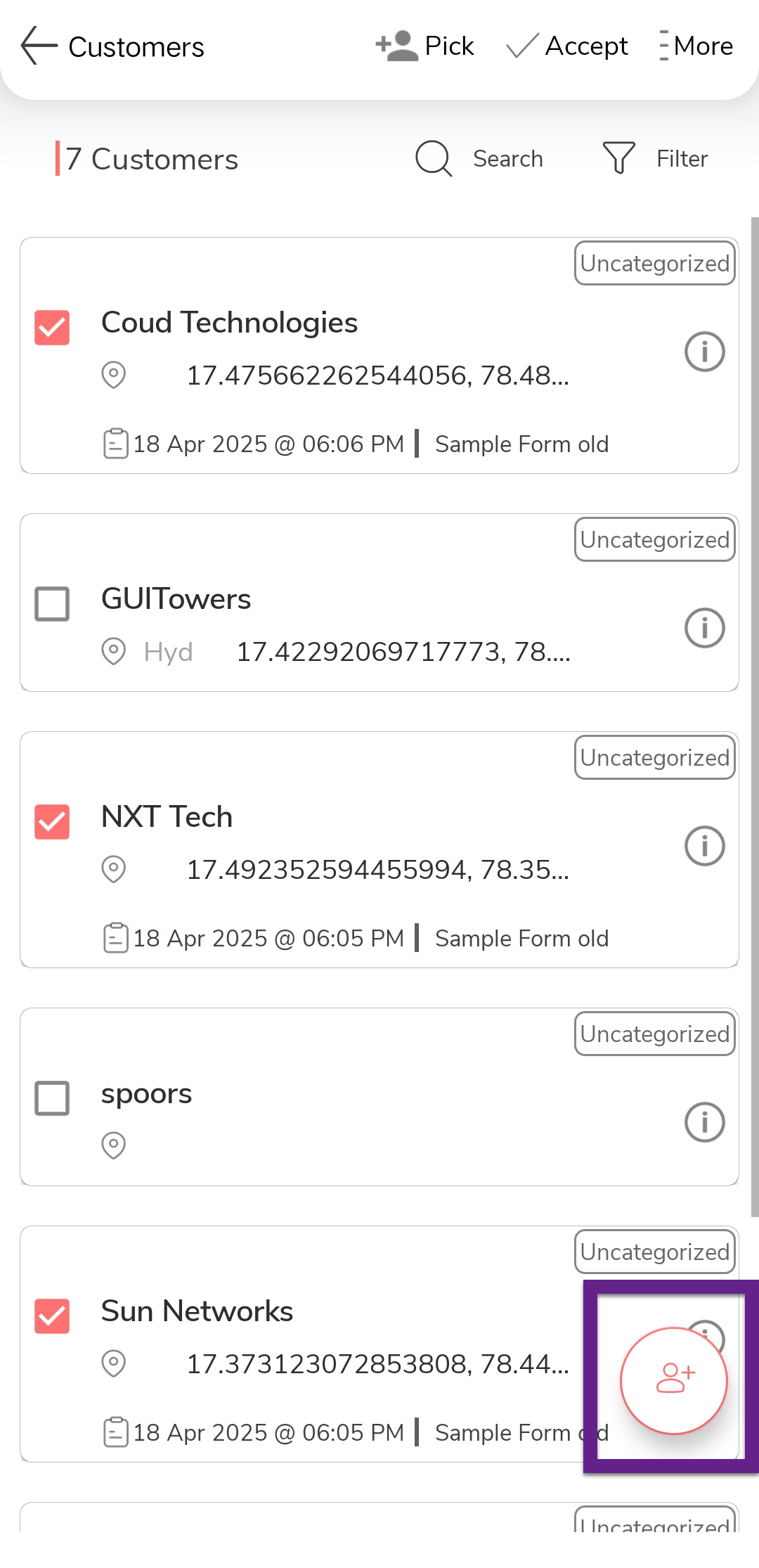
-
Select one or more checkboxes on the customers list.
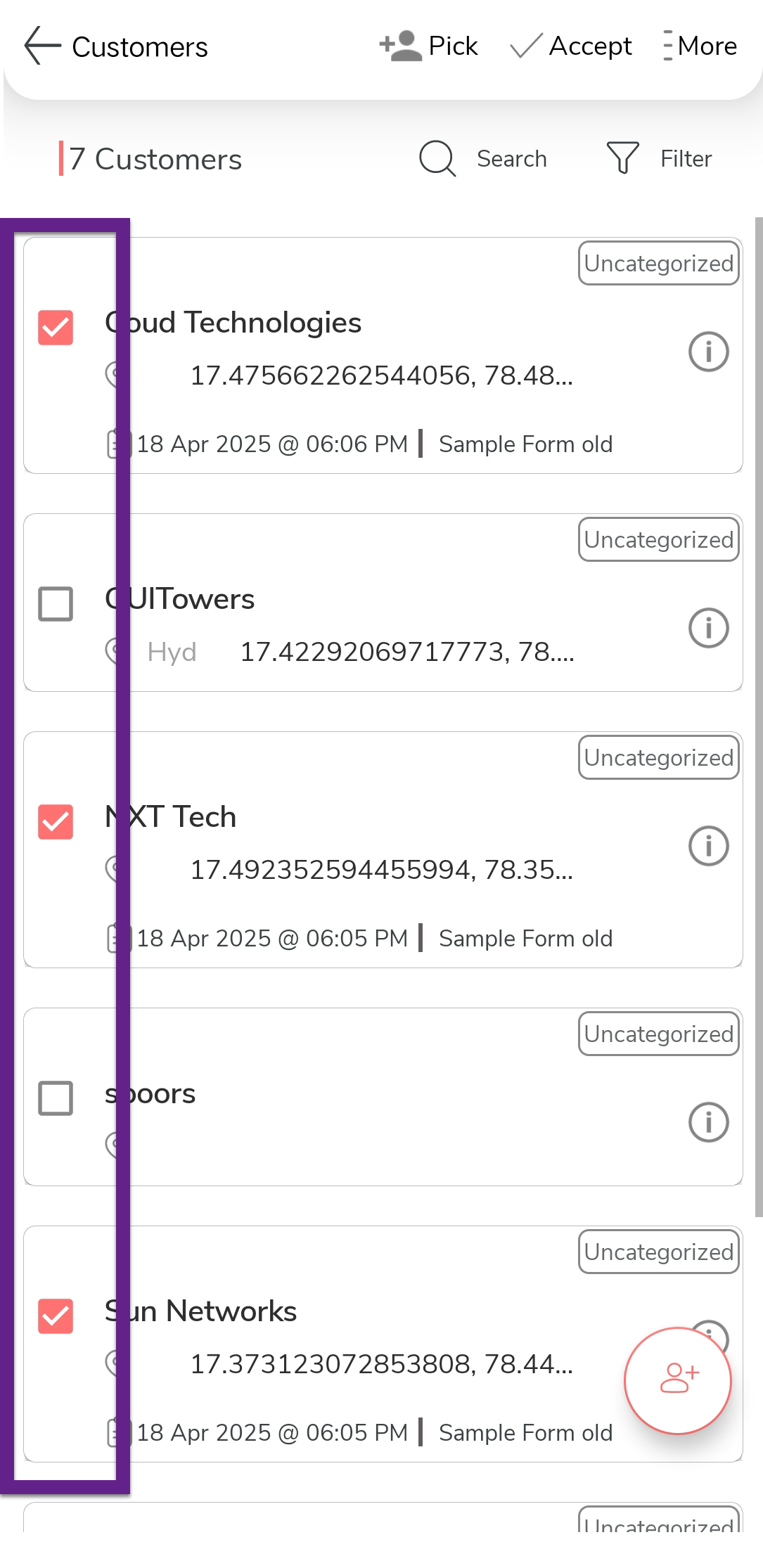
-
Tap the
 Accept option.