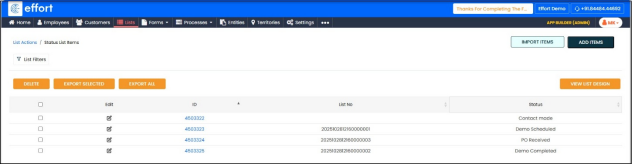
Adding Data
To add data, perform the following steps:
Add Manually
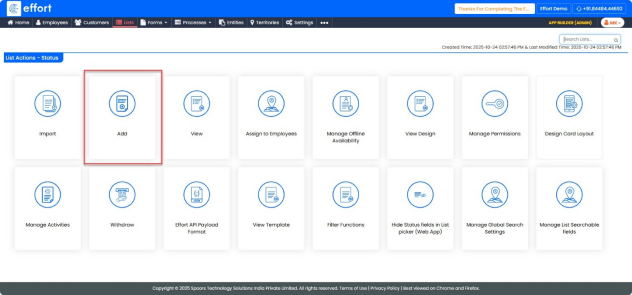
To add items to the list individually, use the “Add” option.
- Click on the “Add”.
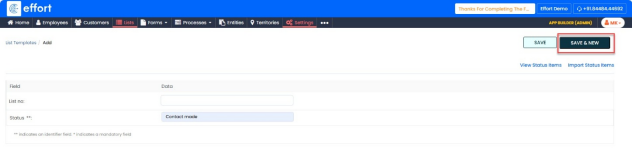
- Enter the List no.
- Enter the Status as “Contact made”.
- Click “Save & New” to save this entry and open a new form.
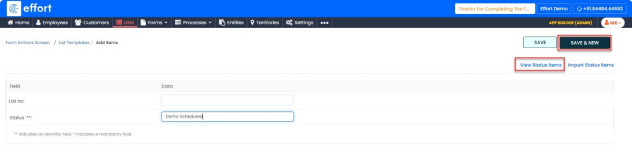
- Enter the next Status as “Demo Scheduled”.
- Click “Save & New” again.
- Enter the next Status as “Demo Completed”.
- Click “Save & New”.
- Enter the final Status as “PO Received”.
- Click “Save” to complete the process
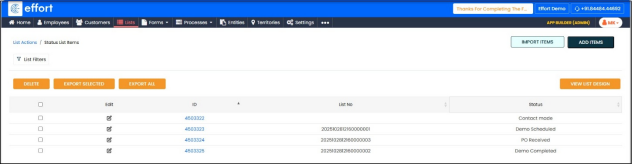
- Click on “View Status items”.
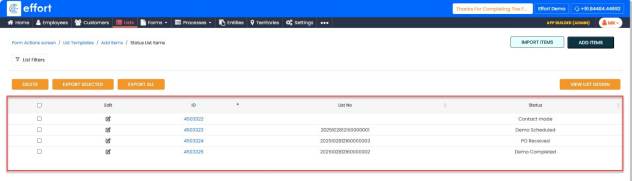
Import
To import the items using an external file, perform the following steps.
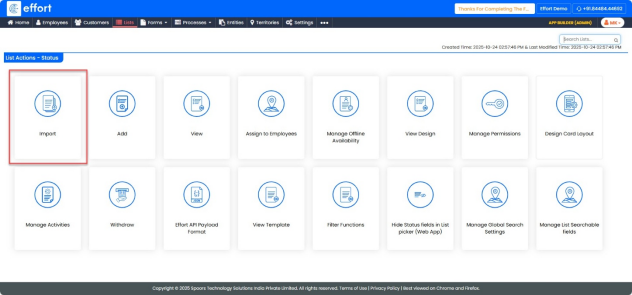
- Click on “Import”.
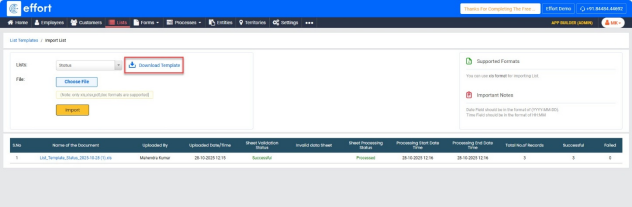
- Click on “Download Template”.
- Open the Downloaded Excel Template and add details under status column.
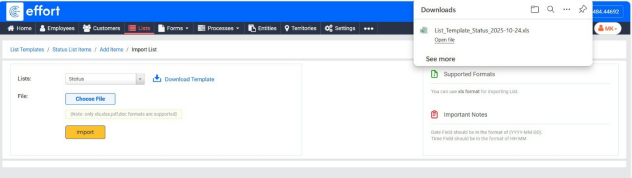
- Save the Excel file.
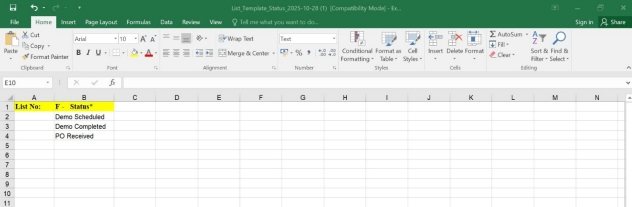
- Click on “Choose File”, and select the updated Excel Template.
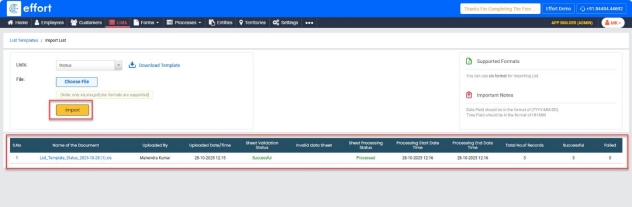
- Click “Import”.
View
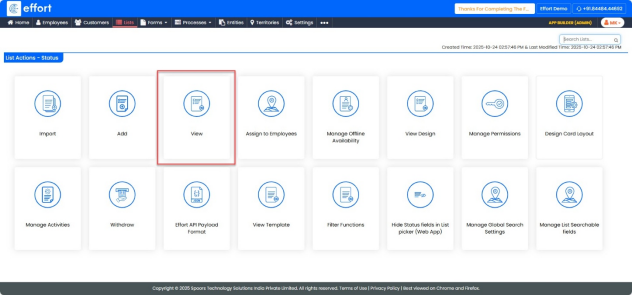
To view the list of status items, perform the following steps:
In a similar manner, a source list can be created as follows.