

Customer Settings
The Customer Settings allows you to define the search criteria and other features such as, when an employee should check-in to perform activities, the reasons for check-in, the options in the app to restrict an employee when they are not at the customer location, and to enforce the a minimum time to be spent at the client’s place.
| Field | Description |
|---|---|
Customer Search criteria
|
Allows you to search customer information based on the customer name and number option |
| Layout Sequence order of Customers fields | Allows you to configure the visibility of customer fields as viewed in the customer list screen in the EFFORT Mobile app. |
| Notify to check out after | Allows you to configure maximum time to be spent at the customer. The mobile app prompts a notification after the configured duration. |
| Warn if time not spent at Customer | Allows you to configure restrictions on check out. The mobile app will not allow the user to check out if minimum time is not spent at the customer. |
| Restrict check out if minimum time not spent | Allows you to configure minimum time to be spent at the customer. The mobile app prompts an alert to specify the reason if minimum time is not spent at the customer. |
| Maximum Customers locked by an Employee | Allows you to configure maximum number of customers can be locked by an employee. |
| Sort nearby Customers who were not visited in the past-days | Allows you to configure duration. This will sort the nearby customers who were not visited in the configured duration. |
| Allow activities to be performed only after Customer check-in | Allows you to make it mandatory for the field executives to check-in before proceeding with the customer activities. |
| Can perform activities only in the Customer location within | Allows you make it mandatory to sign-in at the client's place only within the defined radius |
| Enforce to capture reason for Customer Check-in*This setting is applicable from on or higher versions of Android Mobile app 4.0.12 | Allows you to make it mandatory for a field executive to specify a reason before check-in at the customer's place. |
| Restrict check in to the same Customer | Allows you to configure restrictions on check in to the same customer. The mobile app will not allow the user to check in to the same customer. |
| Show only tagged Customers | Allows the field executives to view the tagged customers only. |
| Display Customer summary while Check-in*This setting is applicable from on or higher versions of android Mobile | Allows you to configure the customer fields which needs attention during customer check-in. |
| Mandatory activities to be performed before check-out*This setting is applicable from or higher versions of Android Mobile app 4.1.1 | Allows you to configure mandatory activities to be performed before check-out. |
| Enable adding Customer to dayplan from Customer module | Allows you to display the day plan icon in the Customer module. |
| Enable adding Customer App Configuration |
When you enable this setting, you can define different app configurations to the different customers. |
| Mark as first check if the Customer doesn't have a defined location |
When you enable this setting, it allows you to capture a customer's location if the customer location is not defined based on the customer check-in. When an employee visits and performs a check-in at a customer whose location is not defined in the system, the system automatically captures the first check-in location and marks it as the customer location. |
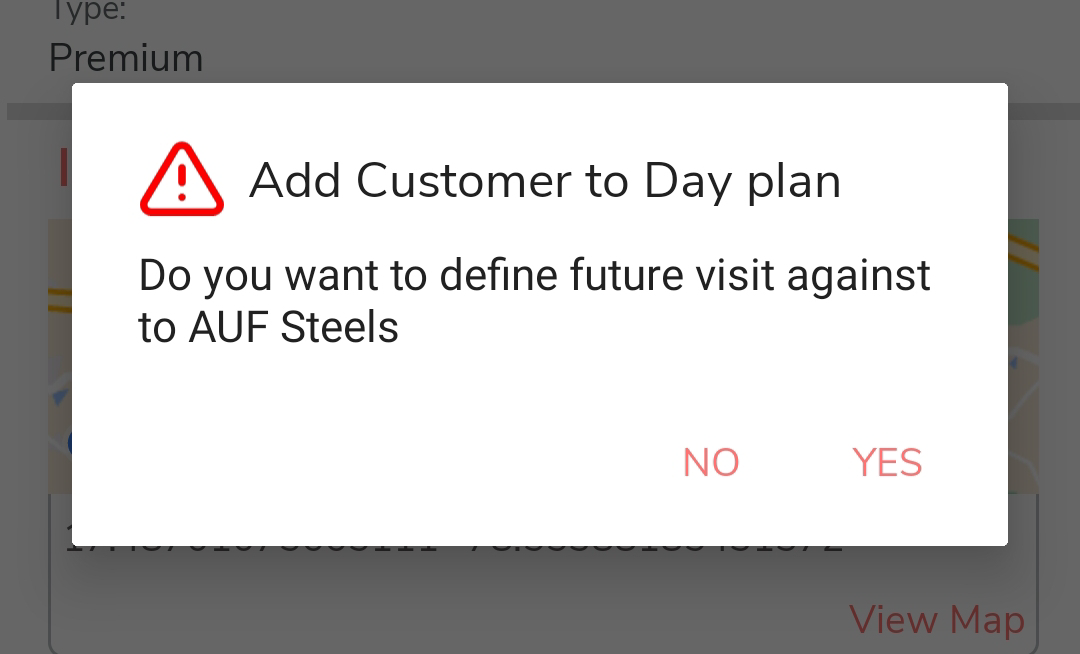
| Enable Day Plan Calendar Option while Customer Check out |
Enabling this setting allows the mobile app users to add a customer to the
future day plans while performing the customer check-out activity. When this
setting is enabled, a pop-up appears where the mobile app users can add the
customer to the future day plans. Look at the following image to see how it
works:
 |
| Enable Customer Outstanding Amount Icon in Customers |
This setting allows you to enable Customer Outstanding Amount icon in the customer details page. This Customer Outstanding Amount will be updated based on the form submissions and defined configurations. |