

Configure Entity Visibility
The Customised App Configurations feature allows you to control the accessibility of an entity in both mobile and web applications.
To enable/disable the entity visibility for both the web and mobile apps, follow the steps below:
-
Go to .
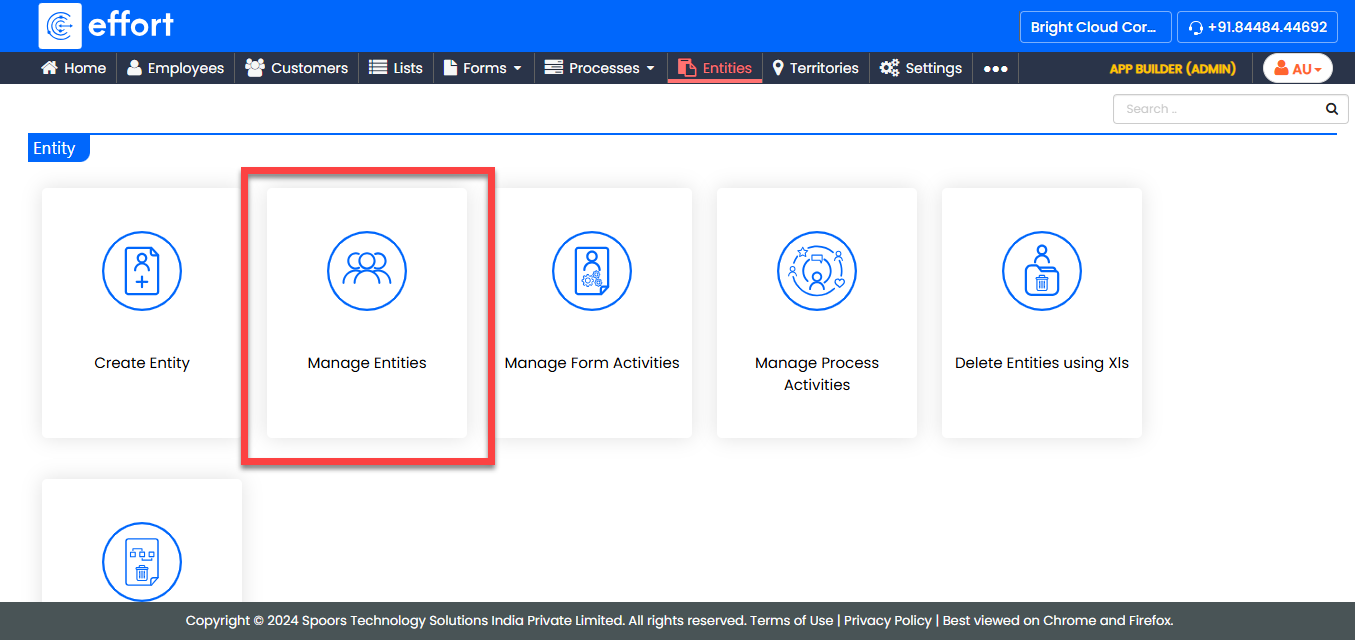
-
Under the Active Entities section, click the entity you
want to modify.
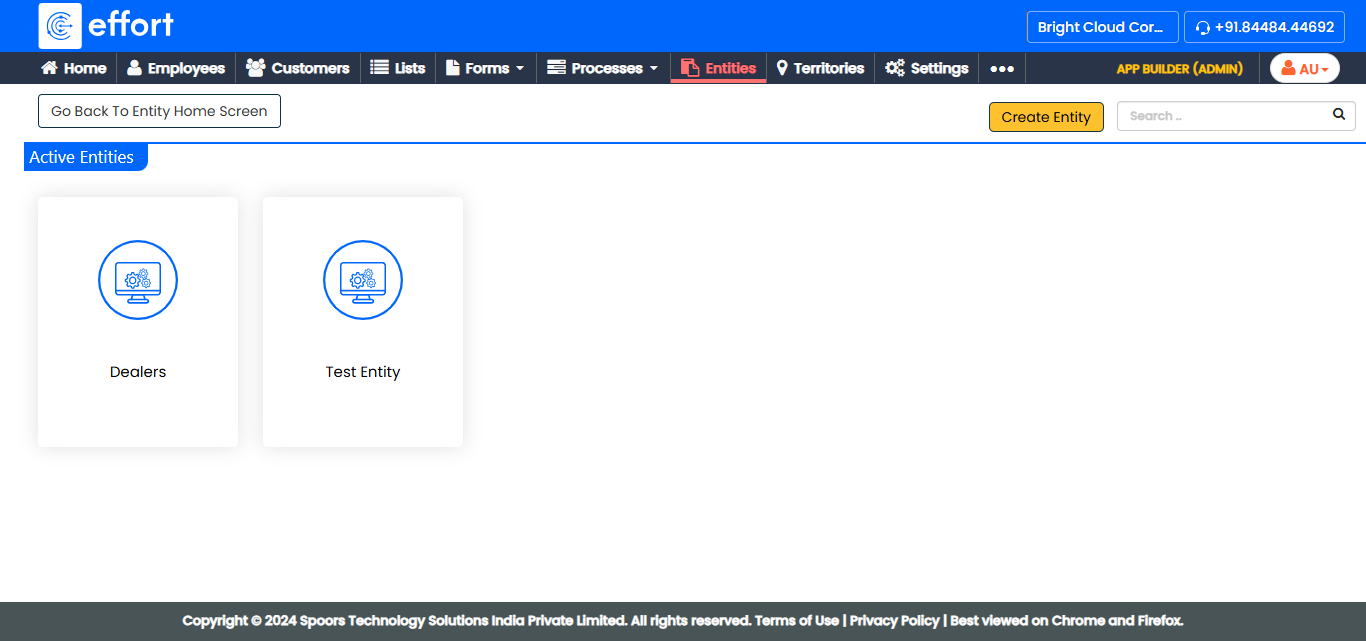
-
Under the Entity Actions section, click
Customised App Configurations.
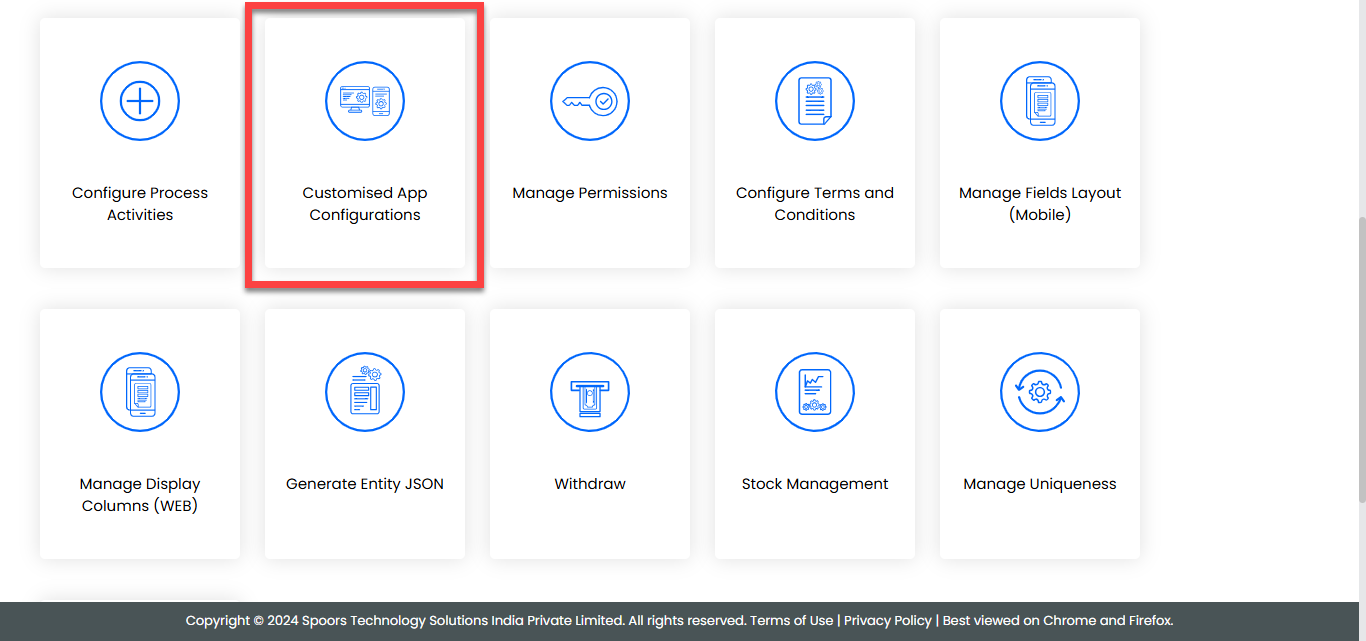
-
On the Customised App Configurations page, click the App
Configuration for which you want to enable/disable the
visibility of this entity.
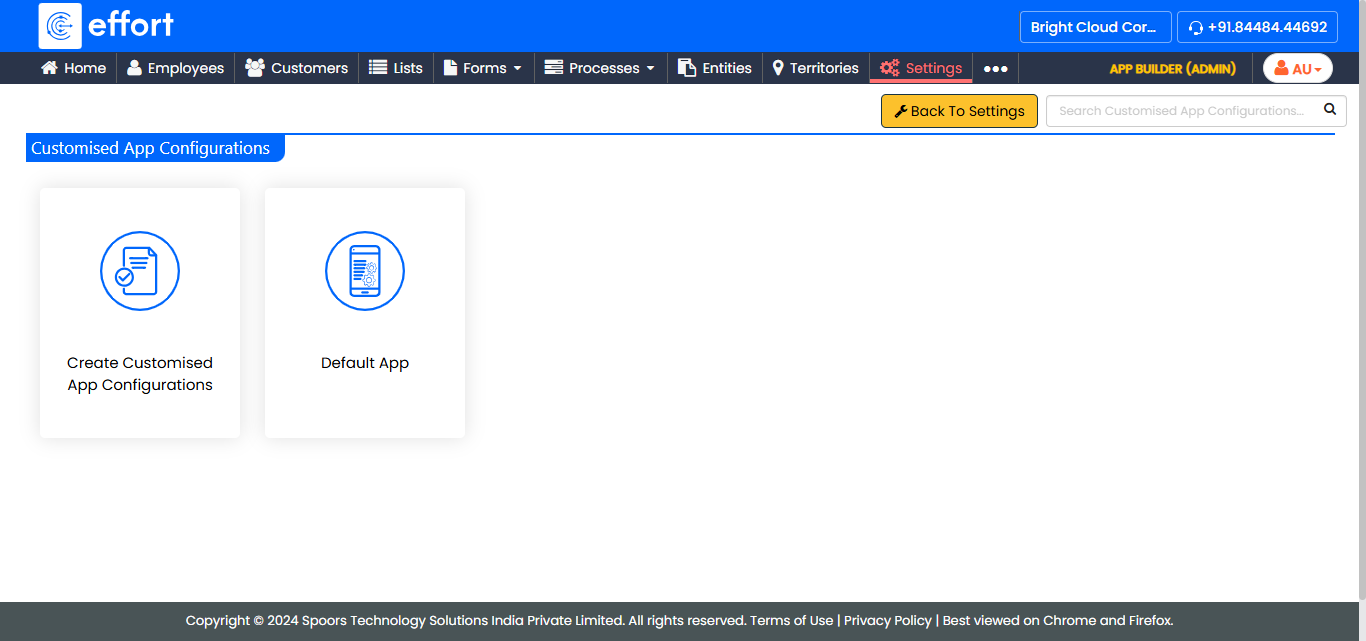
Note: If no app configurations are present, click Default App. -
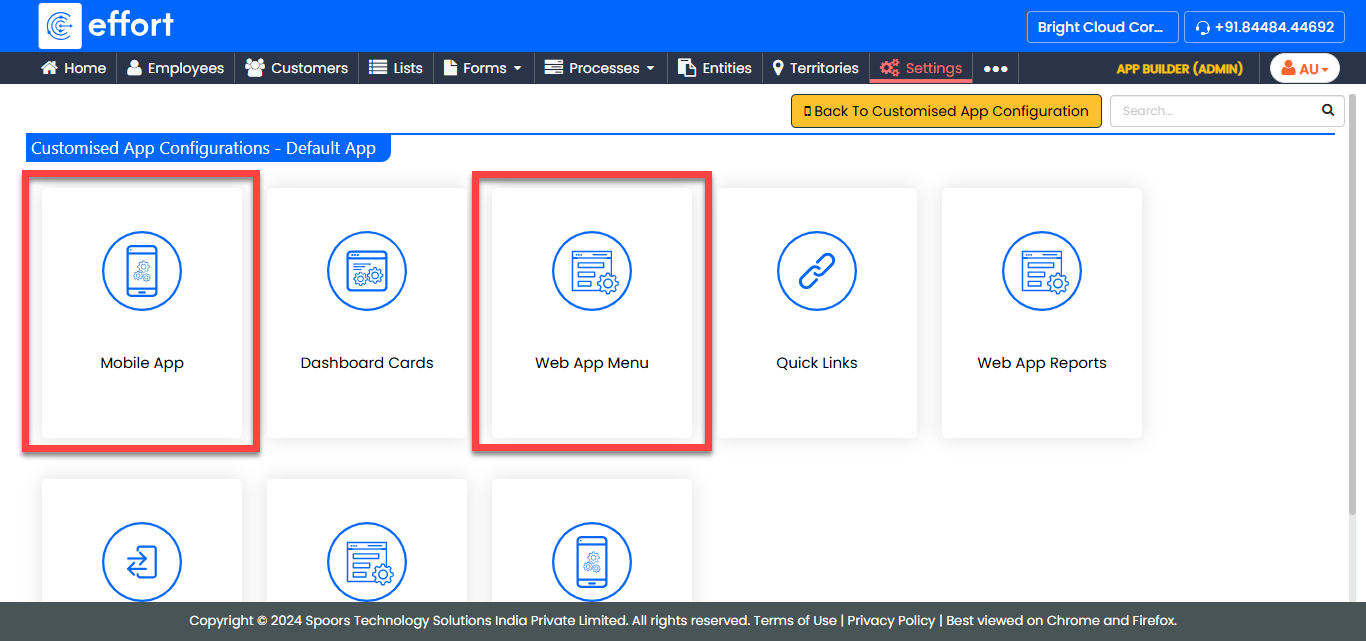
On the Customised App Configurations - Default App page, click either
Mobile App or Web App Menu
according to your requirements.
-
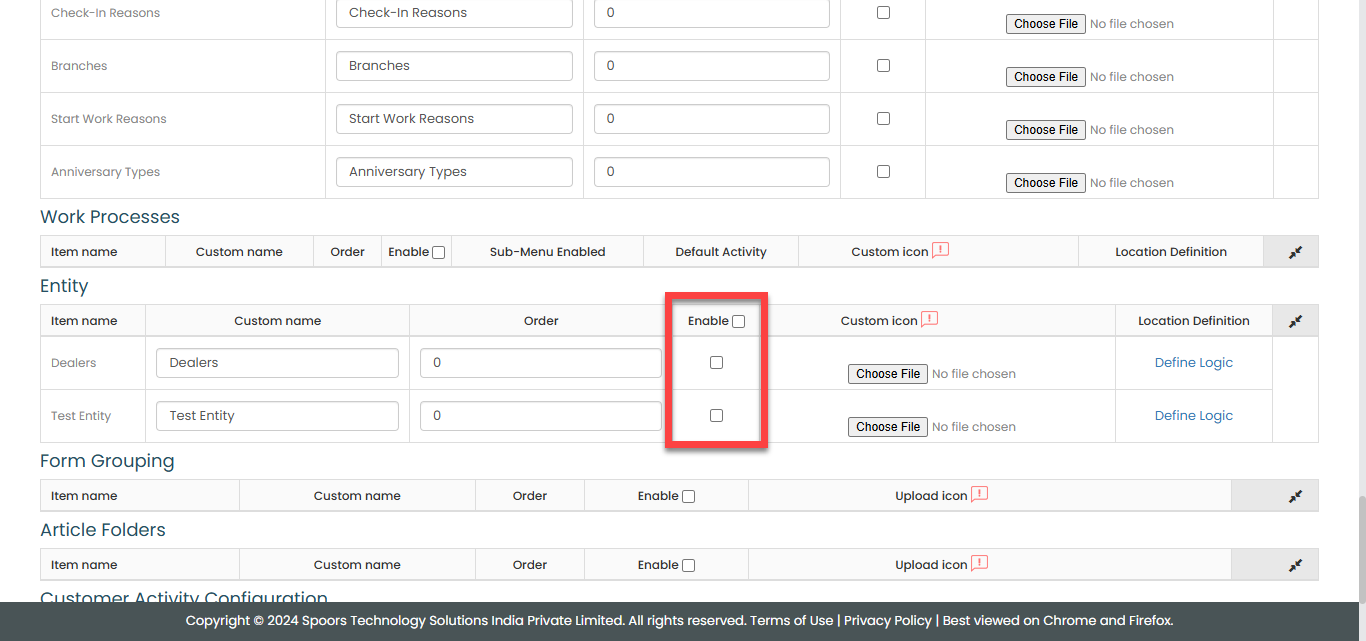
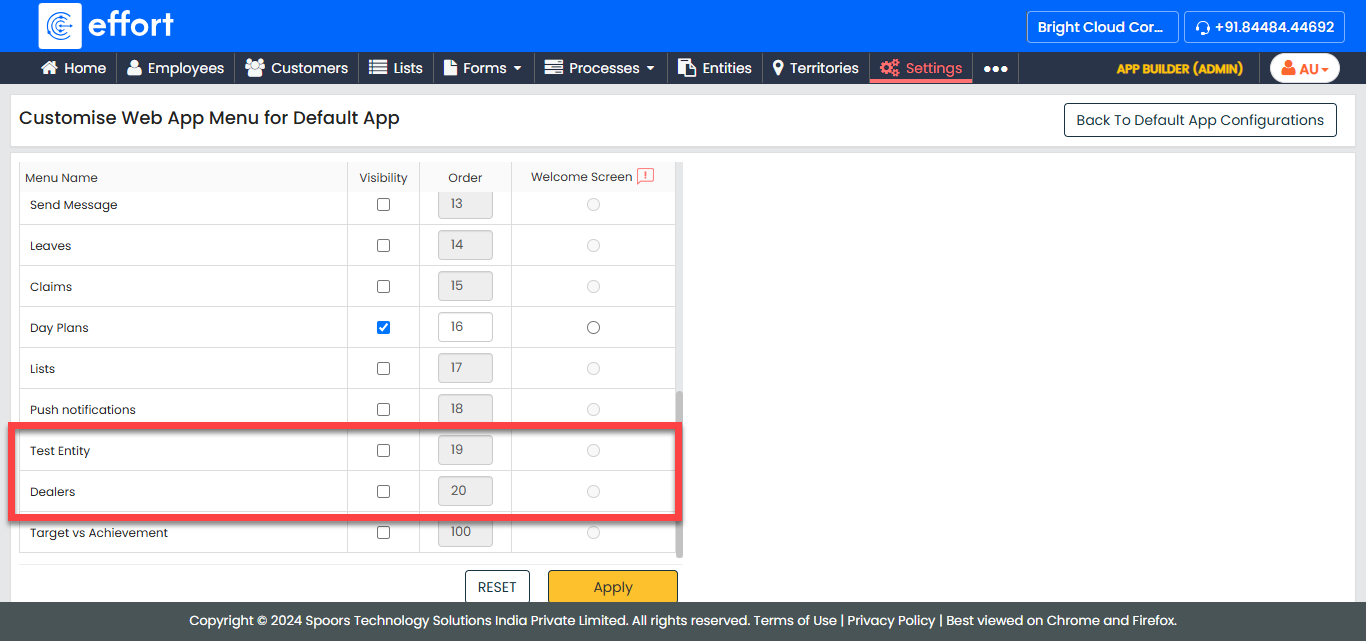
Scroll down to the Entity section and select or deselect
the entities you wish to enable or disable for the mobile or web apps.
- Mobile App: Select or deselect the entities to
make them visible or hidden on the mobile platform.
- Web App: Select or deselect the entities to make
them visible or hidden on the web platform.
- Mobile App: Select or deselect the entities to
make them visible or hidden on the mobile platform.
- After making your selections, click Save or Apply to save the changes.