

Create a Territory
To create a territory, follow the steps below:
-
Go to .
The Territories page appears.
-
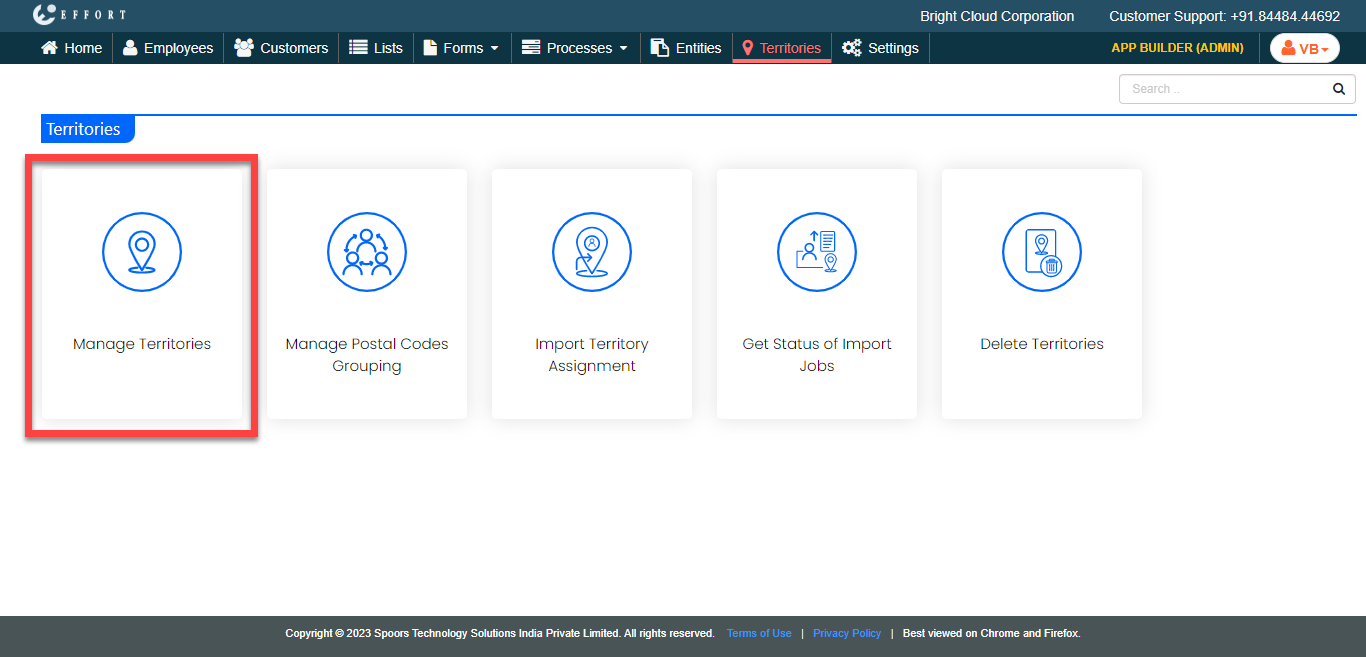
Click the Manage Territories card.
-
Click the Create Territory button.
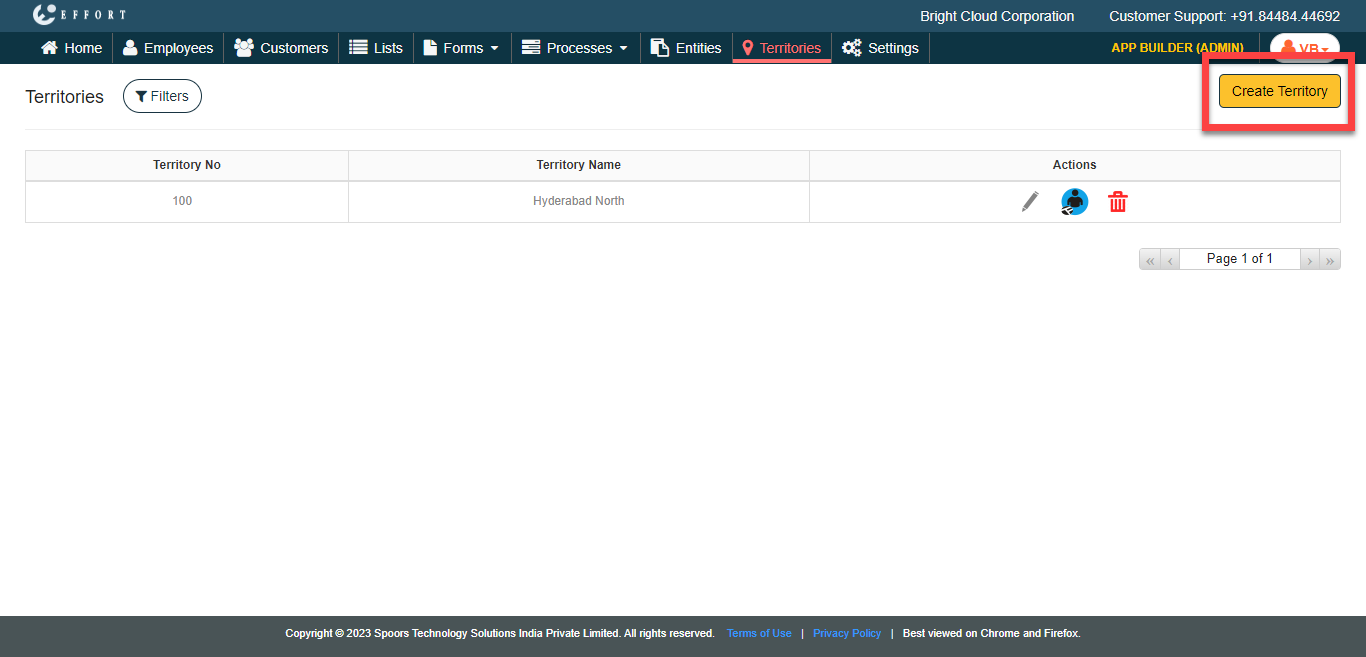
The Create Territory page appears with the Google map on the right side.
-
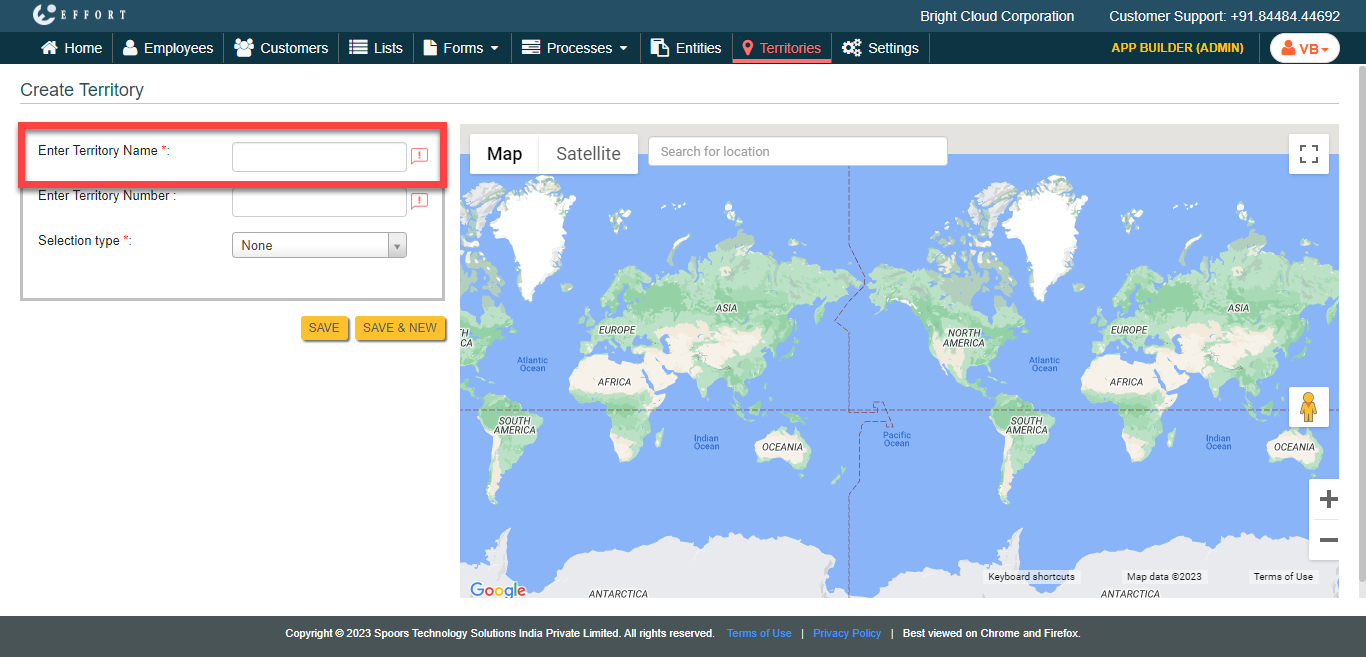
In the Enter Territory Name textbox, enter a name for
the territory.
-
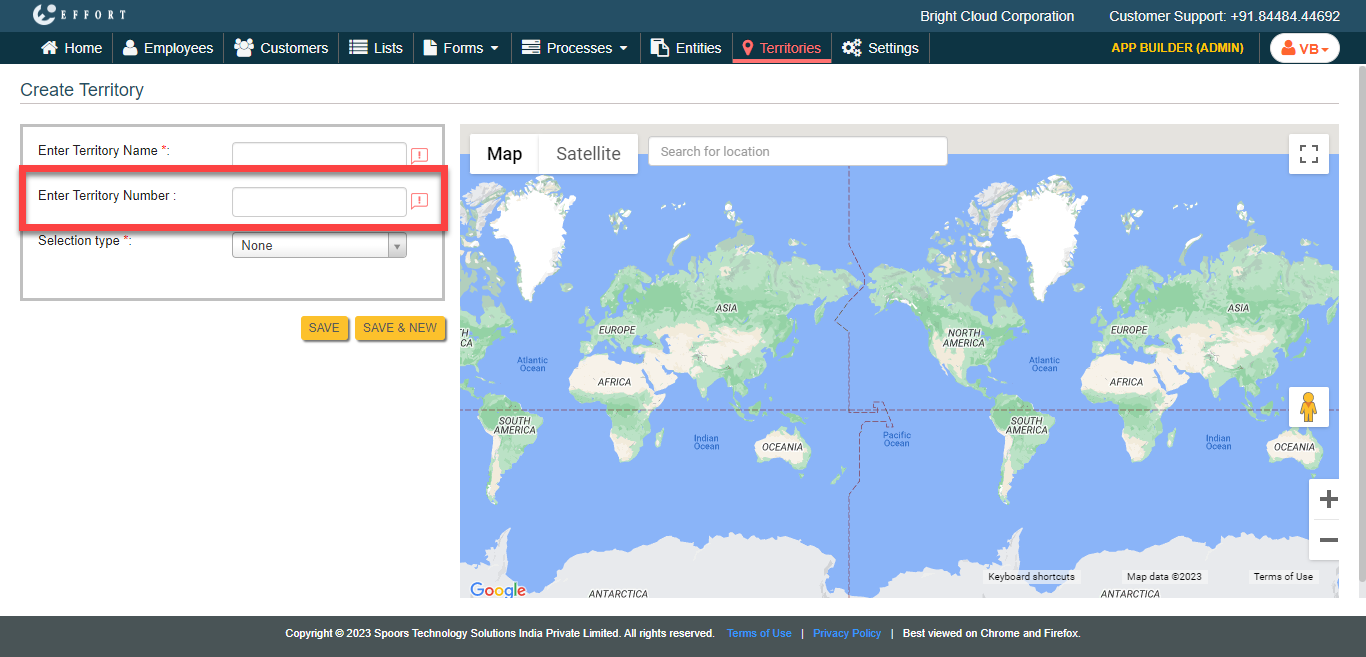
In the Enter Territory Number textbox, enter an Id for
the territory.
-
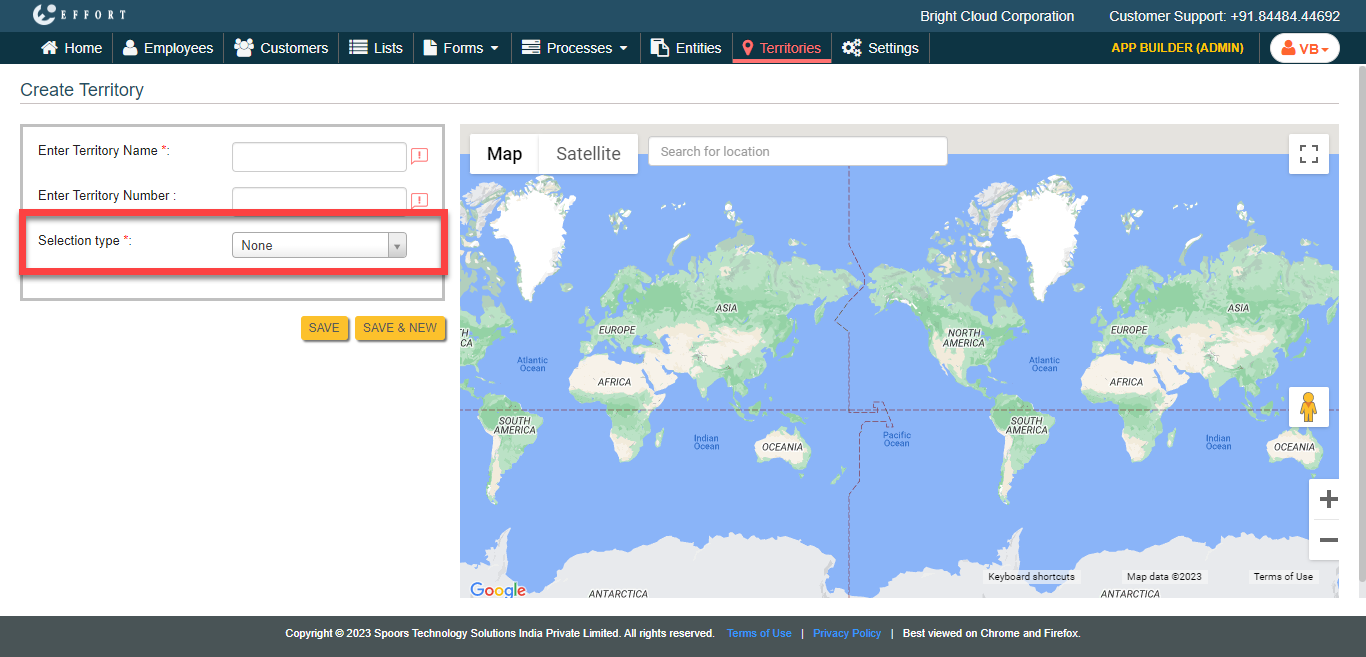
Select the below options for the Select Type
dropdown.
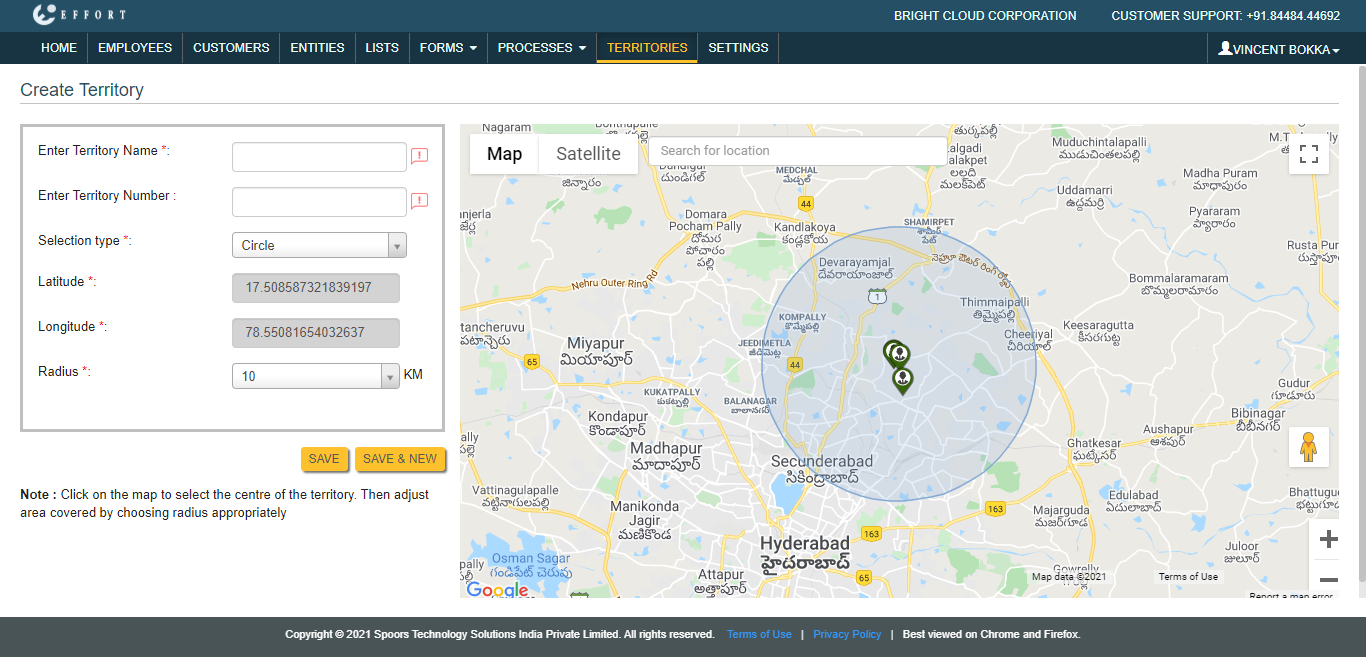
- Circle: Allows you to select a location in the
google map. Select distance from the Radius
dropdown.
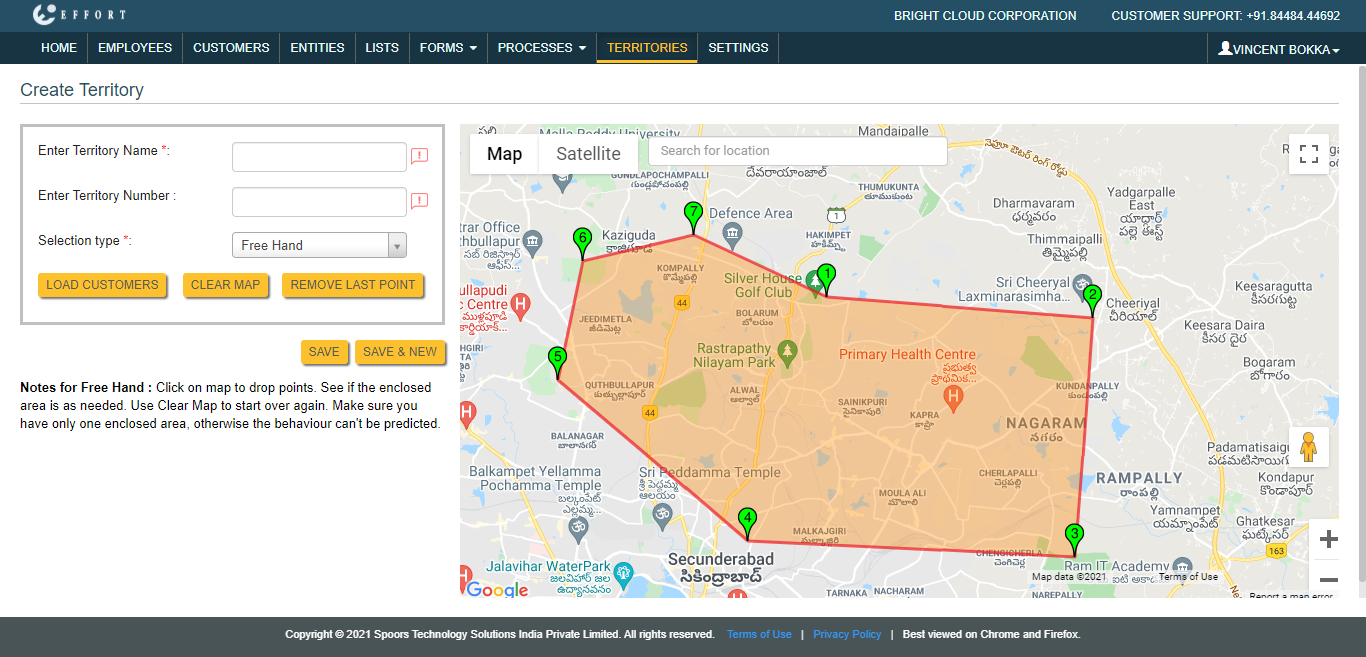
- Free Hand: Allows you to draw a territory as per
your requirement in the google map.
- Circle: Allows you to select a location in the
google map. Select distance from the Radius
dropdown.
- Optional:
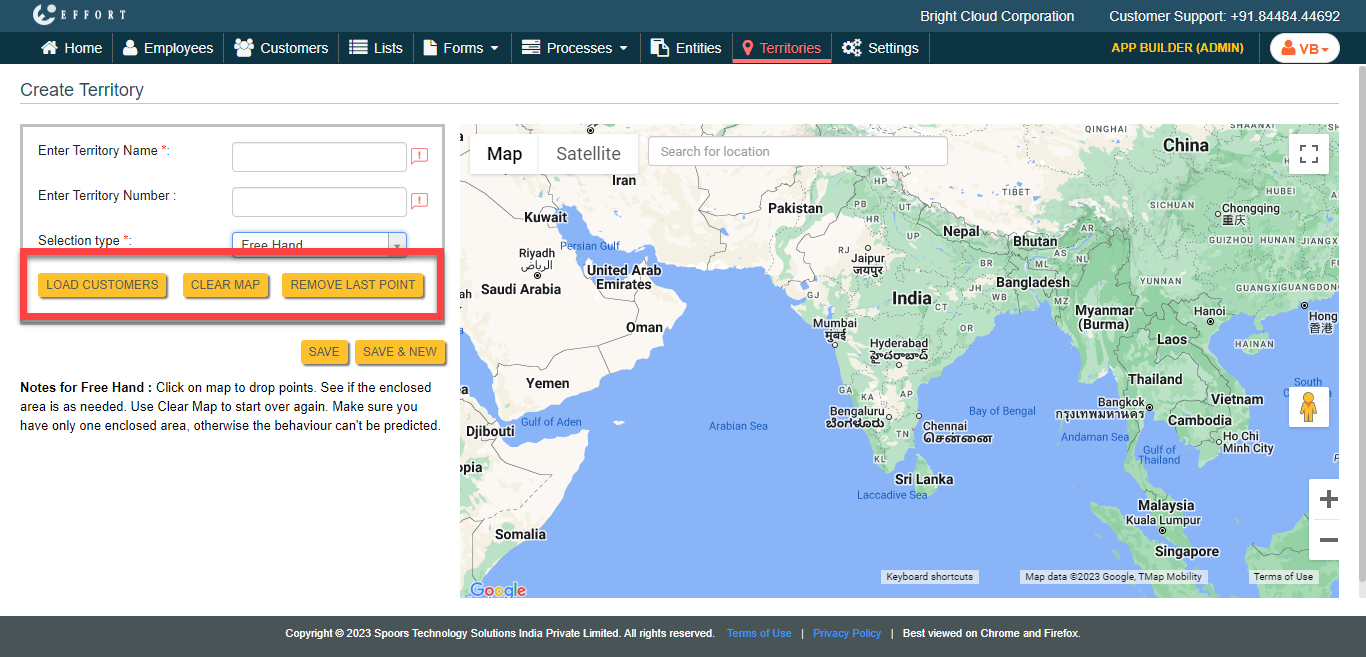
Use the below options for Free Hand if needed.
- Load Customers: Allows you to load the customers in the drawn area.
- Clear Map: Allows you to clear the Google map.
- Remove Last Point: Allows you to clear the last selected point in the google map.
- Click Save or Save & New to create a new territory.