

Complete a Day Plan
This topic guides you with the step-by-step procedure to complete a day plan in the Effort Web Lite App. You can follow the below steps to complete a day plan in the Web Lite app.
-
Login to your Effort Web Lite account.
Refer to the Login to Effort Web Lite App topic for the step-by-step procedure to log in to the Web Lite app.
-
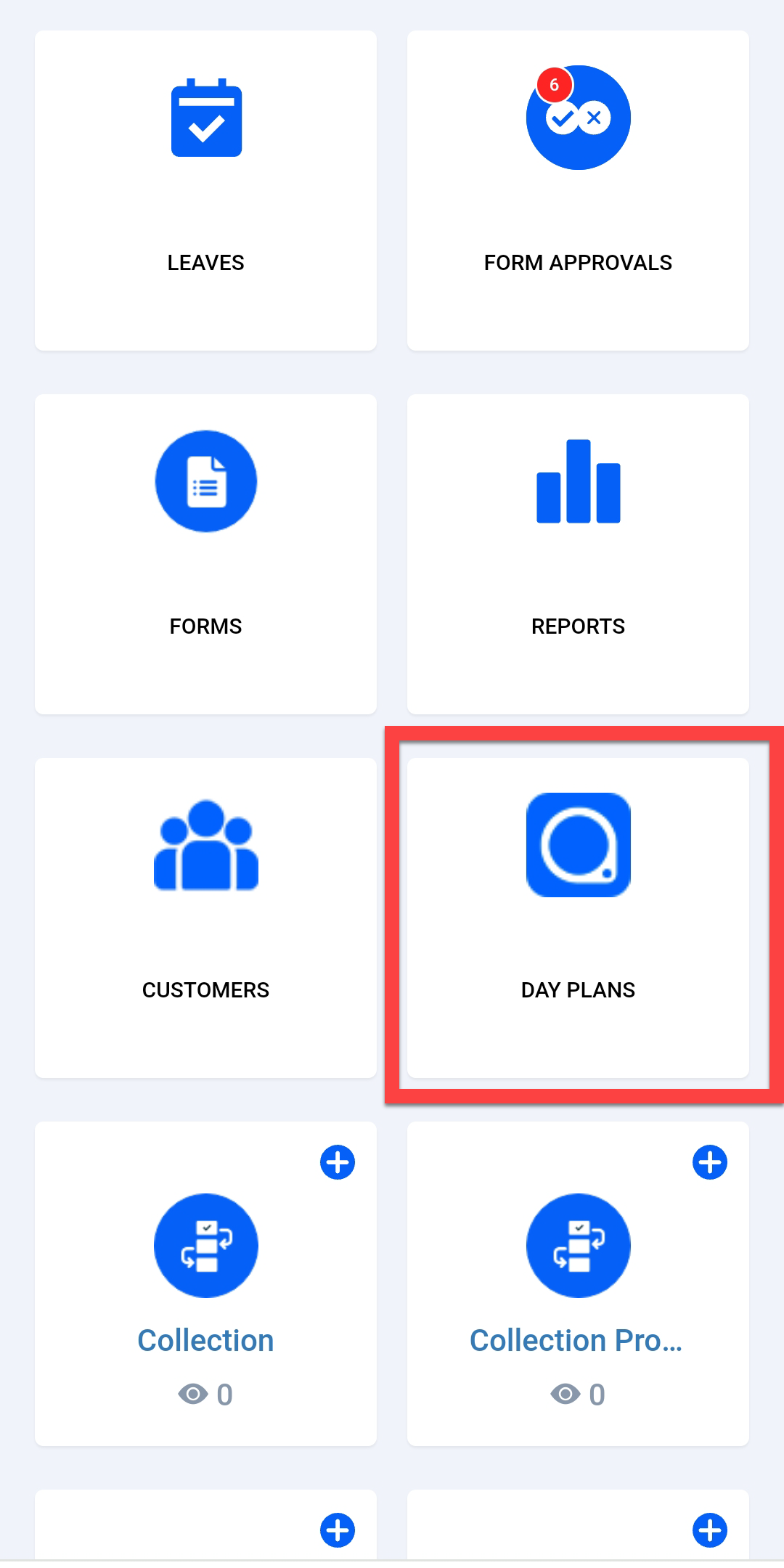
Tap DAY PLANS card on the home screen.
-
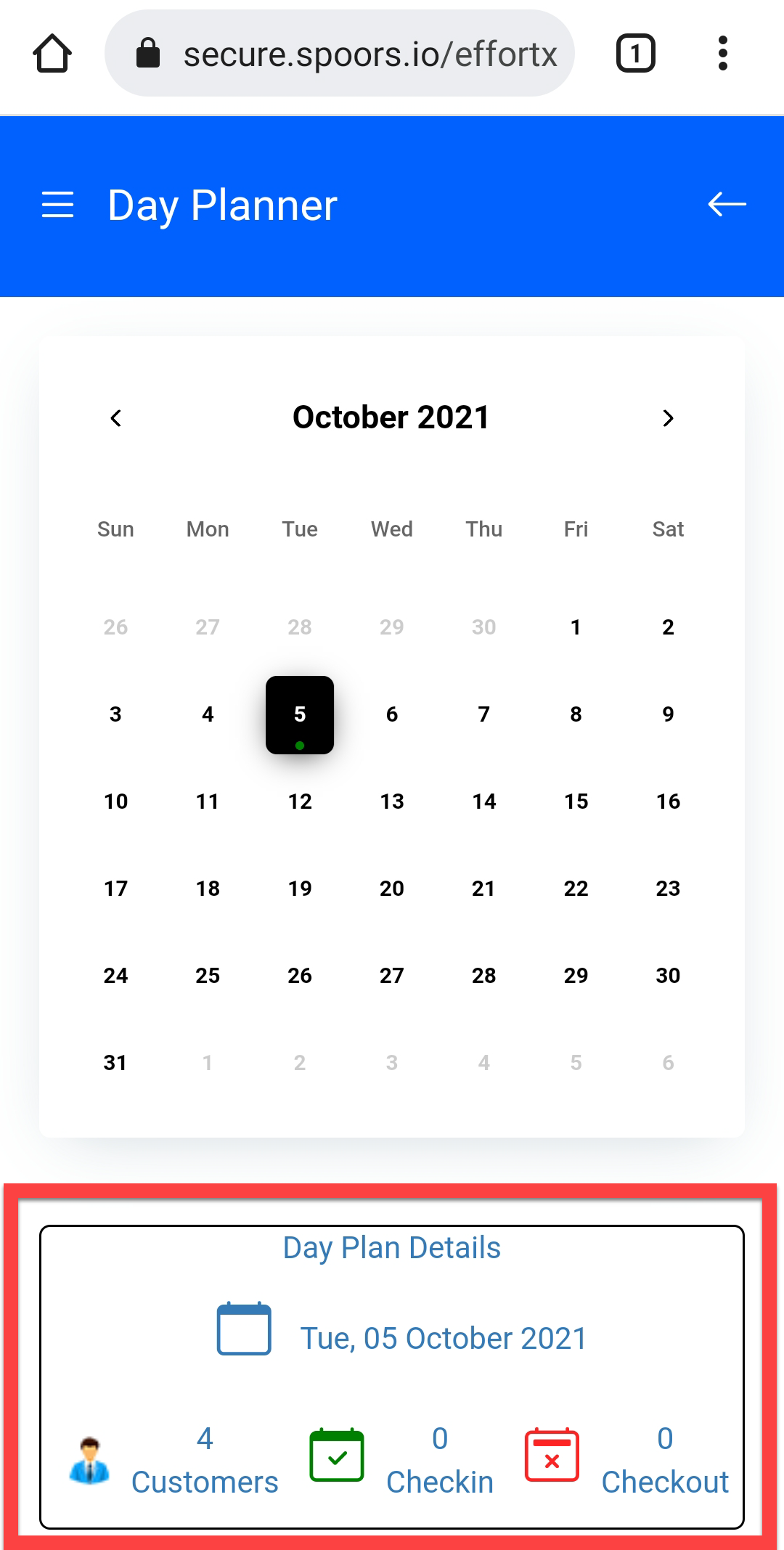
You can see the day plan assigned for today. Tap on the Day Plan
Details card.
- Optional:
Tap the info
 icon to
view customer details.
icon to
view customer details.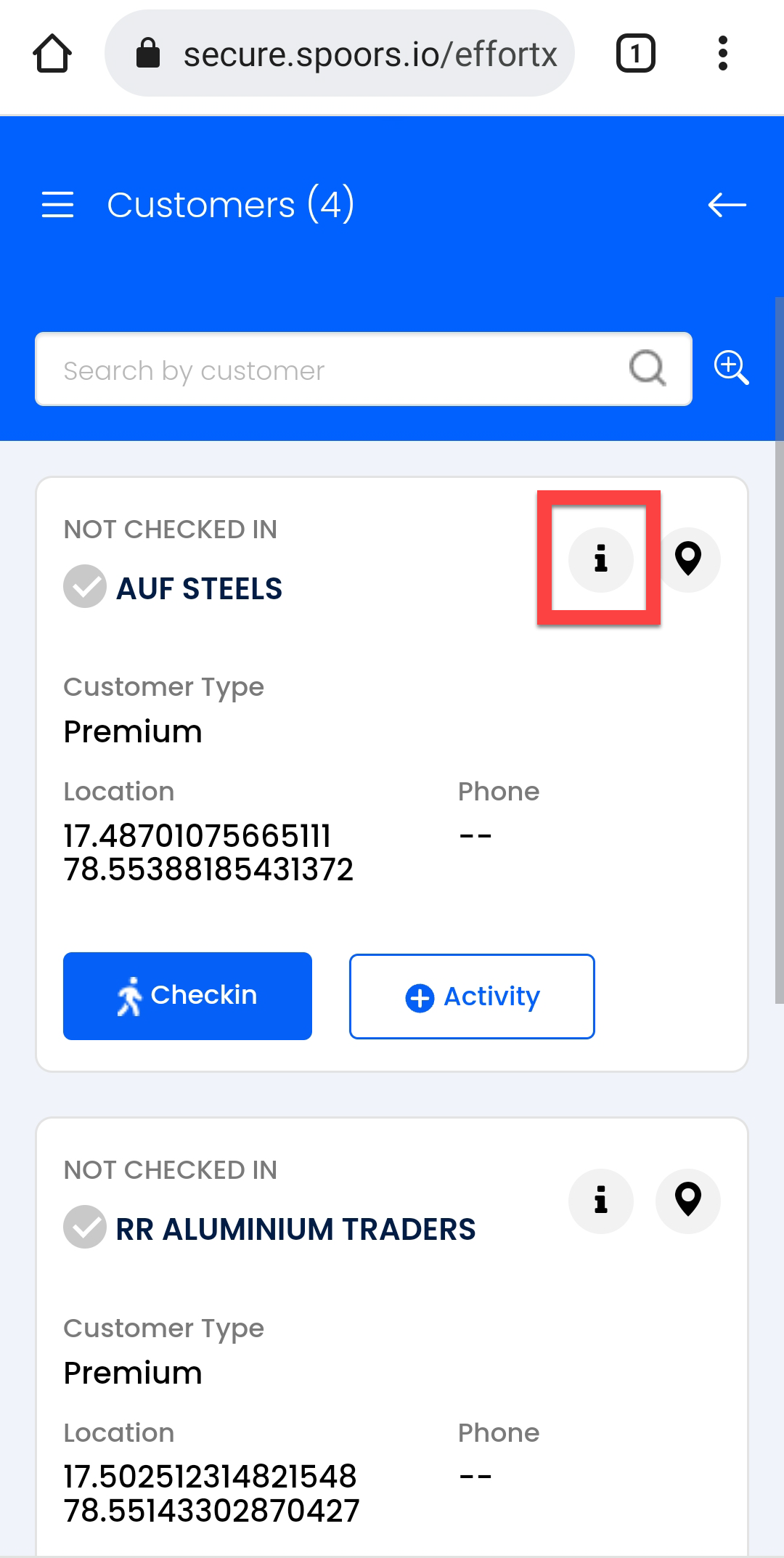
- Optional:
Tap the map
 icon to
view the customer location on Google Map.
icon to
view the customer location on Google Map.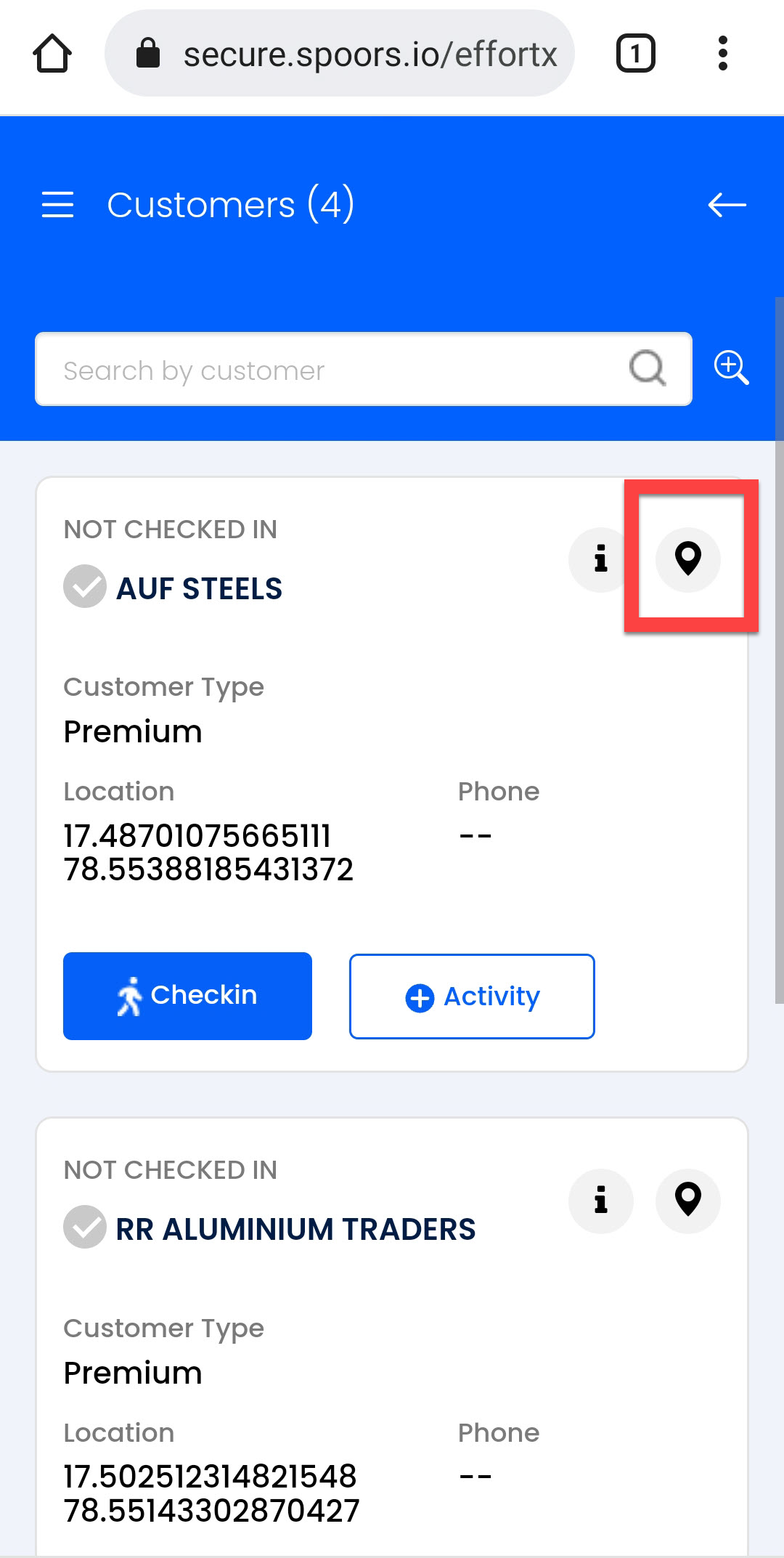
-
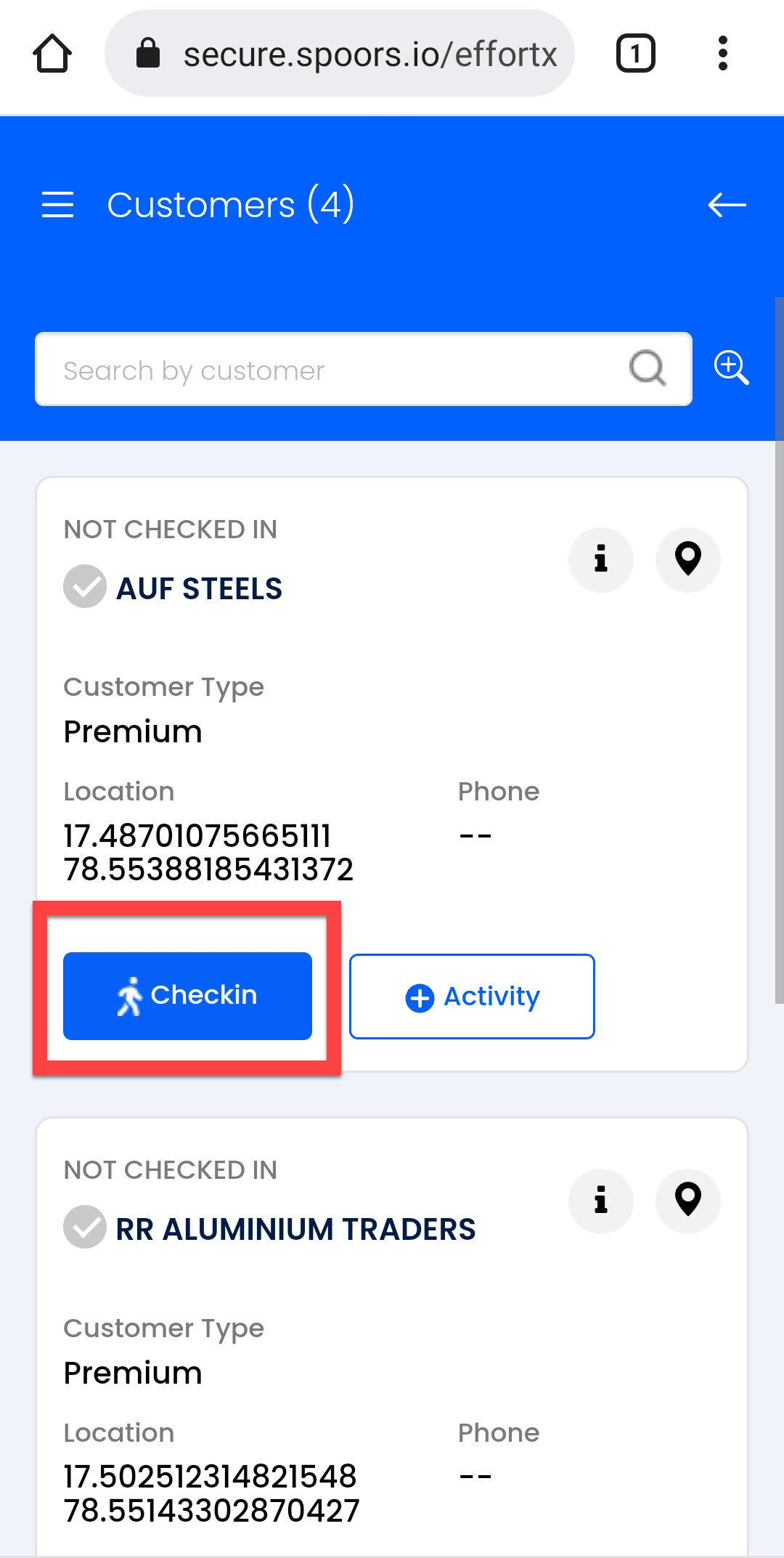
Tap the CheckIn button given on a customer card to check
in to the customer.
-
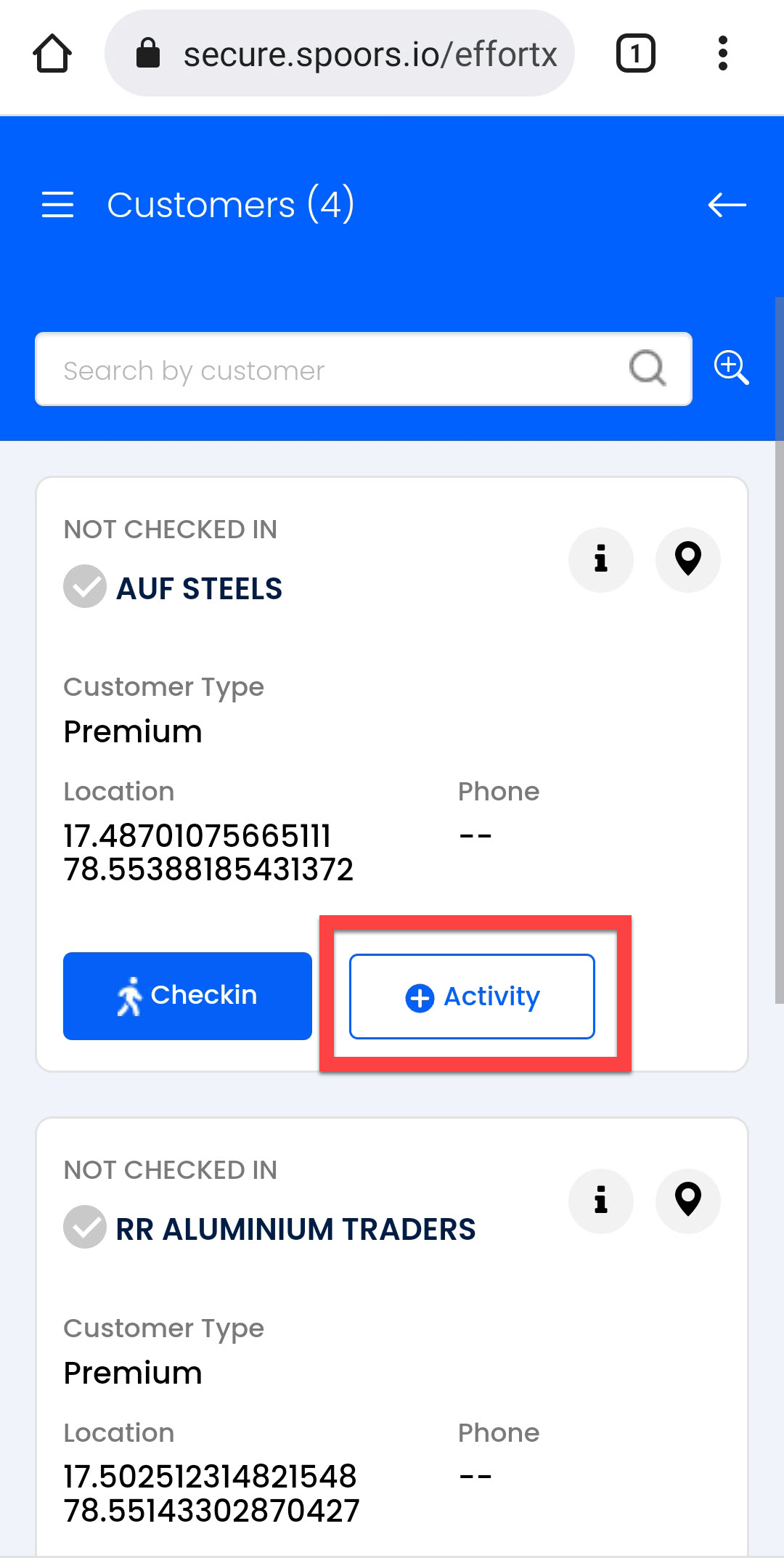
Tap the Activity button given on a customer card to
check in to the customer.
-
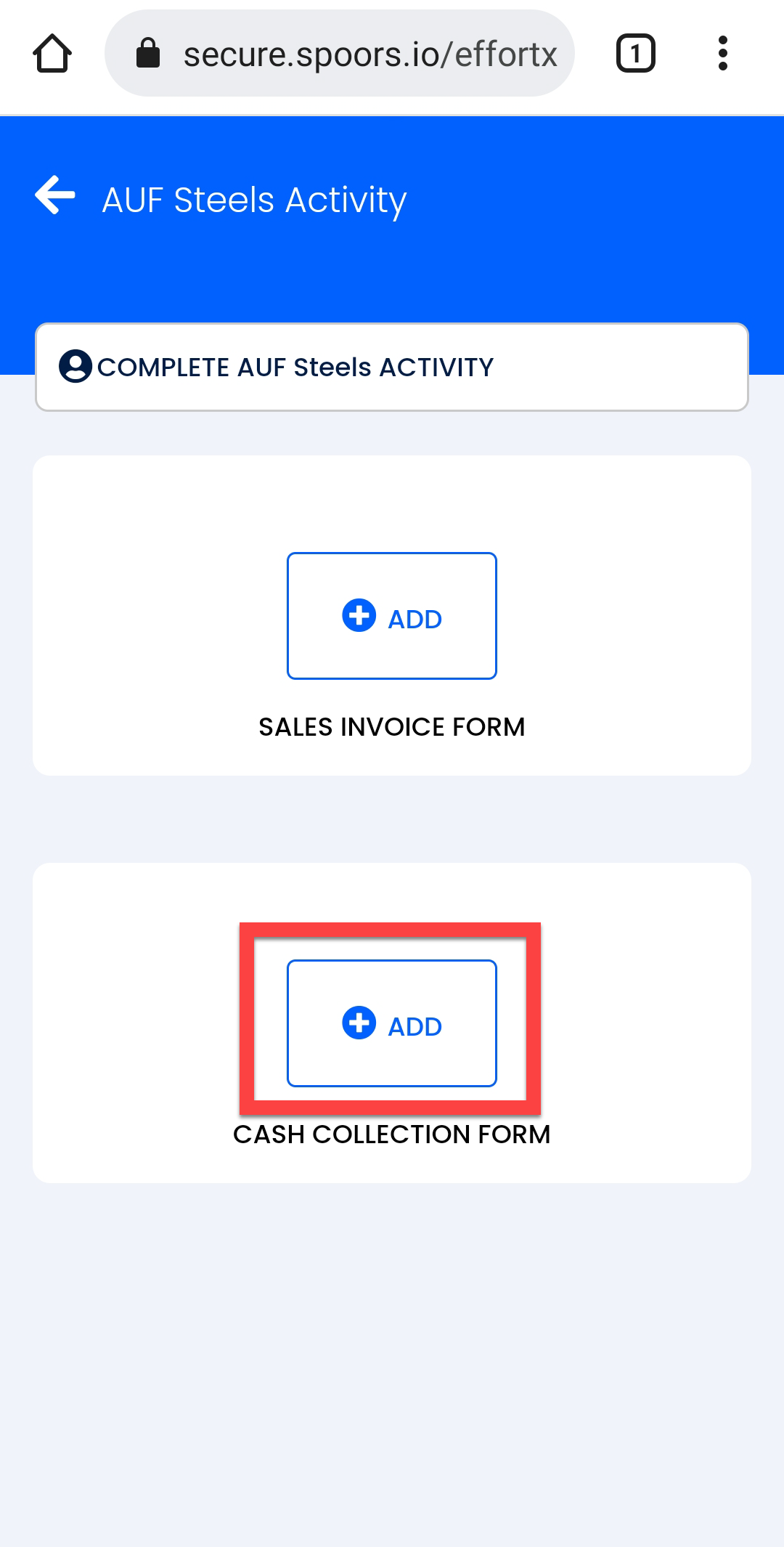
Tap the ADD button given on the activity card that you
want to perform.
-
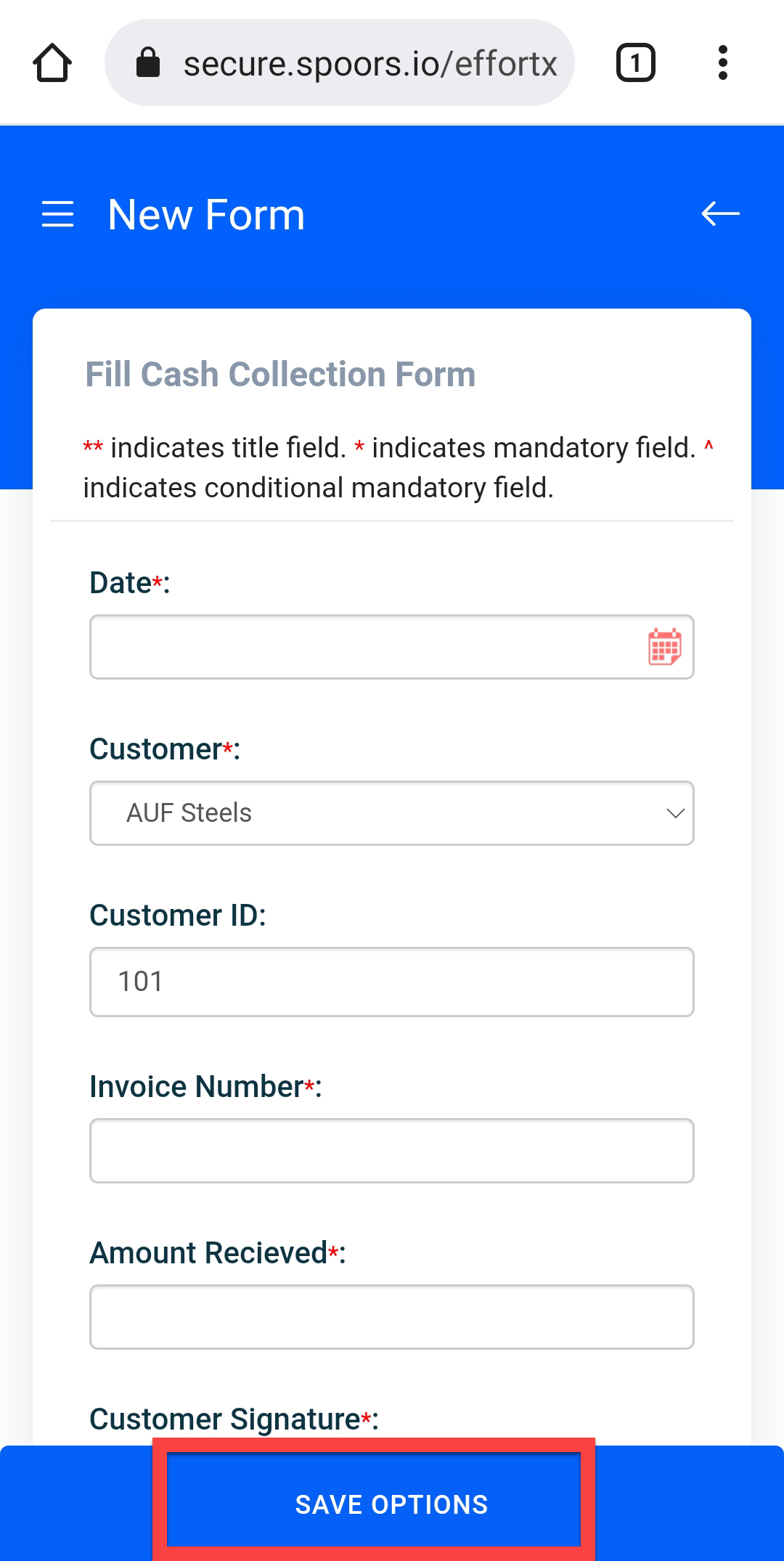
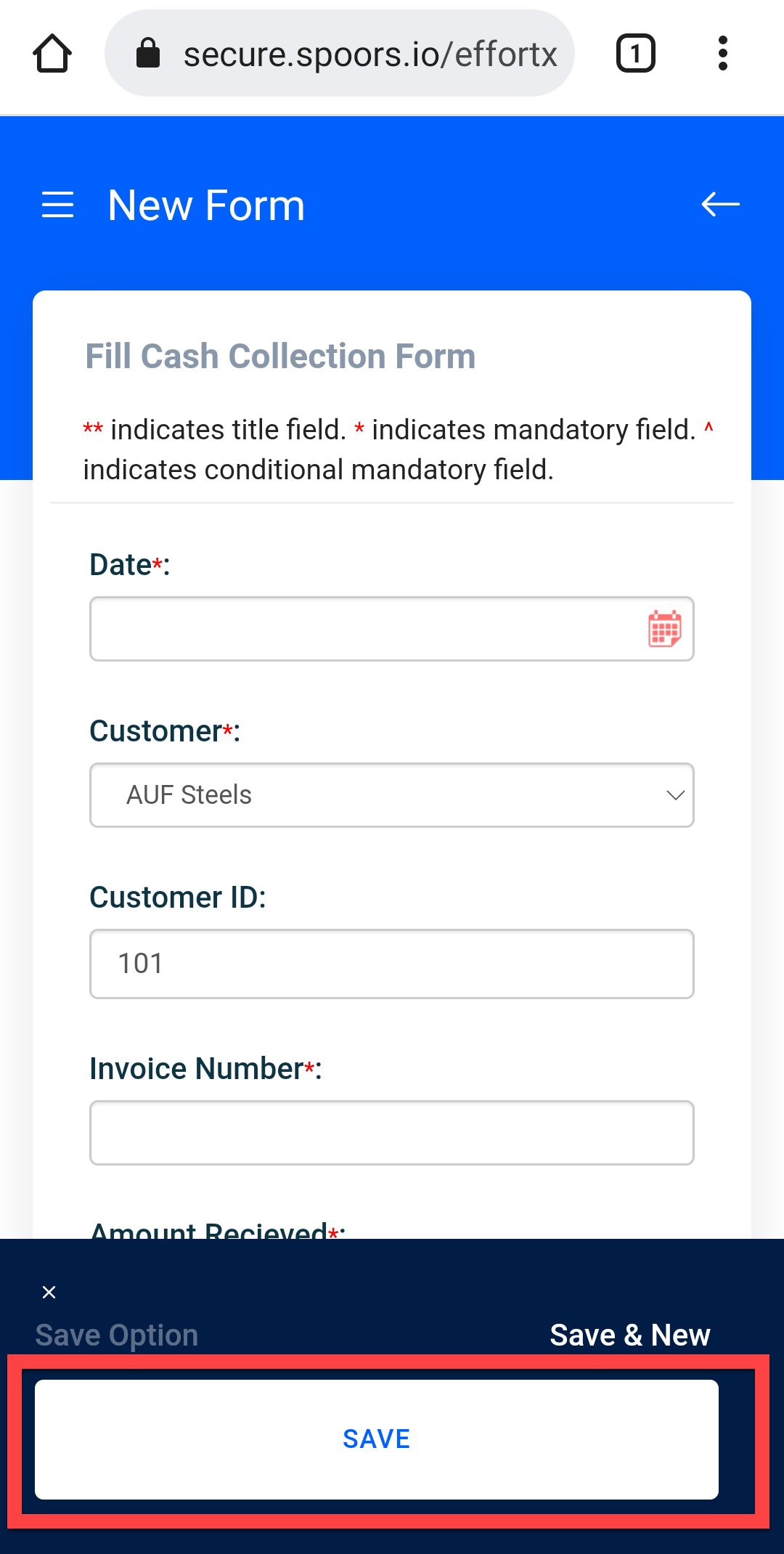
Enter details in the form fields and tap the SAVE
OPTIONS button.
-
Tap SAVE button.
-
Tap the CheckOut button to complete the customer
visit.
Similarly, complete all the other customer visits to complete the day plan.