

Unable to Upload Given Customers in the Attached Sheet
If you failed to upload the customers through the Import option, follow the below steps to resolve such failed uploads.
- Log in to the respective EFFORT account.
- Navigate to .
-
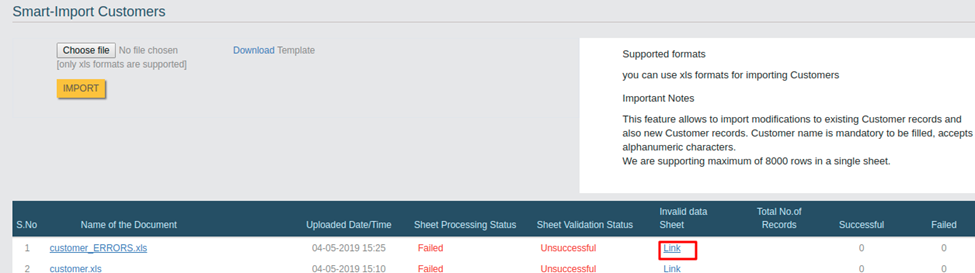
Click the Import button. You can see the failed uploads under the bottom
of the import page.
-
Now click the Link under the Invalid data Sheet column.
An excel sheet gets downloaded. In that, you will find the reason for the unsuccessful upload.
- Open the downloaded excel sheet and go to the last column labeled as Errors. Under this column, you will find the reason for the unsuccessful upload.
-
Clear the errors and upload again.
Now the upload will be successful.