

Schedule Workflow Notifications
To schedule workflow notifications, follow the steps below.
-
Go to .
Click on
 to view
the Notifications module.
to view
the Notifications module. -
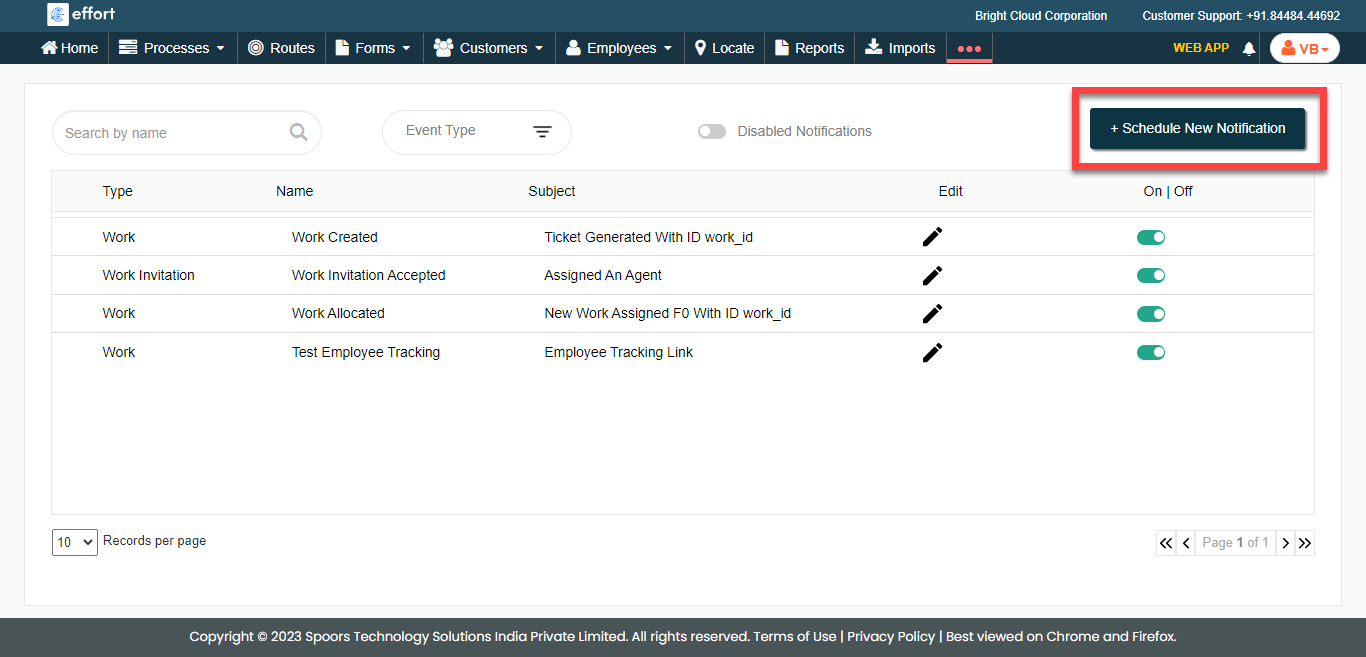
Click the Schedule New Notification button located on
the top right corner.
-
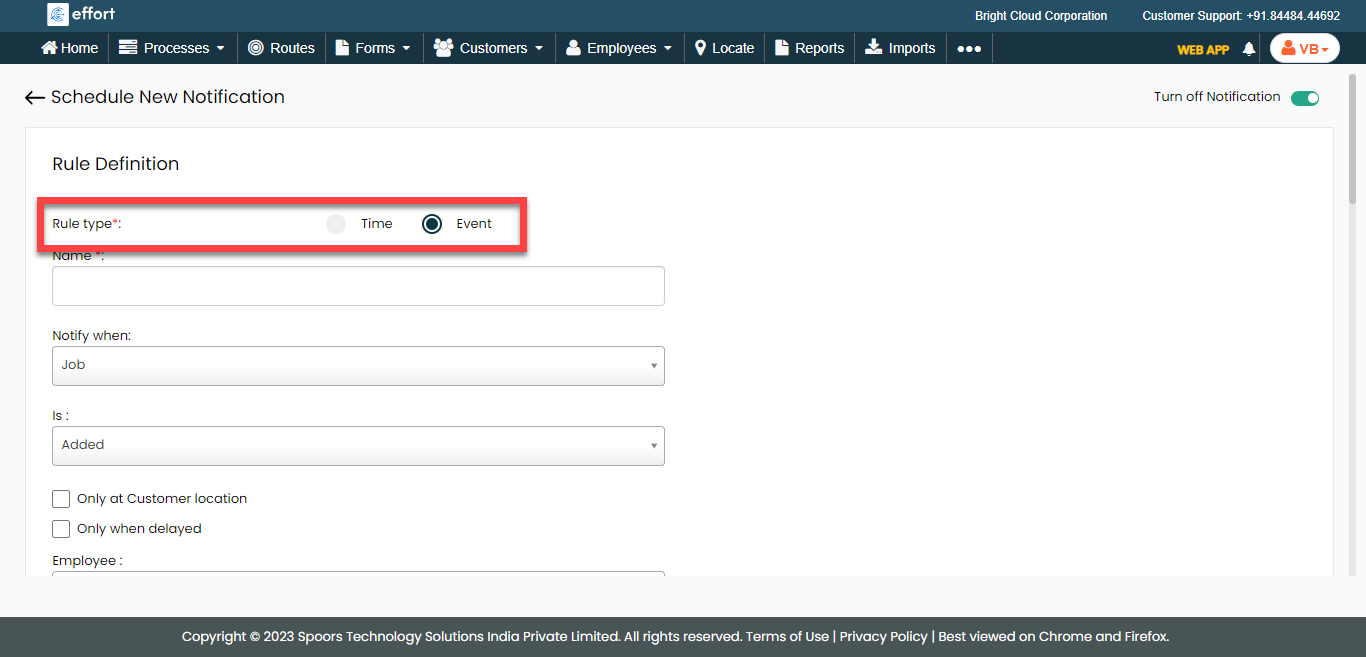
Change Rule Type to Event.
-
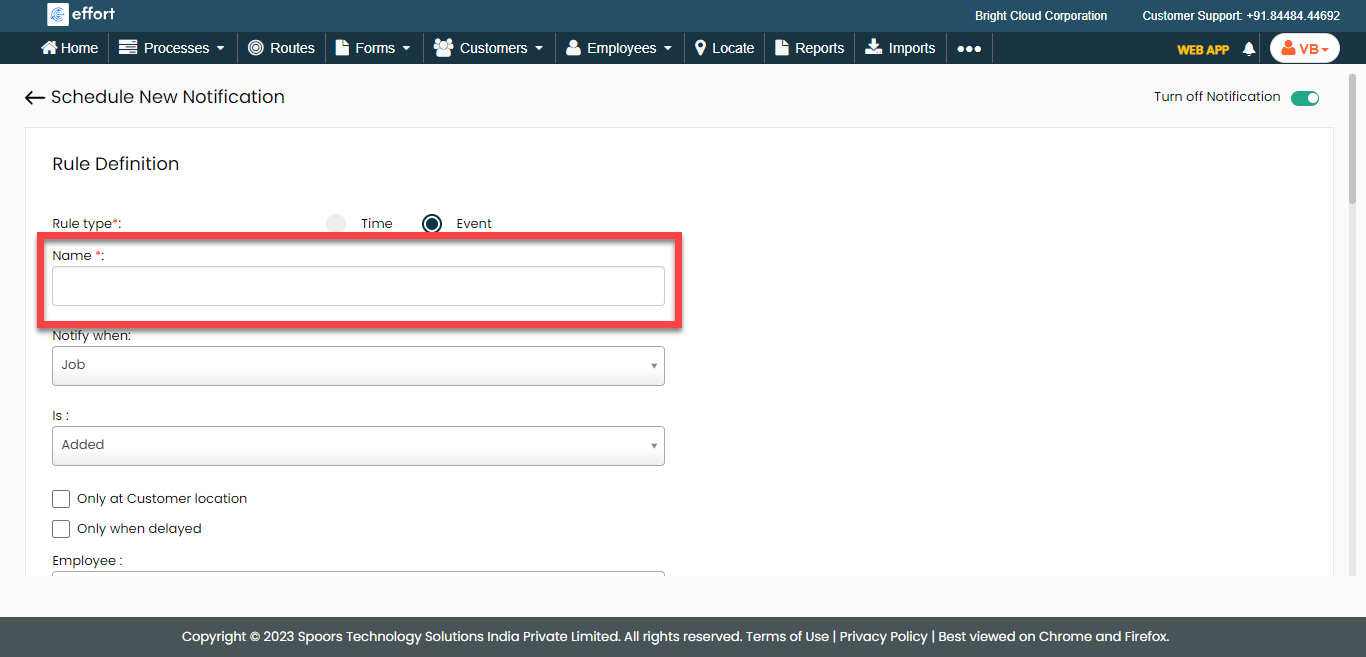
Enter a title for the notification in the Name
textbox.
-
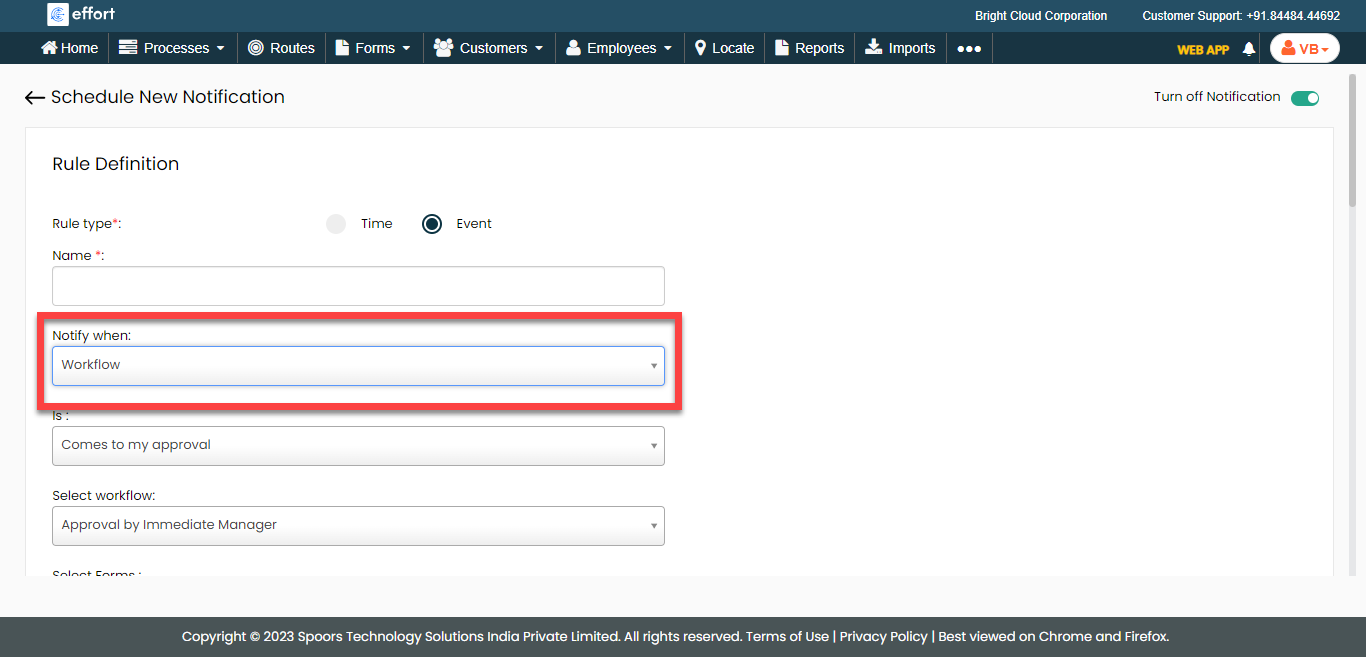
Select Notify When as
Workflow.
-
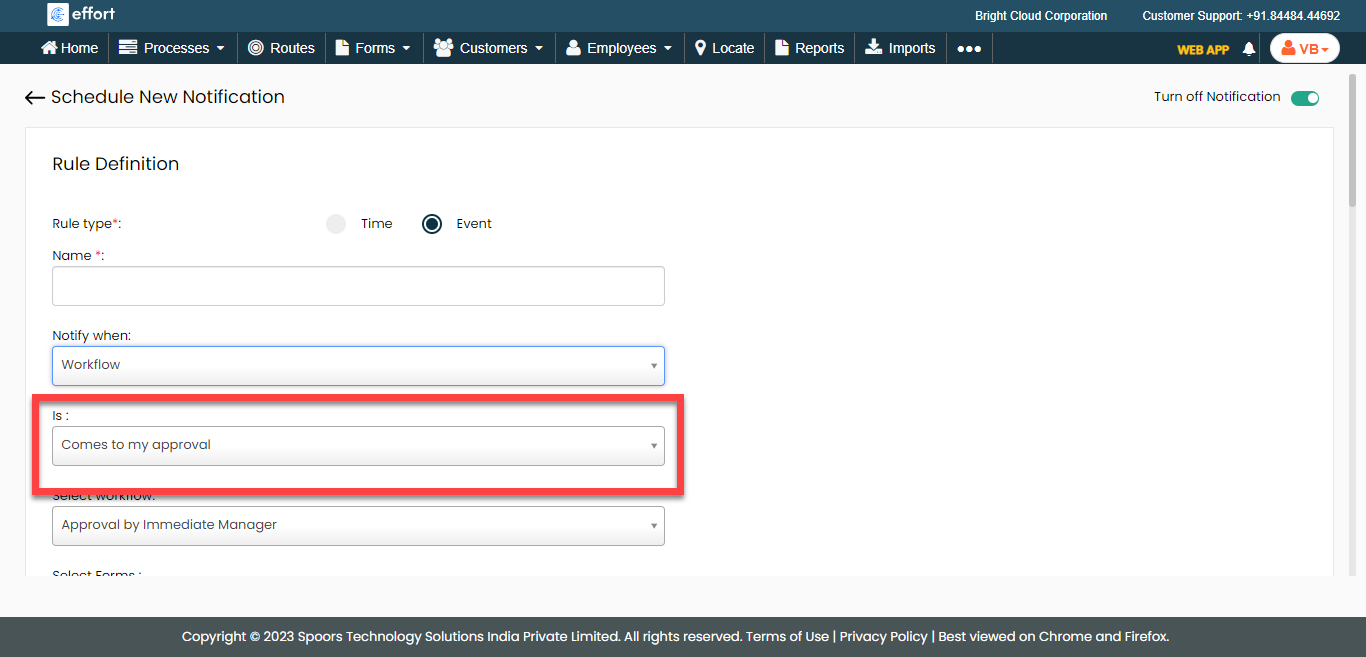
From the Is dropdown, select an event to send
notifications.
-
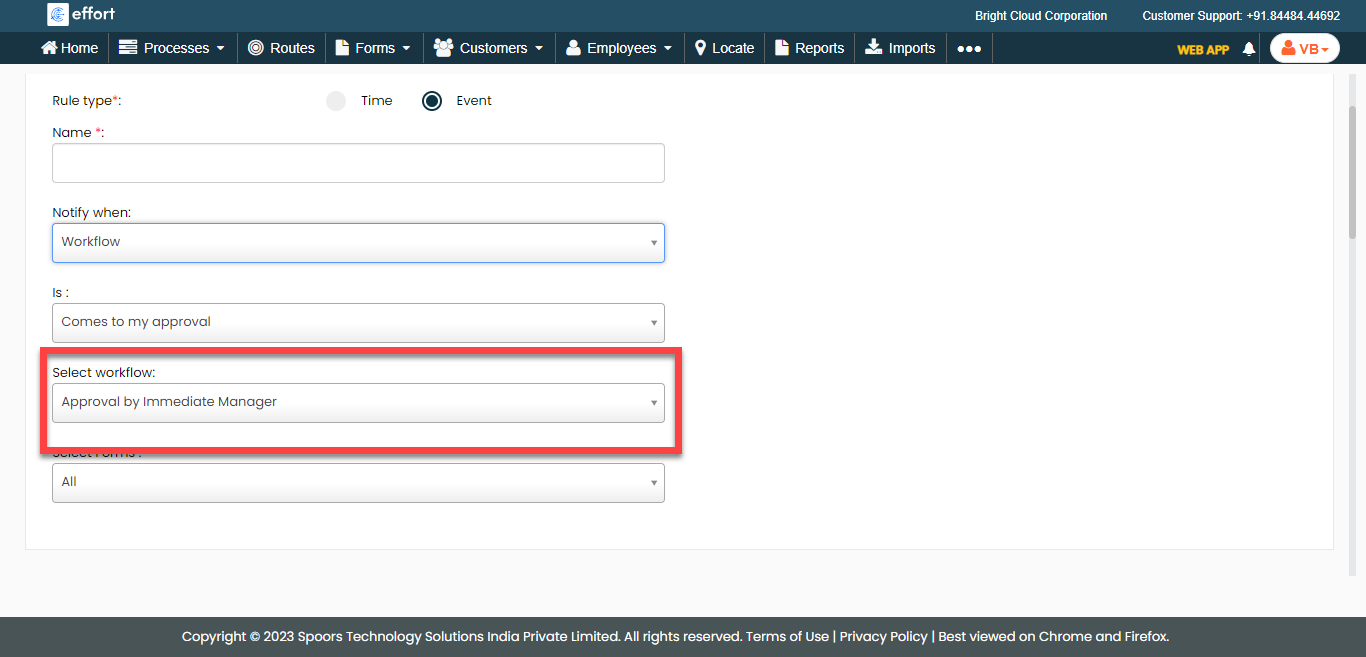
From the Select Workflow dropdown, select an approval
process.
- Optional:
If you want to schedule notification for a single form, select one from the
Select Forms dropdown.
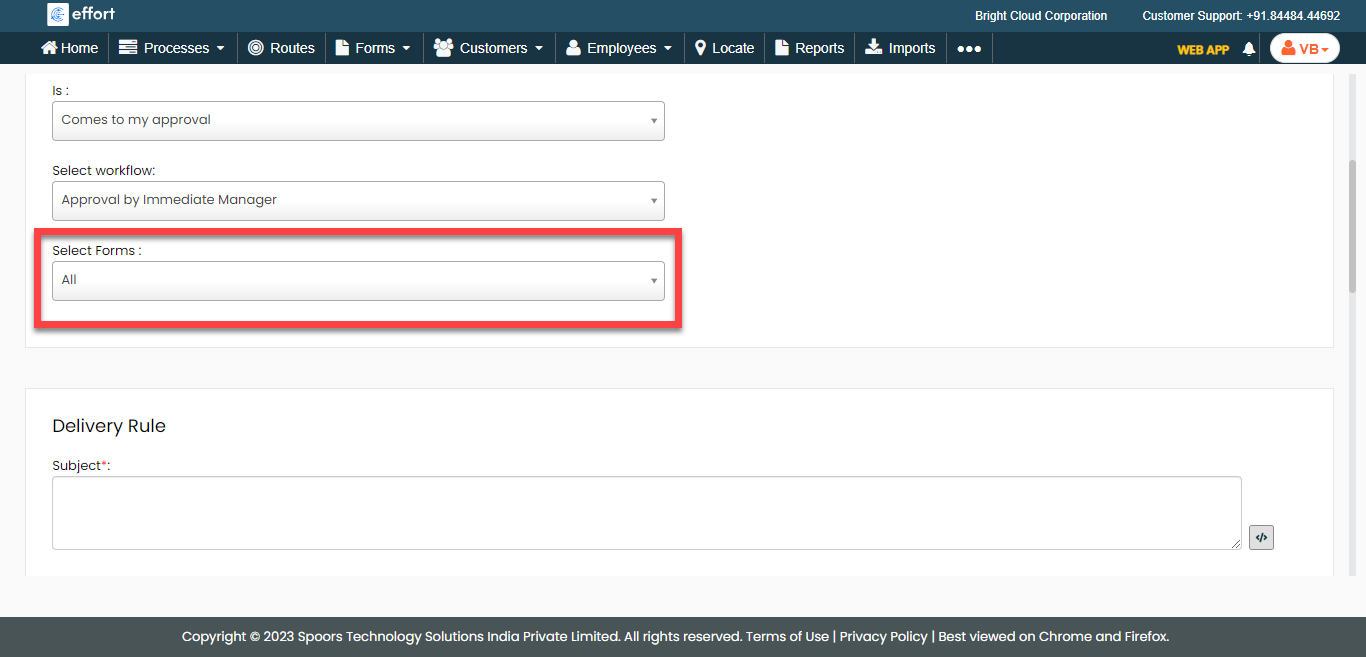
If you want to schedule notifications for all forms, you can ignore this step. -
Enter the subject line for the notification in the
Subject field under the Delivery
Rule section.
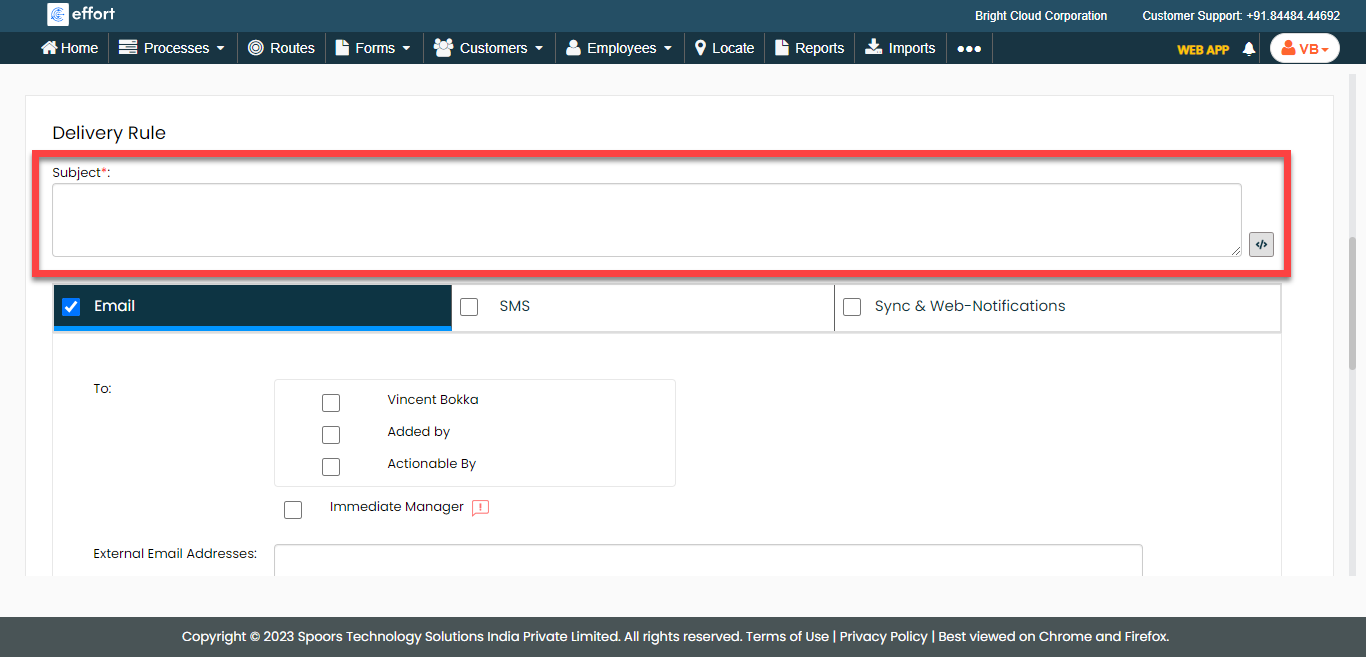
Click the pick fields icon to add the available fields in the subject line.
 -
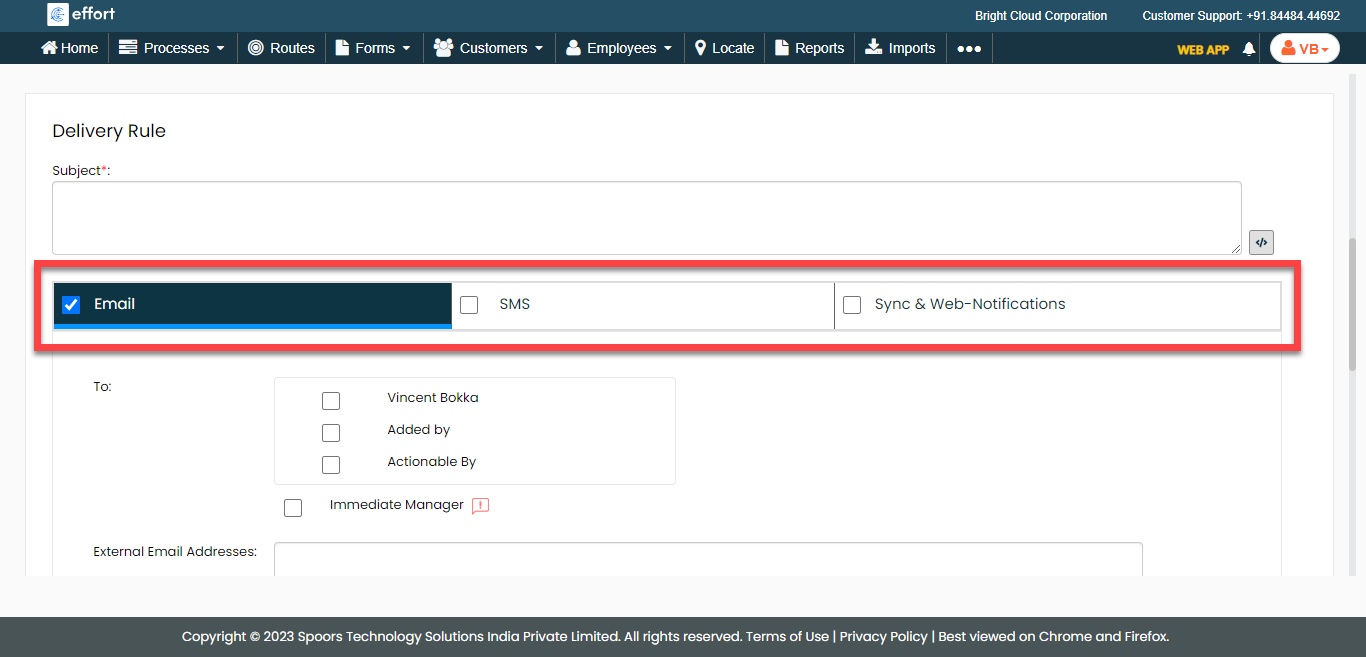
Select the notification delivery options as per your requirement.
- Email: Allows you to send notification via Email.
- SMS: Allows you to send notification via SMS.
- Sync & Web-Notifications: Allows you to send web notifications.
-
Select recipients and enter the notification content in the Message
Body field.
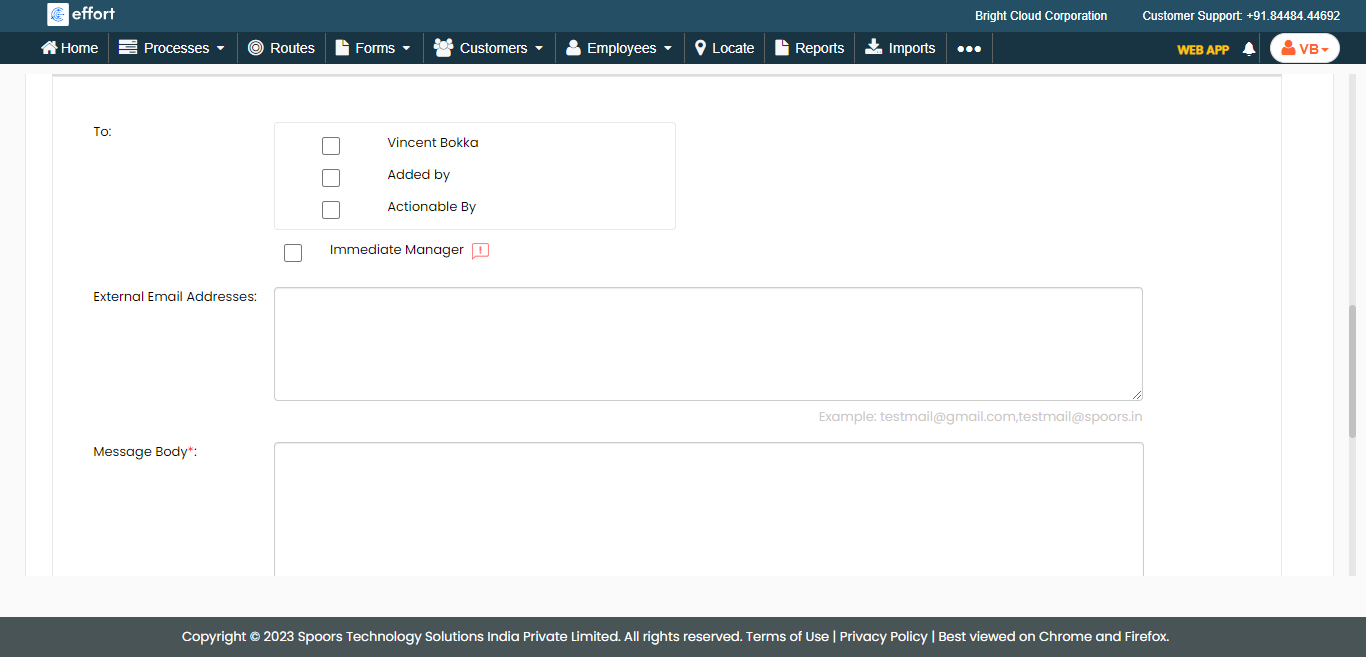
Click the pick fields icon to add the available fields in the message body. - Click Save.