

Generate a Activities Summary Report for Day Plans in a Date Range
Get a day- and employee-wise summary of activities against the day plans in the selected date range.
-
Go to .
The Reports page appears.
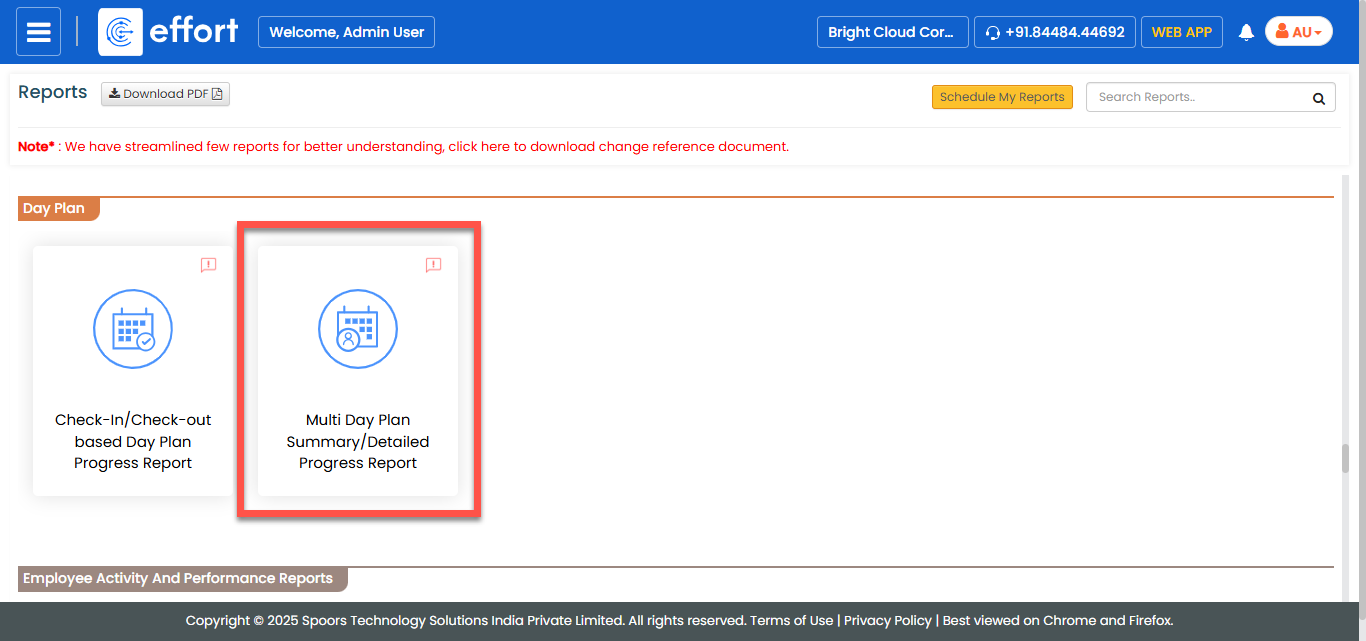
- Scroll down to the Day Plan section.
-
Click the Multi Day Plan Summary/Detailed Progress
Report link or icon.
-
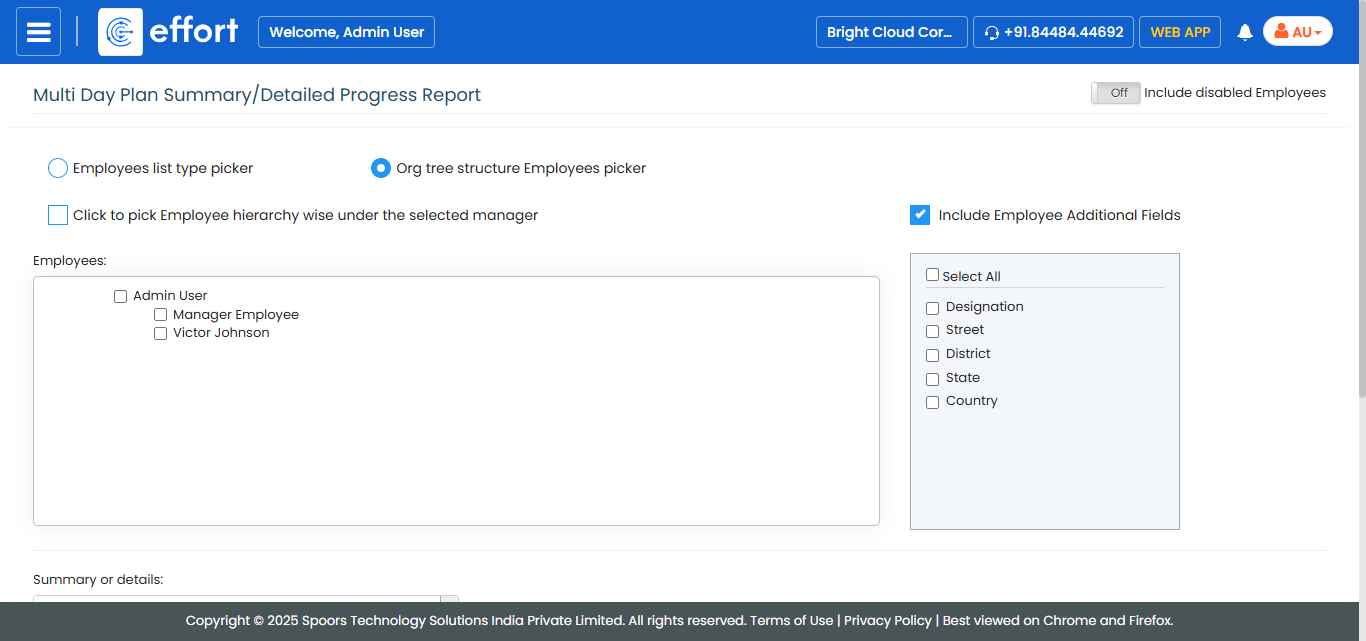
Select employees from the employee section.
- Optional:
Ensure that Summary is selected for the level of
detail.
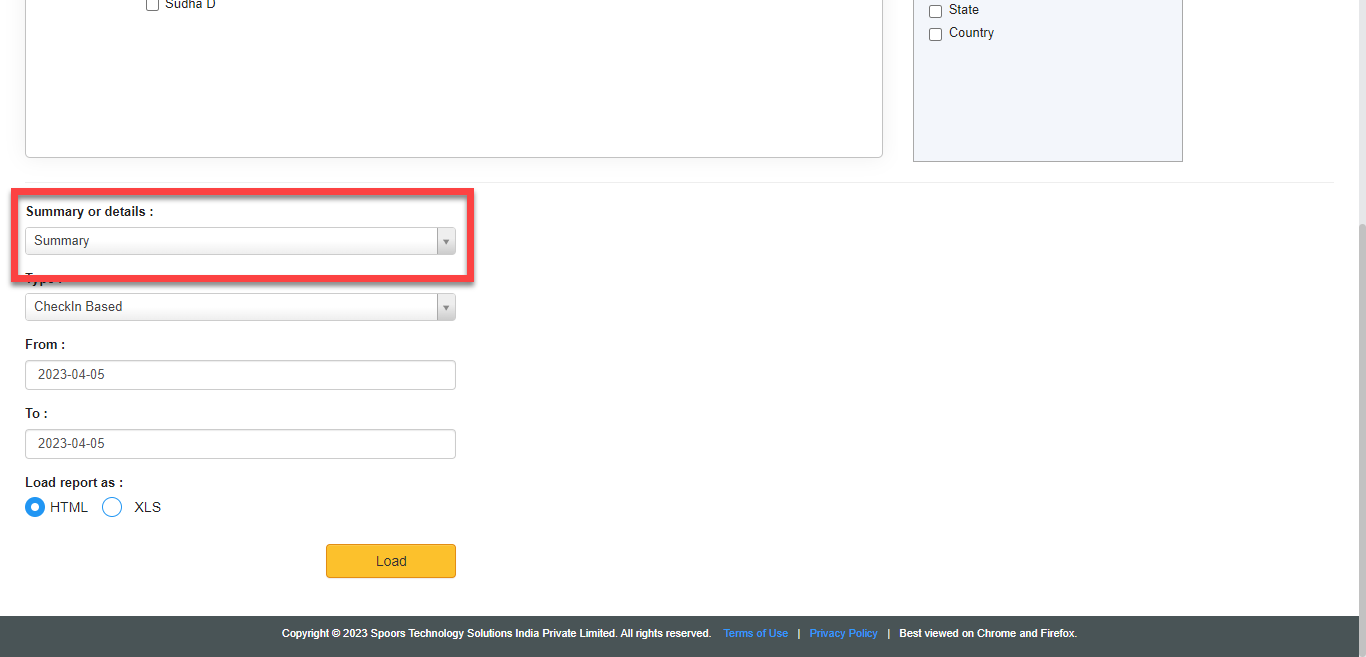
It defaults to Summary. -
Select Activities Based for
Type.
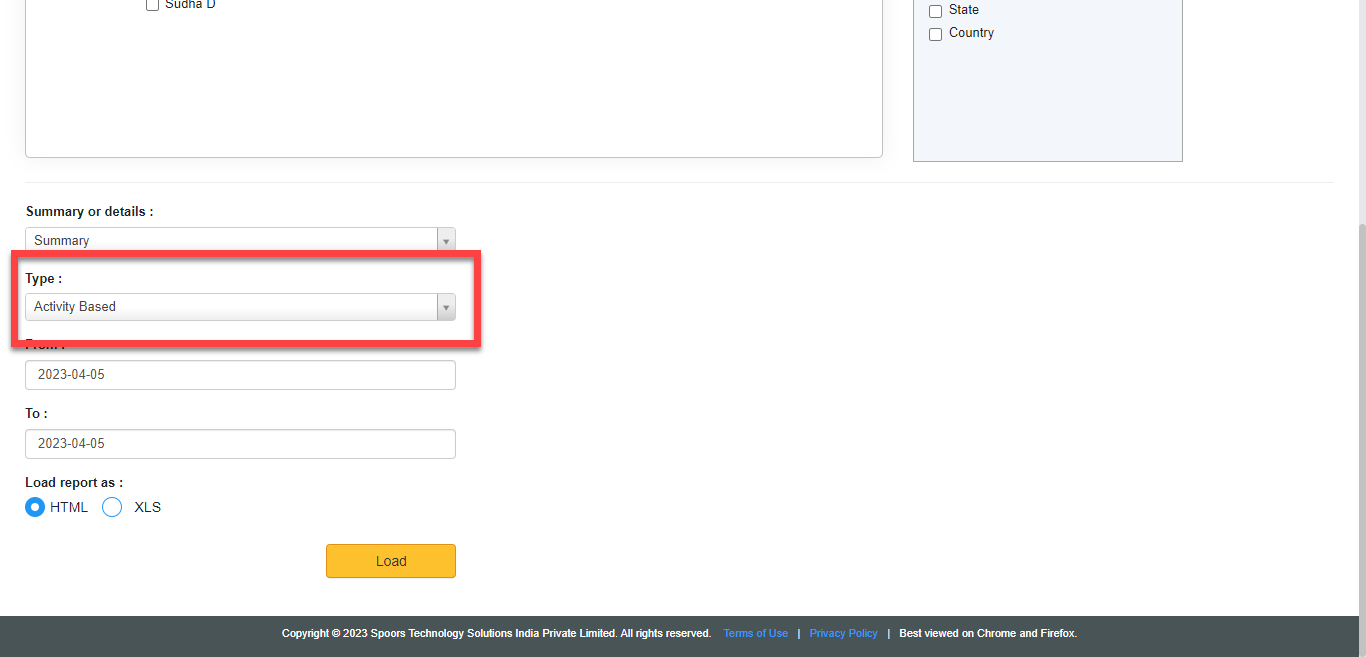
Type defaults to Check-ins Based. - Optional:
Change From and To dates as per
your requirement.
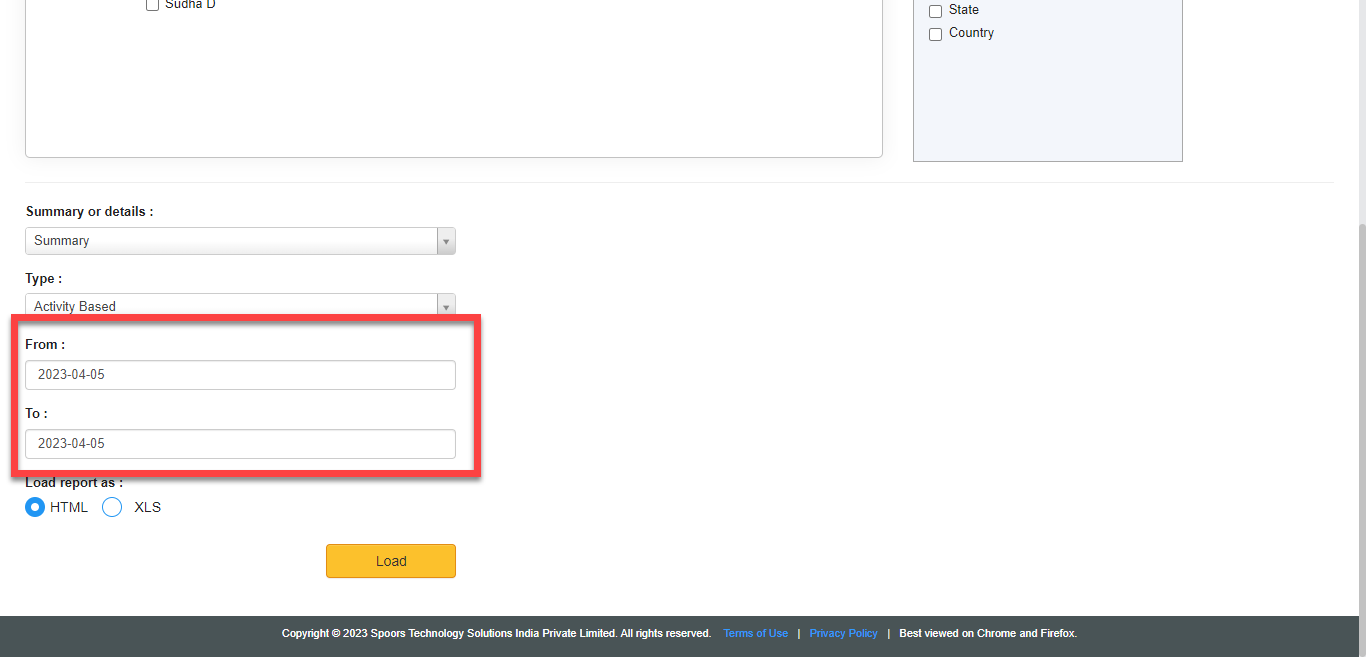
Both From and To default to today. - Optional:
In Load report as, select the output report
format.
Load report as defaults to HTML.
-
Click LOAD.
If you opted for HTML, the report opens in a new tab.
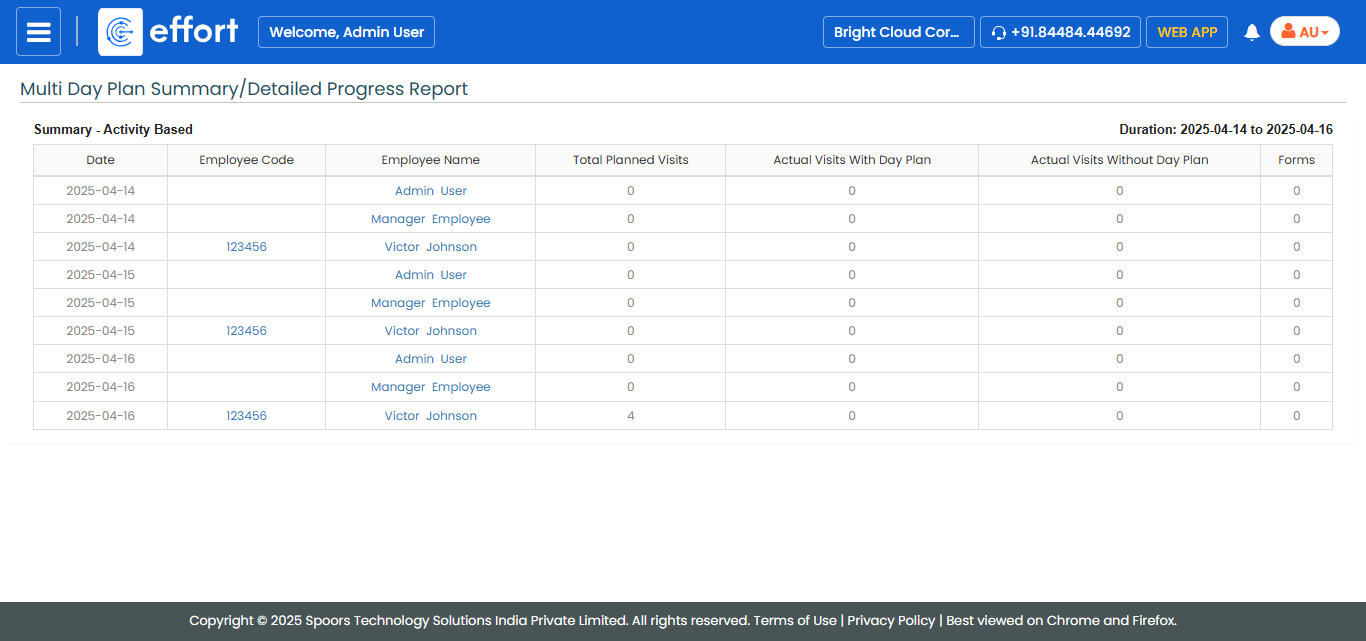
If you opted for XLS, the browser shows a dialog with Open With and Save File options.