

Generate a Check-ins Report for Day Plans in a Date Range
Get a day-wise check-ins of day plans in the selected date range.
-
Go to .
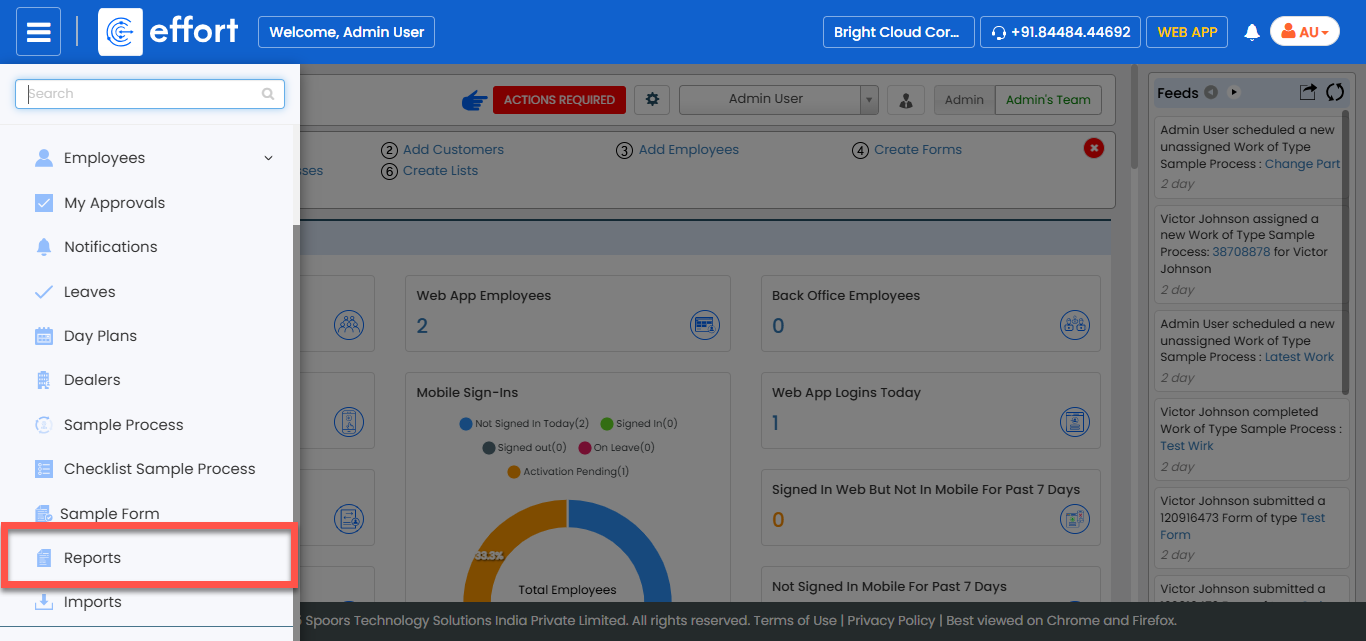
The Reports page appears.
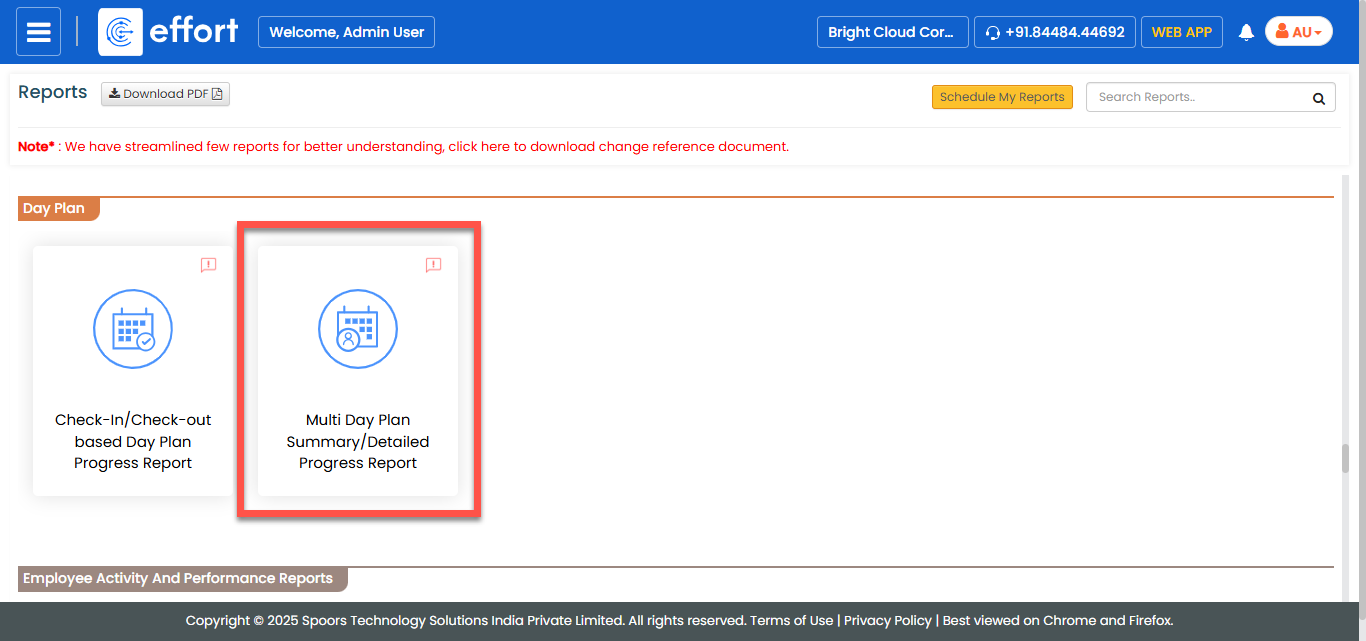
- Scroll down to the Day Plan section.
-
Click the Multi Day Plan Summary/Detailed Progress
Report link or icon.
-
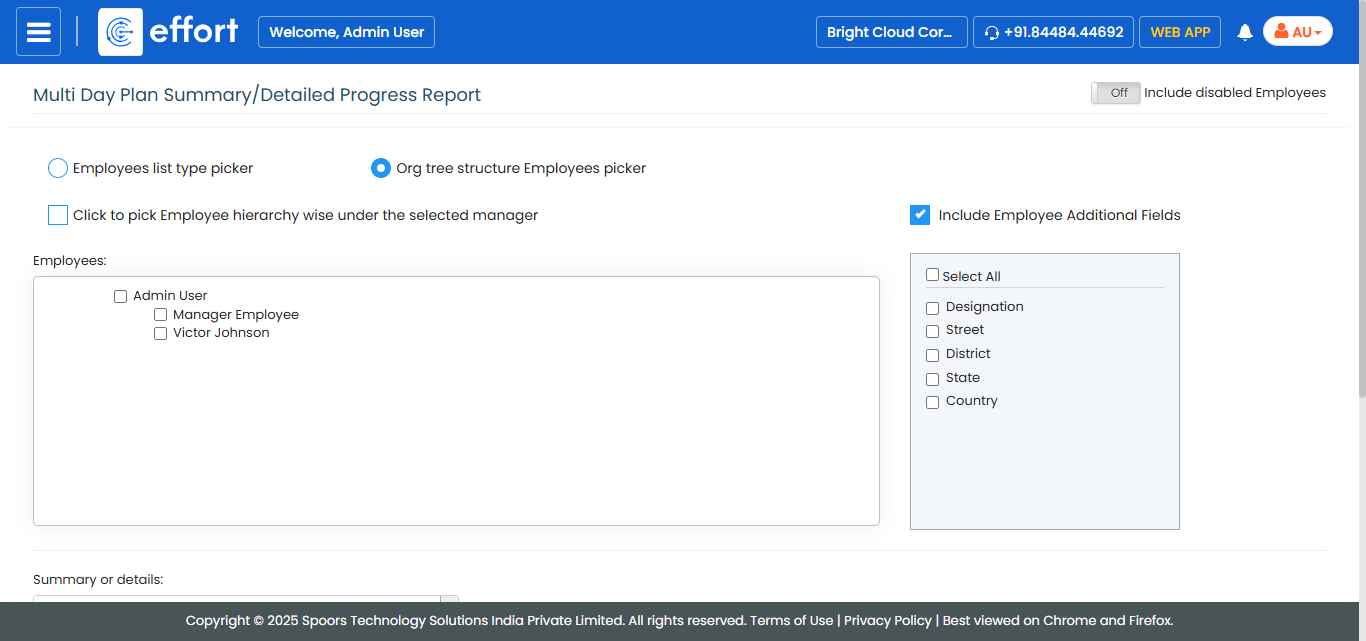
Select employees from the employee section.
-
From the Summary or details dropdown, select
Detail for the level of detail.
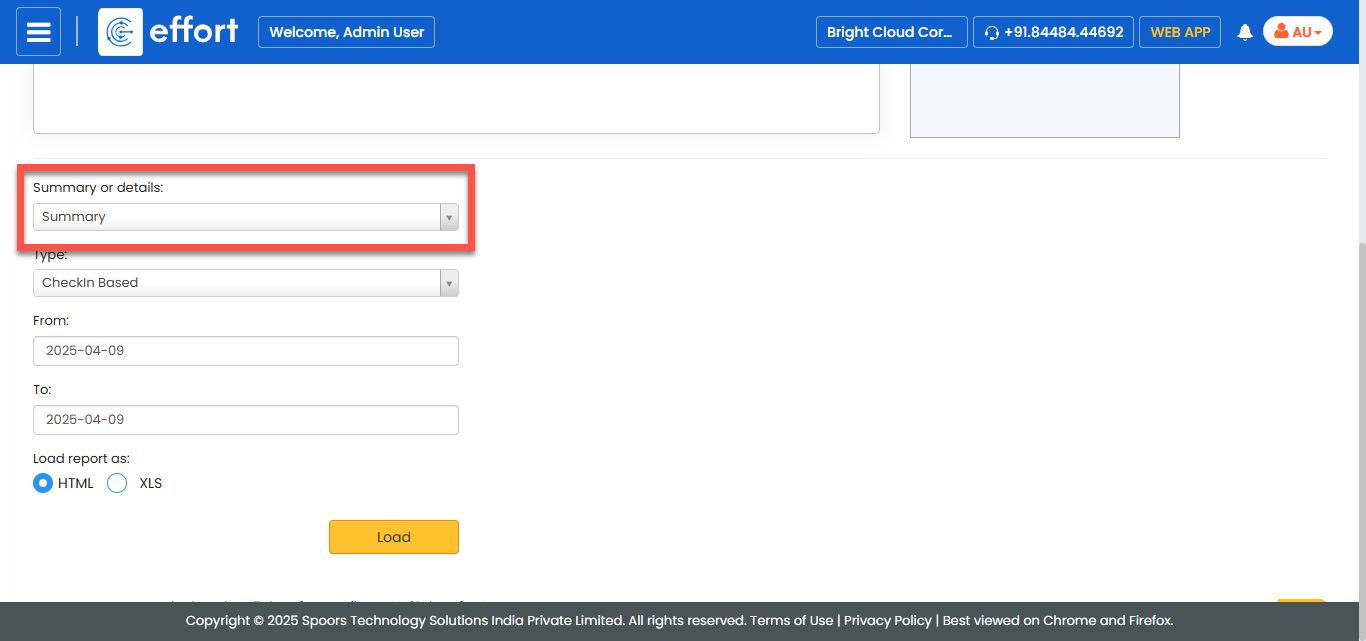
It defaults to Summary. - Optional:
Ensure that CheckIn Based is selected for
Type.
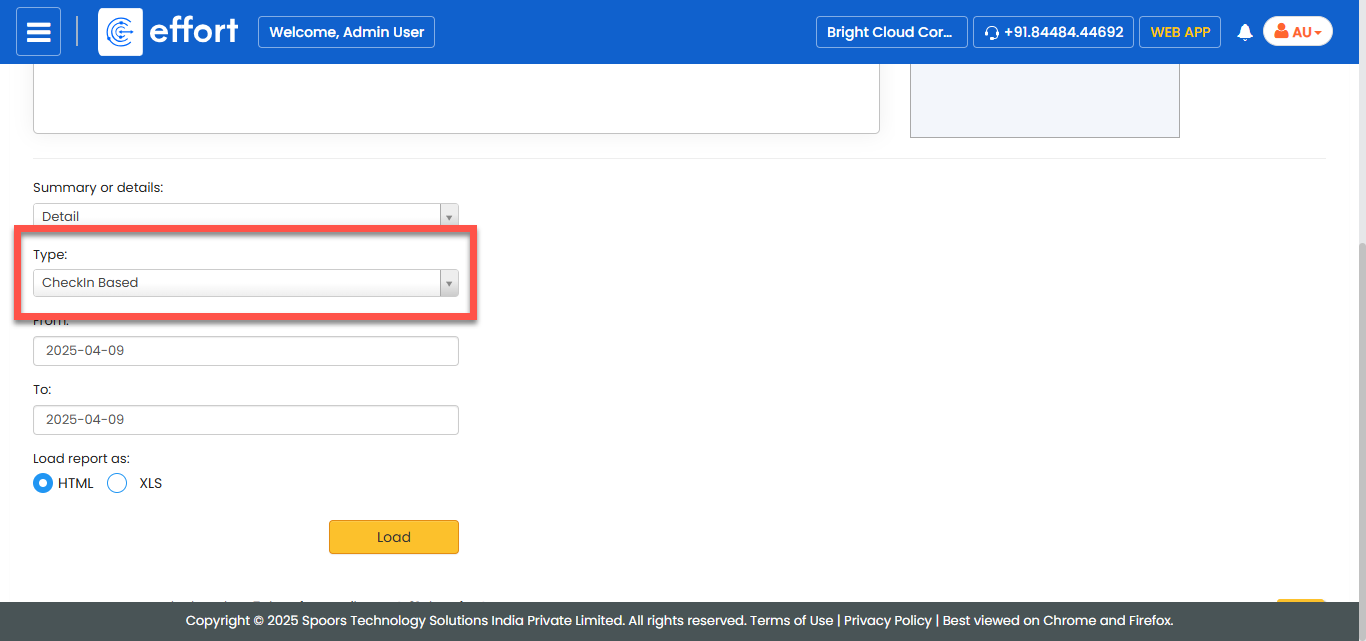
Type defaults to Check-ins Based. - Optional:
Change From and To dates as per
your requirement.
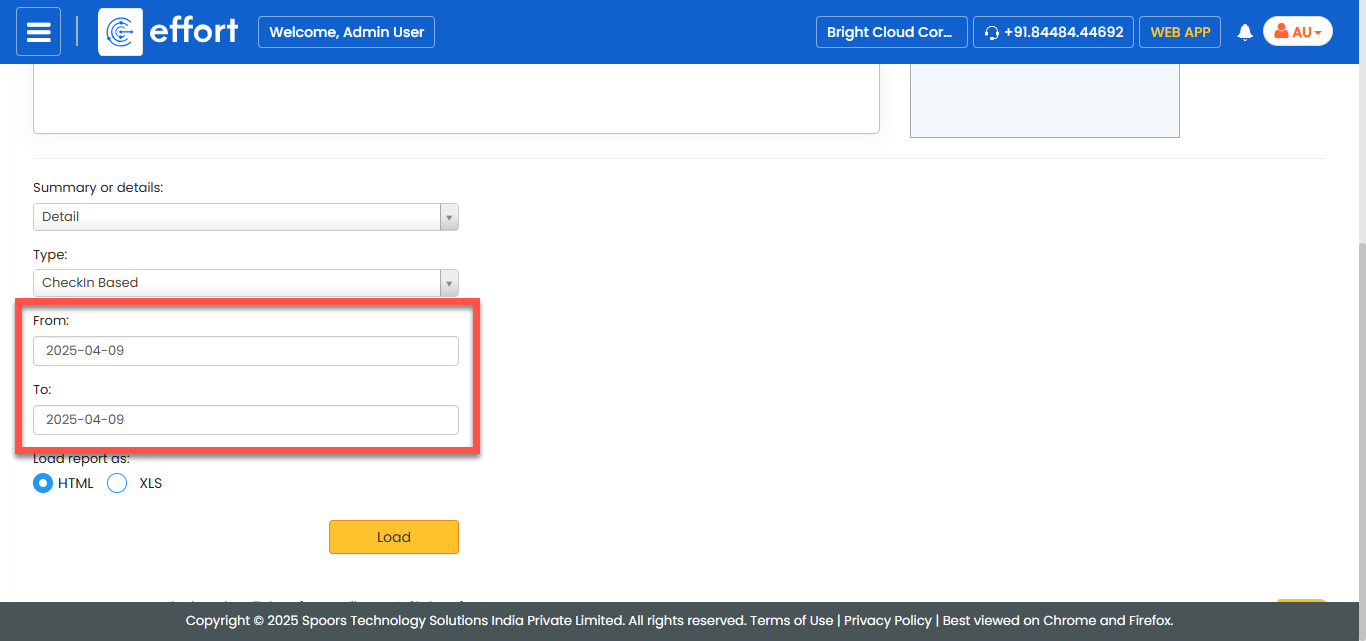
Both From and To default to today. - Optional:
In Load report as, select the output report
format.
Load report as defaults to HTML.
-
Click LOAD.
The sample report shown below was based on the following test data:
- Both the selected employees have day plans, with two customers in each day plan.
- Vincent checked into F1 Networks and submitted an activity form.
- Vincent also checked into Trace Solutions who is not in the day plan, but did not submit any activity forms against it.
- Ramya did nothing.
Vincent's unplanned check-in to Trace Soultions on 2020-06-17 resulted in the row with Planned Visit: NO and Actual Visit: YES.If you opted for HTML, the report opens in a new tab.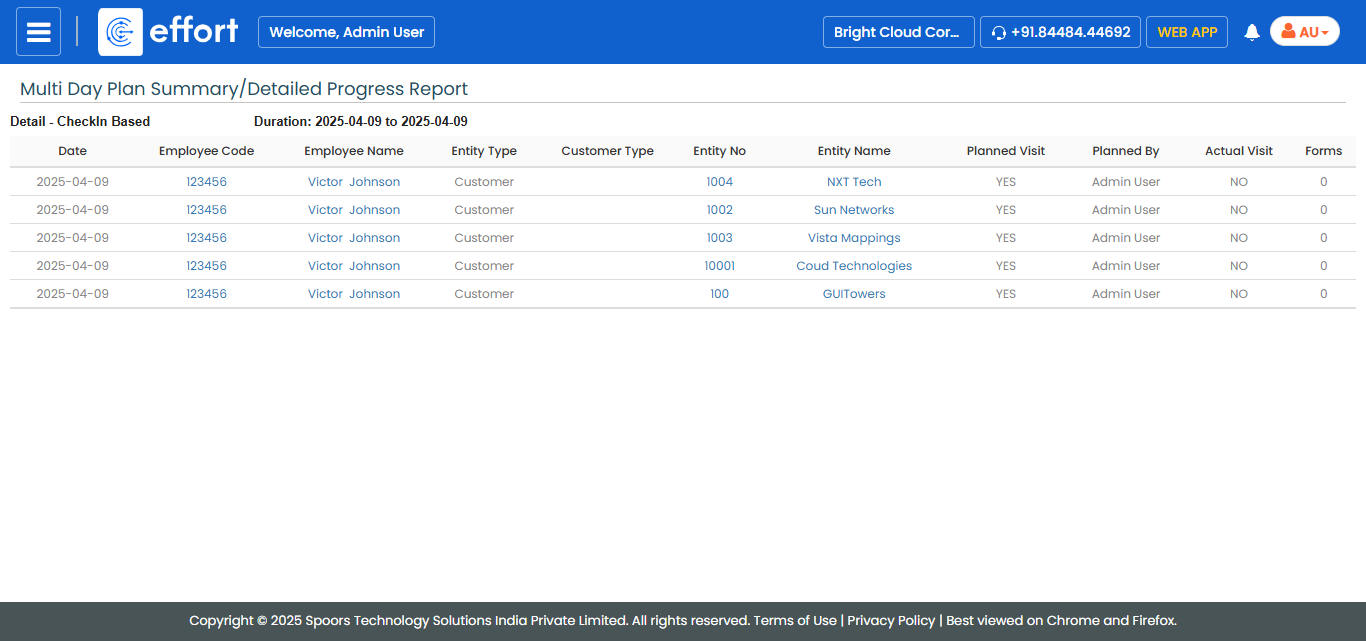
If you opted for XLS, the browser shows a dialog with Open With and Save File options.