

Import Day Plans
Using the Import option, you can create several day plans at once by importing them from an Excel sheet.
-
Go to .
Based on how the menu is configured by the App Builder, you may find DAY PLANS under more
 sub-menu.
 -
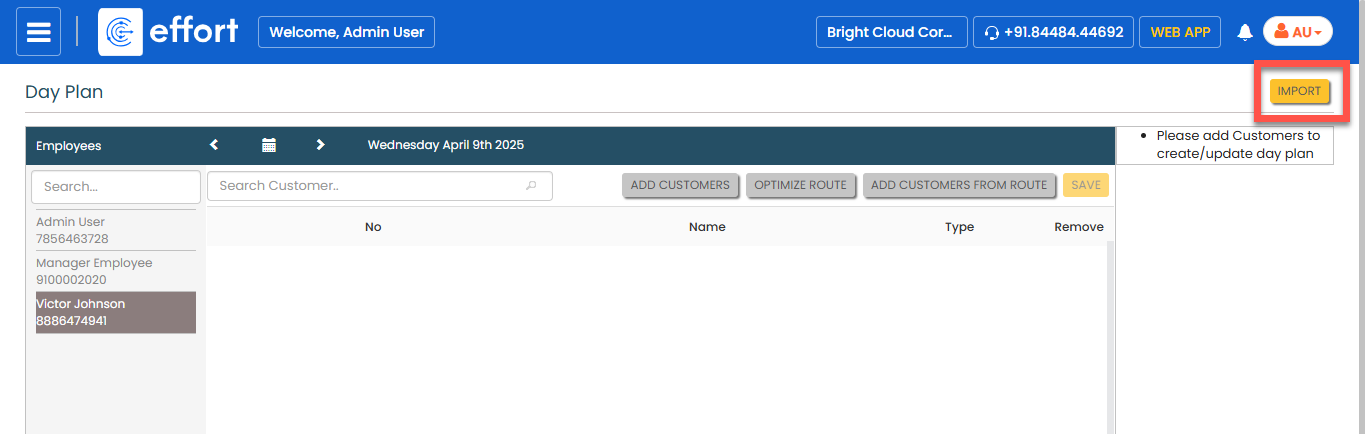
Click the Import button.
- Optional:
Click the Download Template button.
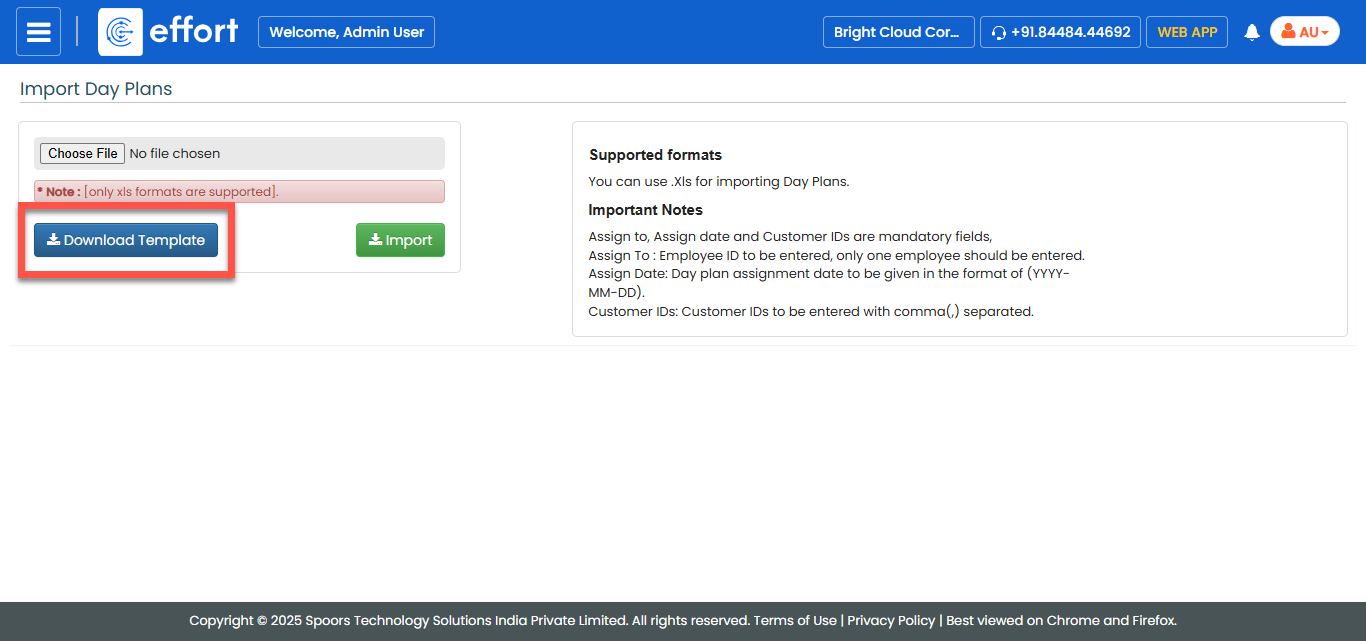
The downloaded template can be reused for multiple import operations. Download the template only if you do not already have it on your computer. -
Open the downloaded template, fill in the data, and save the file.
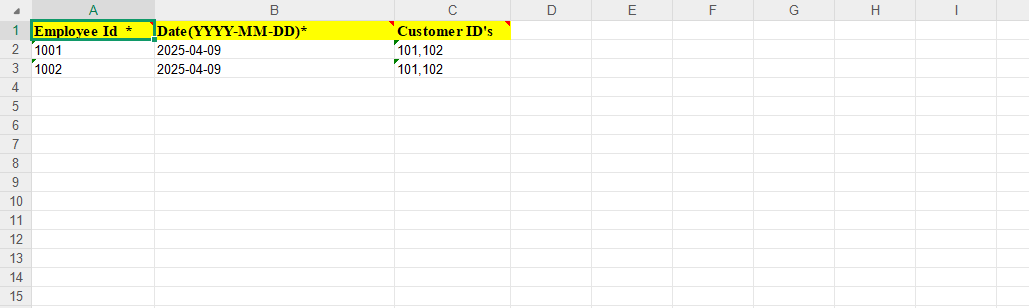
Customer ID's is the only column that allows Comma-Seperated Values (CSV). Don't leave any spaces before and after the commas. If you prefer, the above data can also be supplied one customer per line, as shown below: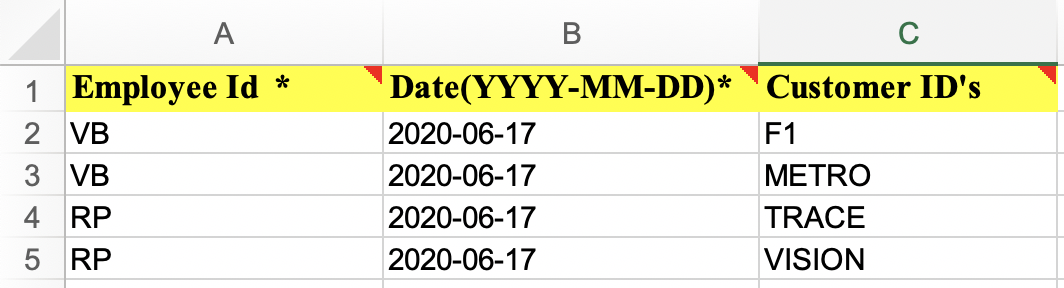
-
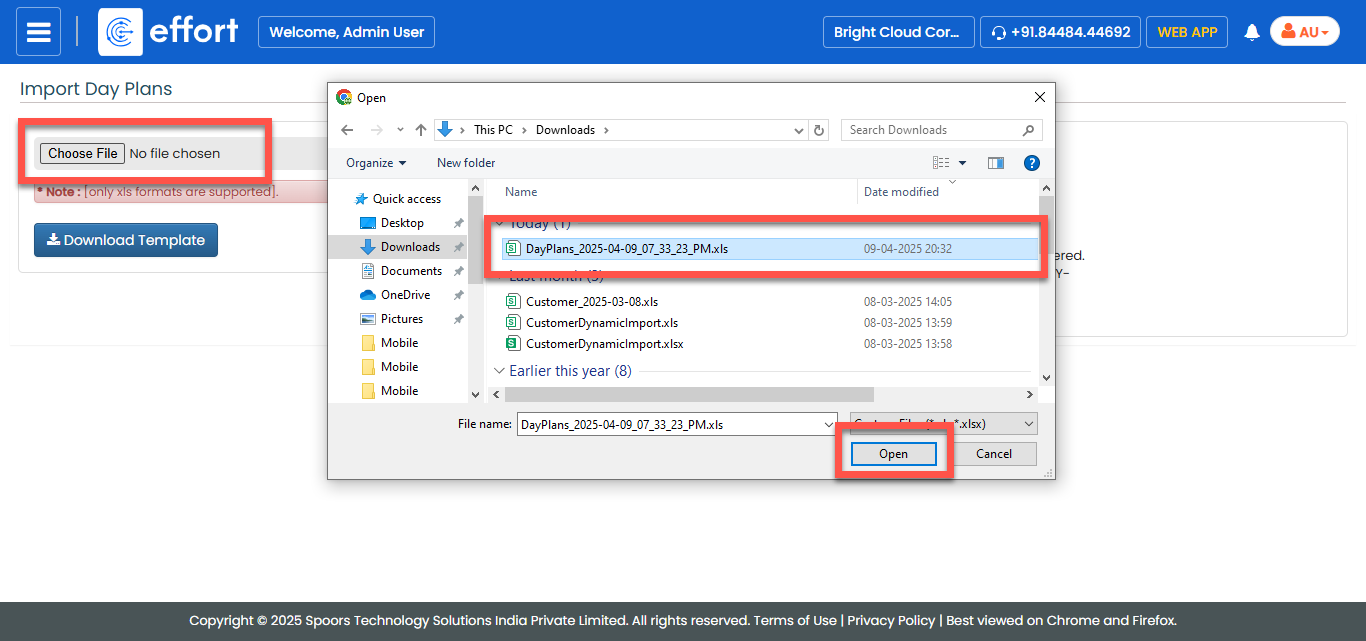
Click the Choose File and select the filled excel
sheet.
-
Click IMPORT.
If there are no errors, the app shows "All rows have correct data" and the table at the bottom shows the import statistics. If there are errors, click Link to download the sheet that shows an error message against each row that has an issue. Refresh the page to update the statistics, as the imports are processed in the background, which could take take few minutes for the processing to complete.