

Export Work Process
To export work processes, follow the steps below.
-
Go to .
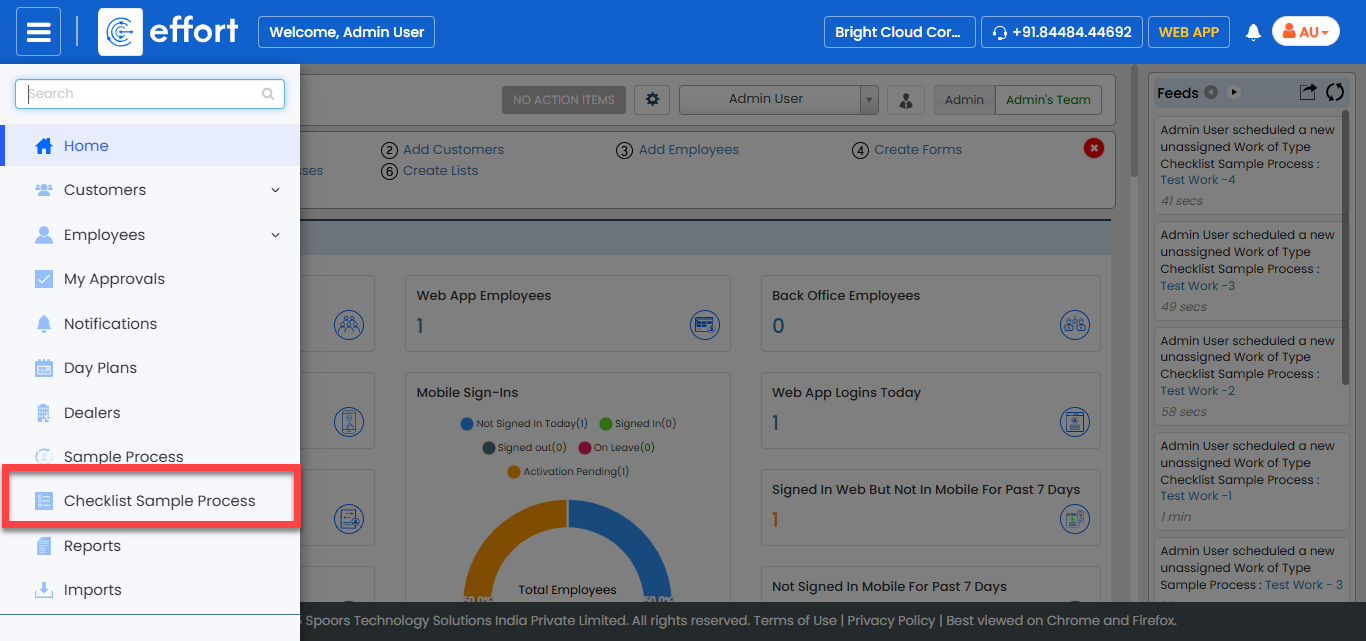
Note:The sample process shown in the screenshot is a test process created for documentation purposes. In your system, you will see your own processes instead. Click on the desired process to proceed.
-
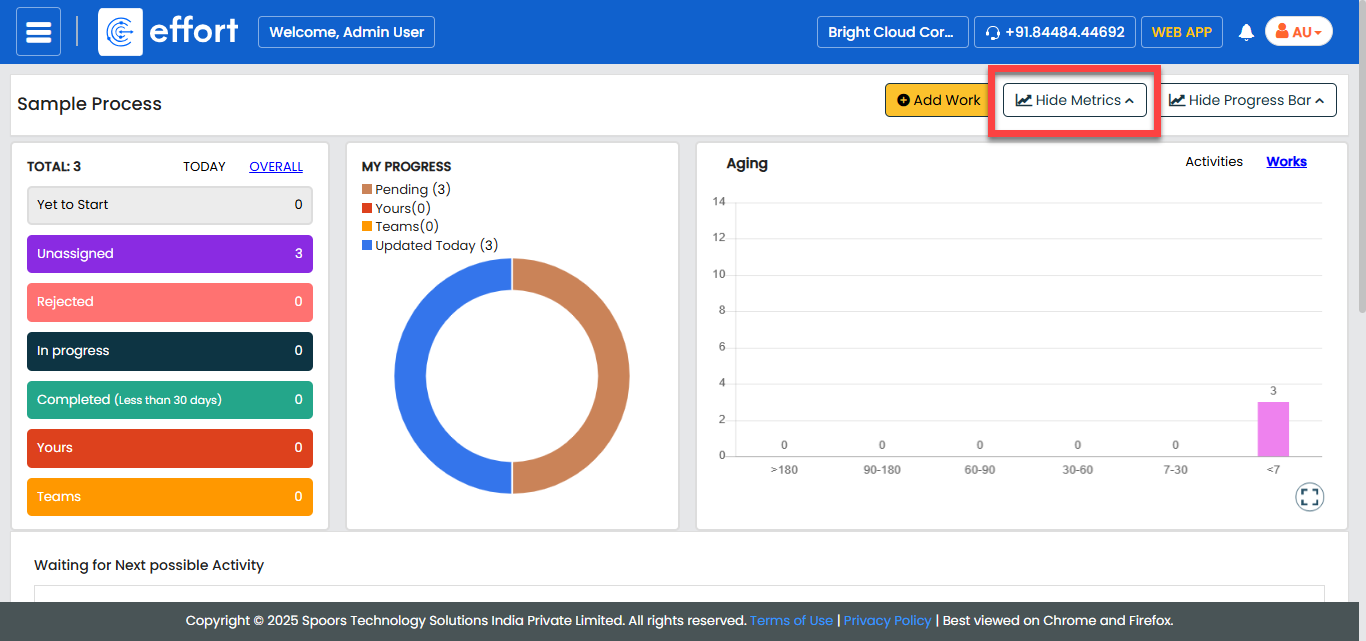
Click the Hide Metrics button.
- Optional:
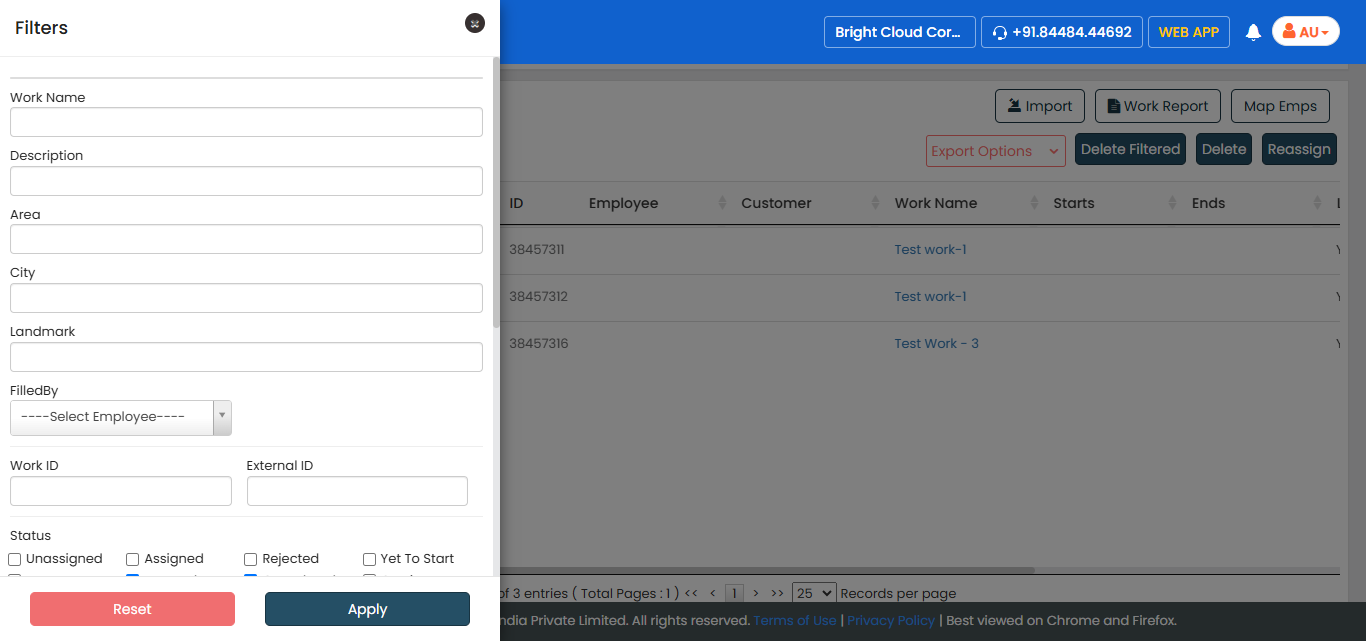
Click the Filters button and apply the required filters
to find the works that you want to export.
. -
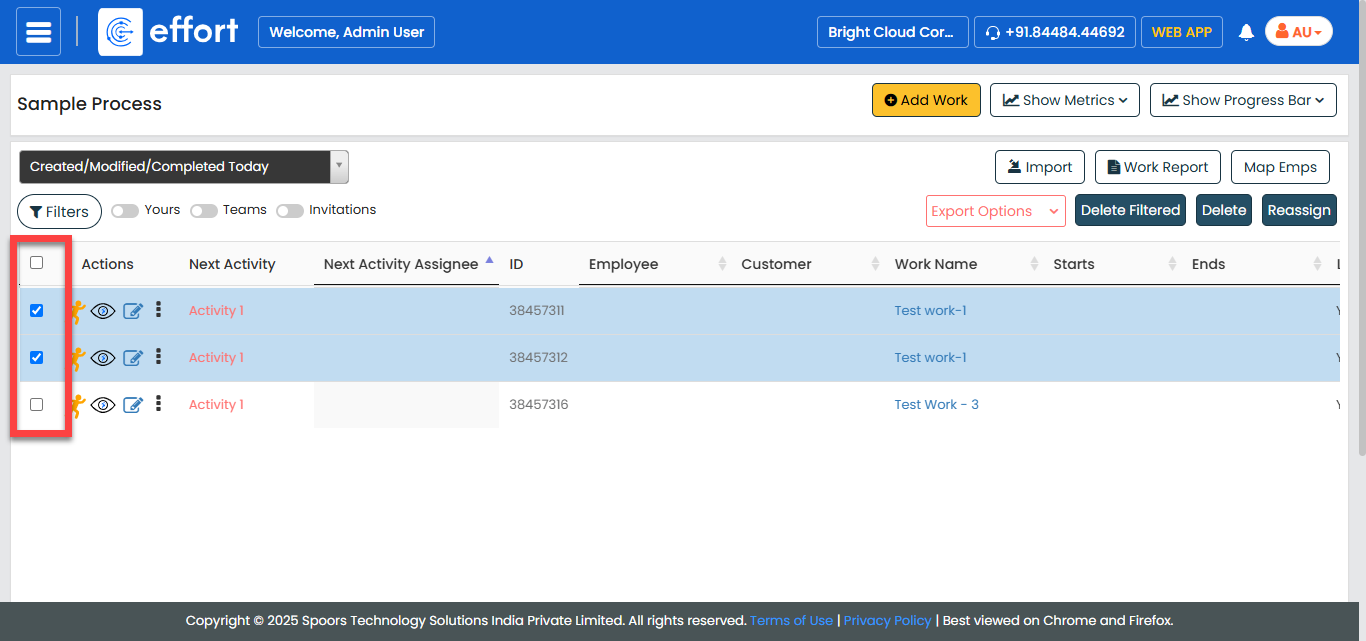
Select the works that you want to export.
-
Click the Export Options dropdown.
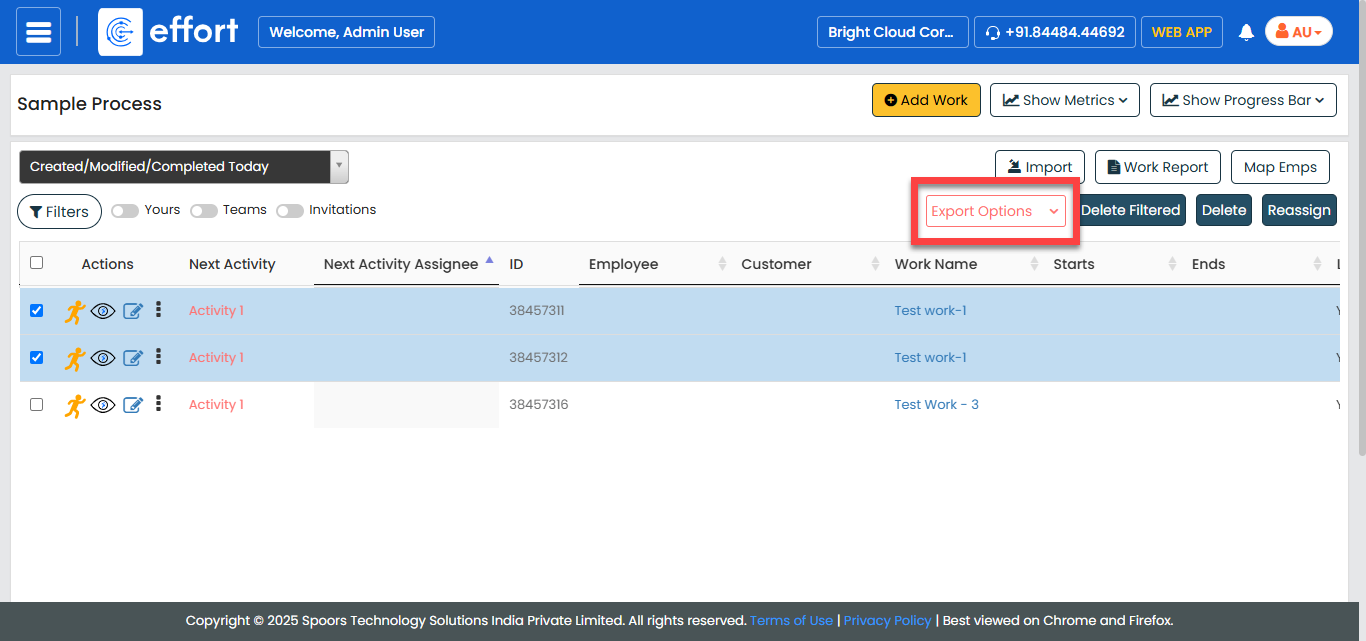
-
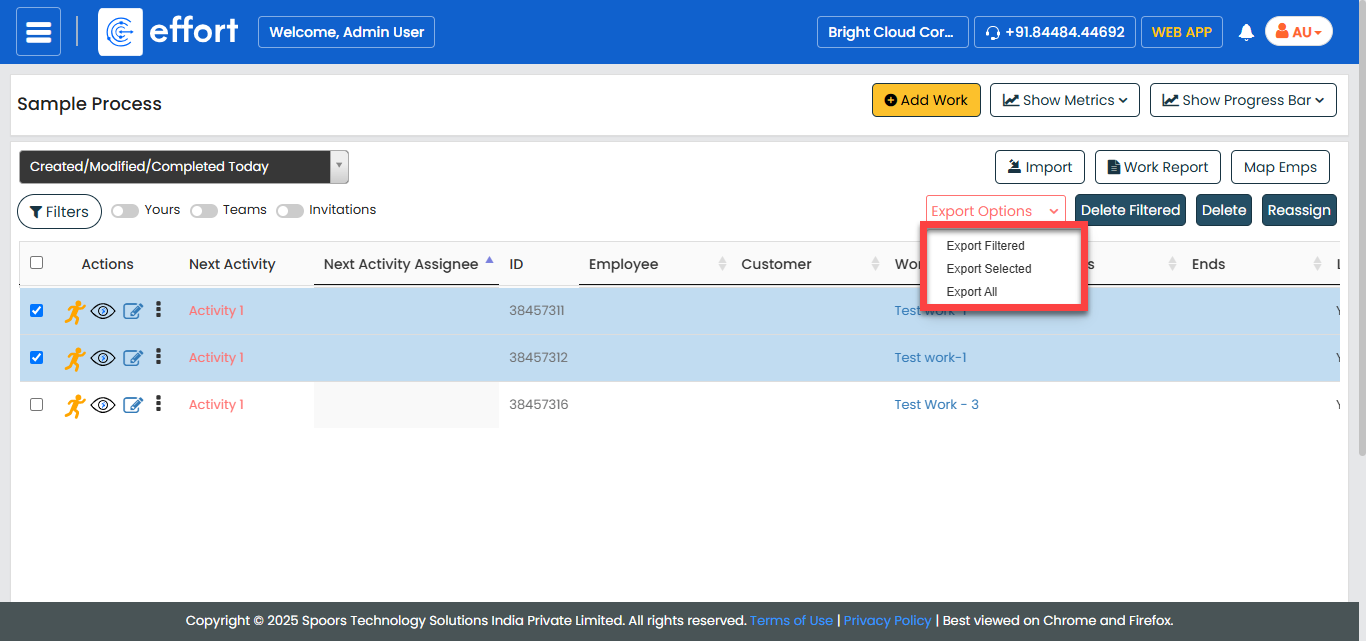
Click the required export option.
-
Export Filtered - allows you to export only the filtered data.
- Export All - allows you to export all the data displayed in work processes pane.
- Export Selected - allows you to manually select the check box and export only the selected work.
An excel sheet with the filtered data is downloaded to your computer. Go to the Downloads folder to view the work processes data.
-