

Add a Work in Mobile App
This topic helps you understand how to add a work entry in the mobile app.
-
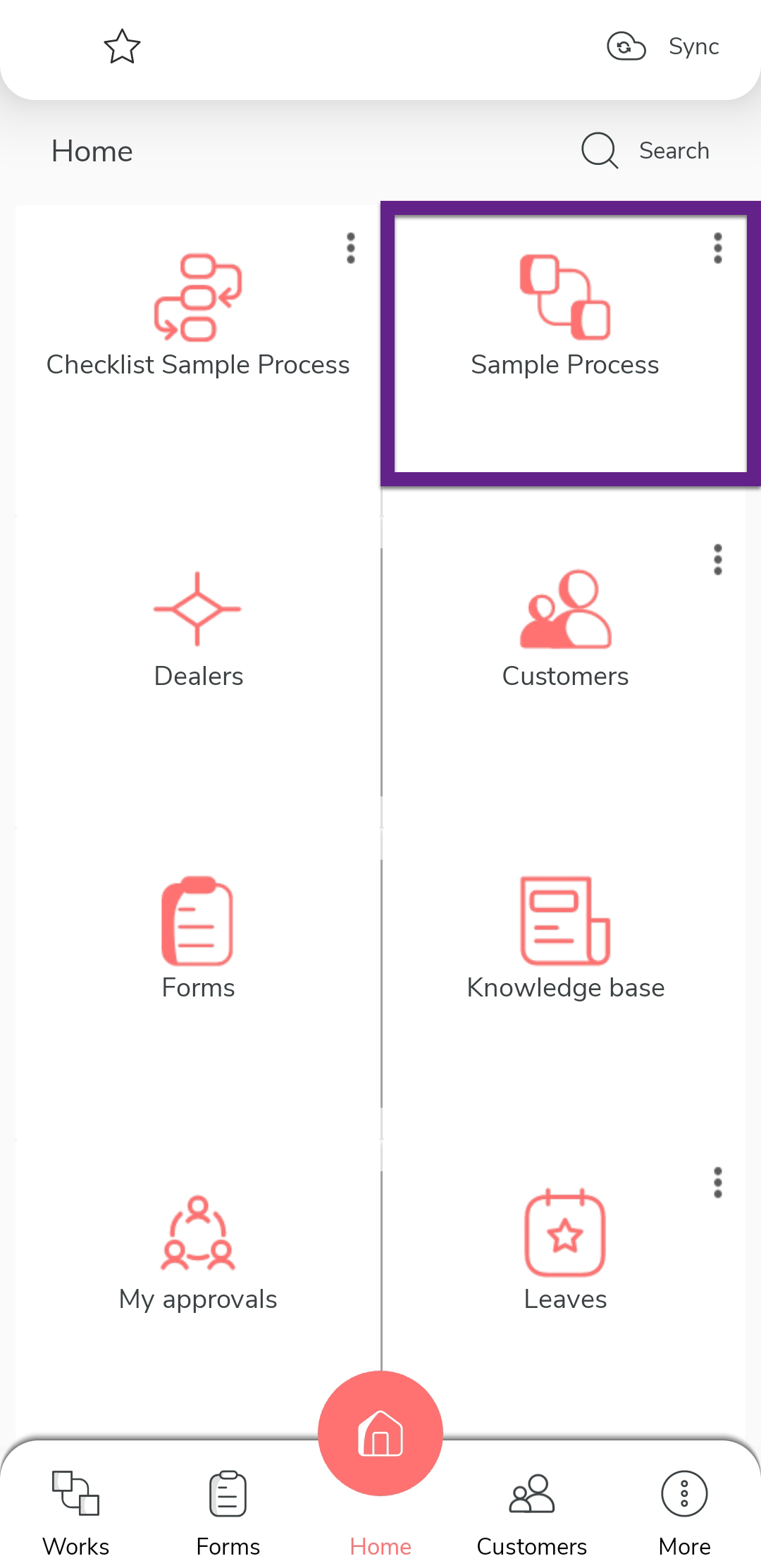
Tap the process on the home screen.
-
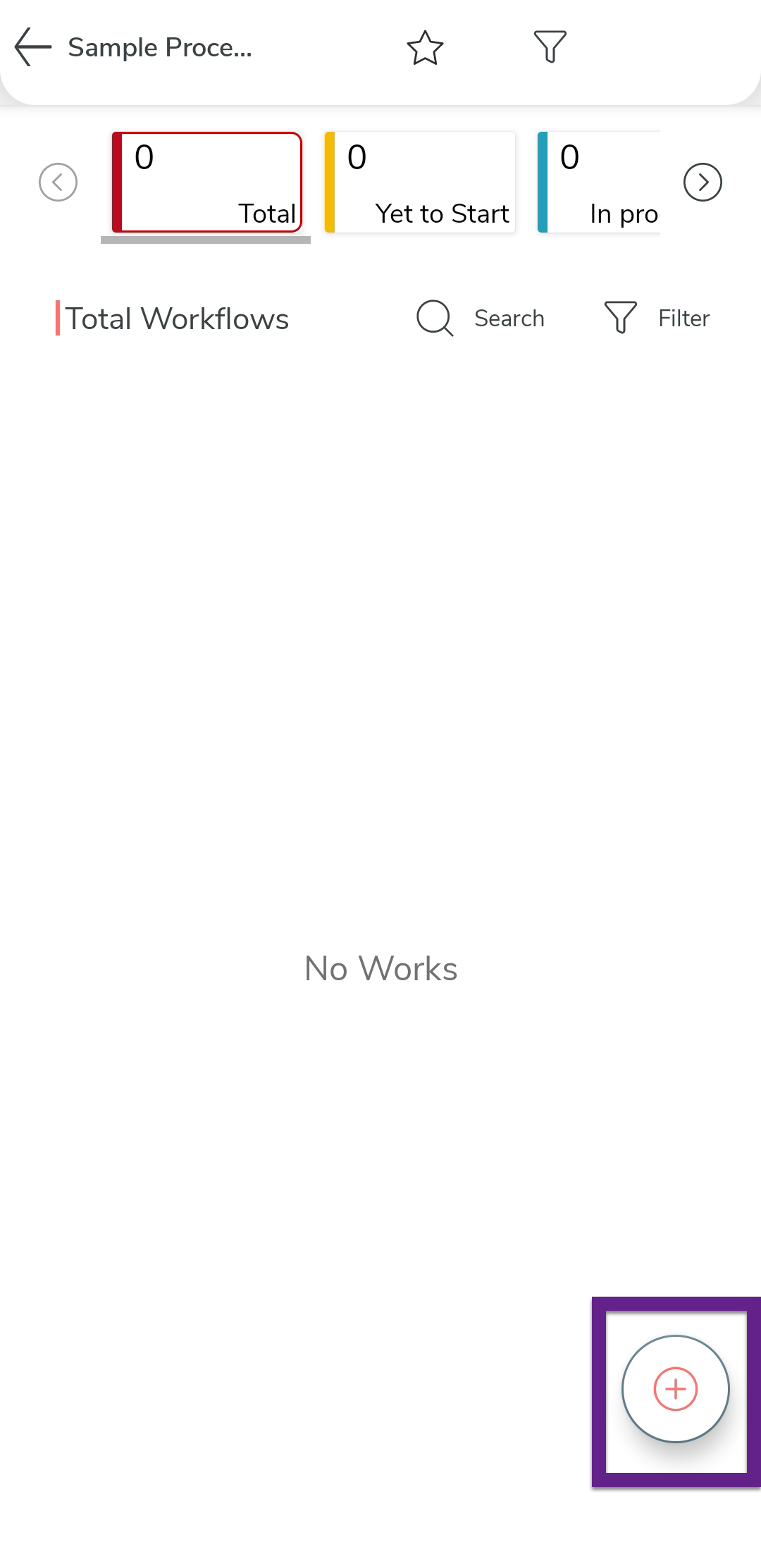
Tap the plus icon located at the bottom-right corner.
-
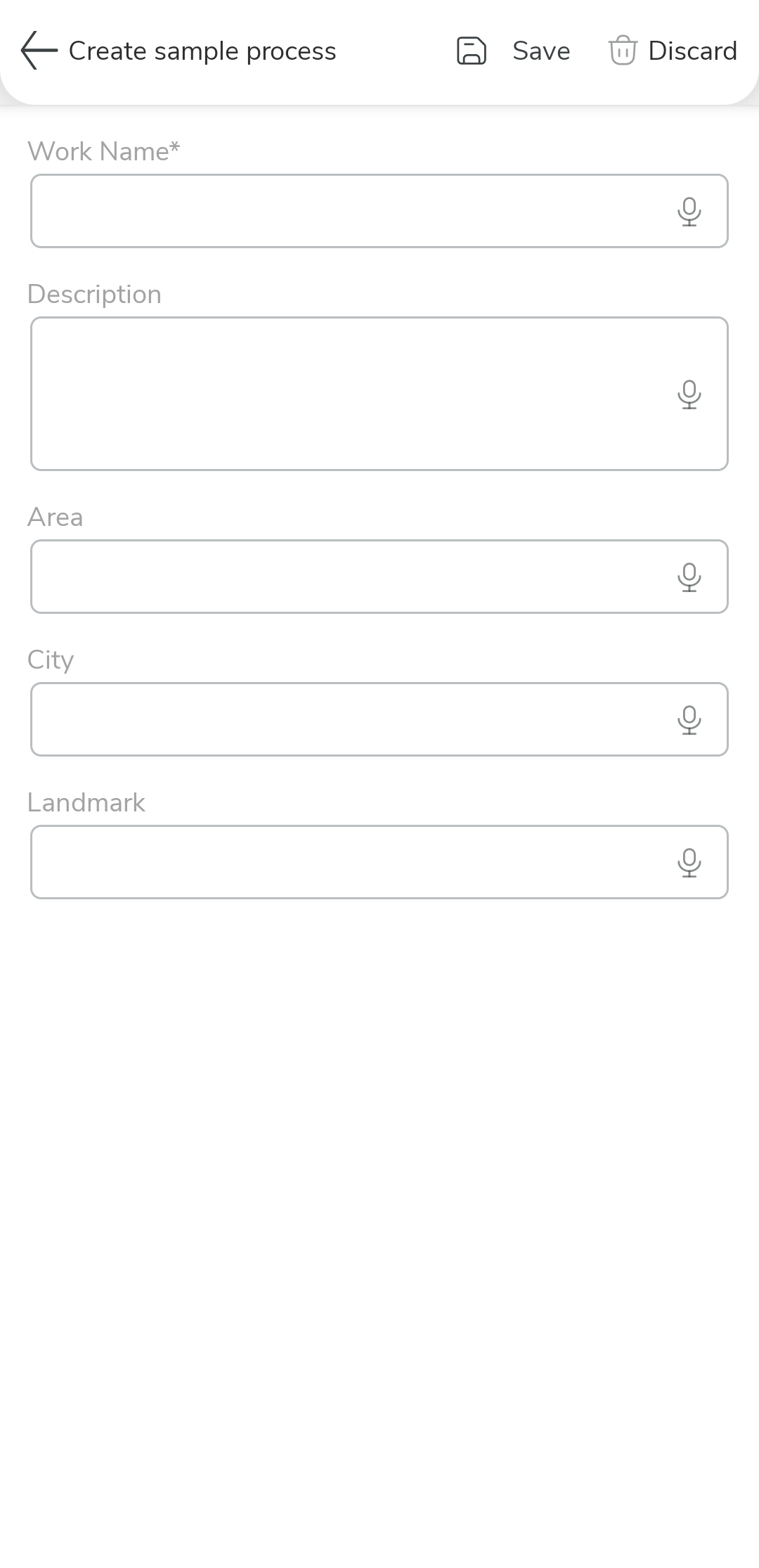
Enter the required details in the available Work Fields.
-
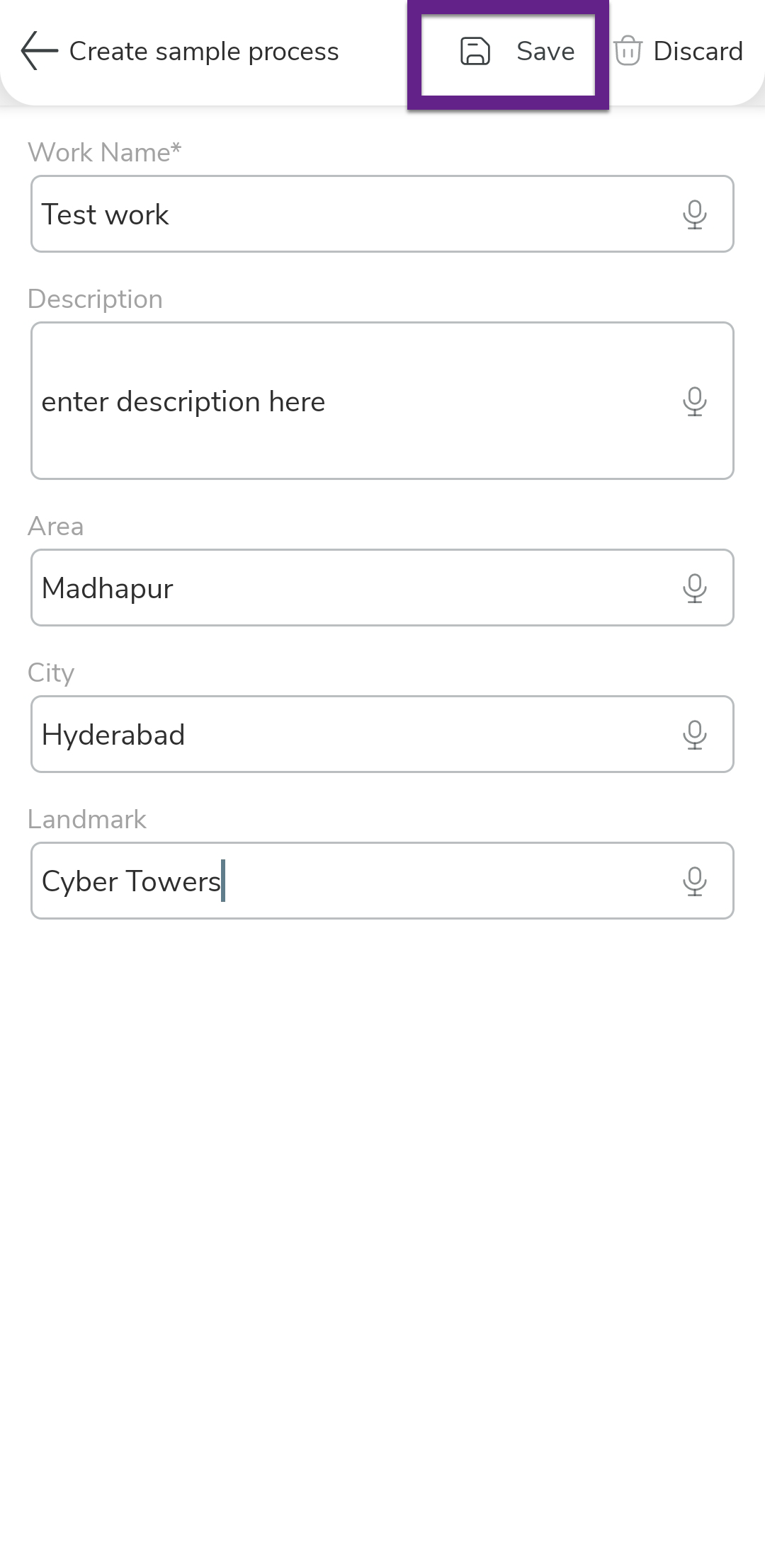
Tap Save to save the process.
-
In the confirmation dialog, select the save option as per your
requirements.
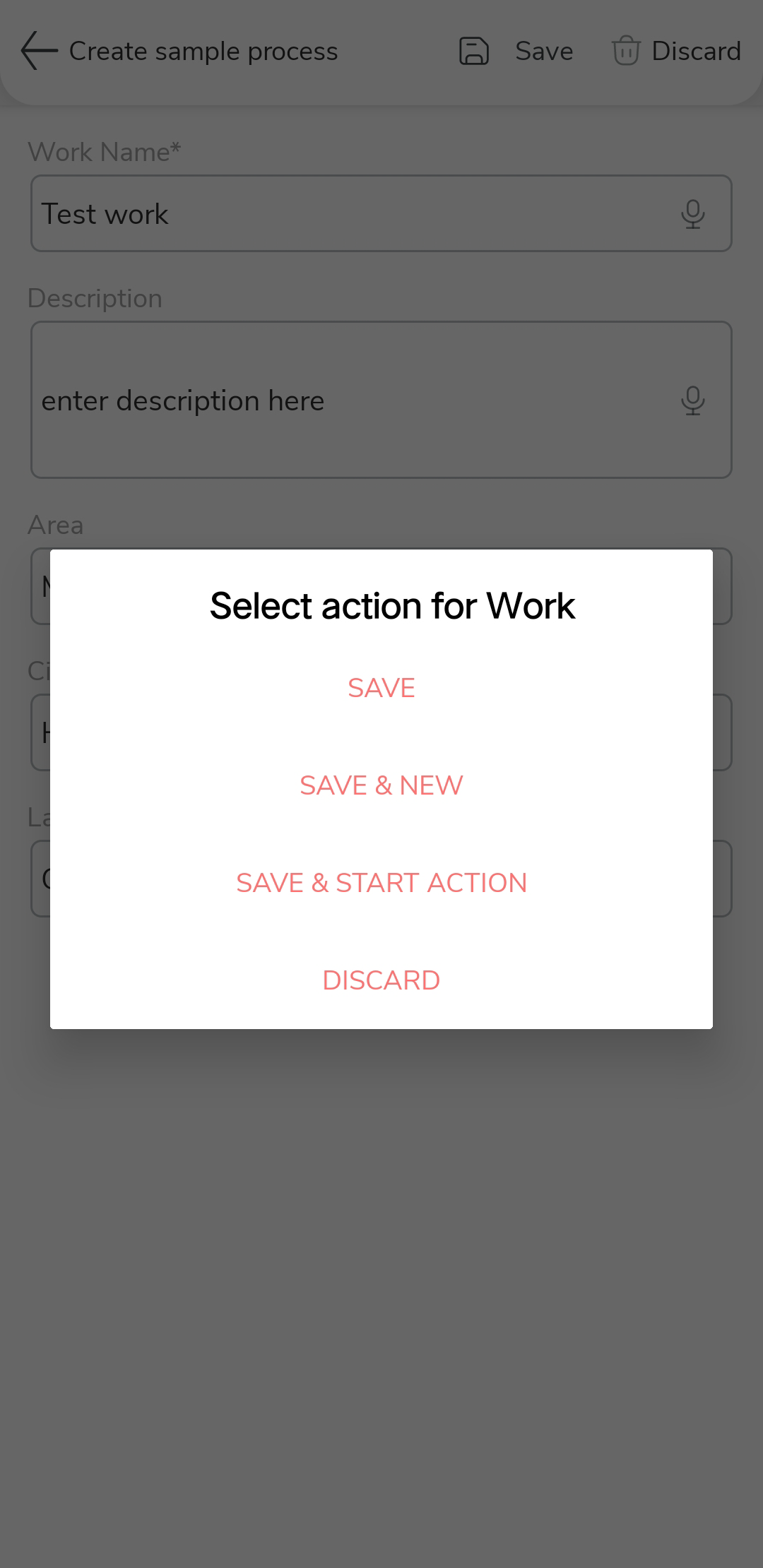
- Save: Saves the work and closes the form.
- Save & New: Saves the work and opens a new blank form to add another work.
- Save & Start Action: Saves the work and directly initiates the first activity in the process.