

Configure Fields for Integration
To configure fields for integration, follow the steps below.
-
Go to .
The List of Integration Configurations page appears.
-
Click 3 vertical dots
 icon of a required integration under the Edit
column.
icon of a required integration under the Edit
column.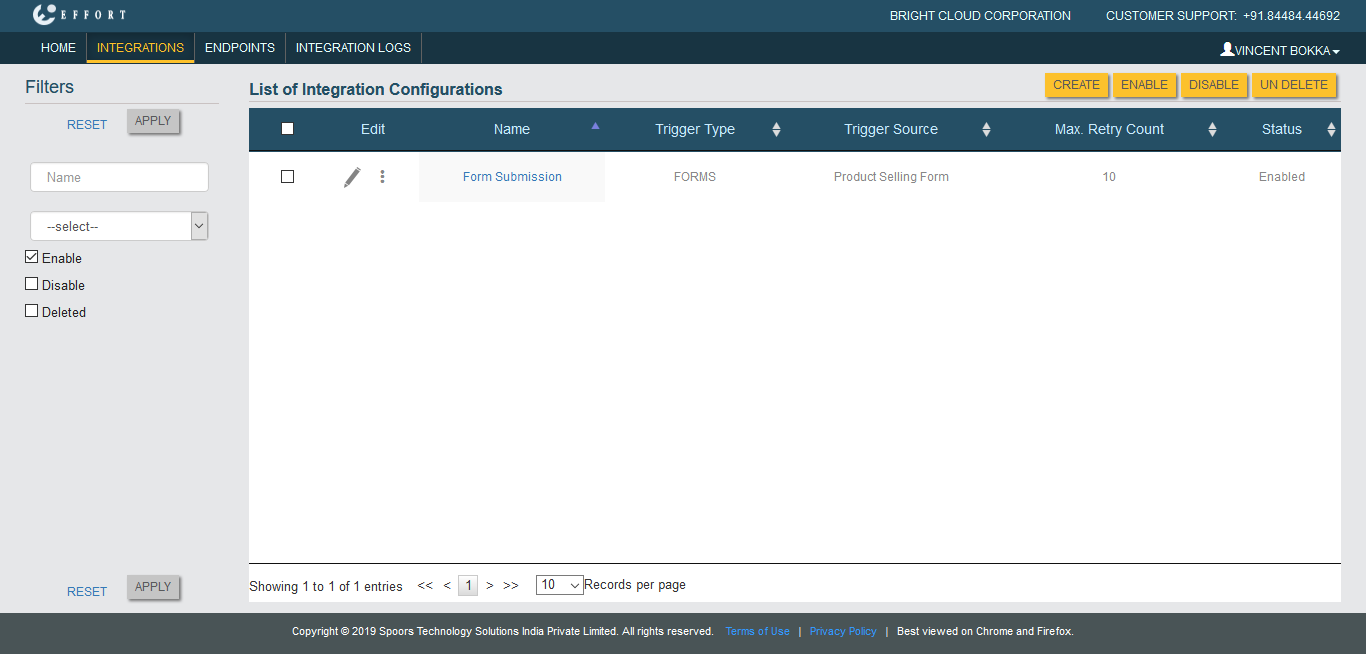
-
Click Request Mapper option.
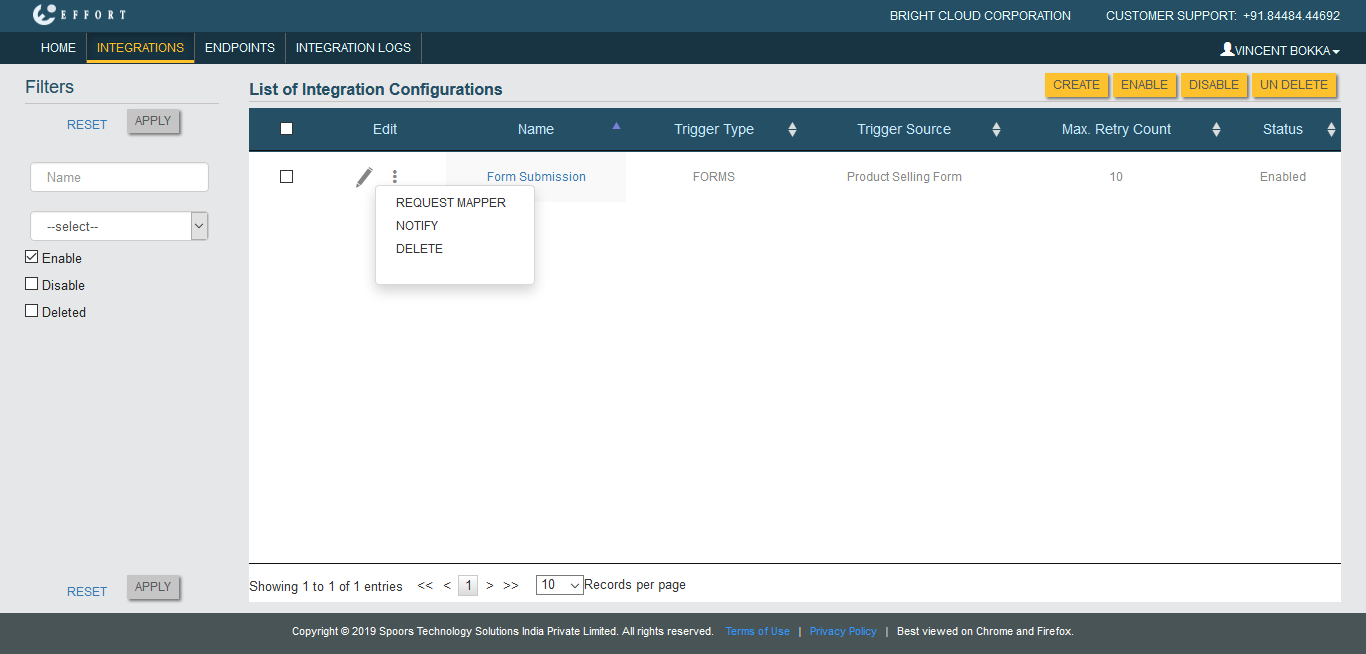
The Add Field Mapping page appears.
-
Click Add Field button.
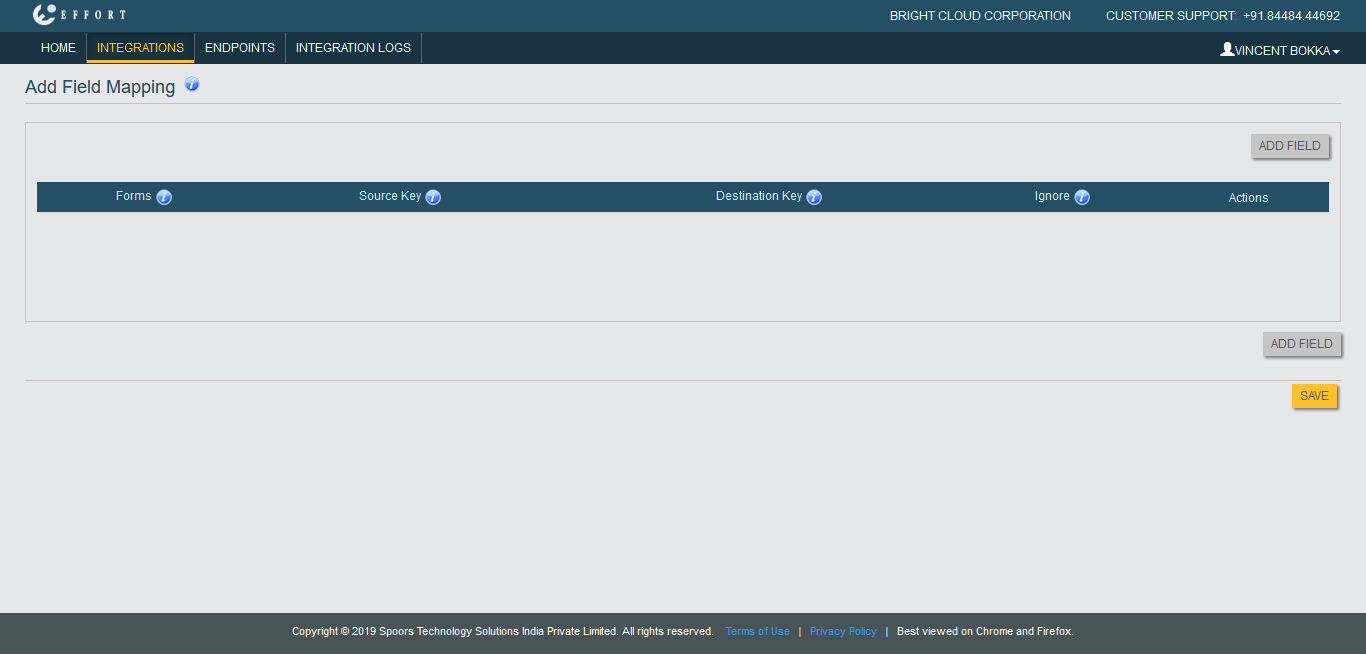
You can create more fields as per your requirement. -
Select the form which is configured as a trigger source to this configuration
from the dropdown under the Forms column.
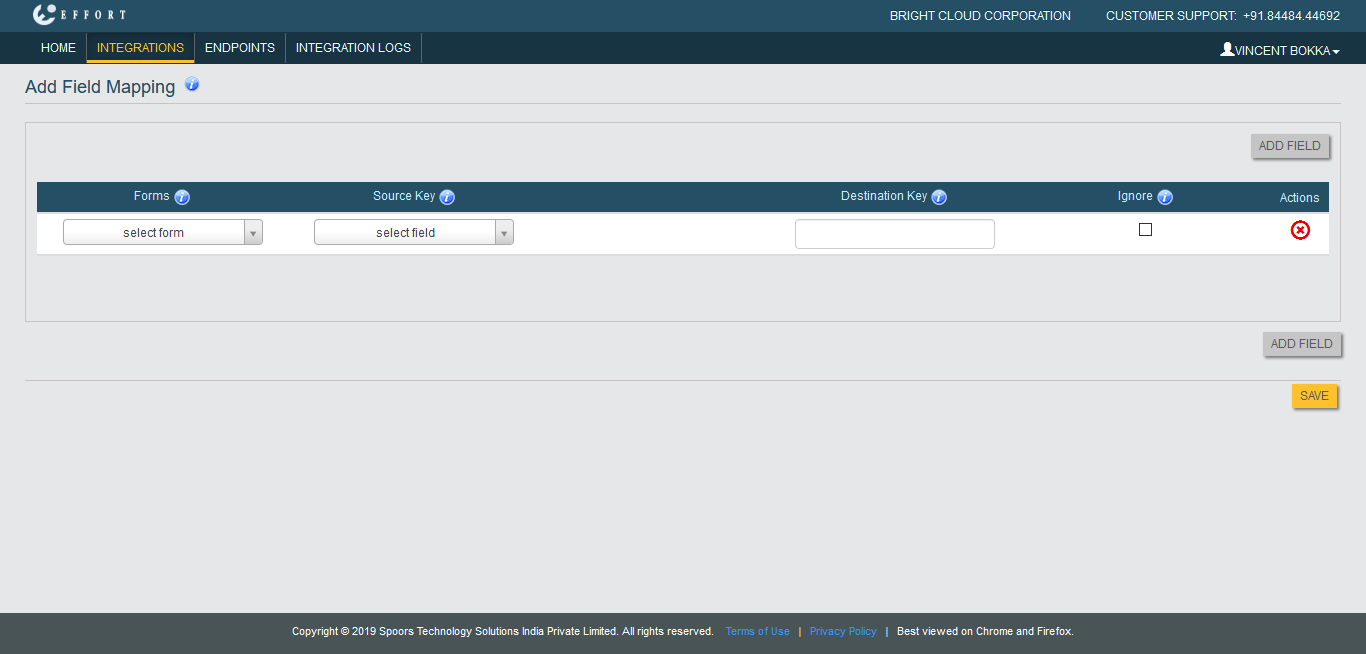
- Select a form field from which you want to push the data from the dropdown under the Source Key column.
- Enter the key name in the JSON or XML data in the textbox under the Destination Key column.
- Optional: Enable the checkbox under the Ignore column to ignore the data in this field while data push.
- Click Save.