Map List Items to an Employee
To map list items to an employee, follow the steps below.
-
Go to .
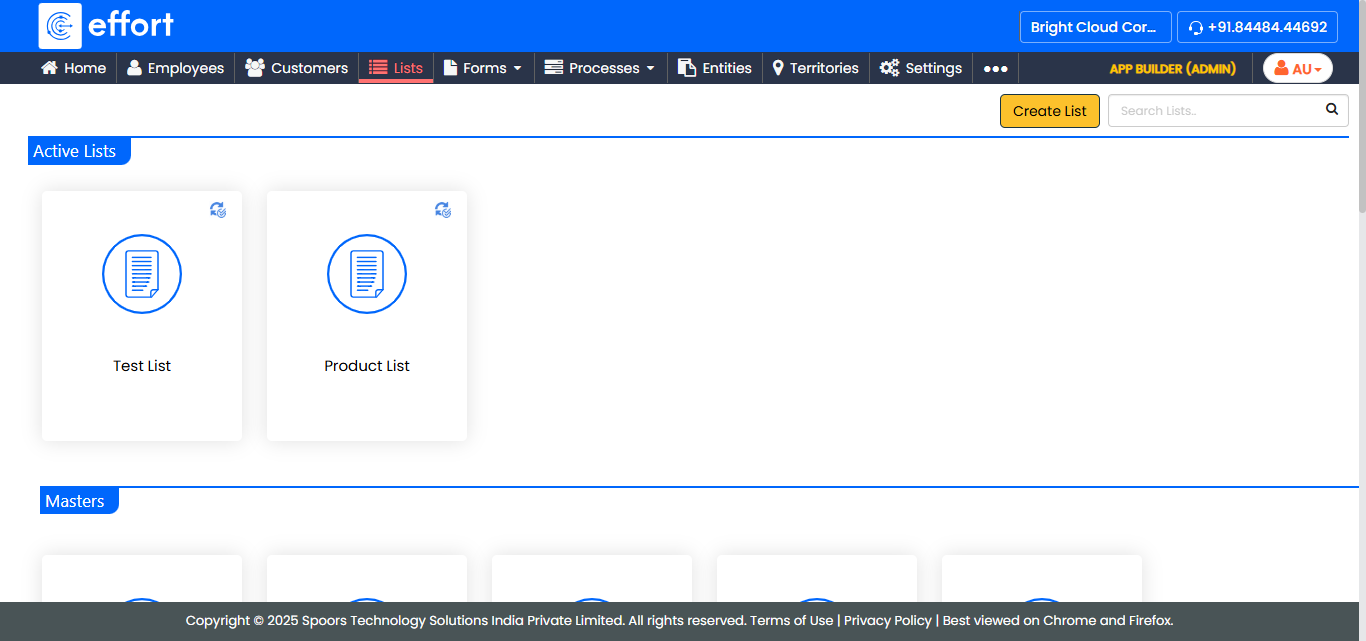
The Lists page appears.
-
Click the List card in which you want to map list items
to an employee.
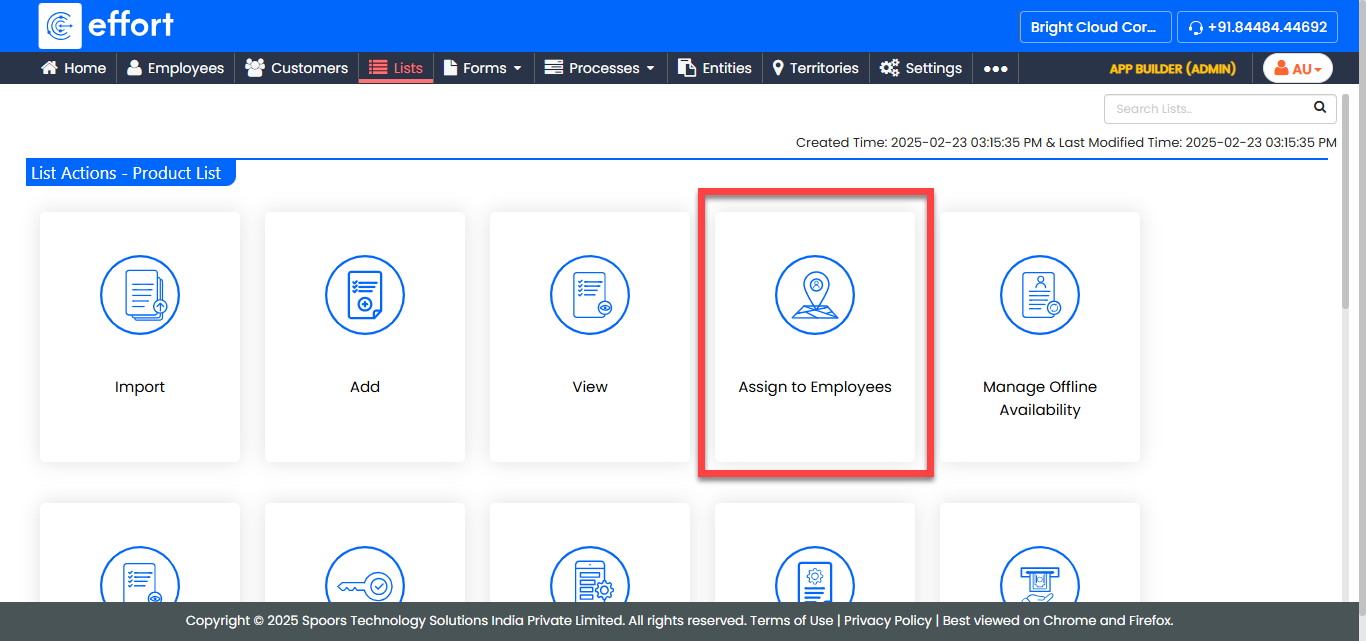
The List Actions page appears.
-
Click the Assign Items to Employees card.
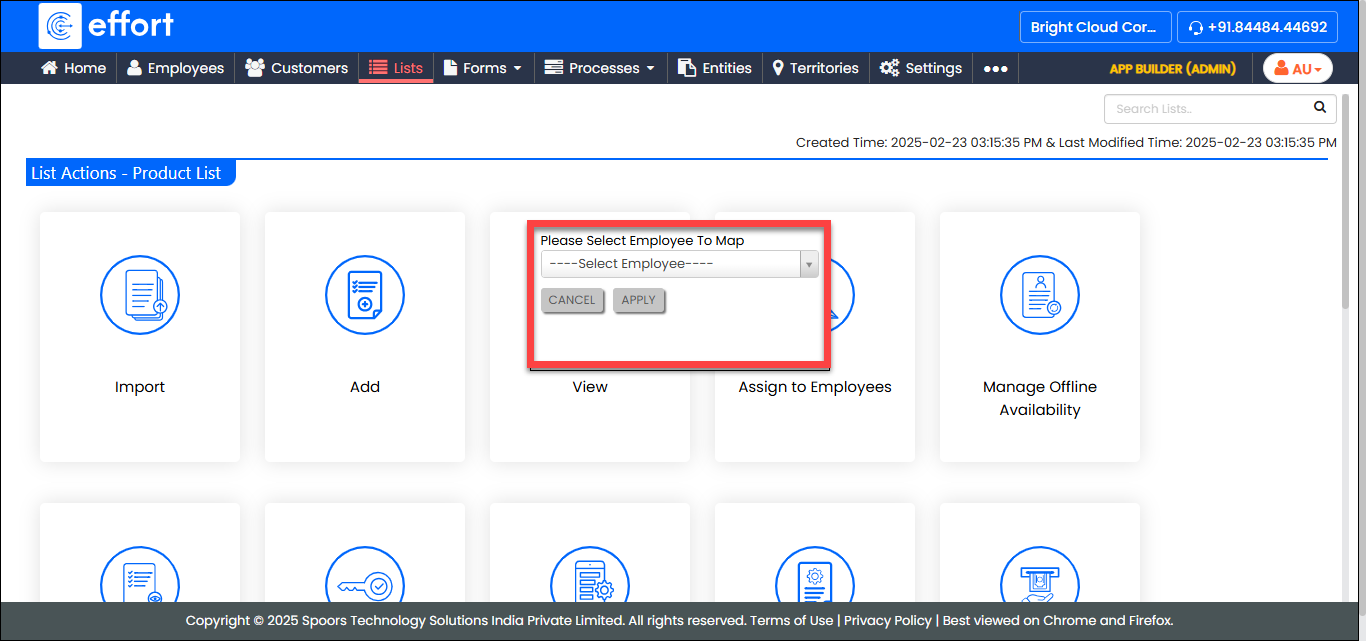
A pop-up appears that allows you to type and pick an employee.
-
Enter the first 3 characters of the employee and pick the employee from the
dropdown.
-
Click Apply.
The List Mapping for <employee name> page appears.
-
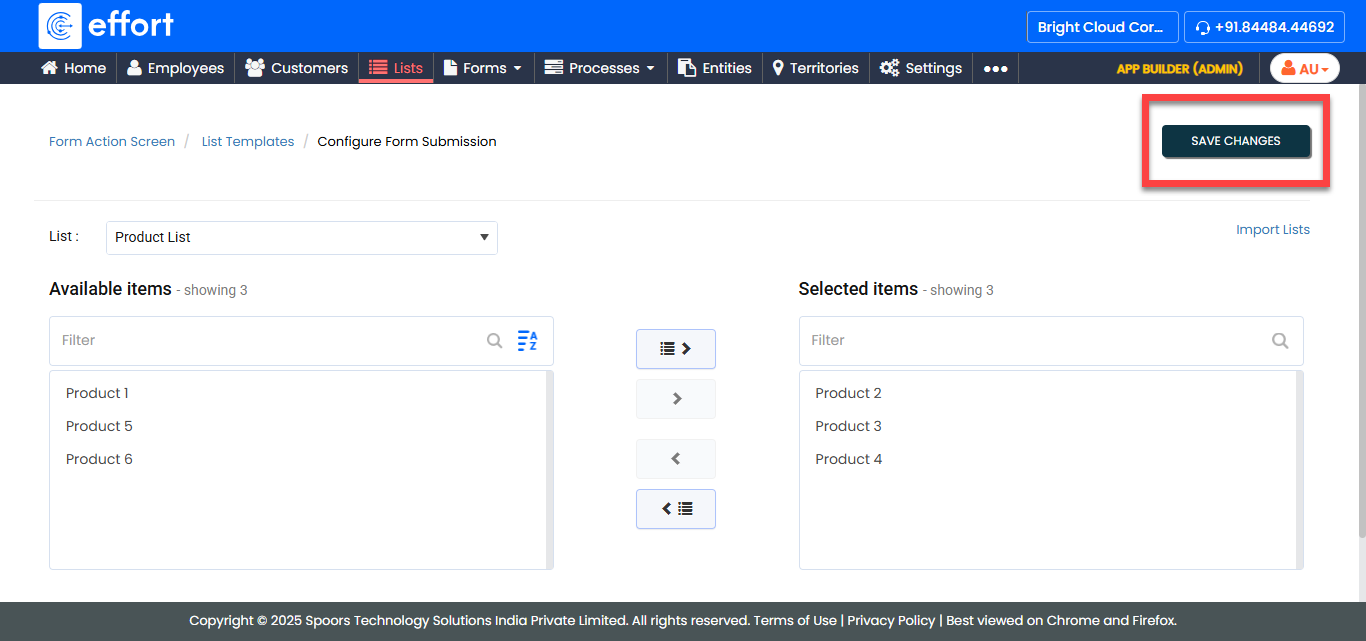
Note: If the list has more than 100 items, do not attempt to map all items to all employees. This activity impacts the performance of the mobile app because it consumes a lot of network bandwidth for downloading data and storage on the mobile device.Select one or more items from the Available Items section and click > icon to move them to the Selected Items section.
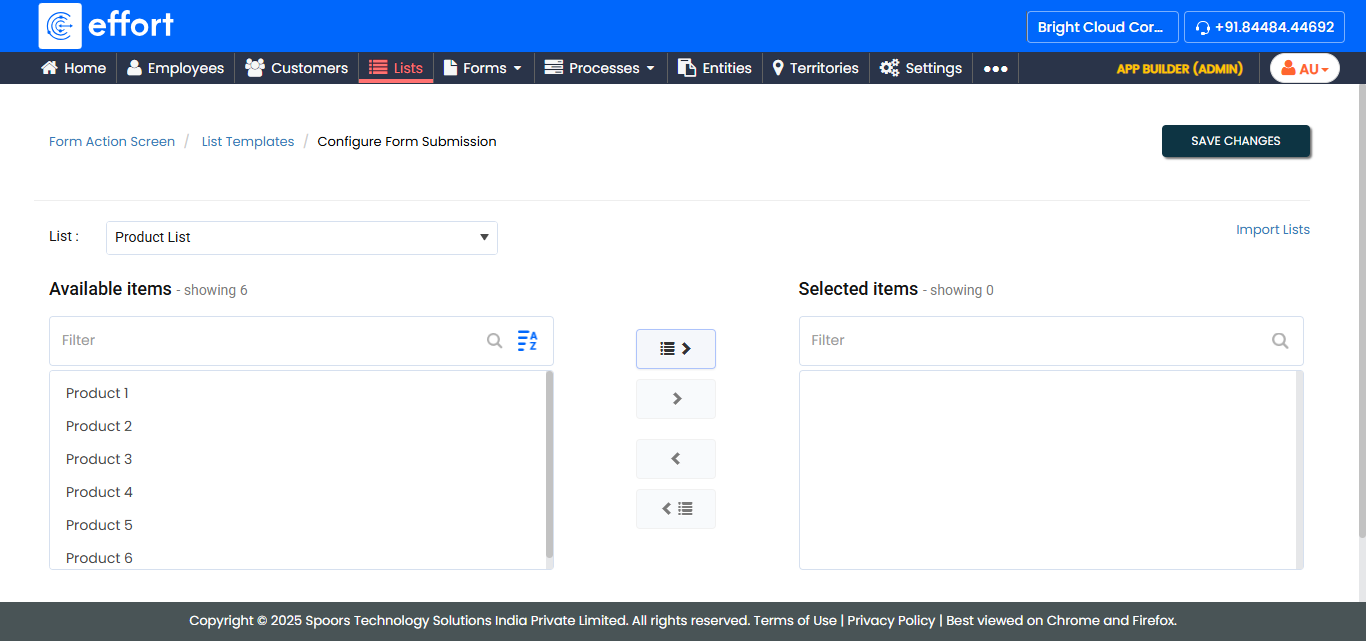
-
Click Save Changes to map the items moved to the
Selected items section to the selected employee and
then click OK in the confirmation pop-up.