

Create Targets to Employee
To create targets to employee, follow the steps below.
-
Go to .
The Manage Targets and Achievements page appears.
-
Add items to the list master.
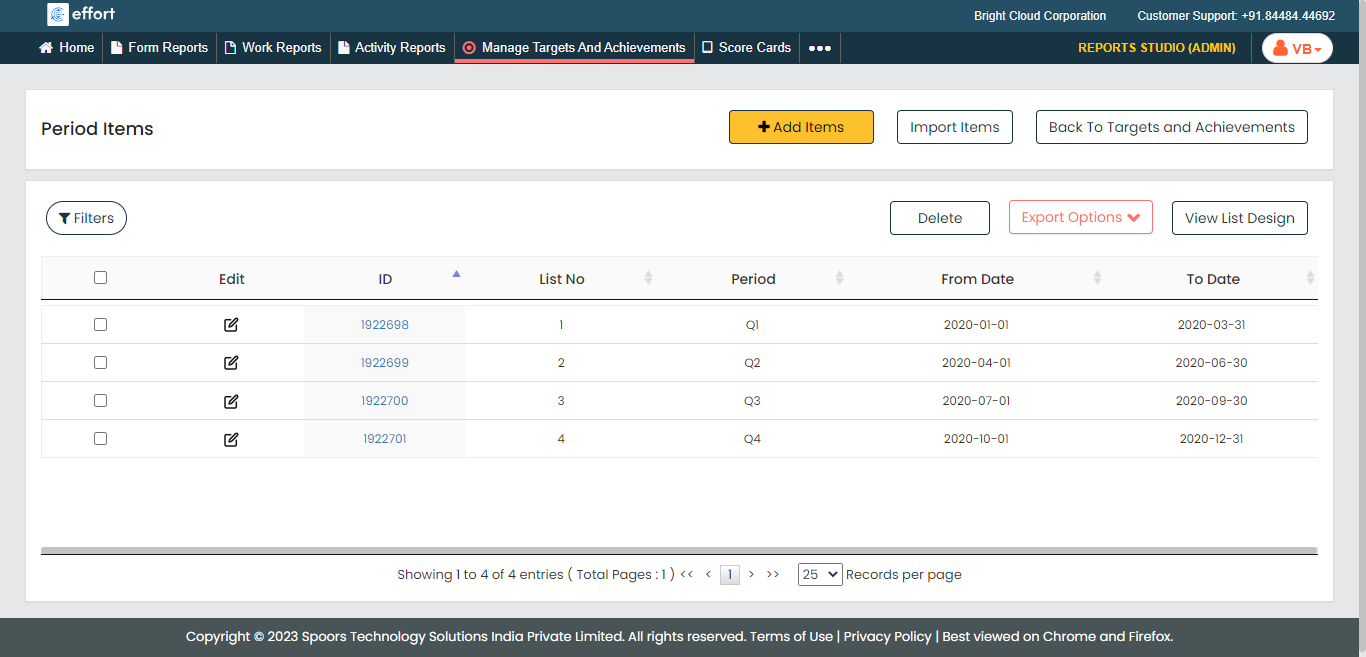
-
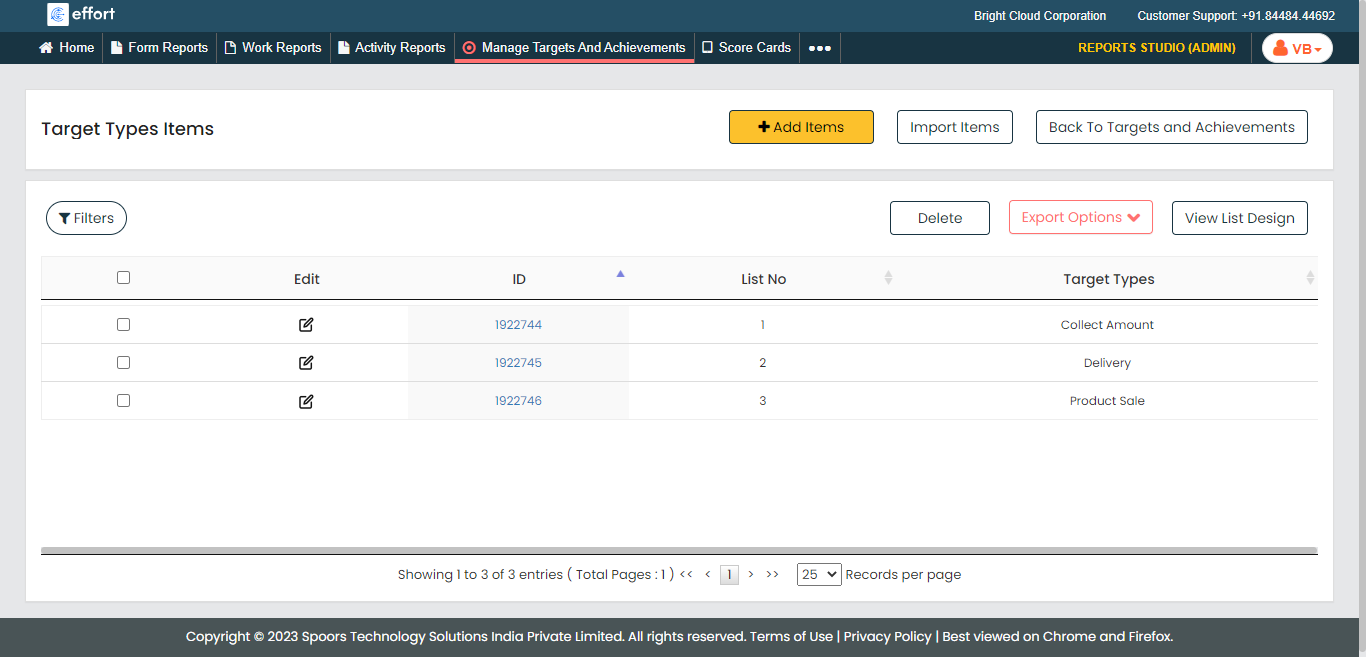
Go to Manage Targets and Achievements page, click the
Target Types card and add items to the list
master.
-
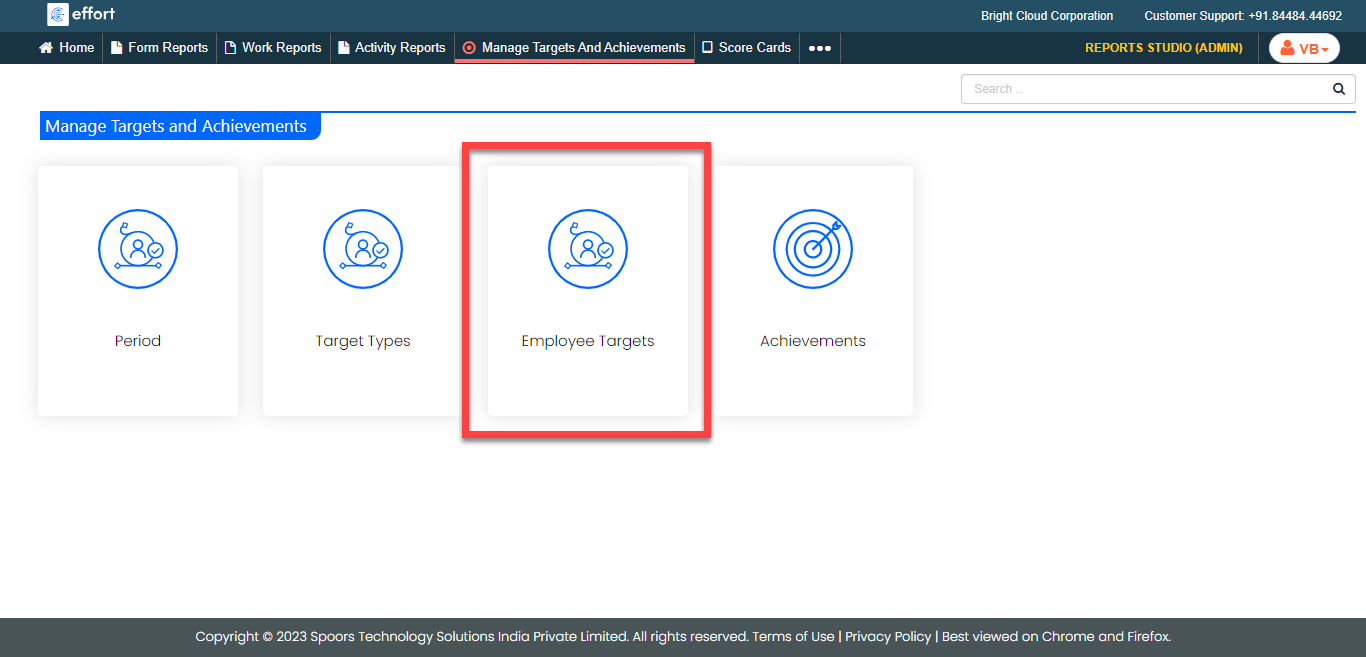
Go to Manage Targets and Achievements page, click the
Employee Targets card.
-
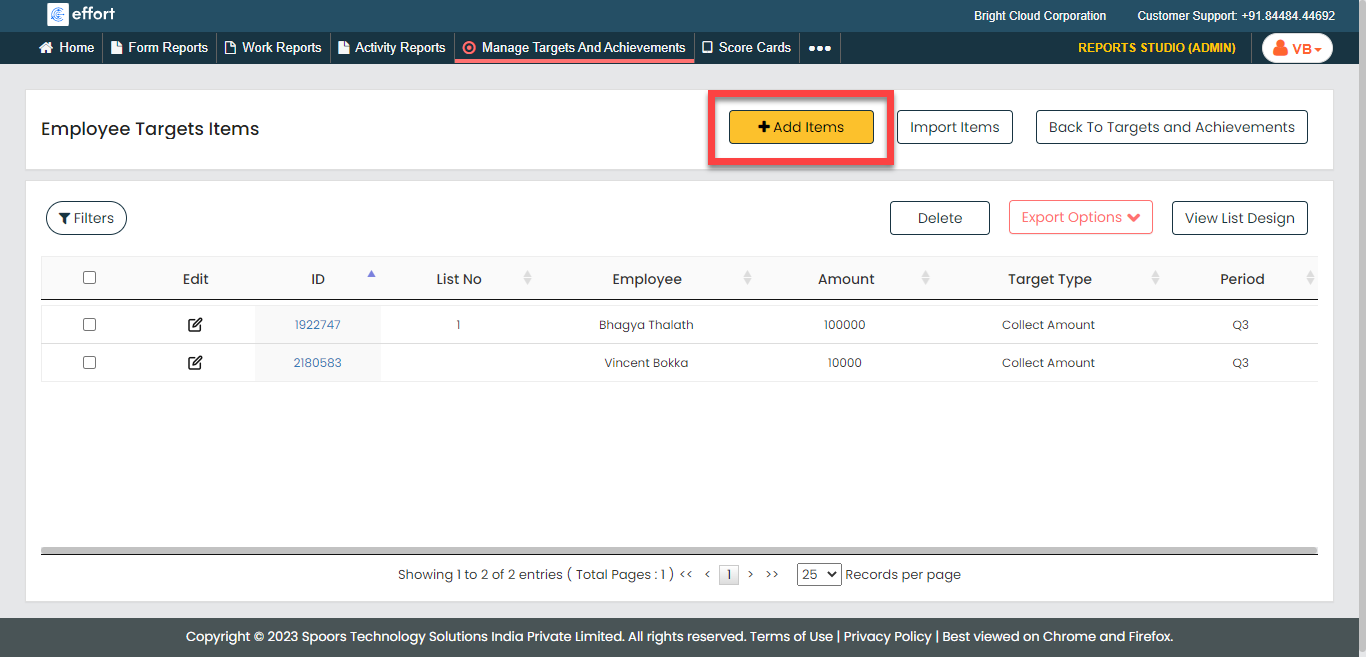
Click the Add Items button located on the top right
corner.
-
Enter data into the following list fields.
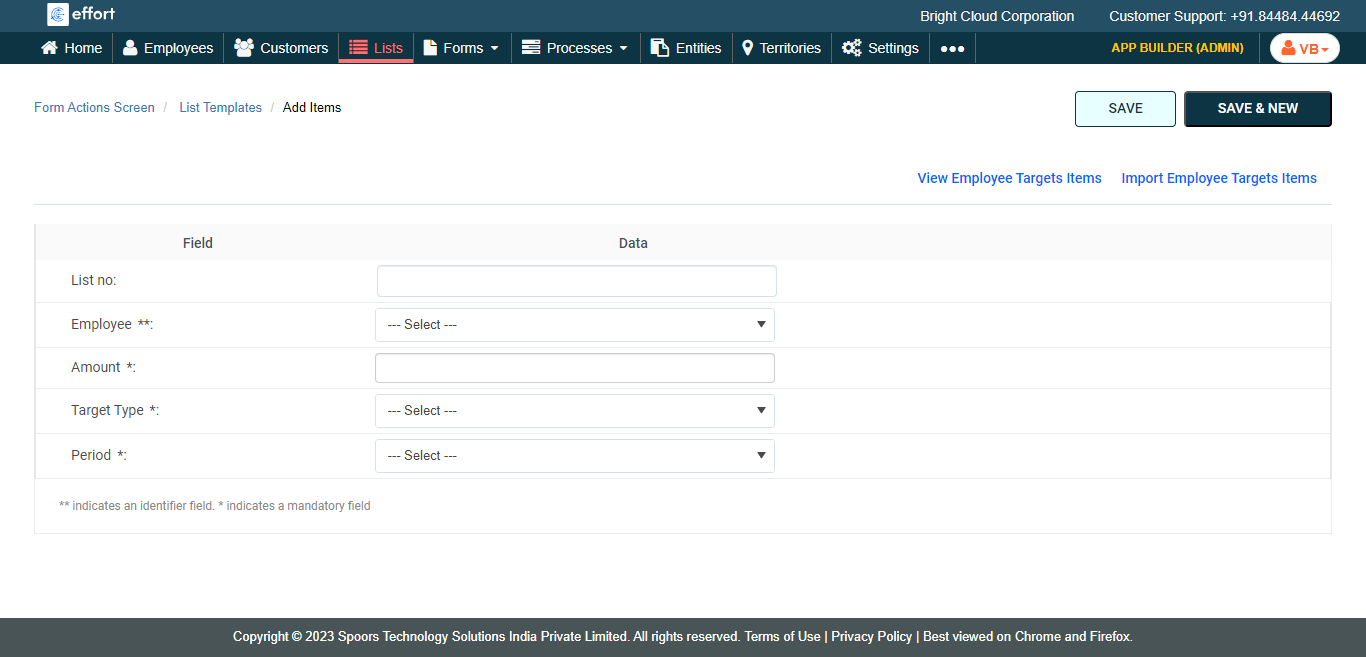
- Employee: Select an employee from the dropdown.
- Amount: Enter the target amount for the employee.
- Target Type: Select a target type from the dropdown.
- Period: Select a period from the dropdown.
- Click Save.