

Trigger Notification
To trigger a notification, follow the steps below:
-
Navigate to .
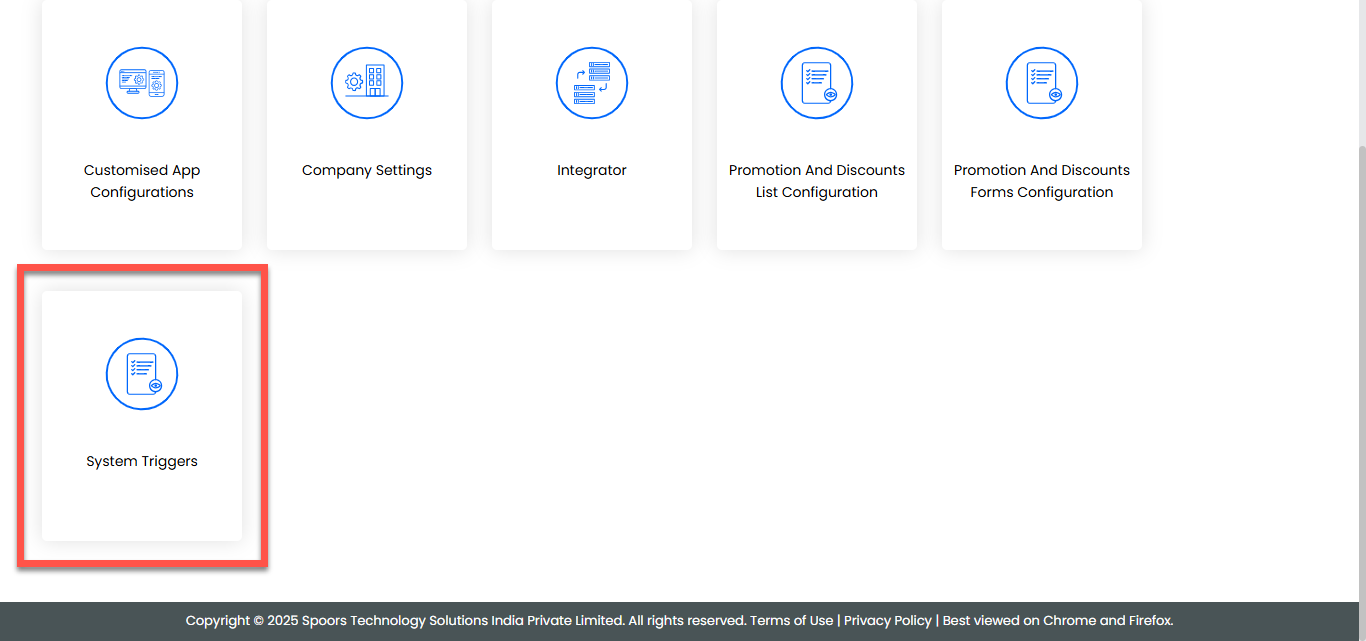
-
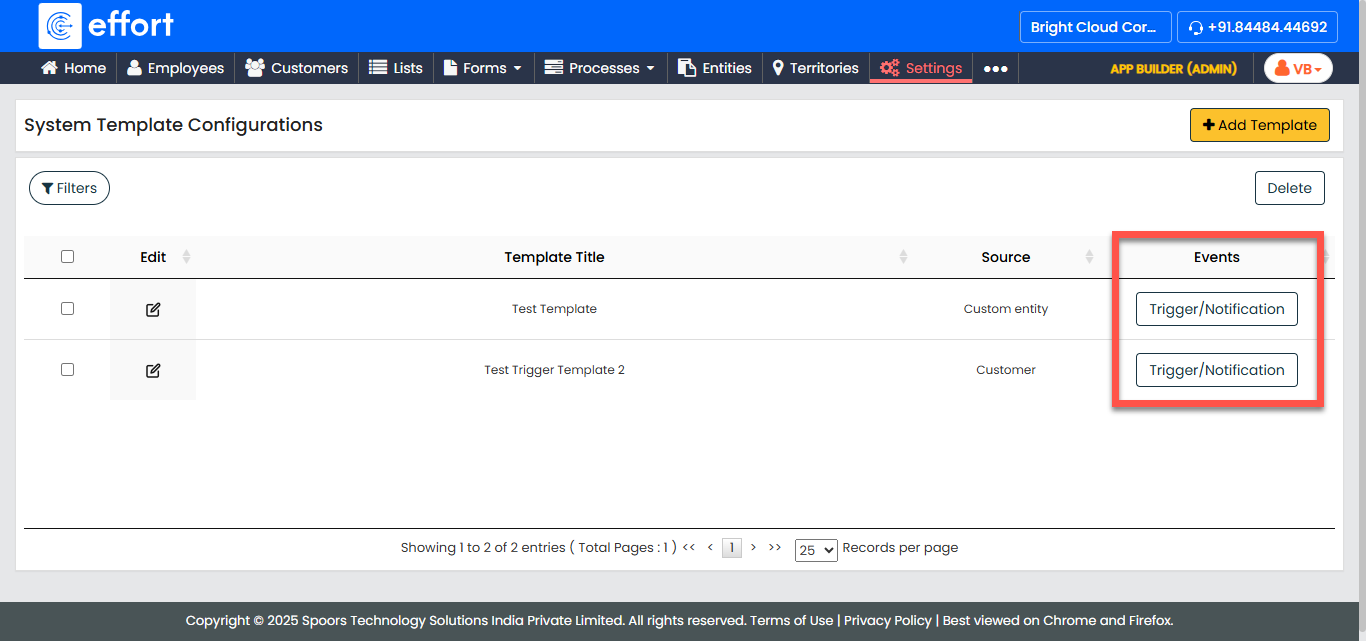
On the System Template Configurations page, click the
Trigger/Notification button for the template you want
to configure, located under the Events column.
-
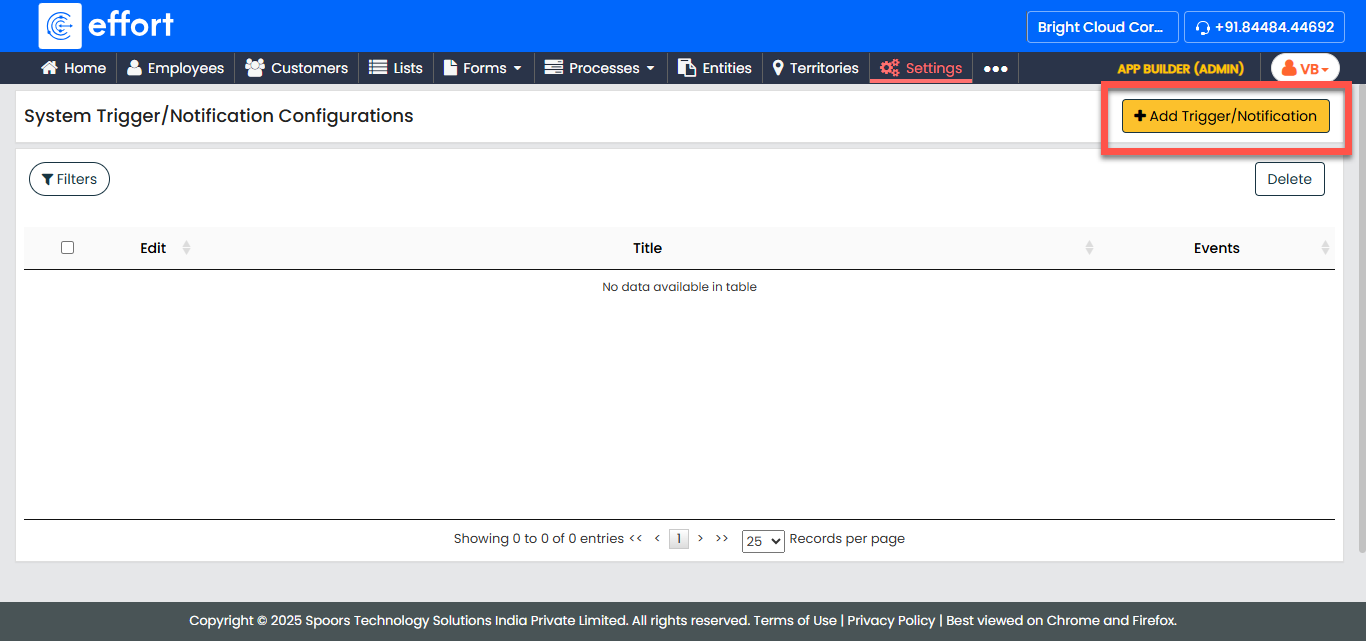
In the System Trigger/Notification Configurations page, click
+ Add Trigger/Notification.
-
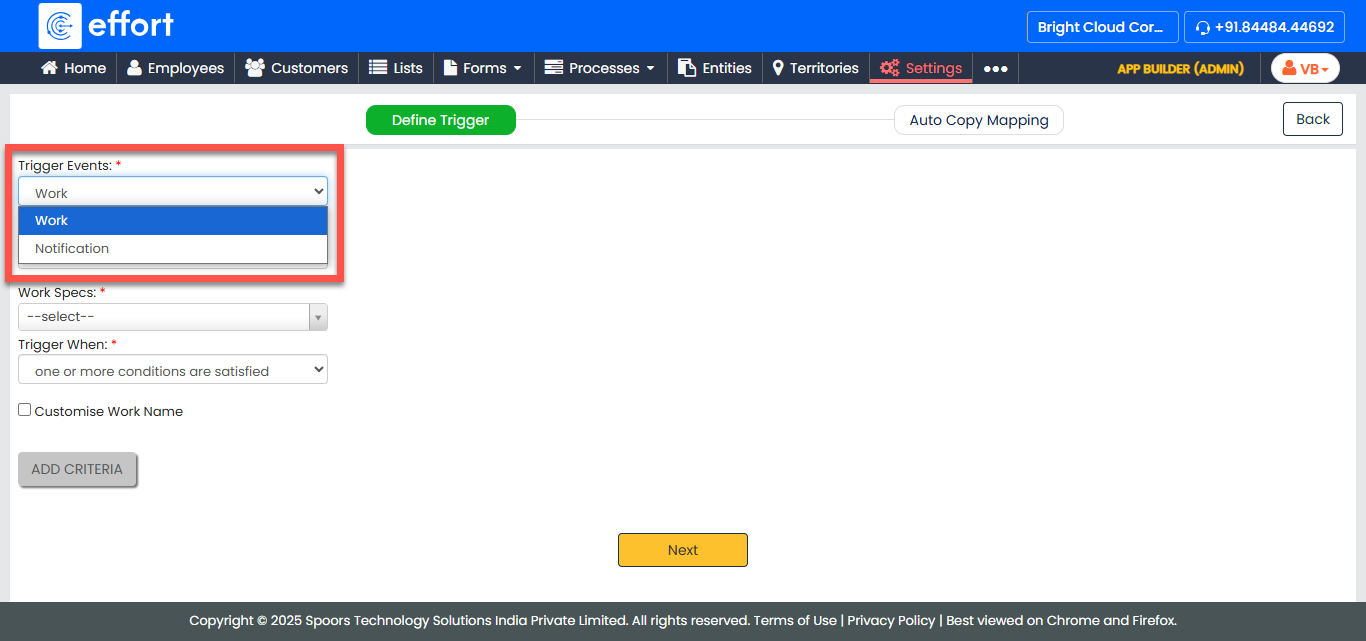
In the Define Trigger section, select Notification from the
Trigger Events dropdown.
-
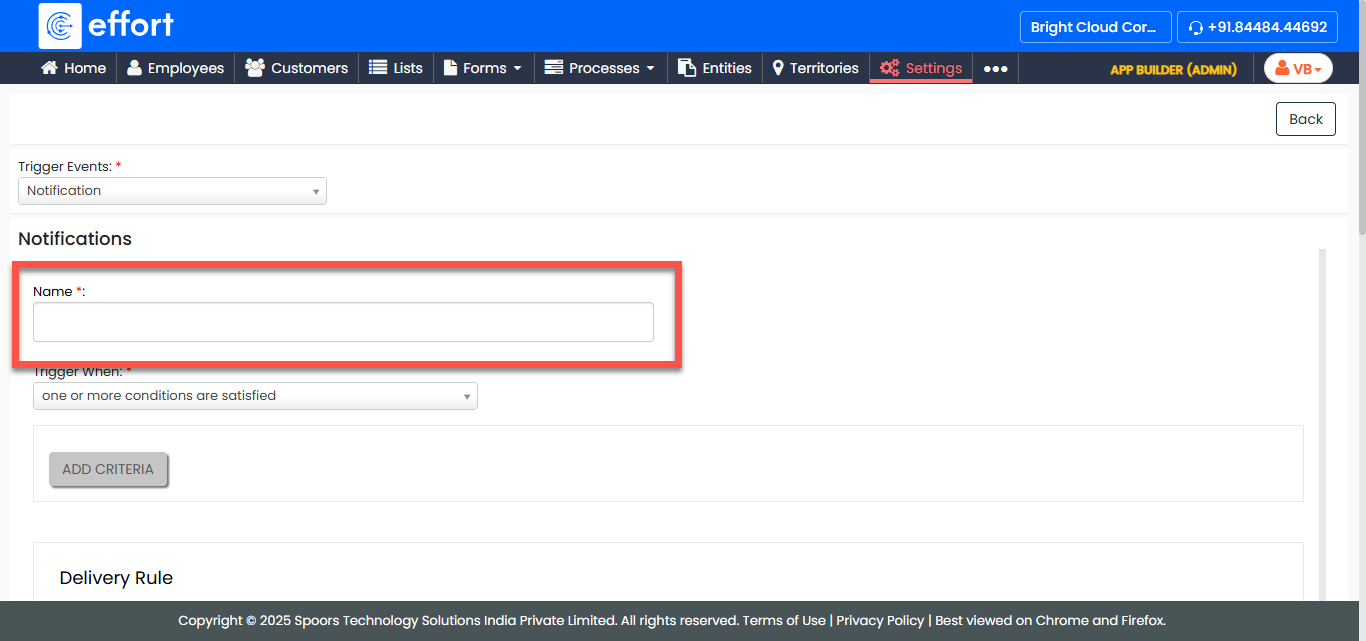
Enter a name for the notification in the Name
field.
-
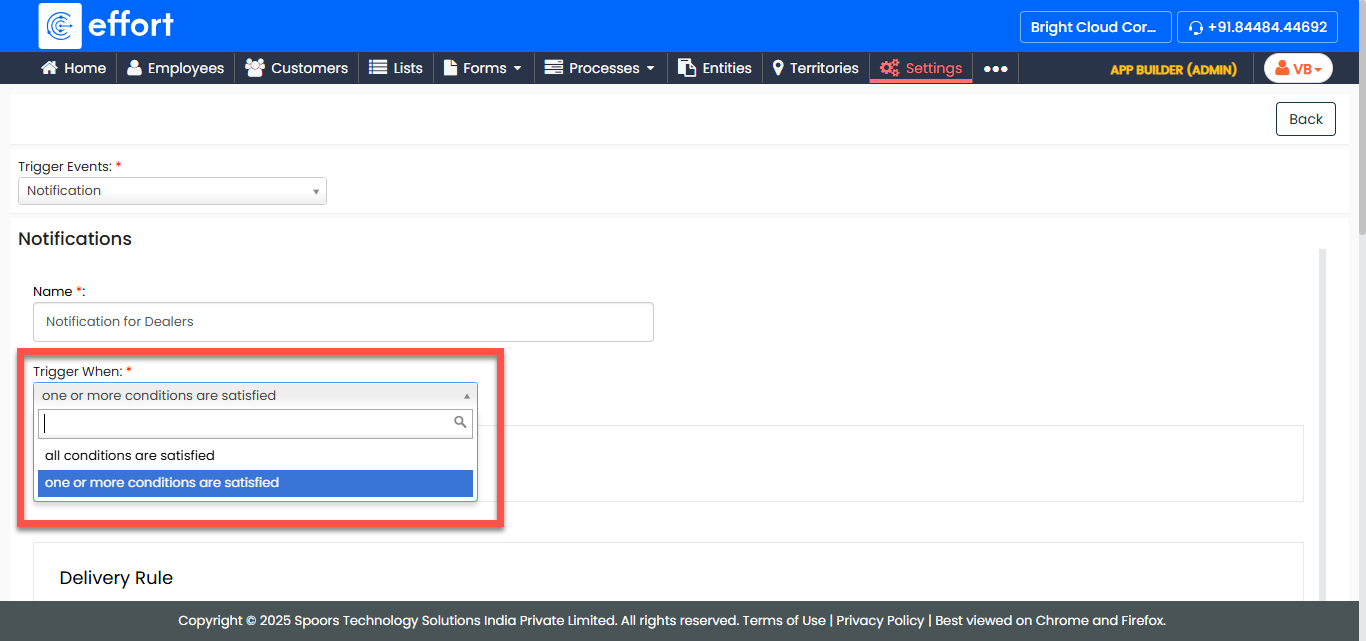
Select a condition from the Trigger When dropdown.
-
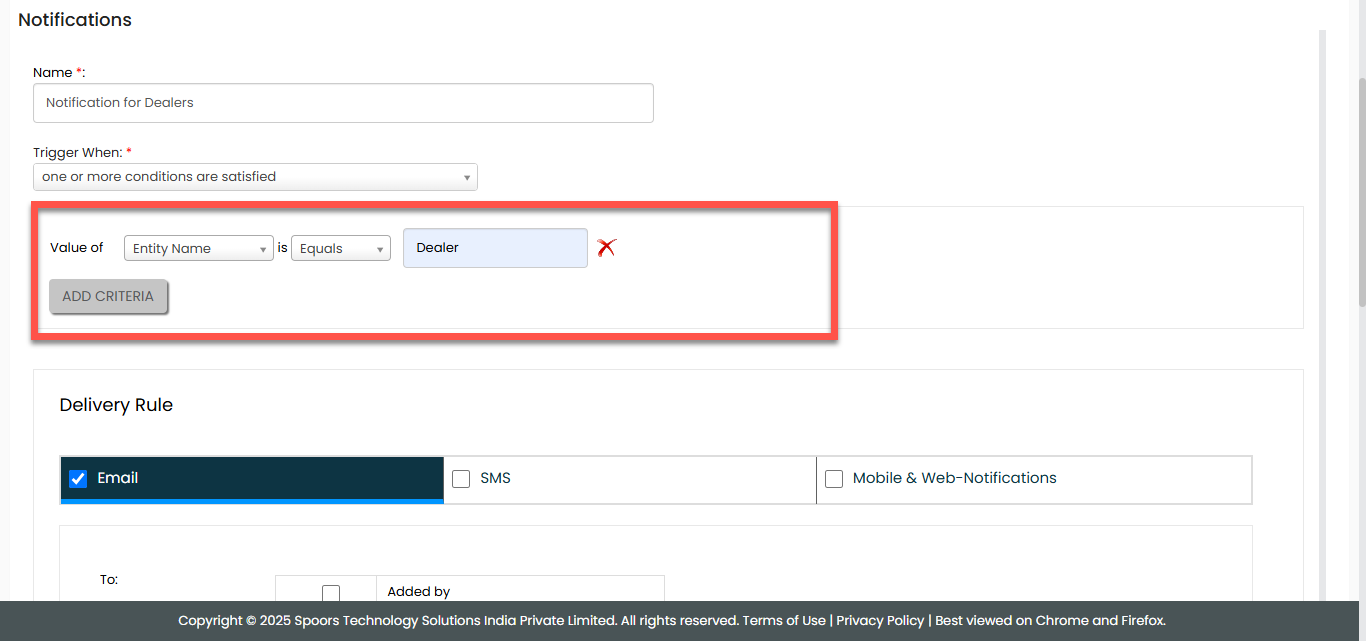
Click Add Criteria and define the condition.
-
Under the Delivery Rule section, select the following as per your
requirements:
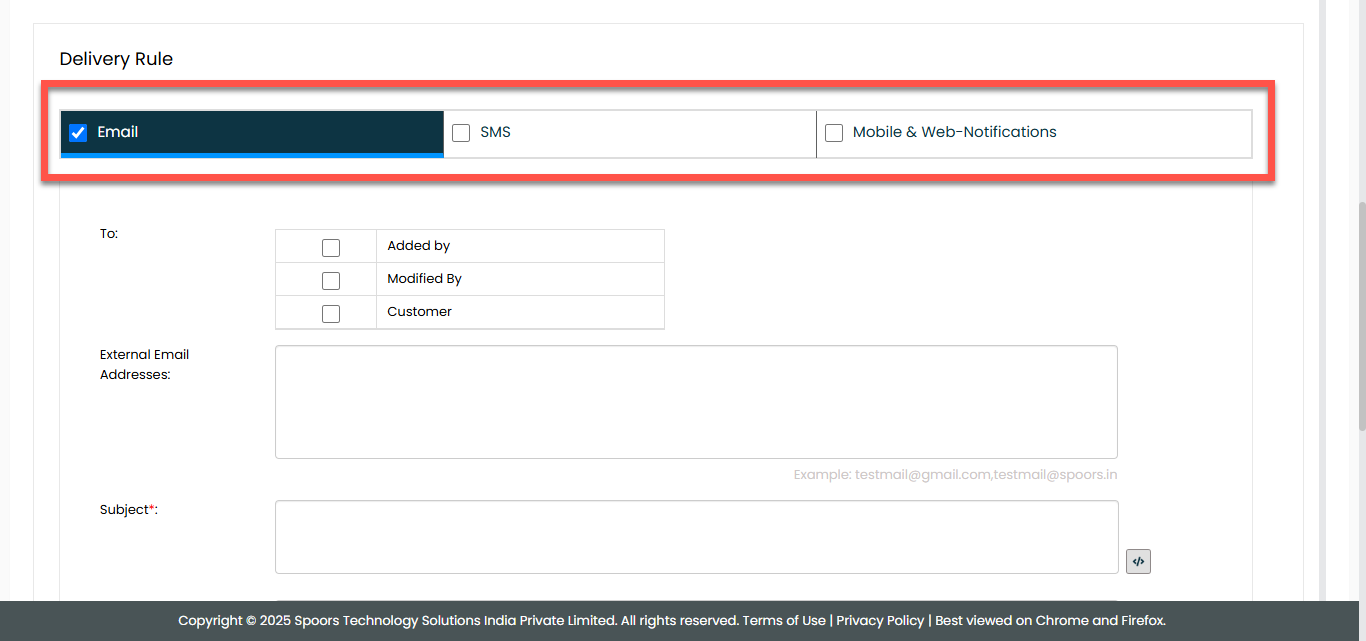
- SMS
- Mobile & Web-Notifications
-
If you selected Email, provide the following details:
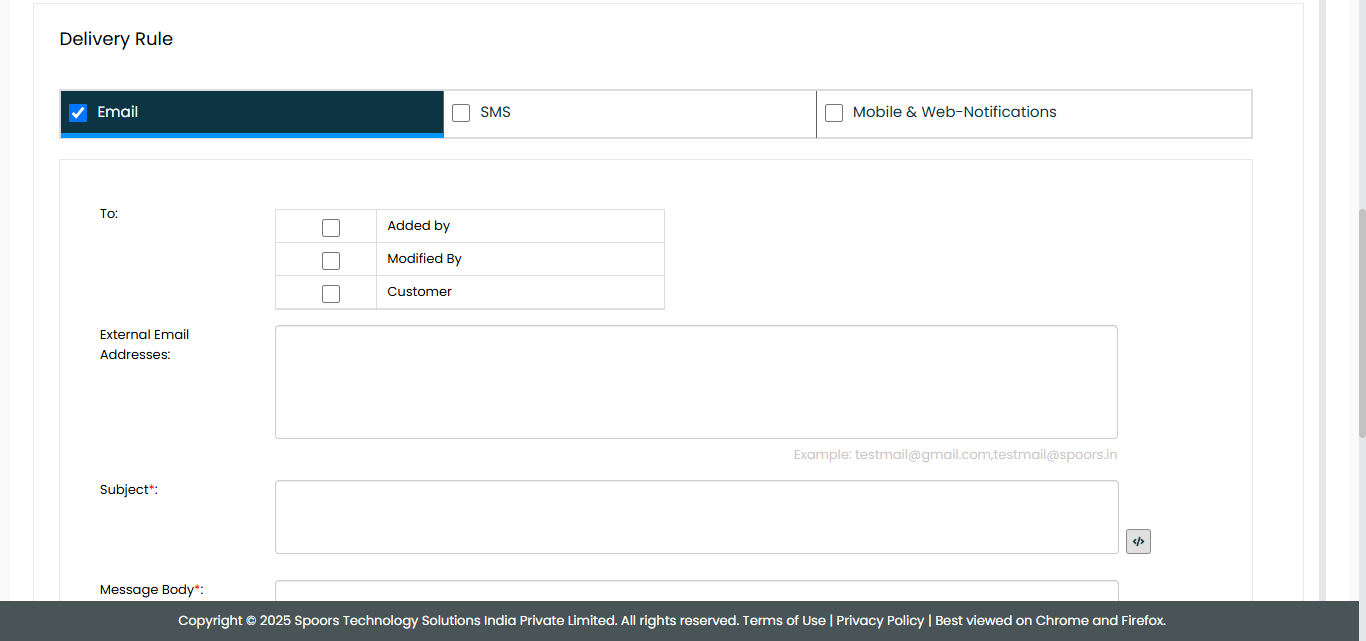
Field Description To
Select recipients to send the email: -
Added by: Select to send the email to the person who created the record.
-
Modified by: Select to send the email to the person who last modified the record.
-
Customer: Select to send the email to the associated customer.
External Email Addresses
Add external email addresses if required. Subject
Enter the email subject. Message Body
Define the content of the email message. -
-
If you selected SMS, provide the following details:
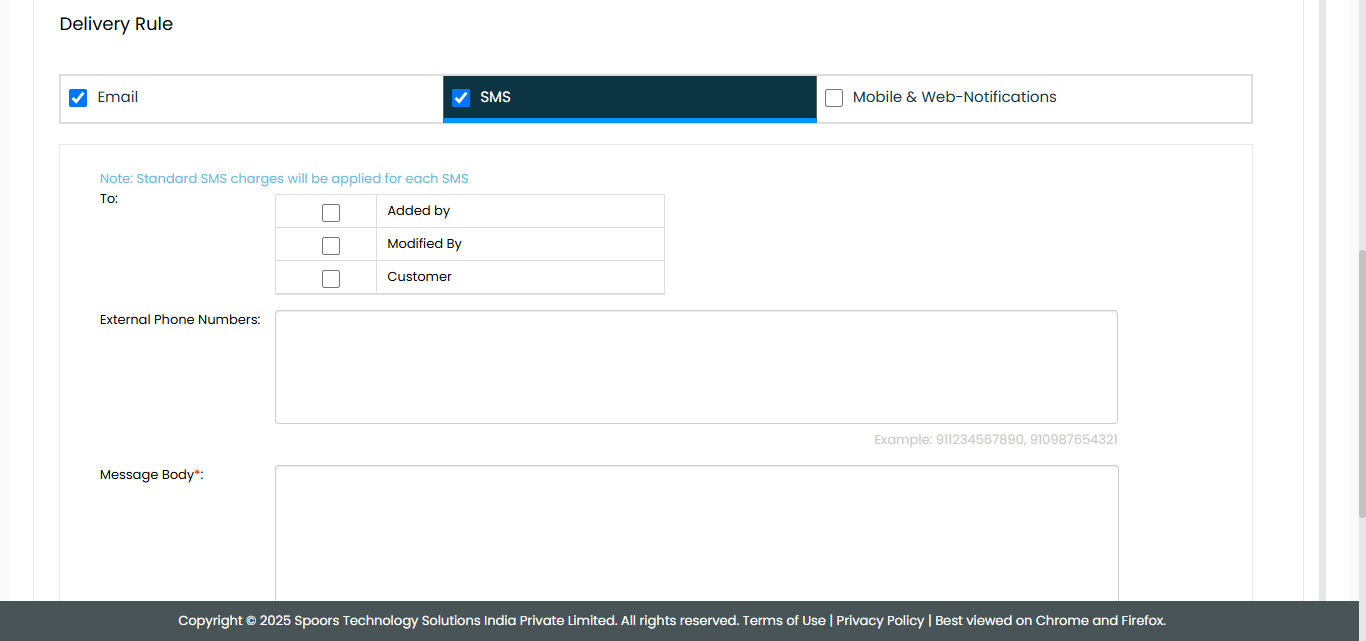
Field Description To
Select recipients to send the email: -
Added by: Select to send the email to the person who created the record.
-
Modified by: Select to send the email to the person who last modified the record.
-
Customer: Select to send the email to the associated customer.
External Phone Numbers
Add external phone numbers if required. Message Body
Define the content of the SMS message. -
-
If you selected Mobile & Web Notifications, provide the following
details:
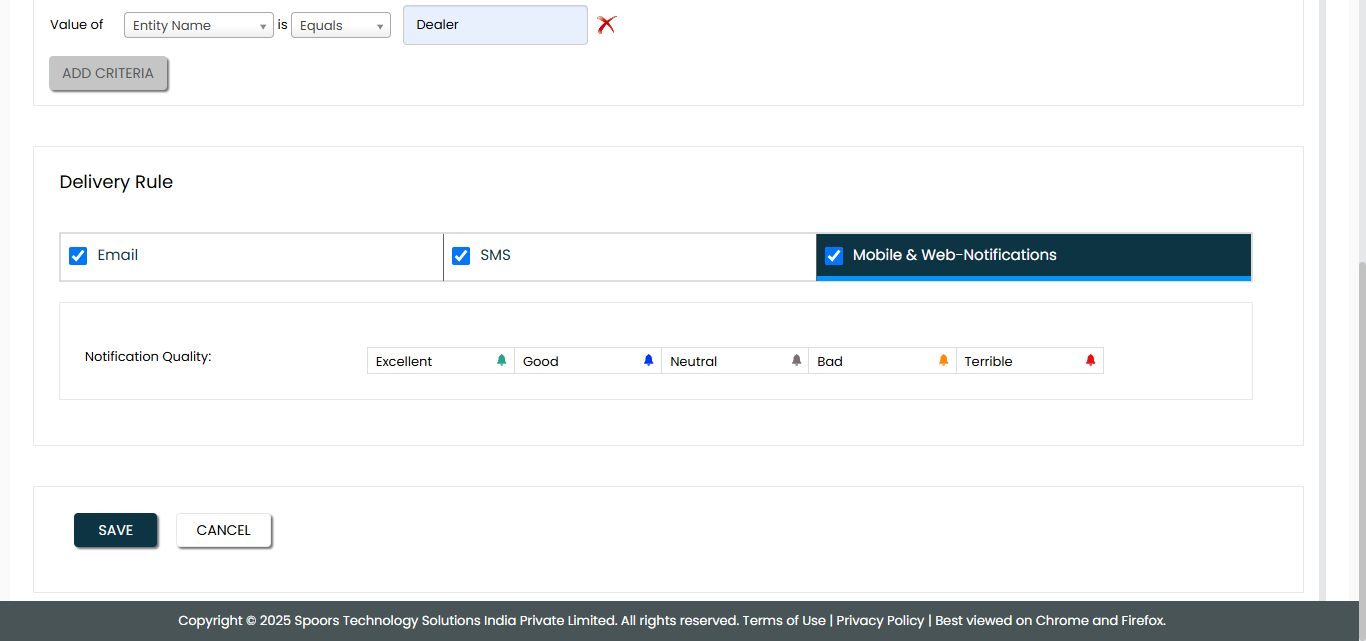
Field Description Select Notification Quality
The options are: - Excellent
- Good
- Neutral
- Bad
- Terrible
- Click Save to save the notification configuration.