

Configure Auto Fill Work Attachments Forms from Work Section Fields
Pre-Requisites
- Make sure that the process has already been created with the work attachments.
- Make sure that both the work fields and the attached form have sections.
To configure auto-fill work attachments forms from work section fields, follow the below steps:
-
Go to .
The Processes page appears.
-
Click either Activity Process or Checklist
Process as per your requirement.
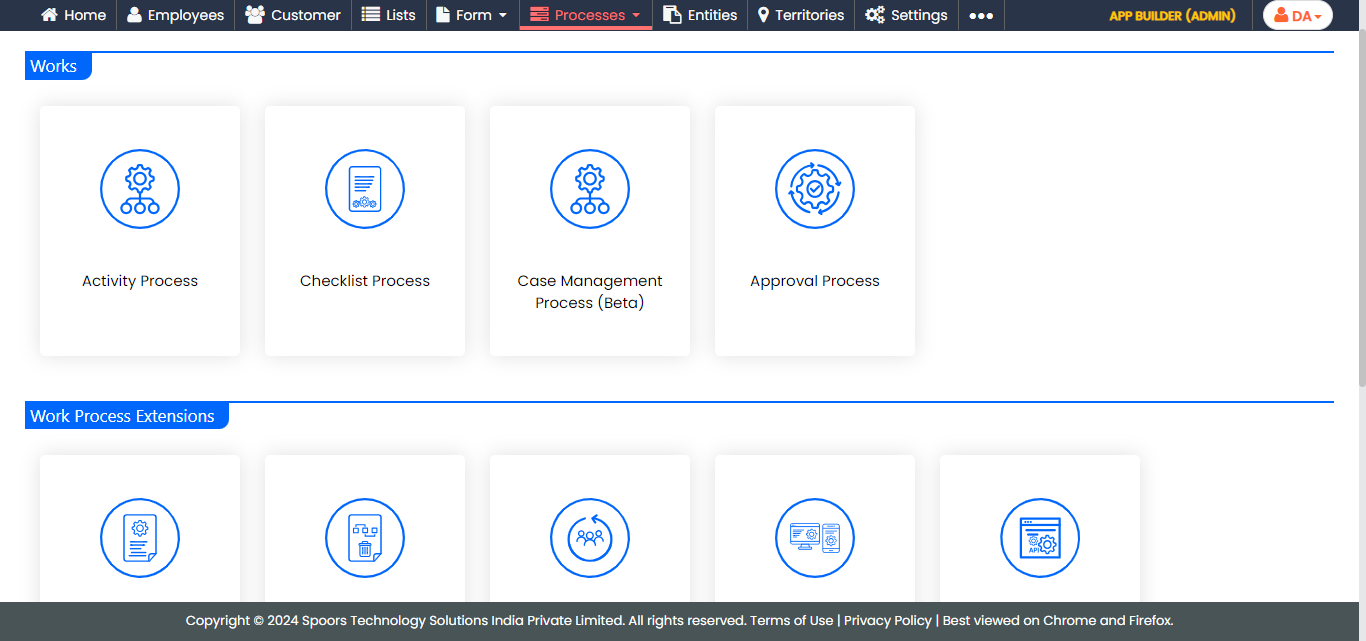
The Activity Process or Checklist Process page appears.
-
Click the required process card for which you want to configure auto fill work
attachment forms from the work section fields.
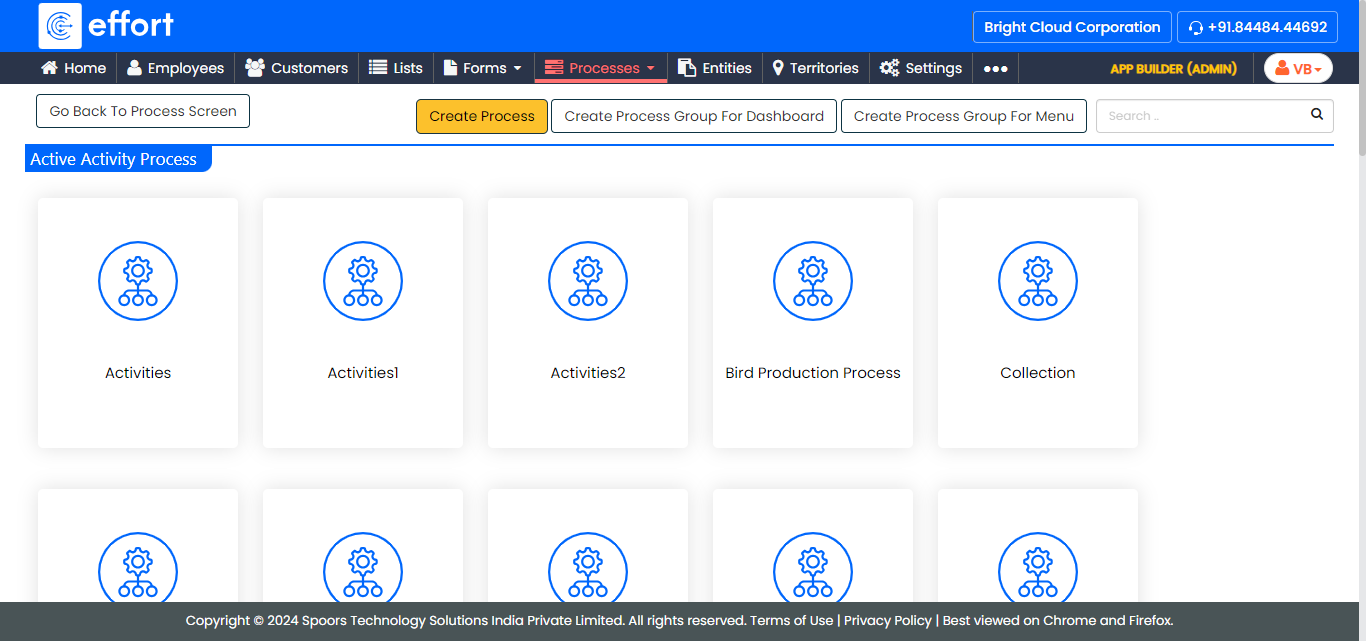
The work processes in the Activity Process are shown in the above screenshot. If you click on the Checklist Process, the work processes in it will appear. -
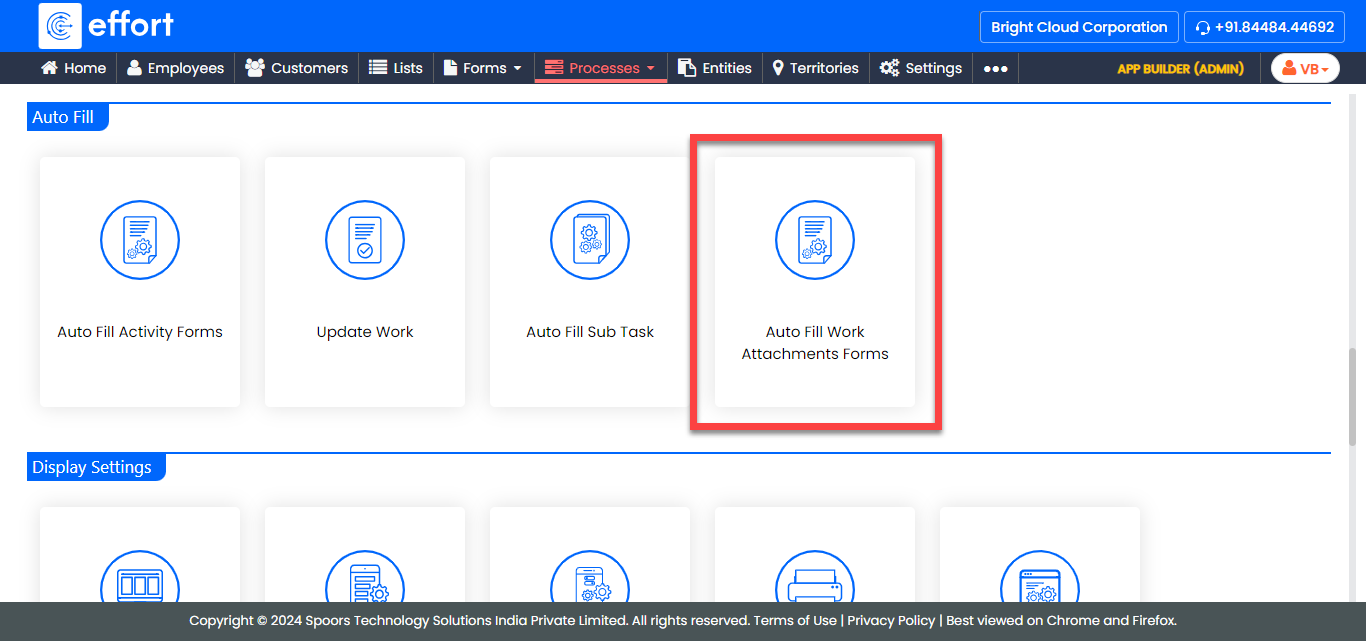
Under the Auto Fill section, click the Auto
Fill Work Attachments Forms card.
-
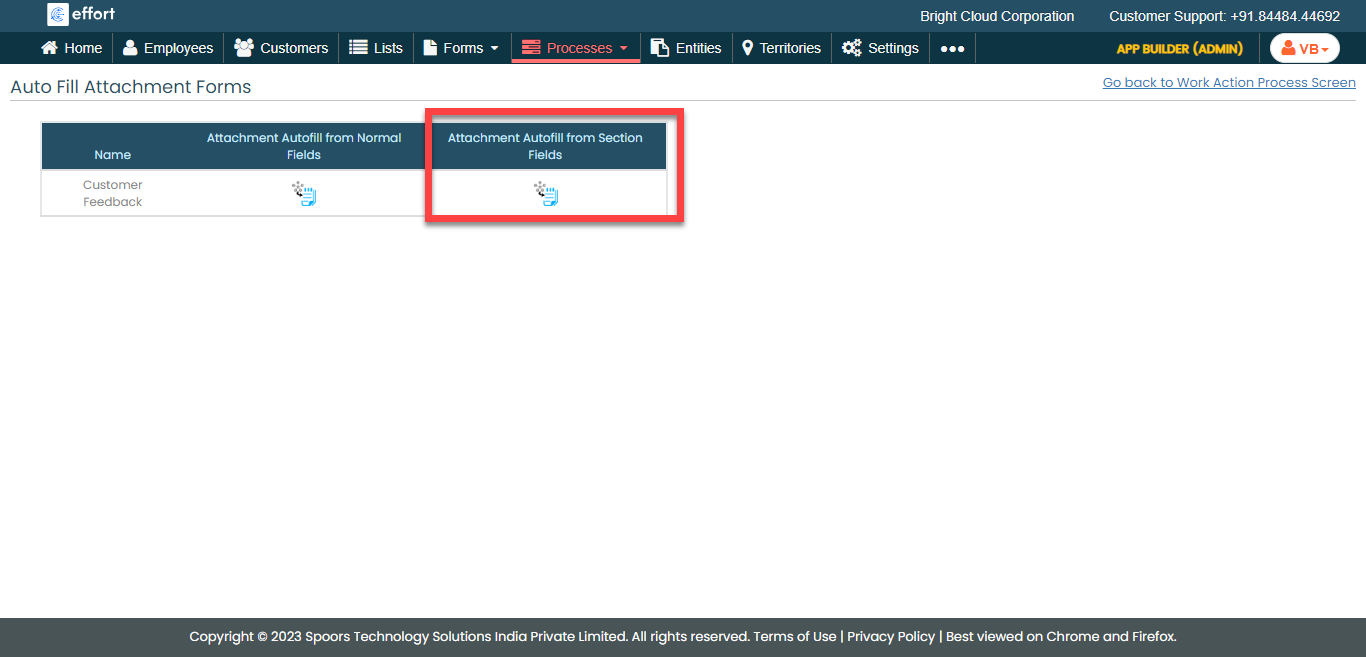
Under the Attachment Autofill from Section Fields
column, click the auto-fill icon.
-
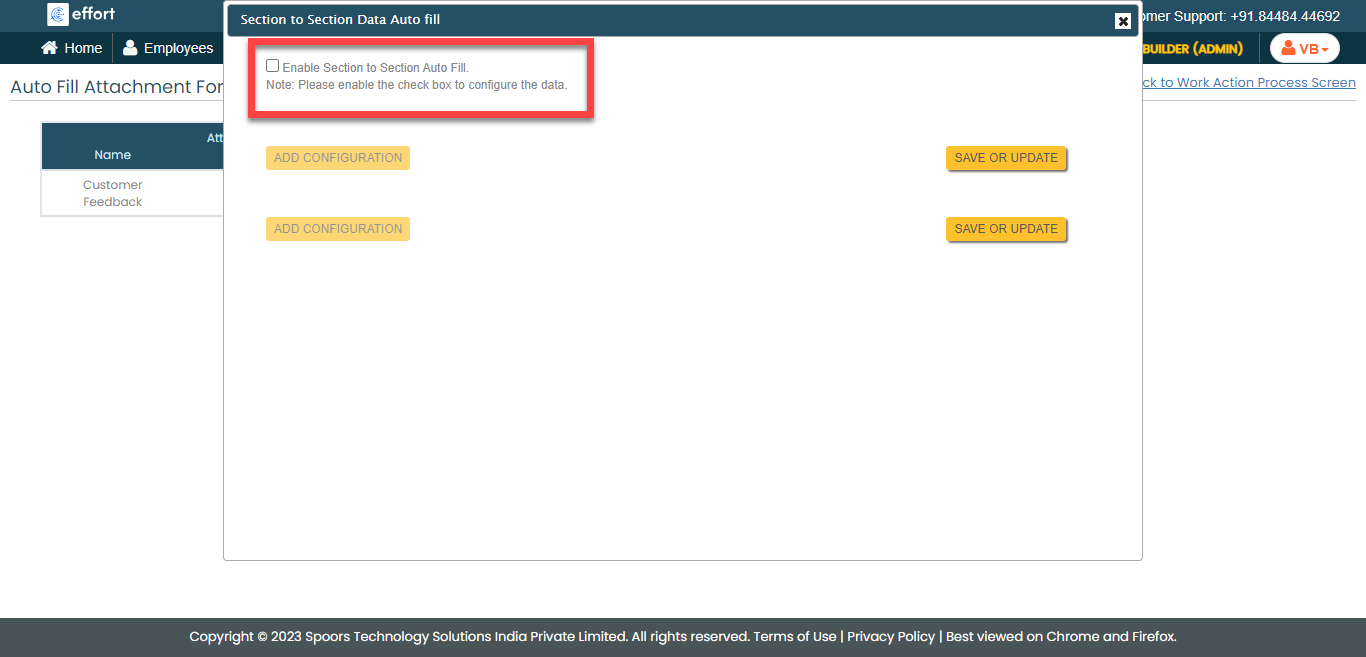
Click the Enable Section to Section Auto Fill
checkbox.
-
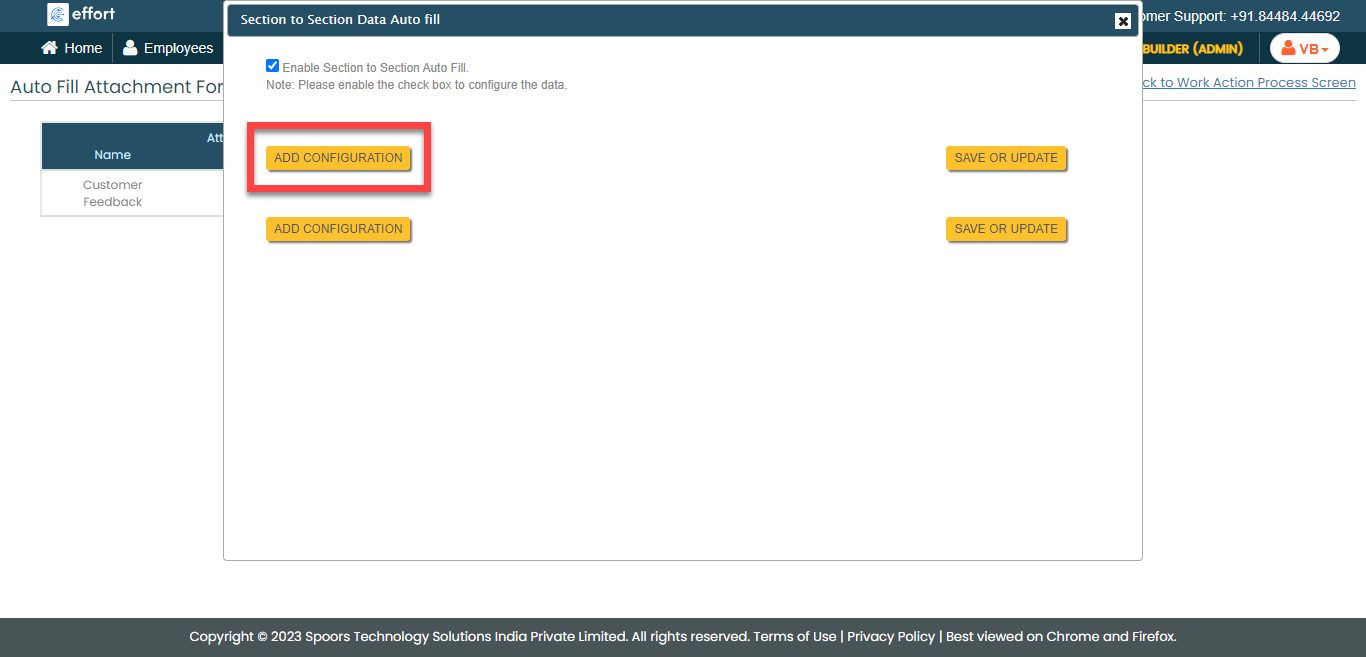
Click the Add Configuration button.
-
In the configuration section, do the following:
-
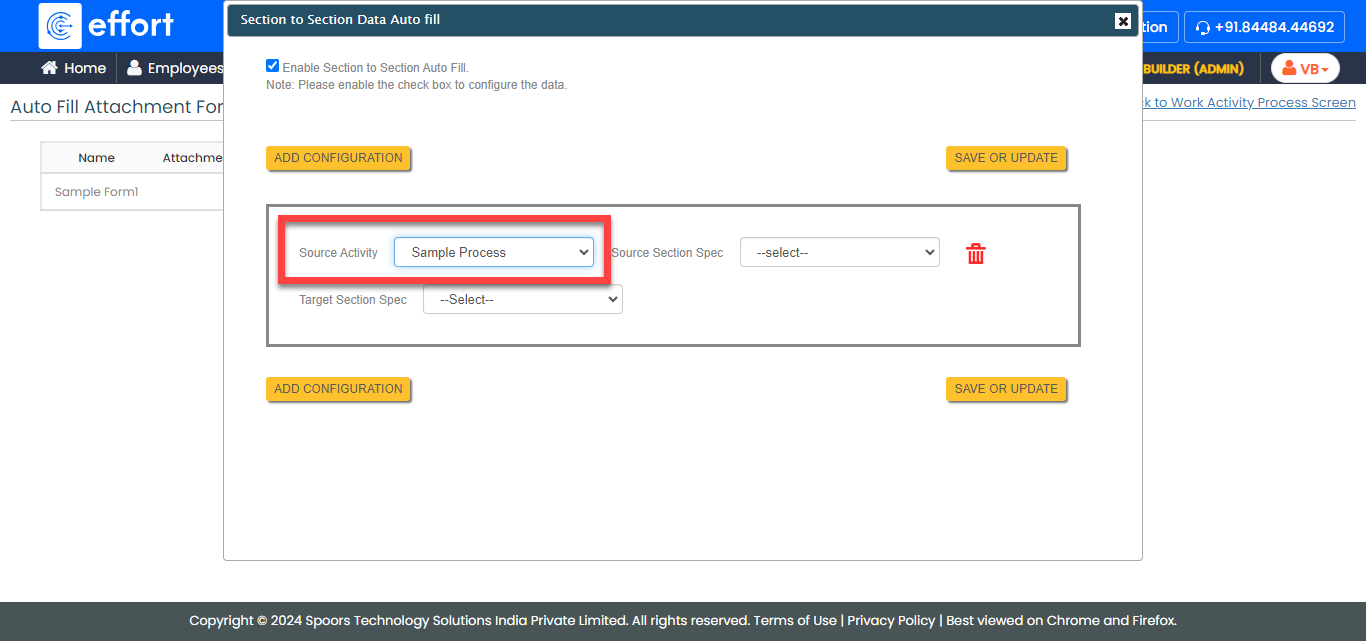
From the Source Activity dropdown, select the
work or activity from which you want to auto copy the data to the
attached form.
-
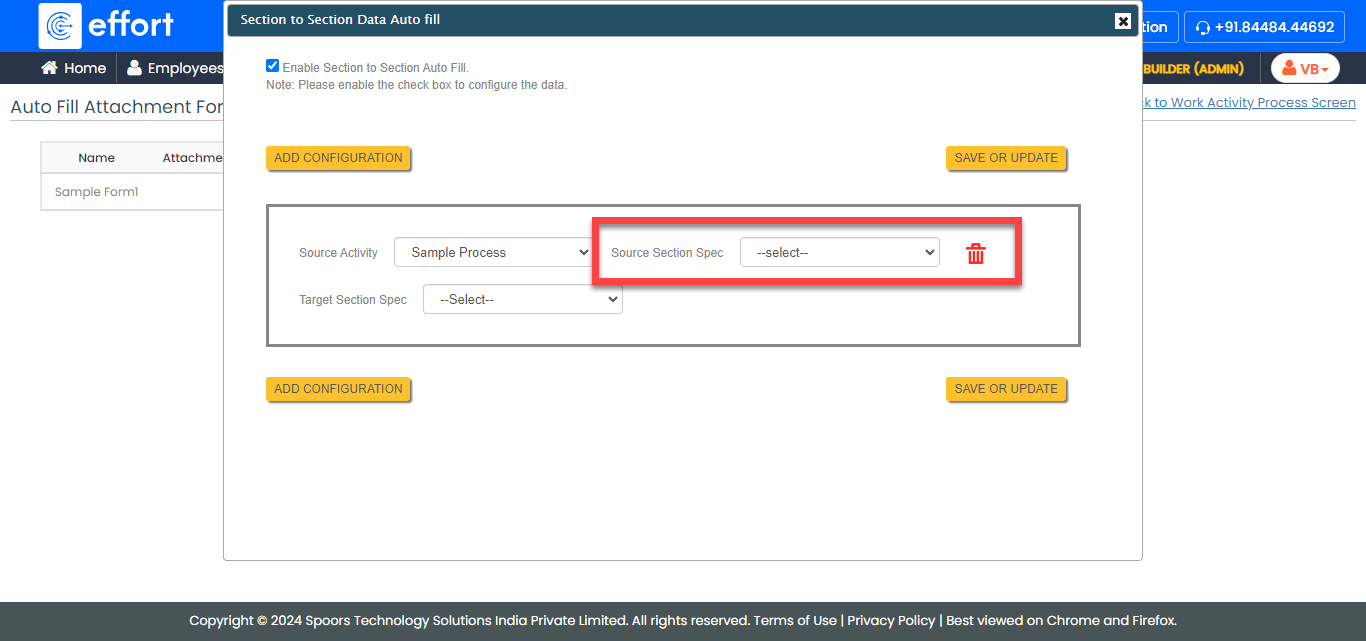
From the Source Section Spec dropdown, select
the work section from which fields you want to auto copy the data to the
attached form fields.
-
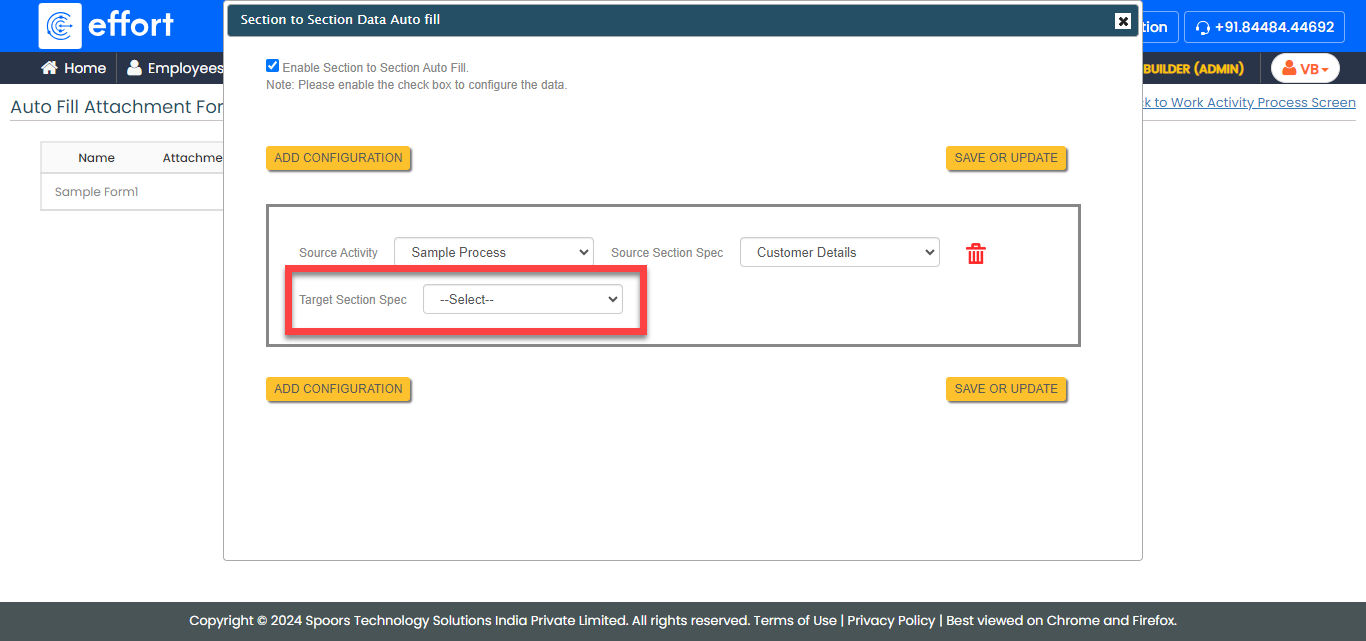
From the Target Section Spec dropdown, select
the target section to which you want to auto copy the data from the
source section.
-
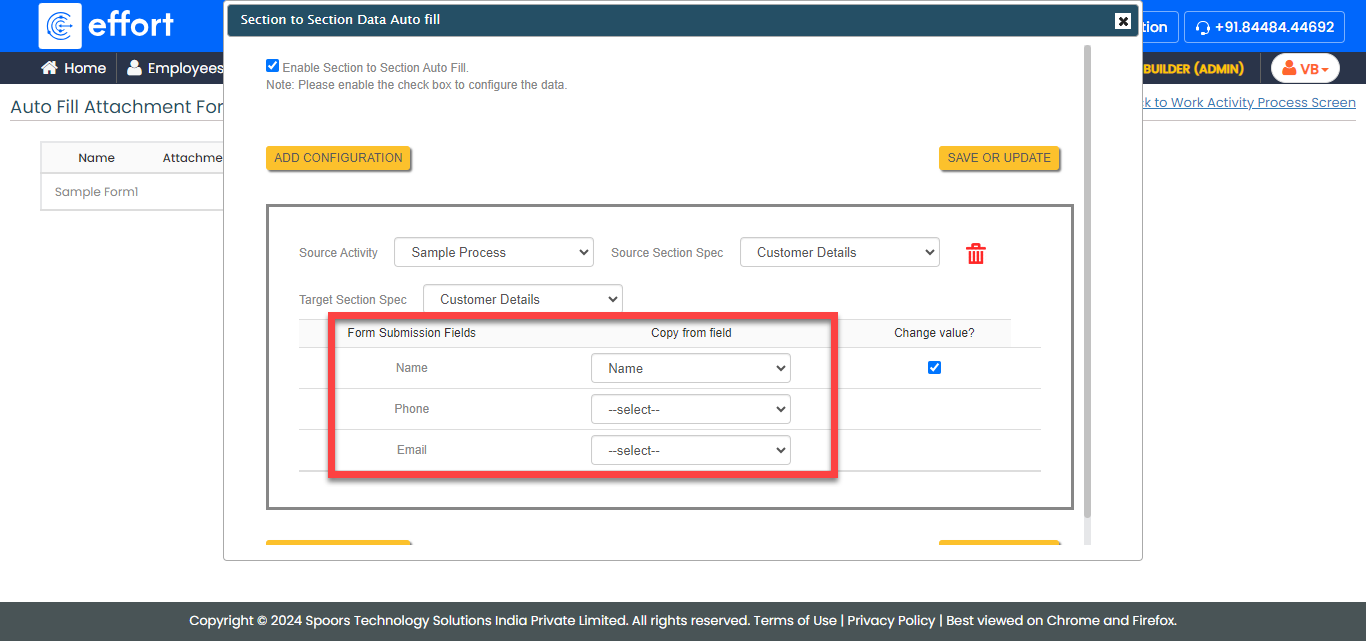
Map the work section fields to the respective form section
fields.
-
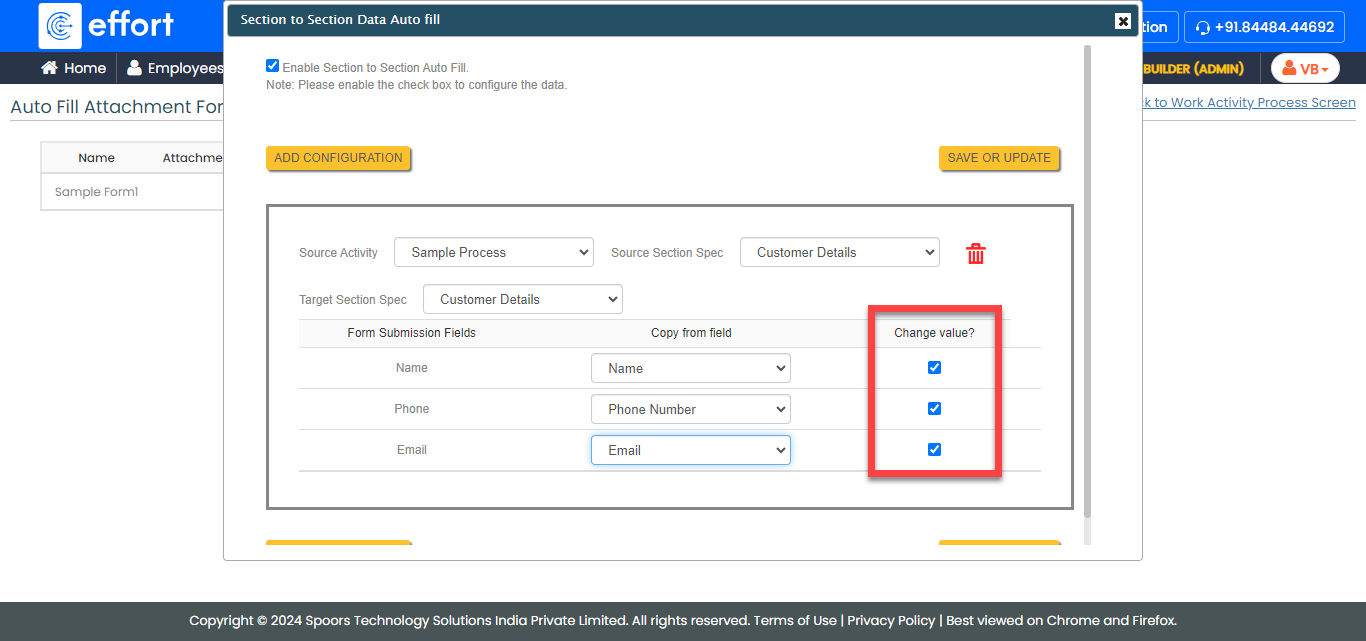
Under the Change value? column, disable the
checkbox to enable the users to edit the populated field.
-
From the Source Activity dropdown, select the
work or activity from which you want to auto copy the data to the
attached form.
- Optional:
Click the Add Configuration button again to define more
configurations as per your requirement.
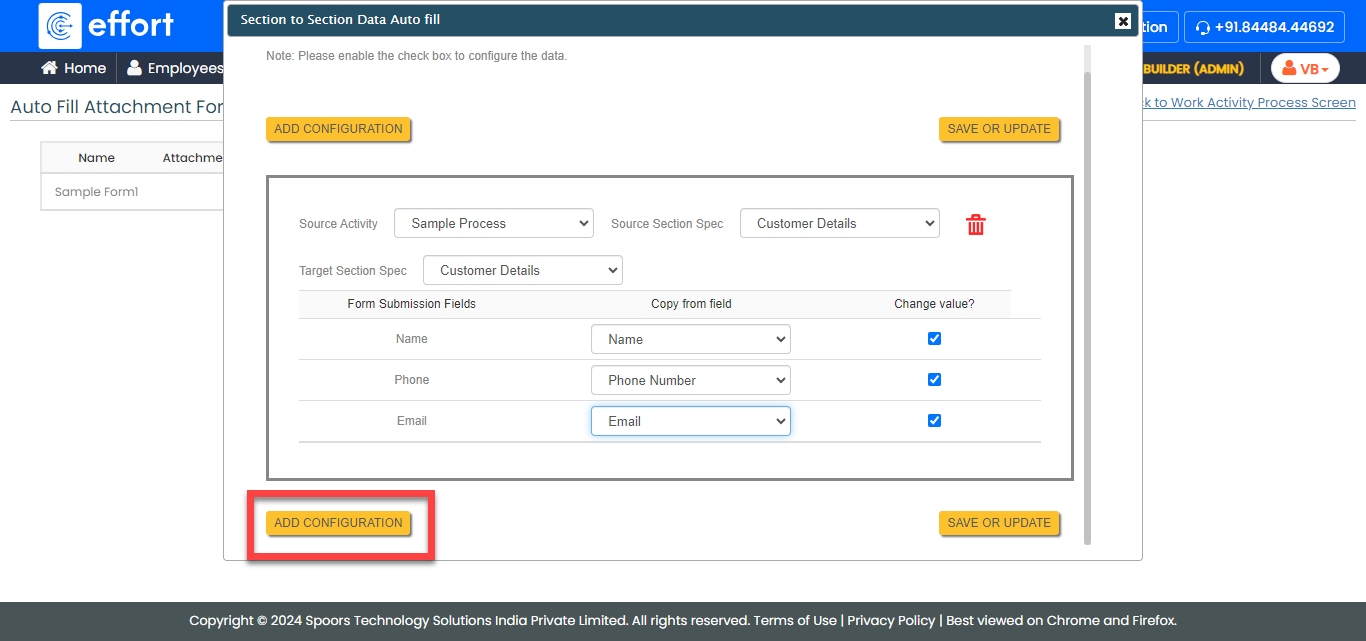
- Click Save or Update.