

Configure Sending Automatic Work Invitations Based on Conditions
The work fields such as Start Time, End Time, Pincode, and Location are mandatory to use this feature.
-
Go to .
The Processes page appears.
-
Click the Activity Process card.
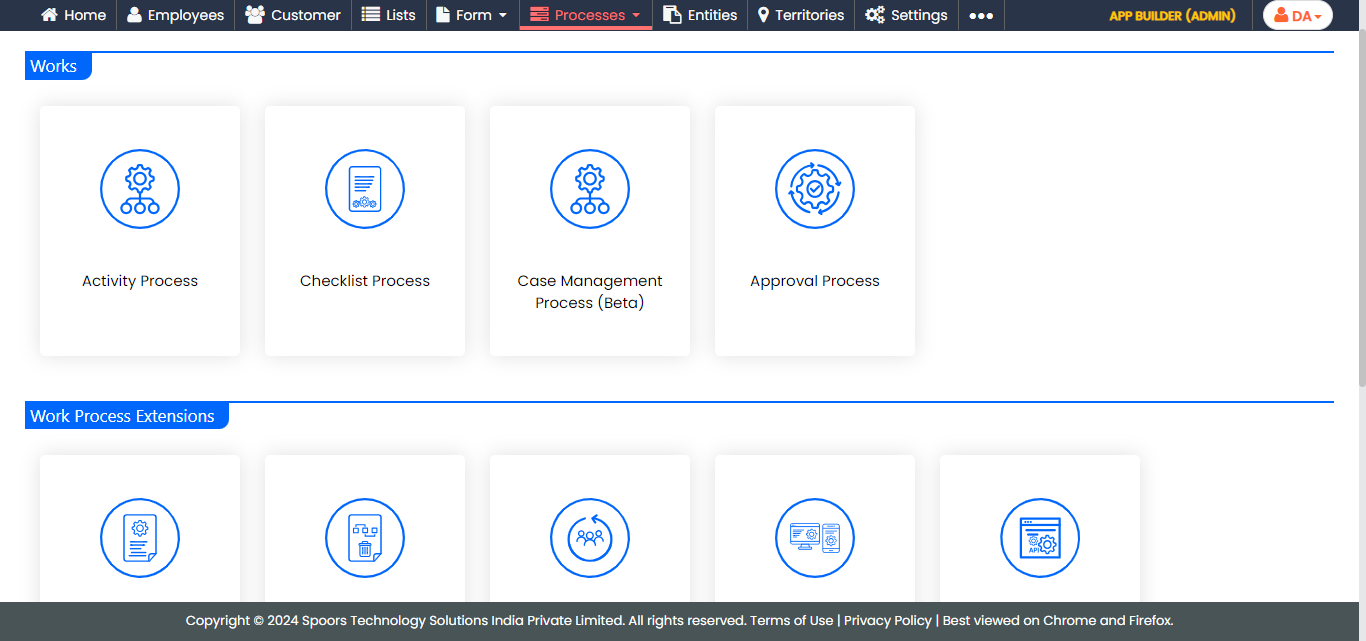
The Activity Process page appears.
-
Click the required process card.
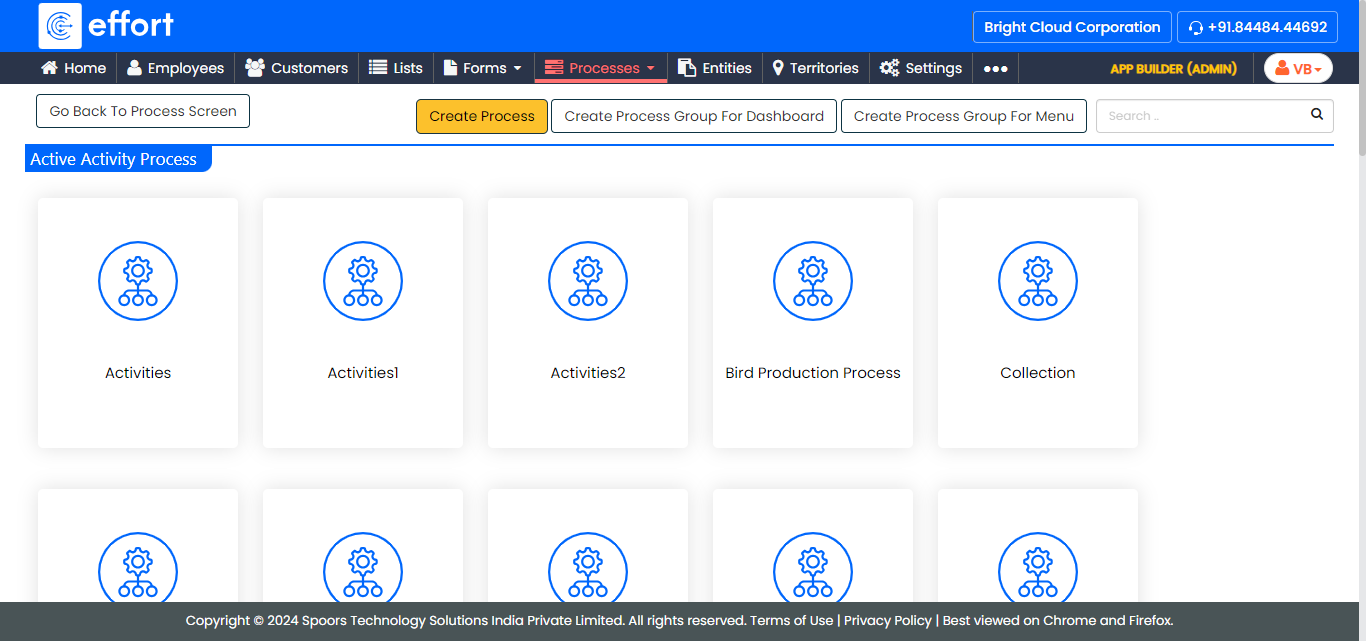
The selected <Process Name> Activities page appears.
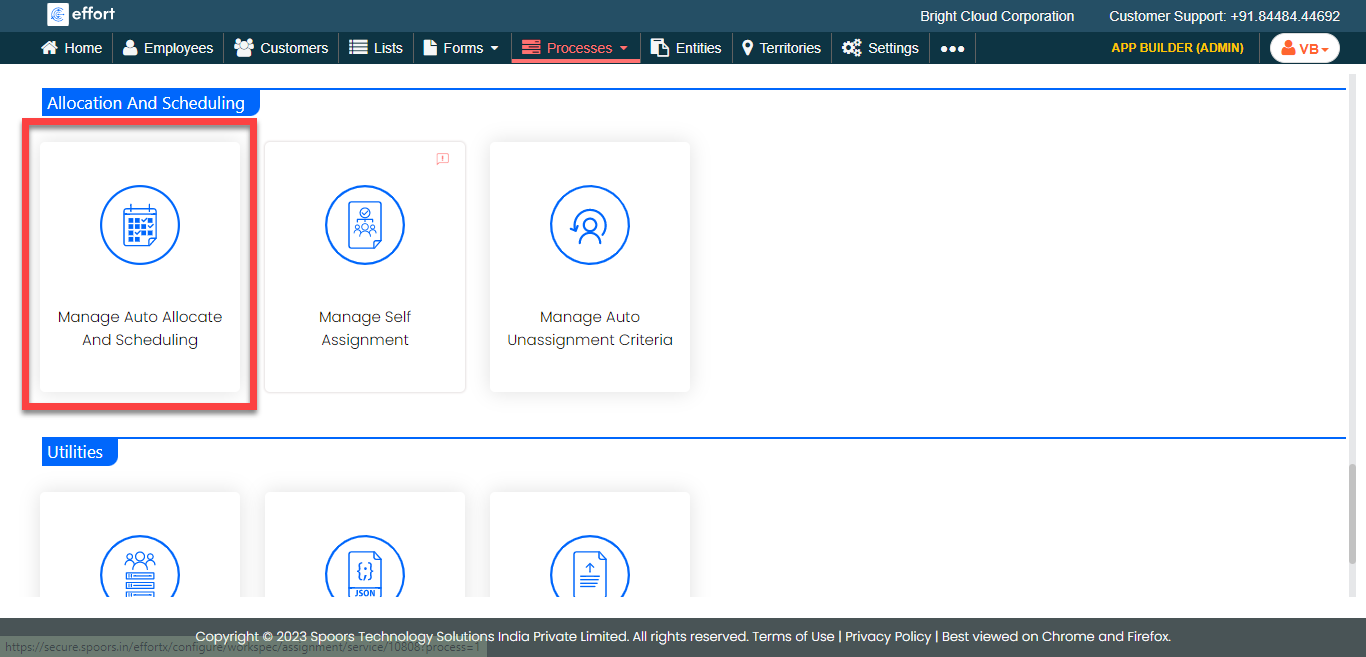
- Scroll down to the Allocation And Scheduling section.
-
Click the Manage Auto Allocate And Scheduling
card.
-
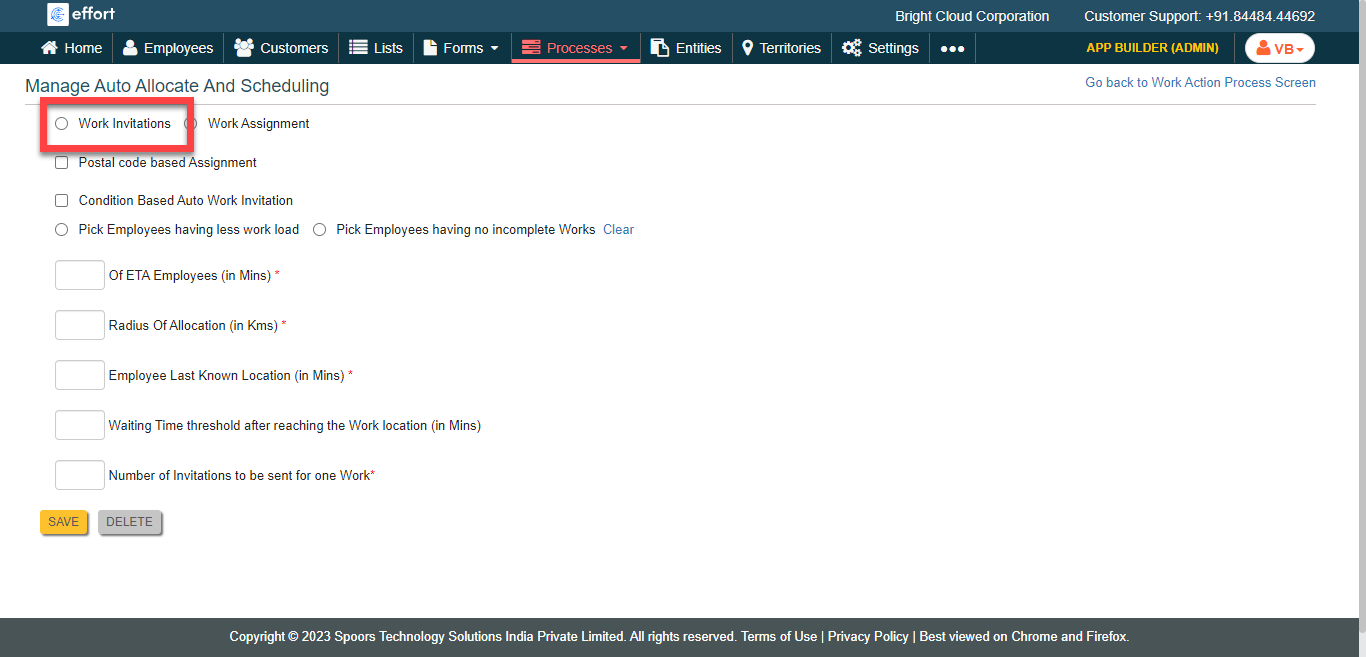
Click the Work Invitations option.
-
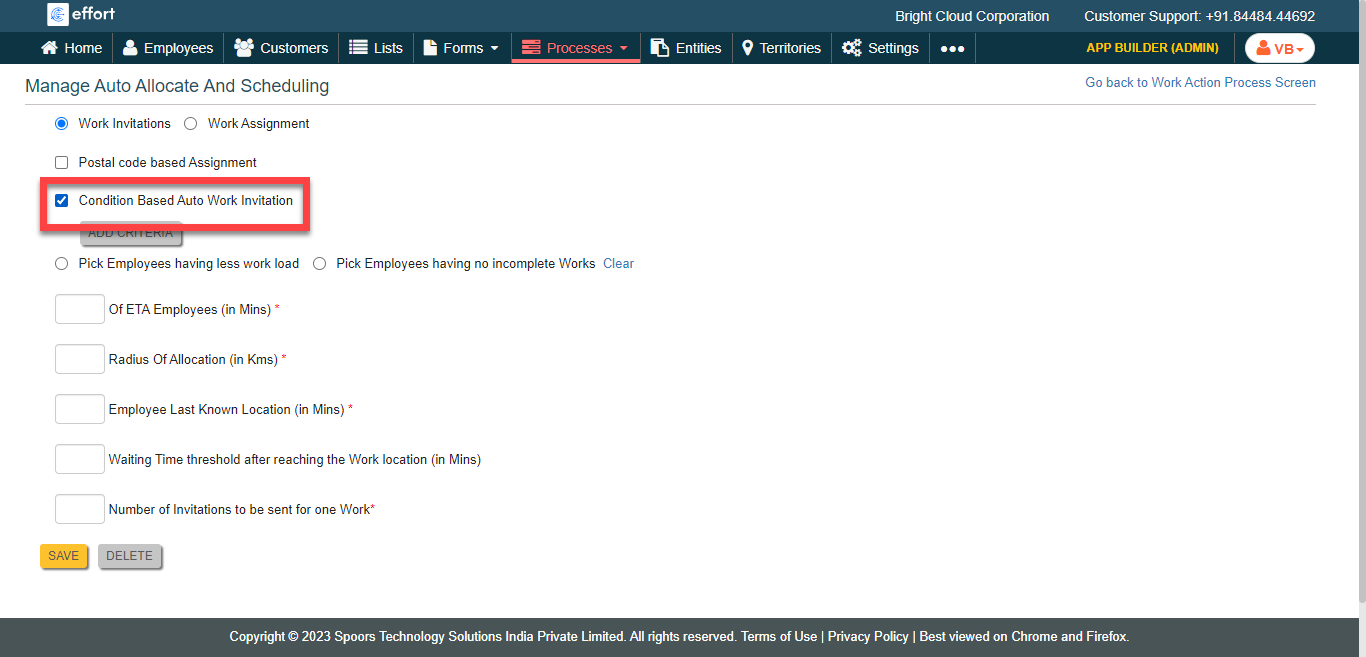
Click the Condition Based Auto Work Invitation
checkbox.
-
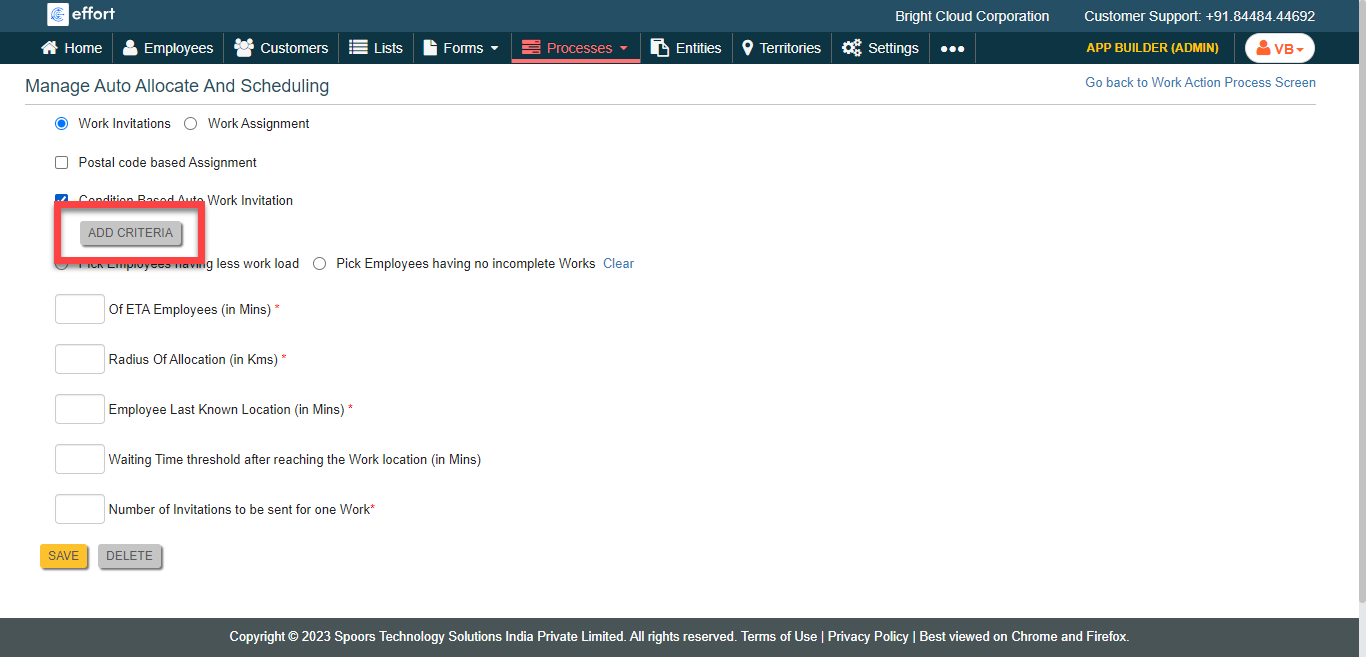
Click the Add Criteria button.
-
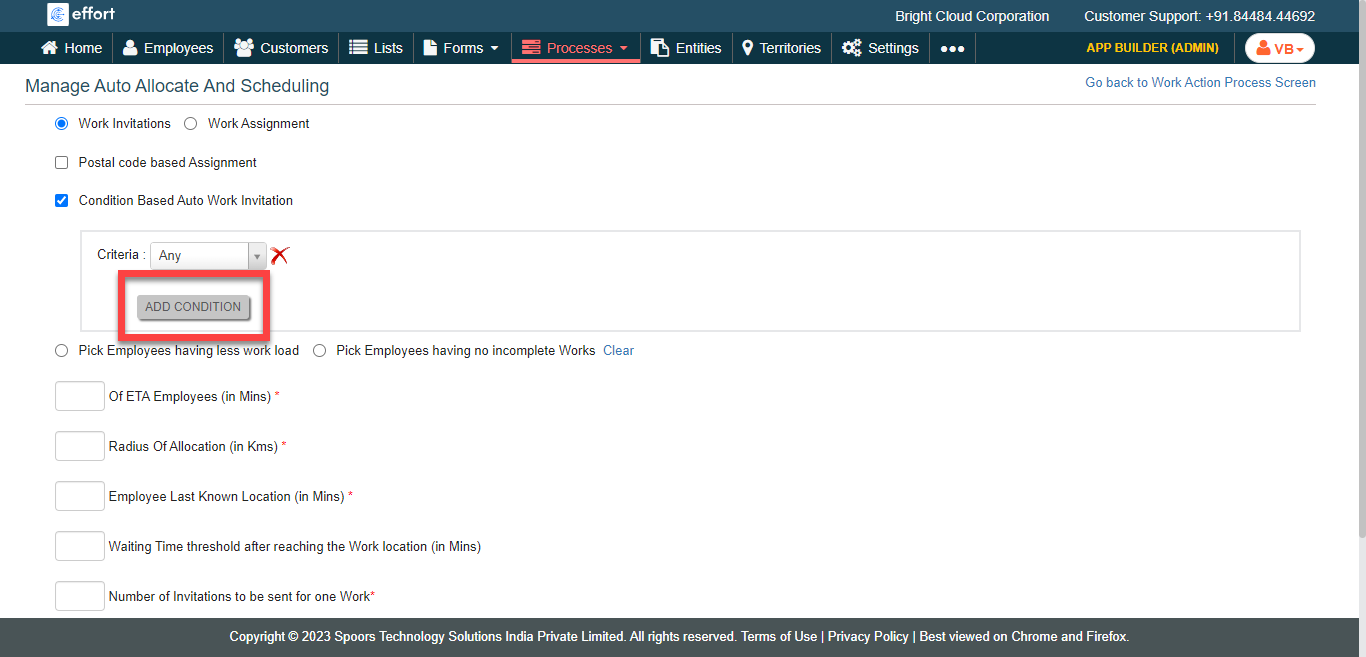
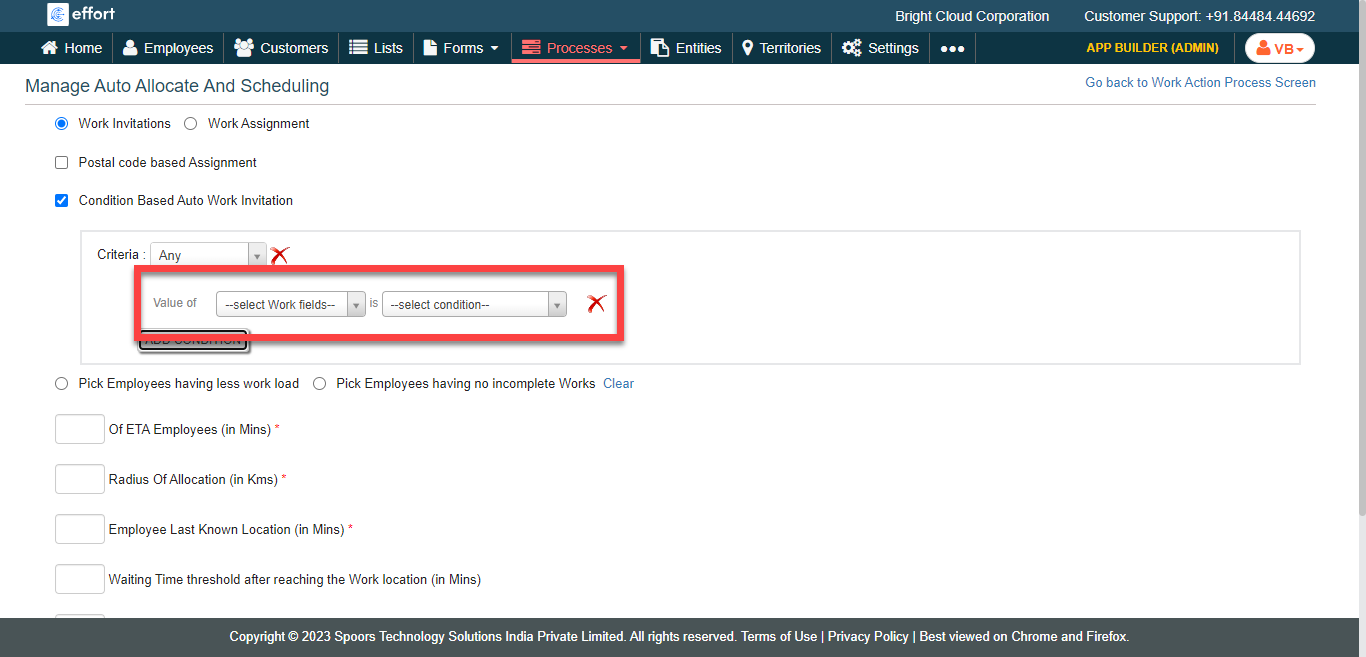
Click the Add Condition button and define
conditions.
-
Configure the options as per your requirement.
- Click Save.