

Configure Auto Fill Work Fields From Form
To configure auto fill work fields from form, follow the steps below.
-
Go to .
The Process page appears.
-
Click the Activity Process card.
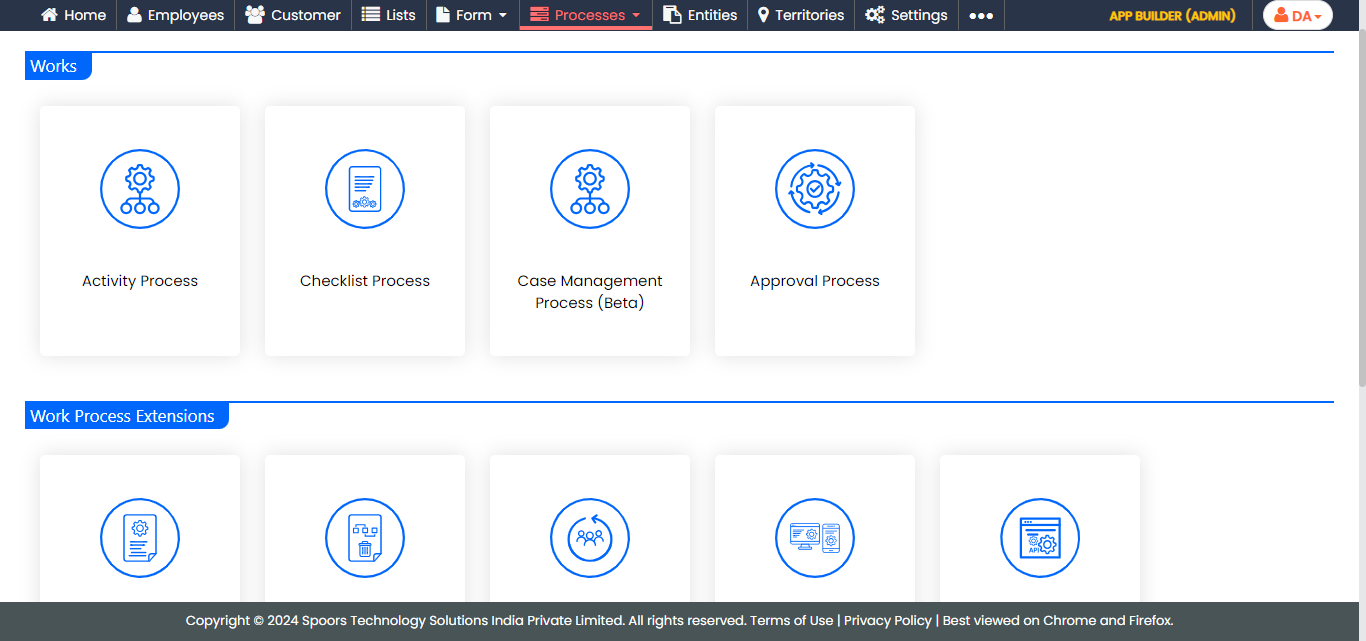
The Activity Process page appears.
-
Click the required process card.
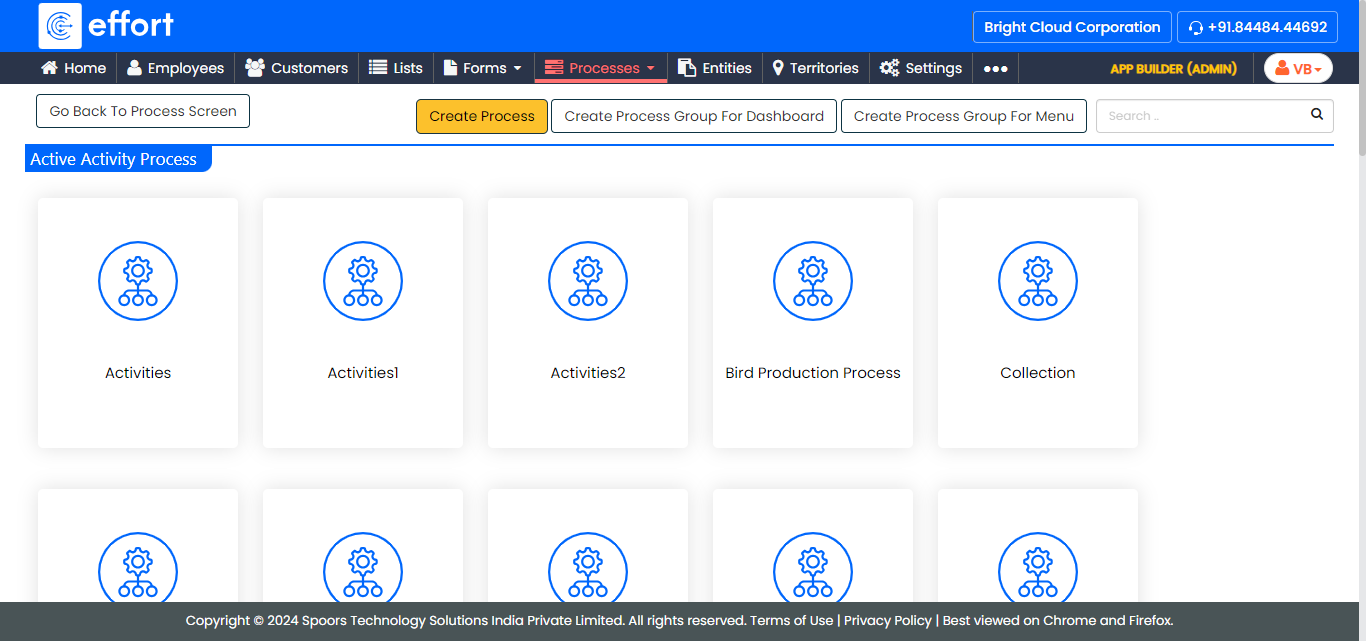
The selected <work process name> Activities page appears.
- Scroll down to the Auto Fill section.
-
Click the Update Work card.
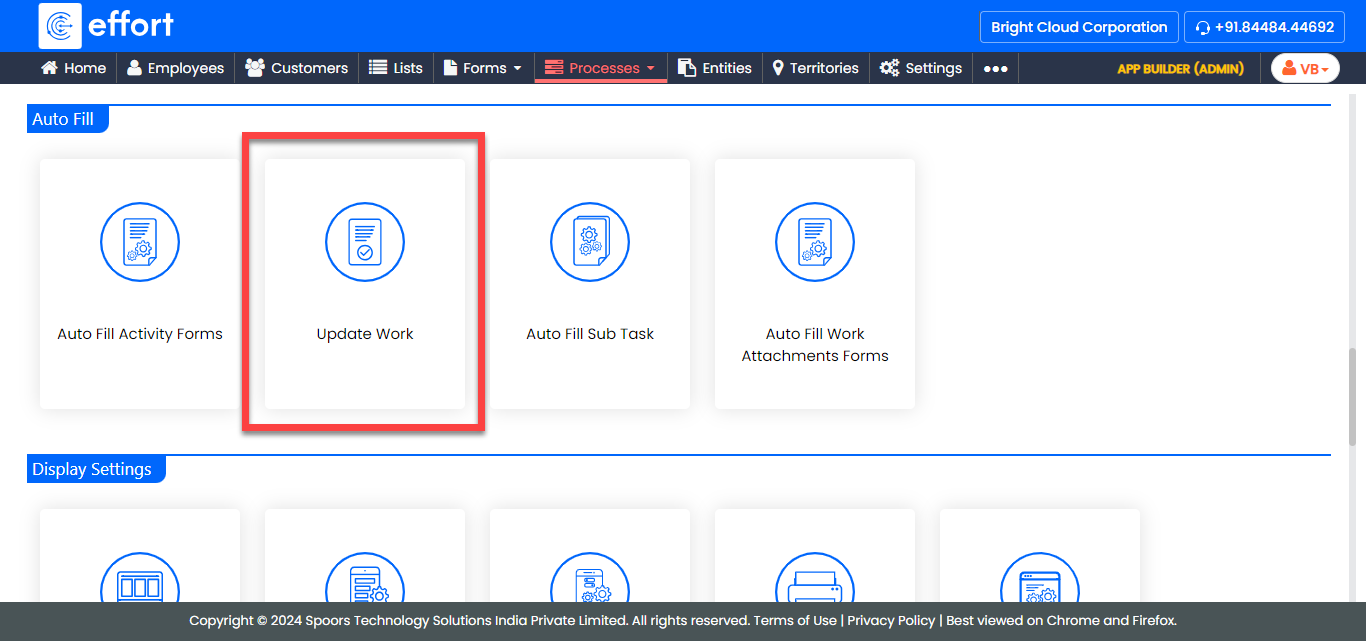
The Update Work page appears.
-
Under the Activities column, click the icon against the
work activity from which you want to update the work.
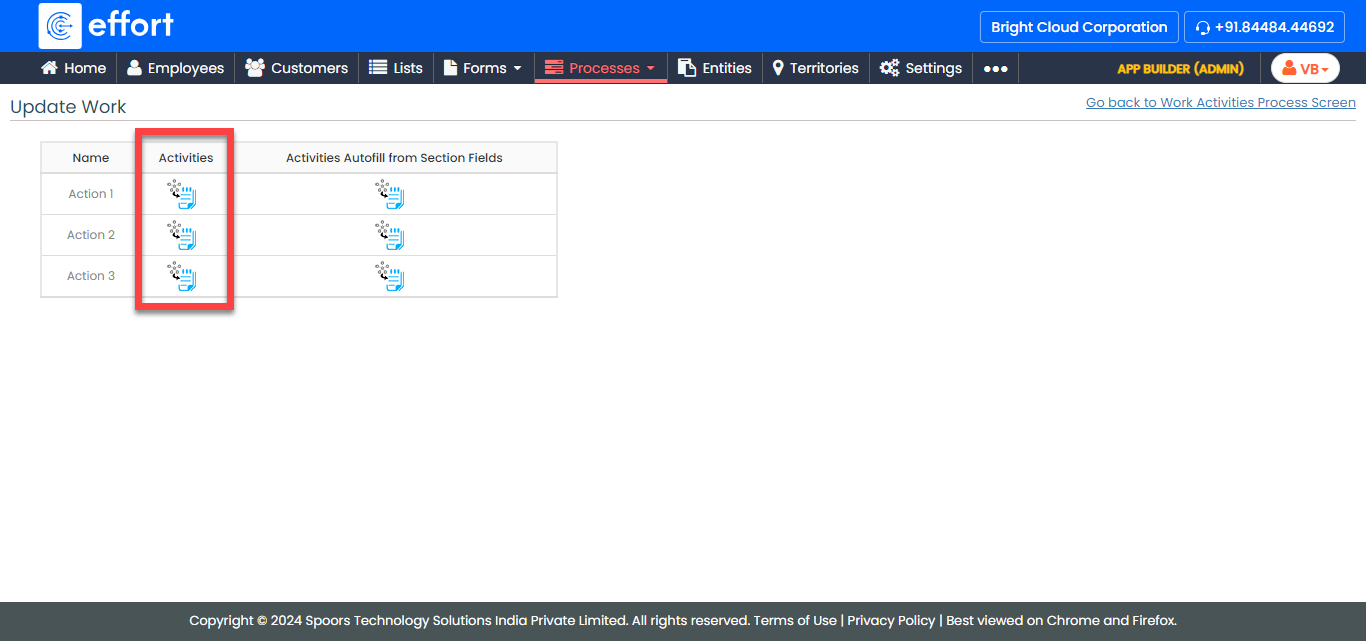
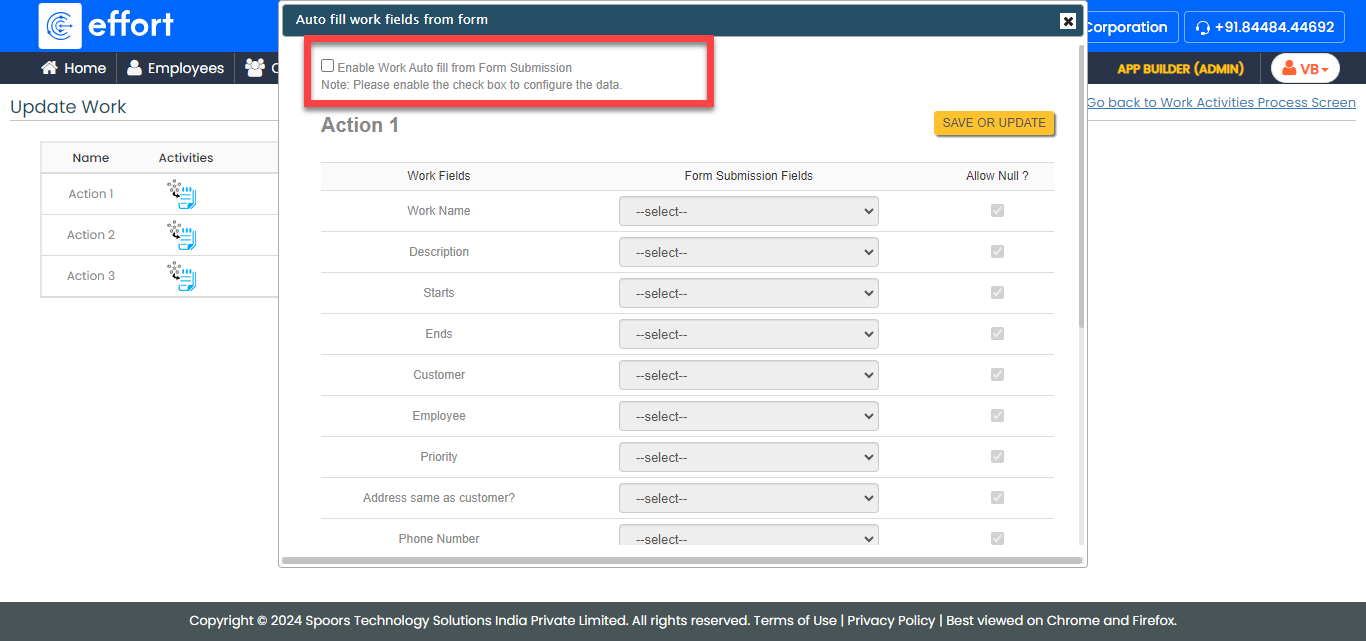
The Auto fill work fields from form pop-up window appears.
-
Enable the checkbox on the top of the page to view the below fields.
-
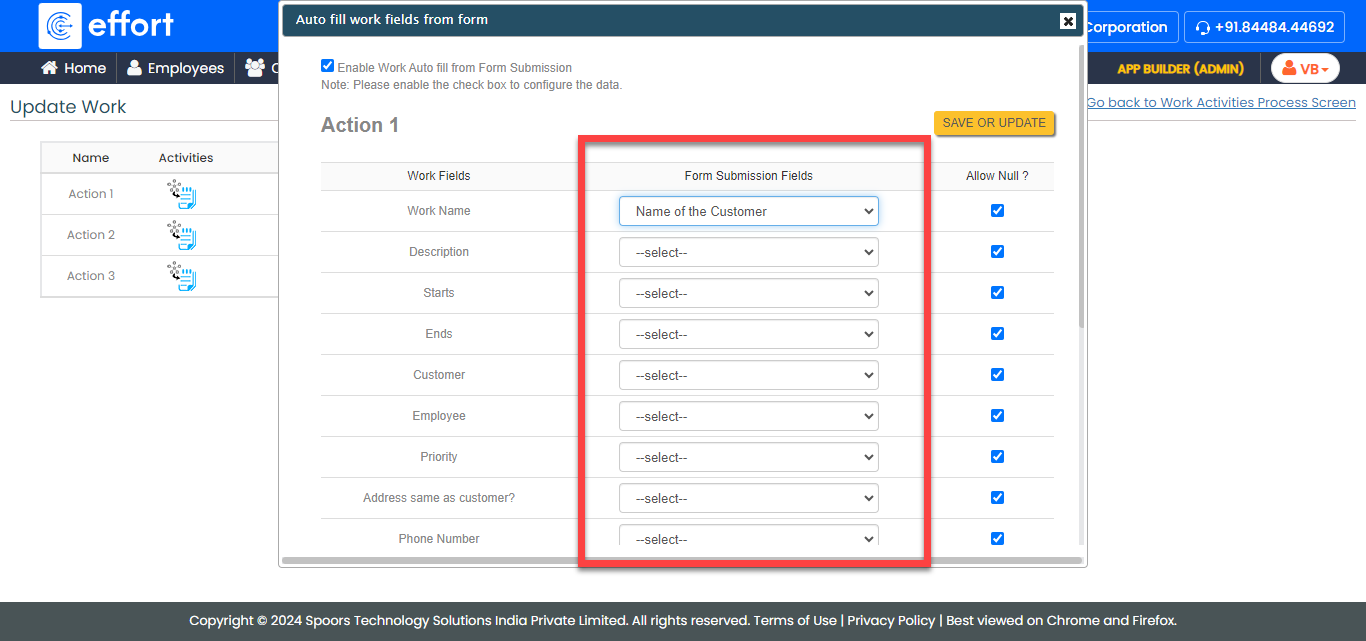
Configure the form fields under the Form Submission
Fields dropdown list.
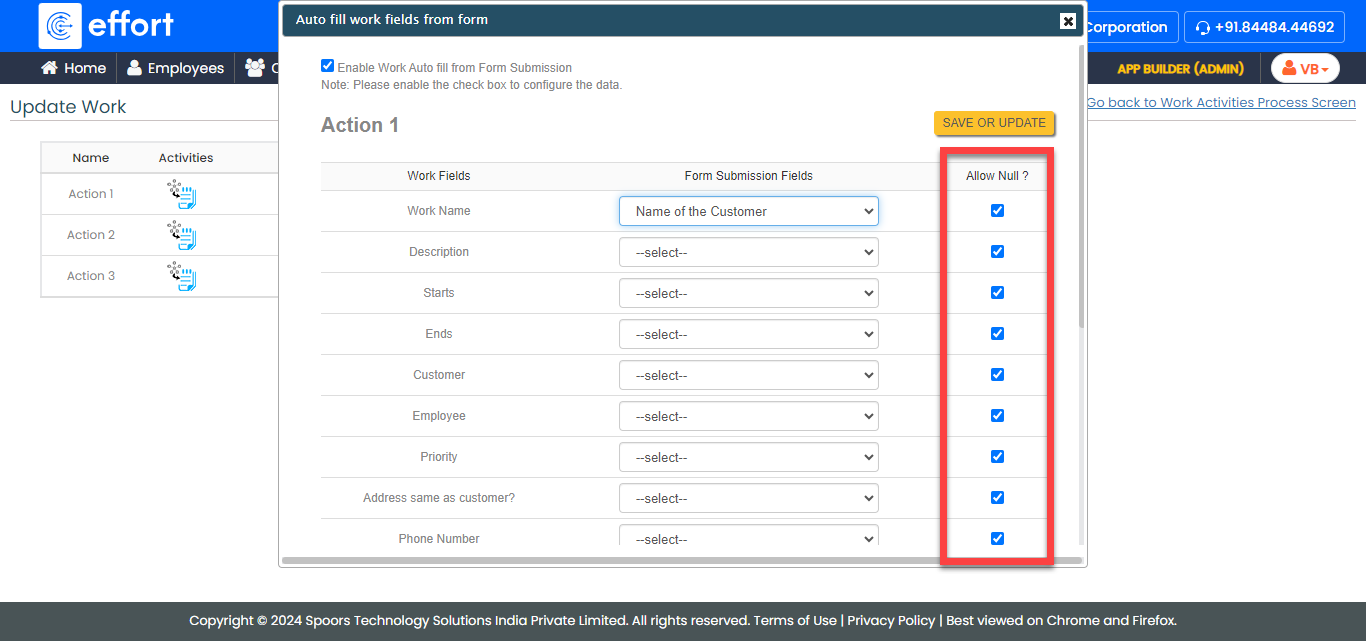
- Optional:
Disable the Allow Null checkbox to allow the empty
field.
- Click Save or Update.