Delete a Published Marketplace Form Template
To delete a published marketplace form template, follow the steps below.
-
Go to .
The Forms page appears.
-
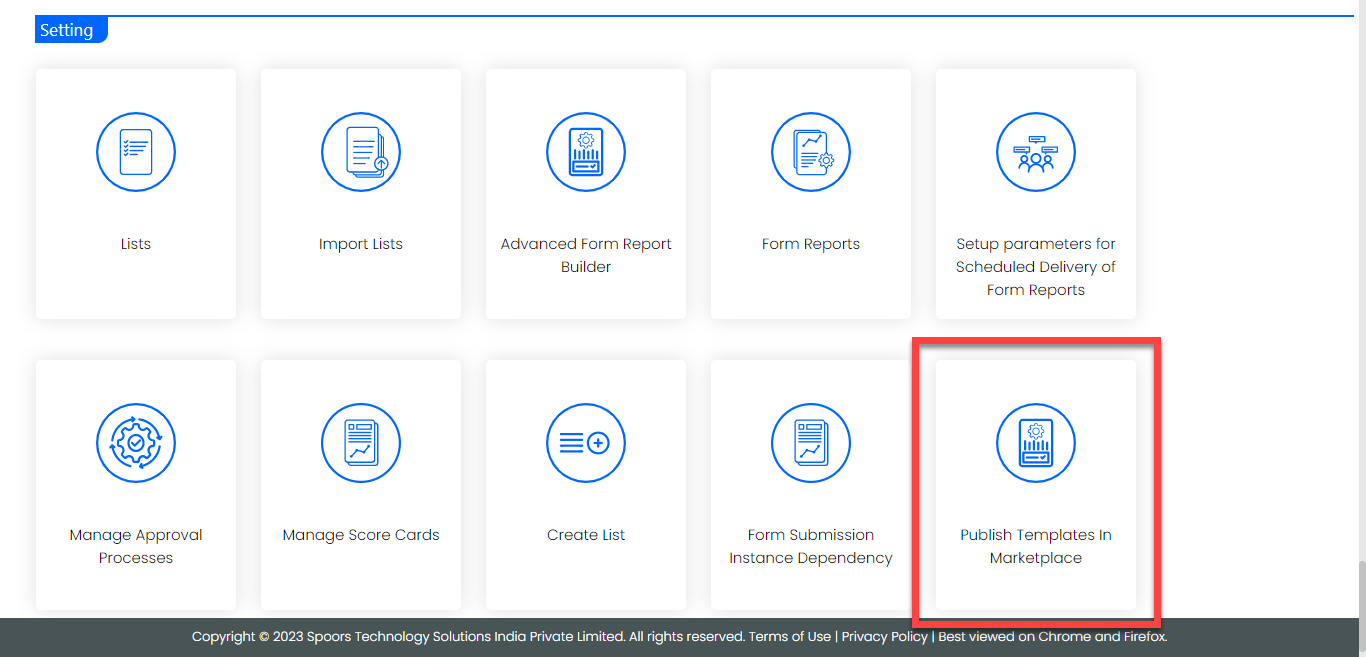
Scroll down to the Settings section.
-
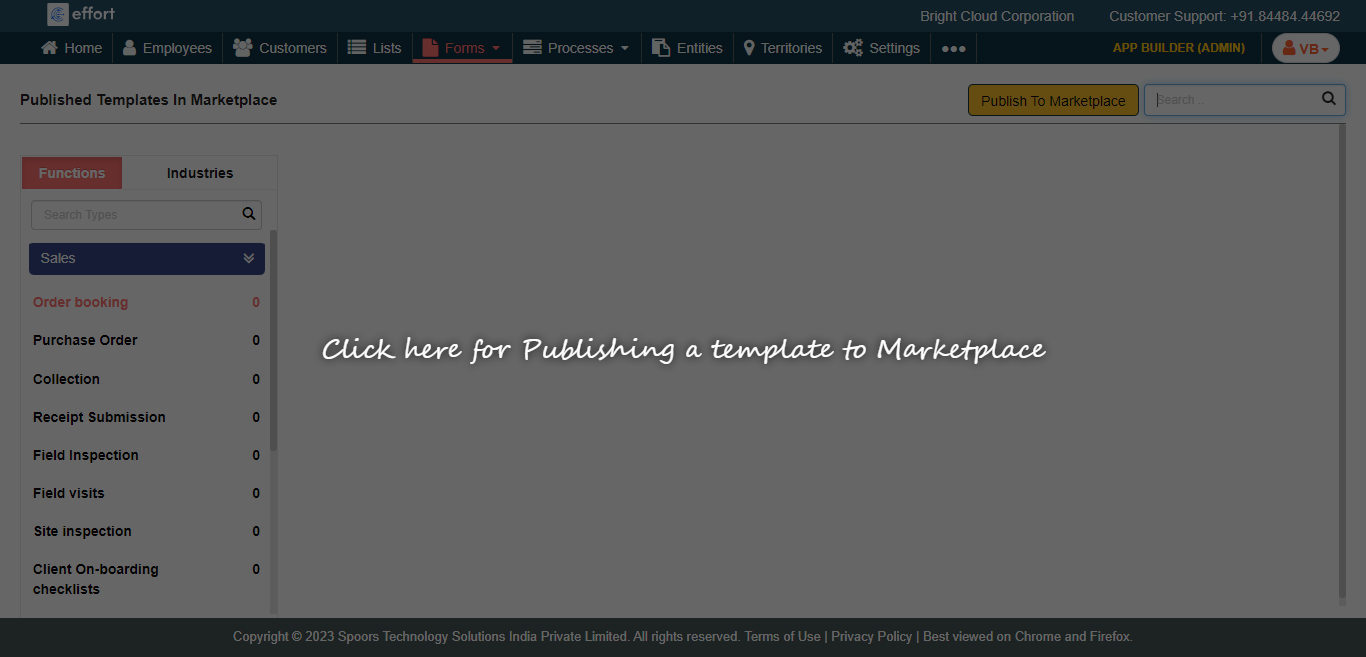
Click anywhere on the screen.
-
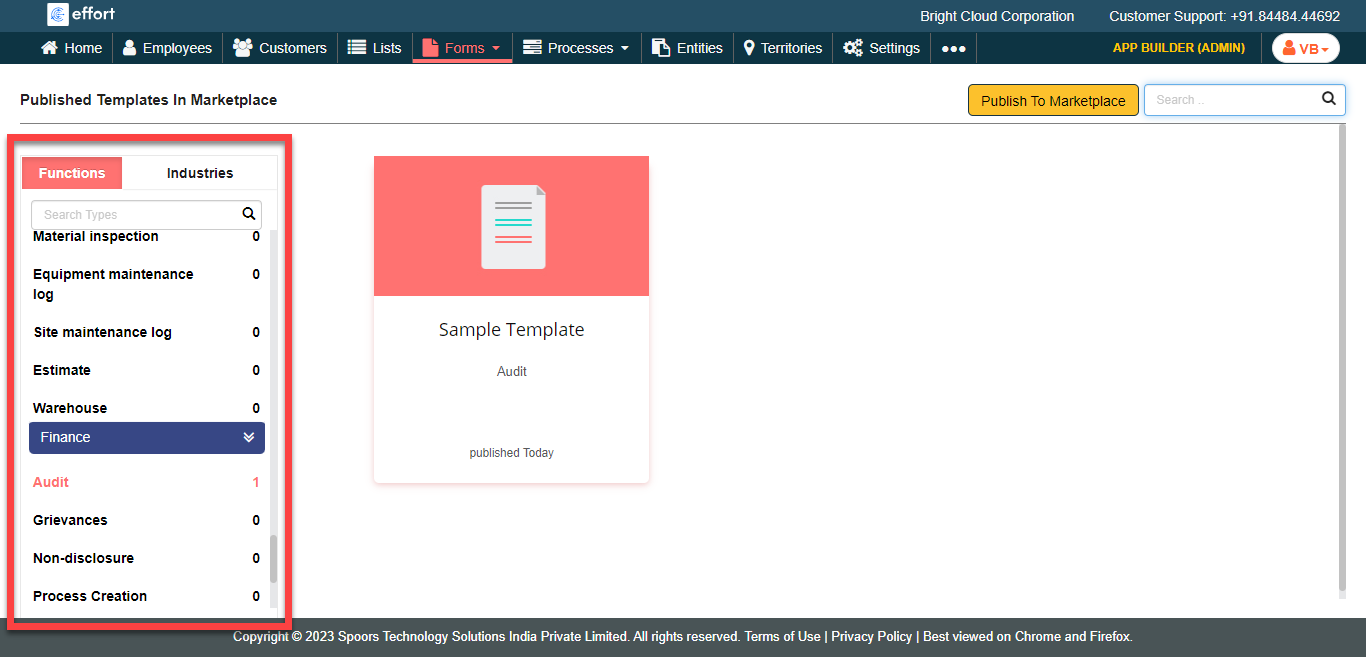
Click on a type where you published the form template.
-
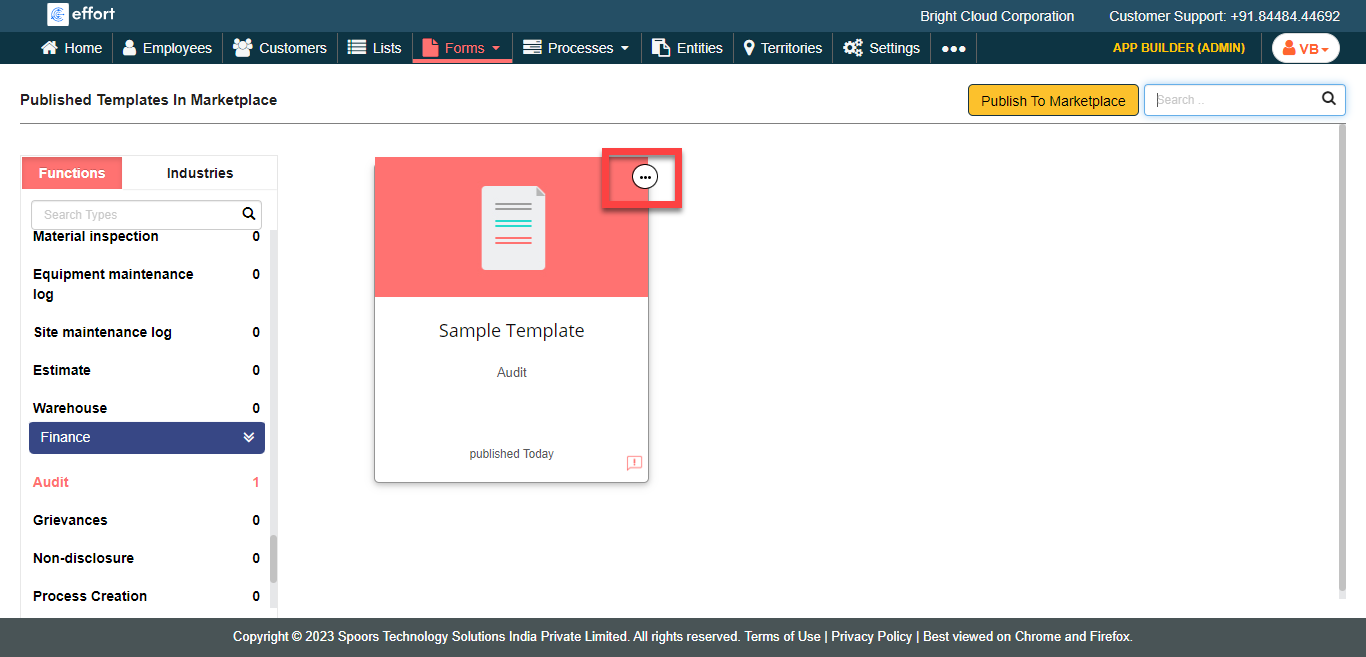
Hover the cursor towards a form template card that you want to delete and click
on the three dots icon.
-
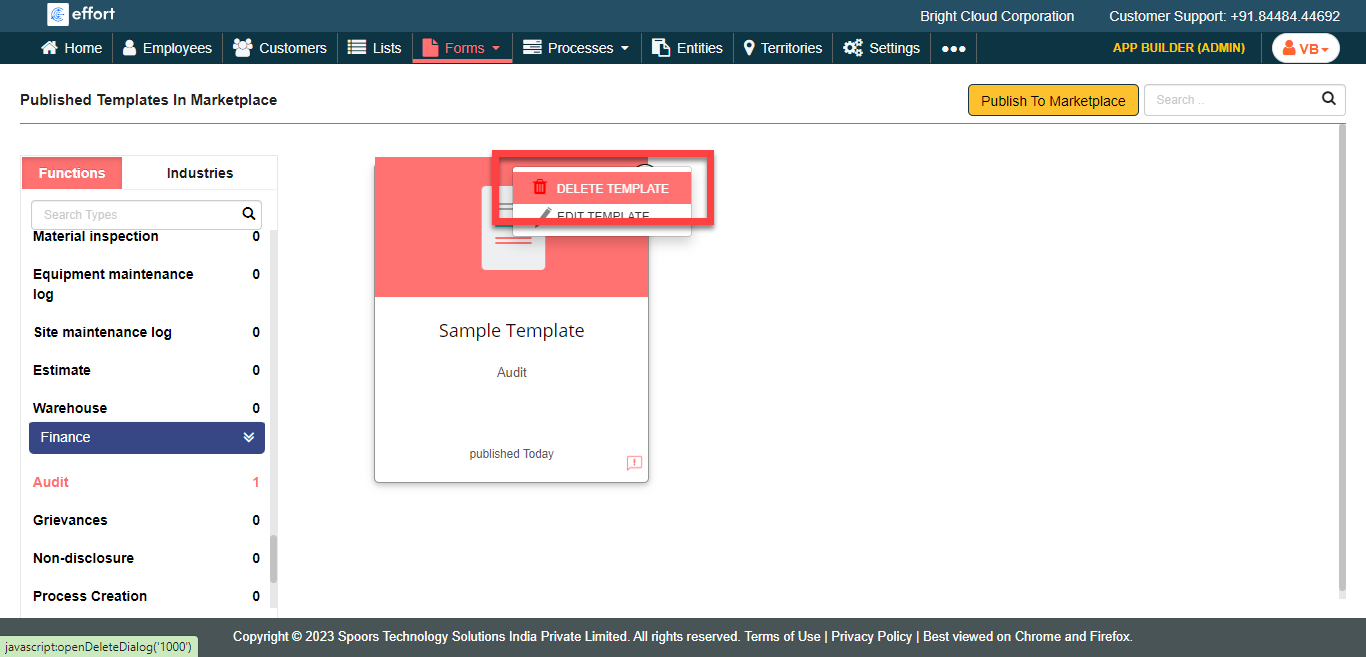
Click the Delete Template option.
-
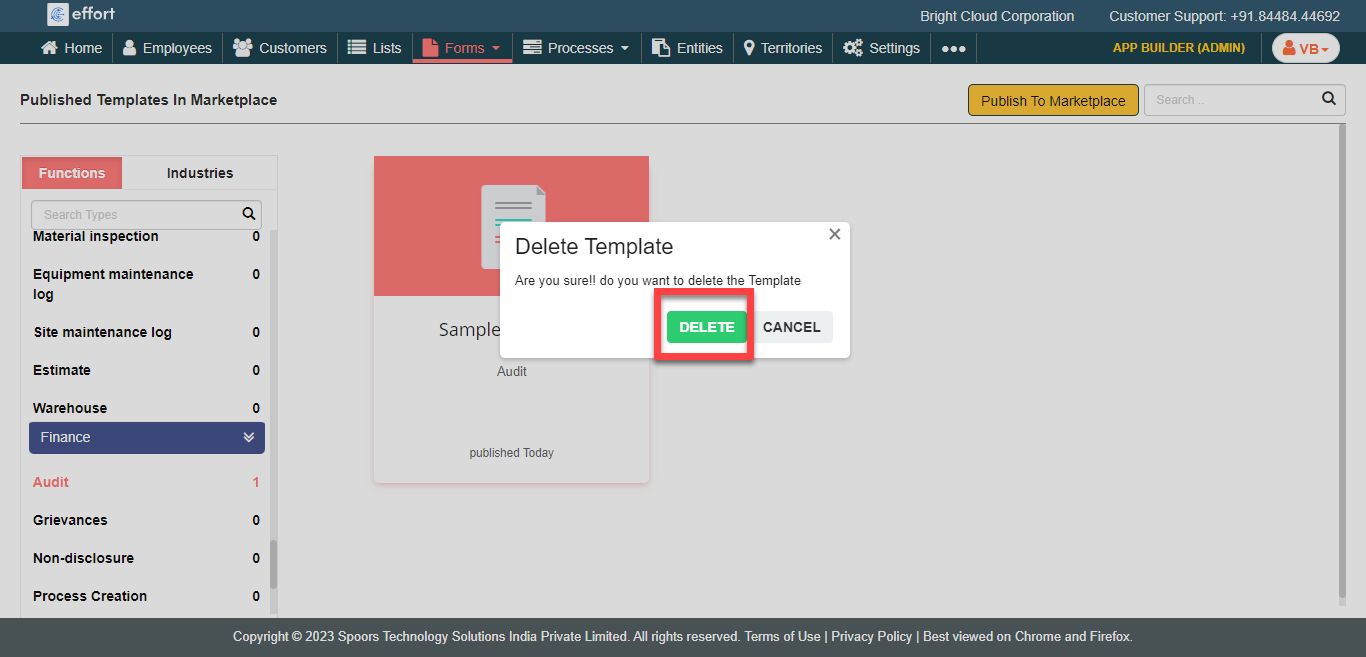
Click Delete on the confirmation pop-up.