

Define Follow Ups Using Works
Make sure that the form is created with a Date field. The Date field is mandatory to define this configuration.
-
Go to .
The Forms page appears.
-
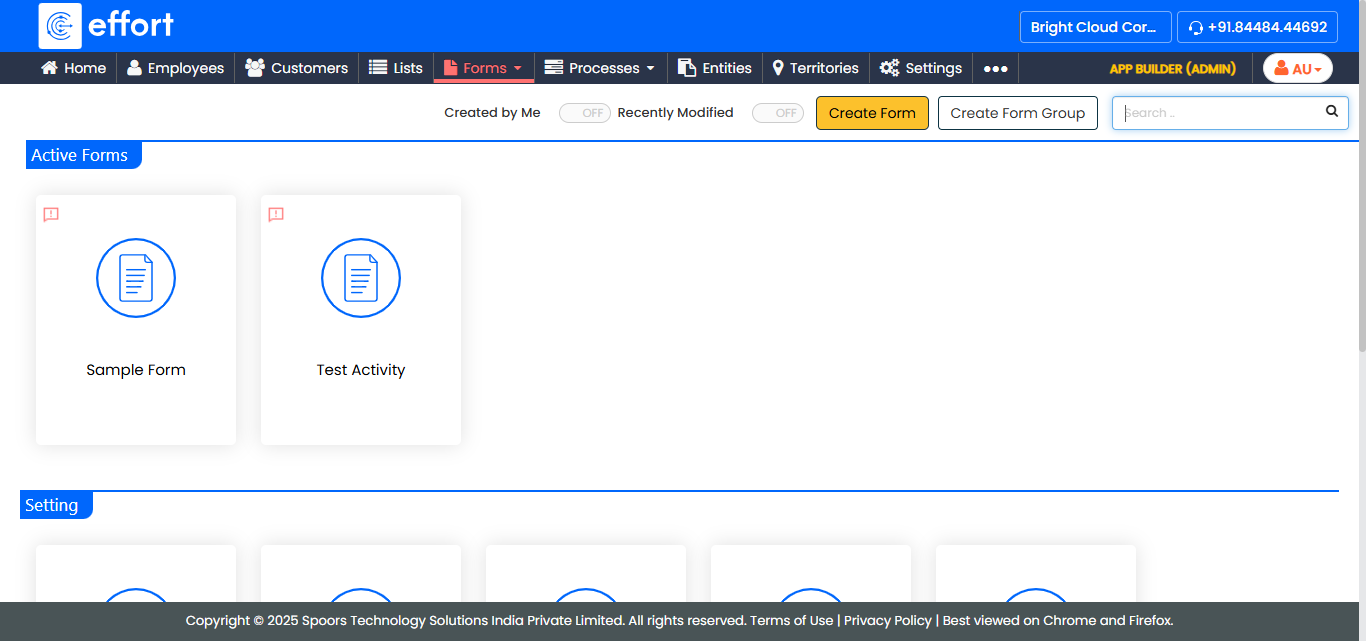
Click on the form card based on which you want to create works.
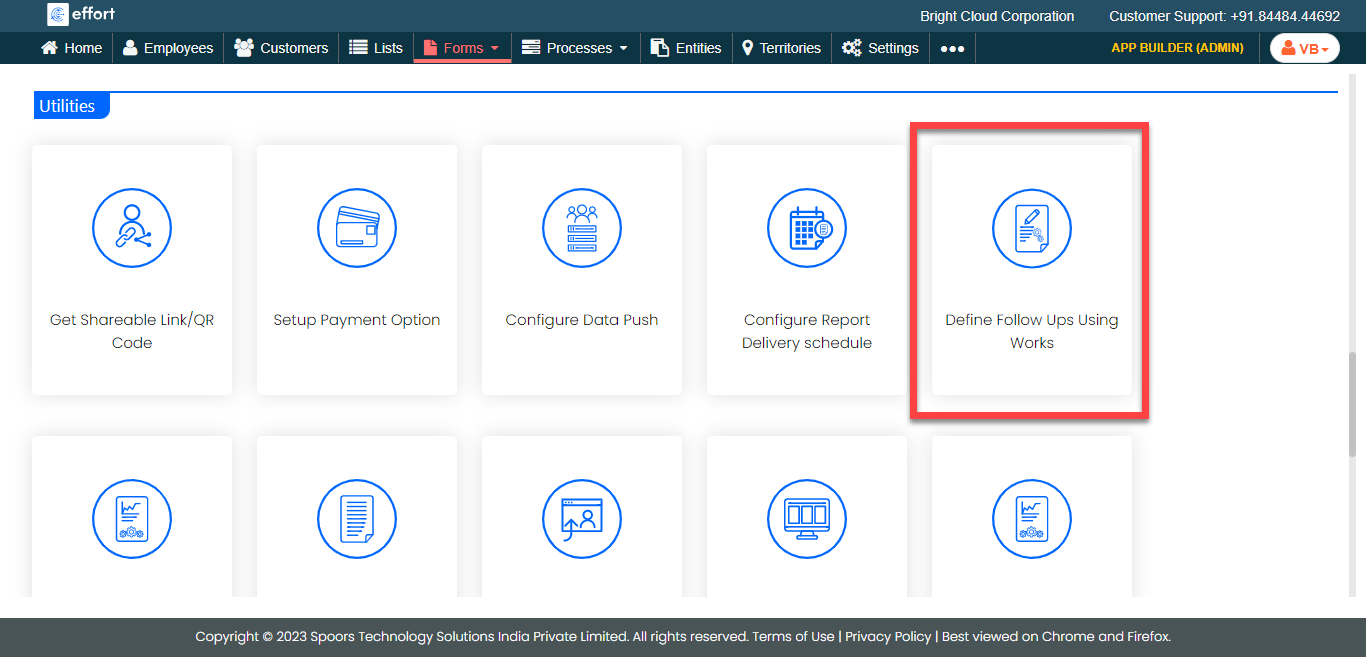
- Scroll down to the Utilities section.
-
Click the Define Follow Ups Using Works card.
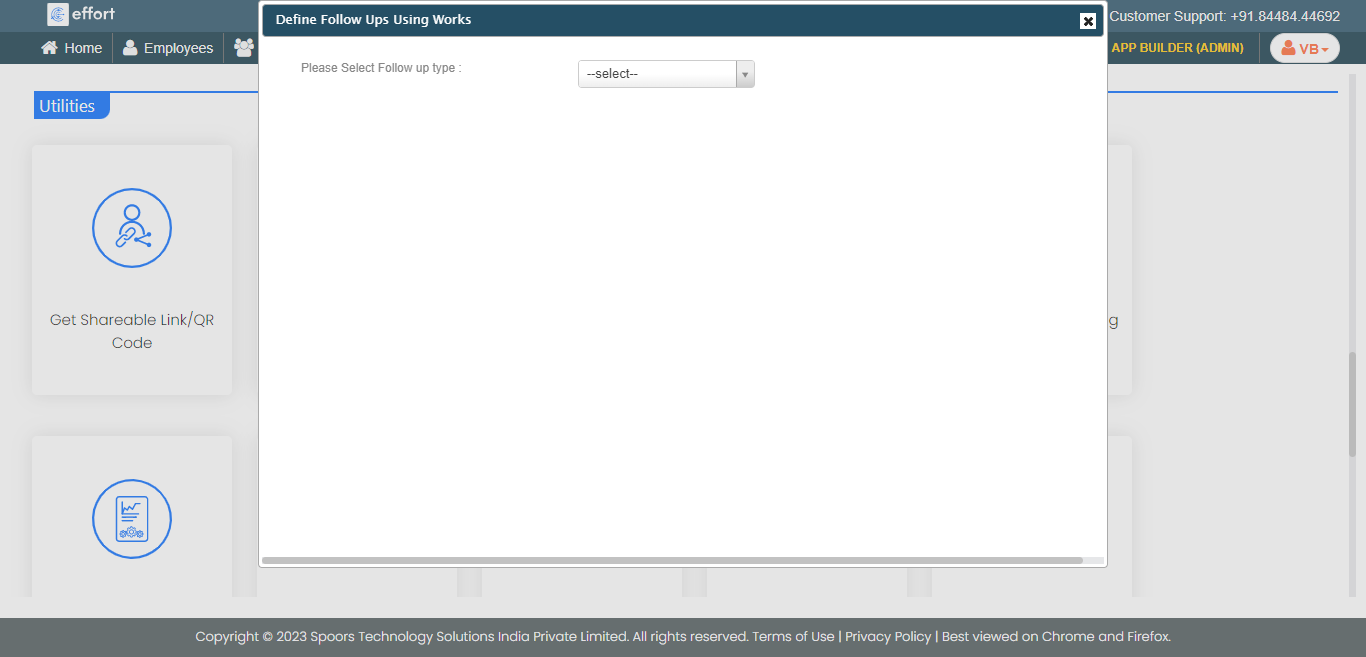
The Define Follow Ups Using Works pop-up window appears.
-
Select the Follow-up type as Work from the
dropdown.
-
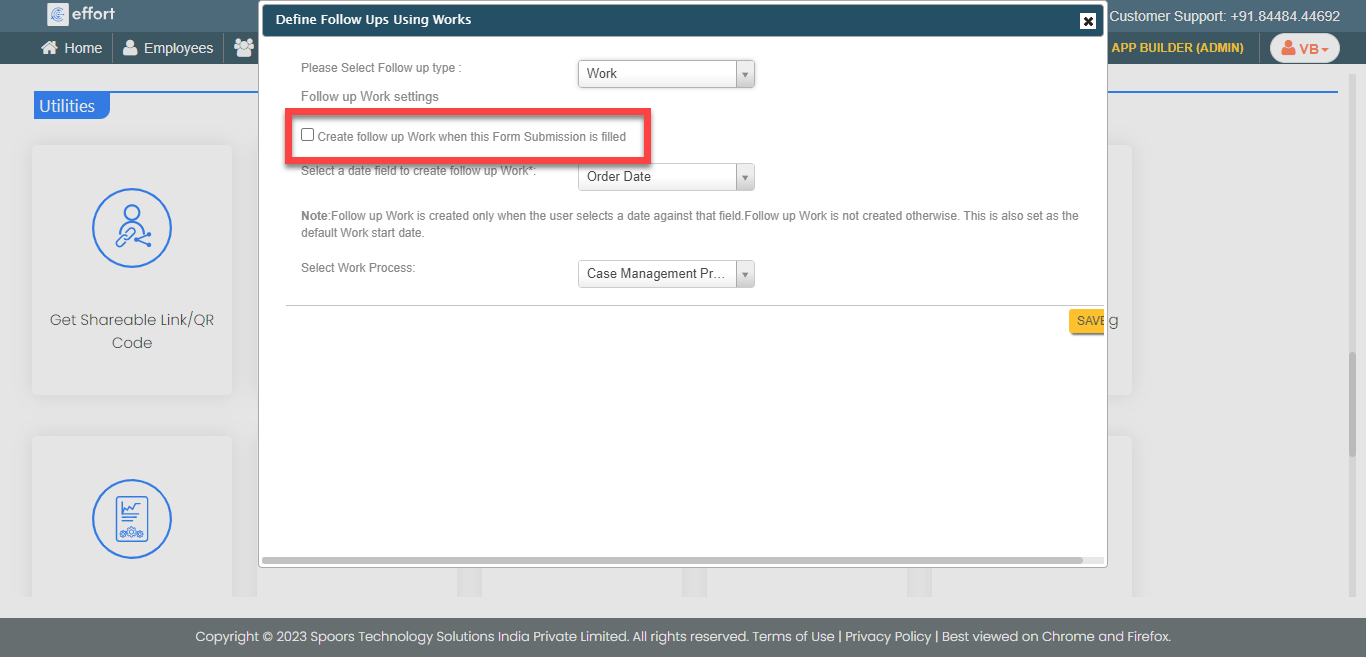
Enable the Create follow up Work when this Form Submission is
filled checkbox.
-
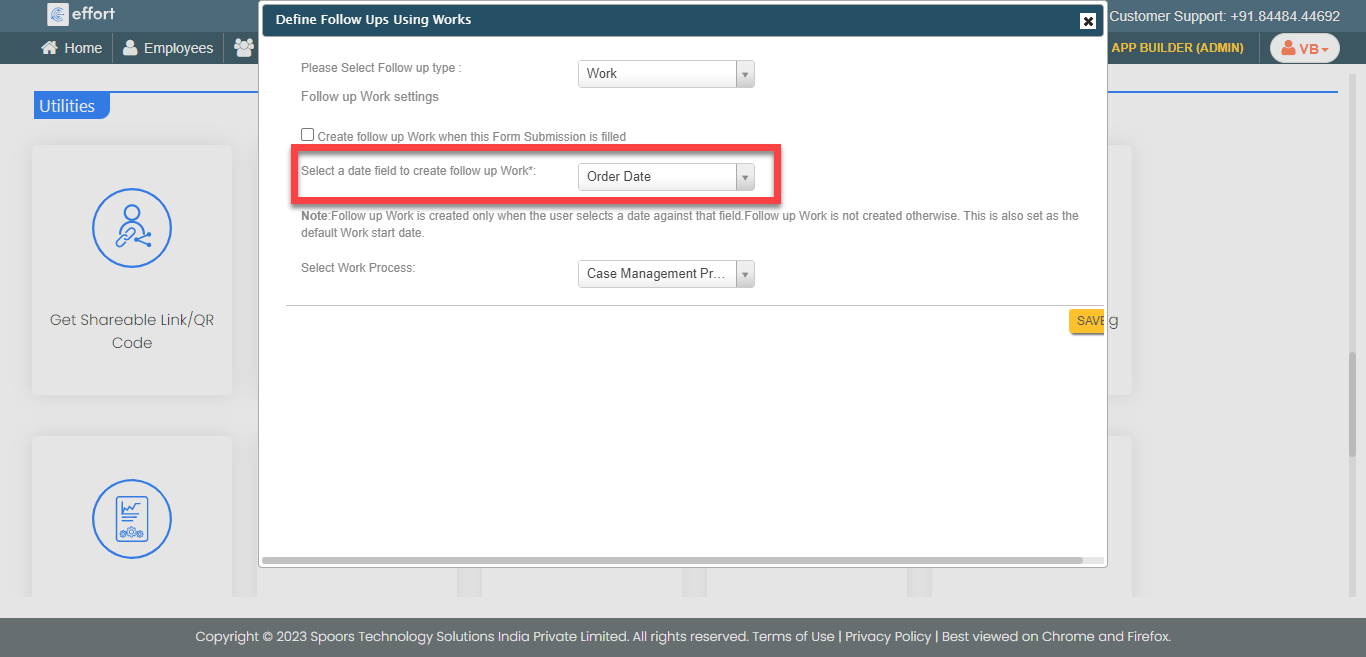
Select a date field from the dropdown based on which the work needs to be
created.
-
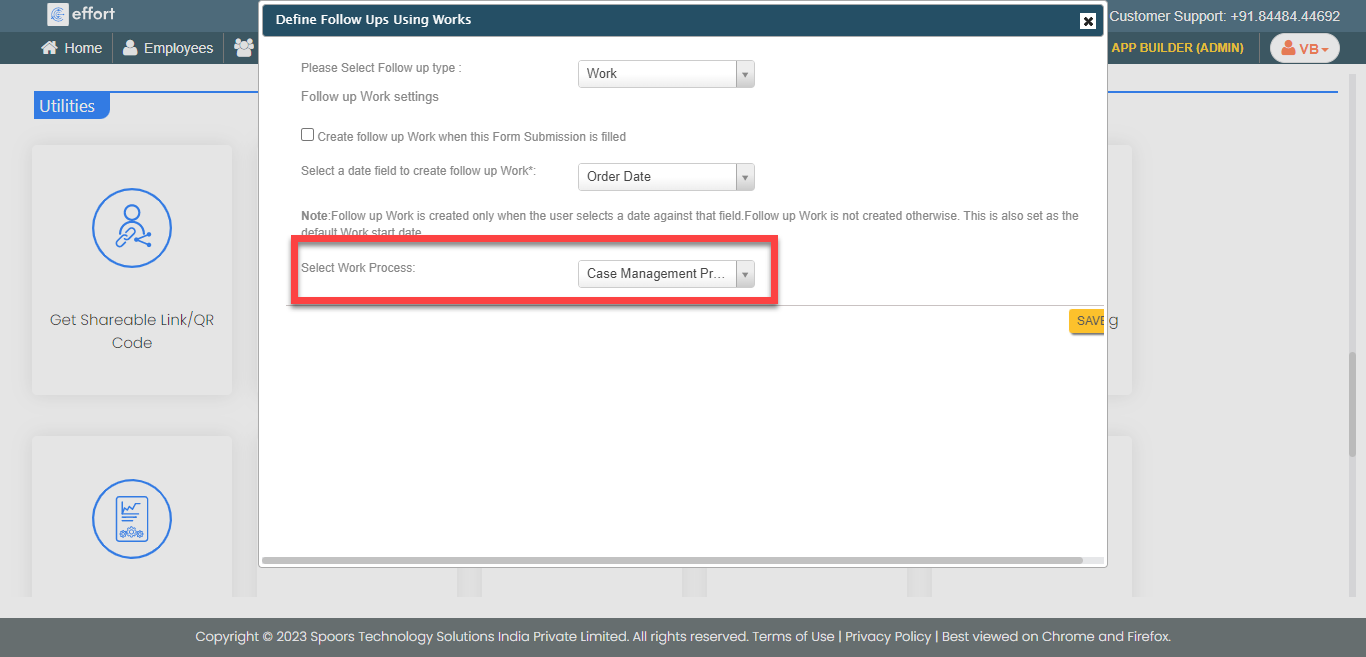
From the Select Work Process dropdown, select a work
process that you want to create from this form submission.
-
Configure the relevant form fields to the work fields.
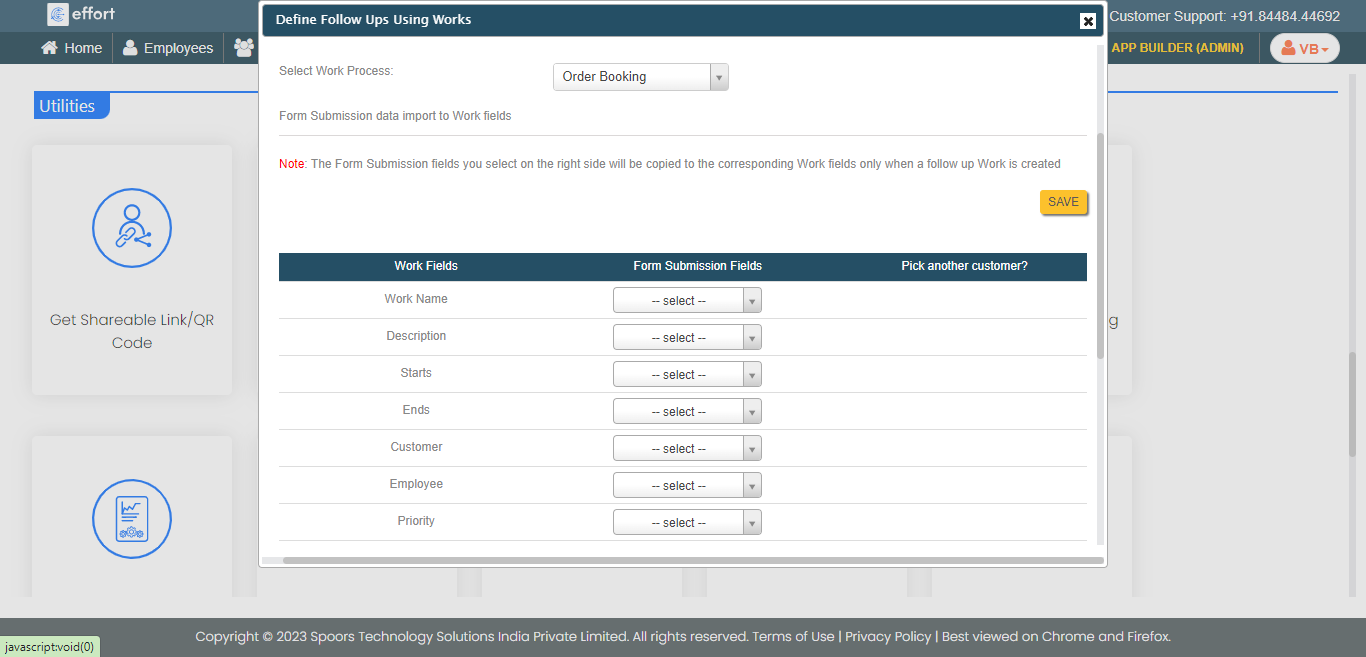
Note: As you can see in the above screenshot, we have configured the Customer form field to the Work Name field. Whatever the input you enter in the Customer field, that value becomes Work Name. - Click Save.