

Publish a Form Template in Marketplace
To publish a form template in marketplace, follow the steps below.
-
Go to .
The Forms page appears.
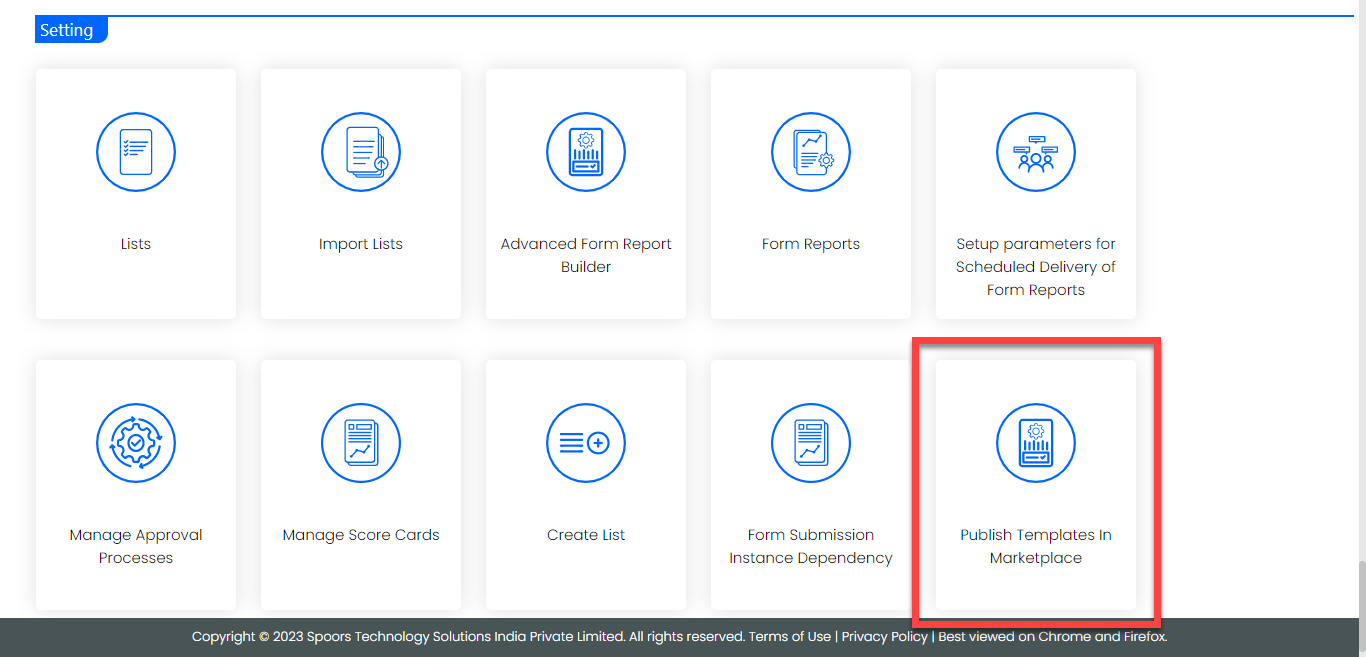
- Scroll down to the Settings section.
-
Click the Publish Templates in Marketplace card.
-
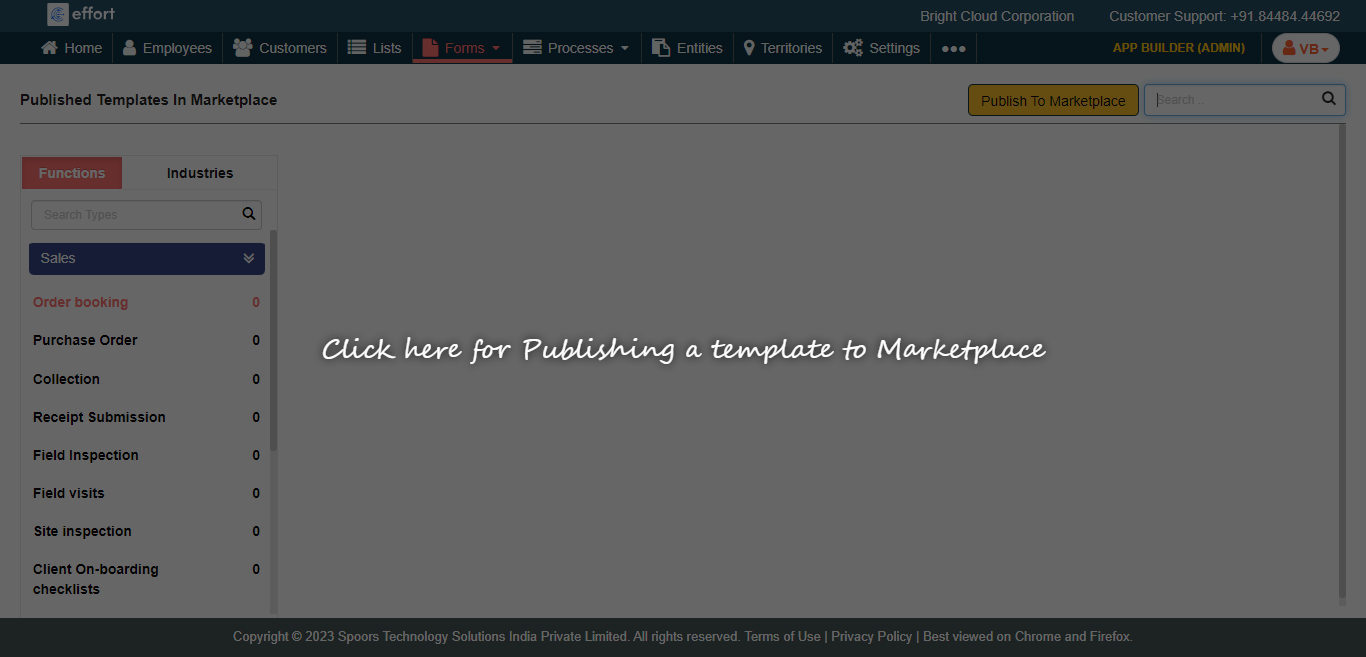
Click anywhere on the screen.
-
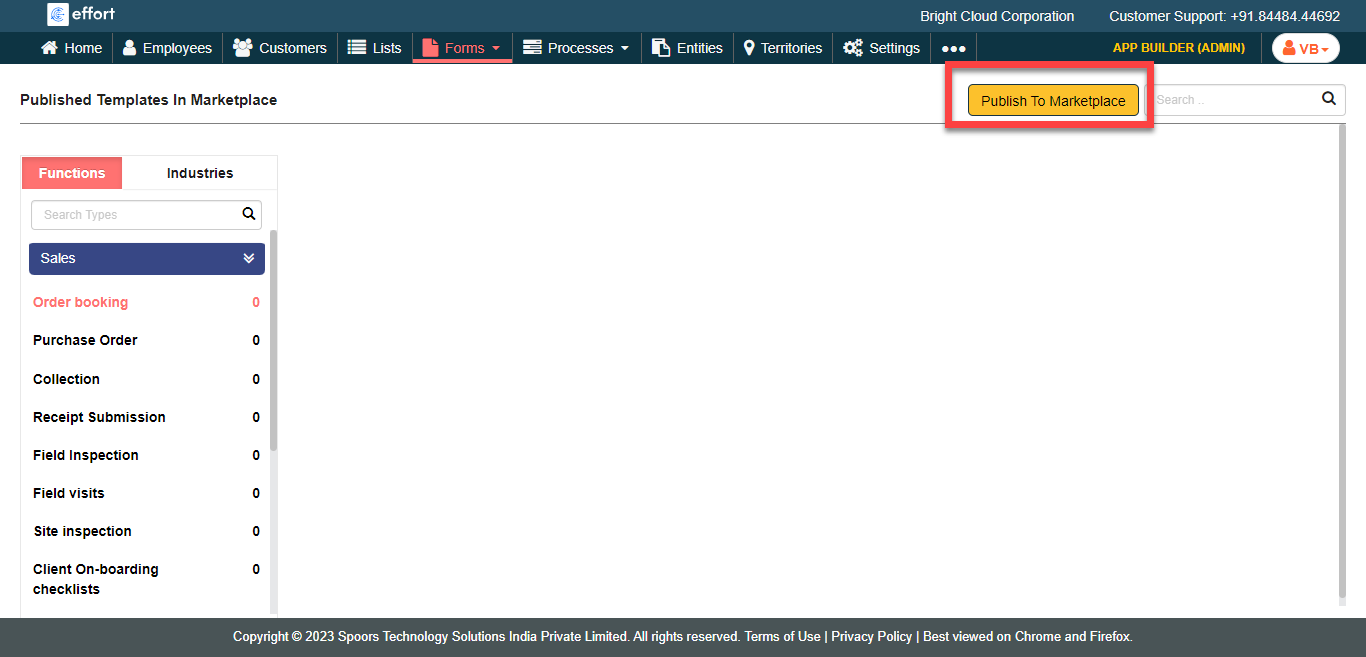
Click Publish To Marketplace button.
-
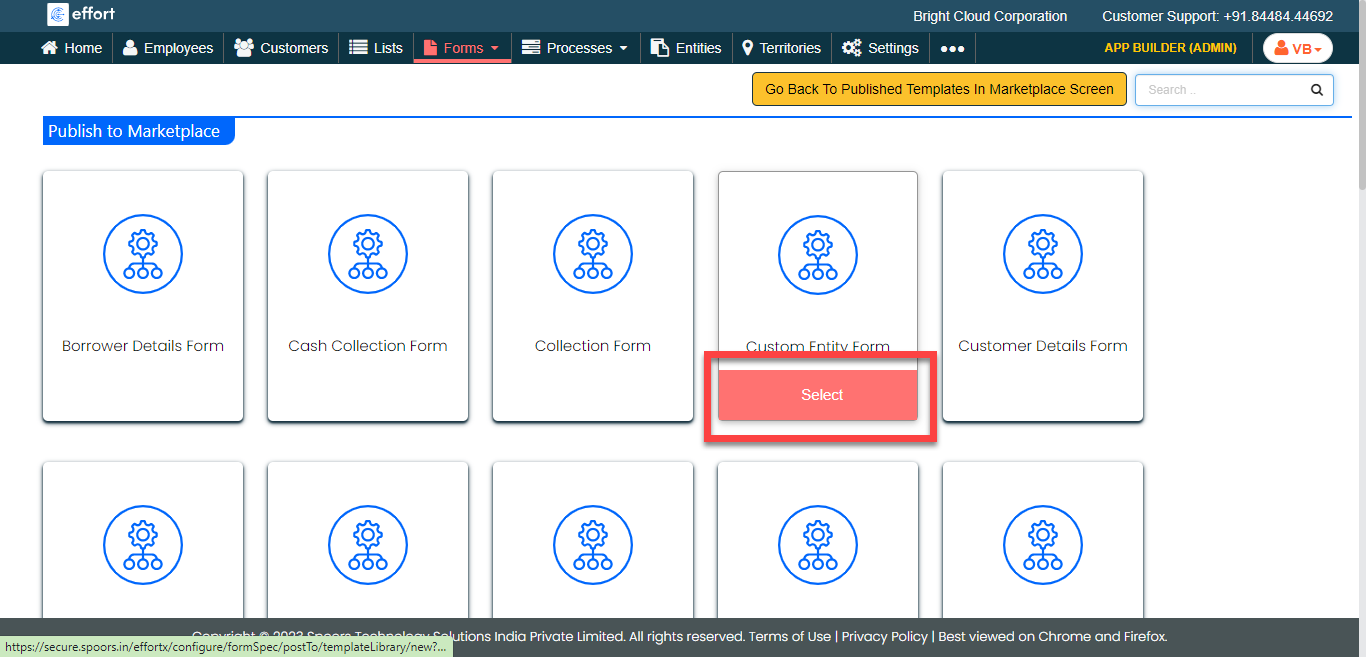
Hover the cursor towards a form template that you want to publish in the
marketplace and click Select.
-
Enter details in the below fields.
- Type: Select a type to which the template belongs. This is a mandatory field.
- Industry: Select an industry to which the template belongs. This is a mandatory field.
- Spec Name: It is a non-editable field. It shows the form template name.
- Name: Enter a name that should be appeared to the users.
- Comments: Enter comments like the purpose, fields, use cases, etc. This is an optional field.
- Image: Upload an image that should be appeared to the users. This is an optional field.
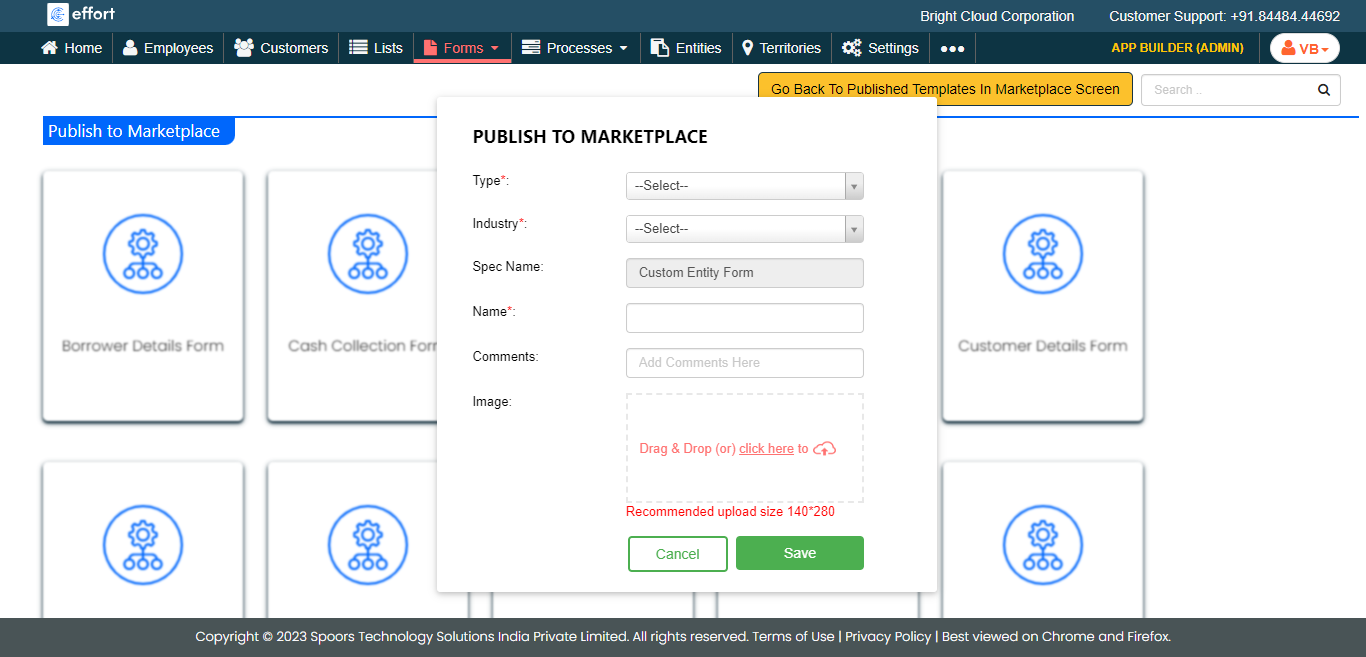
- Click Save.