

Modify Entity Based On Form Submission
-
Make sure the form has been configured with an Approval Process. The functionality will not work if the approval process was not configured. Check out the Assign Approval Flow page to assign an approval flow.
-
Also, make sure that a Custom Entity data type must be used in the form. The selected entity data will be modified once the form gets approved.
-
Go to .
The Forms page appears.
-
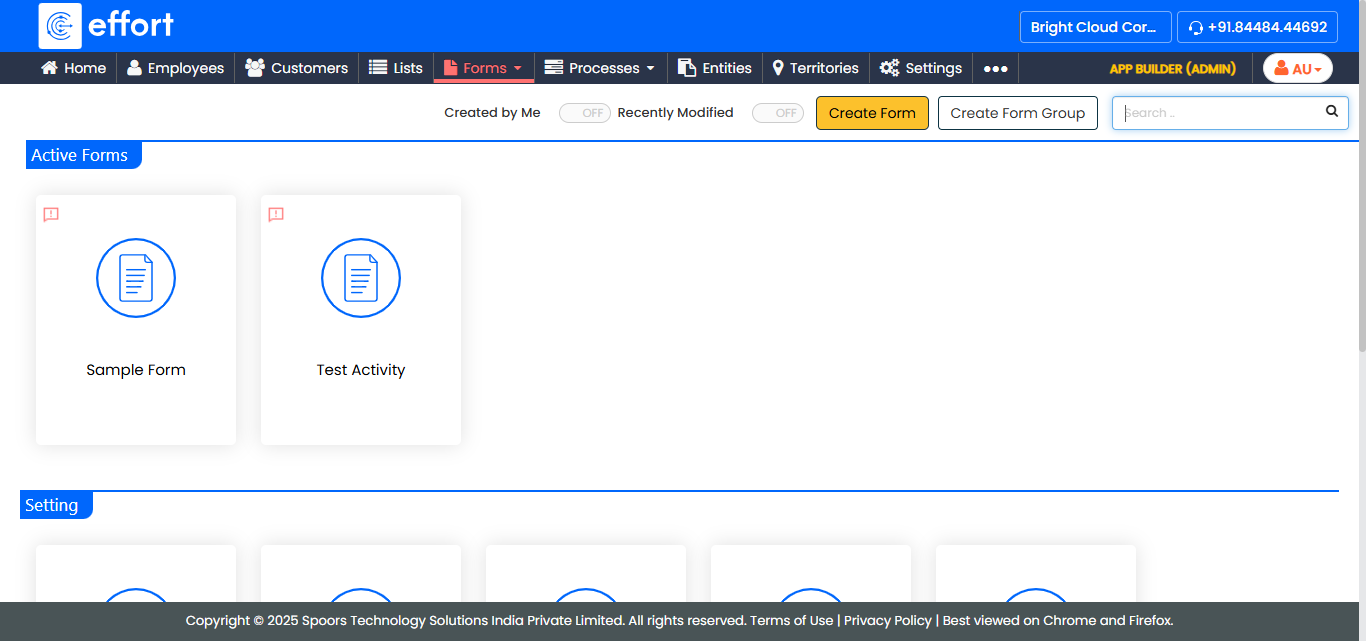
Click on the Form based on which you want to modify an
entity.
-
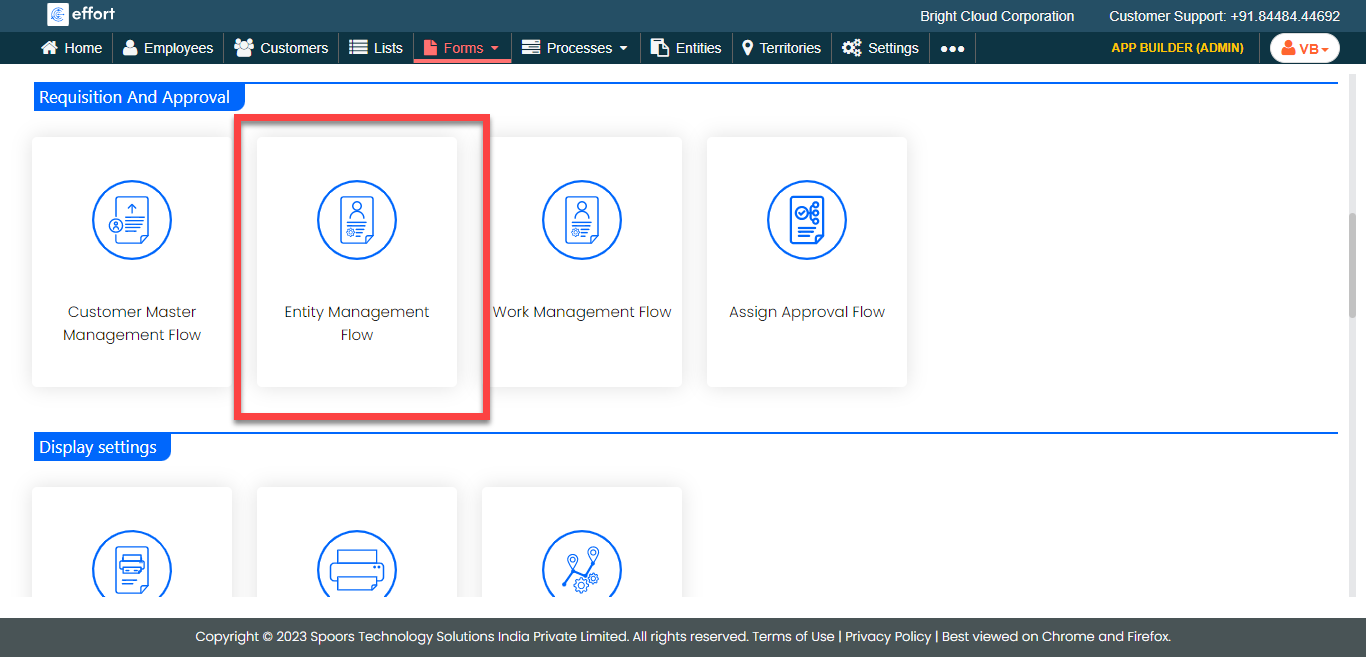
Under the Requisition And Approval section, click the
Entity Management Flow card.
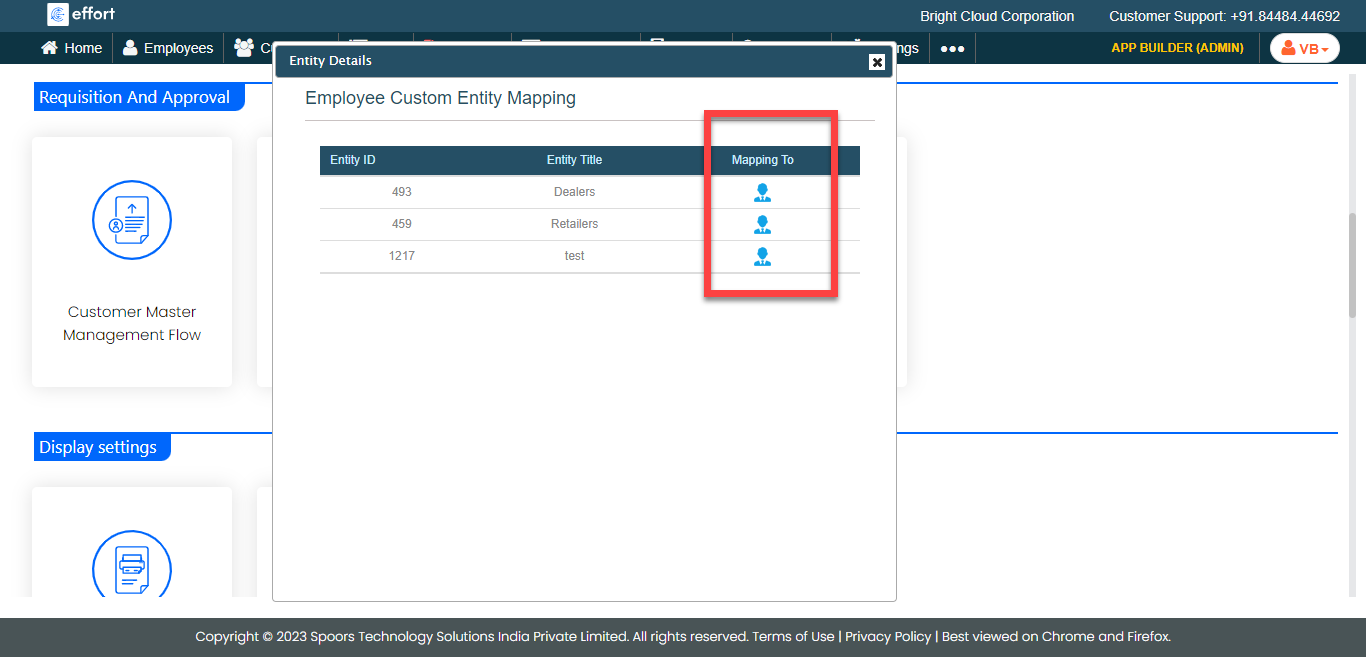
The Employee Custom Entity Mapping pop-up window appears.
-
Click employee icon under the Mapping To column.
-
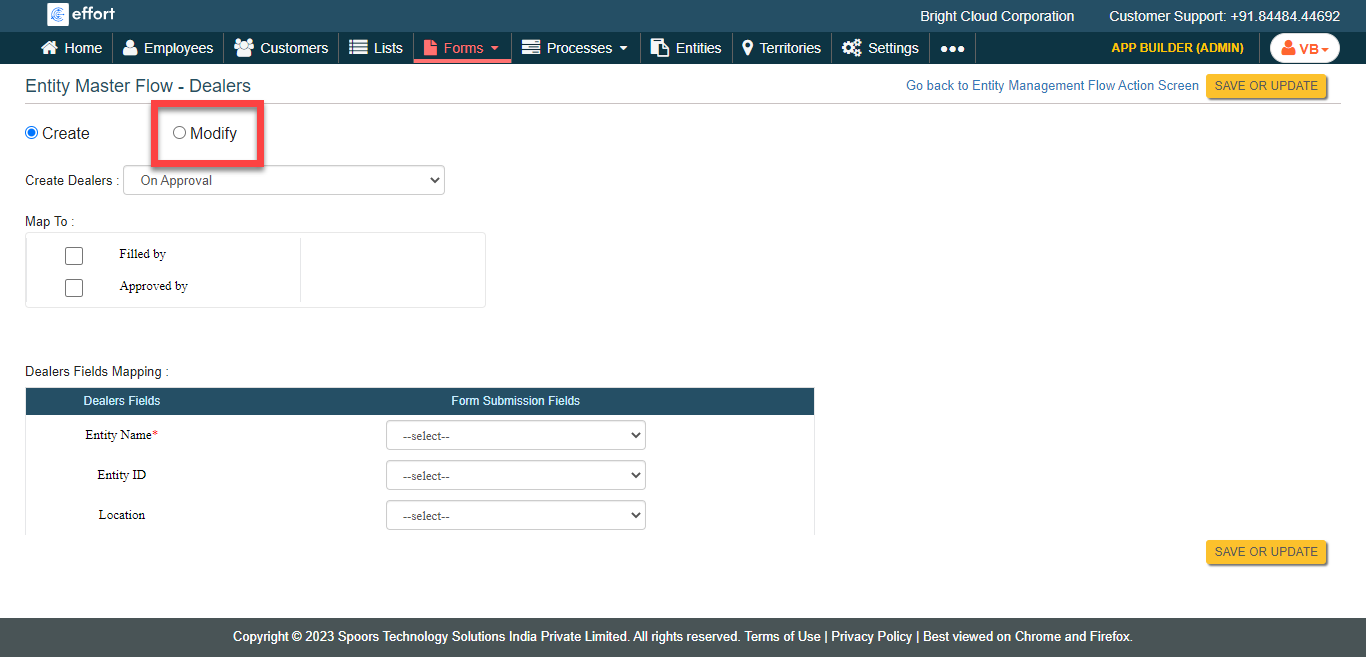
Click the Modify option.
- Optional:
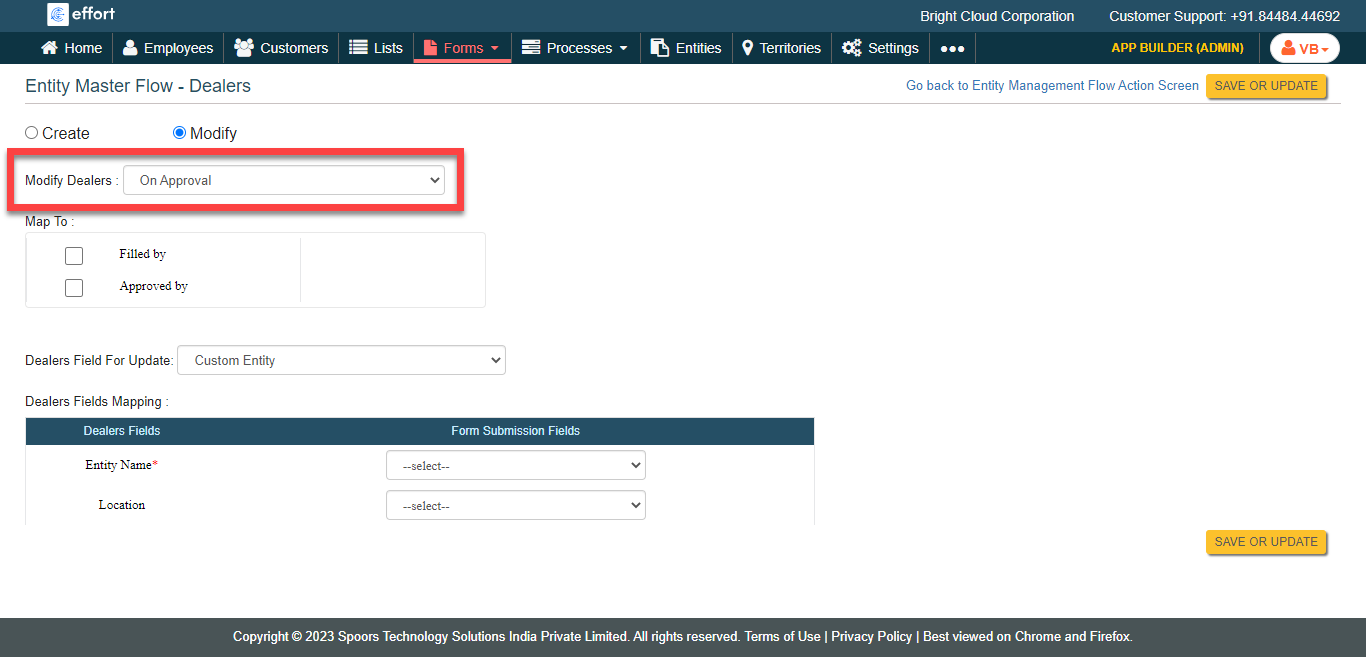
If required, change the approval type from the Modify Entity
Name dropdown.
-
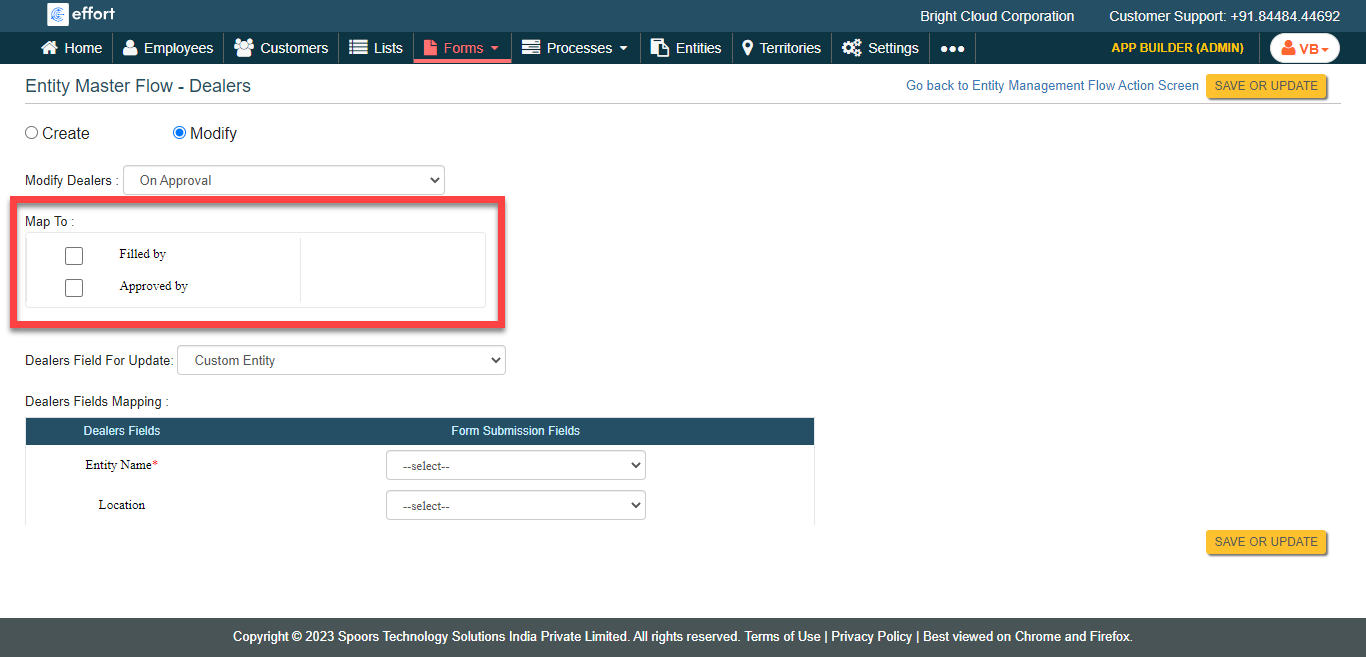
Select entity mapping options in the Map To
section.
- Filled by: The created customer will be mapped to the employee who filled the form.
- Approved By: The created customer will be mapped to the employee who approves the form.
-
Select an entity field in the <Entity Name> Field For
Update dropdown to modify the existing entity.
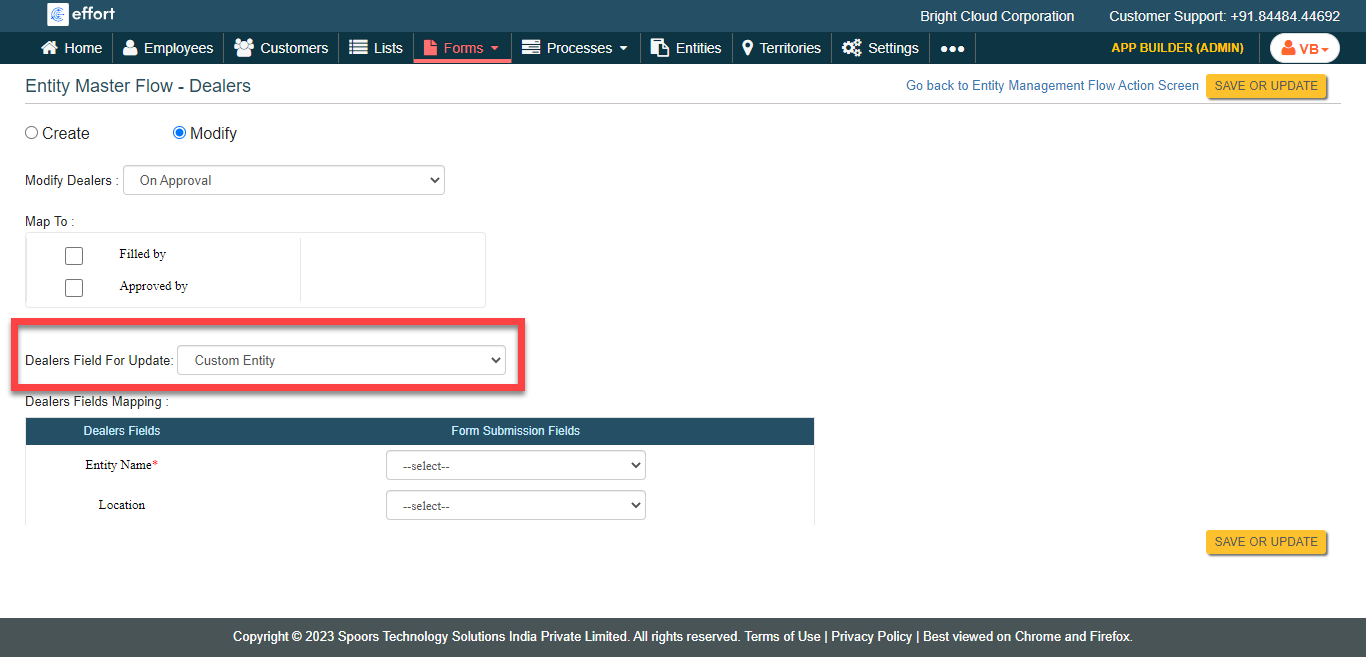
The selected customer data will be updated. -
Under the Entity Fields Mapping section, configure form
submission fields for the respective entity fields.
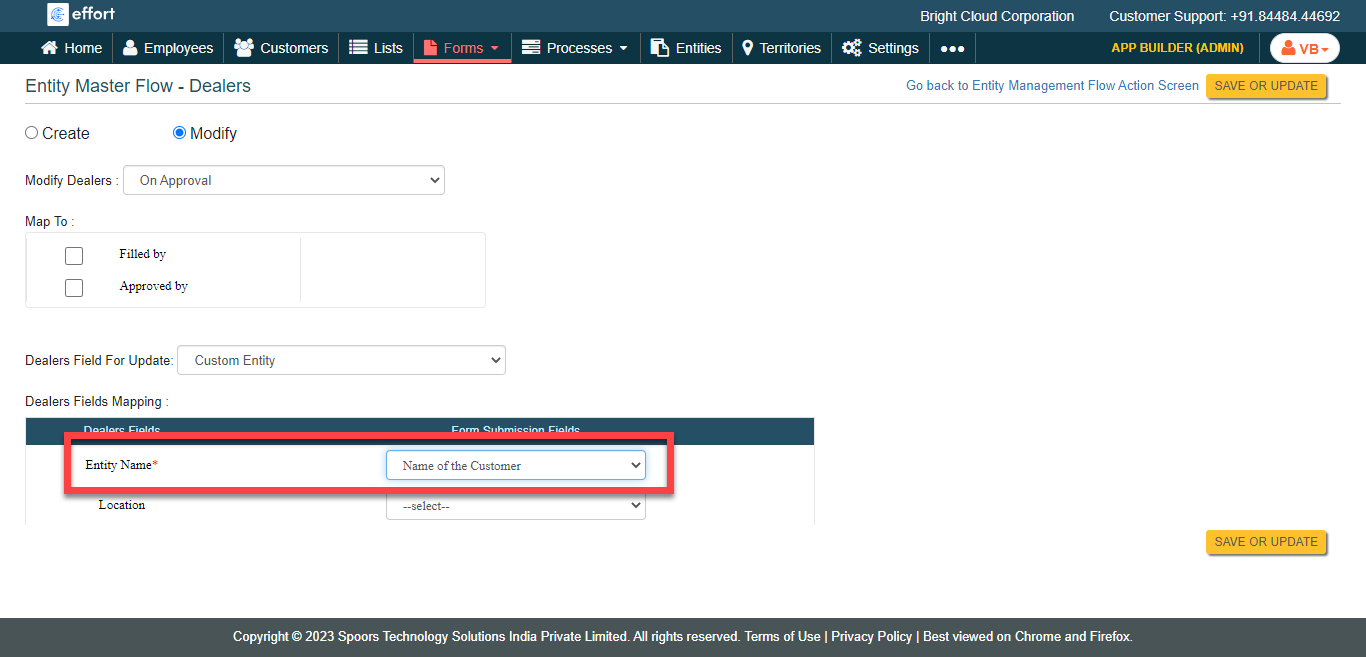
As shown in the above screenshot, the input entered in the Name of the Customer field while submitting this form will become the Entity Name. The entity will be modified with the inputs entered in the configured form fields. - Click Save or Update.