

Configure Approval Level
To configure approval level, follow the steps below.
-
Go to
The Forms page appears.
- Scroll down to the Settings section.
-
Click the Manage Approval Processes card.
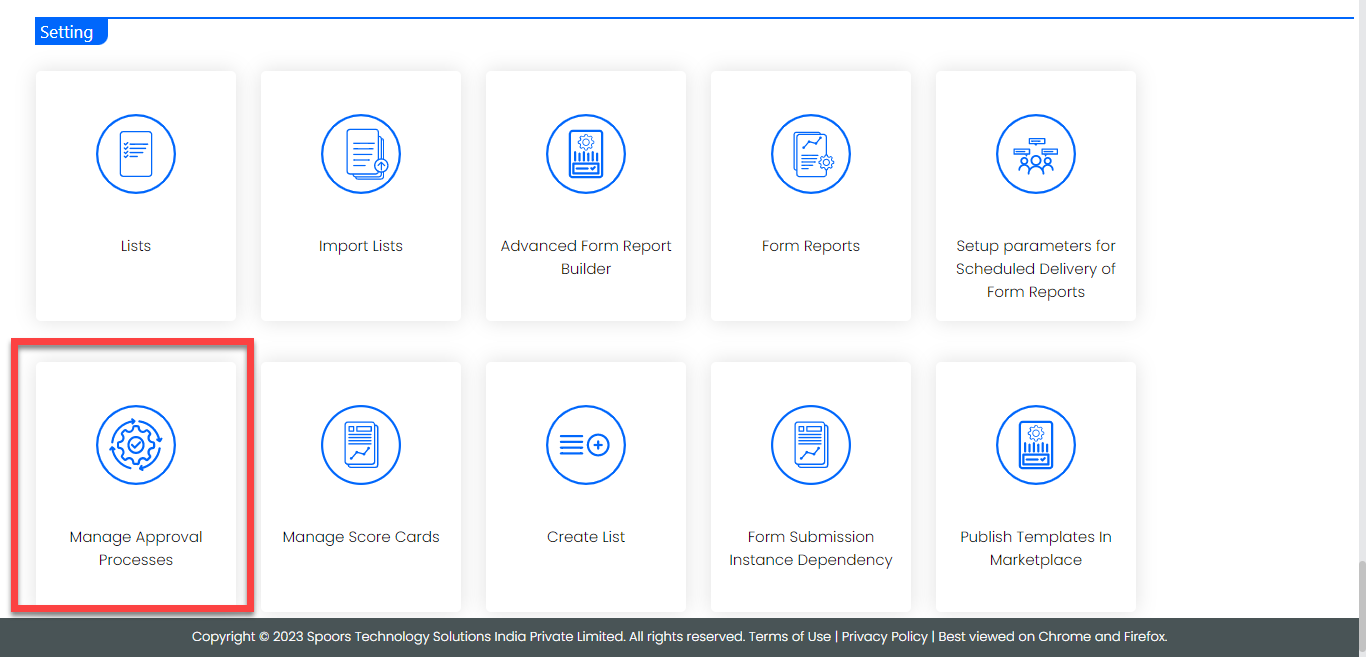
The Approval Process page appears.
-
Click the Create Approval Process card.
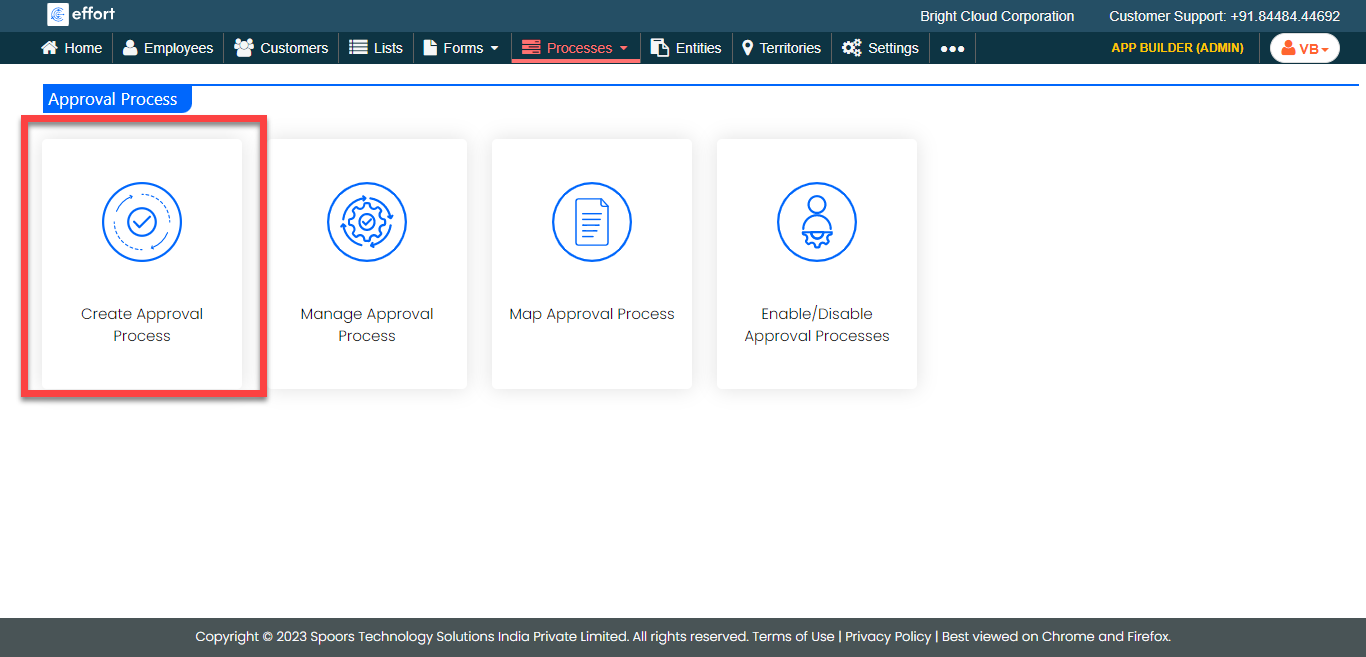
The Create Approval Process page appears.
-
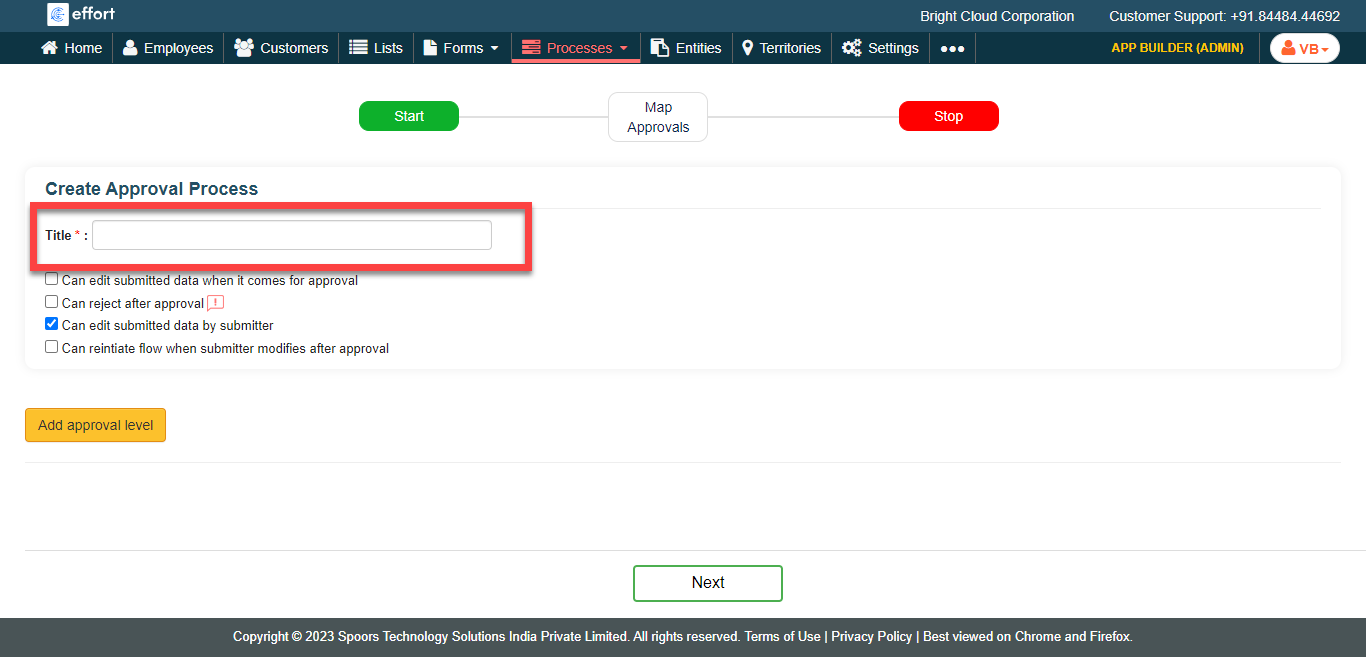
Enter title in the Title textbox.
-
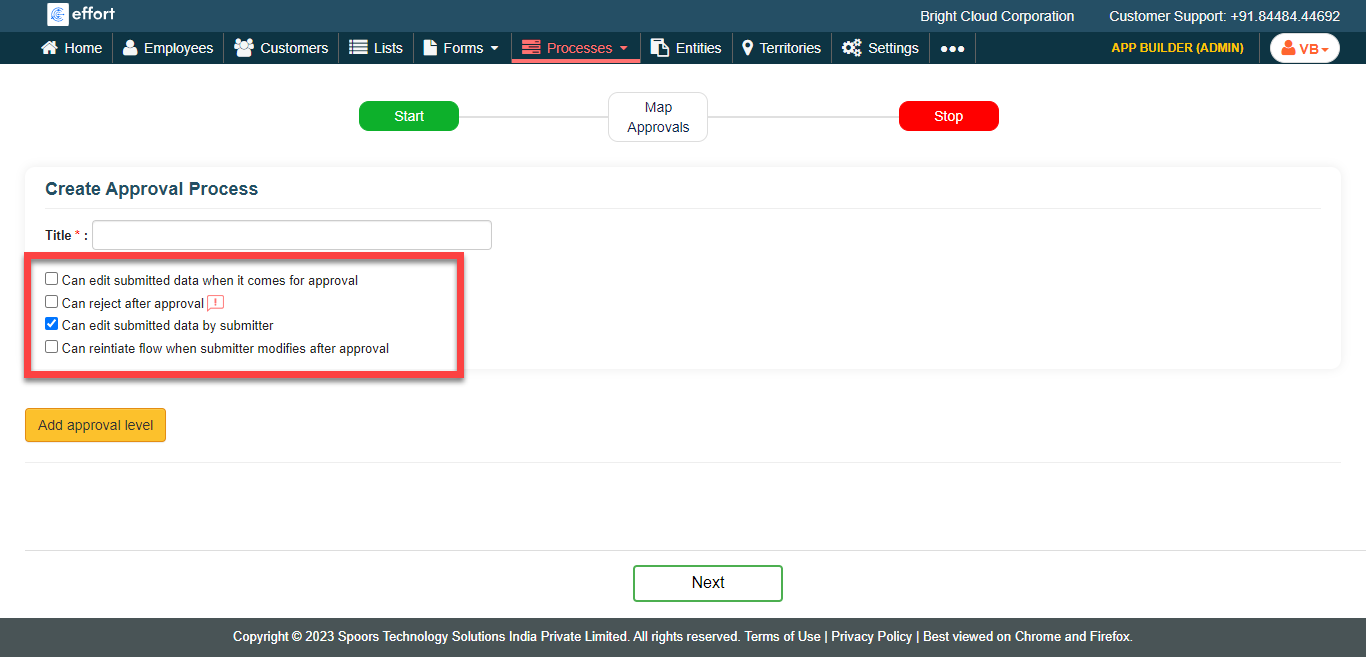
Select the appropriate options.
-
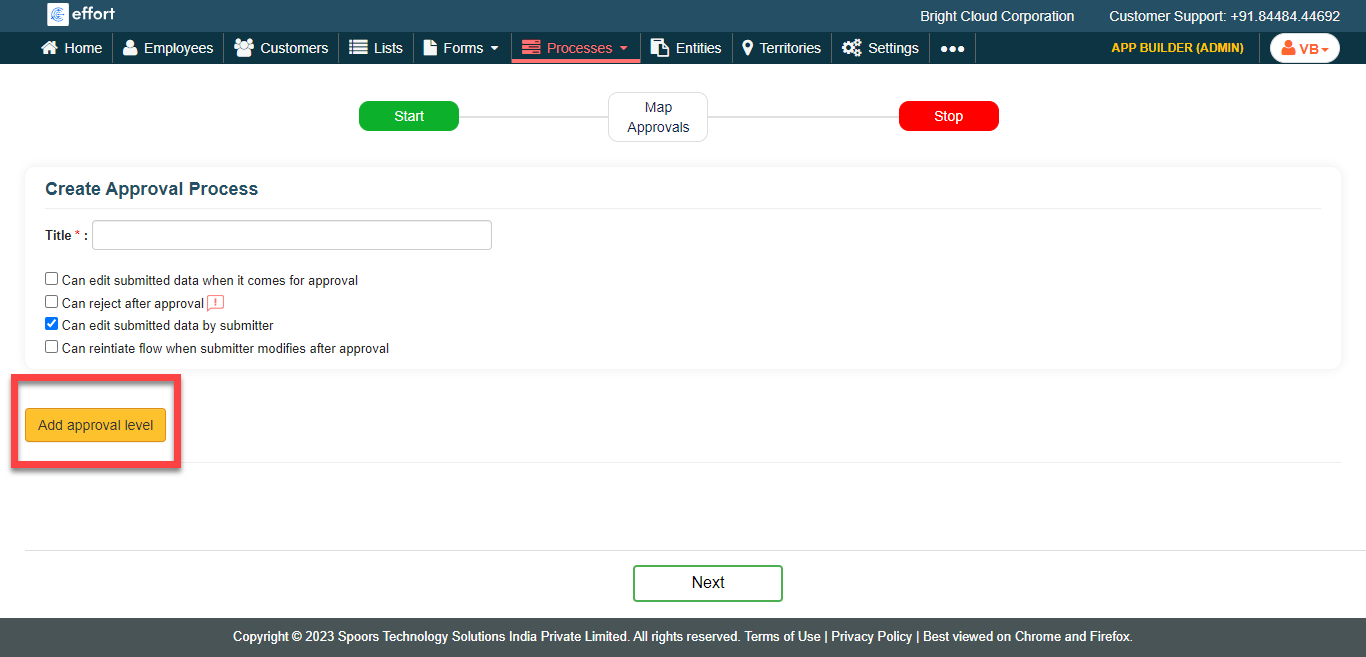
Click Add Approval Level button.
-
In the Approval Level Name textbox, enter the manager’s
name.
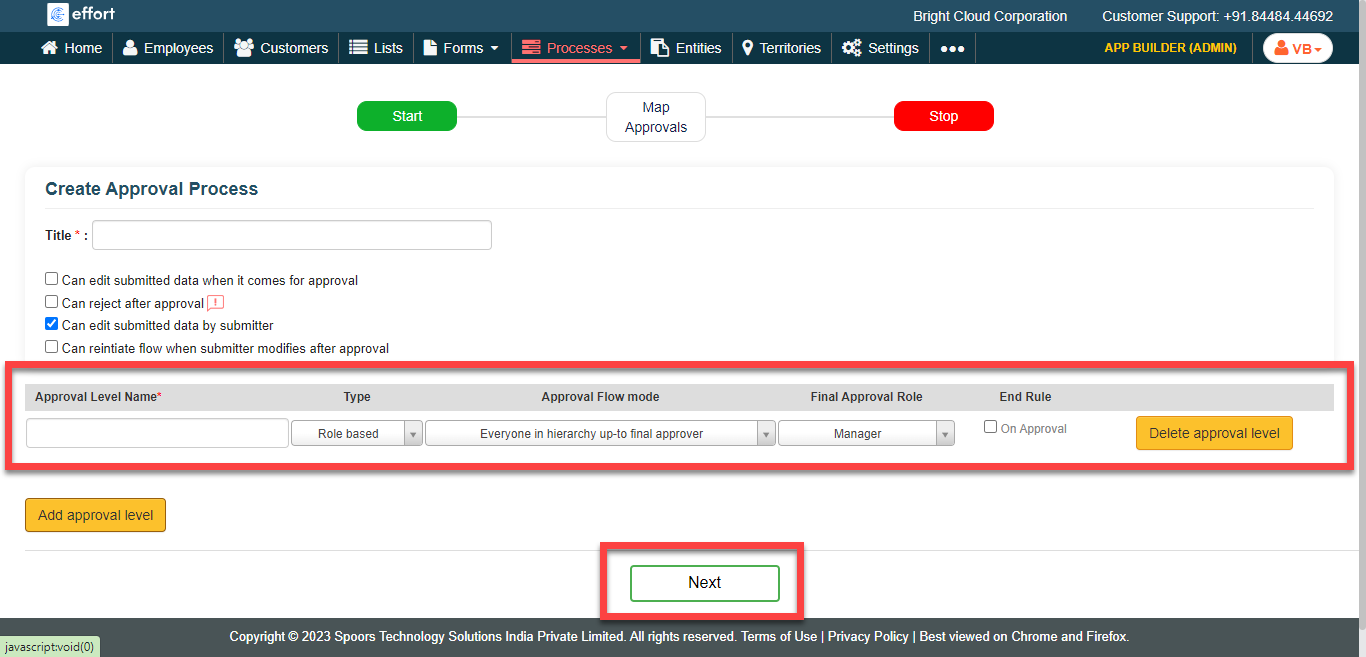
Select any one of the option in Type drop-down.
As per the option selected, the Approval Flow mode is populated
| Type of Approval | Steps |
|---|---|
| Role Based |
|
| Employee Group Based |
|
| Hierarchy Based | Select the appropriate option in the Approval Flow mode |
- Optional:
Click Add Approval Level button to add another approval
level. This option is useful when you want to define more than one type for a
approval process.
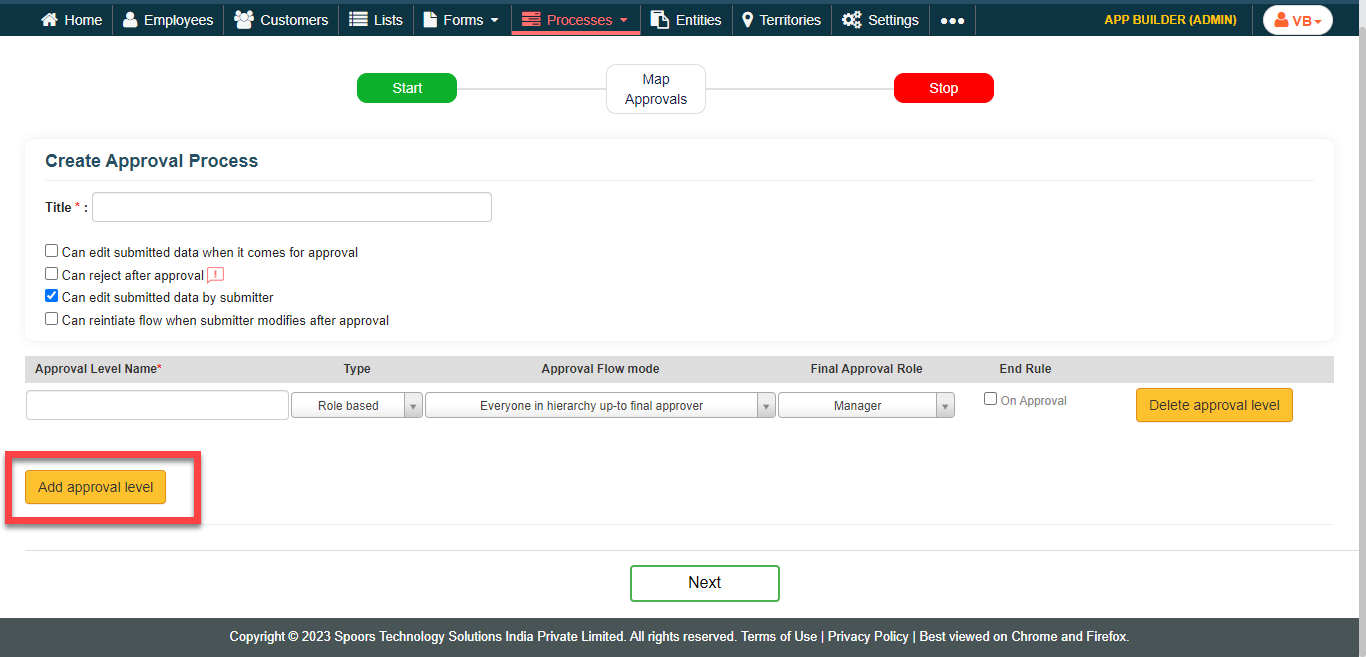
- Optional: Click the Delete Approval Level to delete an approval level in the approval process.
- Click Next and complete approval mapping.