

Create a Process Activity
To create a process activity, follow the steps below:
-
Go to .
The Customers page appears.
-
Under the Essentials section, click the
Manage Process Activities card.
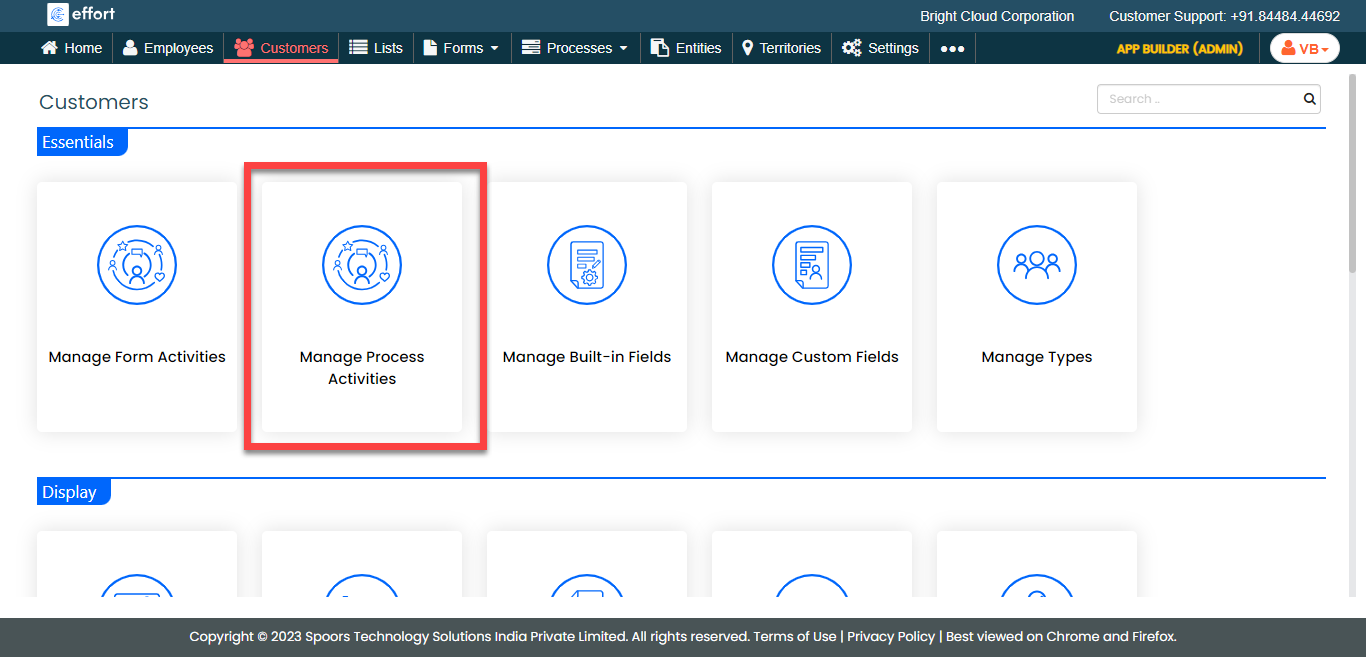
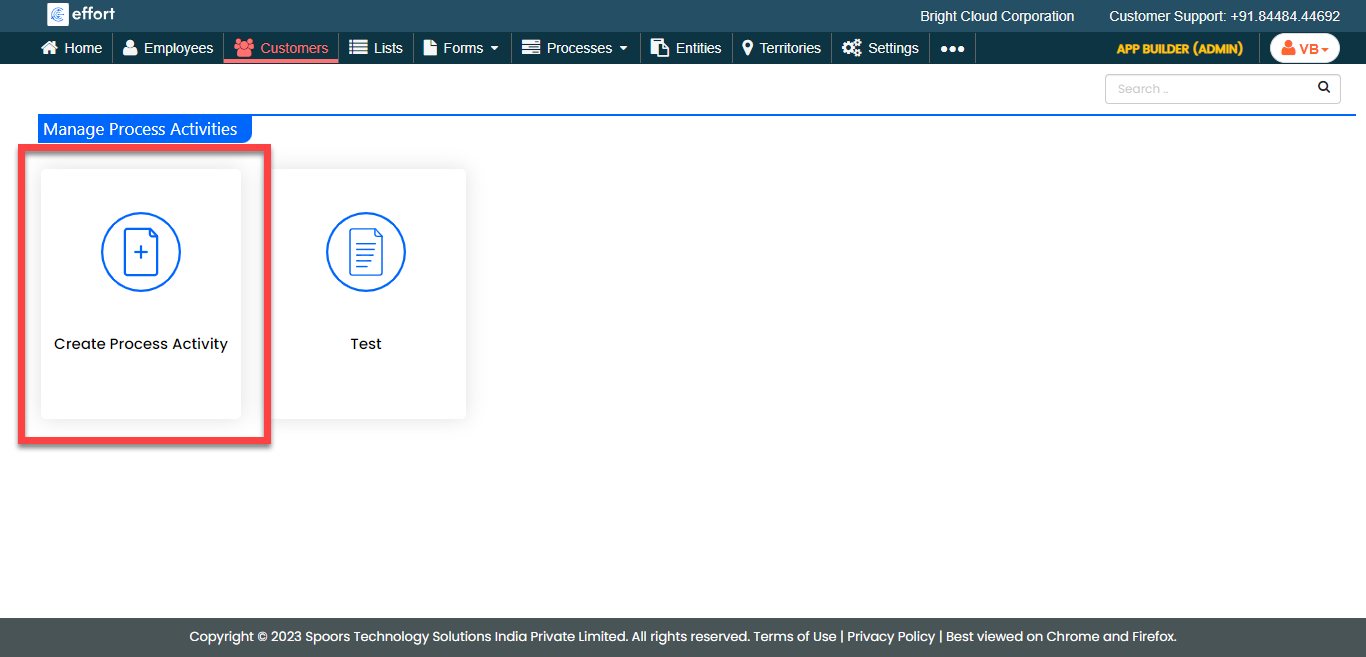
The Manage Process Activities page appears.
-
Click the Create Process Activity card.
-
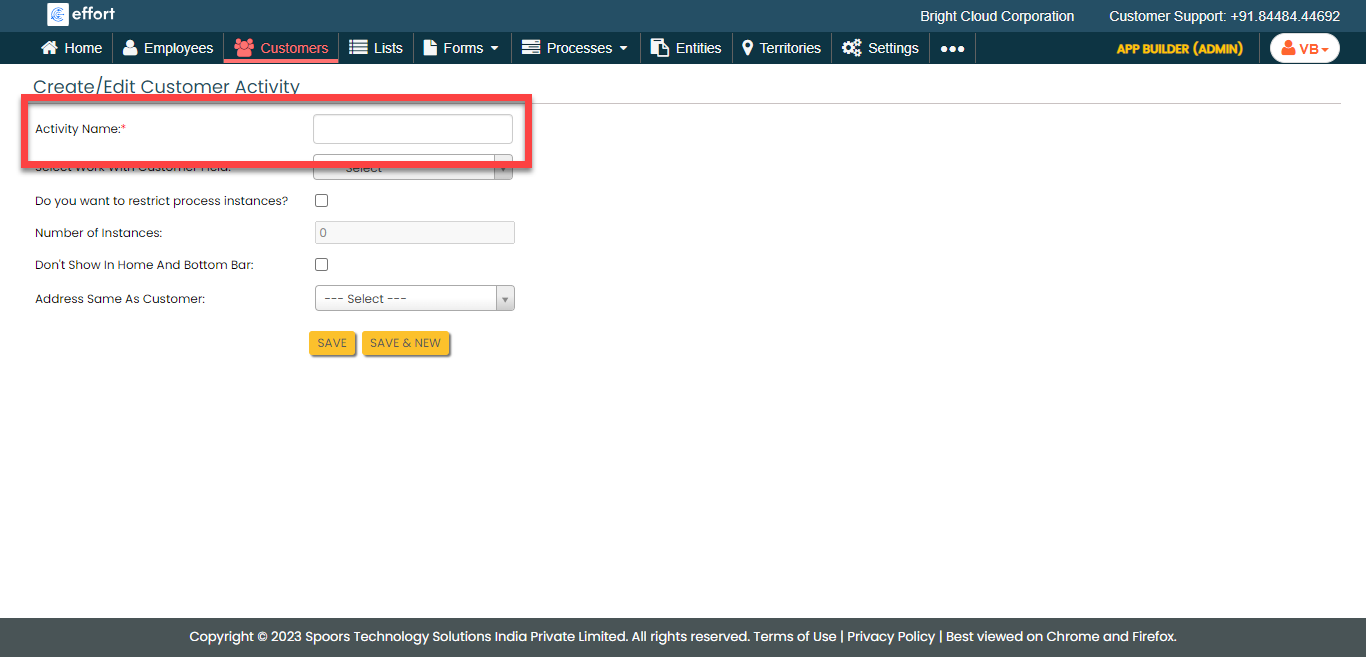
In the Activity Name field, enter a name for the process
activity.
-
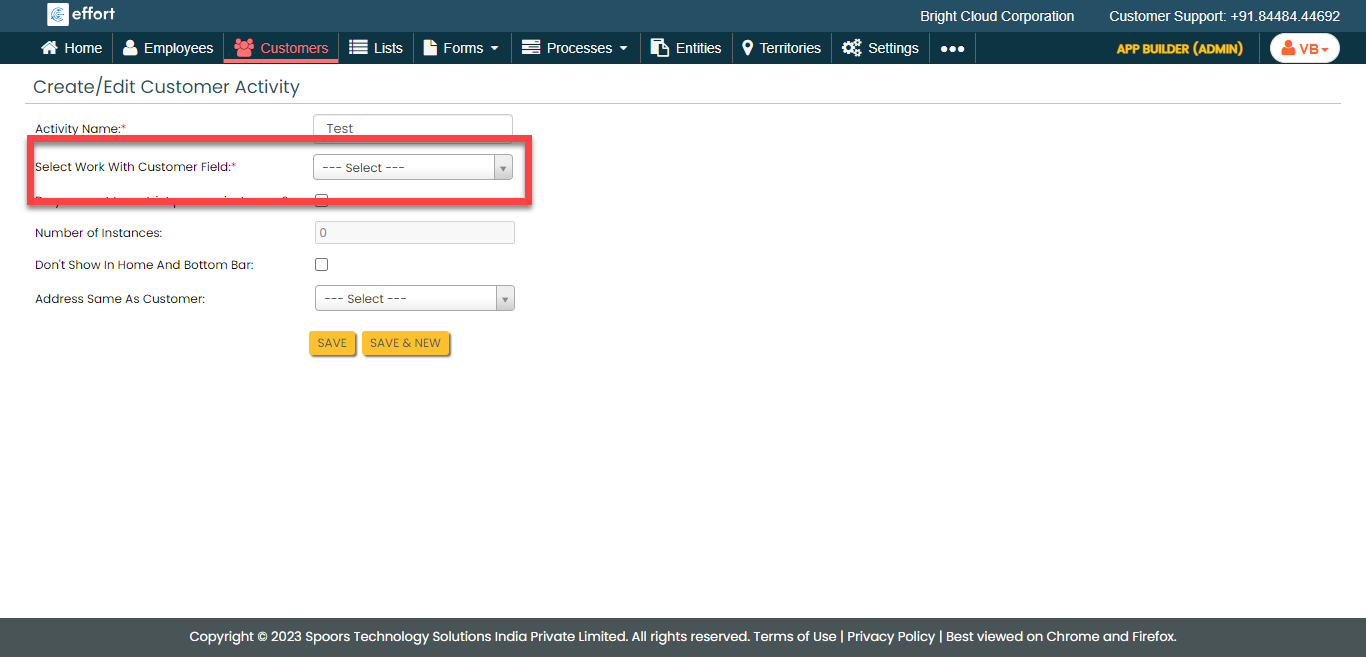
From the Select Work With Customer Field dropdown,
select the process you want make it as customer activity.
- Optional:
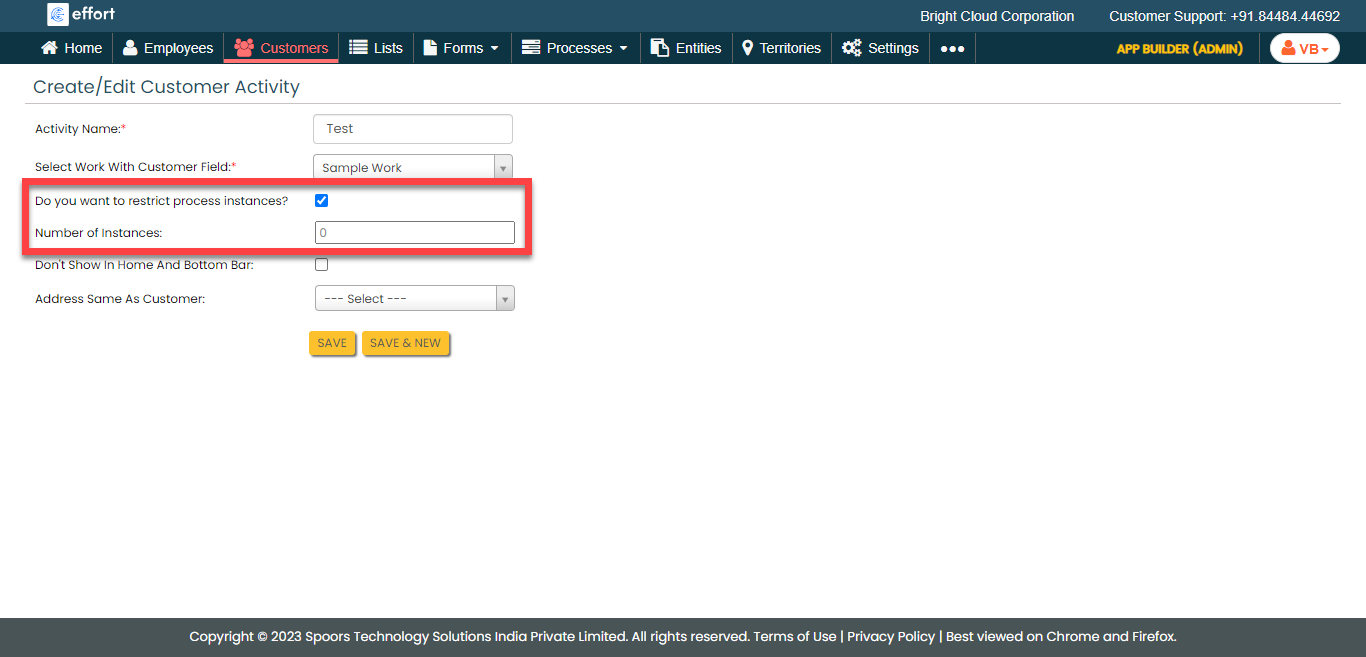
Enable the Do you want to restrict process instances?
checkbox to restrict process instances.
- Optional:
Specify the Number of Instances.
The users can create the specified number of active processes.
- Optional:
Enable the Don't Show In Home And Bottom Bar checkbox to
hide the selected process in the mobile app home screen and bottom bar.
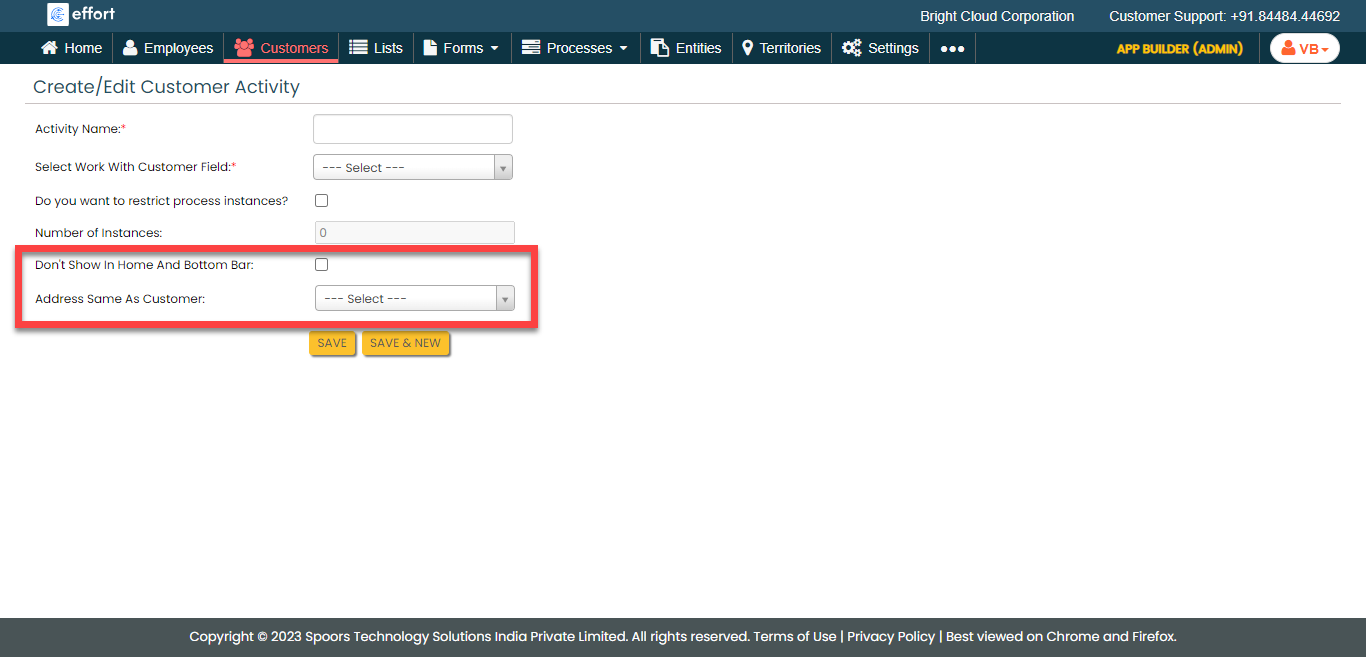
- From the Address Same As Customer dropdown, select Yes or No as per your requirement.
- Click Save.