

Add Notes to a Customer
This topic helps you understand how to add notes to a customer. Notes are useful for capturing important details, updates, or observations during customer interactions. You can also attach supporting documents or images for reference.
-
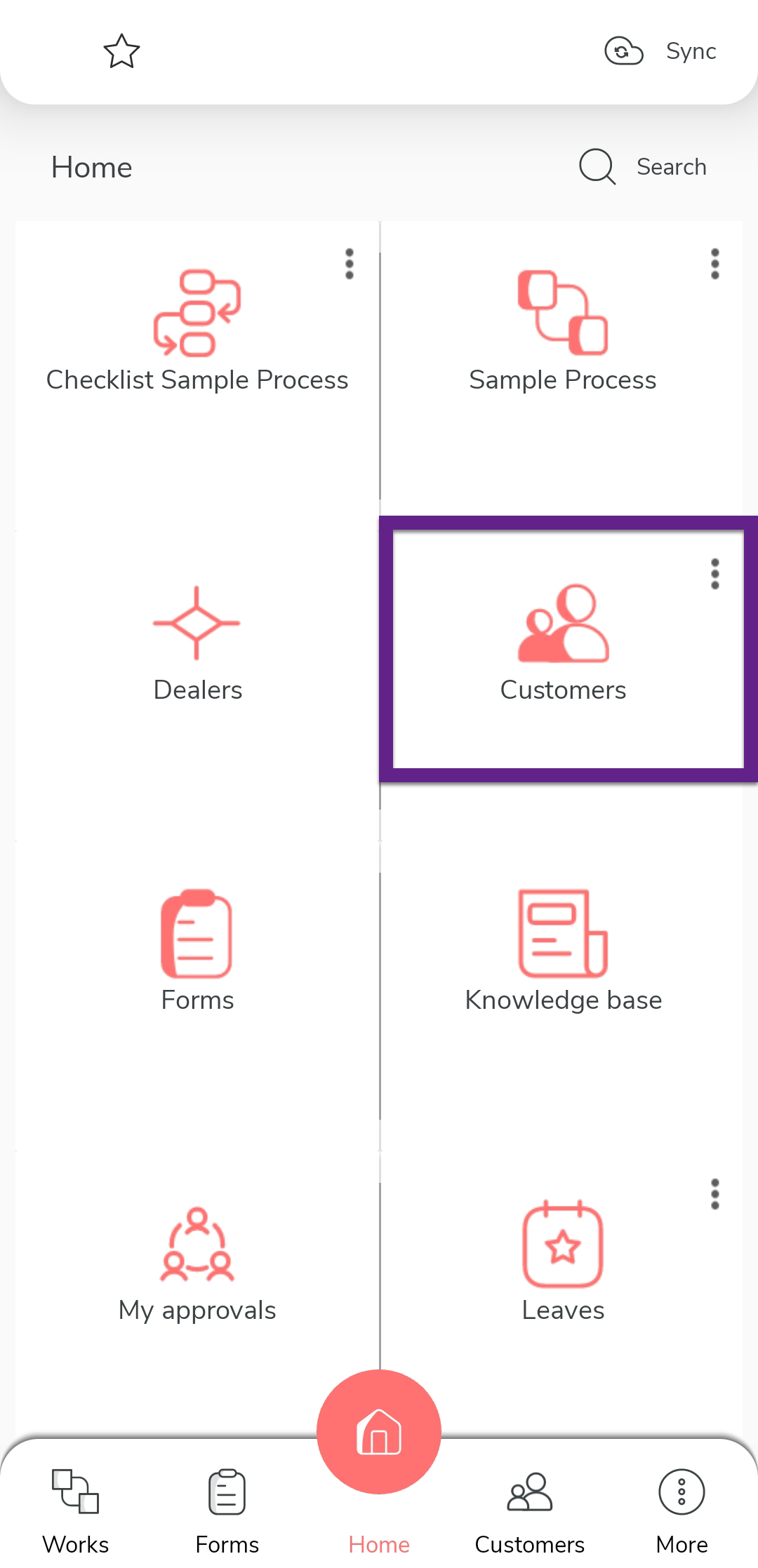
On the home screen or from the navigation drawer, tap Customers.
-
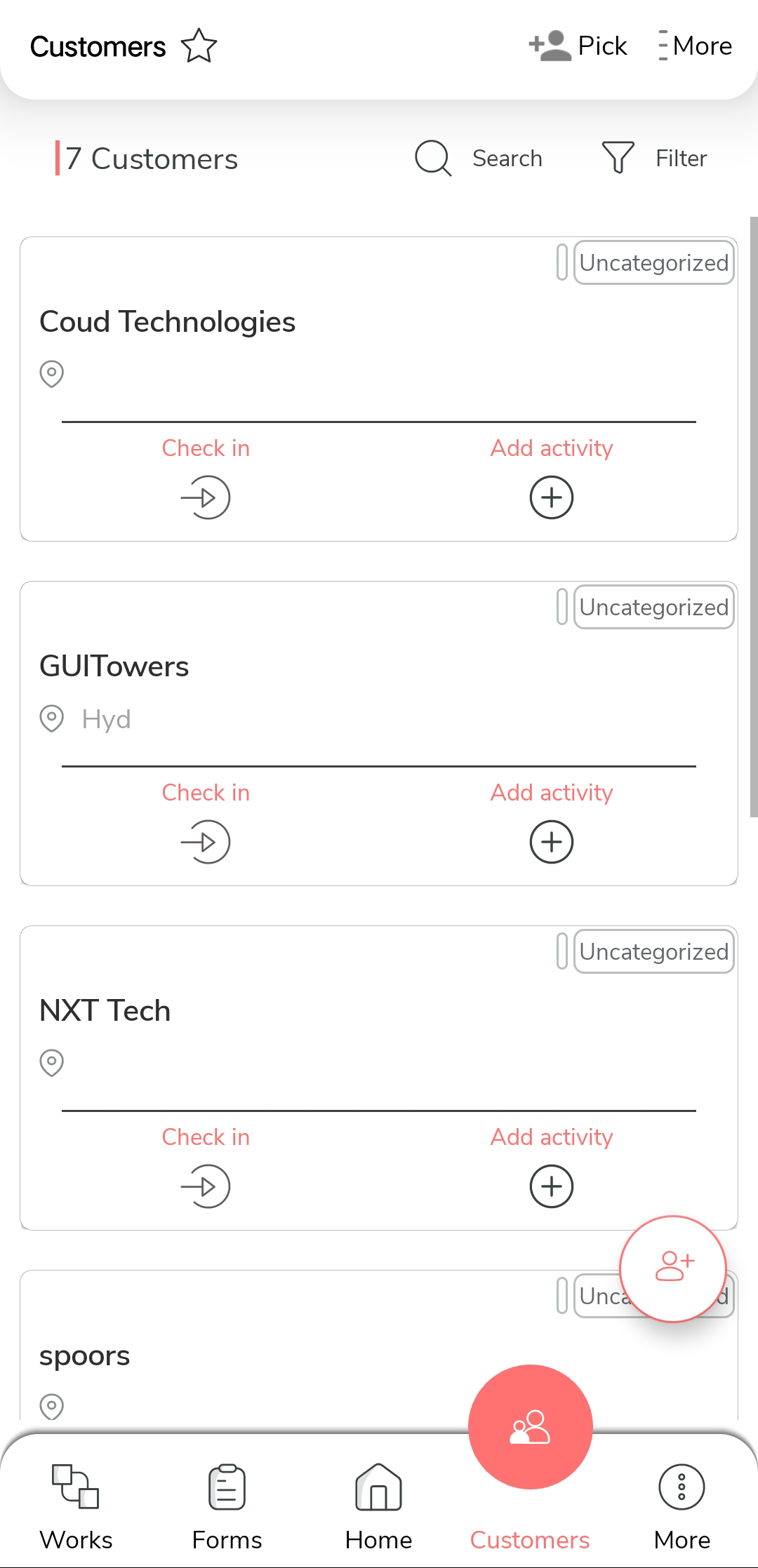
Select the desired customer to open the Customer Details page.
-
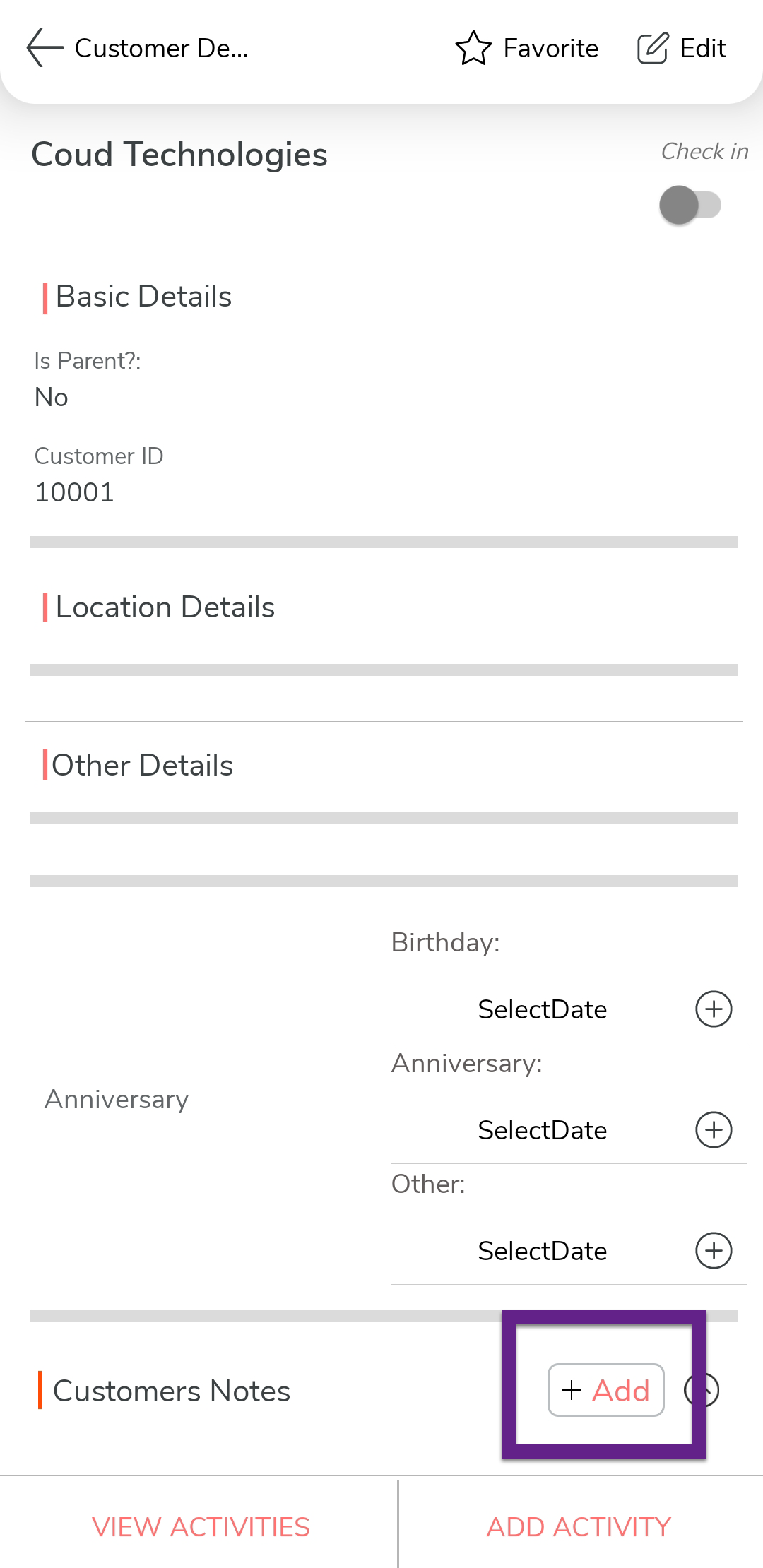
Tap the Add Notes option.
-
On the Customer Note screen, fill in the following fields:
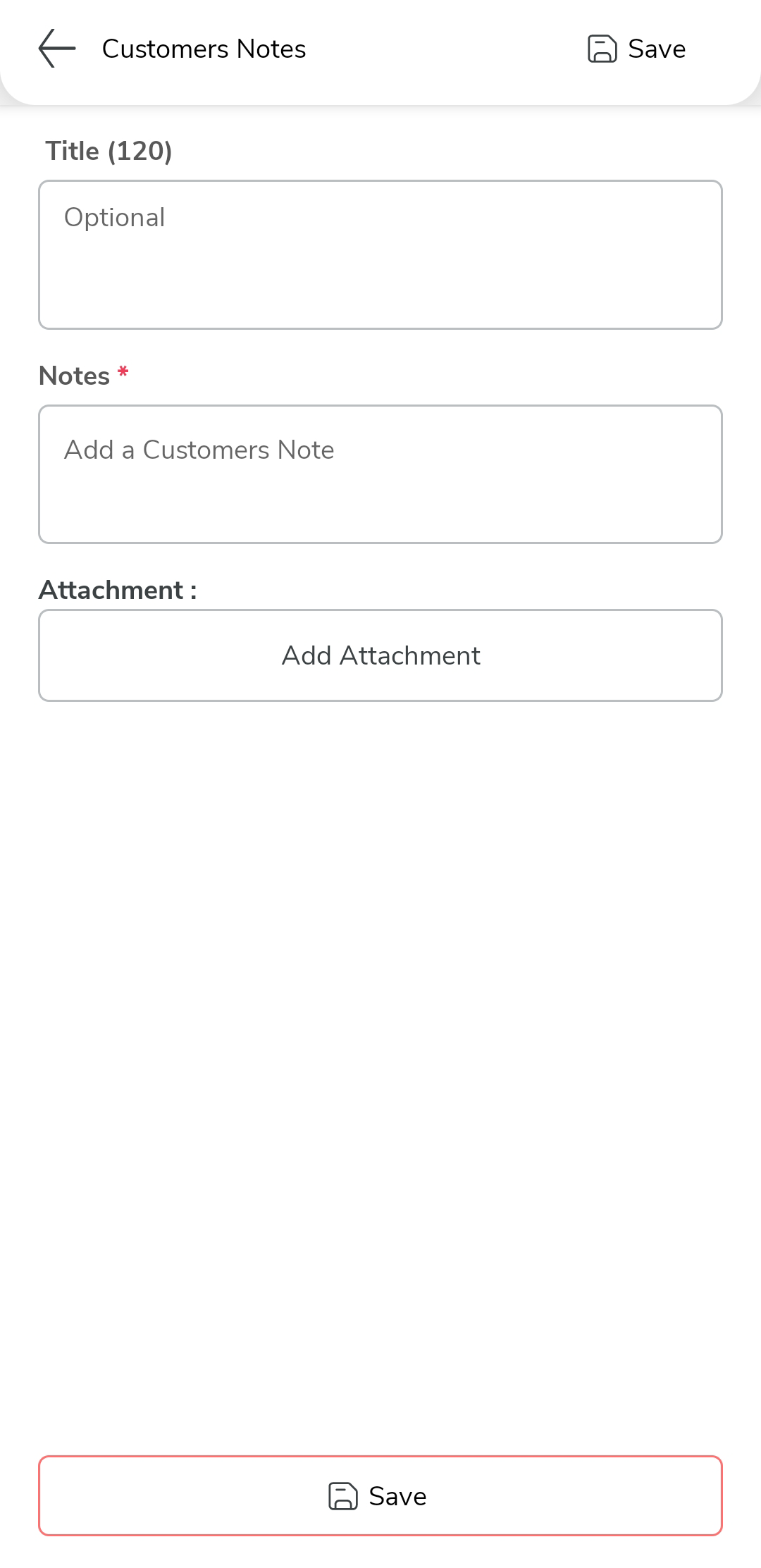
- Title: Enter a short title for the note.
- Notes: Enter the detailed information or observations.
- Tap the Add Attachment button to upload any relevant documents or images (optional).
- Tap Save to add the note to the customer record.