

View Customer Location
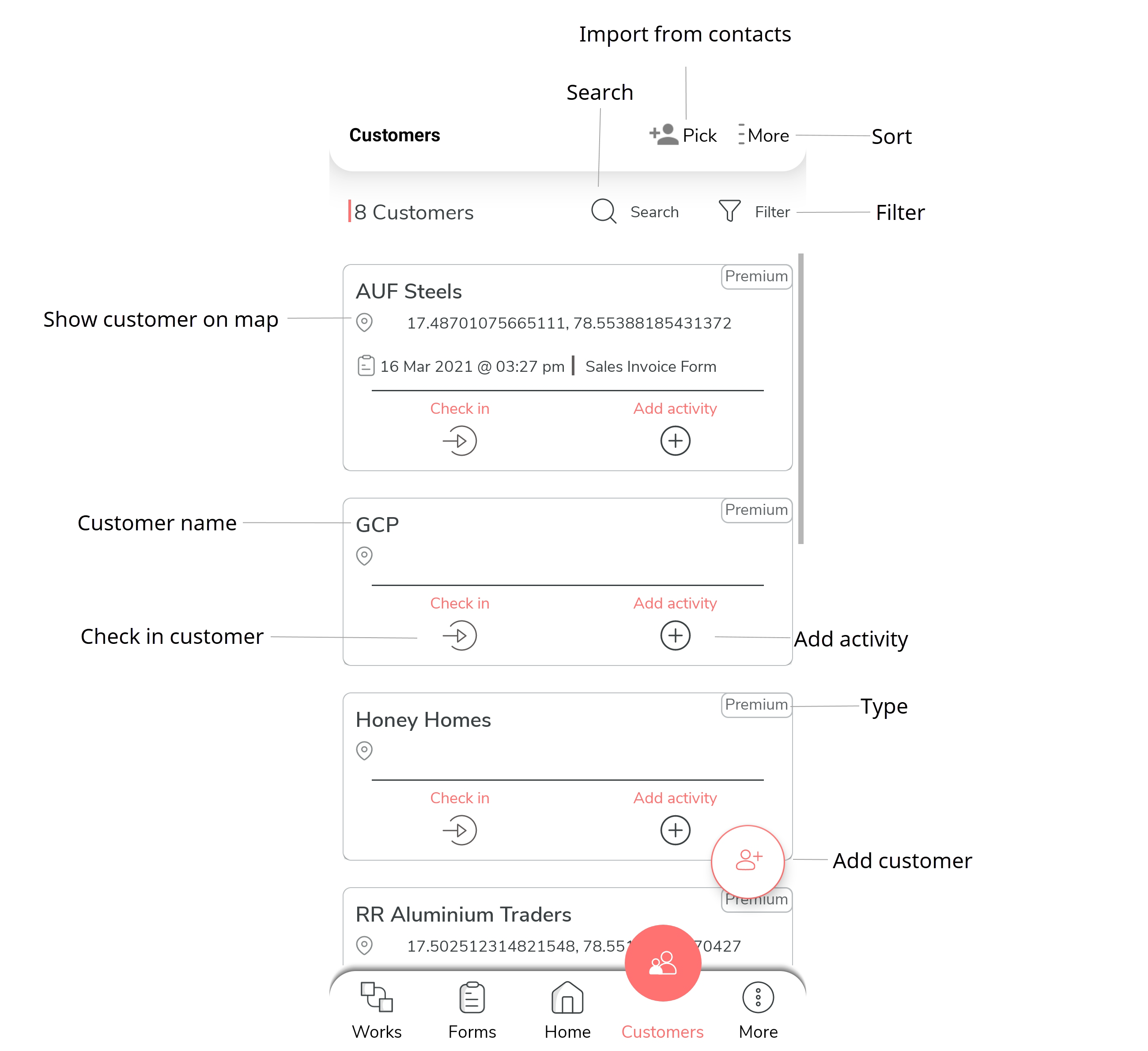
- Tap Customers on the Home screen or the navigation drawer.
-
Tap on the required customer.
-
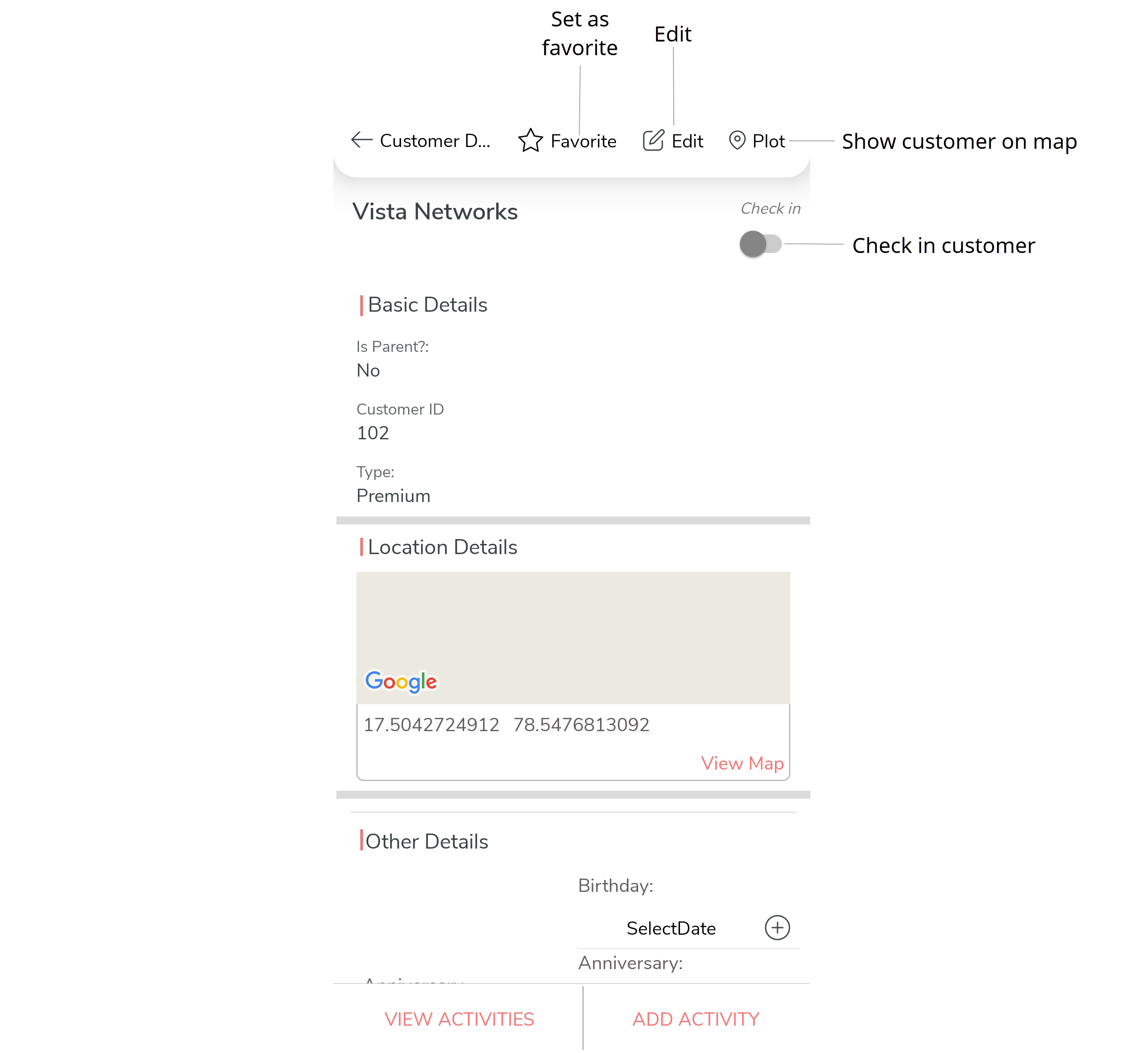
Tap Plot option.
- Optional:
Tap share
 icon to
share the customer location.
icon to
share the customer location.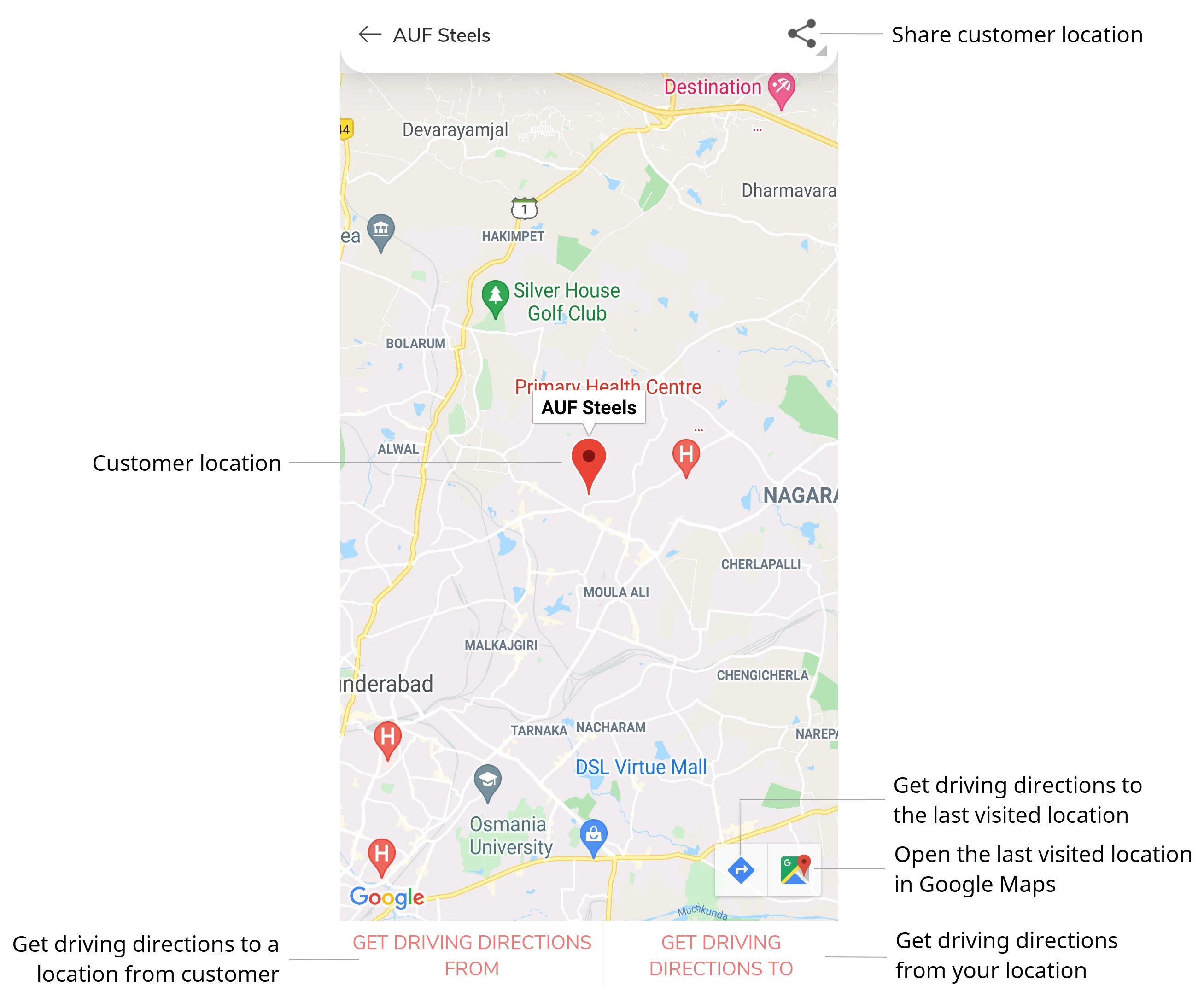
- Optional: Tap Get Driving Directions From to get the driving directions from customer's location to the defined location.
- Optional: Tap Get Driving Directions To to get the driving directions from your location to the customer's location.
- Optional:
Tap location
 icon on the map.
Tapping location icon also shows two additional icons in the bottom right corner, which allow you to get the driving directions to the customer's location and view the customer's location in Google Maps.
icon on the map.
Tapping location icon also shows two additional icons in the bottom right corner, which allow you to get the driving directions to the customer's location and view the customer's location in Google Maps. - Optional:
Tap Driving Directions
 to get the driving directions to the customer's
location.
to get the driving directions to the customer's
location.
- Optional: Tap Google Maps icon in the bottom right corner to open the customer's location in Google Maps.