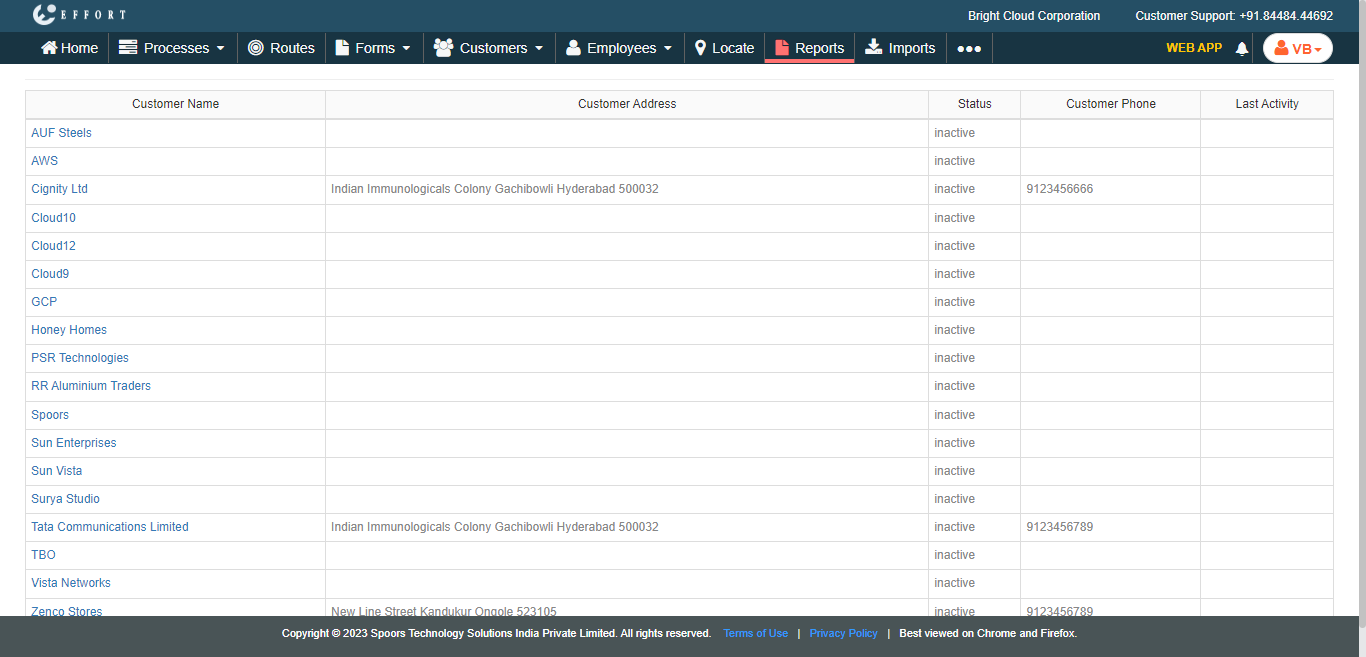
Generate Engaged Customers Report
To generate engaged customers report, follow the steps below.
-
Go to .
The Reports page appears.
- Scroll down to the Customer Reports section.
-
Click the Engaged Customers Report link or icon.
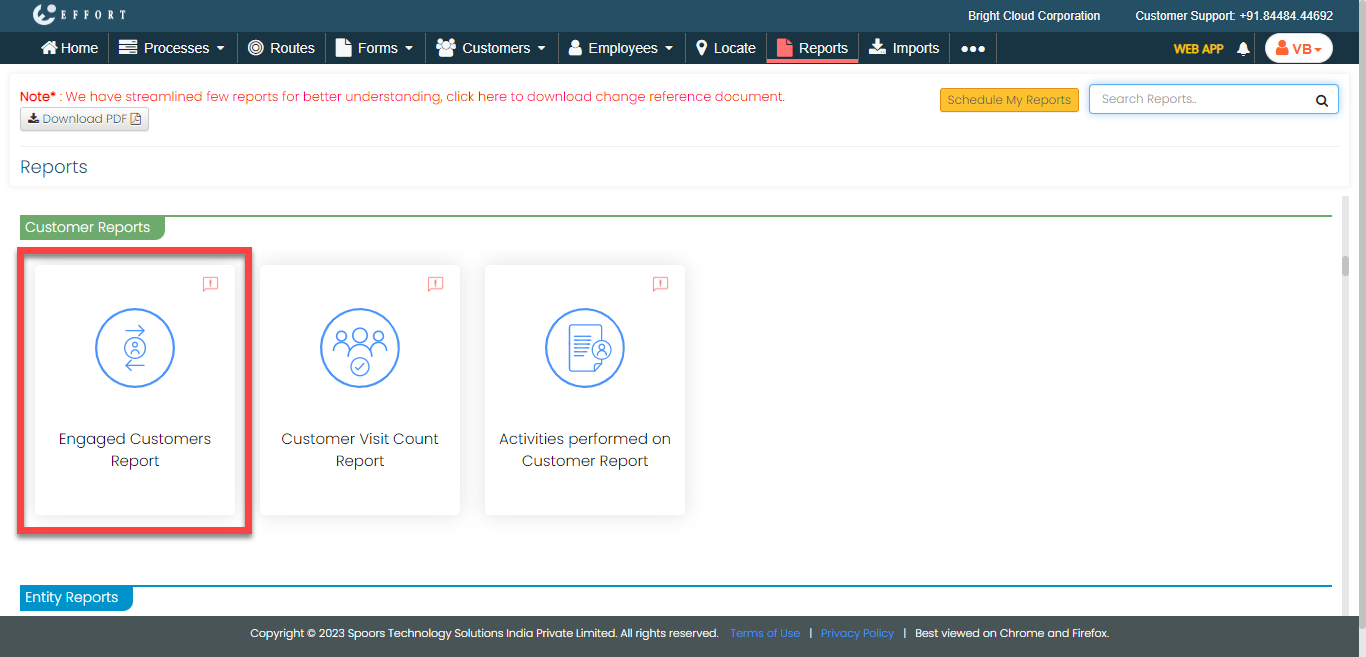
The Engaged Customers Report page appears.
-
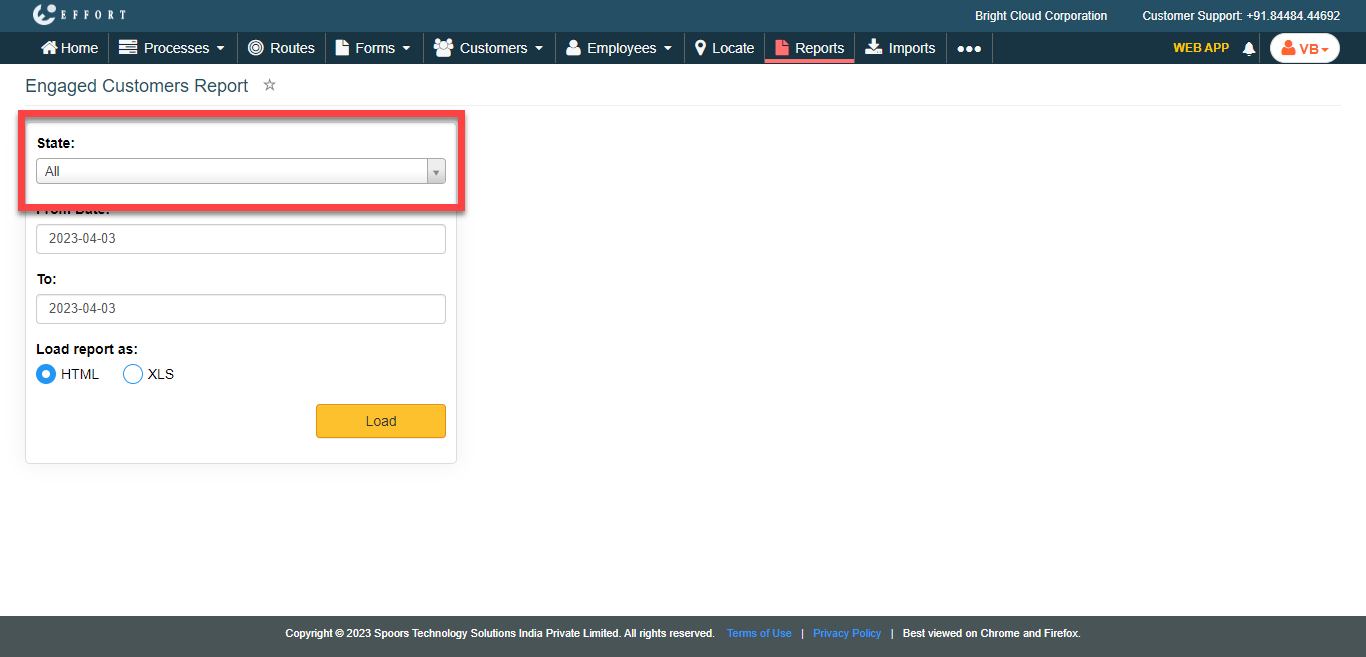
From the State dropdown, select any of the following
options as per your requirement.
- All: Allows you to generate the report of all customers.
- Active: Allows you to generate the report of active customers.
- Inactive: Allows you to generate the report of inactive customers.
- Optional:
Change From Date and To Date
dates as per your requirement.
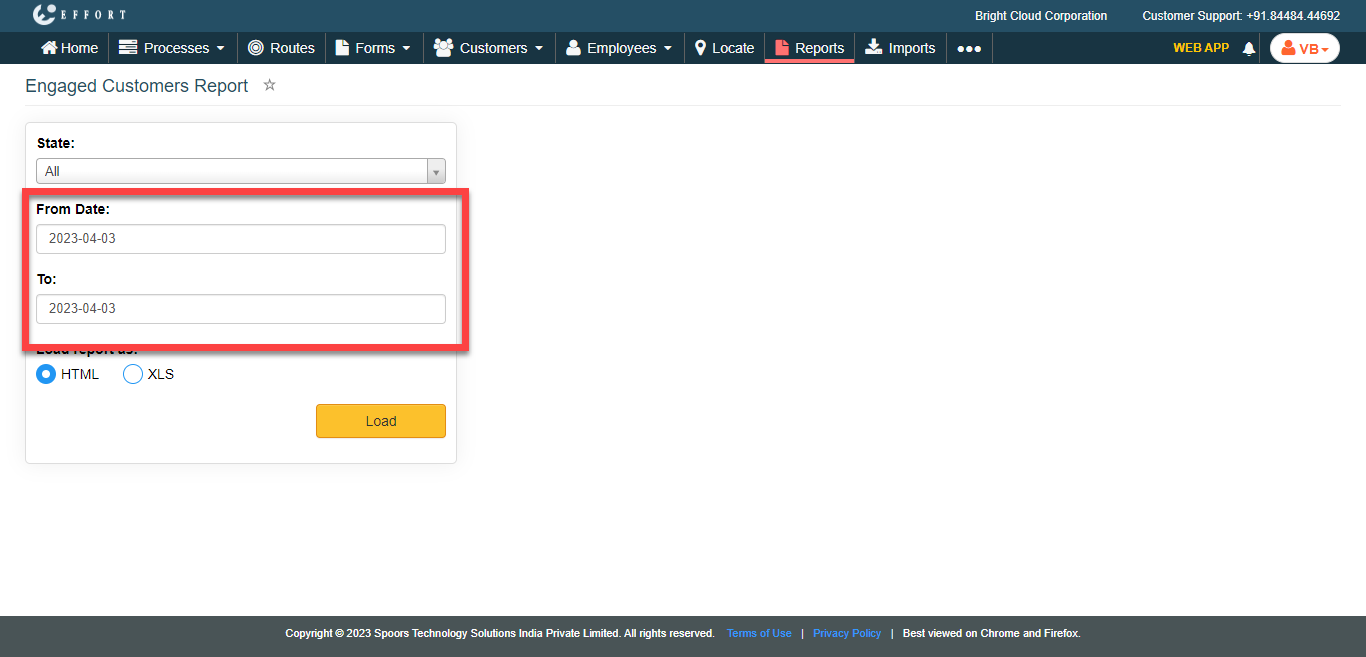
Both From Date and To Date default to today. - Optional:
In Load report as, select the output report
format.
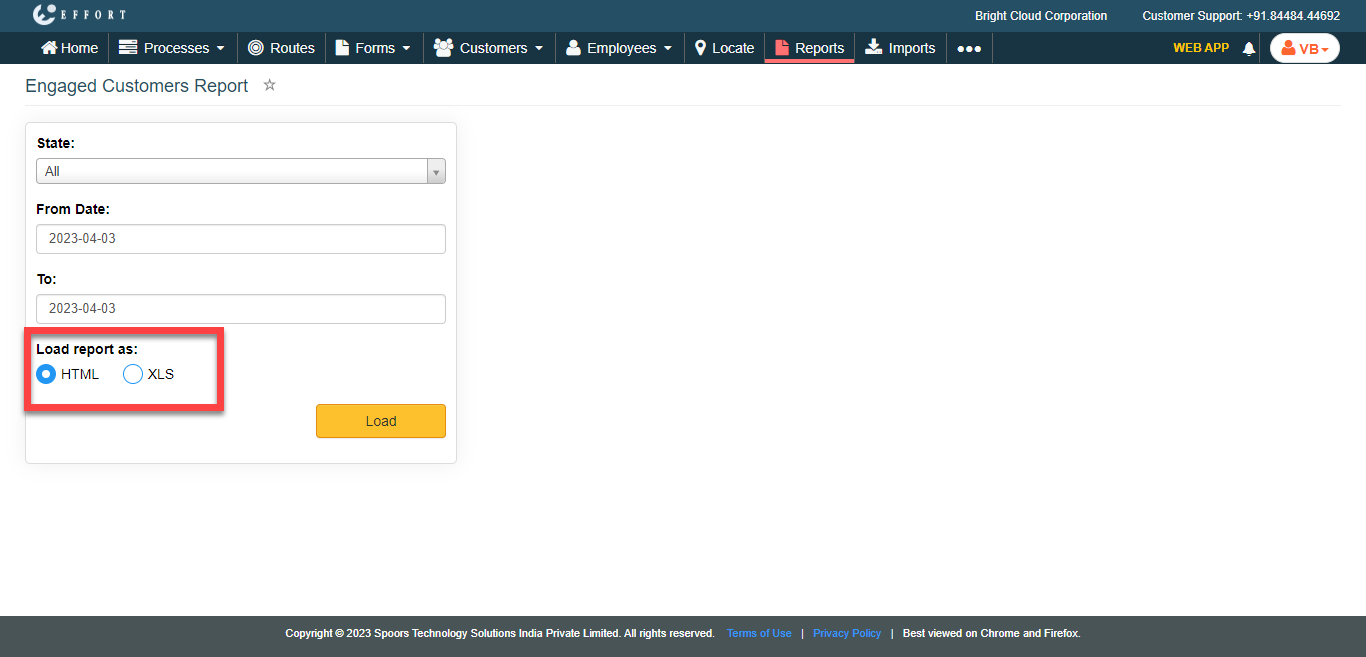
Load report as defaults to HTML. -
Click Load.
The Engaged Customers Report is displayed depends on the report format.