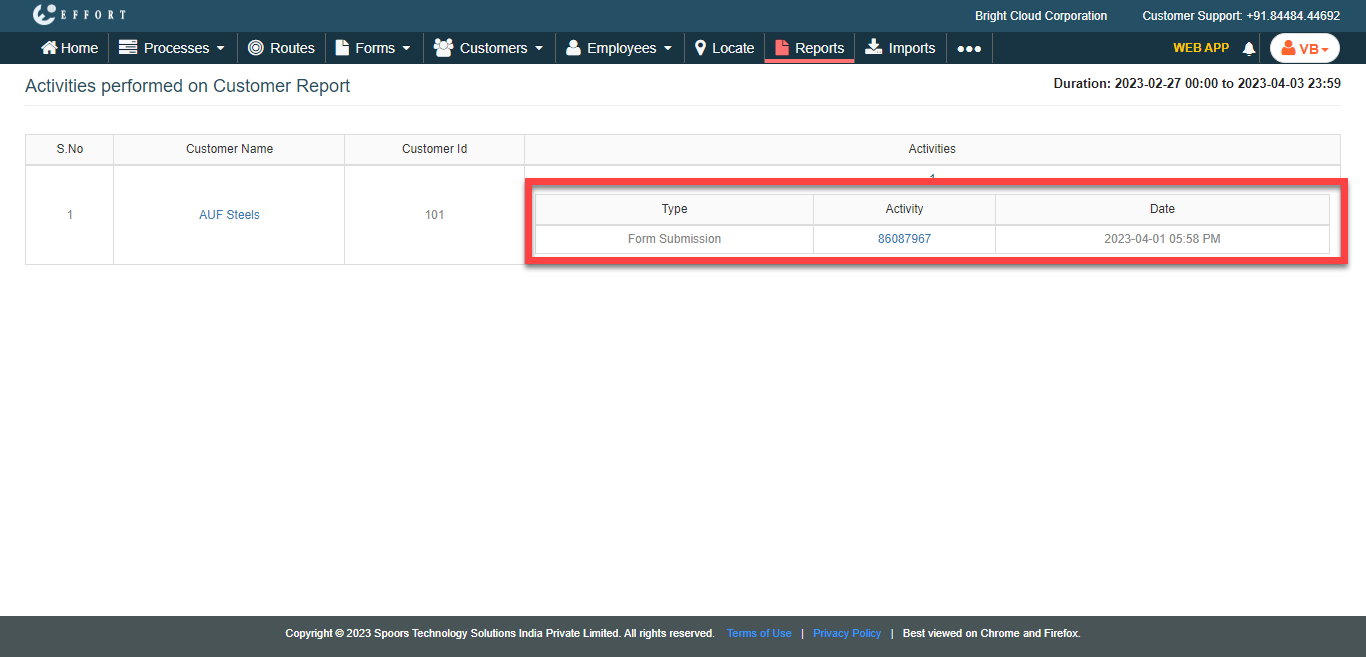
Generate Activities Performed on Customer Report
To generate an activities performed on customer report, follow the steps below.
-
Go to .
The Reports page appears.
- Scroll down to the Customer Reports section.
-
Click the Activities Performed on Customer Report link
or icon.
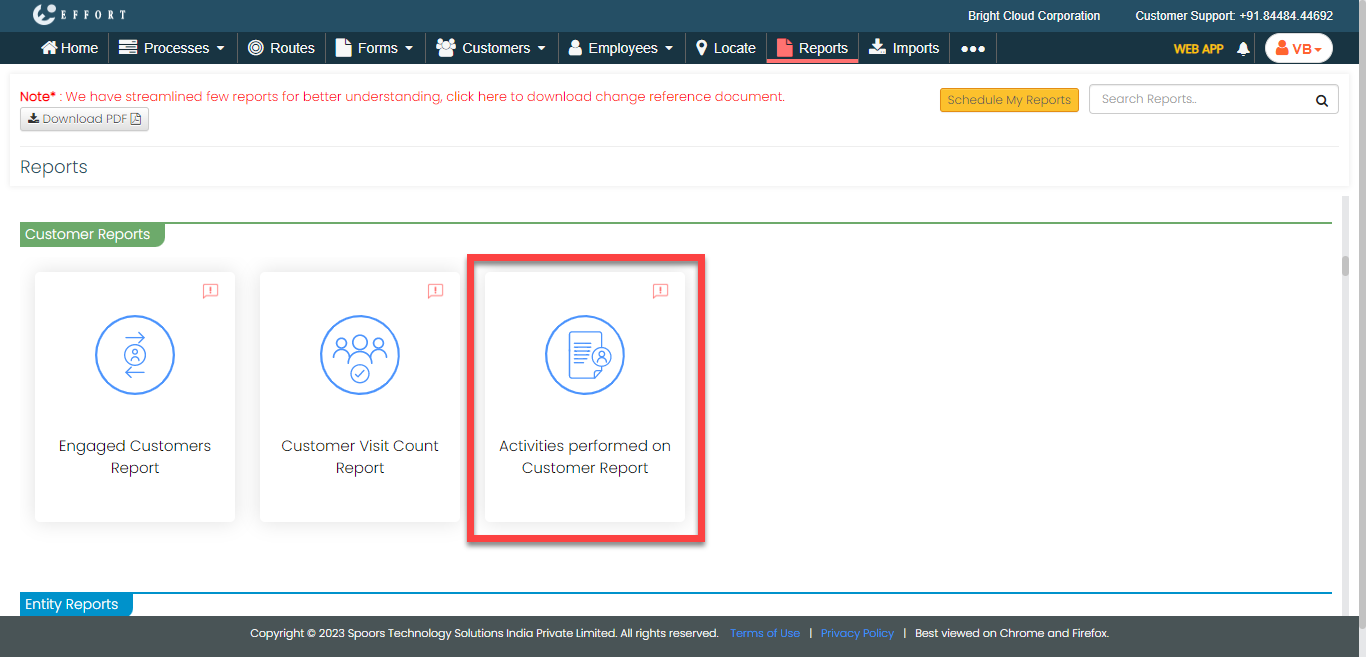
The Activities Performed on Customer Report page appears.
-
Select customers from the Customers section.
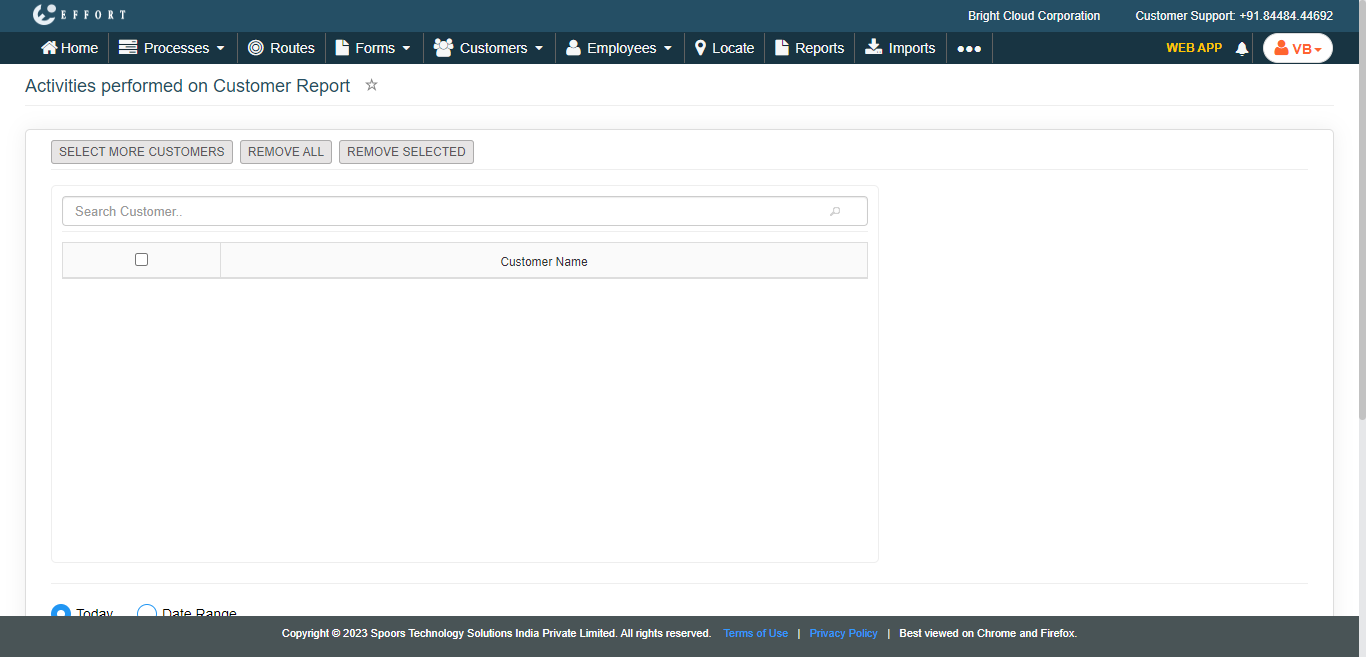
- Select More Customers: Allows you to select customers from the list.
- Remove All: Allows you to remove all the customers.
- Remove Selected: Allows you to manually select the customers and remove only the selected ones.
- Optional:
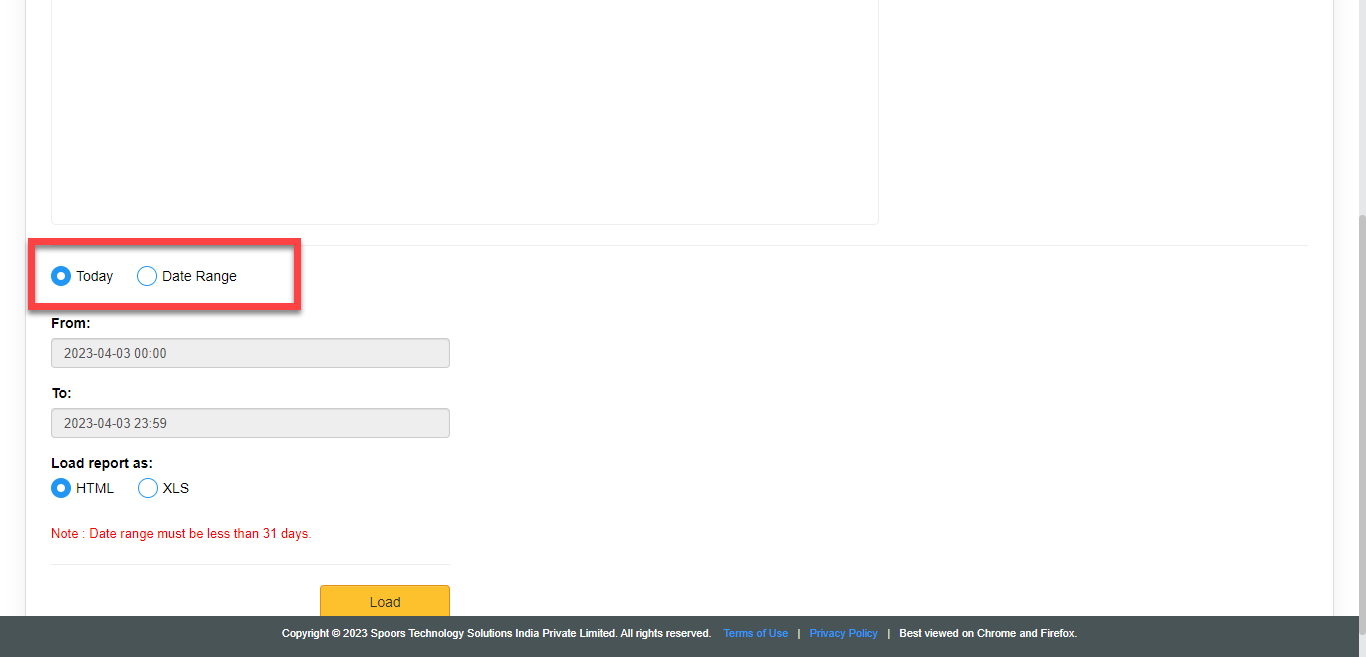
Change Today to Date Range if you
want to generate the report for more than one day.
- Optional:
Change From and To dates if you
select Date Range.
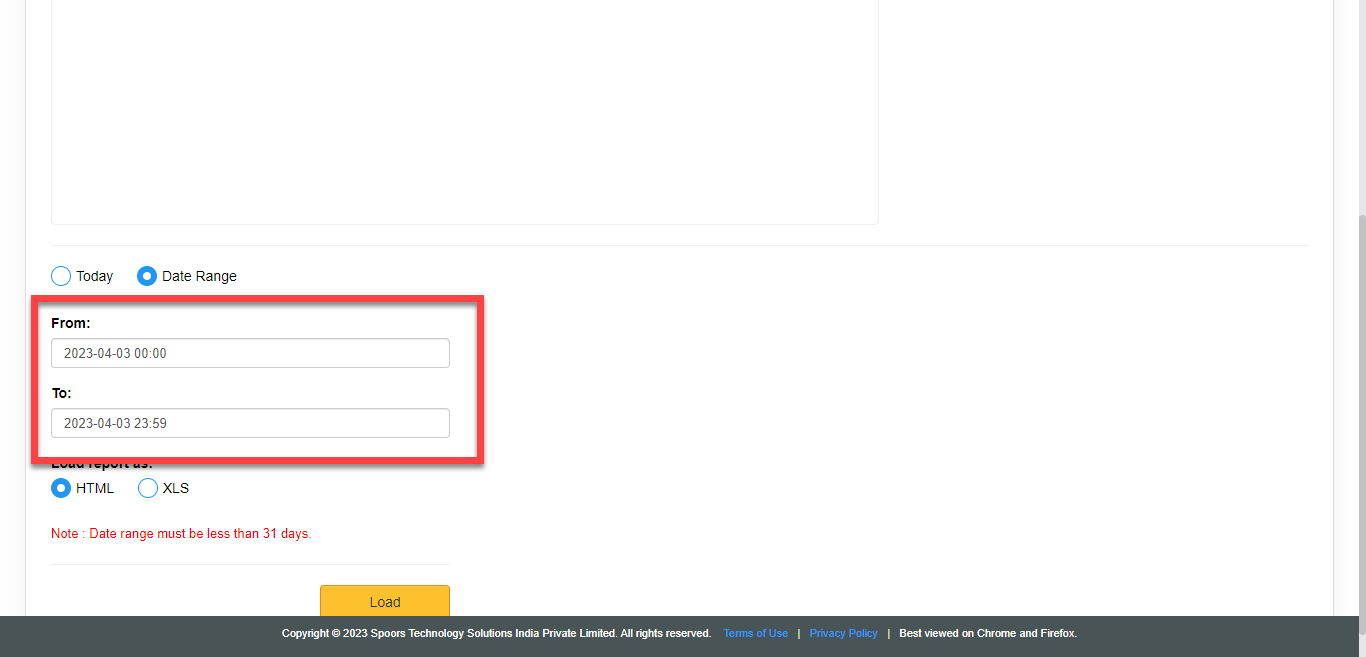
Both From and To default to today. - Optional:
In Load report as, select the output report
format.
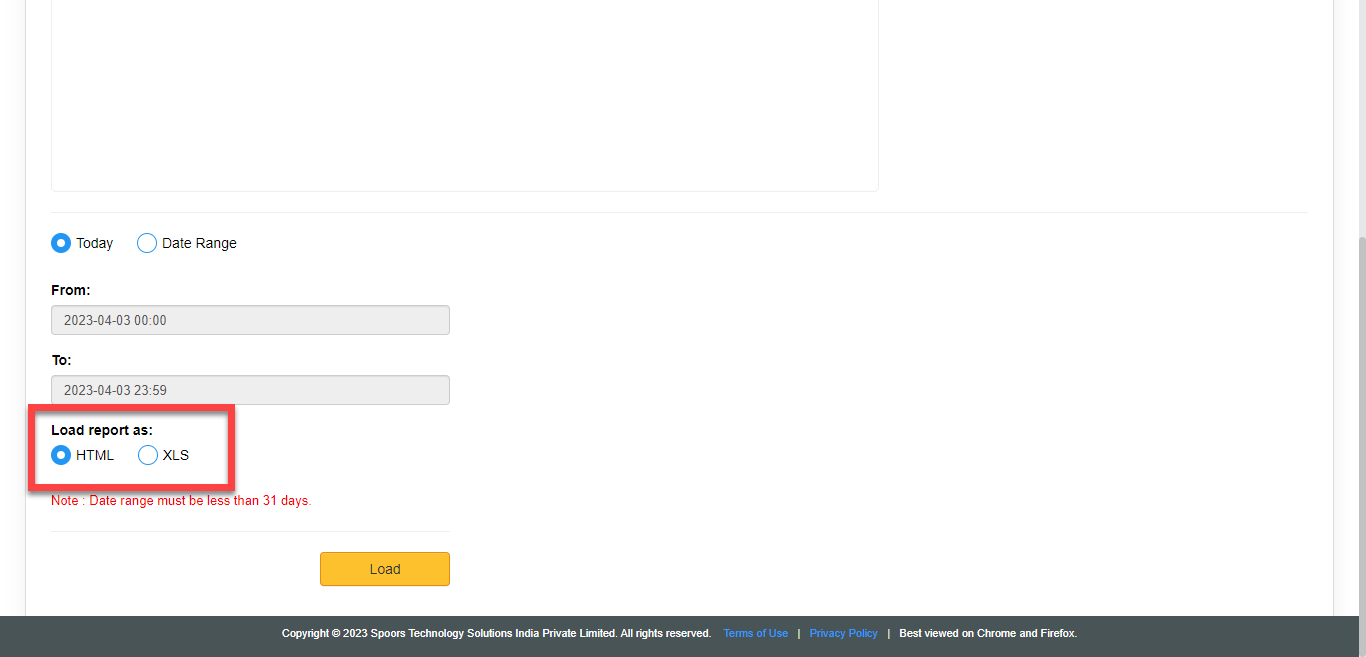
Load report as defaults to HTML. -
Click Load.
The Customer Activity Report is displayed depends on the report format.
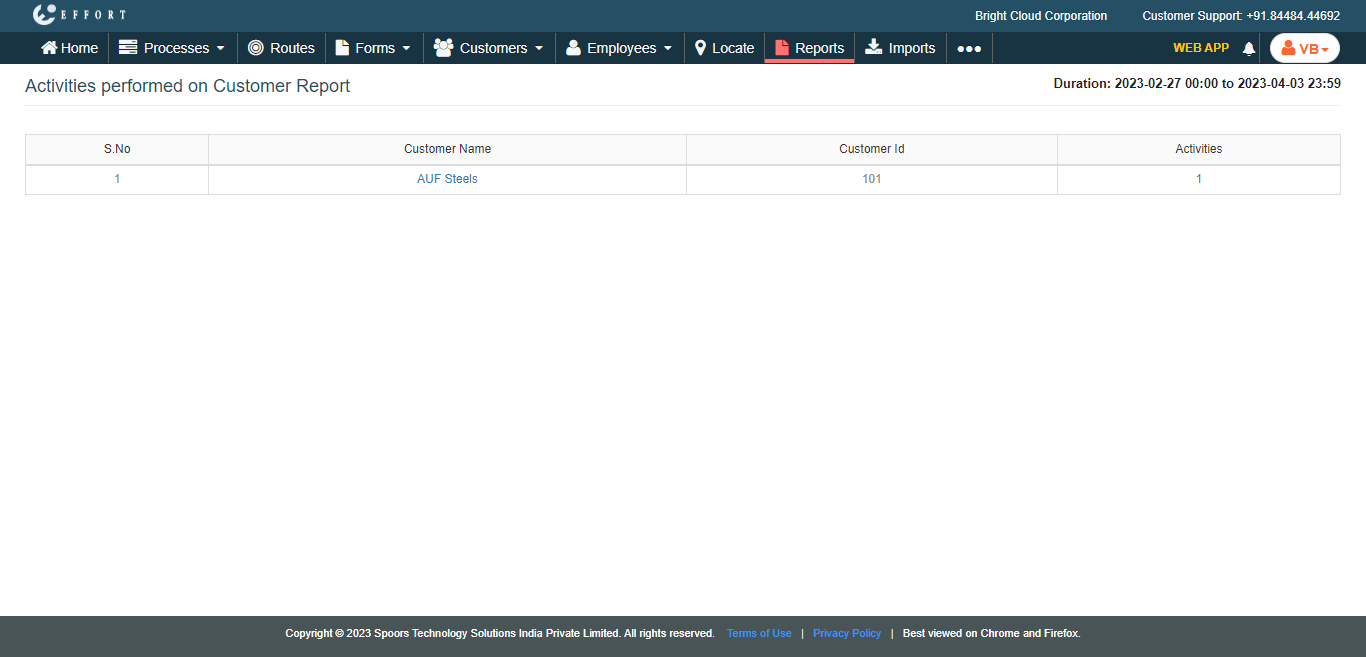
- Optional:
If you opted for HTML, click the number under the
Activities column to view activity details.