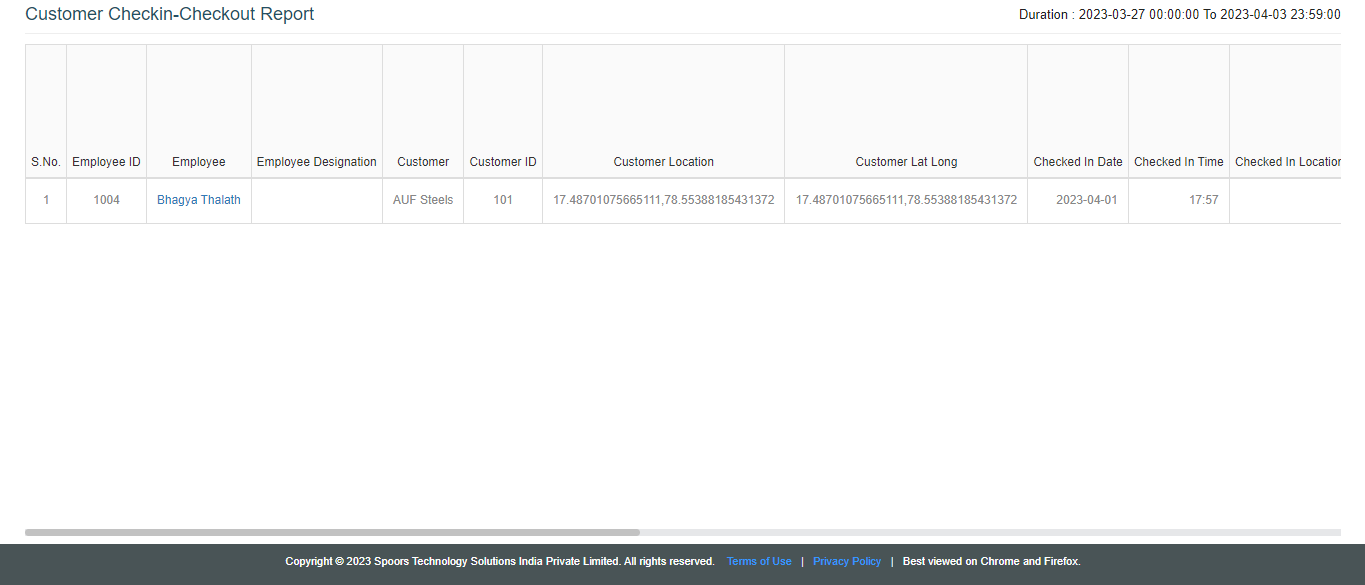
Generate a Customer CheckIn CheckOut Report
To generate a customer checkin checkout report, follow the steps below.
-
Go to .
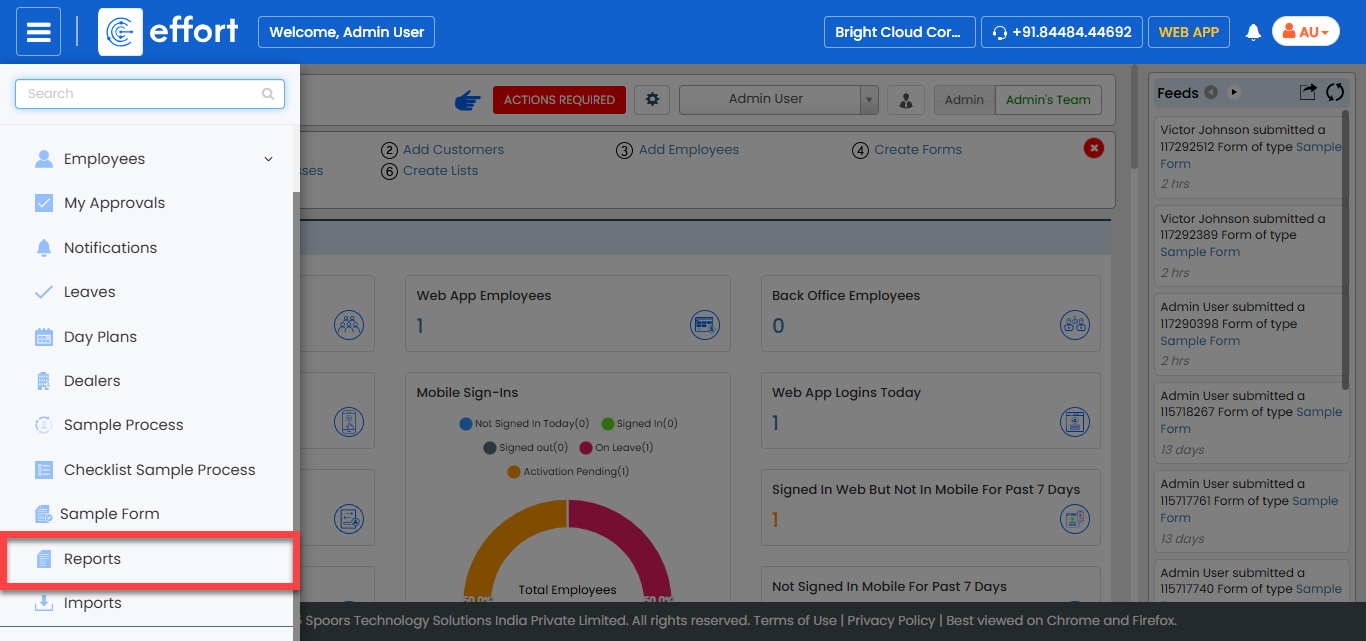
The Reports page appears.
- Scroll down to the Location Reports section.
-
Click the Customer CheckIn CheckOut Report link or
icon.
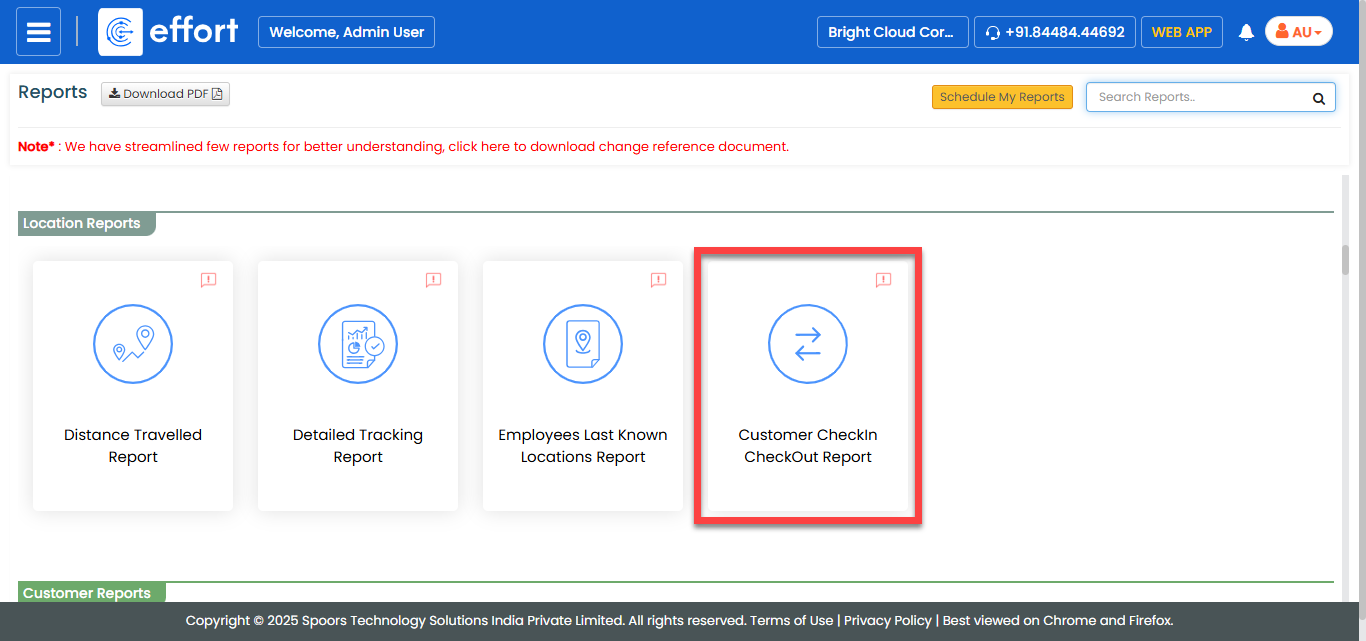
The Customer CheckIn CheckOut Report page appears.
-
Select employees from the employees list.
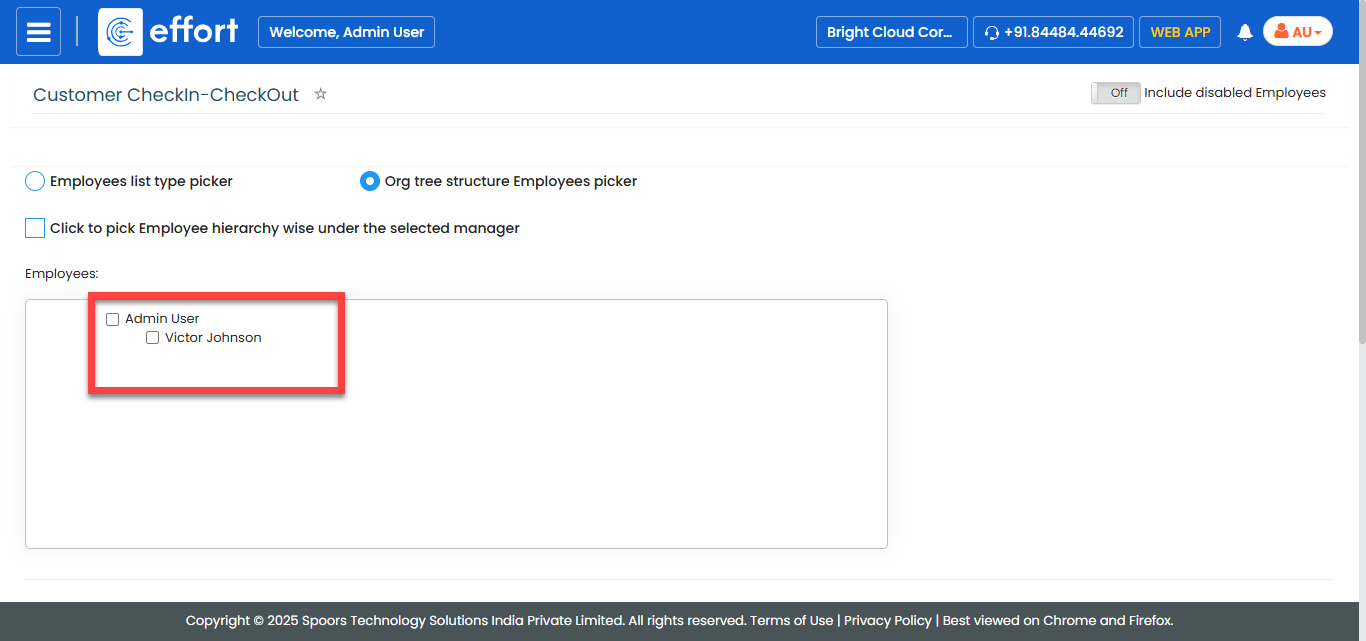
- Optional:
Change From and To dates as per
your requirement.
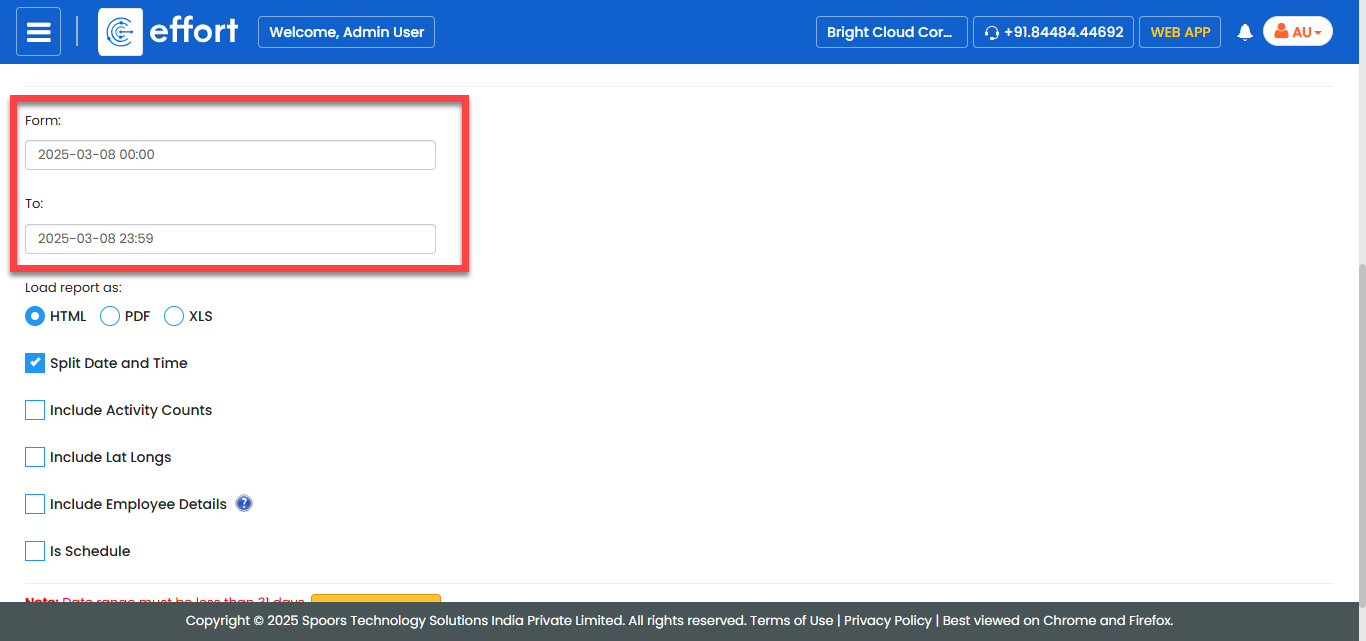
Both From and To default to today. - Optional:
In Load report as, select the output report
format.
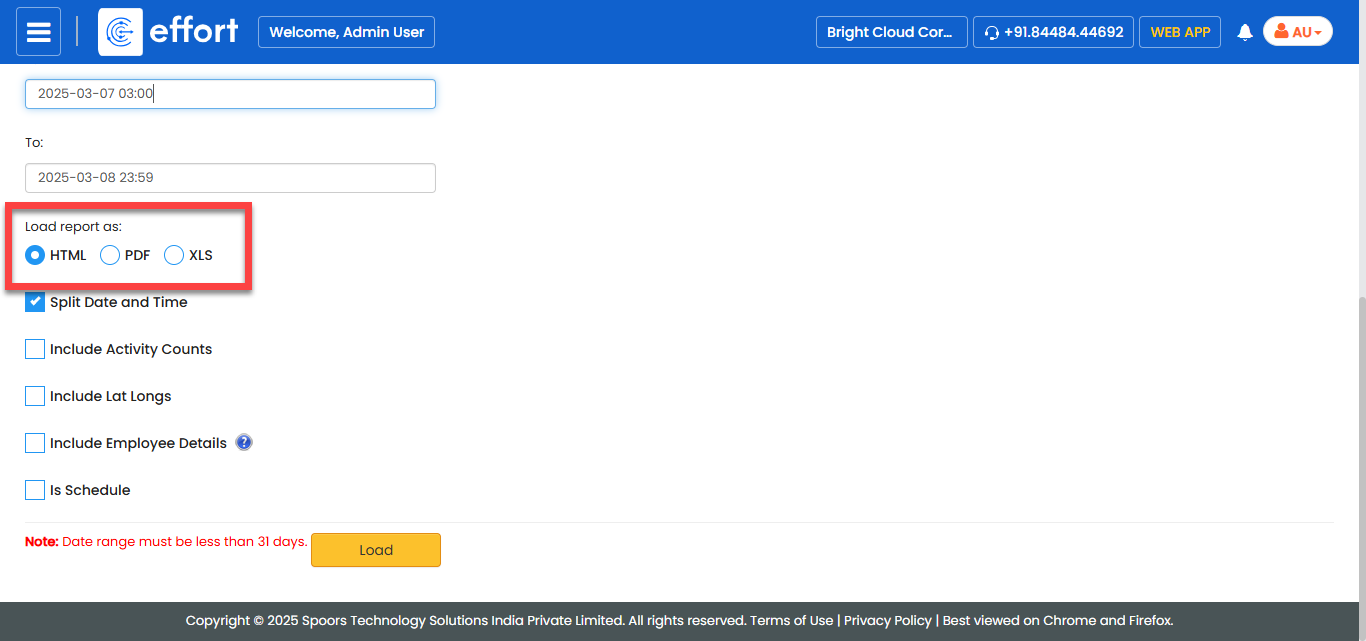
Load report as defaults to HTML. -
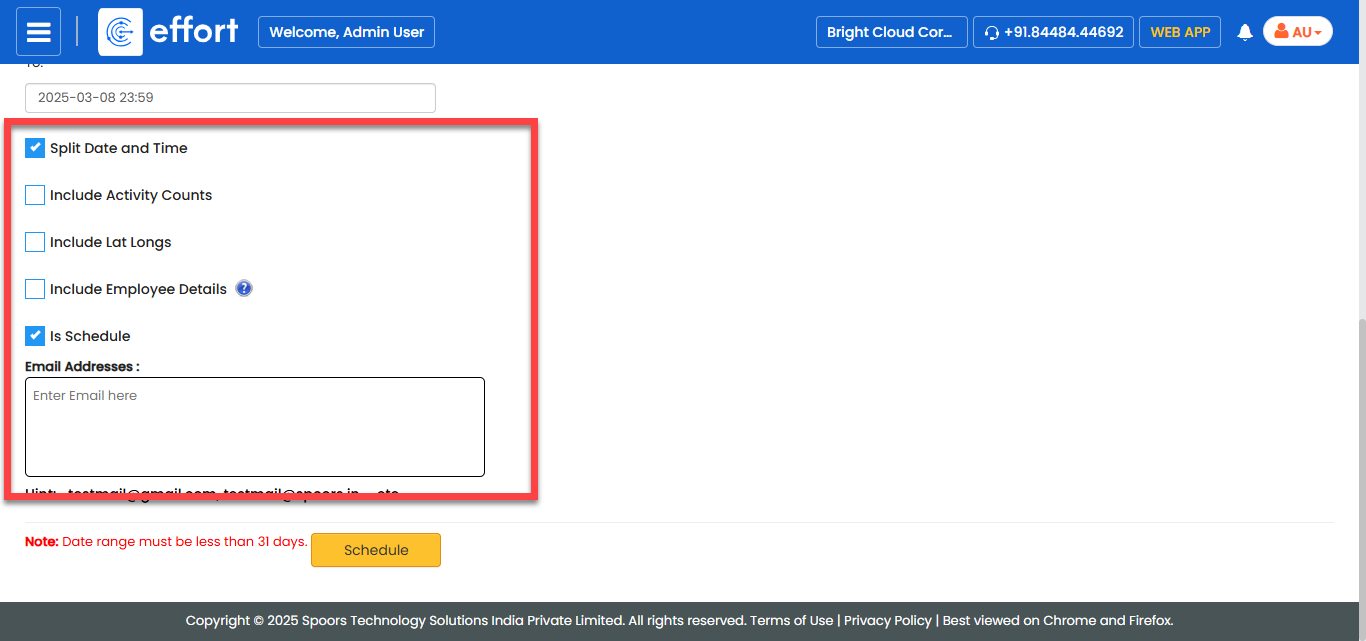
Enable the following options as per your requirement.
- Split Date and Time: Allows you to generate two separate columns for Checked In Date and Checked In Time in the report.
- Include Activity Counts: Allows you to generate additional columns such as Activities Performed At Customer Location and Activities Not Performed At Customer Location in the report.
- Include Lat Longs: Allows you to generate two separate columns for Customer Latitude and Customer Longitude in the report.
- Include Employee Details: Allows you to generate the report with the employee's details.
- Is Schedule: If selected, this option allows you to enter the email addresses to which you want to send the report.
-
Click Load.
The Customer CheckIn CheckOut Report is displayed depends on the report format.