

Configure Work Reassignment Rule
-
Go to .
The Processes page appears.
-
Click the Activity Process card.
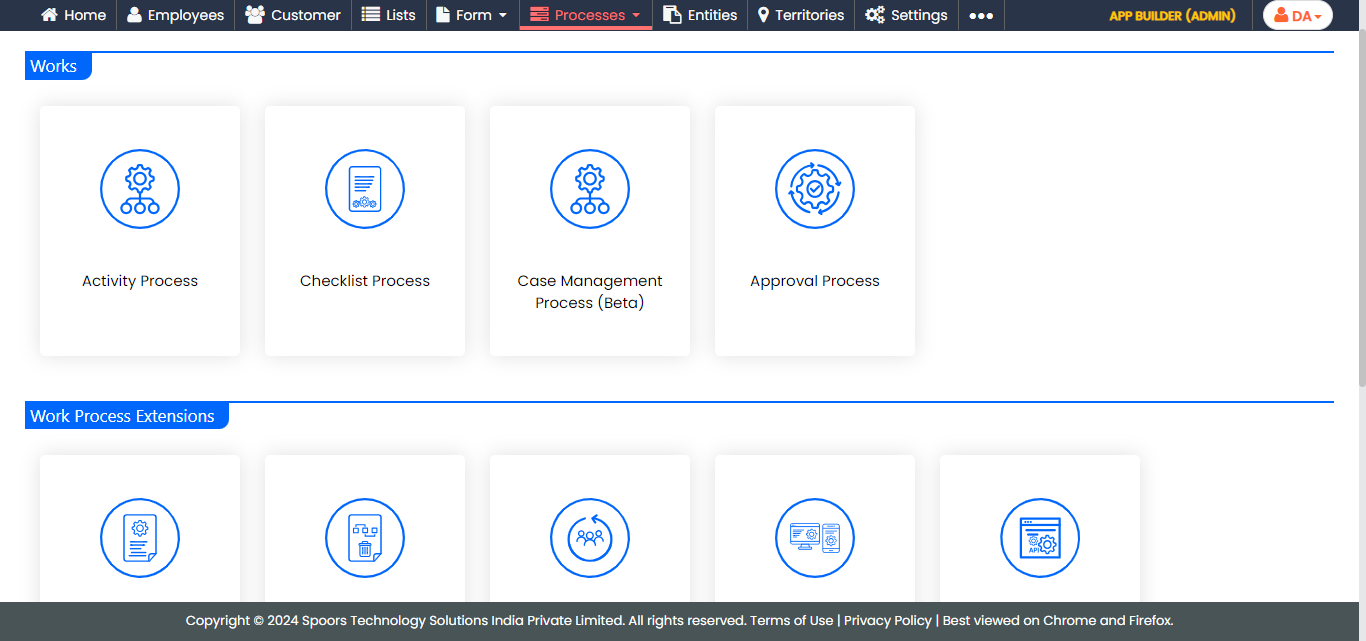
The Activity Process page appears.
-
Click the required process card.
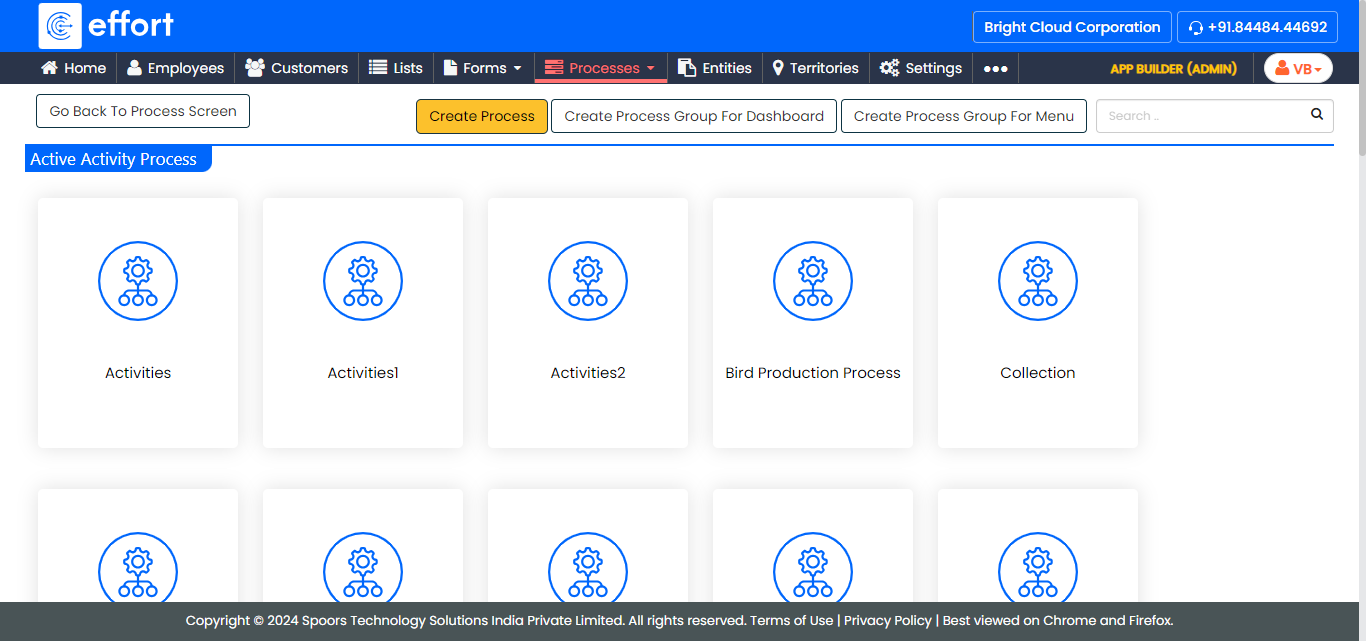
The <Work Process Name> Activities page appears.
-
Click the Manage Flow card under the Work
Process Essentials section.
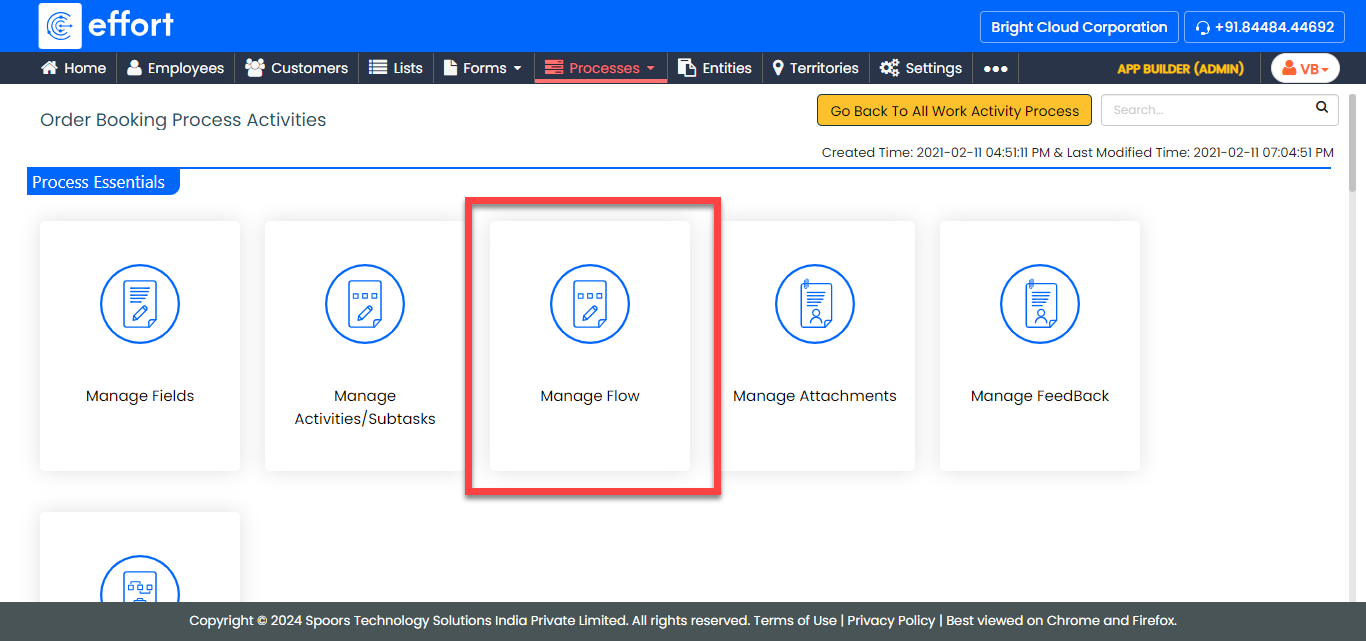
The Manage Work flow for <Work Process Name> page appears.
-
Click the Set Rule(s) button under the
Conditional Work Reassignments column.
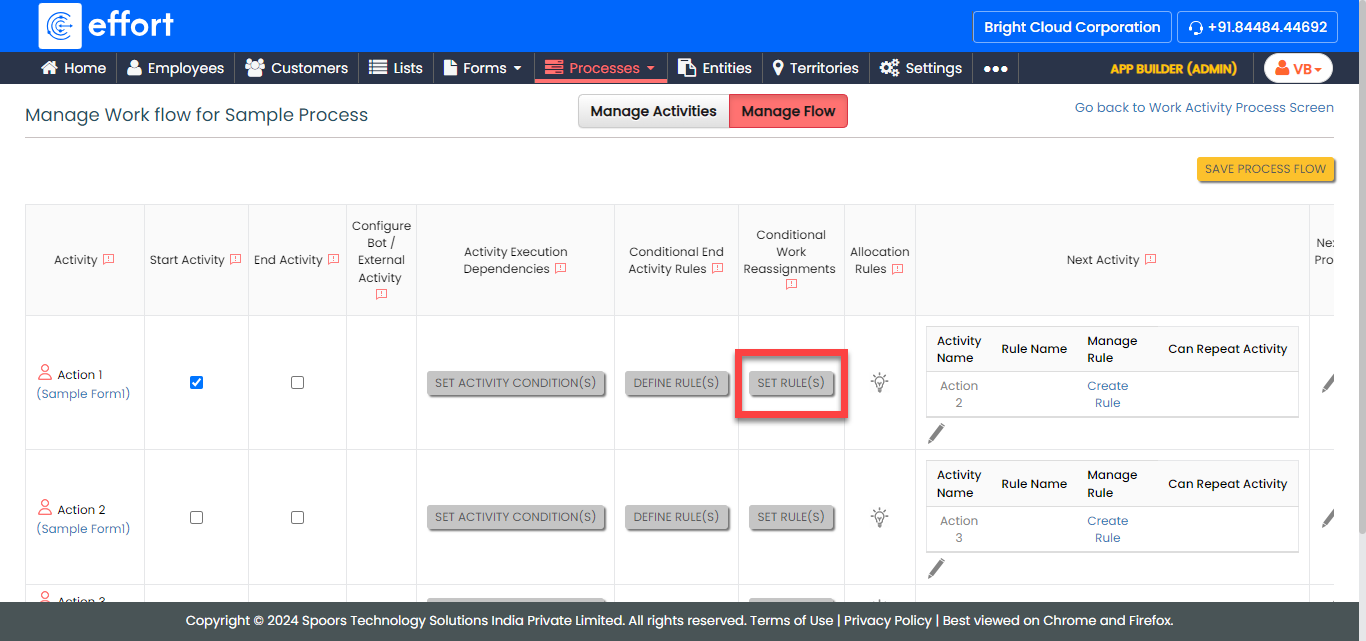
-
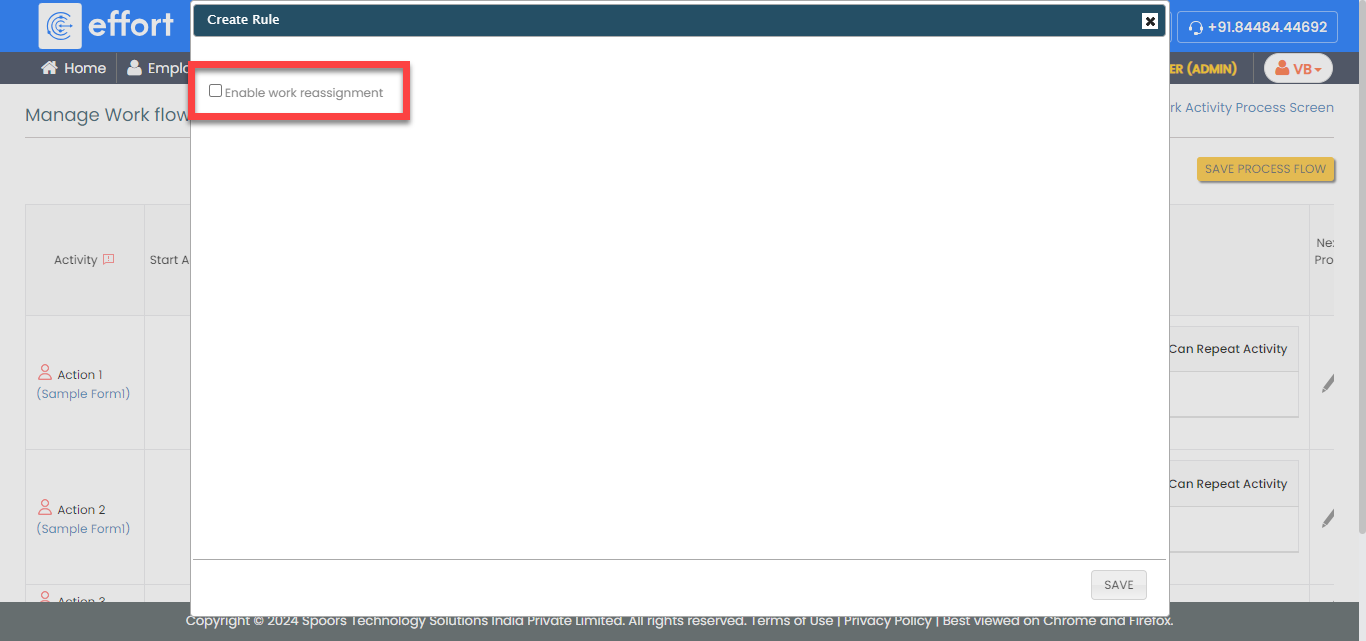
Click the Enable work reassignment checkbox.
-
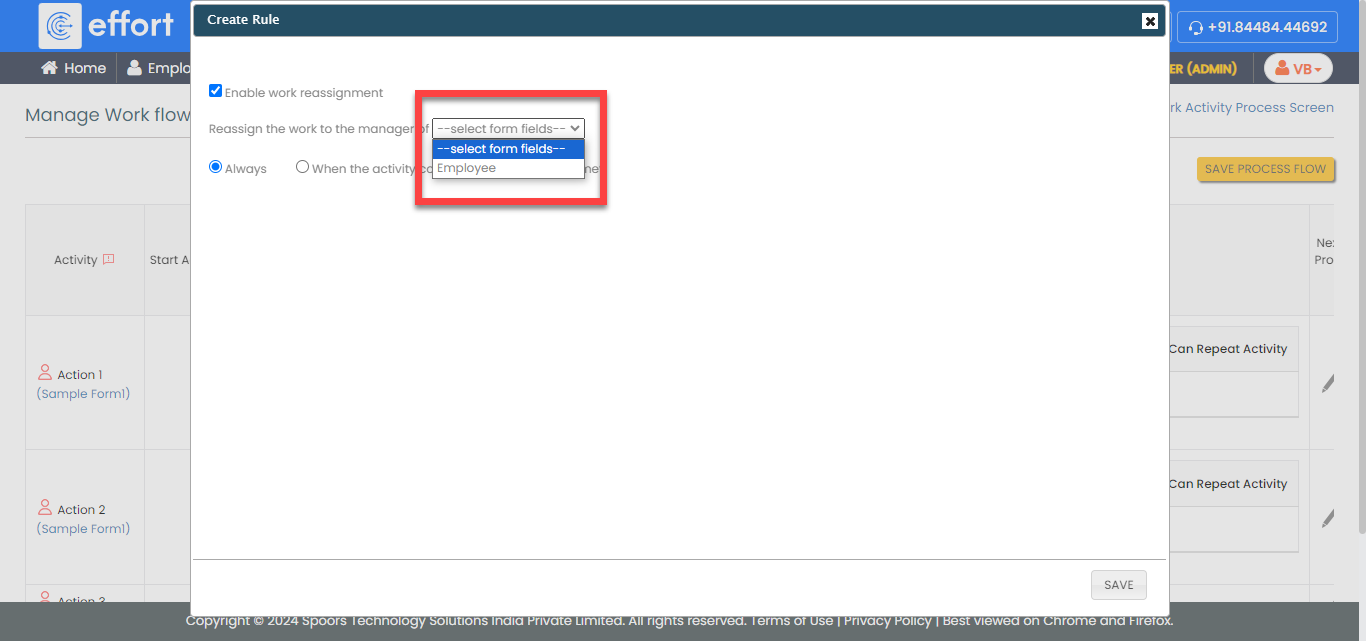
Select an employee field from the dropdown.
-
Select the reassignment option as per your requirement.
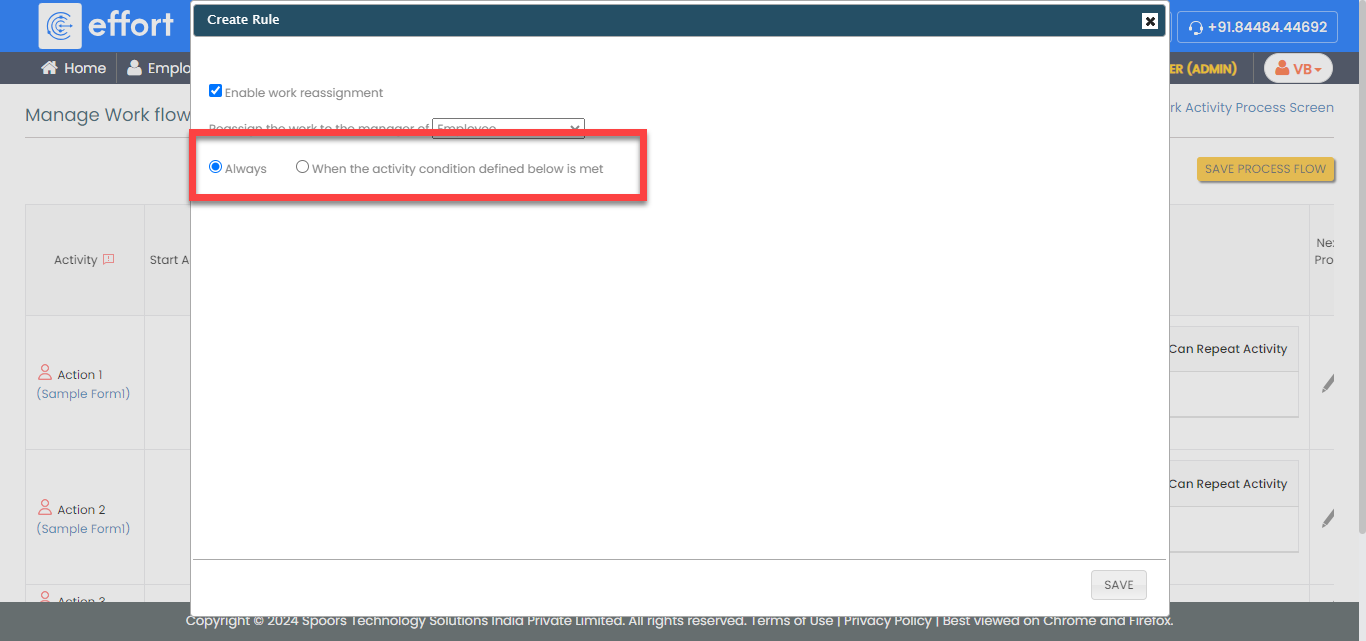
If you set option to Always, the works are always assigned to the employee's manager. -
If you select the When the activity condition defined below is
met option, click the Add Criteria button
and define the condition.
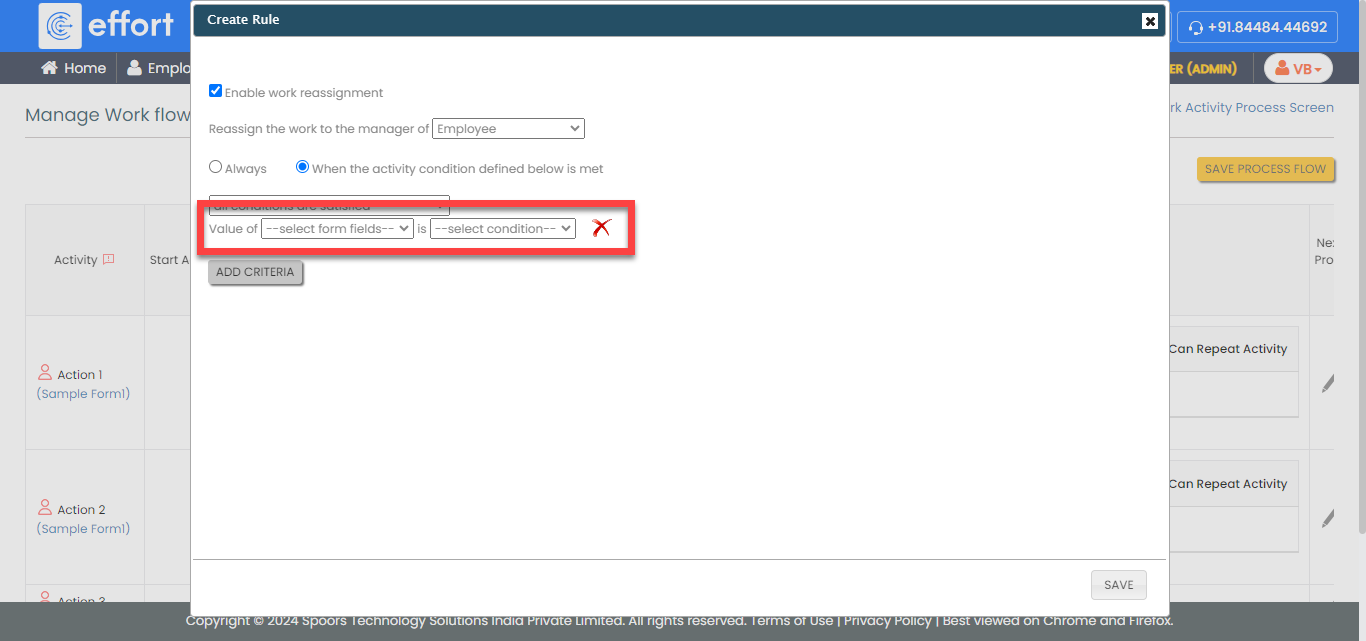
Click the Add Criteria button again to define more than one condition. - Click Save.
- Click Save Process Flow.