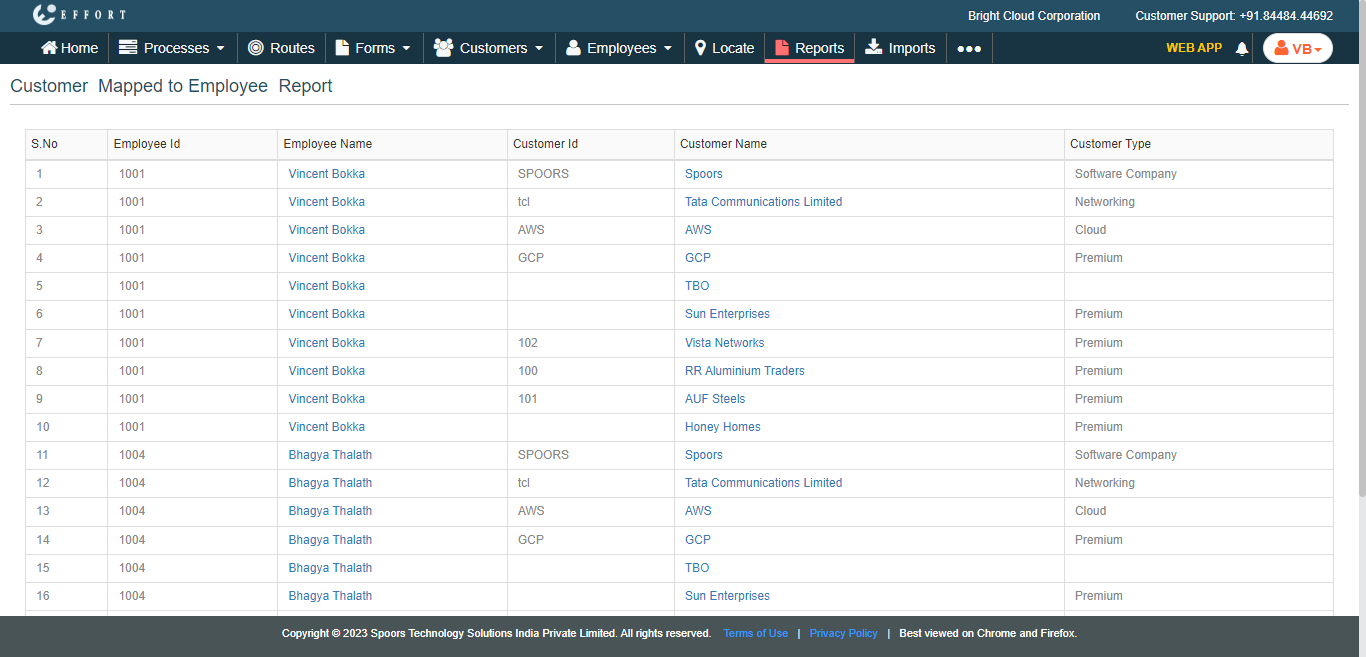
Generate Customer Mapped to Employee Report
To generate a customer mapped to employee report, follow the steps below.
-
Go to .
The Reports page appears.
- Scroll down to the Employee Activity And Performance Reports section.
-
Click the Customer mapped to Employee Report link or
icon.
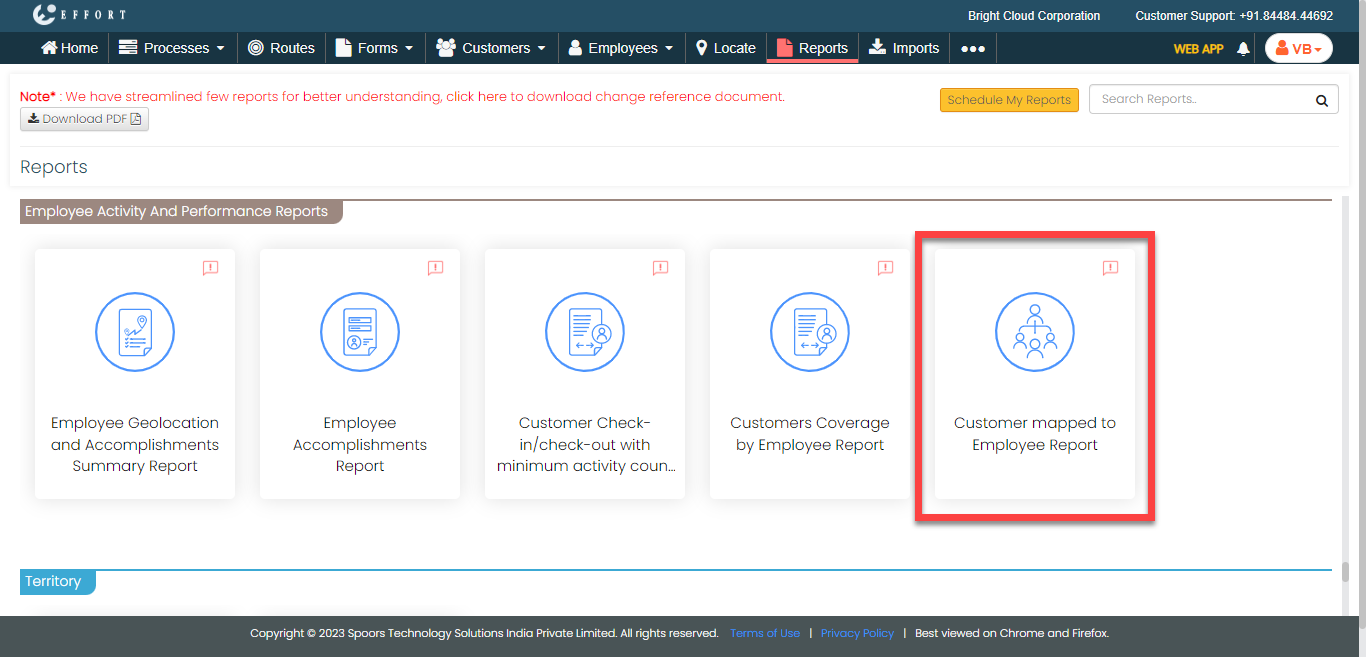
The Customer Mapped to Employee Report page appears.
-
Here you can generate the report based on the following:
- Employees: Allows you to generate the report of customers mapped to the selected employees.
- Customers: Allows you to generate the report of employees mapped to the selected customers.
-
Select the employees from the employees list if you want to generate report on
the basis of employees.
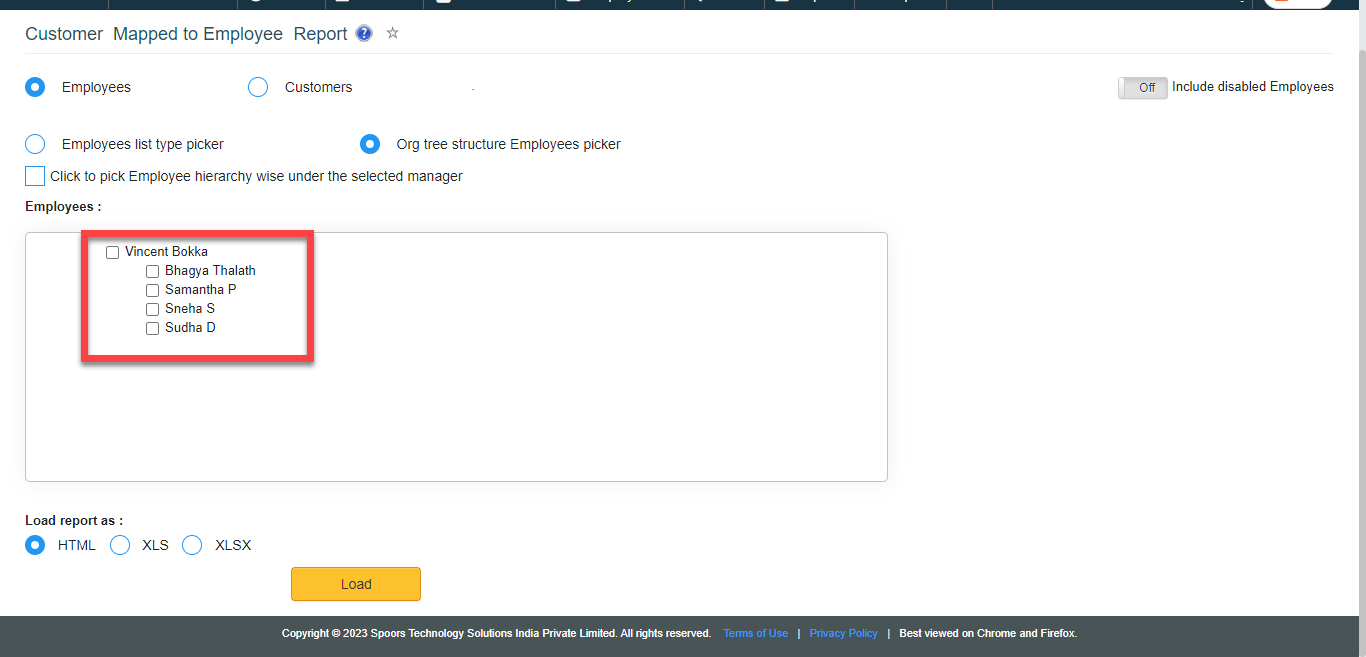
- Optional:
Select the Customers if you want to generate report on
the basis of customers.
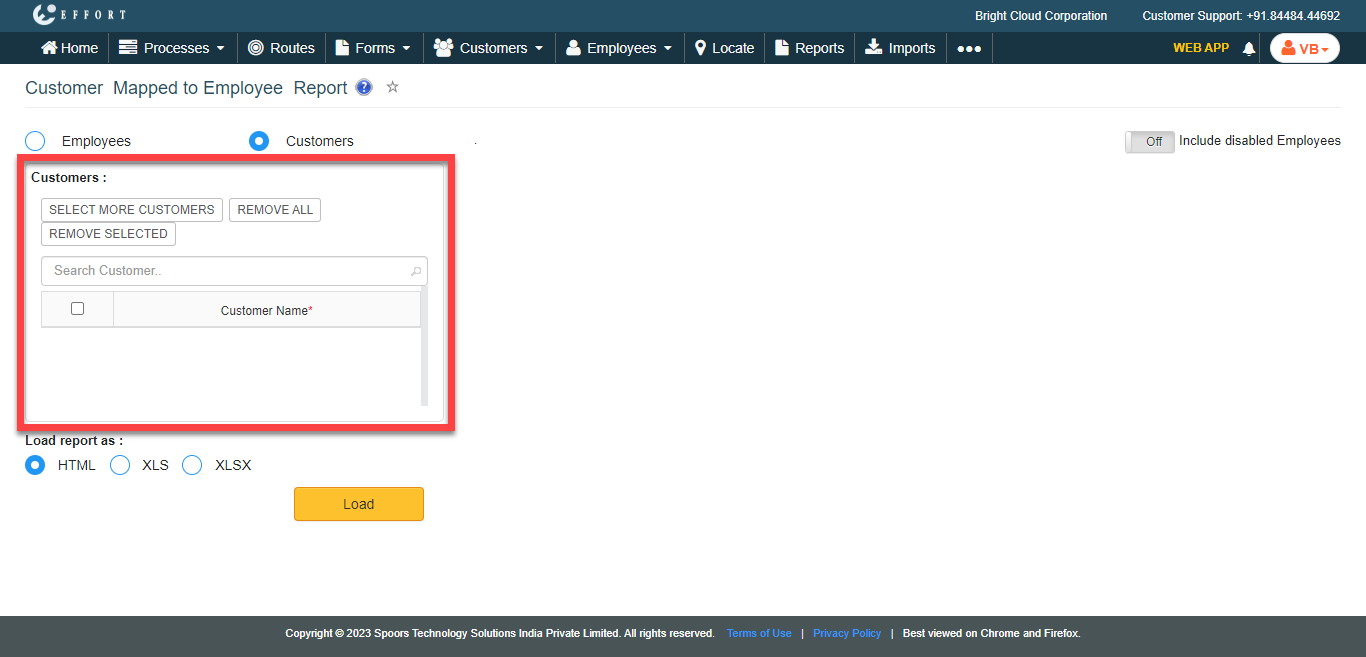
The report page defaults to Employees. - Optional:
In Load report as, select the output report
format.
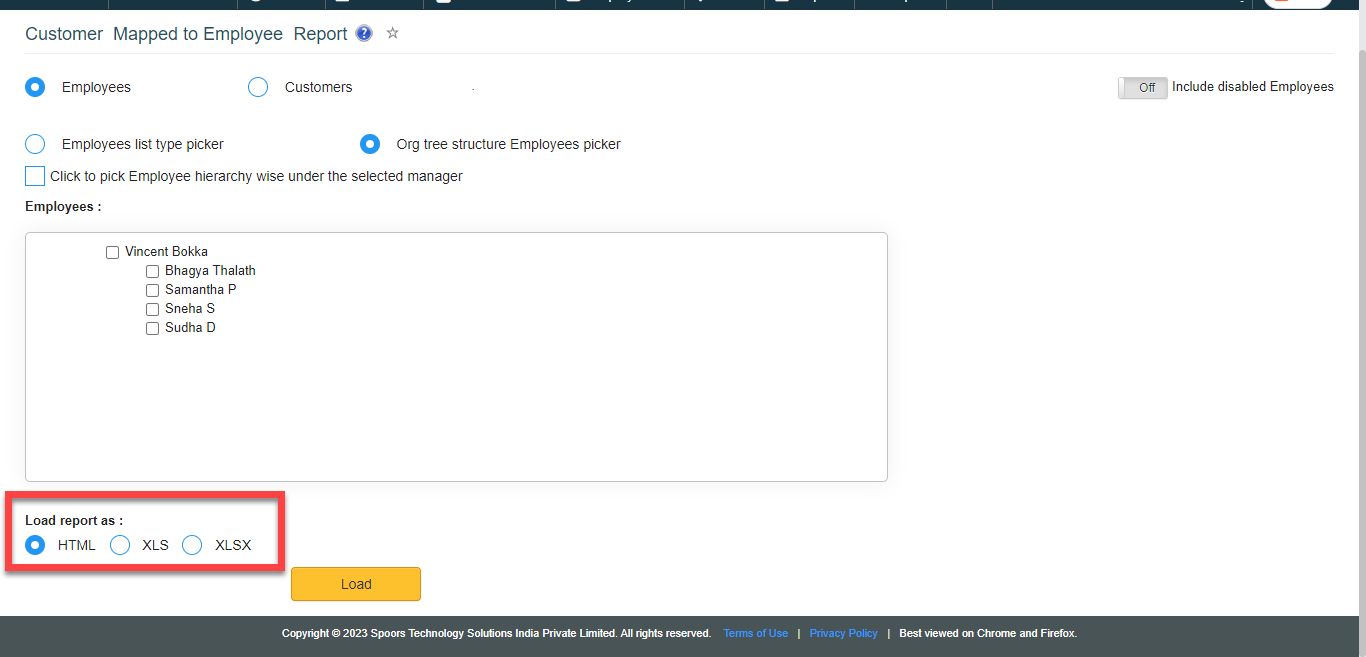
Load report as defaults to HTML. -
Click Load.
The Customer Mapped to Employee Report is displayed depends on the load report type.