

Import Reassignment for Work Action
To import reassignment for work action, follow the steps below.
-
Go to .
The Imports page appears.
-
Under the Employees section, click the Bulk
Work Action Reassignments link or icon.
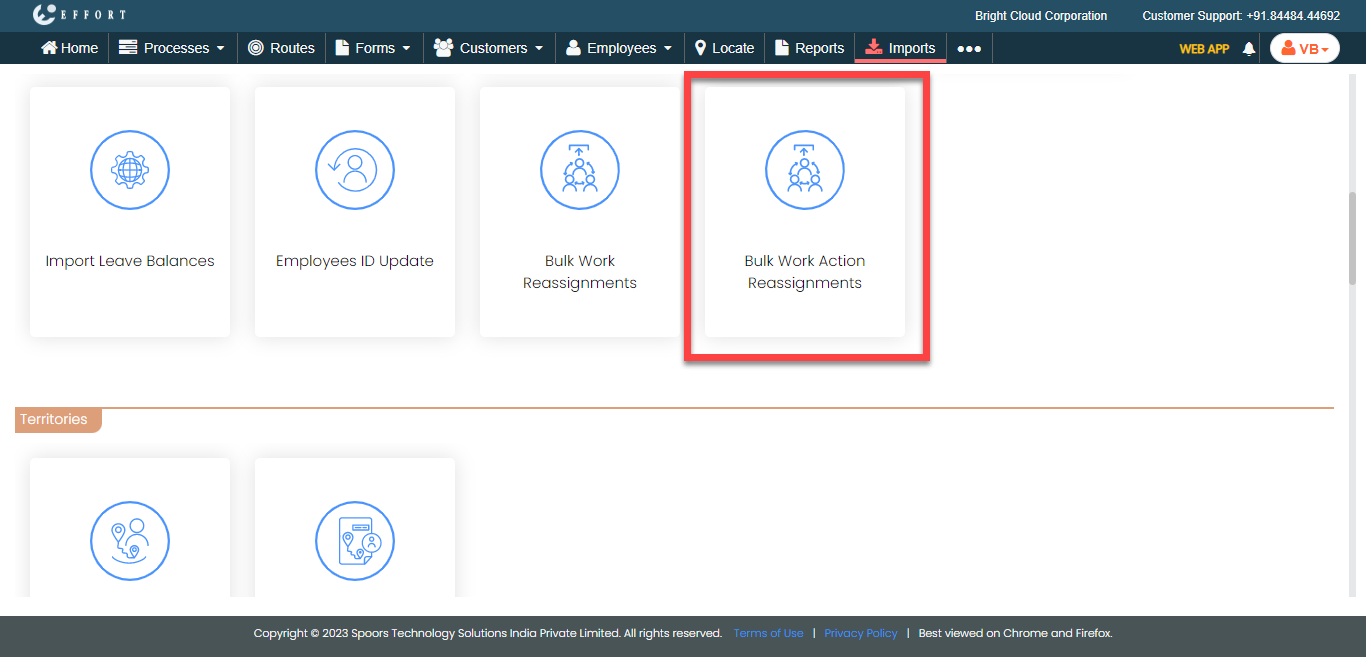
The Import Reassignment for Work Action page appears.
-
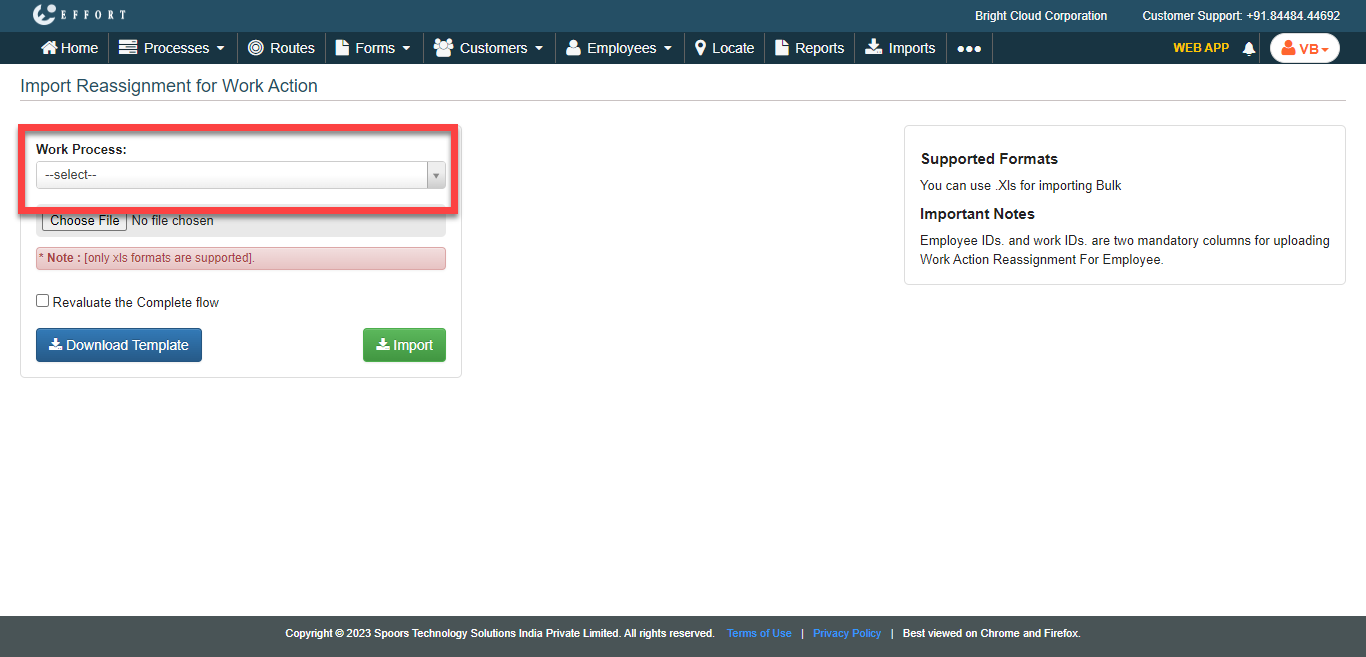
Select a Work Process from the dropdowsn.
-
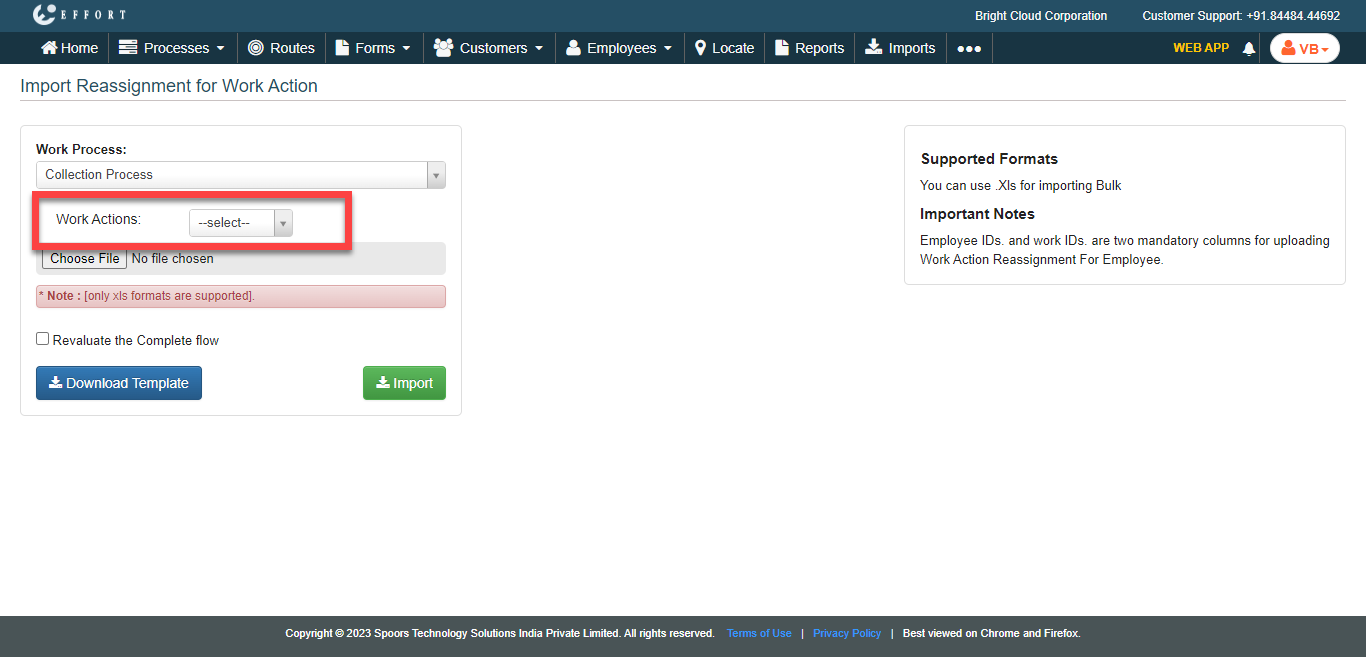
Select a work action from the Work Actions
dropdown.
-
Click the Download Template button to download the
template.
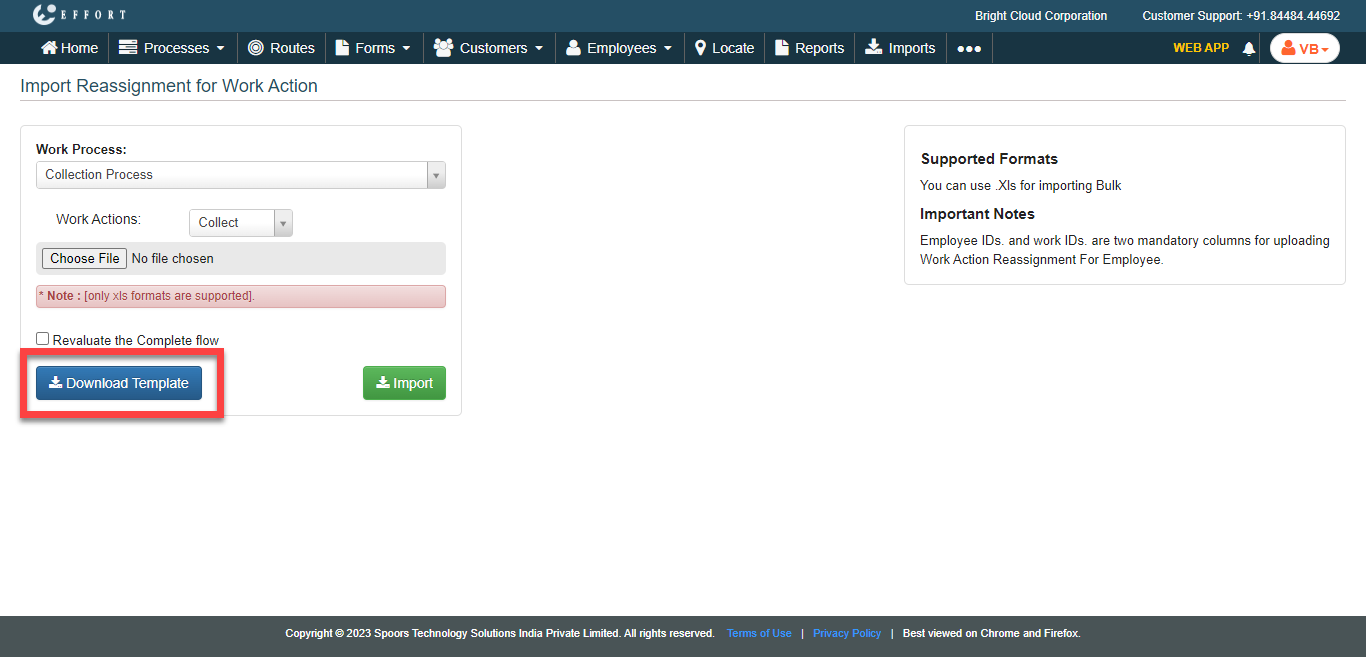
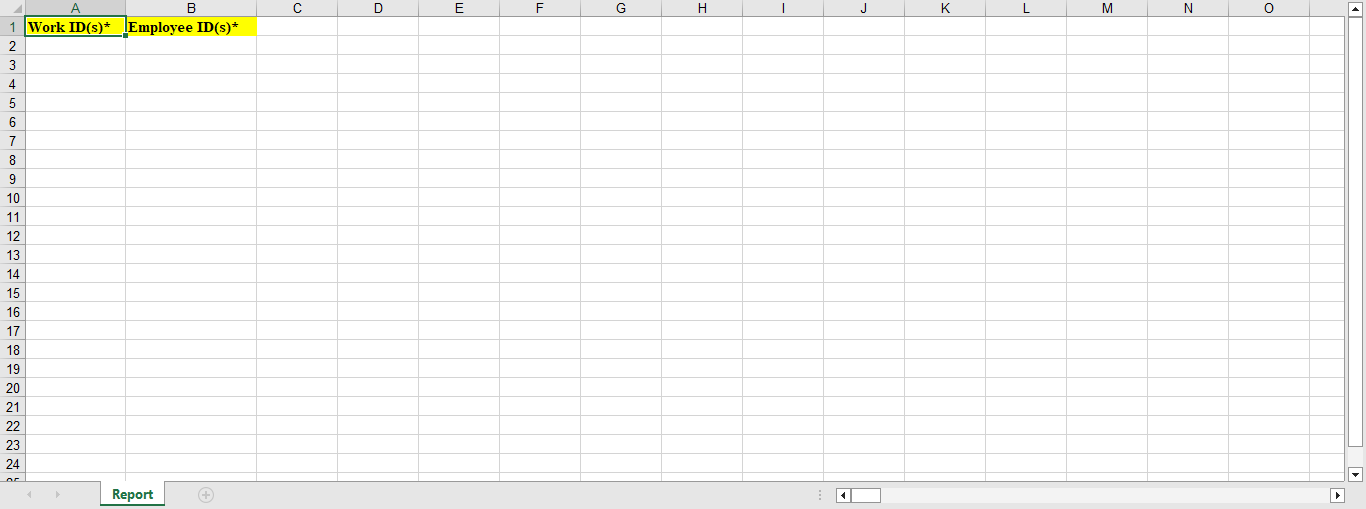
A blank Excel sheet is downloaded.
-
Fill in the excel sheet as per the instructions listed in the Supported Formats
to upload the data.
-
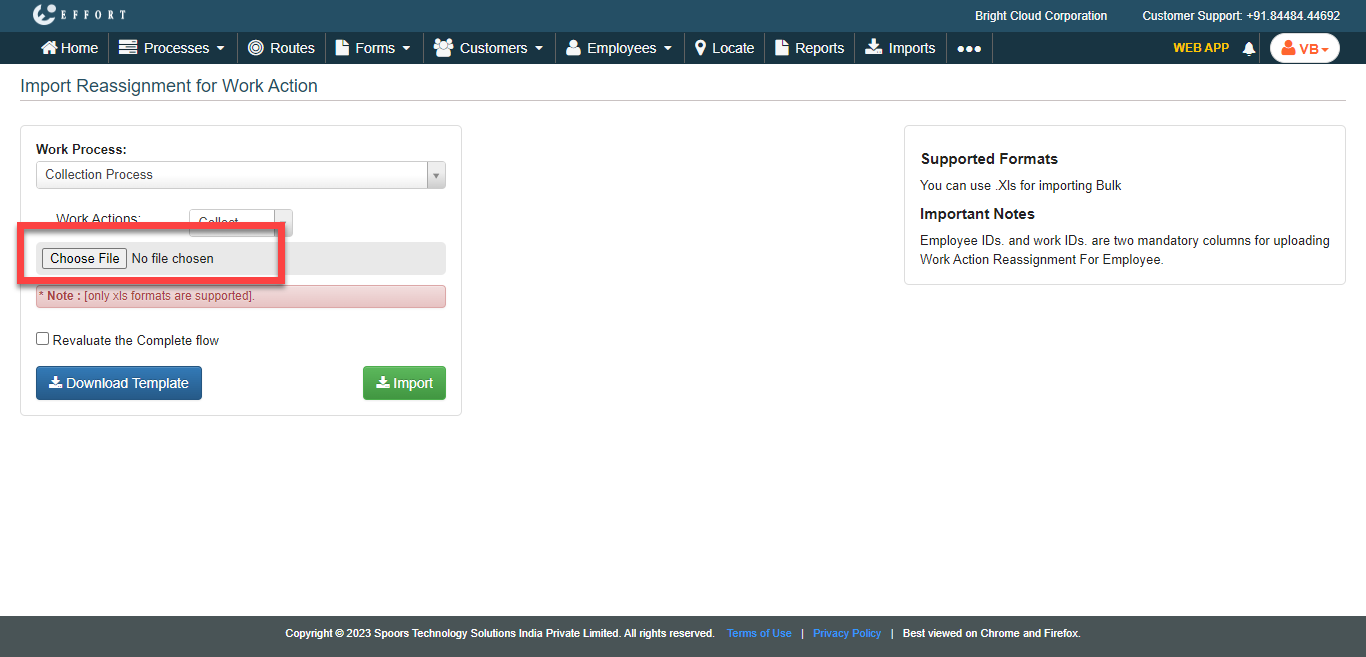
Click the Choose File and select the filled excel
sheet.
- Optional:
Click the checkbox Revaluate the Complete flow to
….?
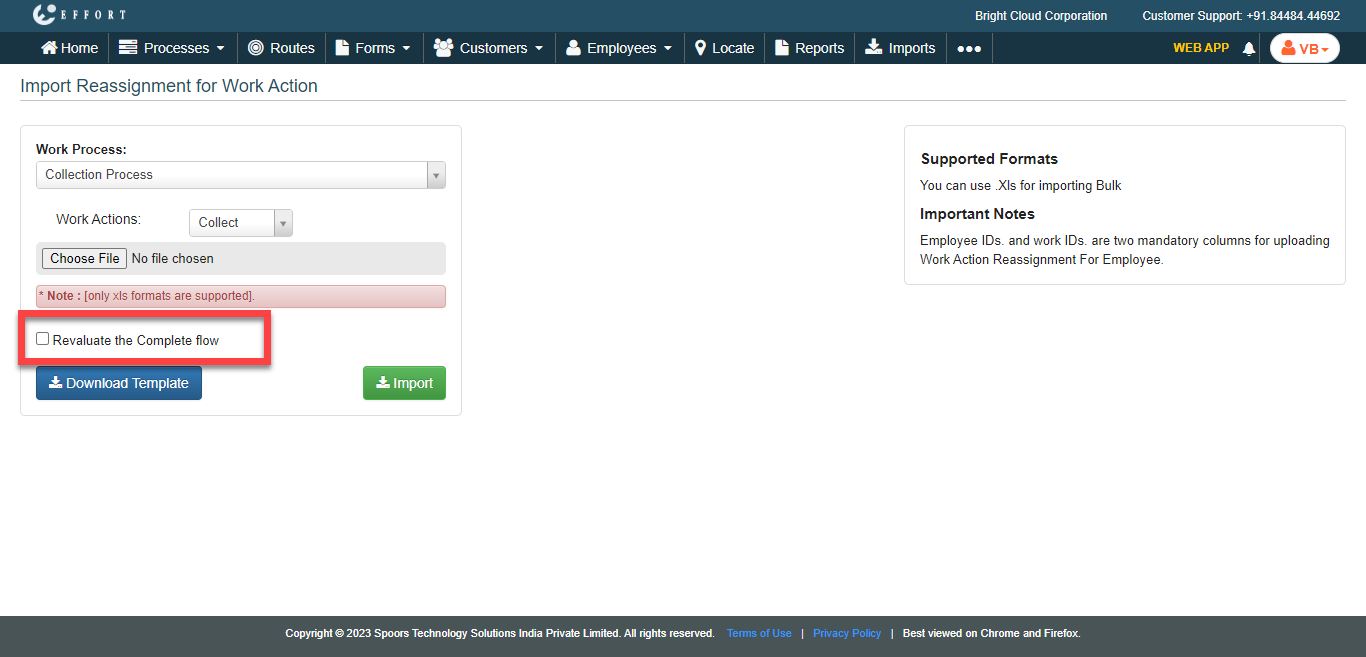
- Click Import.