

Create Back Office Permission Sets
To create back office permission sets, follow the steps below.
-
Go to App BuilderEmployees.
The Employees page appears.
- Scroll down to the Permissions & Settings section.
-
Click the Back Office Permission Sets card.
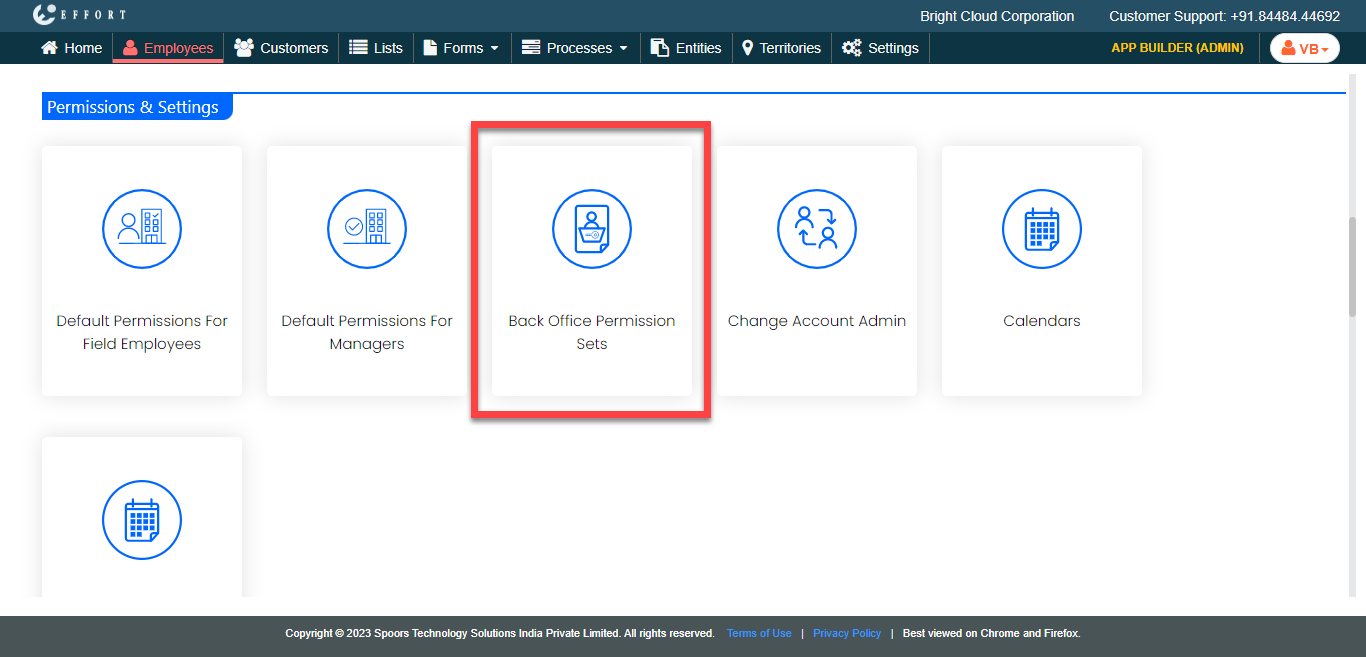
The Back Office Permission Sets page appears.
-
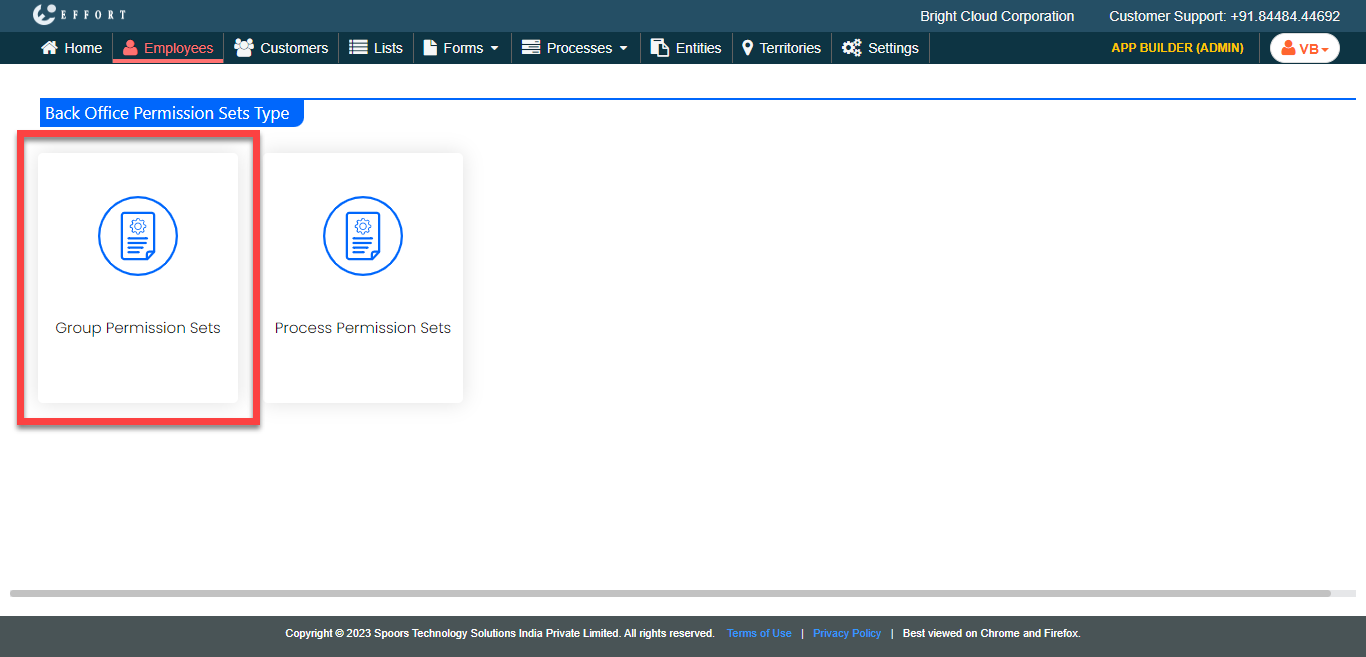
Click the Group Permission Sets card.
-
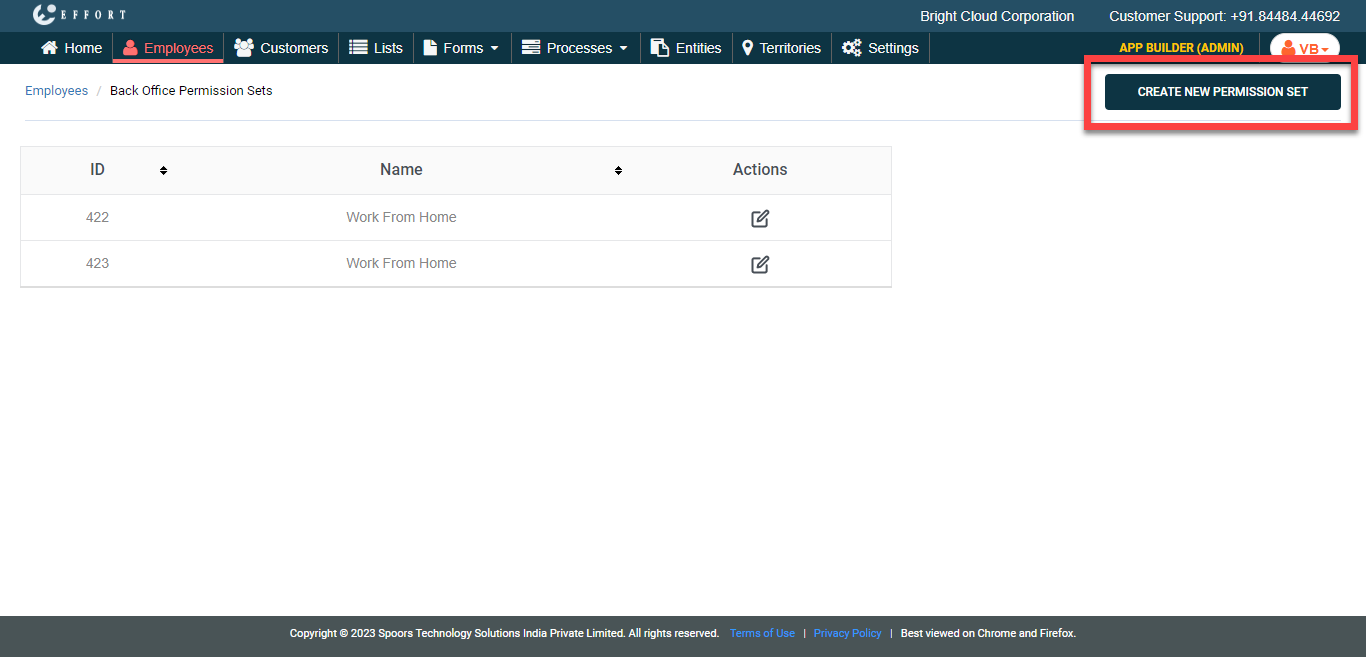
Click the Create New Permission Set button.
-
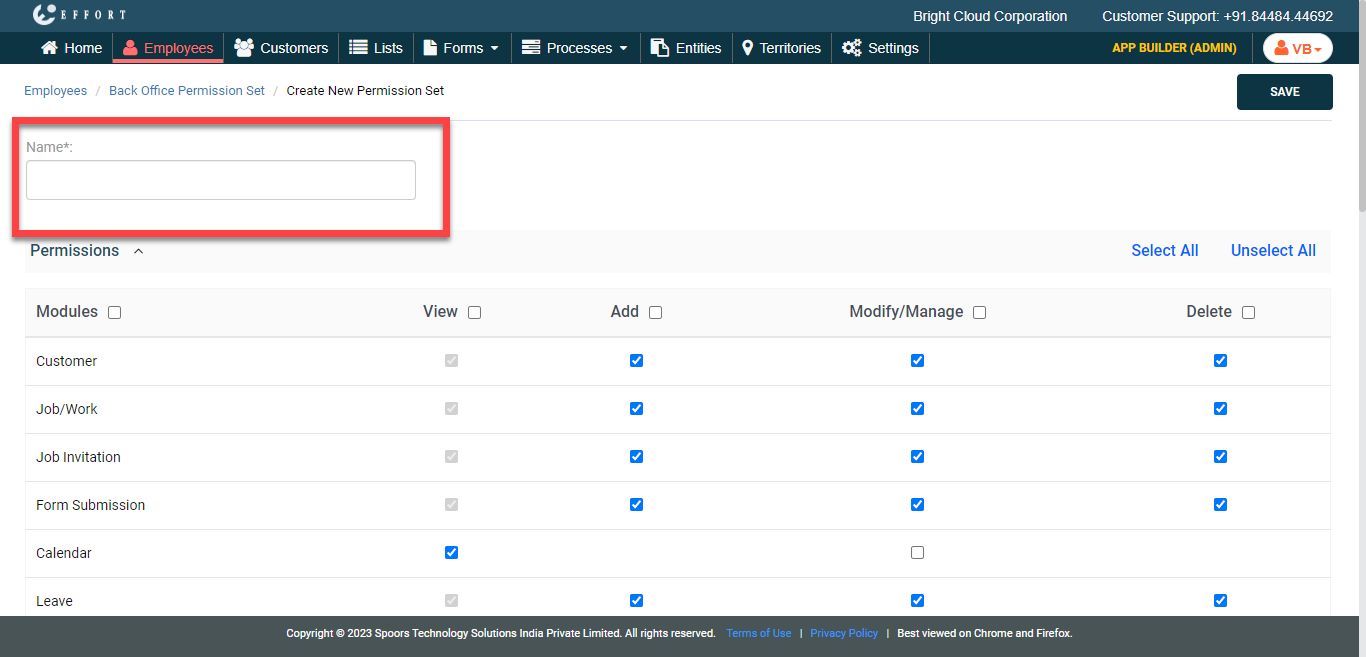
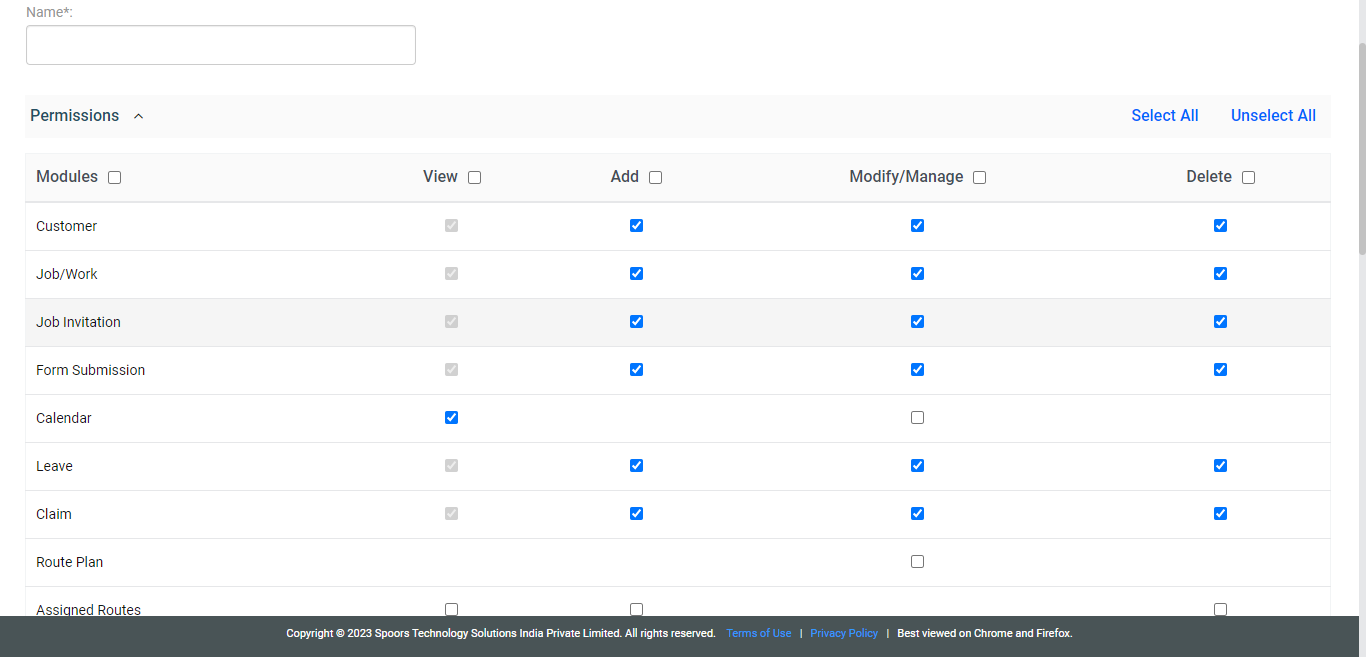
In the Name textbox, enter a name for the permission
set.
-
In the Permissions section, select the checkboxes for
the appropriate modules to enable the permissions.
-
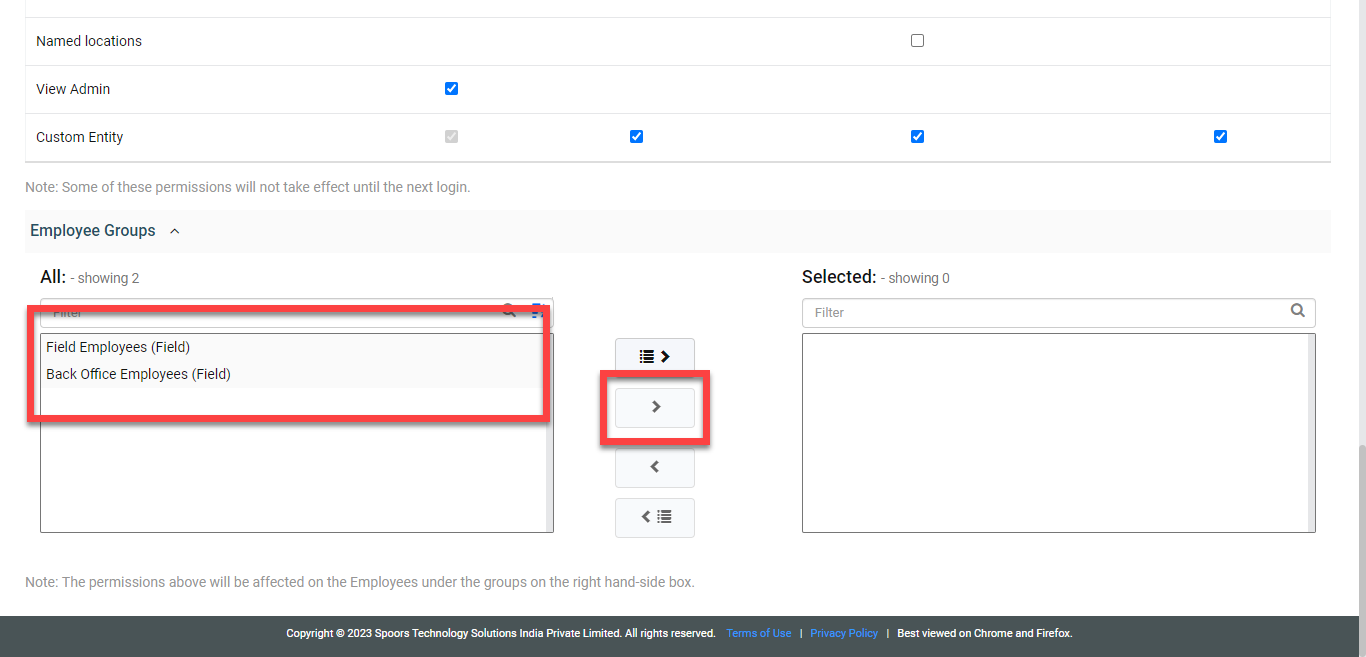
In the Employee Groups section, select the employee
groups in the All list selection pane and click the
buttons to move them to the Selected selection
pane.
- Click Save.