

Map Customers
To map customers to an employee, follow the steps below.
-
Go to .
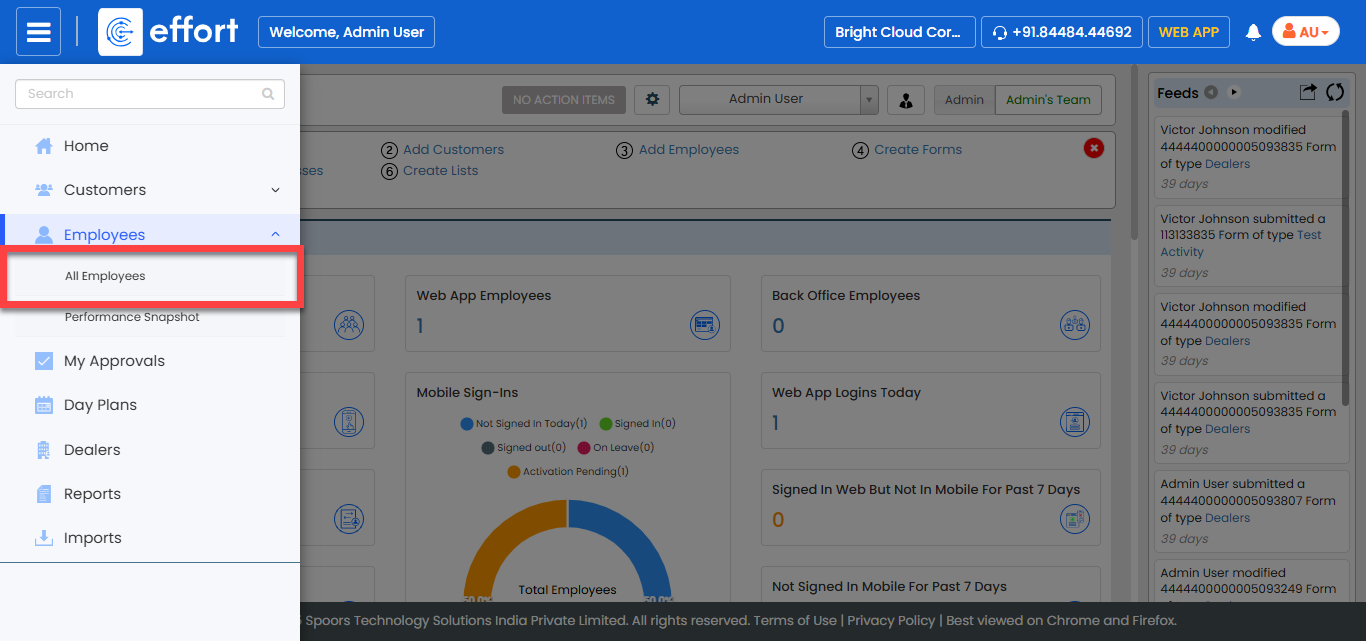
The All Employee page appears.
-
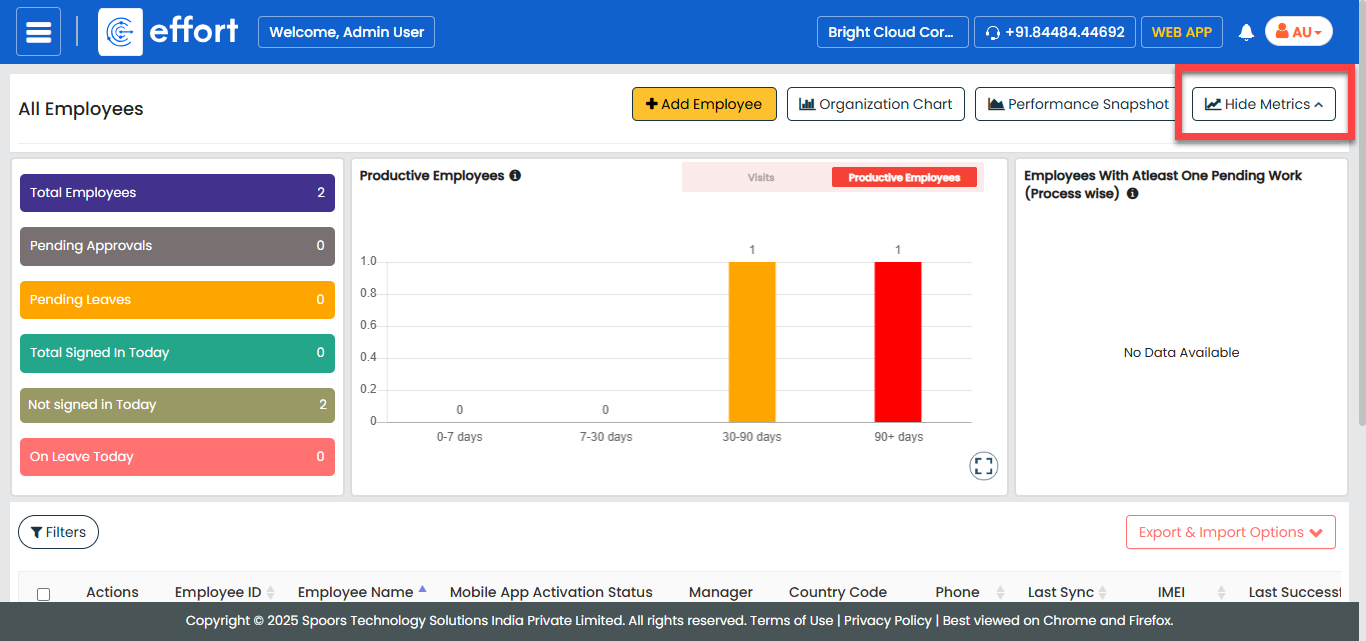
Click the Hide Metrics button to view all the
employees.
-
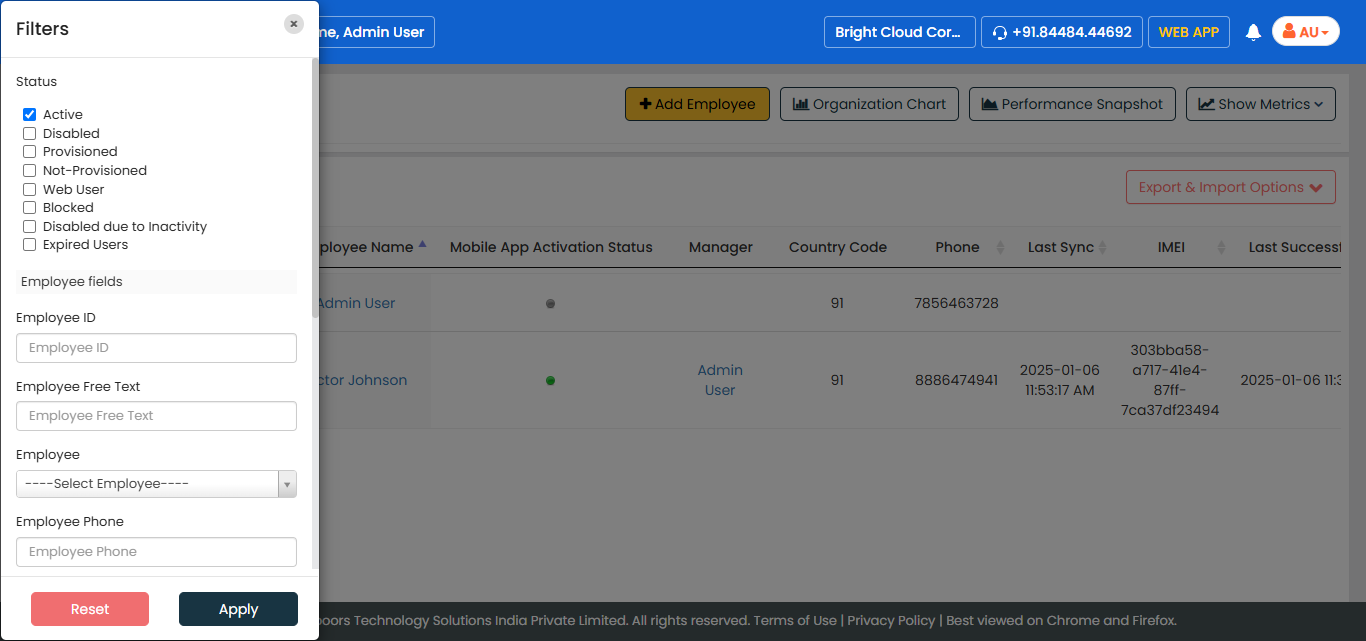
Click the Filters button and apply the filter options to
find the employee you want to map customers.
-
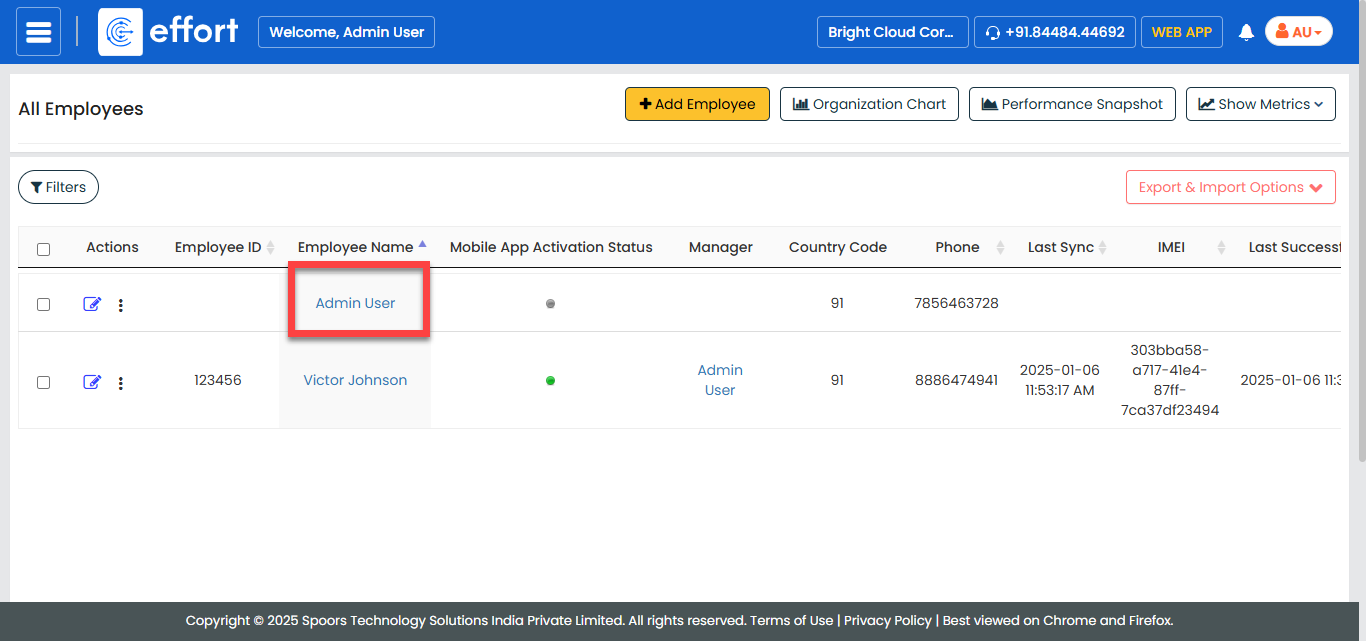
Under the Employee Name column, click the employee
name.
-
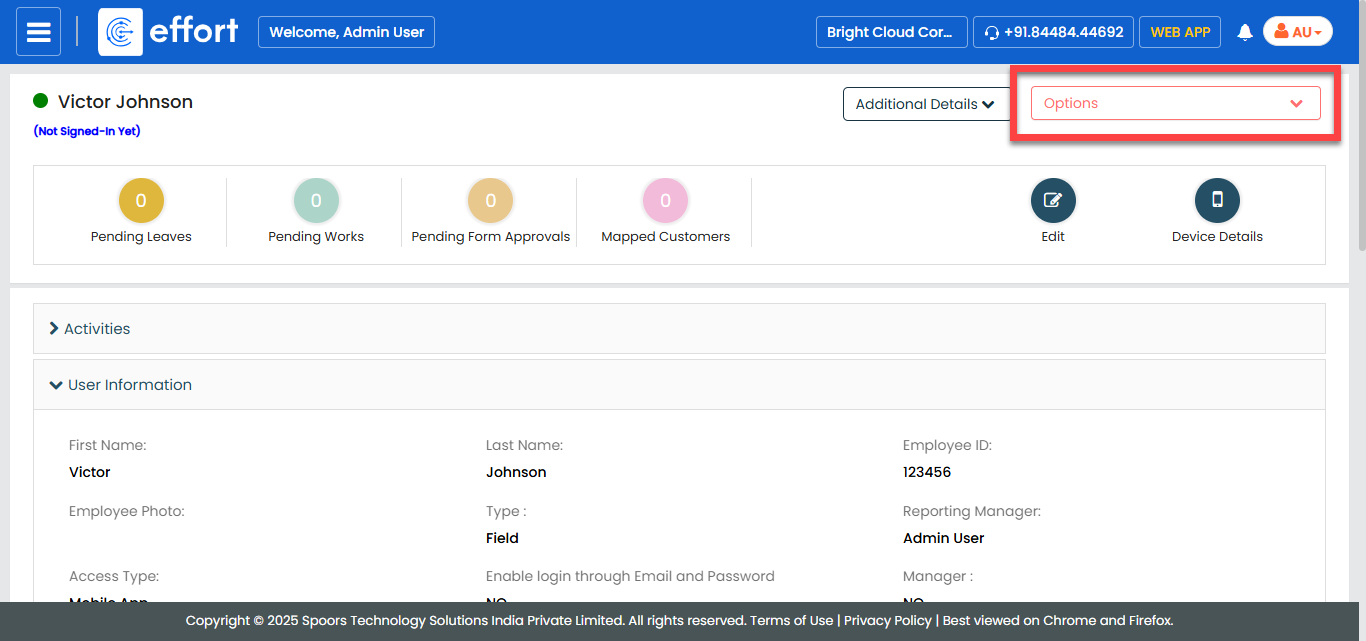
Click the Options dropdown.
-
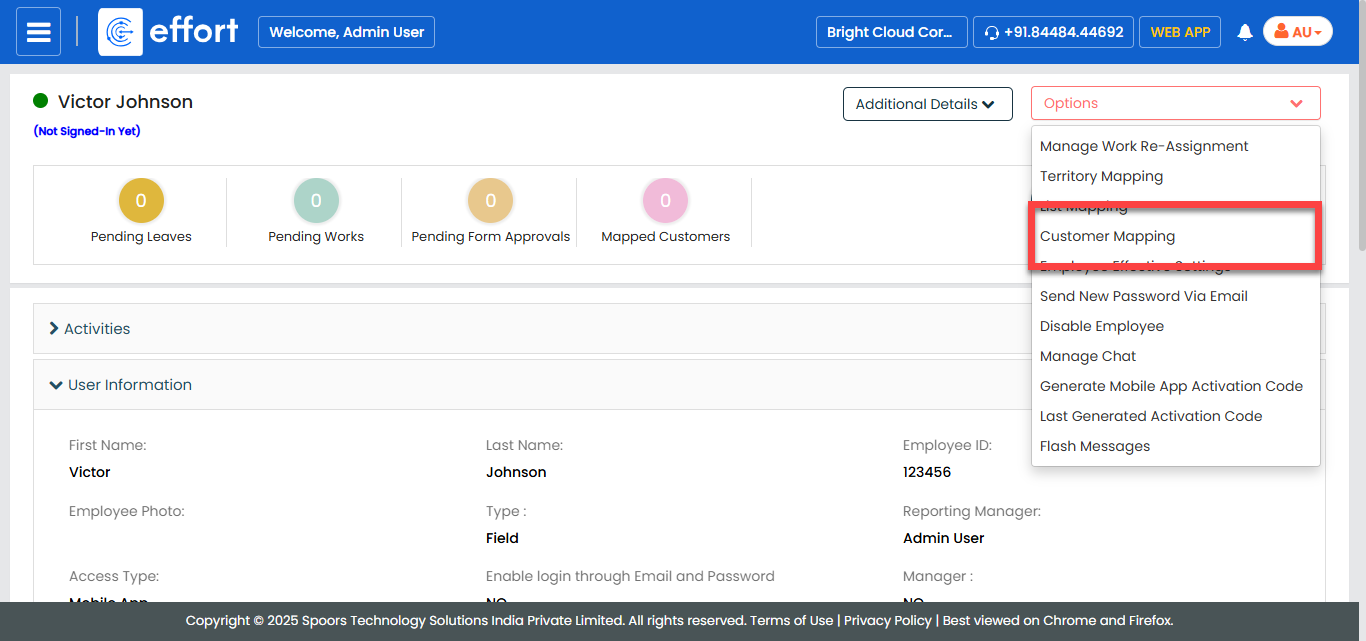
Click the Customer Mapping option.
-
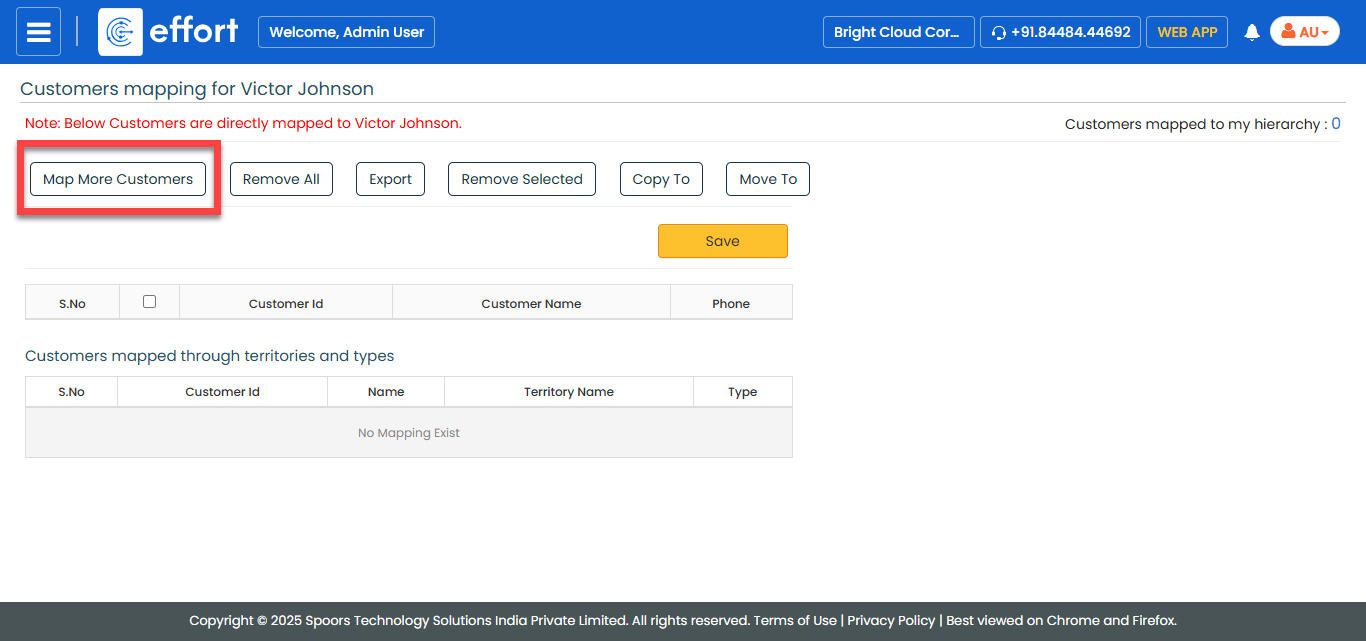
Click the Map More Customers button to select
customers.
-
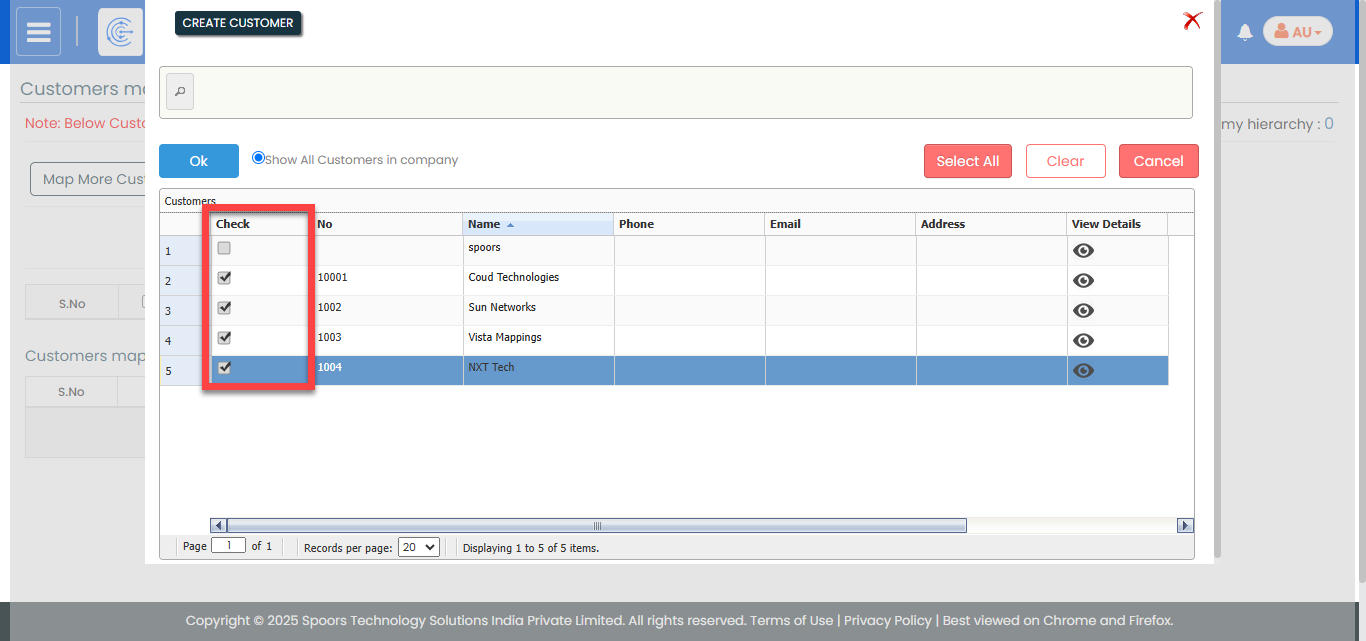
In the pop-up window, select the customers you want to add them to the
employees screen, then click OK.
-
Select the customers you want to map to the employee.
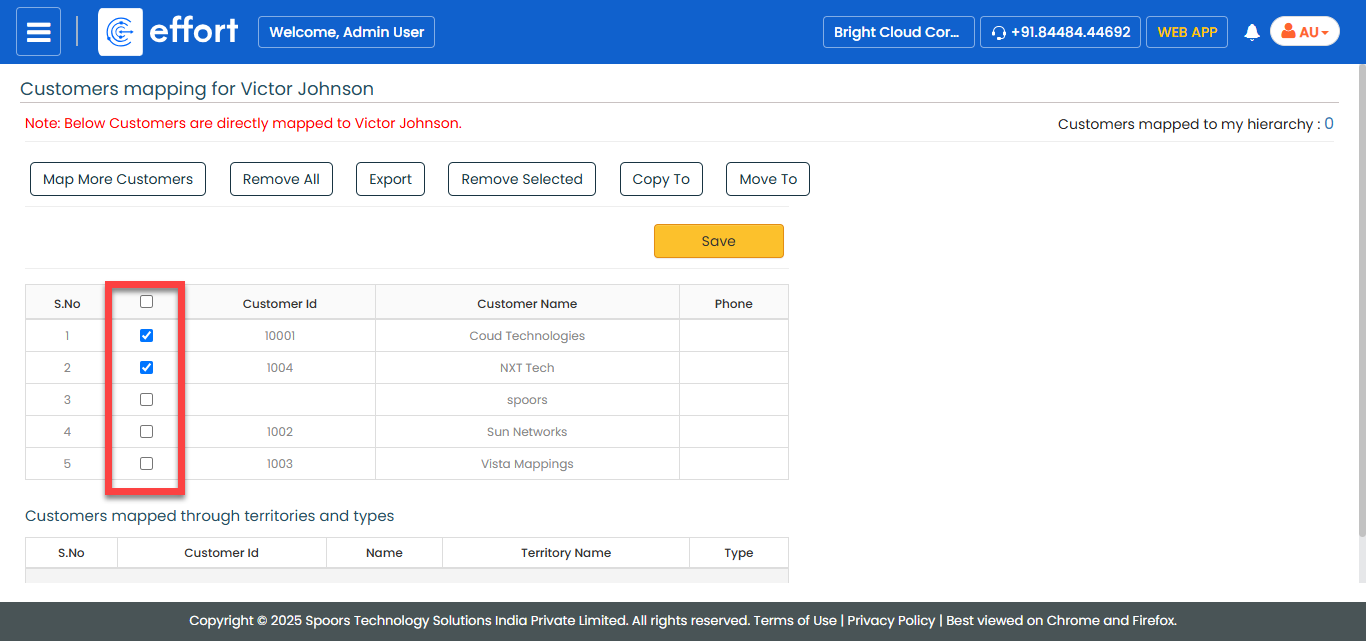
- Click Save.