

Import Mapping or Unmapping List Items To Employee
To import mapping or unmapping list items to employee, follow the steps below.
-
Go to .
The Imports page appears.
-
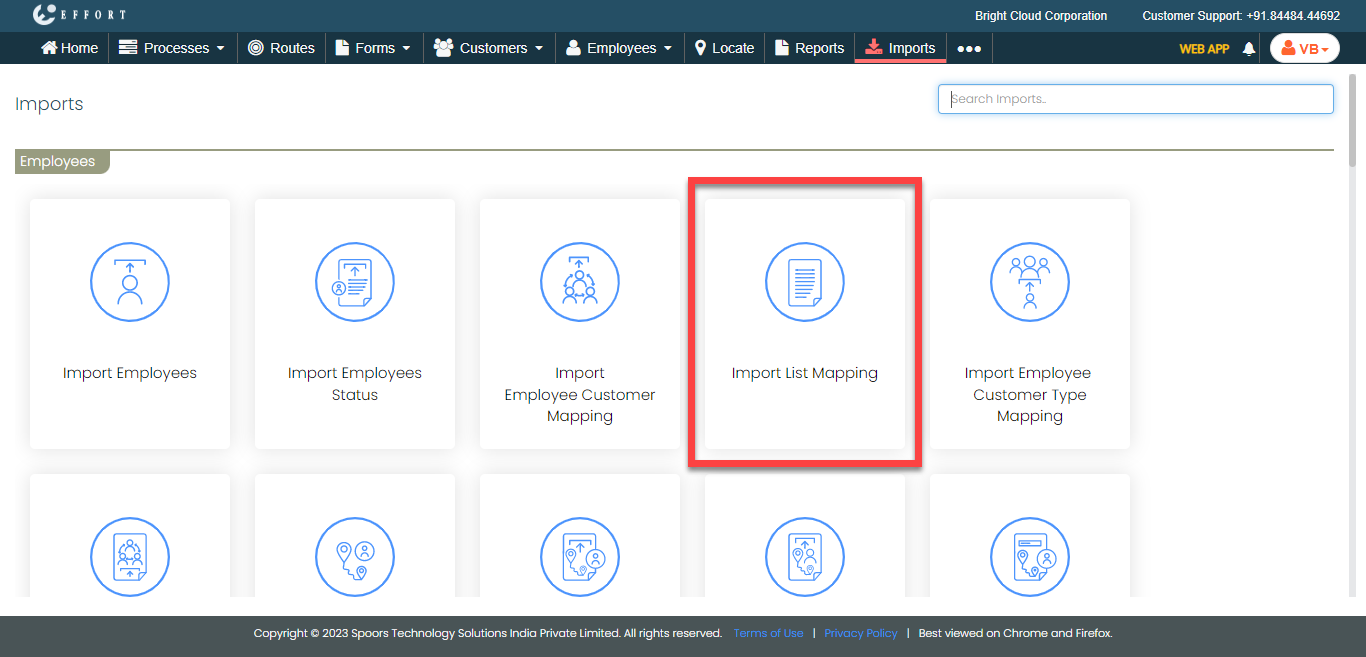
Under the Employees section, click the Import
List Mapping link or icon.
The Import List Item To Employee Mapping page appears.
-
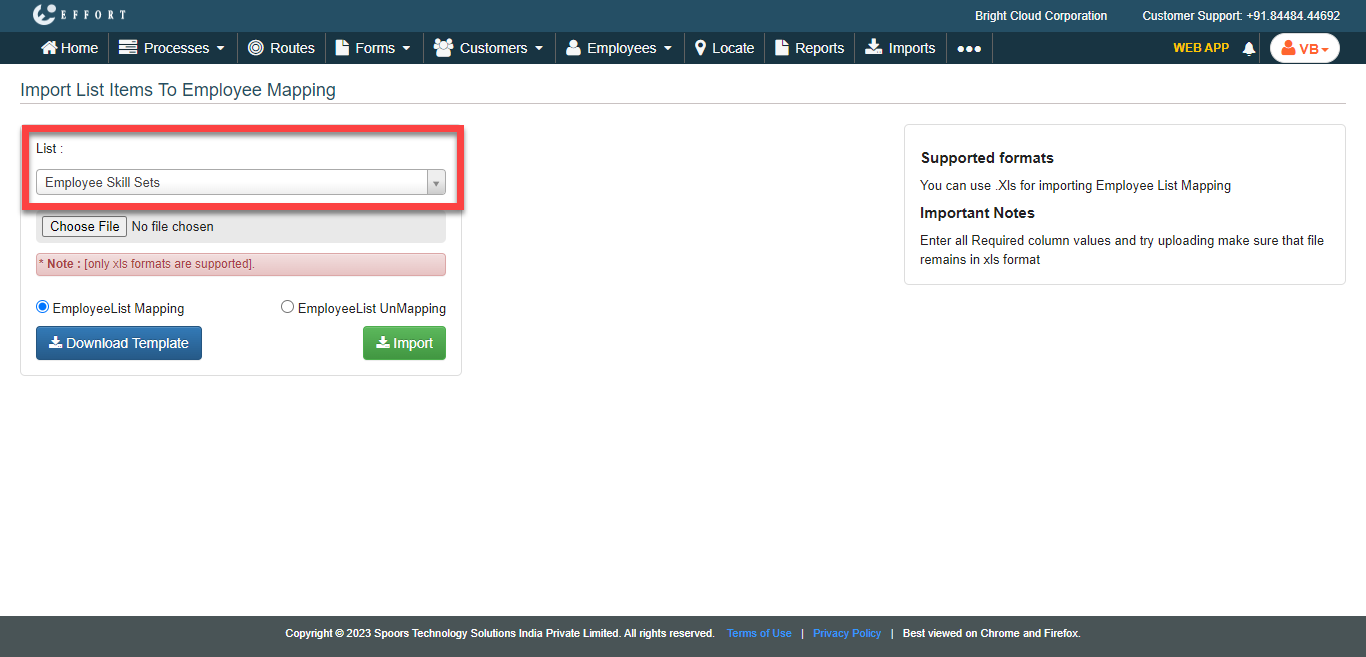
Select a list spec from the List dropdown.
-
Select a maping option as per your requirement.
- EmployeeList Mapping: Allows you to map the list to the empoyees.
- EmployeeList UnMapping: Allows you to unmap the list to the empoyees.
-
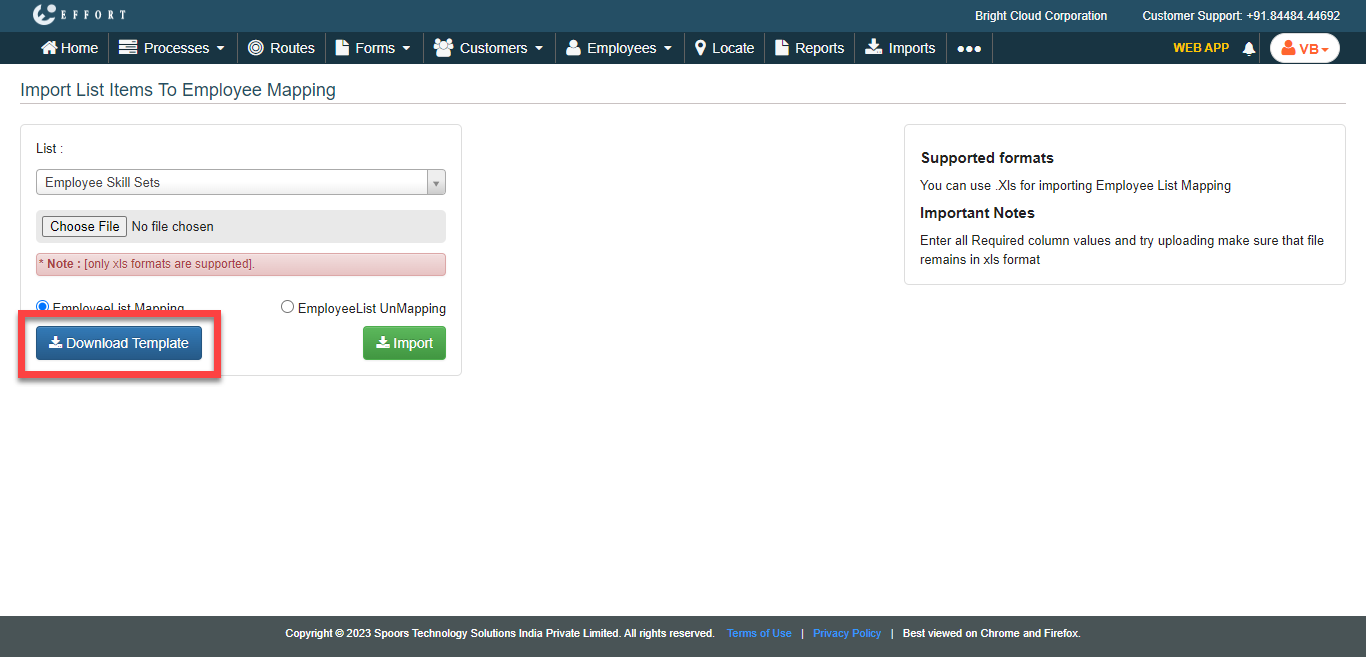
Click the Download Template button to download the
template.
-
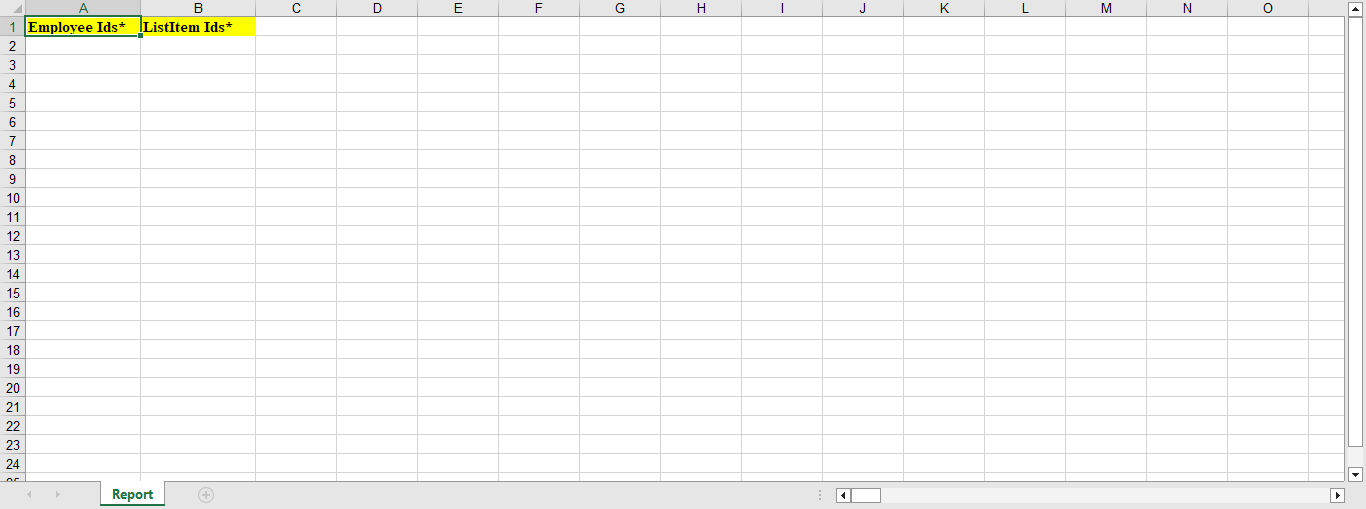
Fill the excel sheet as per the instructions listed in the Supported Formats to
upload the data.
-
Click the Choose File button and select the filled excel
sheet.
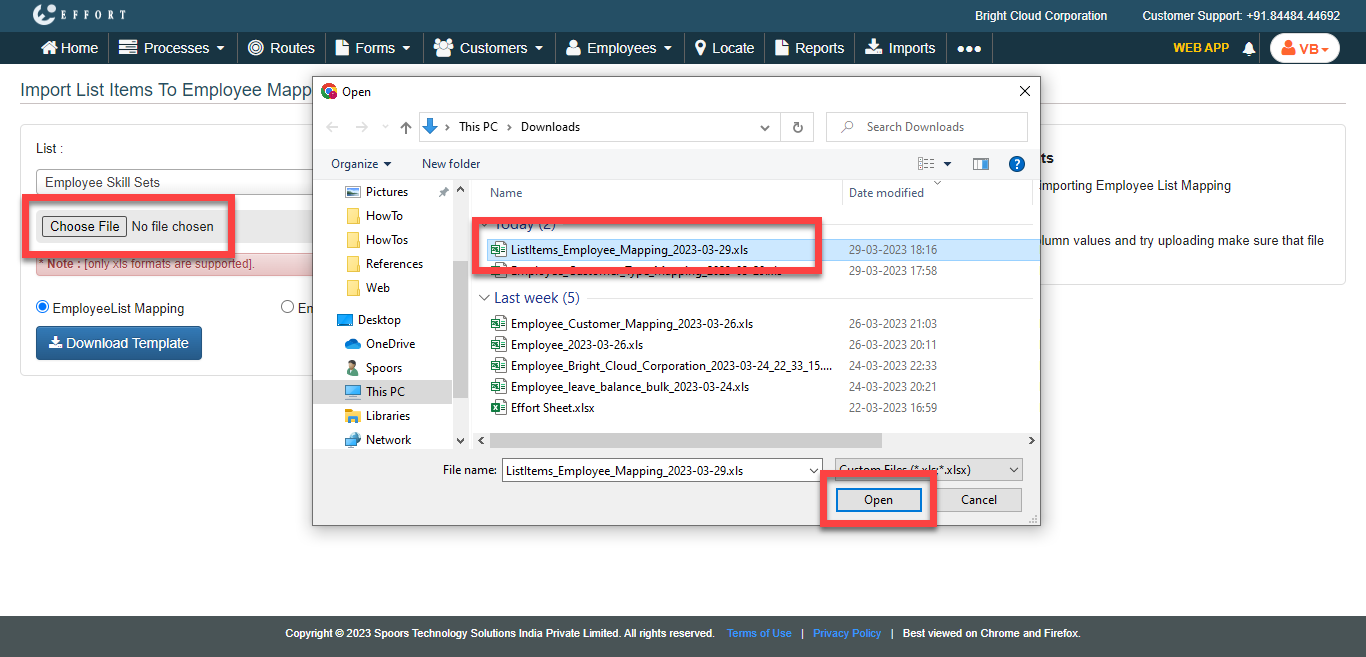
- Click Import.