

Customize Employee Fields
To create additional fields to capture more employee details, follow the below steps.
-
Go to .
The Employees page appears.
-
Under the Essentials section, click Customize
Your Employee Fields card.
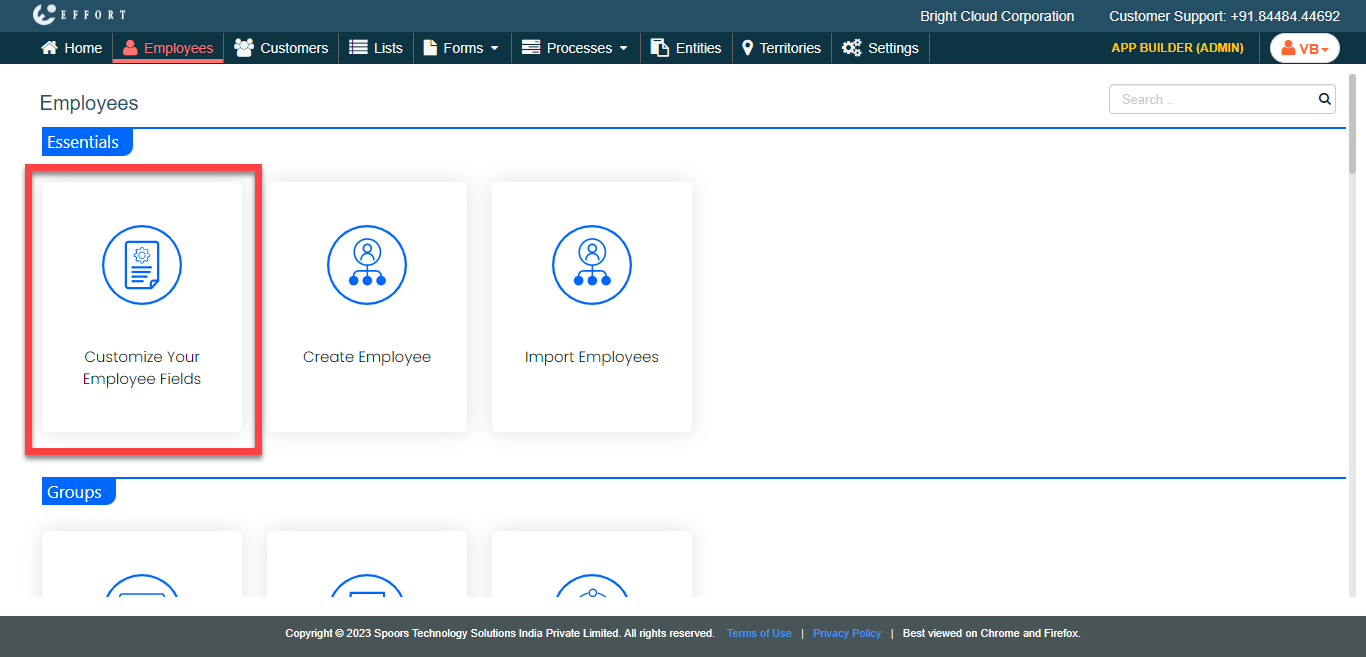
The Customize Fields page appears.
-
Click Define Additional Fields card.
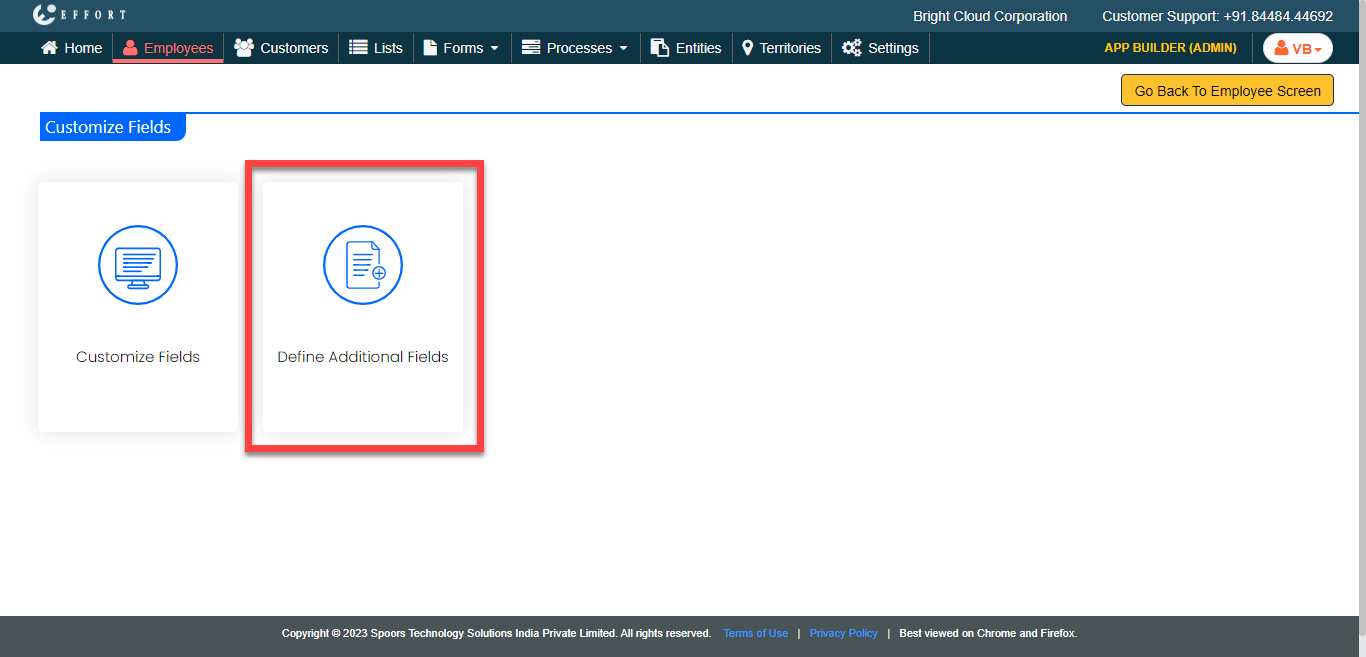
The Define Additional Fields page appears.
-
Follow the steps below to add a field.
-
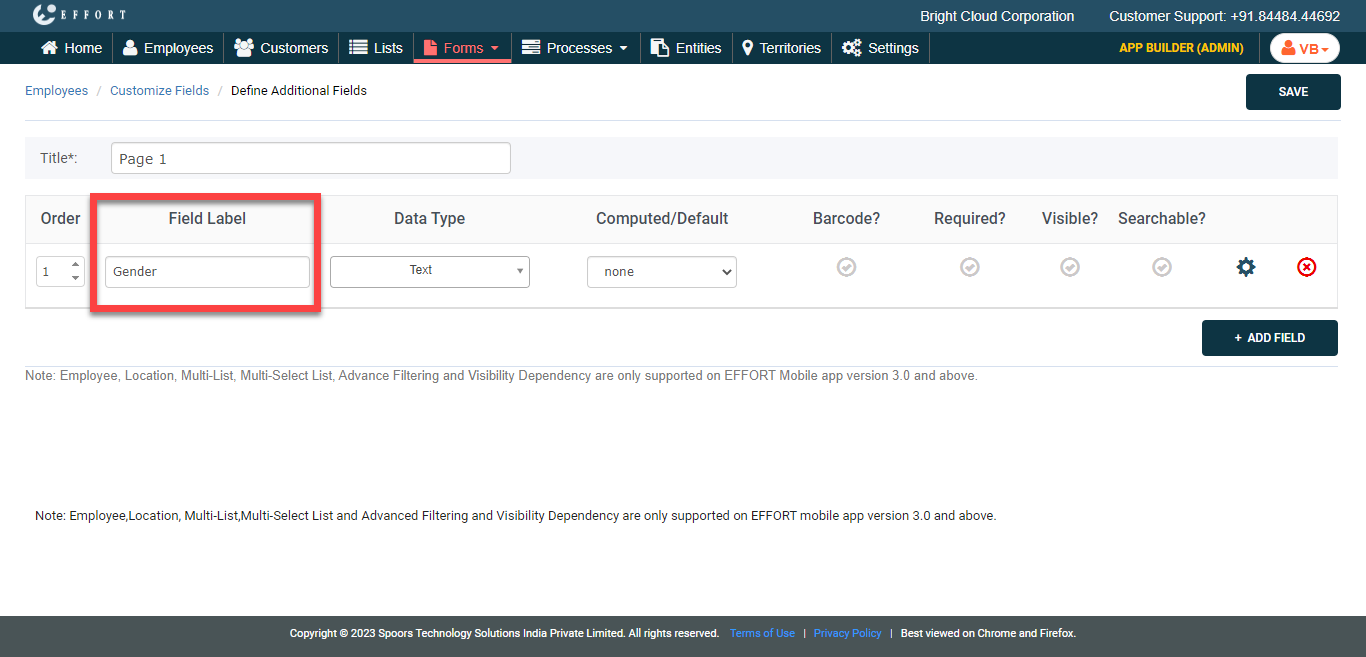
Under the Field Label column, enter a label for
the field.
-
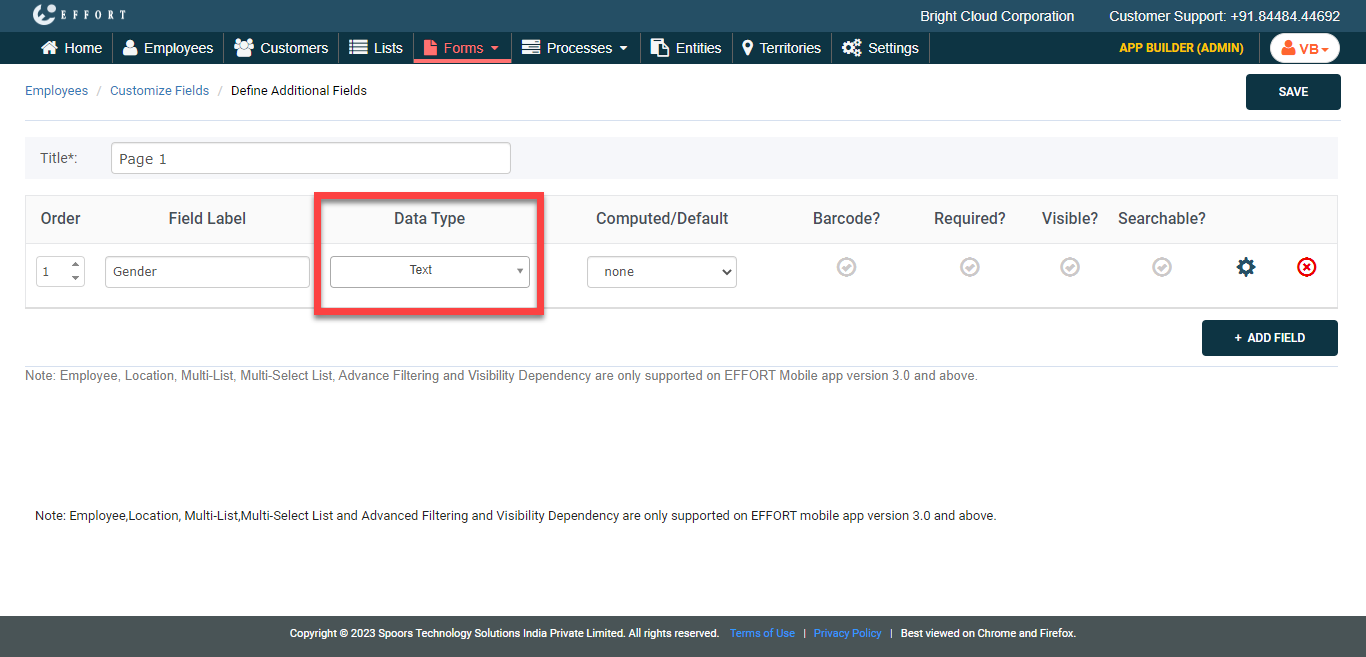
Under the Data Type column, select a data type
for the field from the dropdown.
-
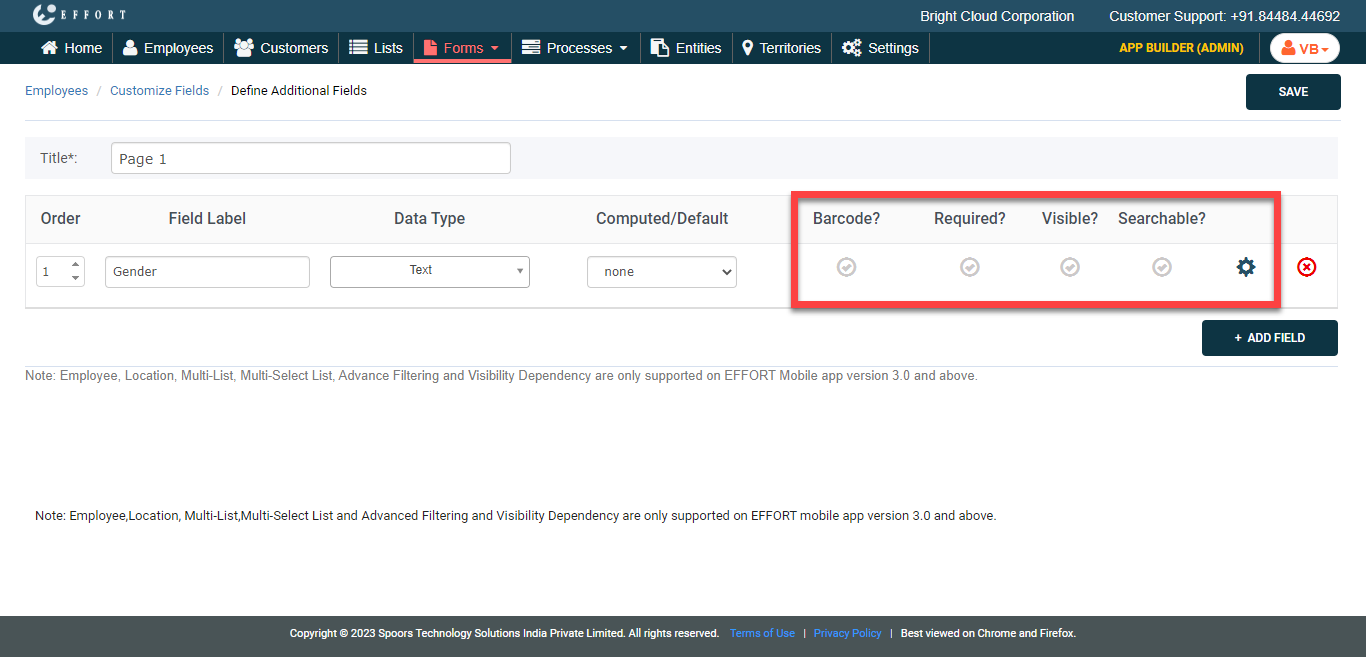
Depending on your requirement, enable or disable the columns such as
Barcode, Required,
Visible,
Searchable.
-
Under the Field Label column, enter a label for
the field.
-
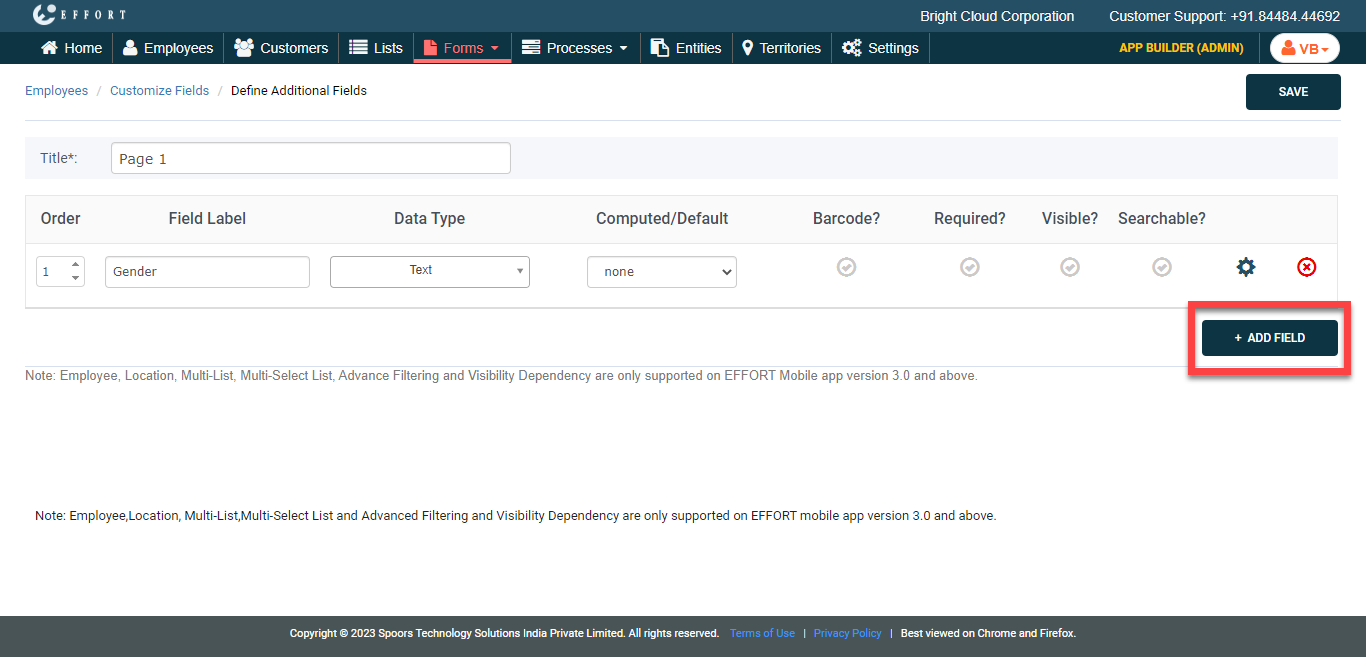
If you want to create more fields, click the Add Field
button again and repeat step 4.
- Click Save.