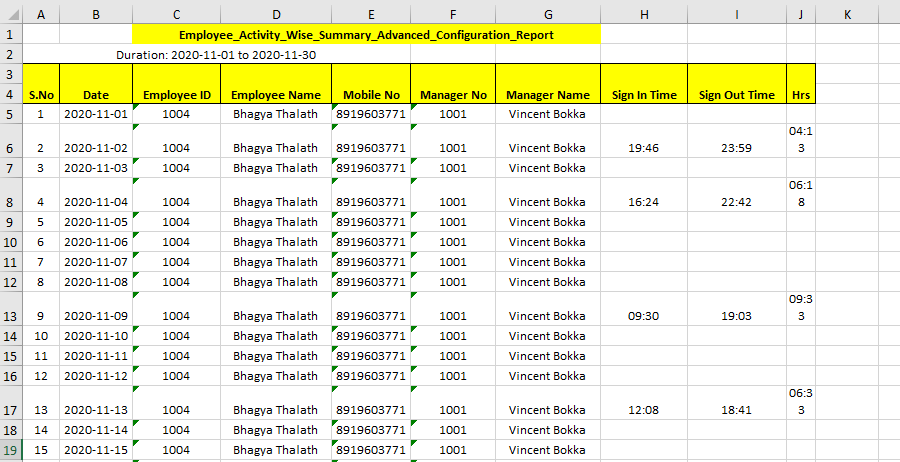
Generate an Advanced Employee Accomplishments Report
Pre-Requisites
Before you begin, ensure you have already created an activity report template to generate an advanced employee accomplishments report. To create an activity report template, refer to the Create Activity Report topic.
To generate an advanced employee accomplishments report, follow the steps below.
-
Go to .
The Reports page appears.
- Scroll down to the Employee Activity And Performance Reports section.
-
Click the Employee Accomplishments Report link or
icon.
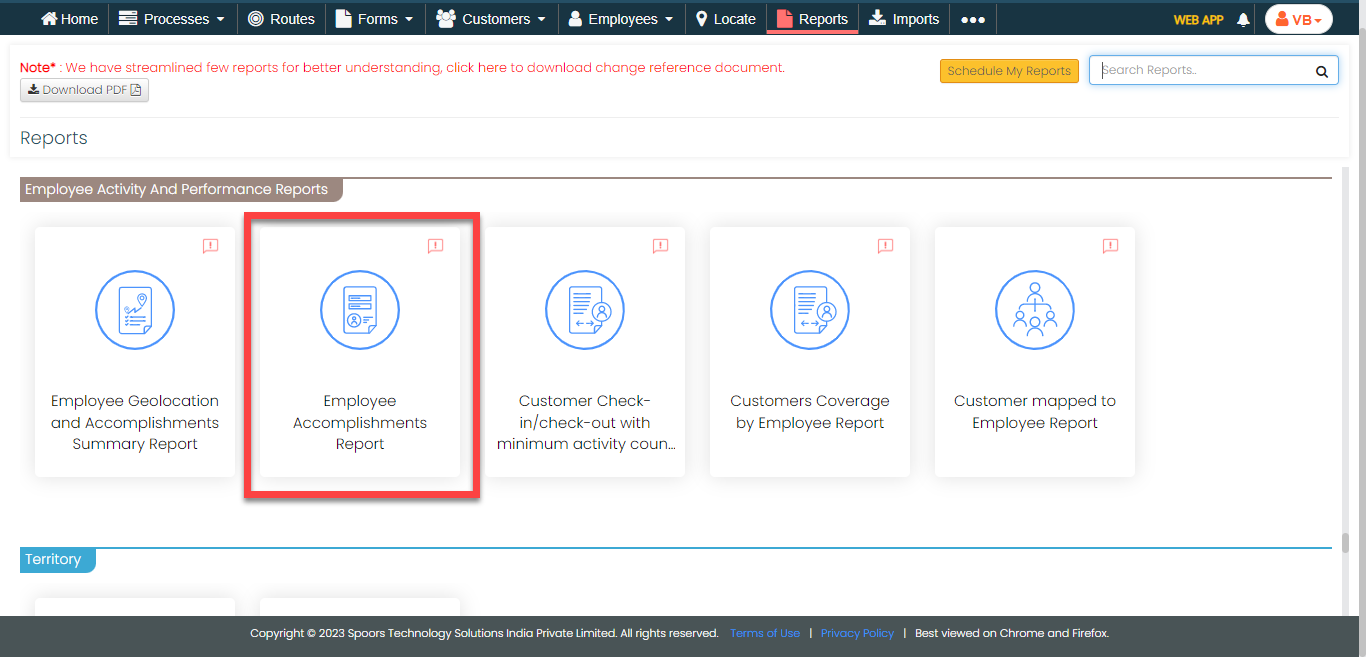
The Employee Accomplishments Report page appears.
-
Select Report Type as
Advanced.
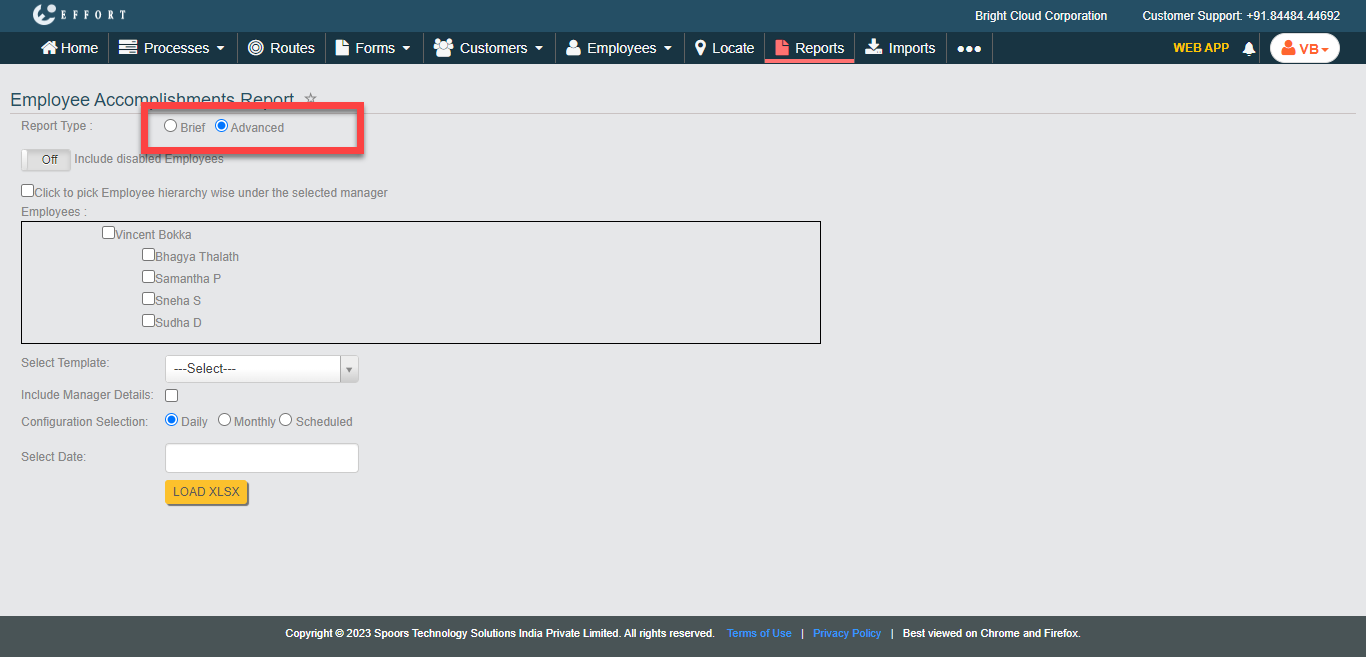
-
Select the employees from the employees list.
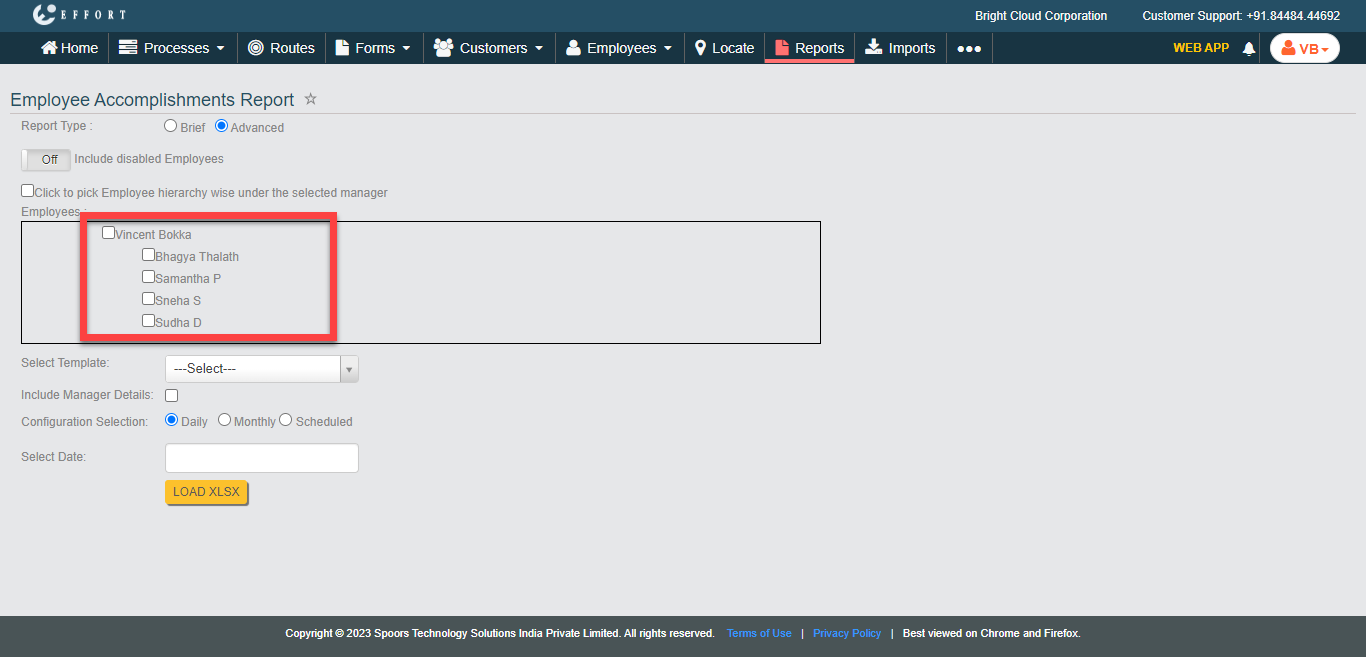
-
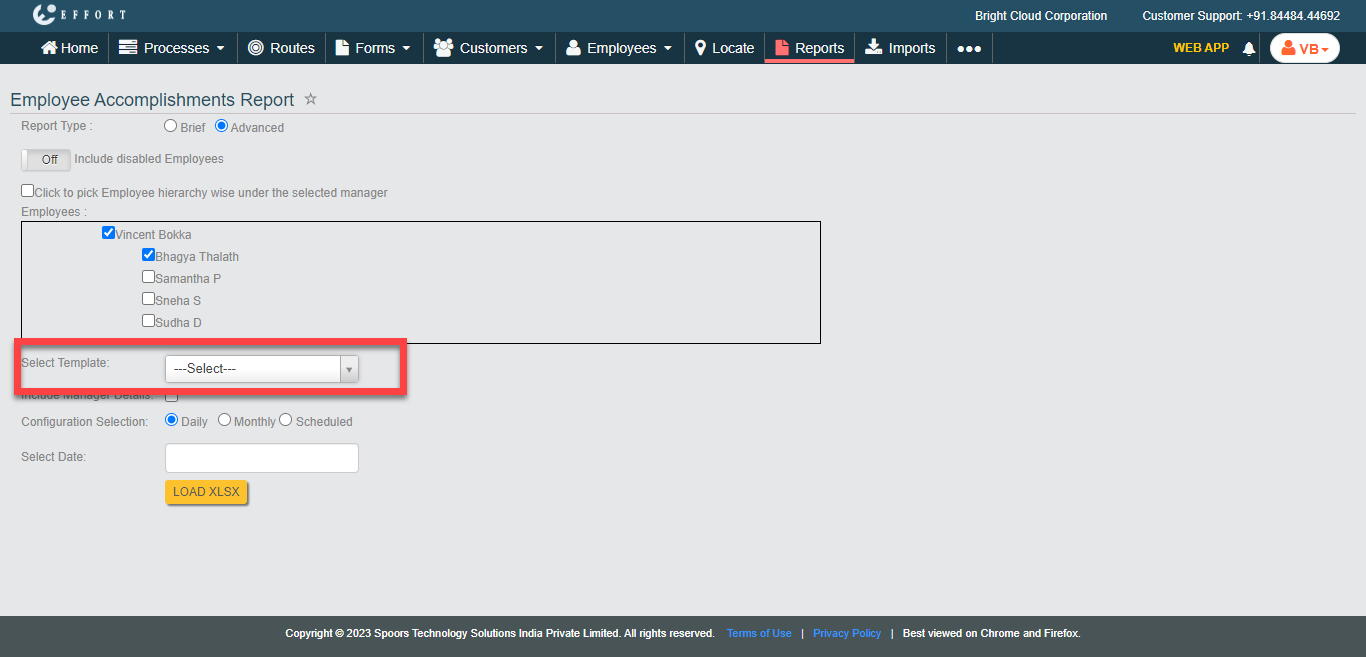
Select an activity report template from the Select
Template dropdown.
- Optional:
Enable the Include Manager Details checkbox.
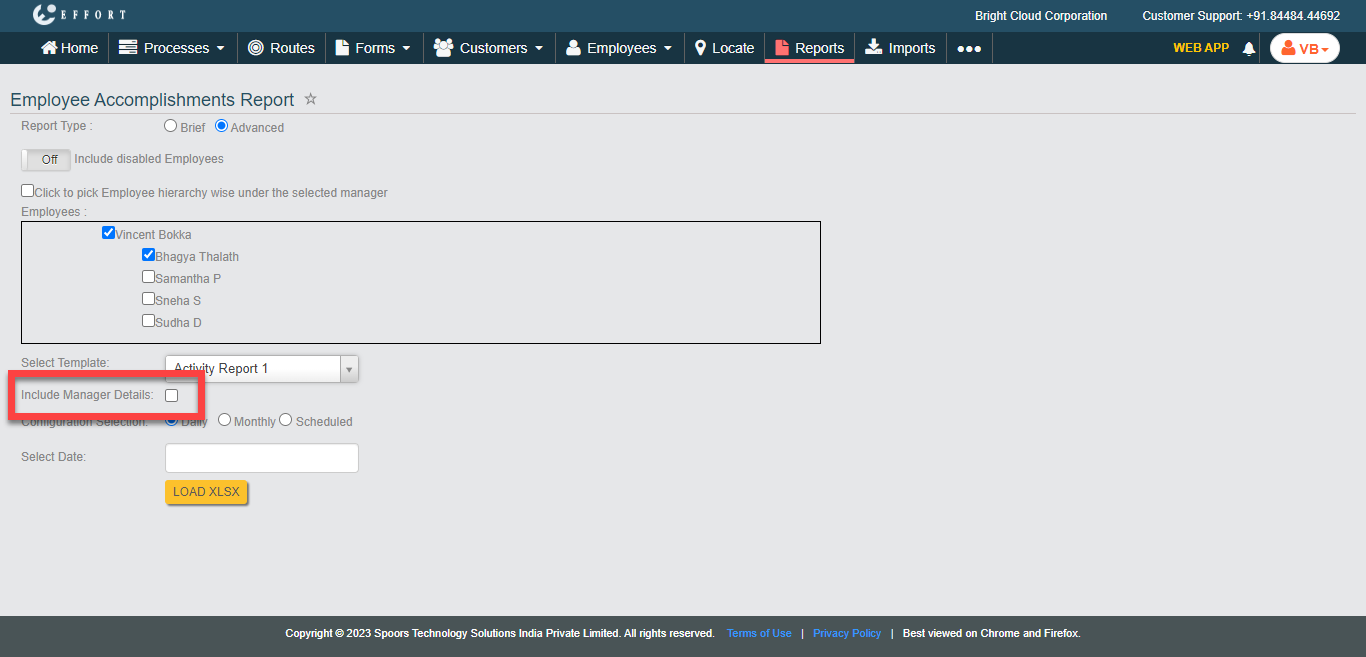
Enable this checkbox to get the manager details in the report. -
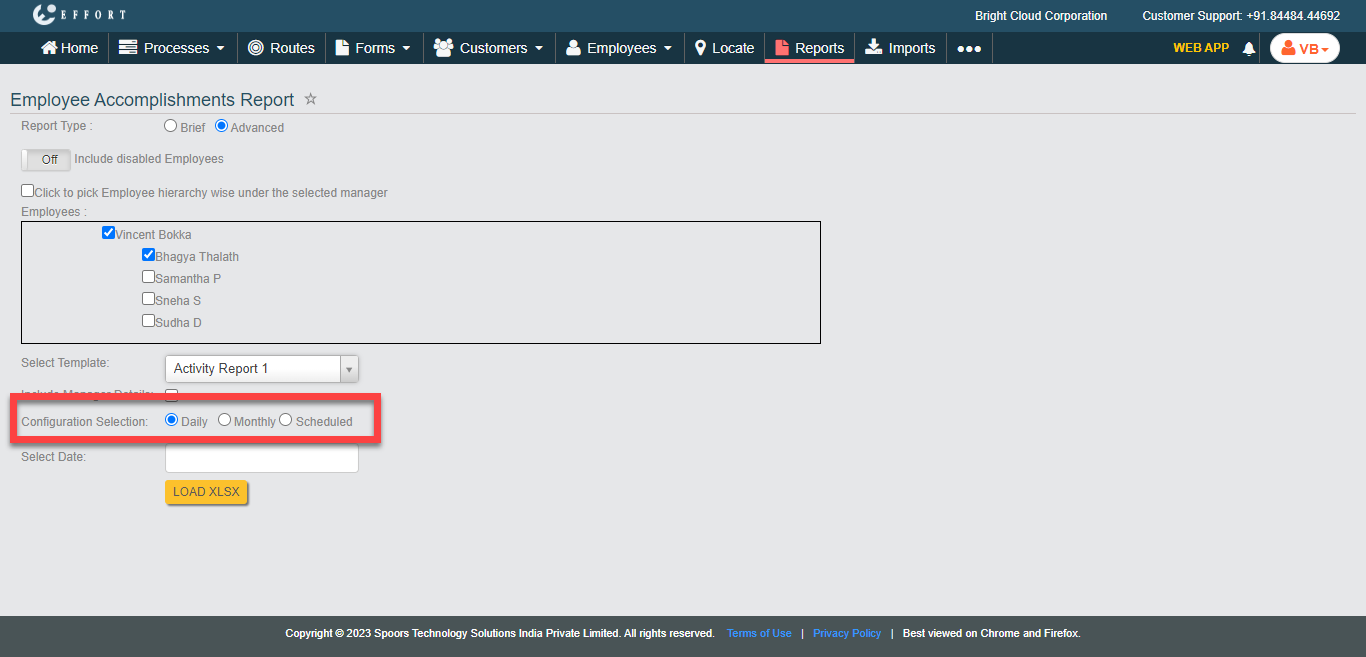
Select the Configuration Selection as per your
requirement from the following:
- Daily: Allows you to select date. The report is generated in an excel sheet.
- Monthly: Allows you to select month and year. The report is generated in an excel sheet.
- Scheduled: Allows you to select month and year. Enter email addresses in the Additional Email Addresses text box to get the report over email.
-
Click Load XLSX.
The Advanced Employee Accomplishments Report is generated as per the selected configuration selection with the selected template data.