

Customize Employee Fields for Reports
To enable and define the order of additional employee fields in reports, follow the steps below.
-
Go to .
The Employee page appears.
- Scroll down to the Display Settings section.
-
Click Include additional Employee fields in Reports
card.
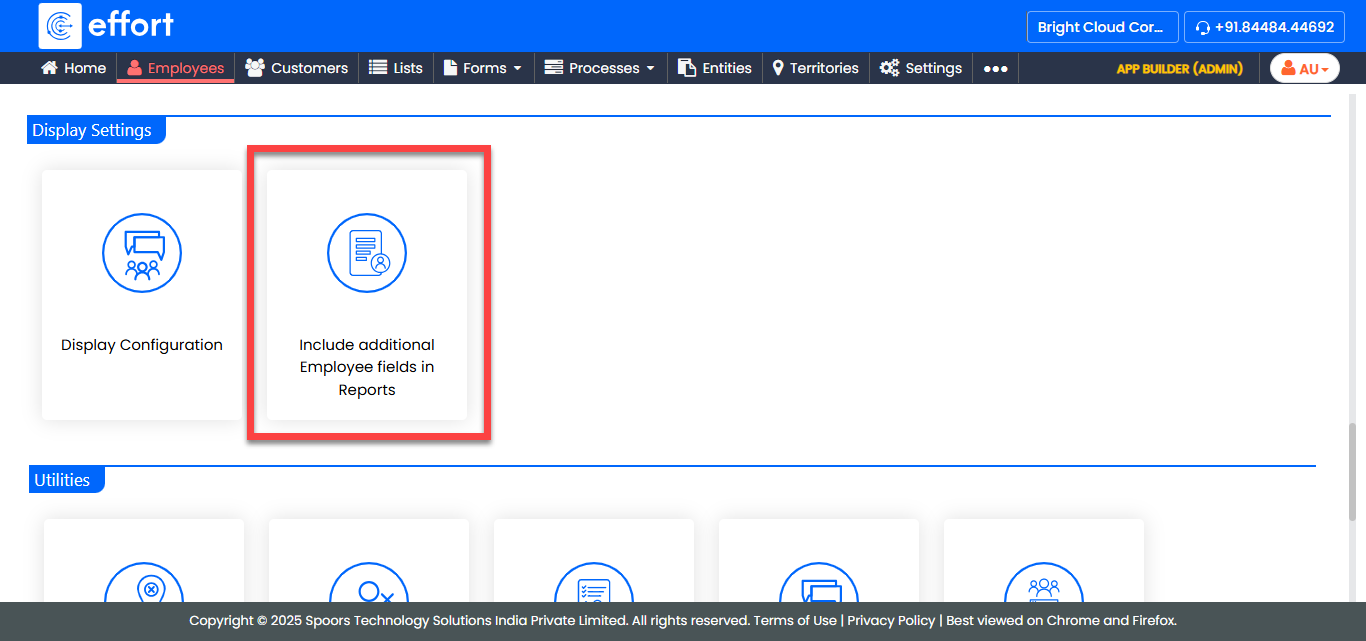
The Include Additional Employee Fields in Reports page appears.
-
Under the Enable column, click the checkboxes for the
fields you want to enable in reports.
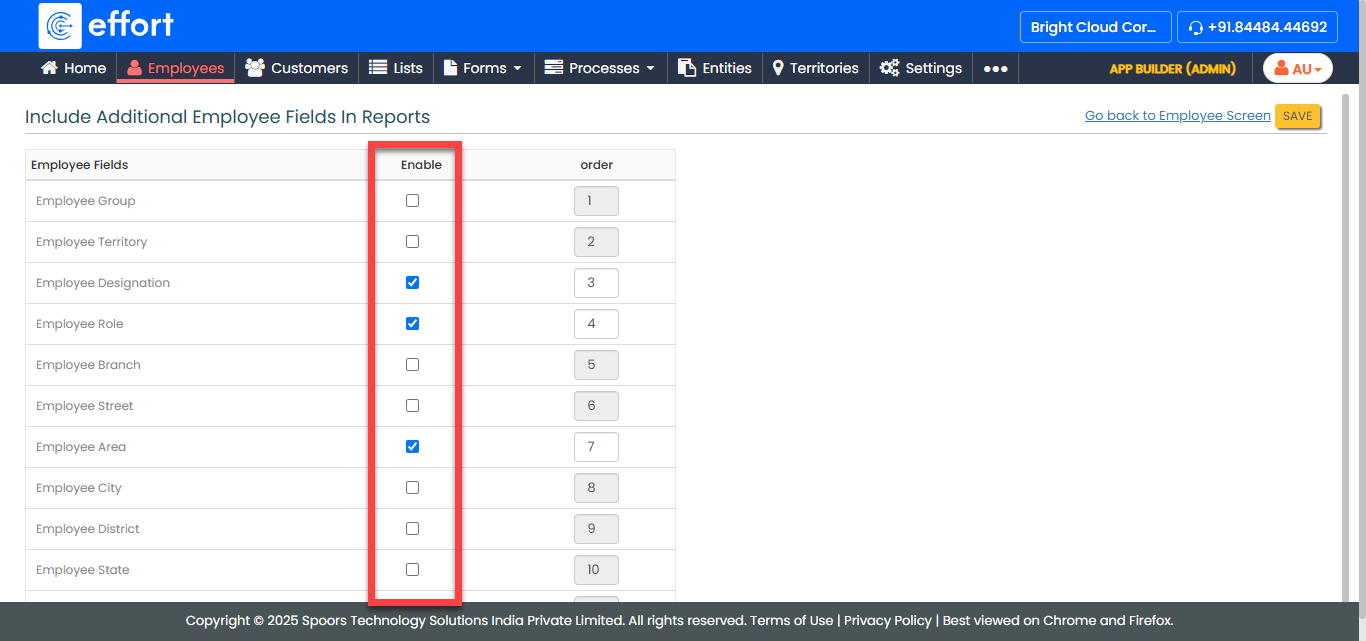
-
Under the Order column, enter the order in which you
want to view the fields in the report.
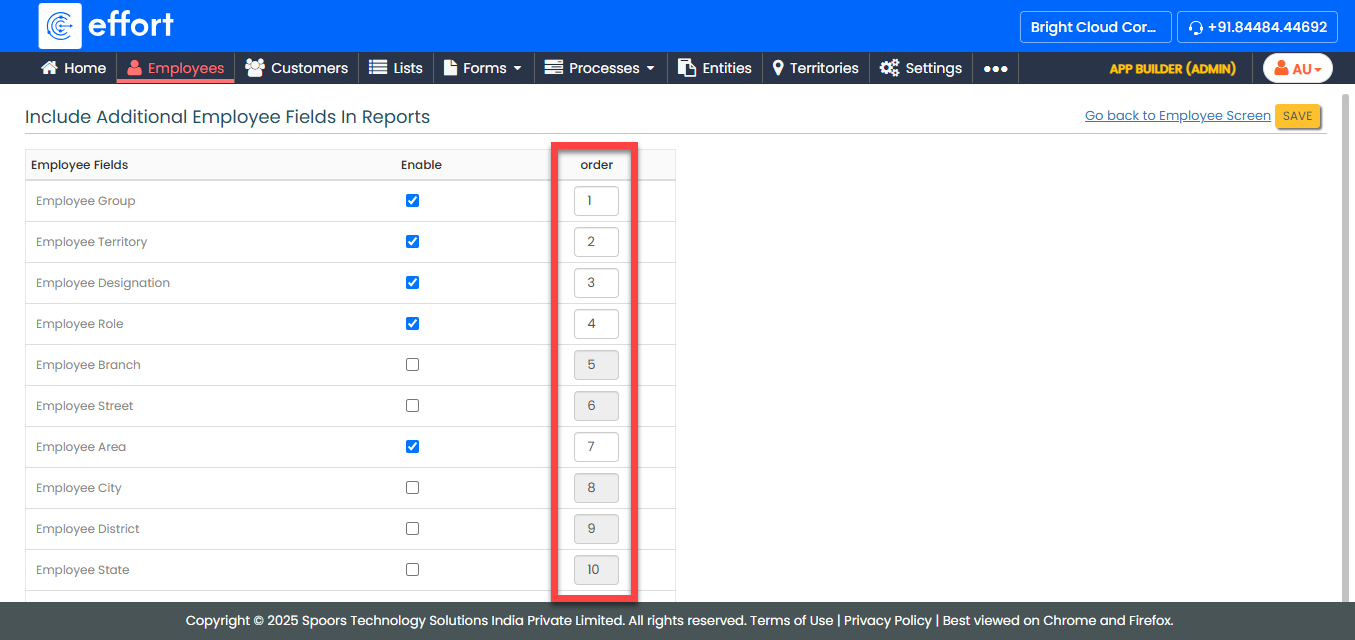
- Click Save.