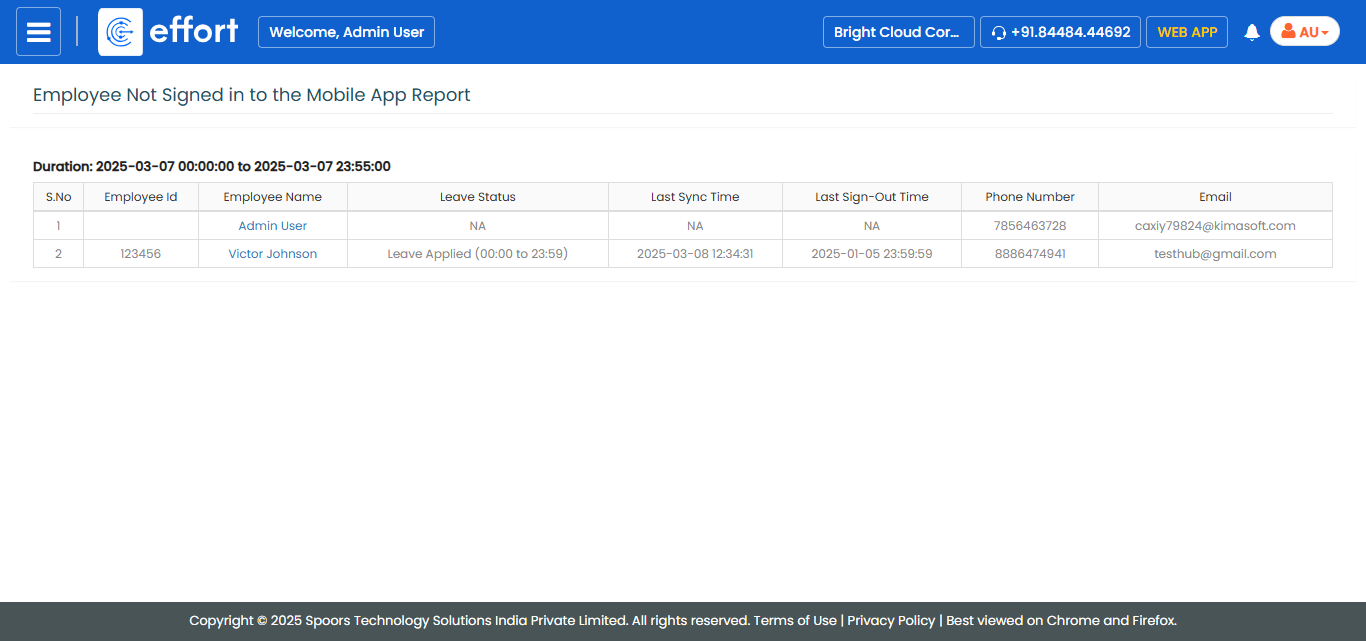
Generate an Employee Not Signed In to the Mobile App Report
To generate an employee not signed in to the mobile app report, follow the steps below.
- Go to .
-
Click Tools and Audit in the user menu located on the
top right corner under the employee name.
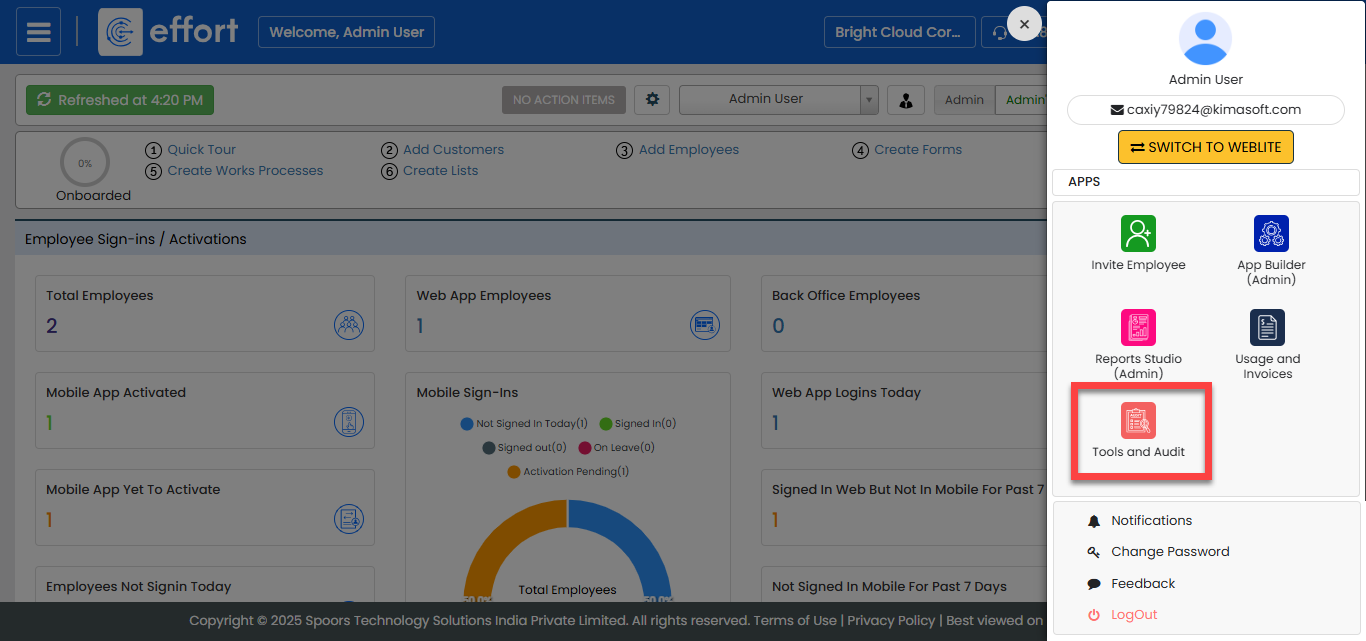
The Tools and Audit page appears.
-
Click Employee Not Signed in to the Mobile App Report
link or icon under the Tools and Audit section.
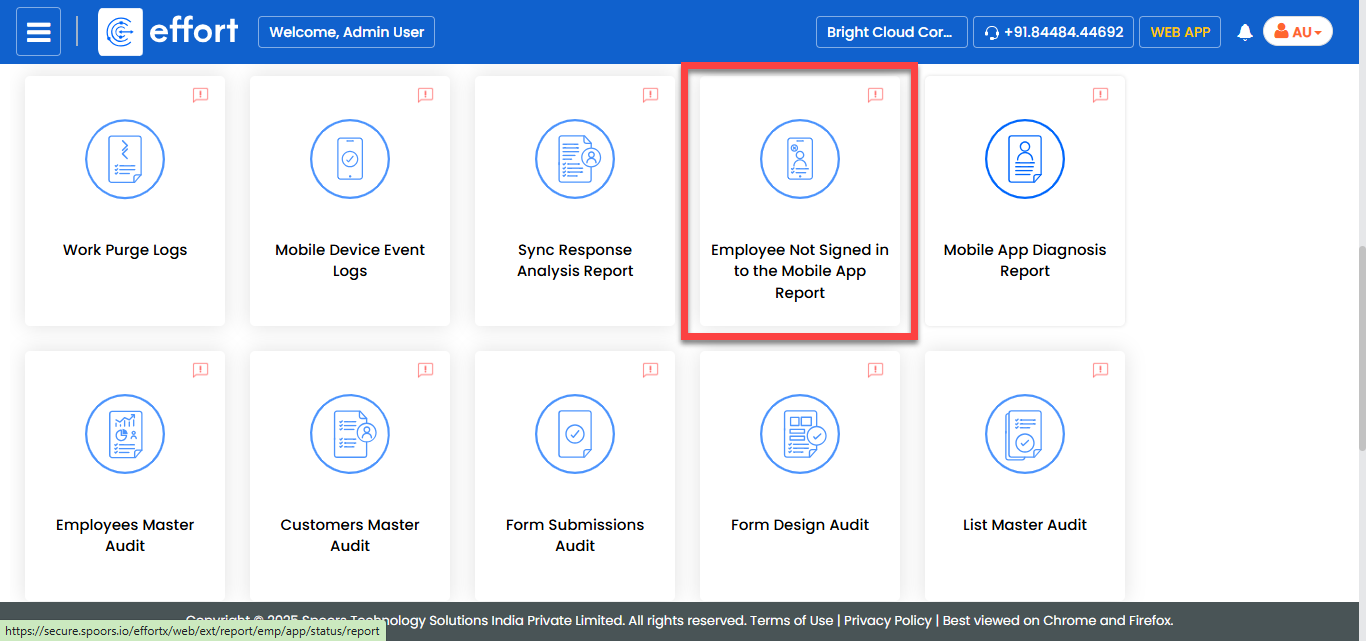
The Employee Not Signed in to the Mobile App Report page appears.
-
Select the employees from the employees list.
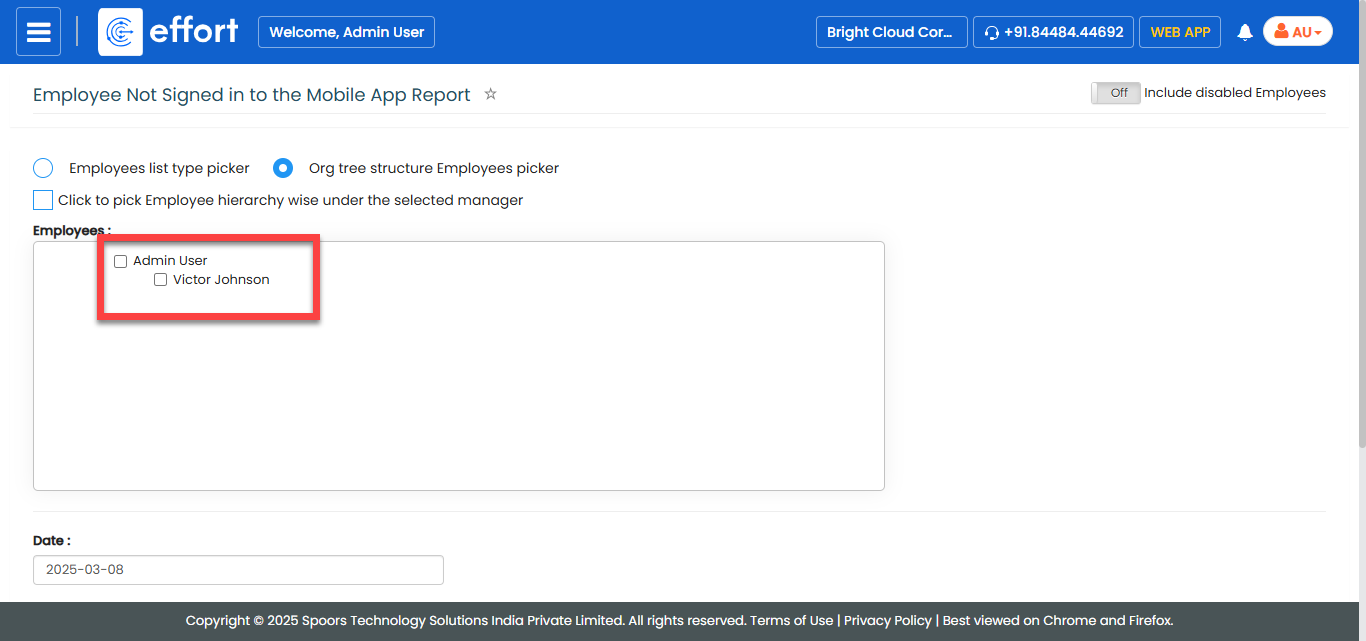
- Optional:
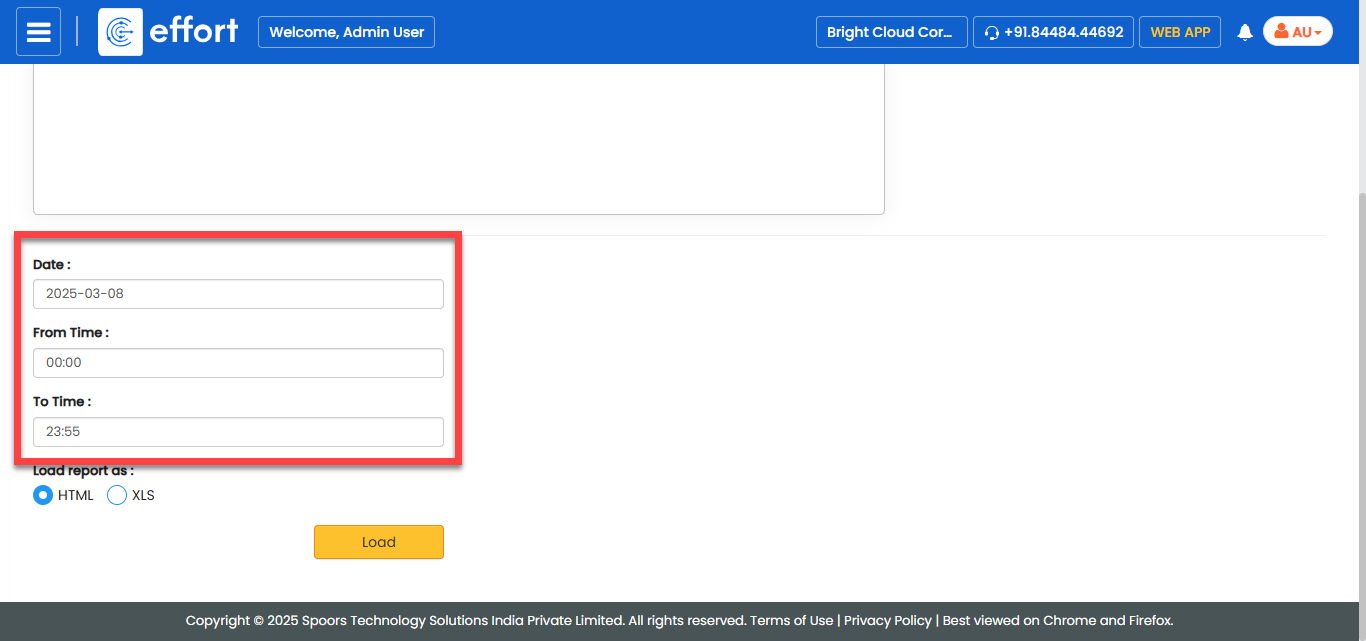
Change Date and Time.
- Optional:
In Load report as, select the output report
format.
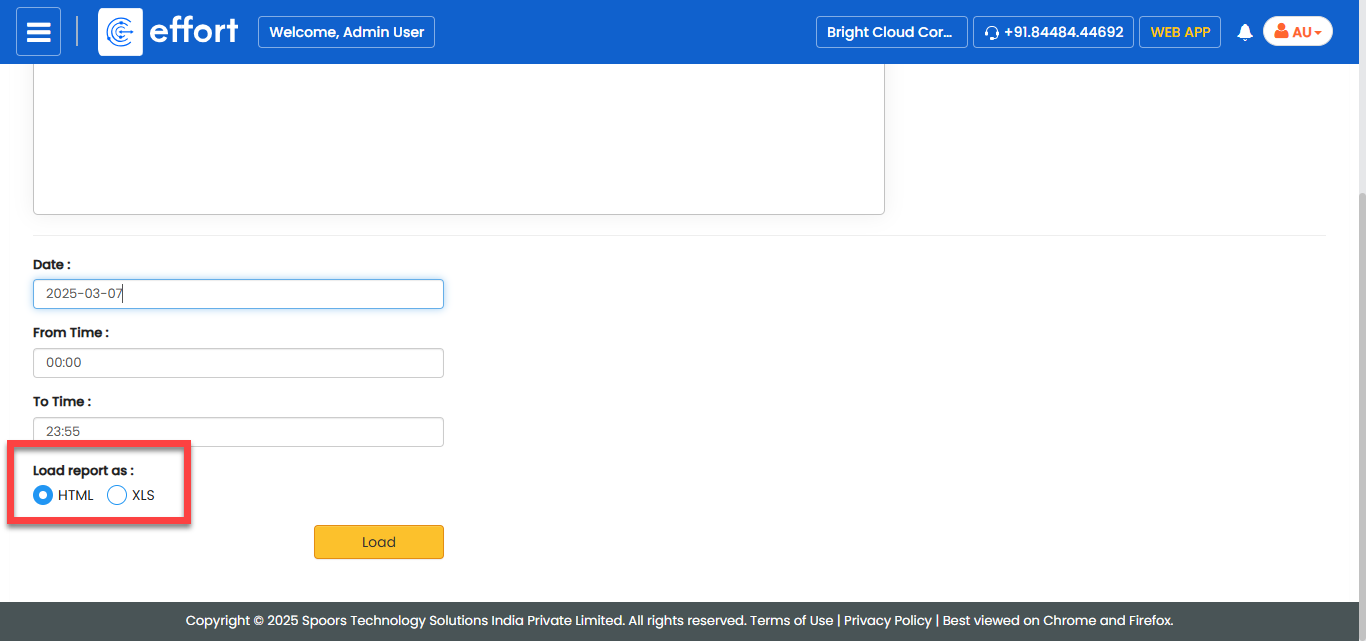
Load report as defaults to HTML. -
Click Load.
The Employee Not Signed in to the Mobile App Report is displayed depends on the report format.