

Import Employee Customer Type Mapping
To import employee customer type mapping, follow the steps below.
-
Go to .
The Imports page appears.
-
Under the Employees section, click the Import
Employee Customer Type Mapping link or icon.
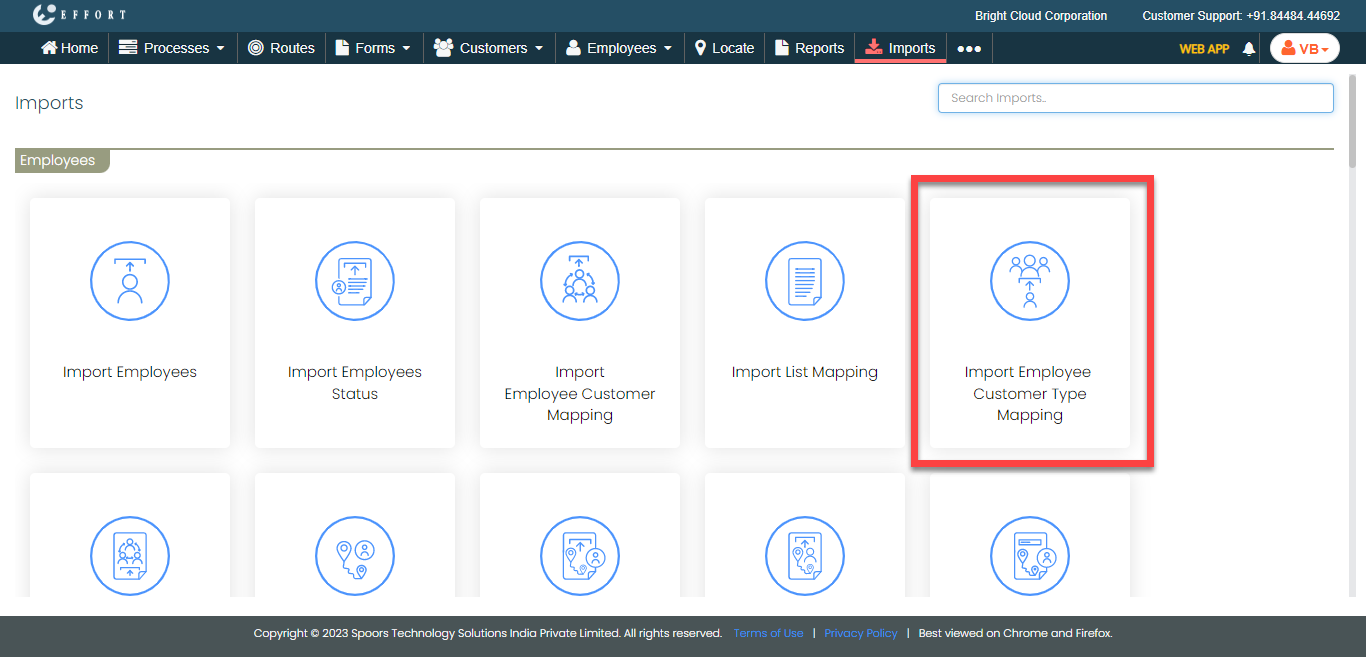
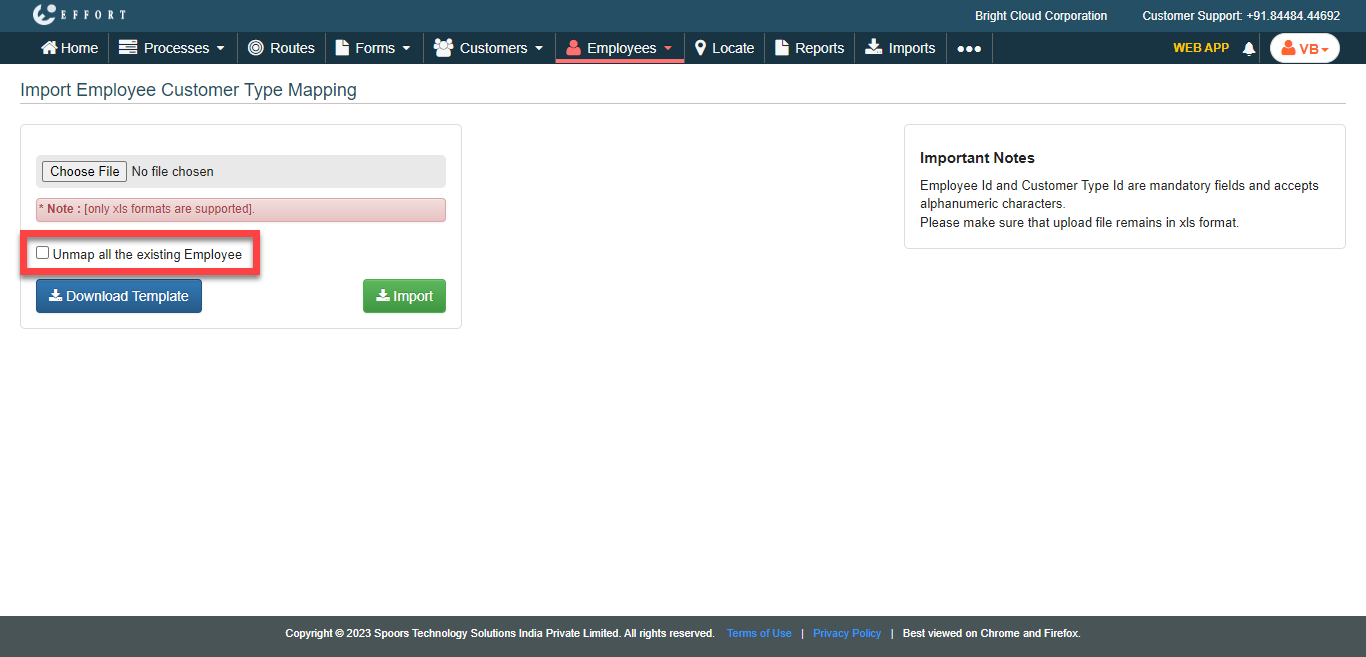
The Import Employee Customer Type Mapping page appears.
-
Click Download link to download the template.
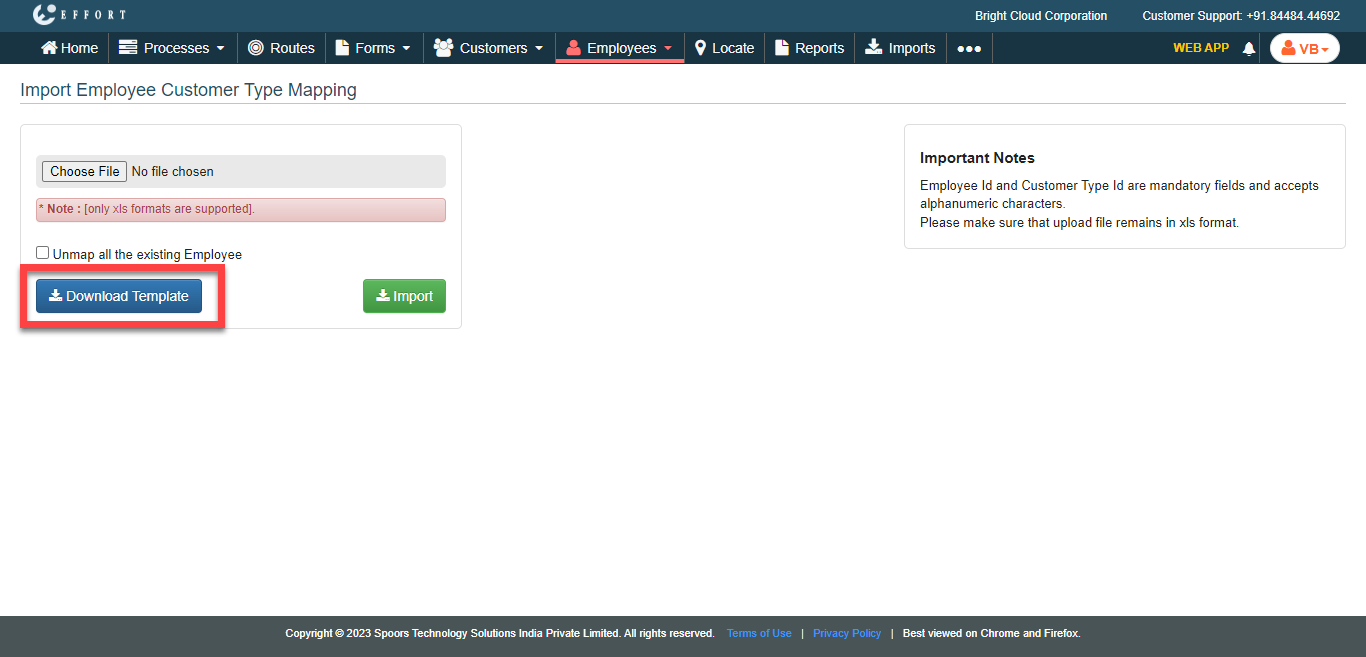
A blank Excel sheet is downloaded.
-
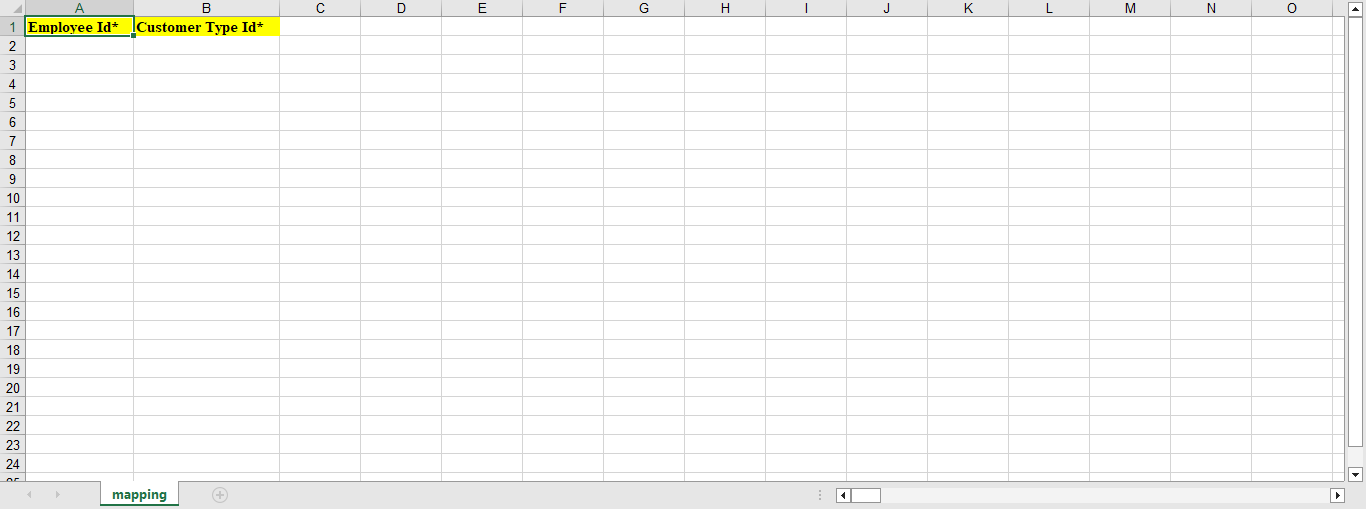
Fill in the excel sheet as per the instructions listed in the Supported Formats
to upload the data.
-
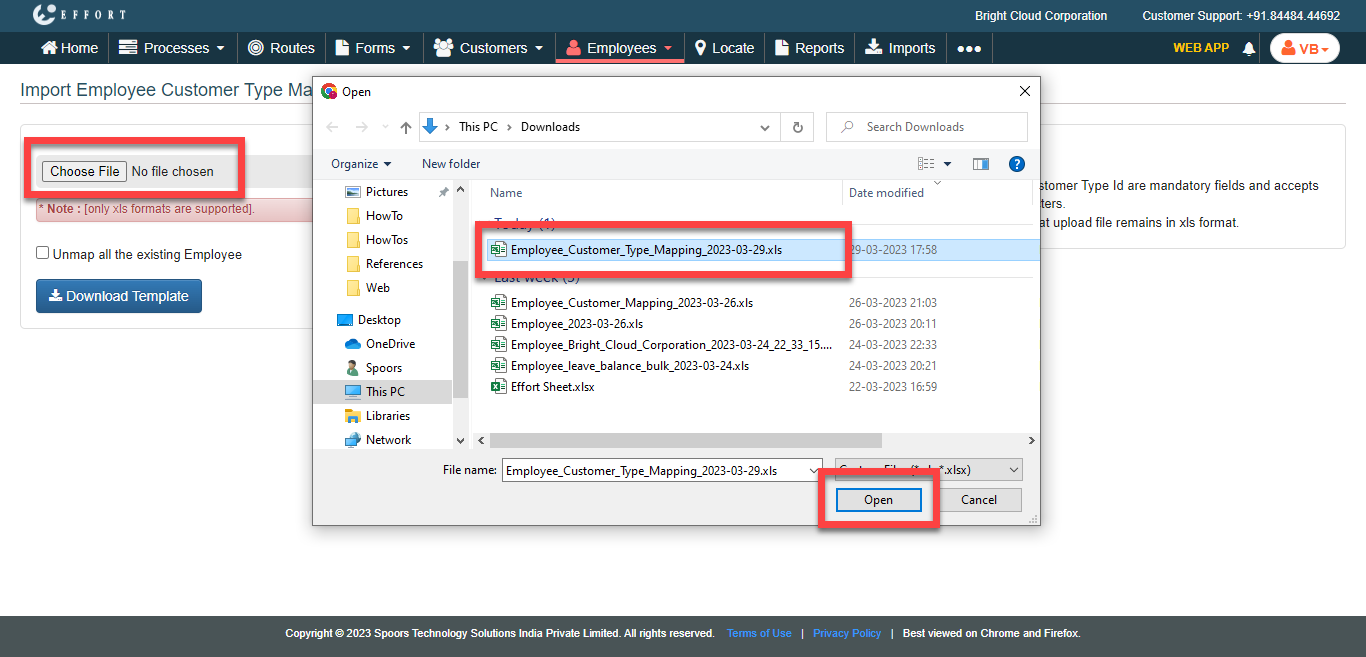
On the Import Employee Customer Type Mapping page, click
the Choose File and select the filled excel sheet.
- Optional:
Click the Unmap all the existing Employee checkbox to
unmap the exitisting employees who are mapped to the selected customers.
- Click Import.