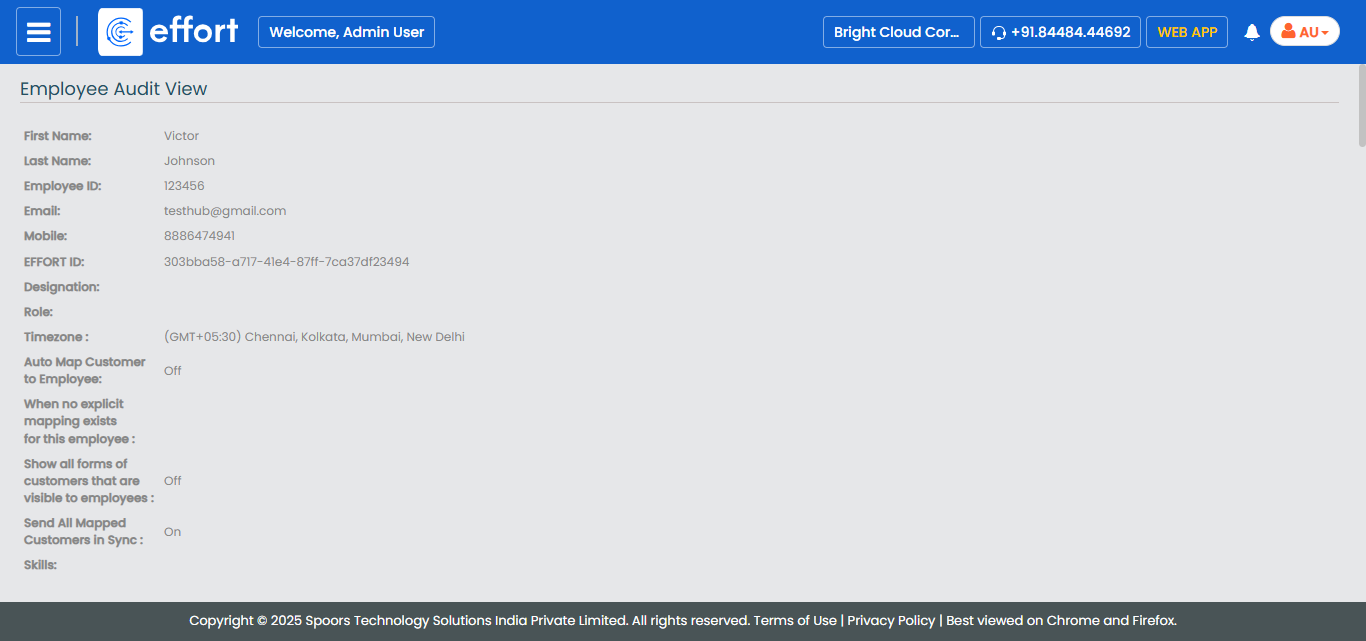
Generate an Employees Master Audit Report
To generate an employees master audit report, follow the steps below.
- Go to .
-
Click Tools and Audit in the user menu located on the
top right corner under the employee name.
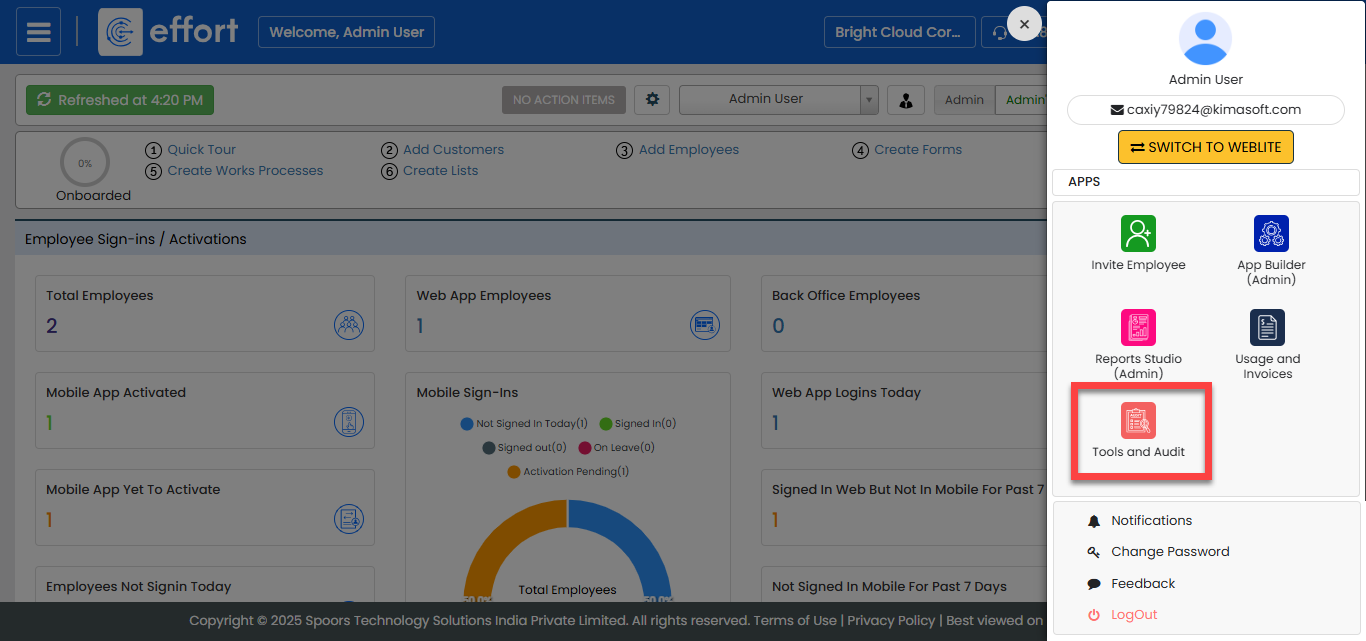
The Tools and Audit page appears.
-
Under the Tools and Audit section, click the
Employees Master Audit link or icon.
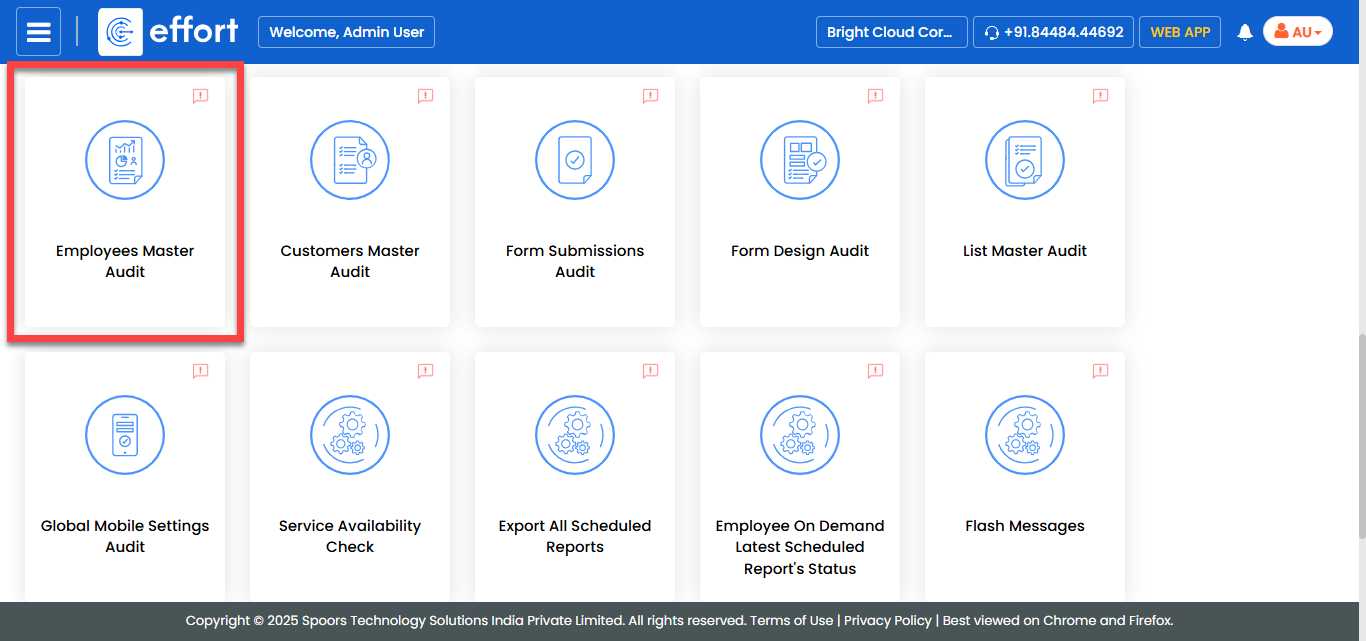
The Employees Master Audit page appears.
- Optional:
Select an employee from the Employee dropdown if you
want to generate audit report of a specific employee.
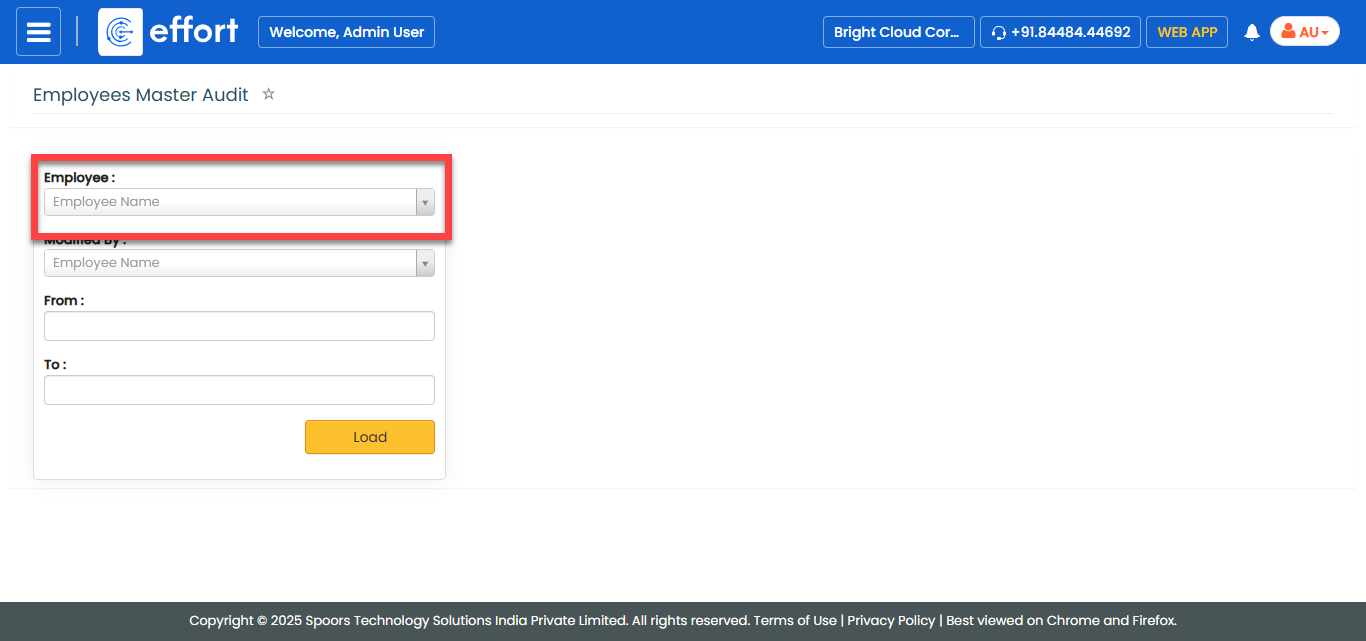
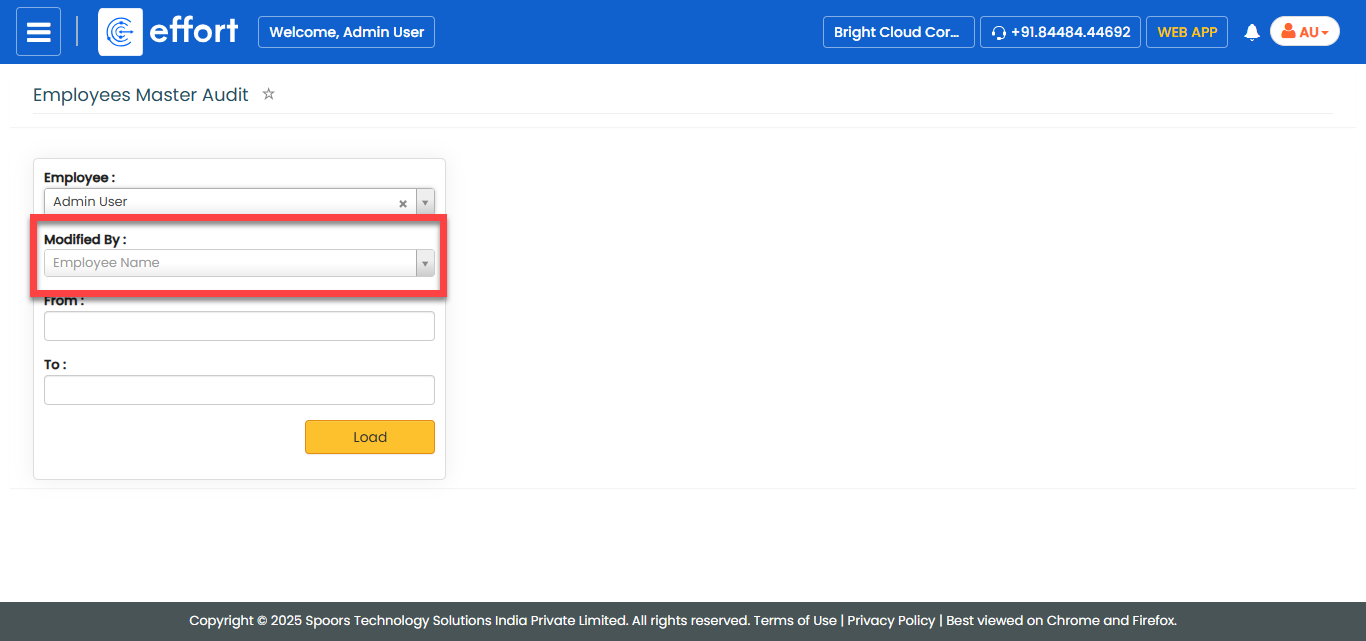
- Optional:
Select an employee from the Modified By dropdown if you
want to generate audit report of modifications done by a specific
employee.
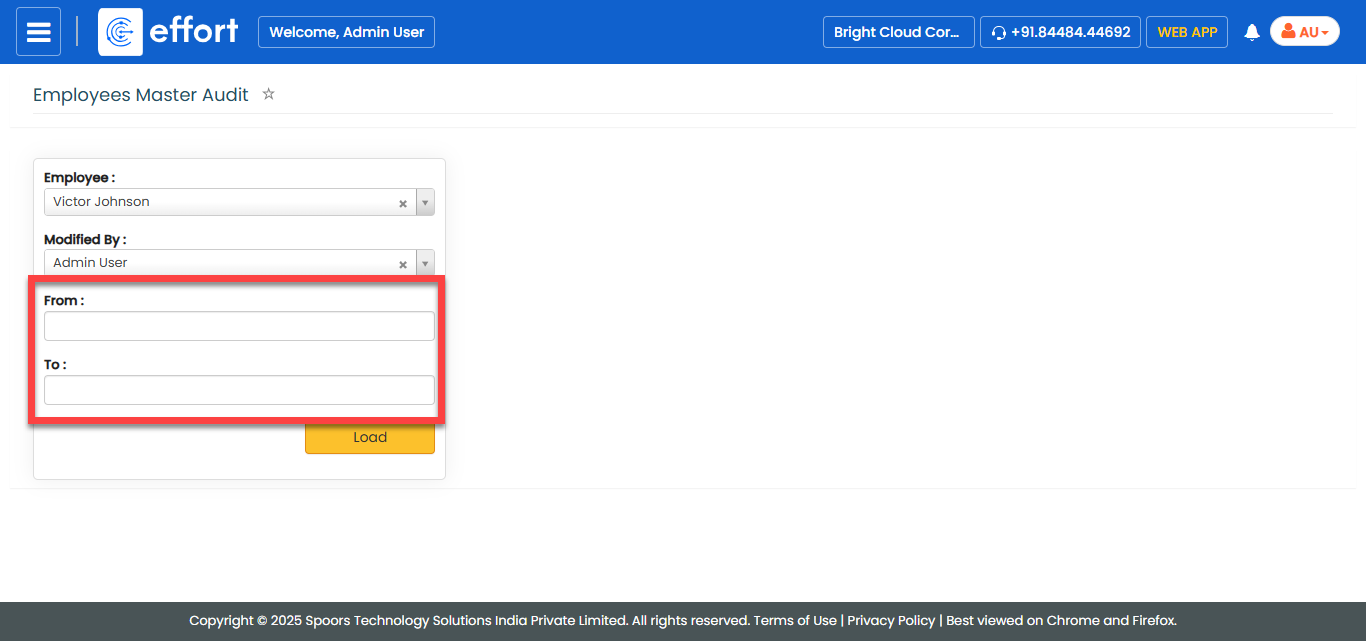
- Optional:
Select From and To dates if you
want to generate audit report of modifications done within the defined
duration.
-
Click Load.
The Employees Master Audit report is displayed in a new tab.
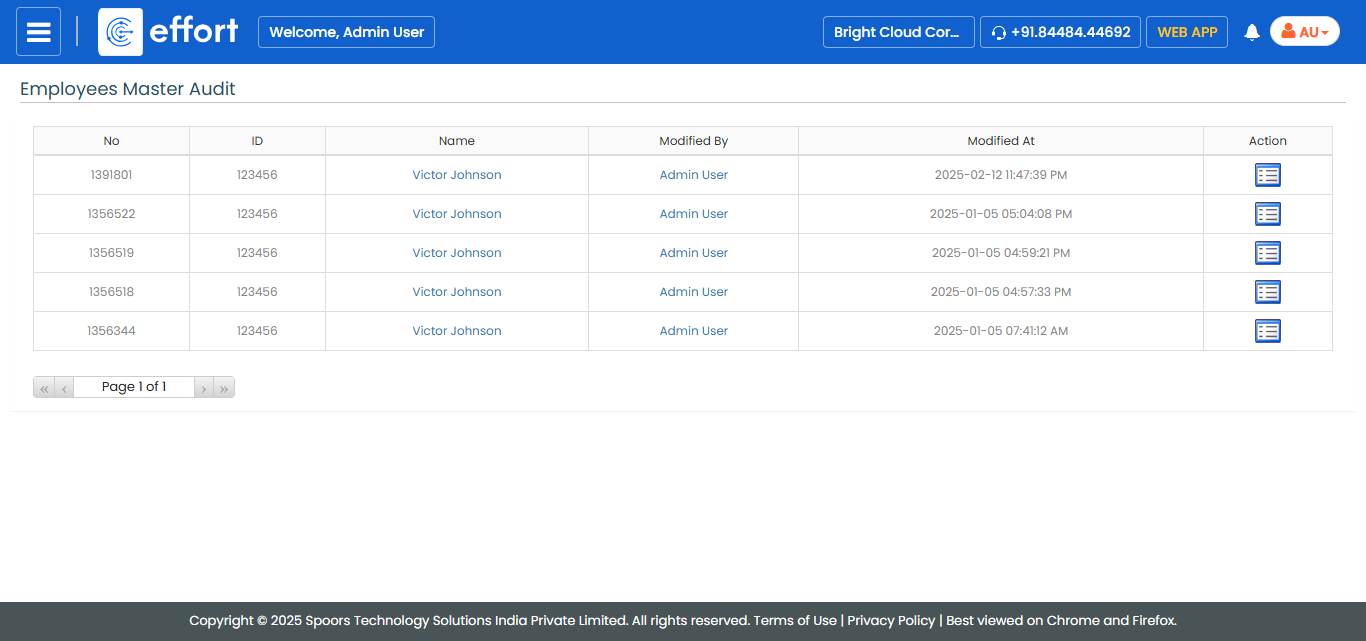
- Optional:
Click view
 icon
under the Action column.
The Employee Audit View page appears with all the employee details.
icon
under the Action column.
The Employee Audit View page appears with all the employee details.